
How to set vendor prices for a product
Add each vendor’s price on the Purchase tab of the product (or in Purchase ‣ Configuration ‣ Vendor Pricelists). When you add the product to an RFQ for that vendor, Viindoo fills in the vendor’s price, product name and code, and the expected arrival date. With several price lines for the same vendor, for example a lower price from 50 units, Viindoo uses the lowest price whose minimum quantity is reached.
Who |
Buyers (Purchase access right User) on the product; Vendor Pricelists needs Administrator |
App |
Purchase |
Before you start
Install Purchase.
Create the product with Purchase ticked, and the vendors as contacts.
How do I add vendor prices on a product?
Go to Purchase ‣ Products ‣ Products and open the product.
On the Purchase tab, click Add a line, select the Vendor and enter the Quantity (minimum to order), Price and Delivery Lead Time. Add one line per vendor, and one line per quantity break, then save.
![Three vendor price lines on the Purchase tab of a product]()
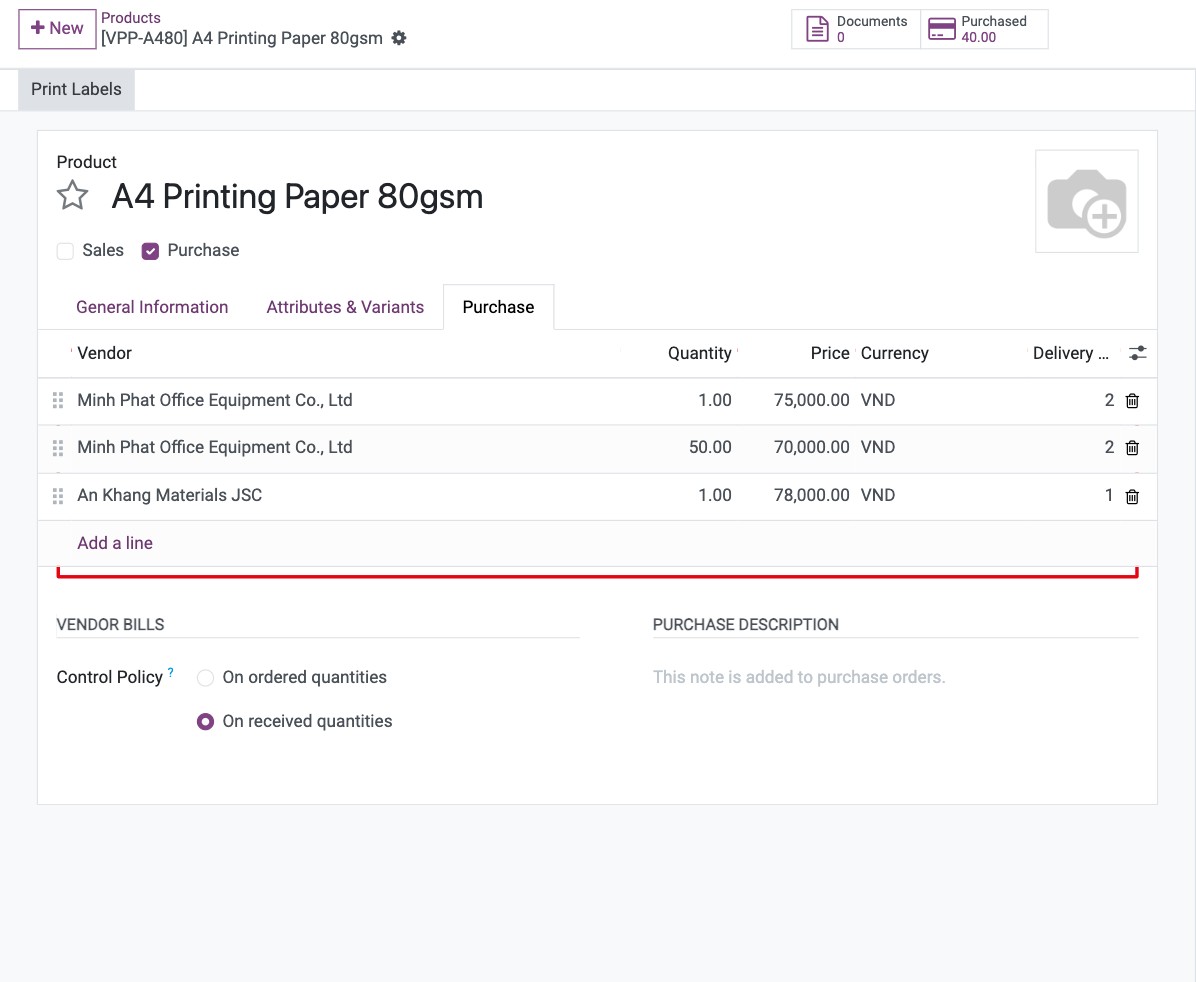
To show more columns on these lines (vendor product name and code, validity dates, discount), click the settings icon at the right end of the column headers.
How do I see and edit all vendor prices?
Go to Purchase ‣ Configuration ‣ Vendor Pricelists. Every vendor price line of every product is listed; lines added on products appear here too. Search by vendor or product.
![Vendor Pricelists list filtered on one product]()
Open a line to see all its fields, or click New to add one (see the table below).
![Vendor price form with quantity 50 and unit price 70,000]()


Which fields does a vendor price use?
Field |
What it does |
If left empty or wrong |
|---|---|---|
Vendor |
The vendor that sells at this price. |
Required. |
Vendor Product Name, Vendor Product Code |
The vendor’s own name and code for the product. They are written in the description of the RFQ line, for example [DA-A480] Double A A4 80gsm Paper. |
Empty: the RFQ uses your product name and reference. |
Delivery Lead Time |
Days between confirming the order and receiving the goods. The Expected Arrival of the RFQ = order date + lead time. |
1 day by default; a wrong value gives a wrong arrival date. |
Product, Product Variant |
The product, and optionally one variant (shown when product variants are used). |
Without a variant, the price applies to all variants. |
Quantity |
The minimum quantity (in the purchase unit) to order to get this price. |
Below this quantity, the line is not used. |
Unit Price |
The purchase price per purchase unit, in the Currency shown next to it. |
0 gives a zero price on the RFQ. |
Validity |
Start and end dates of the price. |
Outside these dates, the line is not used. Empty: always valid. |
Discount (%) |
Discount the vendor gives on this price. It is copied to the RFQ line. |
No discount. |
Company |
The company this price is for. |
Empty: valid for all companies. |
How does Viindoo choose the price on an RFQ?
Create an RFQ, select the Vendor, add the product and enter the Quantity.
Viindoo looks at the price lines of that vendor that are valid on the order date and whose Quantity is reached, and takes the lowest price. It fills in the Unit Price, the description with the vendor product name and code, and the Expected Arrival.
![RFQ line for 60 units with the vendor price 70,000 and the vendor product code]()

In the example, the vendor sells at 75,000 from 1 unit and at 70,000 from 50 units: an RFQ for 60 units gets 70,000. If the vendor has no valid price line, Viindoo uses the product Cost. When you confirm an order with a vendor that is not yet on the product, Viindoo adds that vendor and price to the product.
Common errors
Message |
What to do |
|---|---|
The RFQ shows the product cost instead of the vendor price. |
Check that the RFQ vendor is the one on the price line, that the quantity reaches the line Quantity, the order date is inside Validity, and the Company matches. |
Configuration ‣ Vendor Pricelists is missing. |
The menu needs the Purchase access right Administrator. Use the Purchase tab of the product instead. |
Next steps
How to buy a product in a different unit of measure: enter prices per box or dozen.
How to buy from a vendor with a blanket order: agree prices with a vendor for a period.