
The use of work entries in payslips generation
The payslip counts the validated work entries of its period: their hours give the Worked Hours and their days the Worked Days. Each contract decides where these work entries come from, in its Work Entry Source field: Working Schedule, to pay the hours the schedule plans, or Attendances, to pay the hours the employee checked in.
Who |
Payroll officers, with the Employees ‣ Officer: Manage all employees access right to validate work entries. |
App |
Payroll, Work Entries, Attendances |
Before you start
Install the Payroll app and turn on Contract Integration, see Work Entries overview.
Each employee needs a running labour contract with a working schedule and a salary structure.
The Attendances source needs the Work Entry - Attendance module.
How do I choose the source of the work entries?
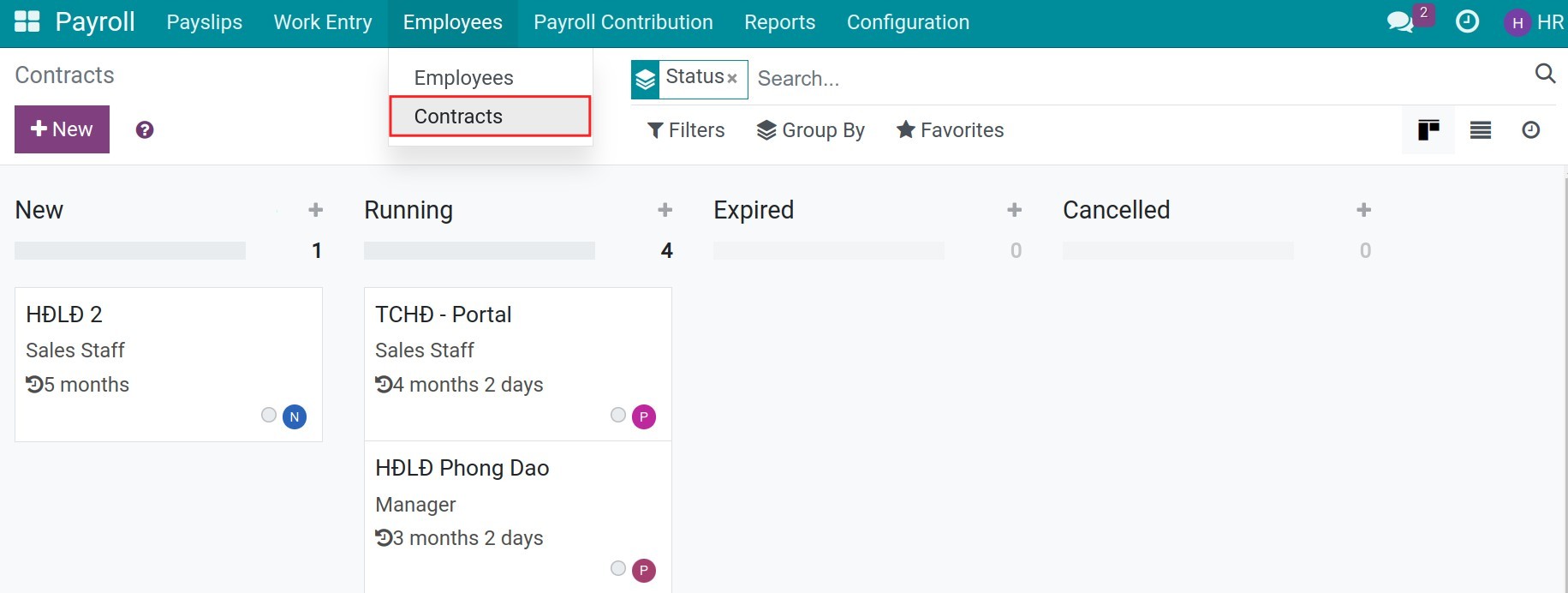
Go to Payroll ‣ Employees ‣ Contracts and open the running contract of the employee.
![The running contracts in the Payroll app]()
In Work Entry Source, choose Working Schedule or Attendances, then click Save.
![A contract with the Working Schedule work entry source]()
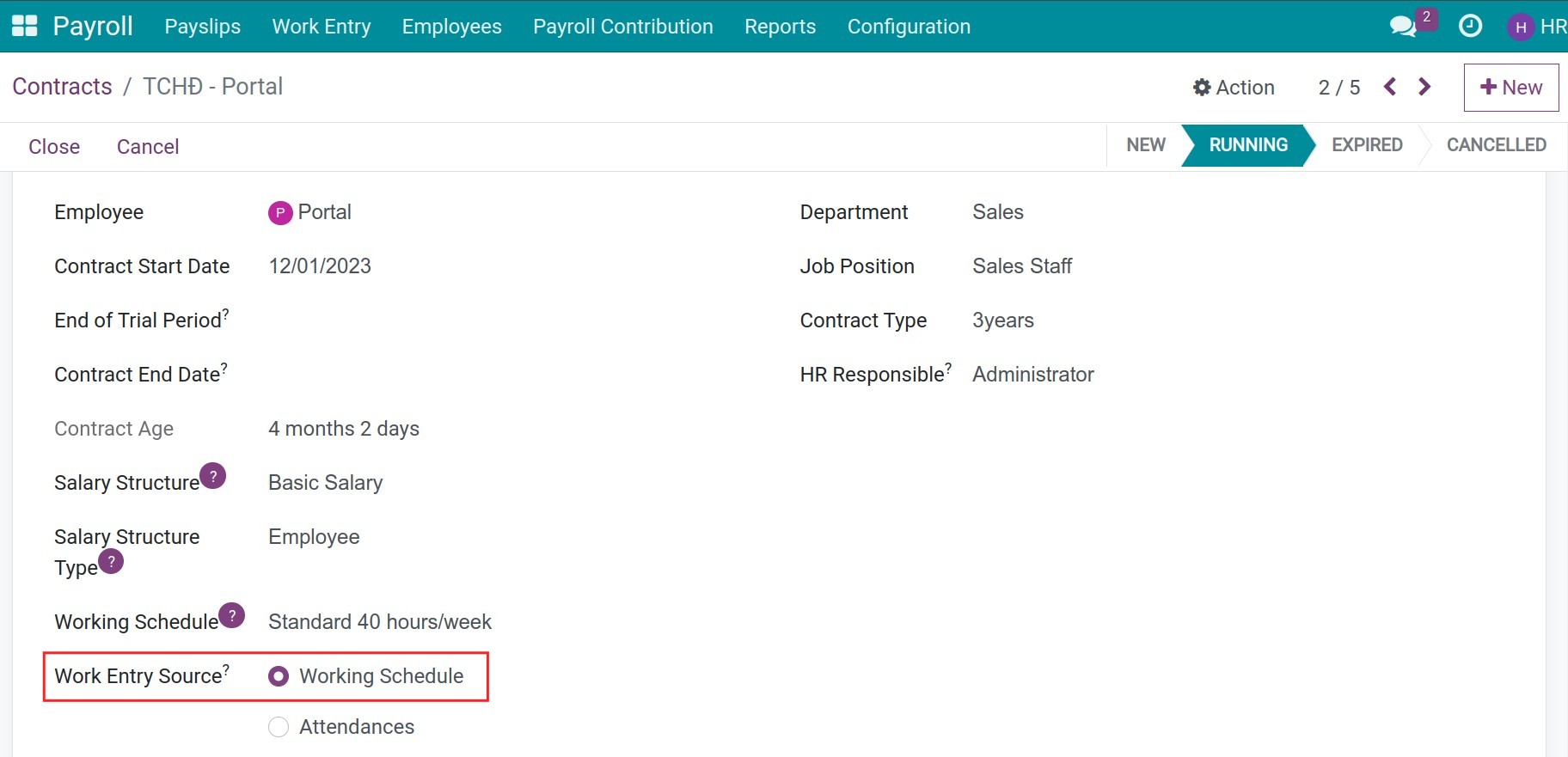
Source |
Where the work entries come from |
Use it when |
|---|---|---|
Working Schedule |
The working periods of the schedule of the contract, from the contract start date. Check ins do not change them. |
You pay the planned hours, and absences are recorded as time off. |
Attendances |
Each check in and check out, kept inside the working periods of the schedule. |
You pay the hours the employee is present, for example with an attendance machine. |
How are work entries made from the working schedule?
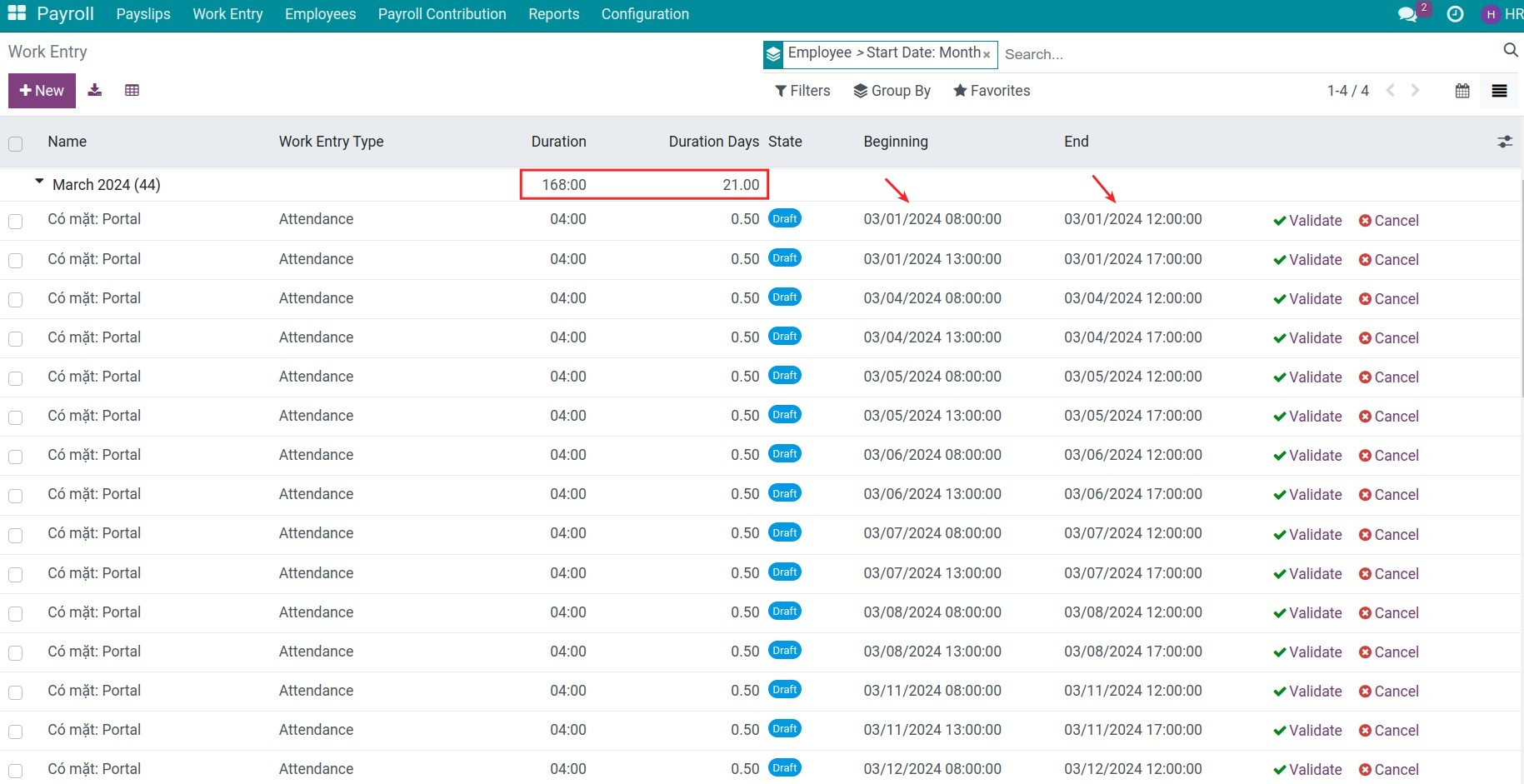
The work entries are generated from the start date of the contract. The scheduled action Generate Missing Work Entries adds the missing ones every day, and opening the work entries calendar generates those of the period shown.
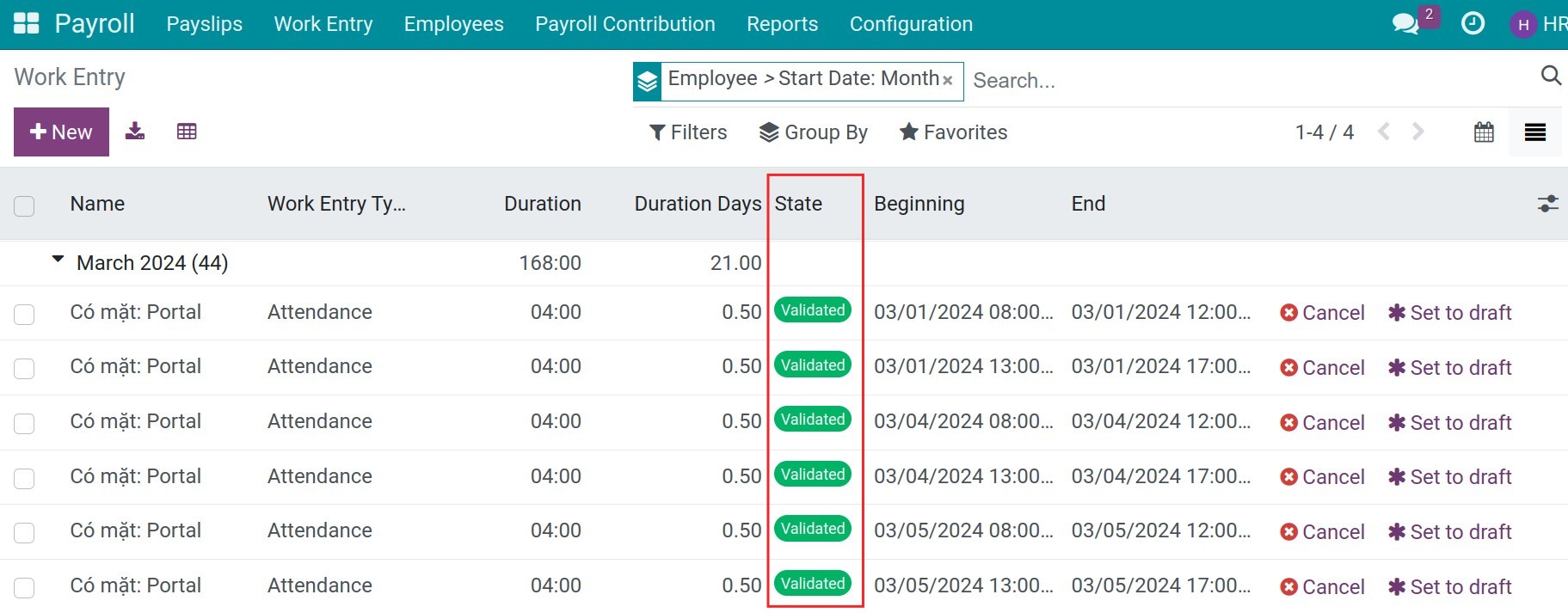
Each day, the scheduled action Work Entry: Automatic validation validates the draft work entries of the days before. Work entries in conflict with a time off or another entry stay in Conflict, see Resolve work entry conflict.
How are work entries made from attendances?
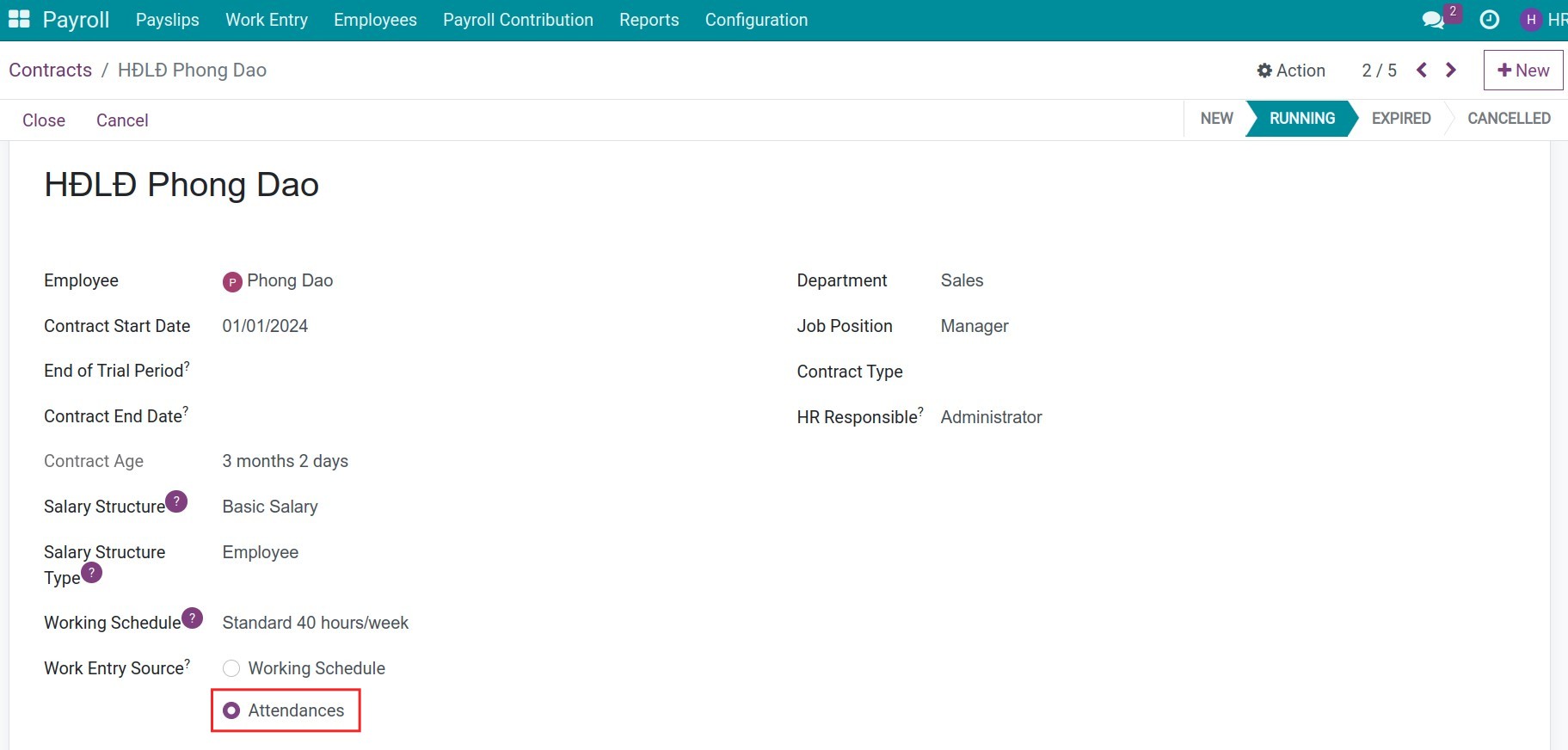
Open the contract and choose Attendances in Work Entry Source.
![A contract with the Attendances work entry source]()
Each attendance with a check in and a check out, in Attendances ‣ Management, creates the work entries of that day.
![The attendances of an employee]()
The work entries keep only the part of the attendance that falls inside the working periods of the schedule. In Payroll ‣ Work Entry ‣ Work Entries, the optional Attendance column shows the attendance of each work entry.
![The work entries created from the attendances of an employee]()
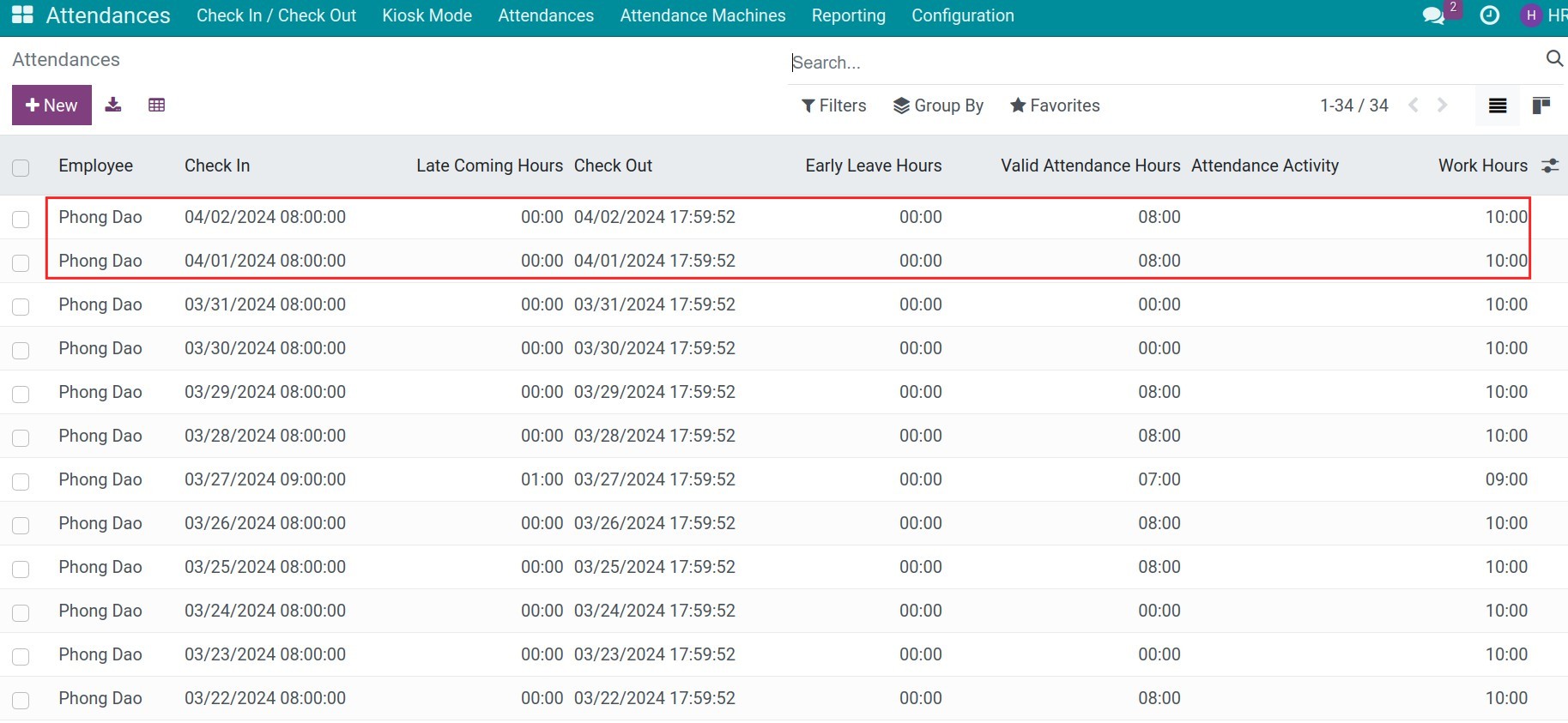
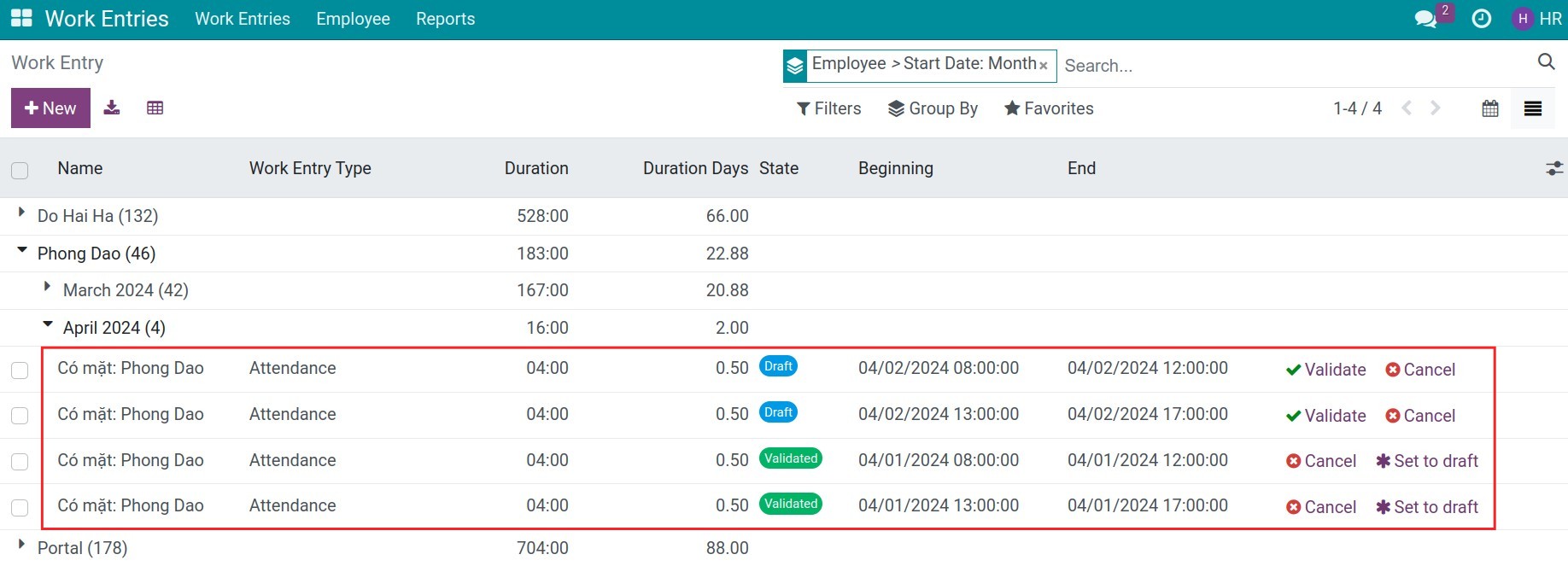
For example, the schedule runs from 08:00 to 12:00 and from 13:00 to 17:00:
A check in at 07:52 and a check out at 17:08 give two work entries, 08:00 to 12:00 and 13:00 to 17:00.
A check in at 08:30 and a check out at 16:00 give two work entries, 08:30 to 12:00 and 13:00 to 16:00.
Note
When you change or delete an attendance, its work entries are created again or archived.
A work entry created from an attendance cannot be cancelled or deleted by itself: correct the attendance instead.
How do work entries show on the payslip?
Go to Payroll ‣ Payslips ‣ Payslips, click New, choose the employee and the period, then click Save and Compute Sheet. For many employees at once, use payslip batches.
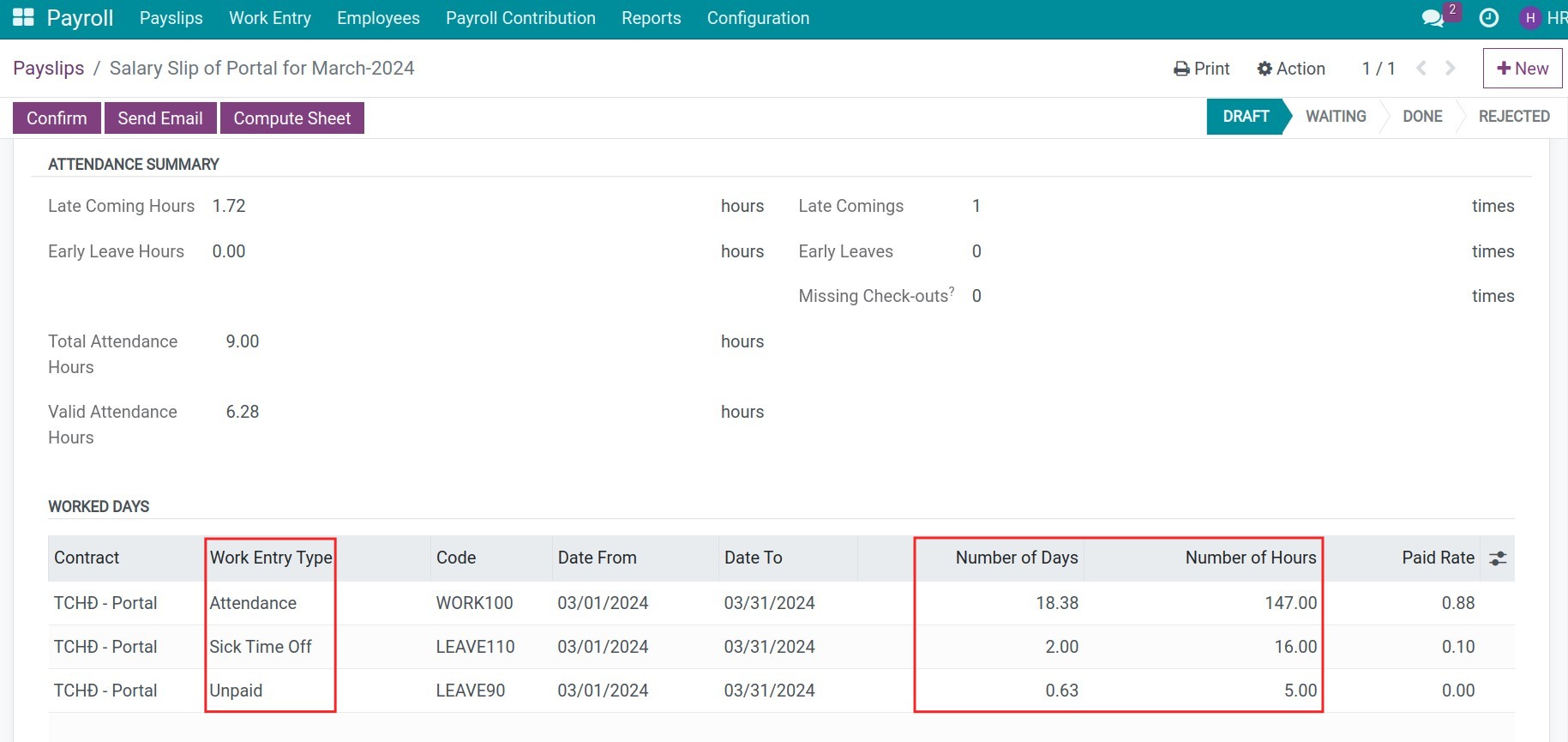
In the Work Information tab, Worked Hours and Worked Days add up the validated work entries of the period that are not time off. Duty Working Hours shows the hours the working schedule plans in the period.
![The worked hours and days of a payslip computed from the working schedule]()
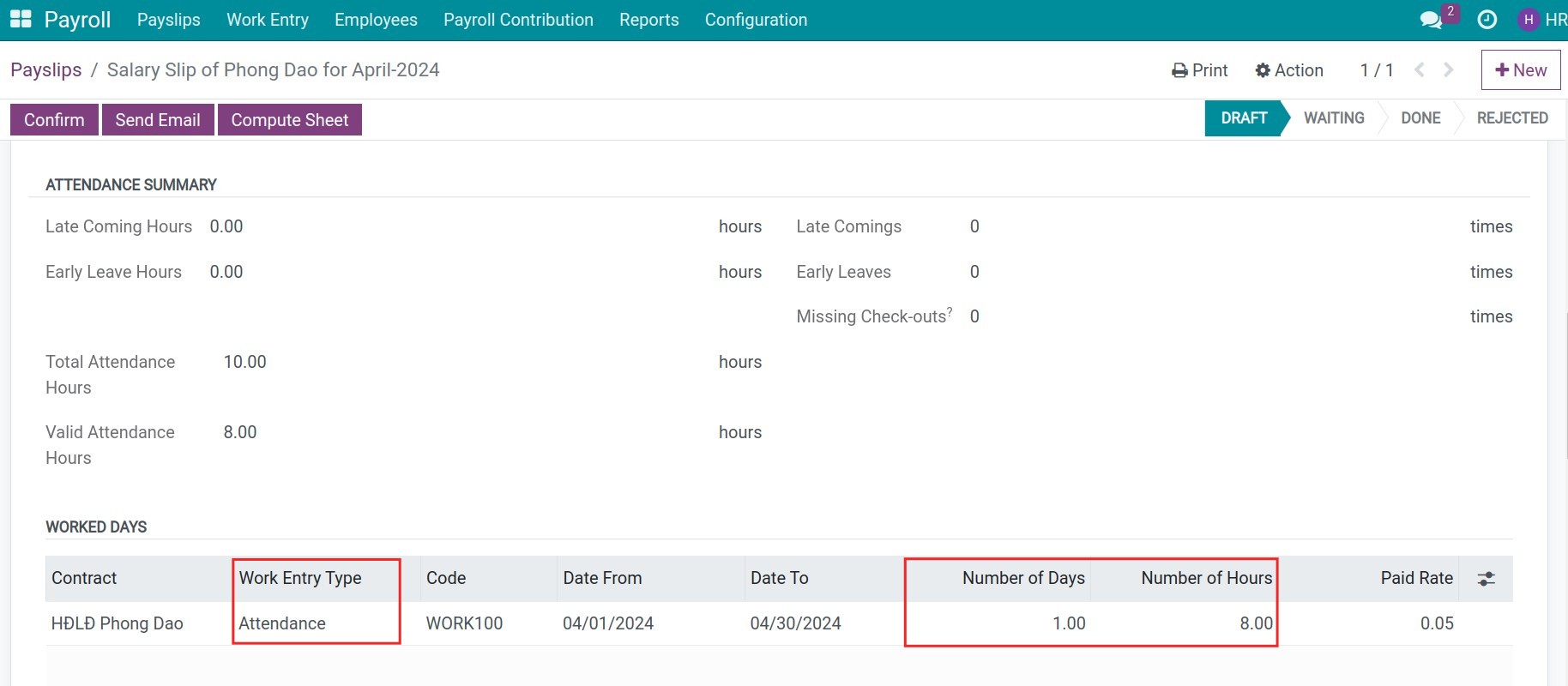
With the Attendances source, the worked hours follow the attendances.
![The worked hours and days of a payslip computed from attendances]()
The Work Entries button at the top of the payslip opens the work entries it counts. Salary rules use these days and hours to compute the pay.
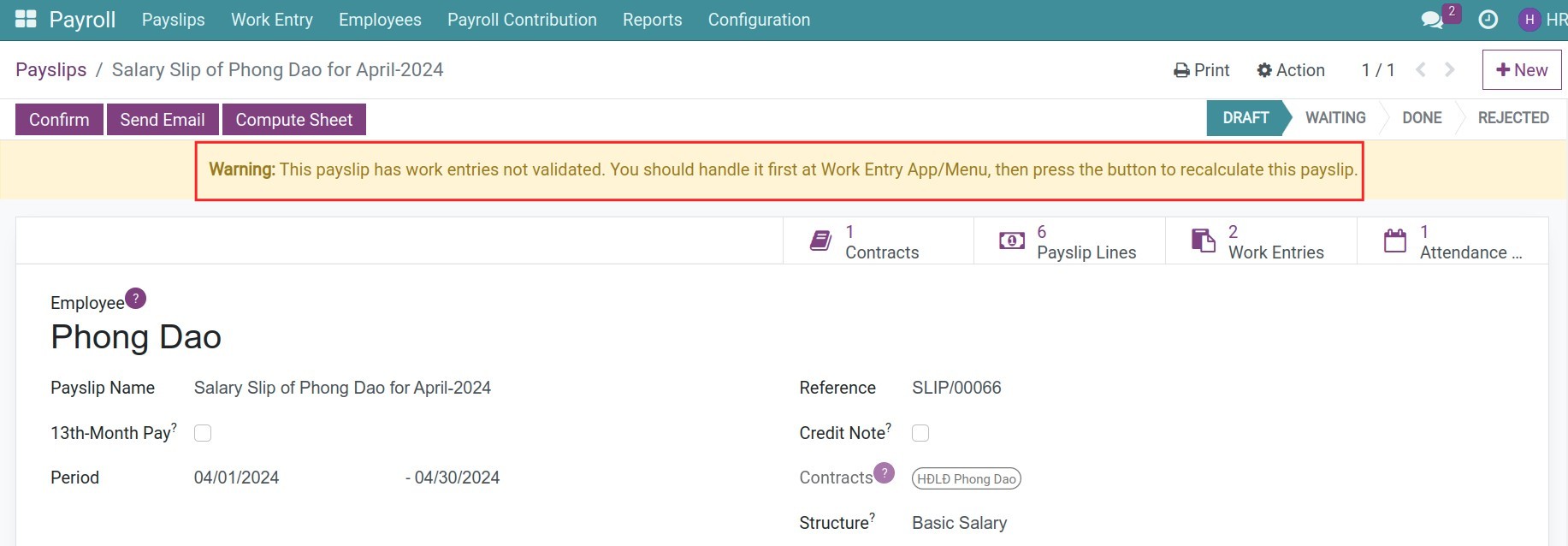
When the period holds work entries in conflict, work entries not validated yet or no work entry at all, a warning shows at the top of the payslip once it is saved.
Common errors
Problem |
What to do |
|---|---|
The payslip warns that it contains no work entries. |
The contract has no work entries in the period. Open the work entries calendar on that period, or use Regenerate Work Entries, then click Compute Sheet. |
Worked Days is lower than expected. |
Validate the draft work entries of the period and resolve the conflicts, then click Compute Sheet. |
Check ins do not change the worked hours. |
The Work Entry Source of the contract is Working Schedule. Choose Attendances. |
Next steps
How to create a payslip: create and confirm payslips.
Check-in/check-out management based on the work schedule: follow late arrivals and early departures from attendances.
See also
Related article
Optional modules