
How to set up payment terms
Payment terms tell Viindoo when each part of an invoice is due. Go to Accounting ‣ Configuration ‣ Payment Terms, click New, name the terms and add one line in Due Terms for each installment: how much is due (a percentage or a fixed amount) and how many days after the invoice date. Then choose the terms on a quotation, an invoice or a contact, and Viindoo computes the due dates and splits the customer’s receivable by installment.
Who |
The Accounting administrator (access right Accounting / Administrator). |
App |
Accounting |
Before you start
Install the Accounting & Finance app.
To choose payment terms on quotations, also install the Sales app.
How do I create payment terms?
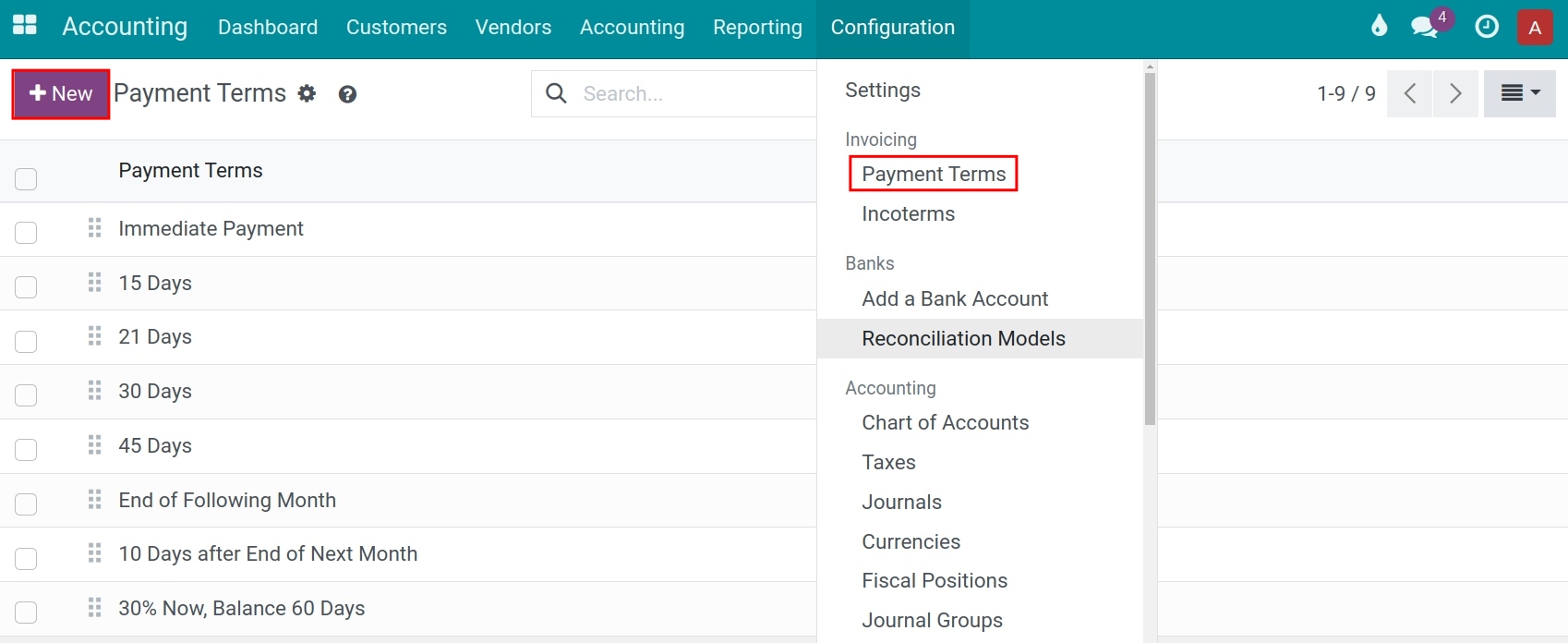
Go to Accounting ‣ Configuration ‣ Payment Terms, then click New.
![New button in the Payment Terms list of Viindoo Accounting]()
Type the Payment Terms name, for example 50% now, 50% in 60 days.
![New payment terms form with the name and Early Discount fields]()
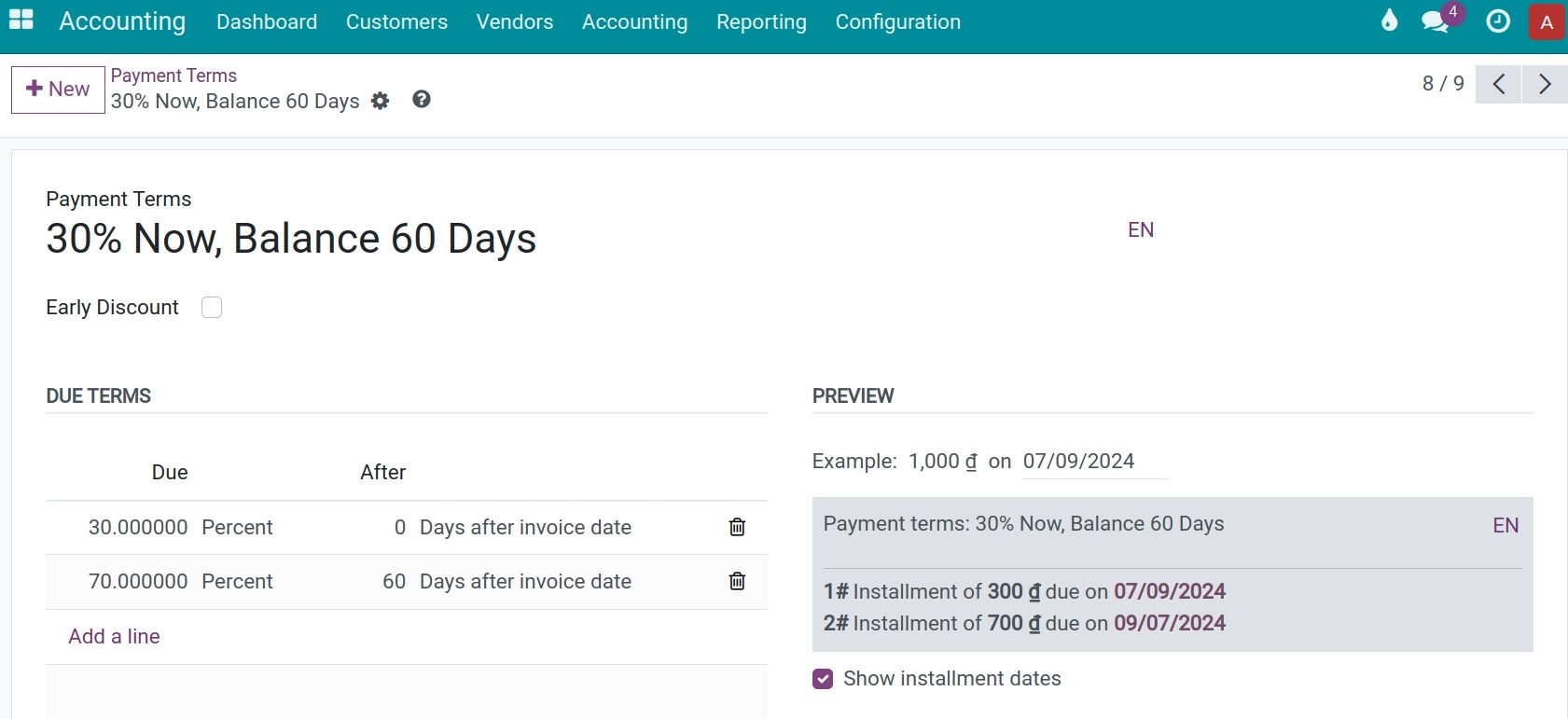
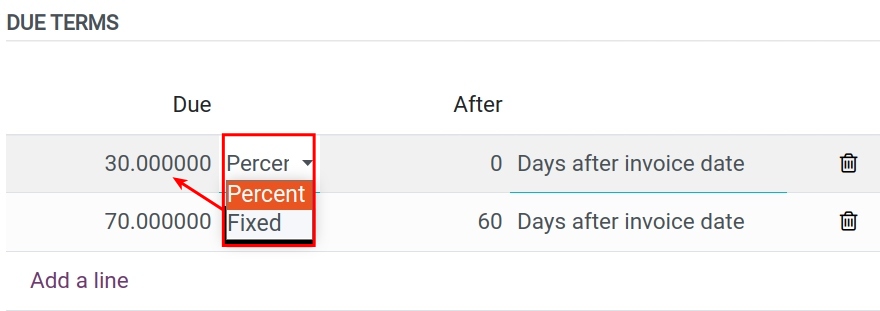
In Due Terms, add one line for each installment. For the first installment edit the line that Viindoo proposes; click Add a line for the next ones. Set Due (the value and Percent or Fixed) and After (the number of days and the date the days are counted from). The 30 Days terms of the picture have one line: 100 percent, 30 days after the invoice date.
![Due Terms of the 30 Days payment terms: one line of 100 percent, 30 days after the invoice date]()
Check the Preview: it shows how an example amount is split and when each part falls due.
Save the record.
You should now see the new terms in the Payment Terms list.
Which fields matter in payment terms?
Field |
What it affects |
If left empty or wrong |
|---|---|---|
Payment Terms |
The name you pick on quotations, invoices and contacts. It is translatable. |
Required. |
Early Discount |
Gives a discount when the customer pays early. When ticked, set the percentage and the number of days. See How to process a cash discount. |
Works only with terms made of one line of 100%. |
Due (value) |
The amount of this installment, in percent of the invoice or as a fixed amount. |
The percent lines must add up to 100%. |
Due (type) |
Percent: a share of the invoice total. Fixed: a fixed amount of money. |
The last line always takes the balance of the invoice, whatever its type. |
After |
The number of days, counted from the date chosen next to it (see below). |
0 means the installment is due on that date itself. |
After (date) |
Days after invoice date, Days after end of month, Days after end of next month, or Days end of month on the (a fixed day of the month that follows, from 0 to 31). |
Choose the one that matches your contract. |
Show installment dates |
Prints the schedule of installments on the invoice. |
Untick it to print only the description. |
Example / Description on invoice |
Test amount and date for the preview, and the sentence printed on the invoice. |
Not required. |
What do payment terms look like in practice?
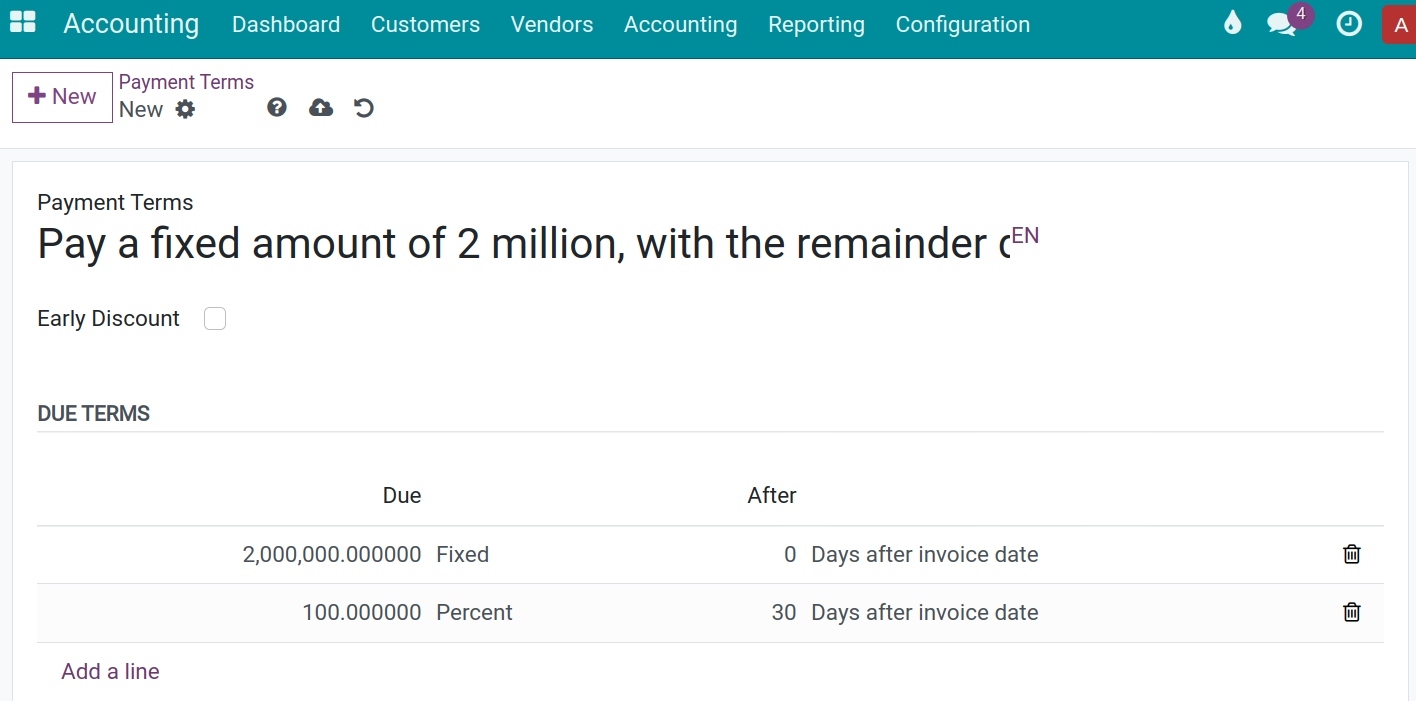
Fixed amount first. An invoice of 10,000,000 ₫ dated 22 October 2026: 2,000,000 ₫ is due on the invoice date and the rest 30 days later. Add two lines: Fixed 2,000,000, 0 days after the invoice date, then Percent 100, 30 days after the invoice date. The first installment is 2,000,000 ₫ due on 22/10/2026; the second is 8,000,000 ₫ due on 21/11/2026.
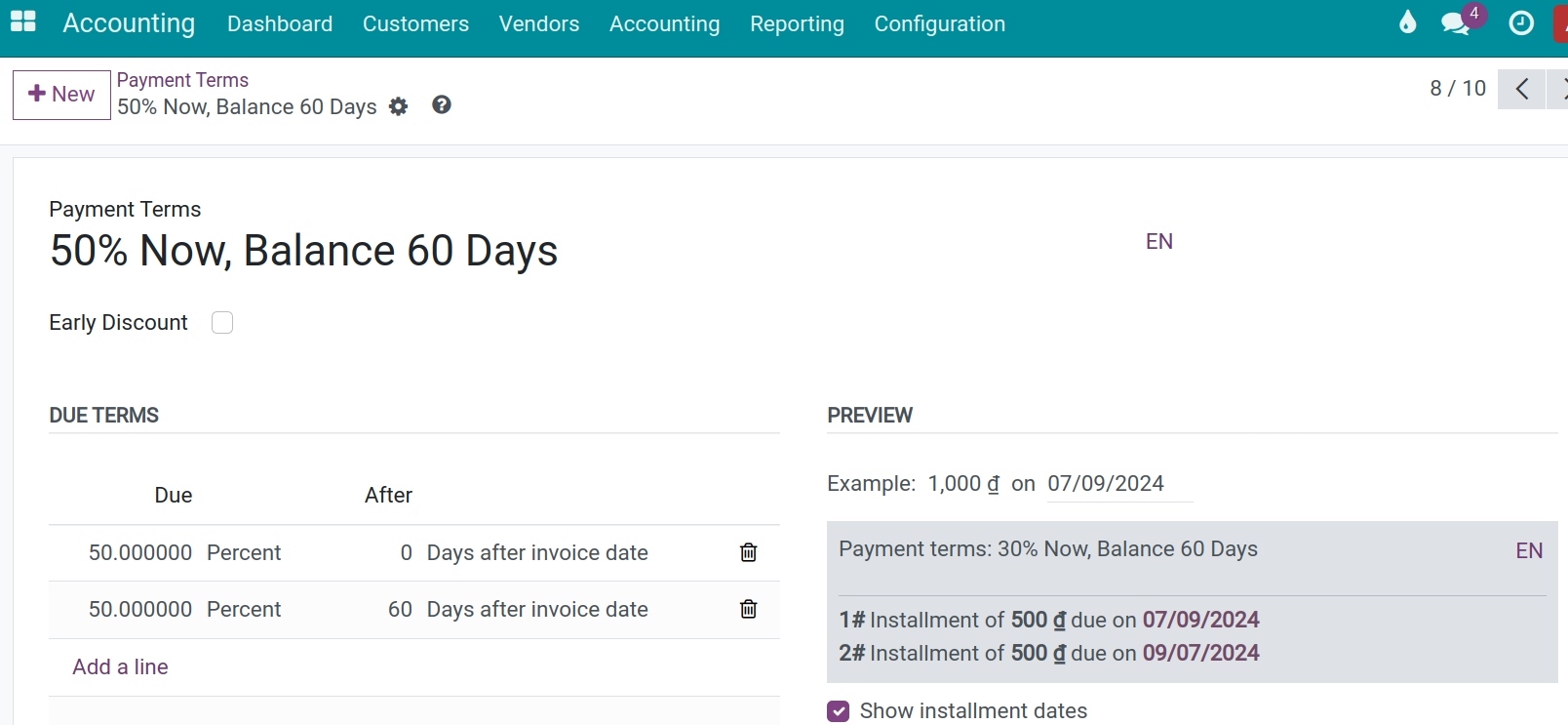
Percentages. An invoice of 10,000,000 ₫ dated 22 October 2026: 50% is due on the invoice date and the other 50% after 60 days. Add two Percent lines of 50, at 0 and 60 days after the invoice date. The installments are 5,000,000 ₫ on 22/10/2026 and 5,000,000 ₫ on 21/12/2026.
Where do I use payment terms?
On a quotation
With the Sales app, choose Payment Terms on the quotation. Invoices created from the order take these terms by default.
On a customer invoice
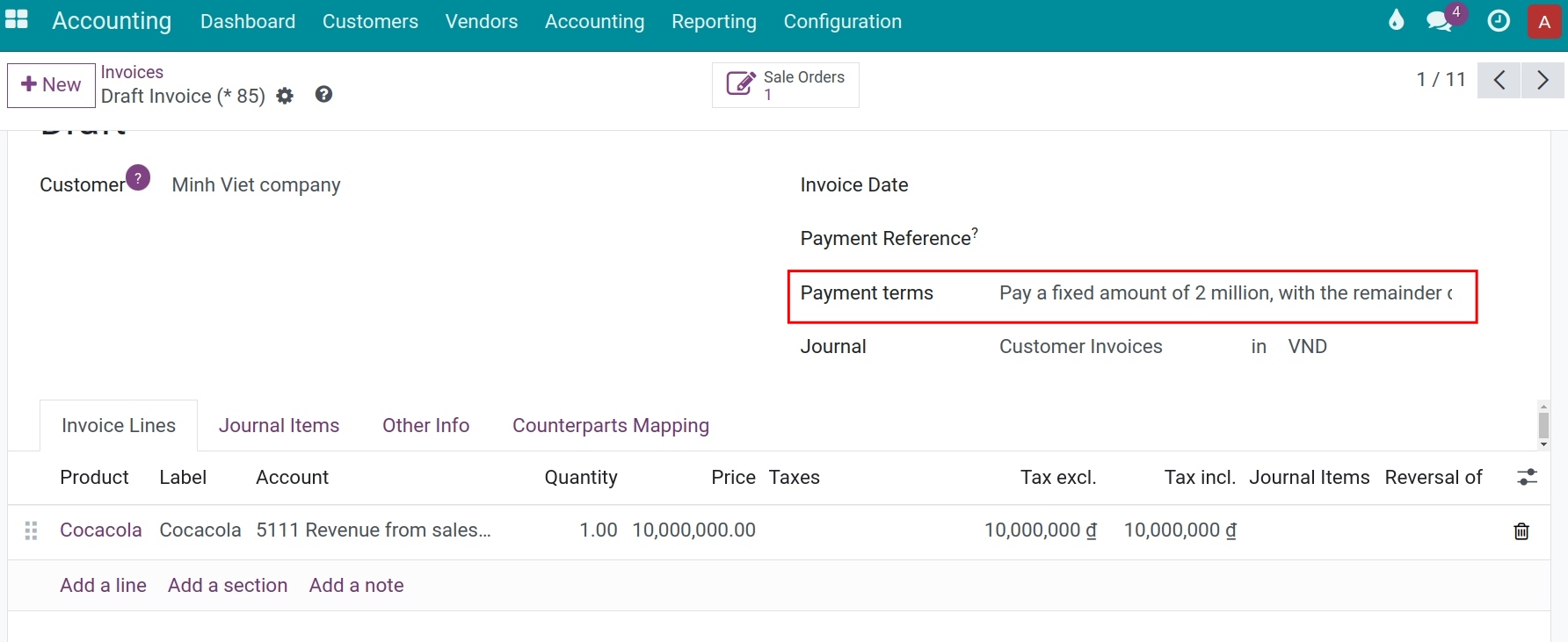
Choose Payment Terms on the customer invoice or the vendor bill, instead of typing a Due Date.
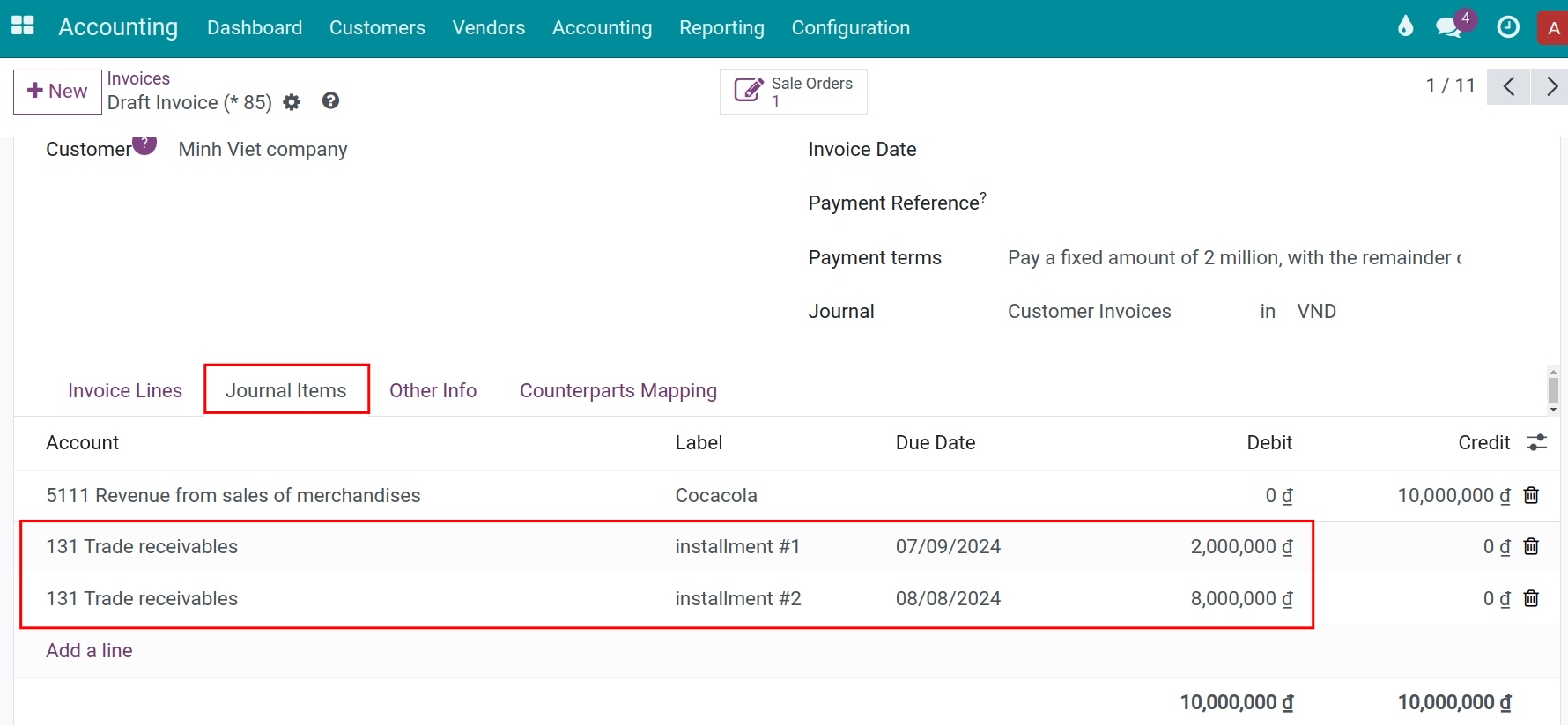
After you confirm the invoice, open the Journal Items tab. Viindoo splits the customer’s receivable into one line per installment, each with its own due date.
On a contact
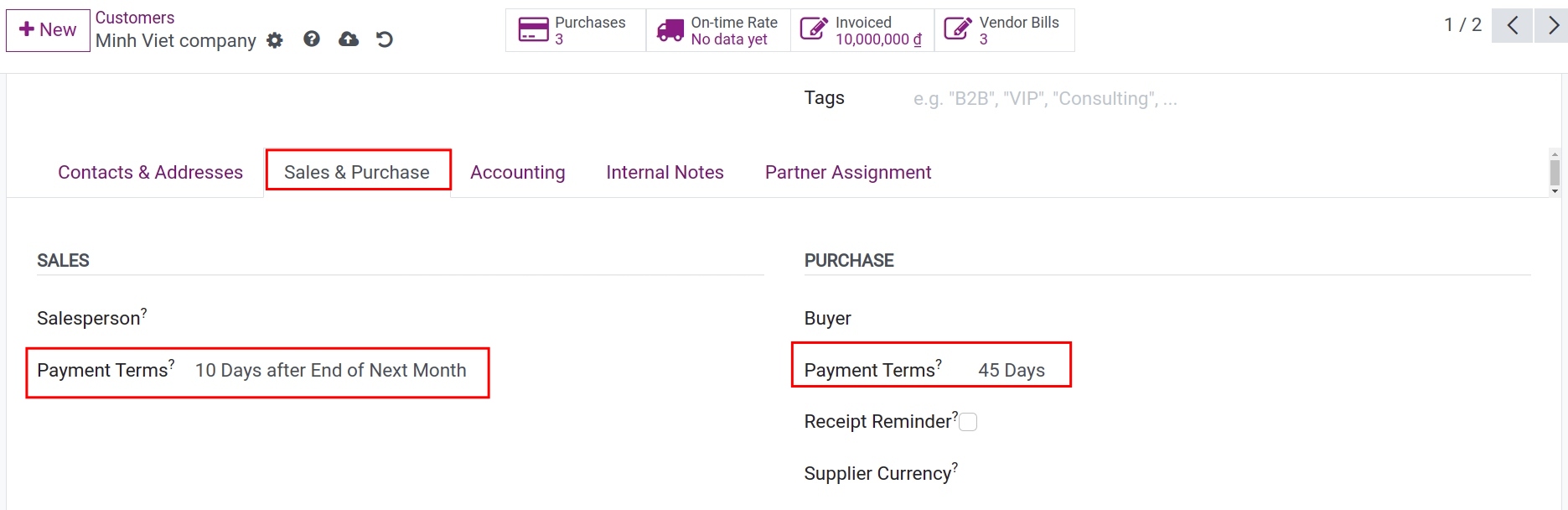
To use the same terms every time for a customer, open the customer in Contacts (or in Accounting ‣ Customers ‣ Customers), go to the Sales & Purchase tab and choose Payment Terms under Sales. For a vendor, use Payment Terms under Purchase.
Common errors
Message |
What to do |
|---|---|
The Payment Term must have at least one percent line and the sum of the percent must be 100%. |
Add a percent line, or correct the percentages so that they add up to 100. |
Percentages on the Payment Terms lines must be between 0 and 100. |
Correct the value of the percent line. |
The days added must be between 0 and 31. |
For Days end of month on the, enter a day between 0 and 31. |
You can not delete payment terms as other records still reference it. However, you can archive it. |
Archive the terms instead of deleting them, with Actions ‣ Archive. |
Next steps
How to process a cash discount: give a discount to customers who pay early.
How to create a customer invoice: choose the terms on an invoice.
How to record customer payments: record the payment of an installment.
Version notes
Fixed replaces Fixed Amount of earlier versions.