
How to configure an accrual plan
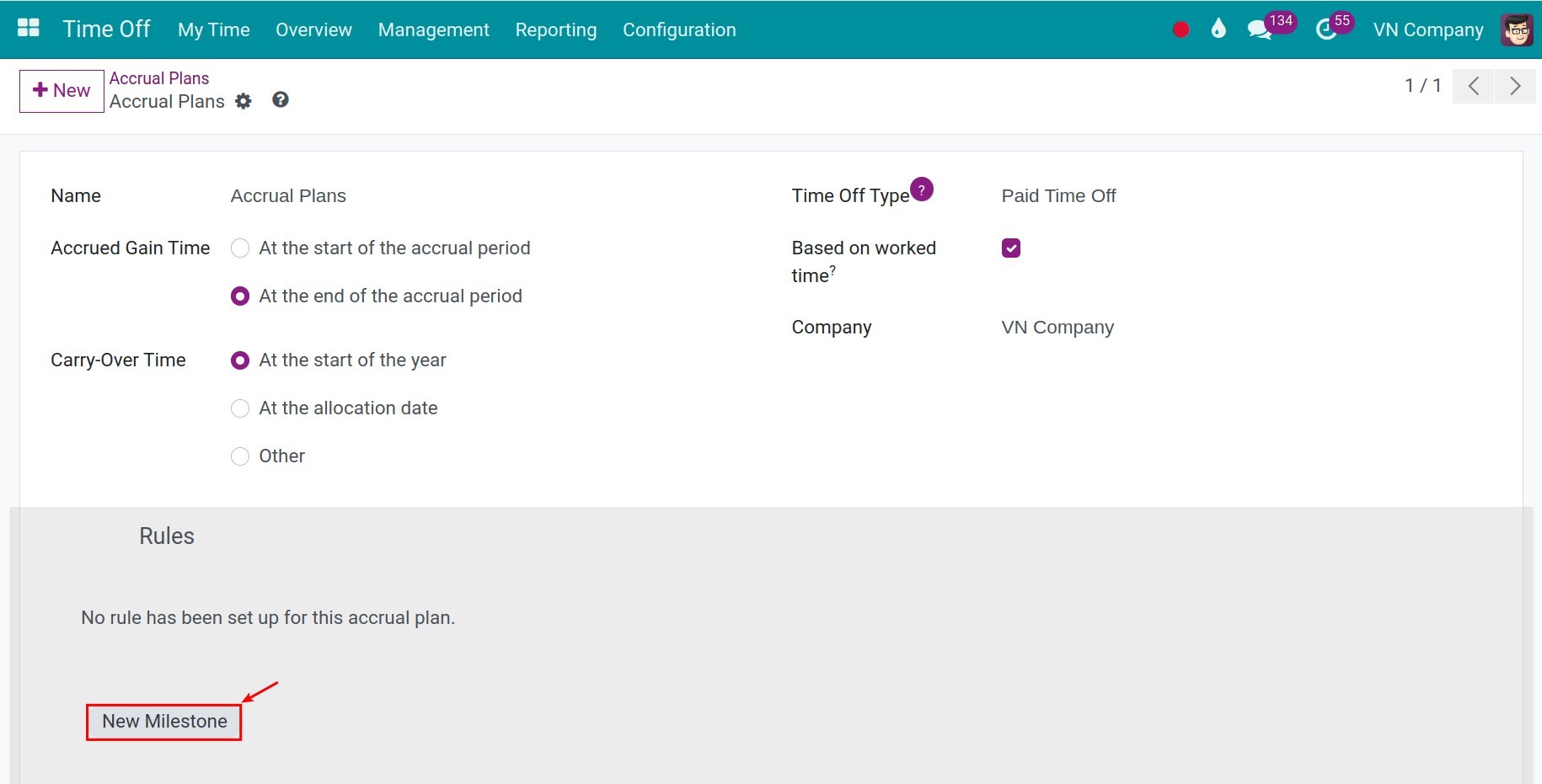
To create an accrual plan, go to Time Off ‣ Configuration ‣ Accrual Plans and click New. Name the plan, choose when the days are earned and carried over, then click New Milestone to set how many days employees earn and how often. An accrual plan is the rule that lets employees earn leave over time, for example one day every month, instead of receiving all their days at once.
Who |
Users with the Time Off ‣ Administrator access right. |
App |
Time Off |
Before you start
Install the Time Off app, see How to install Time Off and set up access rights.
Create the time off type the plan applies to, with Requires allocation set to Yes.
How do I create the accrual plan?
Go to Time Off ‣ Configuration ‣ Accrual Plans and click New.
![The list of accrual plans with the New button]()
Fill in the general information of the plan.
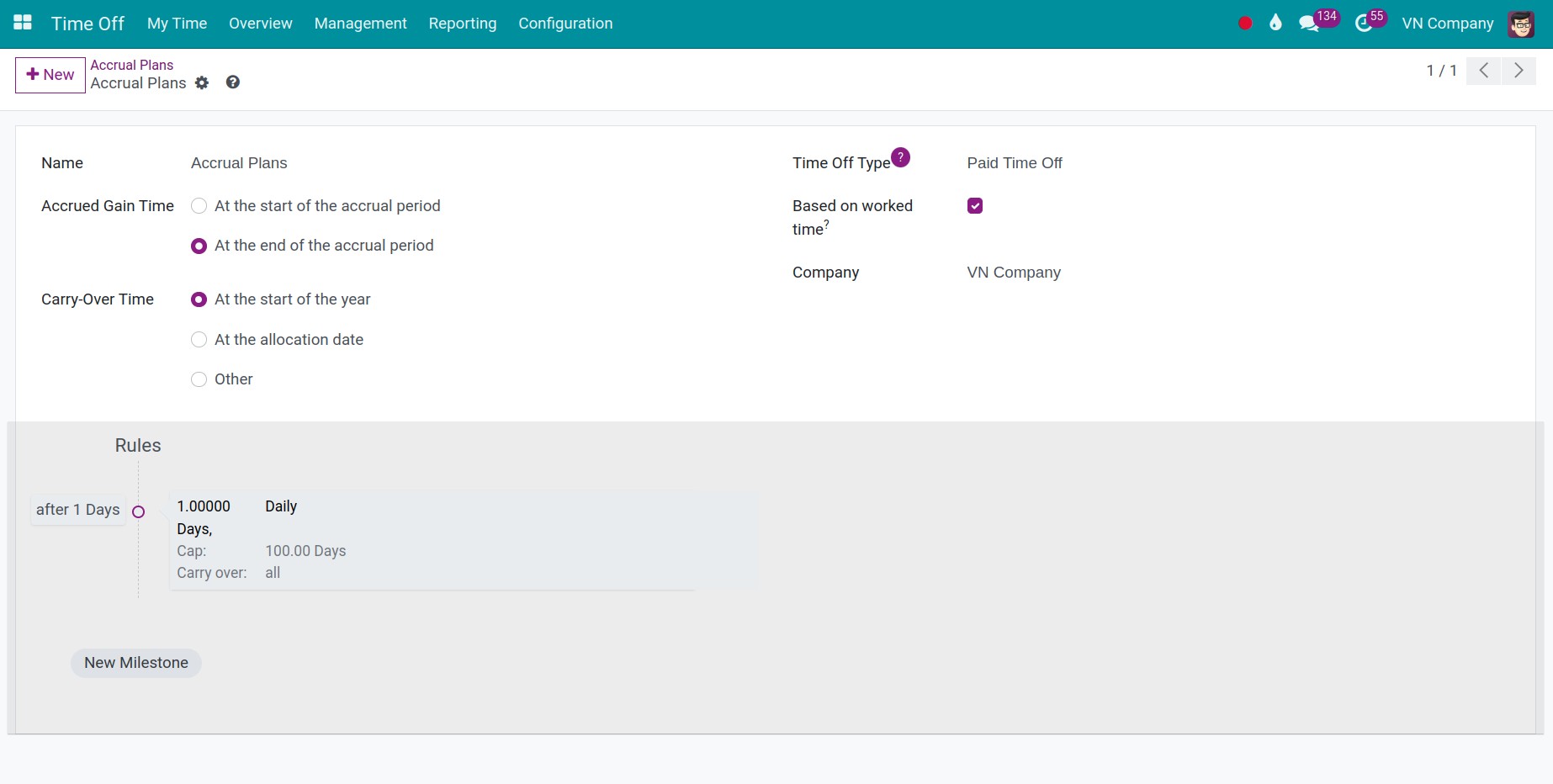
![An accrual plan with its general information and its milestone]()
Field
What it does
If it is wrong
Name
The name of the plan, for example Monthly annual leave accrual.
None.
Accrued Gain Time
At the start of the accrual period or At the end of the accrual period: when the days of a period are added to the balance.
Employees get their days a period too early or too late.
Carry-Over Time
When the unused days are carried over: At the start of the year, At the allocation date or Other (you then choose a day and a month).
Unused days are carried over on the wrong date.
Time Off Type
Restricts the plan to one time off type. Leave it empty to use the plan with any type.
A plan restricted to a type cannot be chosen for another type.
Based on worked time
Counts the worked days of the employee, not the calendar days, to compute the days earned. See Kind of Time Off in How to create a time off type.
Leave and absences reduce the days earned.
Milestone Transition
Shown when the plan has more than one milestone. Immediately applies the new milestone on its exact date. After this accrual’s period waits for the current period to end.
An employee changes milestone in the middle of a period.
In Rules, click New Milestone. The window Create Milestone opens.
![The Create Milestone window of an accrual plan]()
Field
What it does
If it is wrong
Employee accrue
The number of days or hours earned, and how often: hourly, daily, weekly, twice a month, monthly, twice a year or yearly. Choose the day of the period for the frequencies that need one.
Employees earn more or fewer days than your policy.
Cap accrued time
Limits the days an employee can accumulate with this milestone.
Without a cap, the balance grows without limit.
Start Accruing
The time after the allocation start date when the milestone begins: a number of days, months or years. The first milestone of a plan usually starts at 0 days.
The milestone starts too early or too late.
Carry over
What happens to the unused days at the carry-over time: None. Accrued time reset to 0, All accrued time carried over, or Carry over with a maximum.
Days are lost or carried over against your policy.
Milestone cap
Limits the total earned in a year with this milestone.
None.
Carry Over Validity
Limits the time the carried-over days stay available.
Carried-over days never expire.
Click Save & Close, or Save & New to add the next milestone, then save the plan.
![A saved accrual plan with its milestone]()


The plan can now be chosen in an accrual allocation, see How to allocate annual leave.
Common errors
Problem |
What to do |
|---|---|
The plan does not appear in an allocation. |
Check the Time Off Type of the plan: it must be empty or the type of the allocation. |
Milestone Transition is missing. |
Add a second milestone. The field only appears for plans with several milestones. |
Employees do not earn any day. |
Add at least one milestone to the plan and check that the allocation is approved. |
Next steps
How to allocate annual leave: allocate annual leave with the plan.
How to create a time off allocation: create allocations for employees.