
How to create and edit email templates
Email templates let Viindoo fill in emails for you, such as the email that sends a quotation, an invoice or a reminder. To create or edit one, turn on developer mode, go to Settings ‣ Technical ‣ Email ‣ Email Templates, click New (or open a template), choose the document it Applies to, then write the Subject and the body with dynamic placeholders that are replaced by the record’s data (customer name, order number, amount…) when the email is sent.
Who |
Users who can edit email templates (Administrator, or users with the template editor right). |
App |
Settings (templates are used by every app that sends emails) |
Before you start
Turn on developer mode to see the Technical menu.
The screenshots use the Quotation sent to customer template, which applies to Sales Order and comes with the Sales app. Without Sales, open a template of another app and follow the same steps.
Know how to send a message from a record, where templates are used.
How do I create an email template?
Go to Settings ‣ Technical ‣ Email ‣ Email Templates. The list opens with the Base Templates filter; remove it to see every template. Click New, or open an existing template to edit it.
![Email Templates menu under Settings, Technical, Email]()
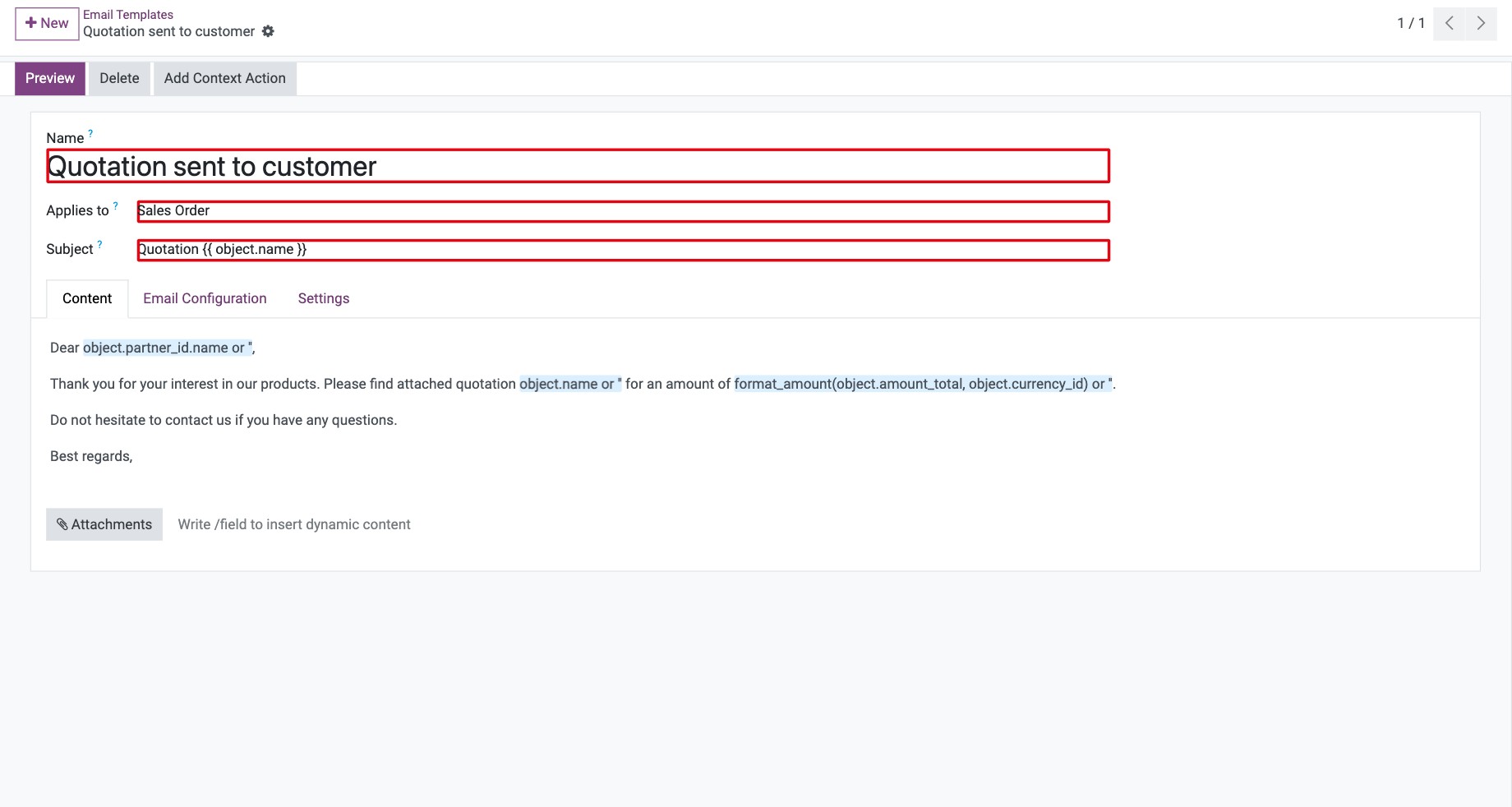
Enter the Name of the template, choose the document type in Applies to (for example Sales Order) and write the Subject.
![Email template form with Name, Applies to and Subject]()
In the Content tab, write the body. Select text to show the formatting toolbar, type / to open the list of editor commands, and click Attachments to attach fixed files. To show customer or document data, insert dynamic placeholders.
![Content tab with the formatting toolbar over selected text]()
Set the recipients in the Email Configuration tab and the options in the Settings tab (see the tables below). The template is saved automatically when you leave the form.

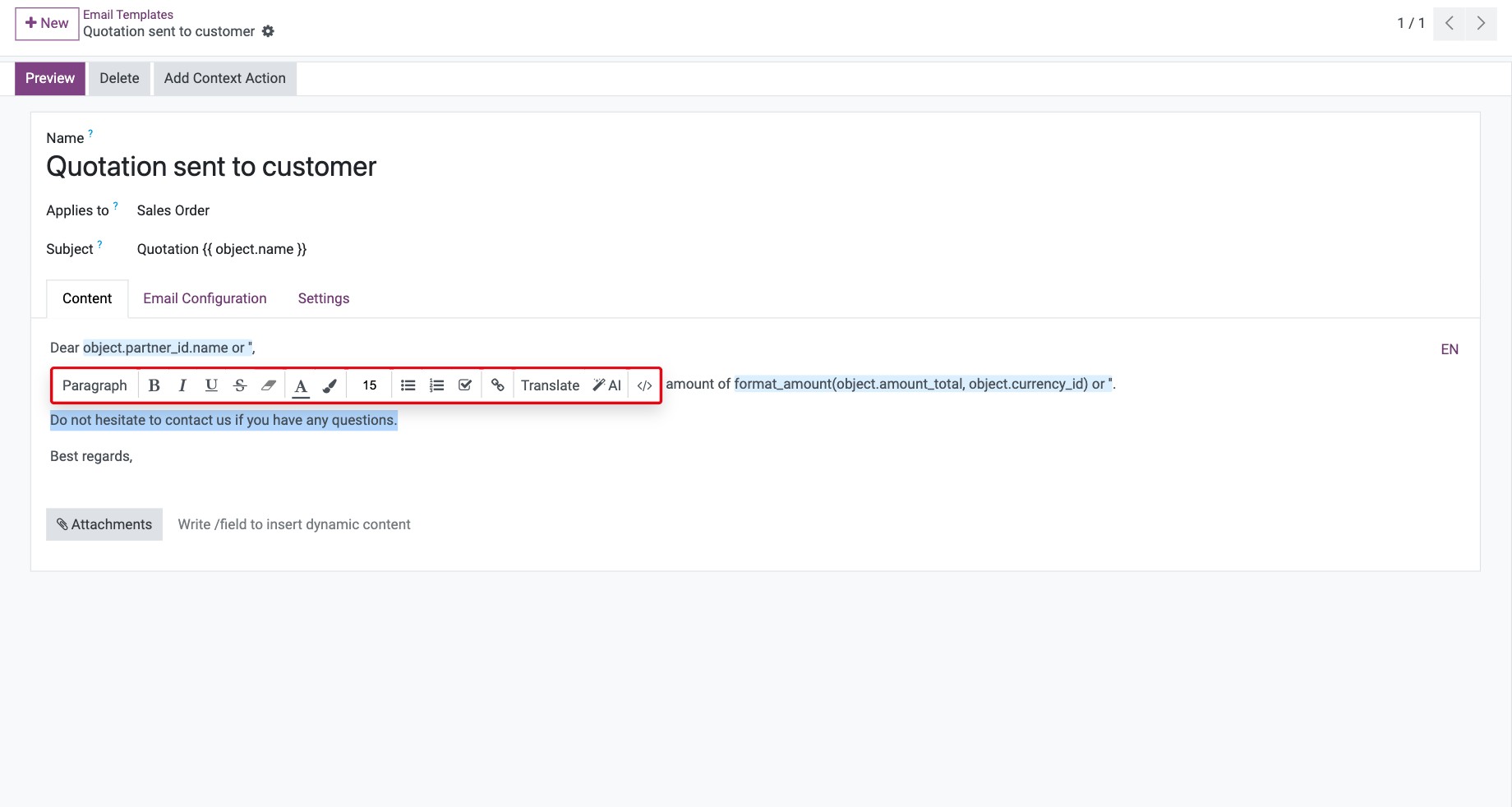
To write the body in HTML/CSS instead, select a character in the body and click the Code view icon in the toolbar; click it again to return to the normal editor.

Which recipients and options can I set?
Email Configuration tab:

Field |
What it does |
|---|---|
From |
Sender address. If empty, the author’s email alias if configured, otherwise the company email. |
Default recipients |
Sends to the document’s usual recipient (the customer of an invoice, the vendor of a purchase order…). When ticked, To (Emails), To (Partners) and Cc are hidden. |
To (Emails) |
Email addresses always added as recipients, separated by commas. |
To (Partners) |
IDs of contacts always added as recipients, separated by commas. A contact’s ID is the number at the end of the address bar when you open the contact. |
Cc |
Addresses in copy, separated by commas. |
Reply To |
Where replies go. Used only for mass emails whose replies are not logged on the document. |
Scheduled Send Date |
If set, the email is sent after this date; otherwise as soon as possible. |
These fields also accept placeholders, for example {{ object.partner_id.email }}.
Settings tab:

Field |
What it does |
|---|---|
Language |
Language of the email. Use |
Outgoing Mail Server |
Server used to send. If empty, the server with the highest priority is used. |
Auto Delete |
On by default: the sent email is deleted from the outgoing queue to save space. The message stays in the document’s chatter. |
Dynamic Reports |
PDF reports attached automatically, for example the quotation PDF. |
User |
Restricts the template to one user. Empty means shared with all users. |
Template Description |
Internal note on what the template is for. |
How do I insert customer or document data (dynamic placeholders)?
A dynamic placeholder is replaced by the data of the record when the email is sent, for example the customer’s name on a sales order.
In the body, place the cursor where the data should appear, type / and choose Dynamic Placeholder. In Select a field, search for the field. If it has an arrow (a related record, such as Customer), click the arrow to choose one of its fields, such as the customer’s name or phone.
![Select a field popover with the Customer field and its arrow]()
In Enter a default value, optionally type the text to show when the field is empty, for example our valued clients, then click Insert.
![Enter a default value step with a default text and the Insert button]()
Check the result with Preview at the top of the template: choose a Test Record to see the email filled in with its data.
![Template Preview with the customer name and phone filled in from a test sales order]()


When the field is empty on the test record, the default value is shown instead.

How do I translate a template?
Viindoo sends the template in the language set in Language (usually the contact’s language), using the translation you enter for that language.
In the Content tab, click the language code in the top right corner of the body (for example EN), enter the text for each language and click Save.
![Translate body window with the English and Vietnamese versions]()

How do I let AI write or rewrite the text?
Select the text to rewrite and click AI in the toolbar.
![AI button in the editor toolbar over selected text]()
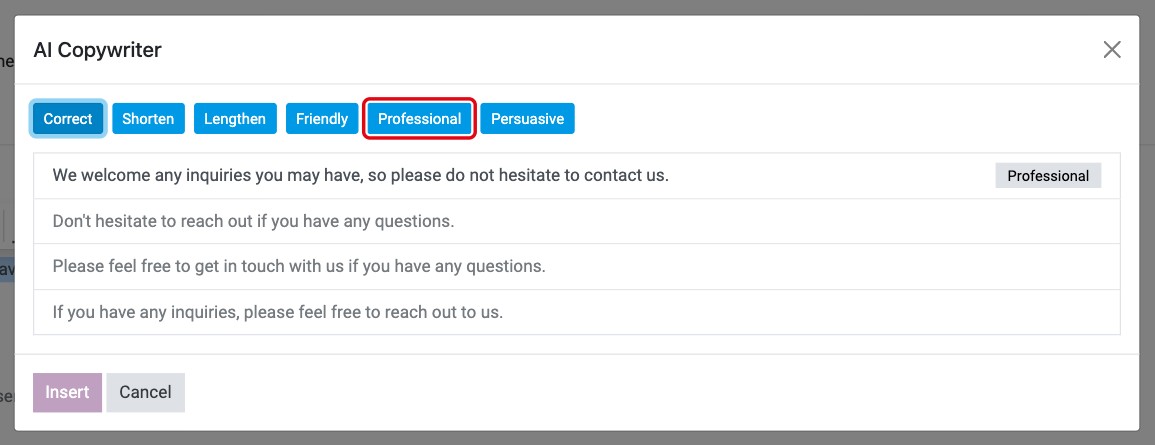
The AI Copywriter window proposes alternatives. Click a style (Correct, Shorten, Lengthen, Friendly, Professional, Persuasive) to get another proposal in that style.
![AI Copywriter window with alternative texts and style buttons]()
Click the proposal you want, then Insert. It replaces the selected text.
![Proposal selected and the Insert button in the AI Copywriter window]()


Note
AI is greyed out when the selection is empty or contains a dynamic placeholder. Select only plain text.
Common problems
Problem |
What to do |
|---|---|
The Technical menu is missing. |
Turn on developer mode. |
A placeholder shows nothing in the email. |
The field is empty on that record. Set a default value for the placeholder. |
The email goes out in the wrong language. |
Check Language in the Settings tab and the language of the contact, and that the template has a translation for it. |
AI is greyed out. |
The selection is empty or includes a placeholder. |
Next steps
Chatter: follow records, log notes and send messages: use your template with Send message.
How to connect Viindoo to your own mail servers: make sure Viindoo can send the emails.