
How to manage staff seniority
Viindoo software system calculates the seniority of every employee from the dates of the labor contracts: the boarding date, the termination date, the change of position or department and the years of service. You see it on the employee card and form, in the list of contracts of an employee, in the age of each contract, and in the Employees > Seniority report.
Requirements
This tutorial requires the installation of the following applications/modules:
Who can see the seniority?
Who |
What they see |
|---|---|
Employees |
Their own seniority. |
Managers and department managers |
Their own seniority and the seniority of the employees they manage. |
Users with the Officer: Manage all employees access right |
The seniority of all employees, and the View Seniority button on the employee form. |
Before you start
Seniority is calculated from the contracts of the employee. Only the contracts that are Running or Expired are counted: a contract that is still New (draft) or Cancelled is not. An employee who has no such contract has no seniority information.
Where can I see the seniority of an employee?
On the employee list
Open Employees > Employees. On the card of each employee who has a contract, a line with a history icon shows the seniority, for example 8.07 months.
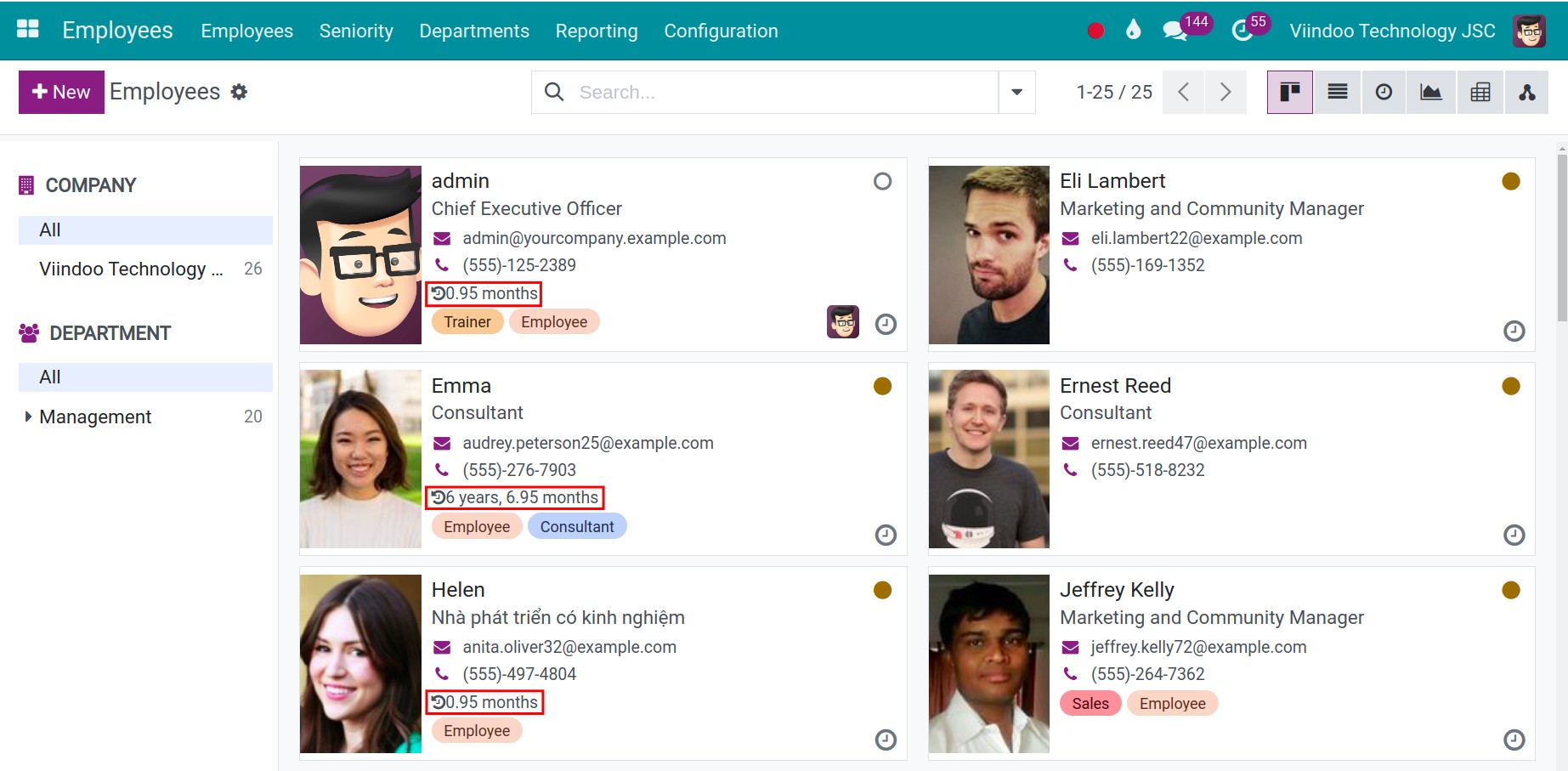
In the list view, the columns Seniority in years and Seniority Message are hidden by default. Click the column selector at the end of the header row to show them.
On the employee form
Open the employee and go to the Work Information tab, under the Location group:
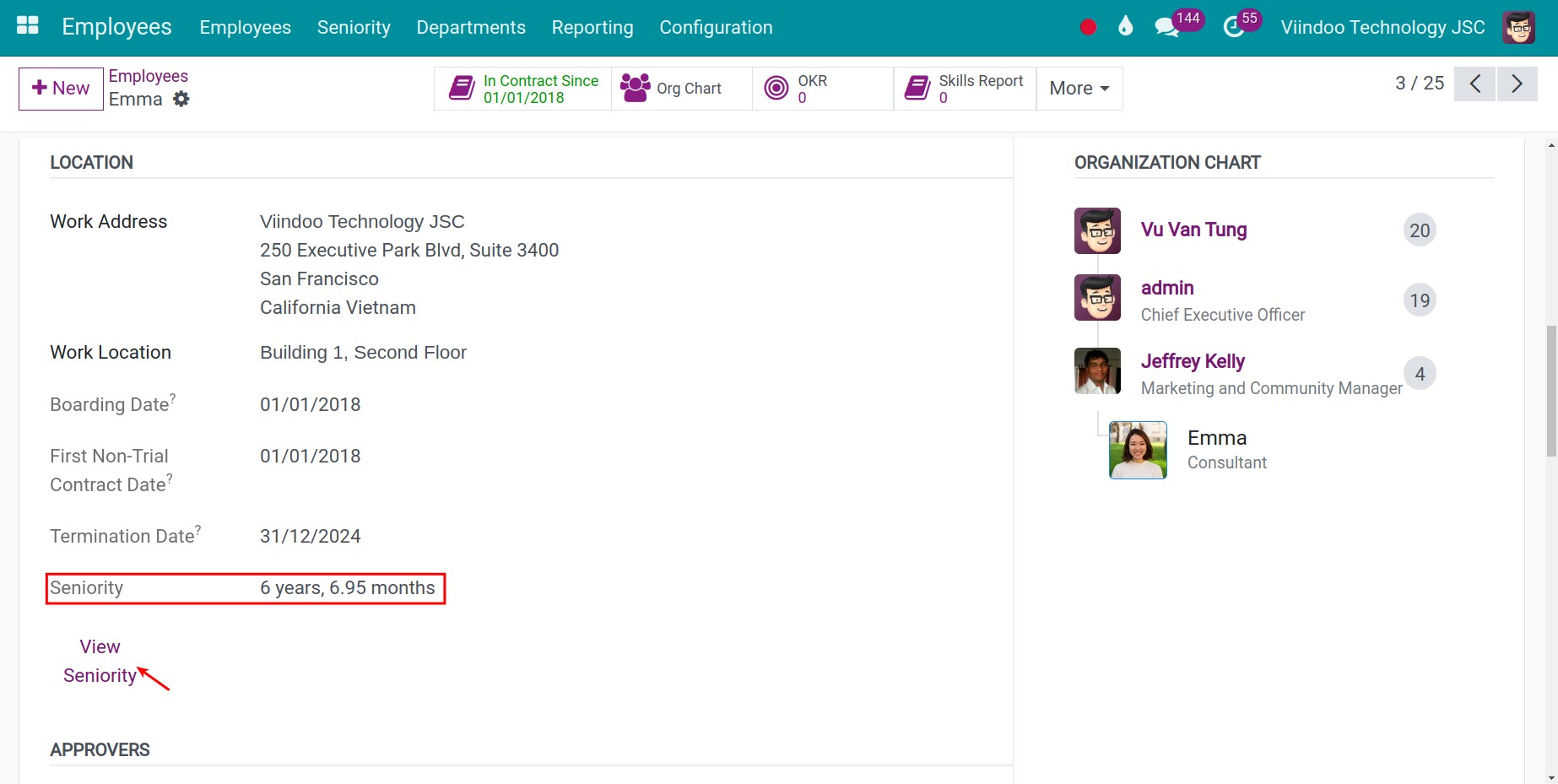
Boarding Date: the start date of the first contract.
First Non-Trial Contract Date: the start date of the first contract that is not a trial period.
Termination Date: the end date of the last contract. It is shown only when that contract has an end date.
Seniority: the total time of all the counted contracts, in years and months.
Total Seniority: shown only when you work with several companies. It adds the seniority that the employee had in the other companies, as marked in the employee transfers.
How to see the seniority of each contract?
Click View Seniority to open the list of the contracts of the employee. The seniority of the employee is the total of the Service Years of these contracts.
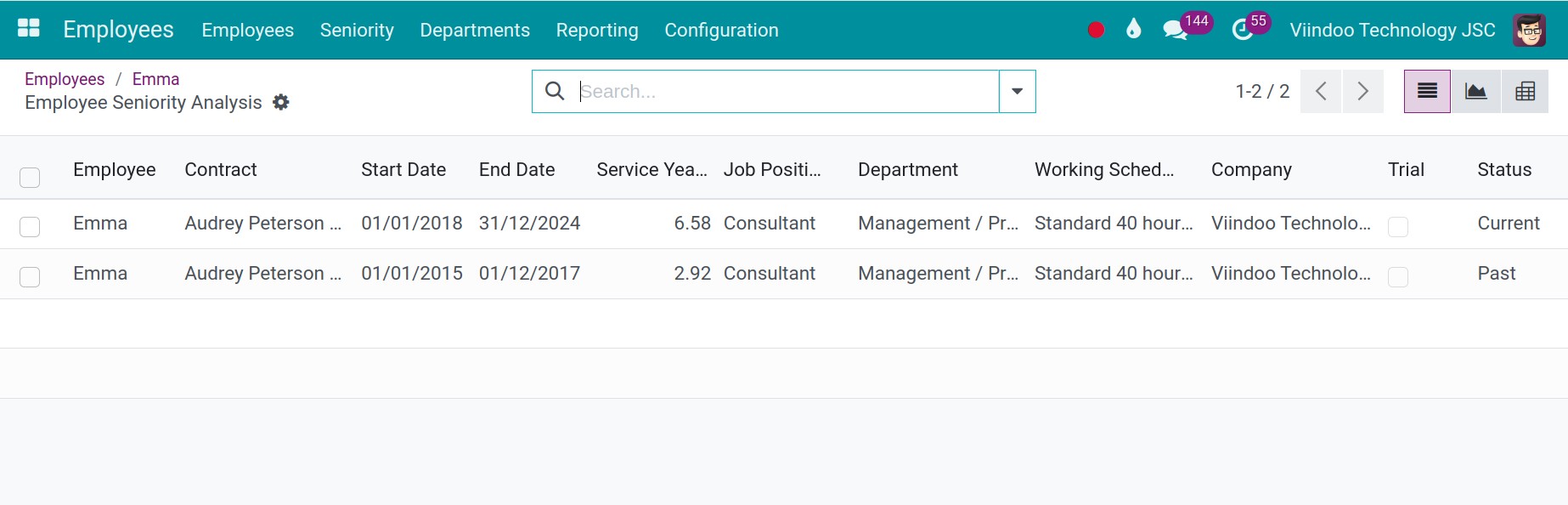
A contract that has a Trial Date To appears on two lines: the trial period, with the Trial box ticked, and the rest of the contract.
How old is a contract?
Open a contract from Employees > Contracts. The Contract Age field shows its age in years, months and days.
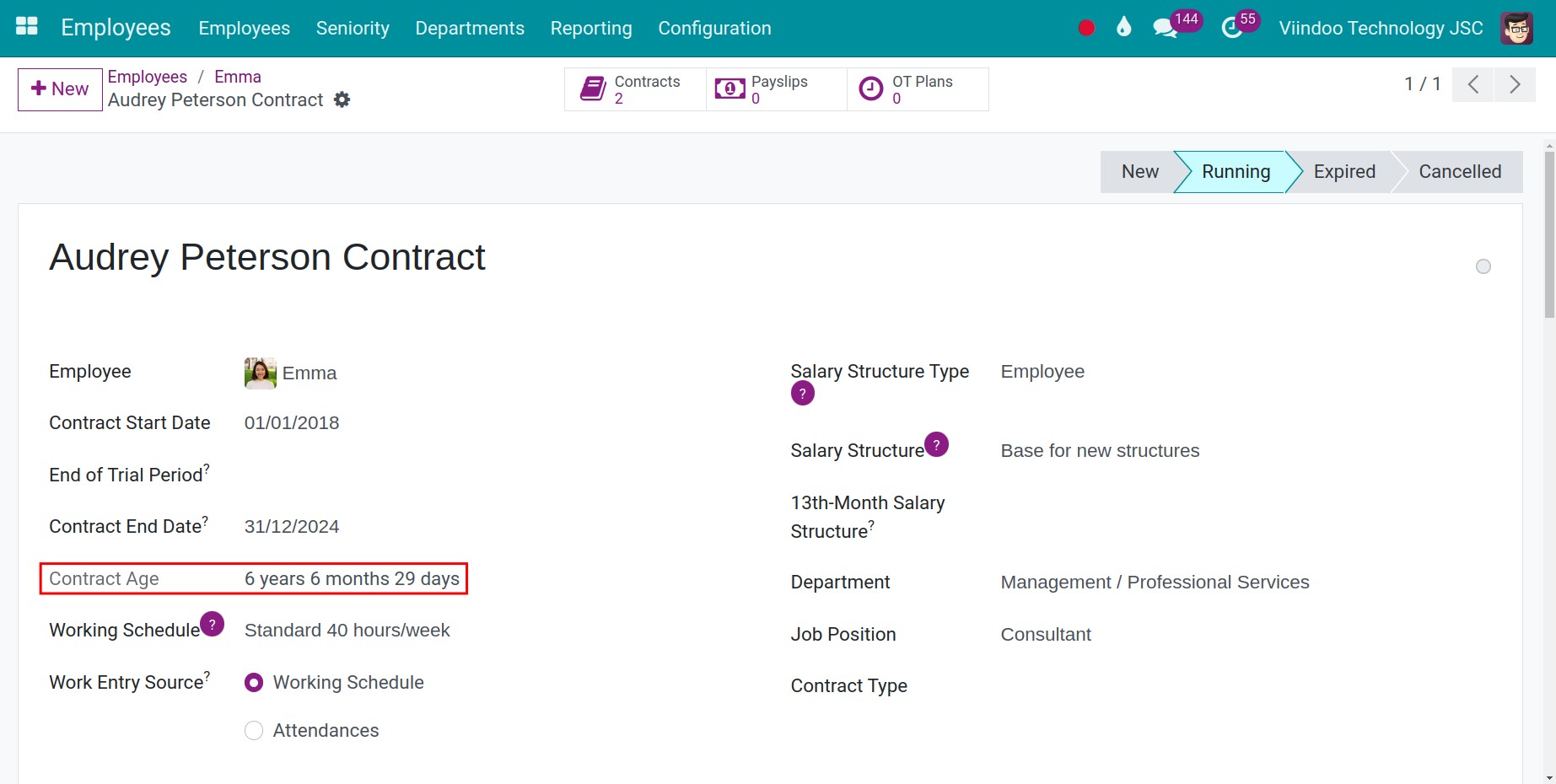
How the contract age is calculated:
If the end date of the contract is in the past: the age is the period from the start date to the end date.
If the end date is empty or in the future: the age is the period from the start date to today.
The contract age is not shown on the contract lines that come from an adjustment such as an addendum.
How to analyze the seniority of all employees?
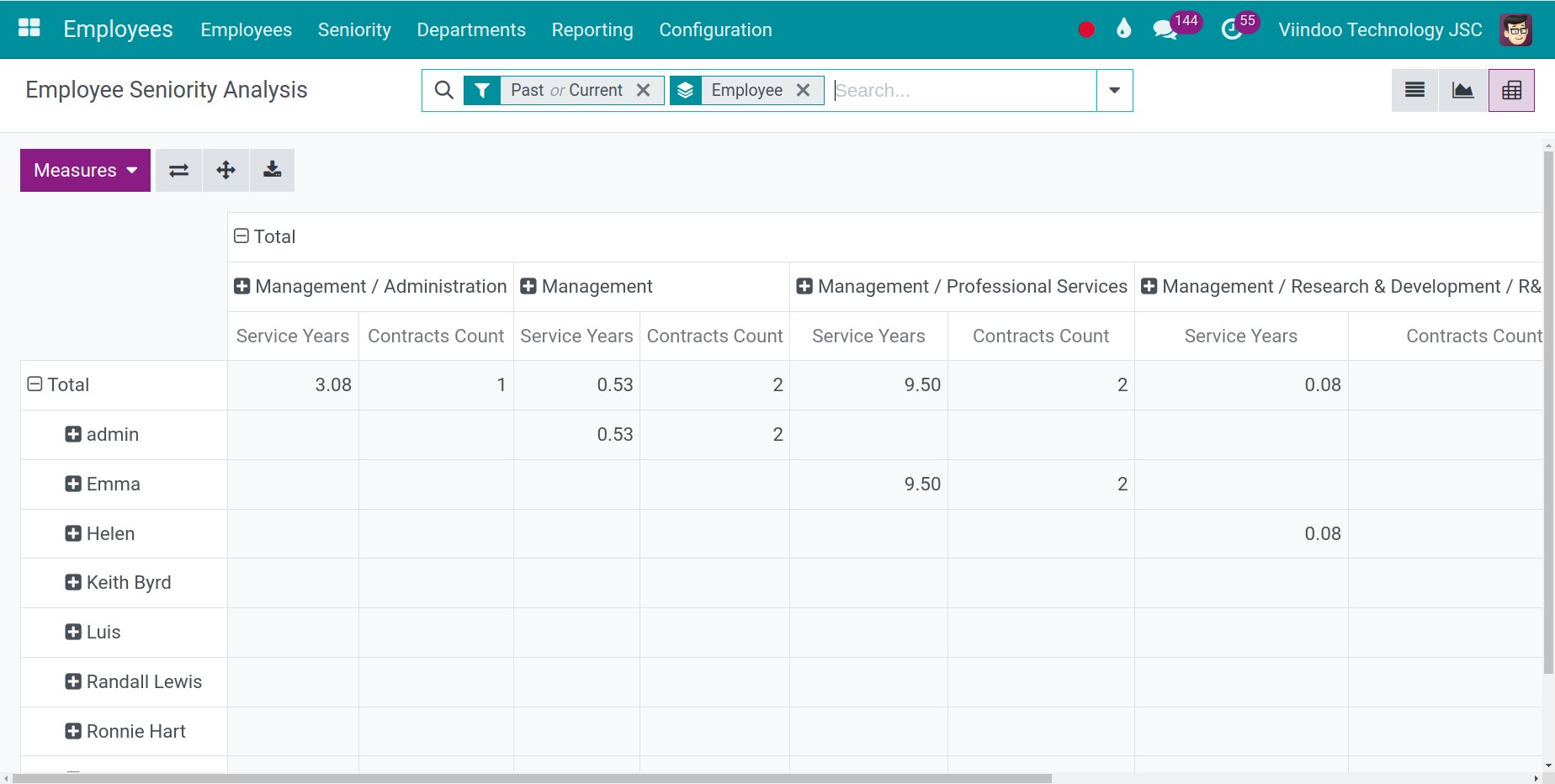
Go to Employees > Seniority to analyze the seniority in the list, graph and pivot views. By default the report shows the Past and Current contracts, grouped by employee.
Column |
Meaning |
|---|---|
Employee, Contract |
The employee and the reference of the contract. |
Start Date, End Date |
The start and the end of the contract, or of its trial period. |
Service Years |
The seniority in years of this line, calculated with the contract age rules above. |
Job Position, Department, Working Schedule, Company |
The information of the contract. |
Trial |
Ticked on the line of a trial period. |
Status |
Past for an expired contract, Current for a running contract and Incoming for a contract that is still New. |
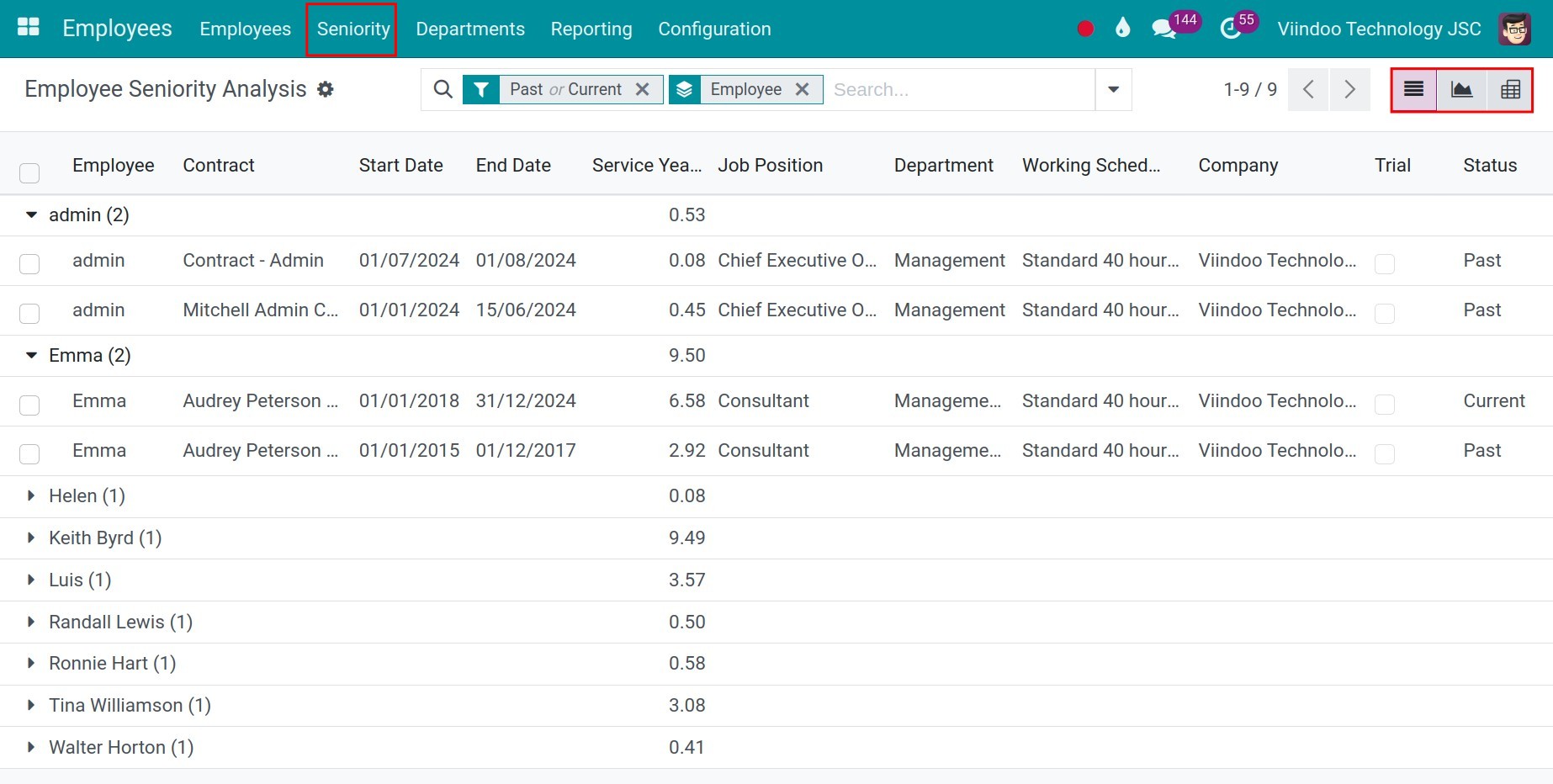
Use the Past, Current and Incoming filters to select contracts by status, and the group by options to group the report by employee, department, job position, status or company. In the pivot view, the measures are Service Years and Contracts Count.
Common problems
Problem |
What to do |
|---|---|
The employee has no seniority information. |
Check that the employee has a contract that is Running or Expired. |
There is no View Seniority button. |
The button is available to users with the Officer: Manage all employees access right, and only when the employee has a first contract date. |
A contract is missing from the report. |
The default filter shows only the Past and Current contracts. Add the Incoming filter to see the contracts that are still New. |