
Repair overview and operation types
The Repairs overview shows, for each workshop, how many repairs are ready, late, confirmed or under repair. Each workshop is a repair operation type: it names the locations where the product and its parts come from and go to, and it numbers the repair orders.
Who |
Inventory administrators who set up the operation types, and repair managers who follow the workload. |
App |
Repairs, Inventory |
Before you start
Activate the Repairs app, see How to install and set up Repairs app.
Tick Storage Locations in the Inventory settings, otherwise the locations of an operation type stay hidden.
To change an operation type, you need the Inventory: Administrator access right.
What does the Repairs overview show?
Go to Repairs ‣ Overview. With one repair operation type, the menu opens the list of repair orders. As soon as you have two or more, it shows one card per operation type.
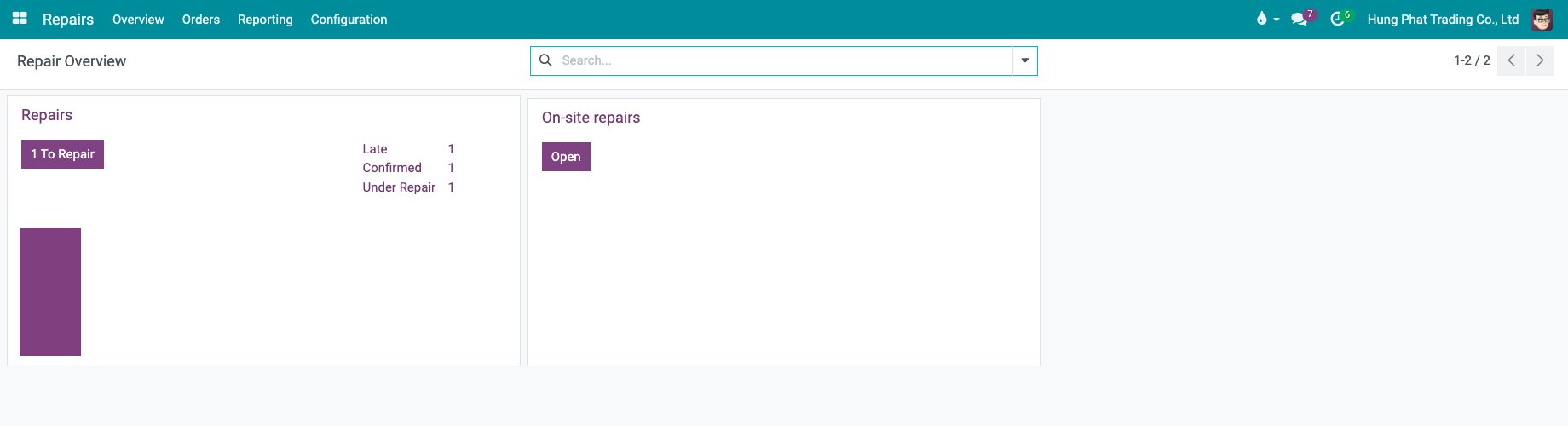
On the card |
What it tells you |
|---|---|
To Repair button |
The number of confirmed repair orders whose parts are all available. Click it to open them. When no order is ready, the button reads Open and opens every order of the type. |
Late |
The confirmed orders whose scheduled date has passed. |
Confirmed |
The orders confirmed and not started yet. |
Under Repair |
The orders being repaired now. |
Bar chart |
The confirmed orders by scheduled date. |
Click Late, Confirmed or Under Repair to open the matching orders.
What is a repair operation type?
An operation type of the kind Repair represents a workshop. Each warehouse has one named Repairs from the activation of the app. A repair order takes its reference from the type: the sequence prefix RO of the warehouse HP gives HP/RO/00001.
Go to Inventory ‣ Configuration ‣ Warehouse Management ‣ Operations Types and open the Repairs type.
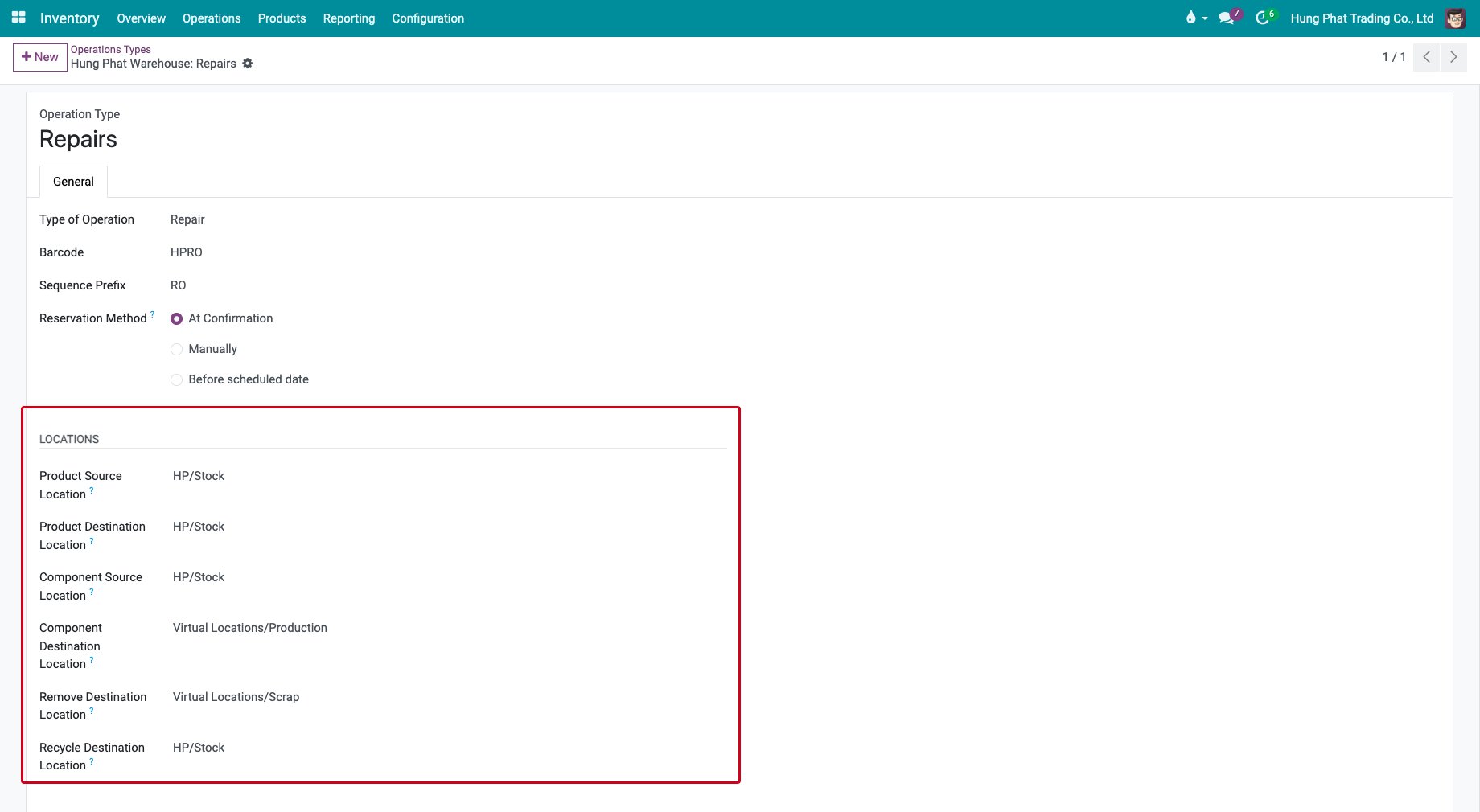
Field |
What it does |
If it is wrong |
|---|---|---|
Sequence Prefix |
Starts the reference of the repair orders of this type. |
The references of two workshops look alike. Give each type its own prefix. |
Product Source Location |
Where the product to repair is when the order starts. Default: the stock of the warehouse. |
Confirm Repair warns that the quantity is not available in that location. |
Product Destination Location |
Where the product goes when you click End Repair. Default: the stock of the warehouse. |
The repaired product ends in the wrong place. |
Component Source Location |
Where the parts of type Add are taken from. Default: the stock of the warehouse. |
The parts show as not available. |
Component Destination Location |
Where the parts you add are recorded as consumed. Default: Virtual Locations/Production. |
The consumption is recorded in the wrong place. |
Remove Destination Location |
Where the parts you remove go. Default: Virtual Locations/Scrap. |
Removed parts are scrapped when you want to keep them. |
Recycle Destination Location |
Where the parts you recycle go. Default: the stock of the warehouse. |
Recycled parts do not return to your stock. |
How do I add an operation type for repairs at the customer’s site?
Add a second type when a team repairs in another place, for example at your customers’ sites.
Go to Inventory ‣ Configuration ‣ Warehouse Management ‣ Operations Types and click New.
Enter the name, for example On-site repairs, choose Repair in Type of Operation and enter a Sequence Prefix, for example OS.
In Locations, choose Partners/Customers as Product Source Location and as Product Destination Location. Keep the stock of the warehouse as Component Source Location, so the technician takes the parts from it.
Click Save.
![The On-site repairs operation type with the customer location as product location]()
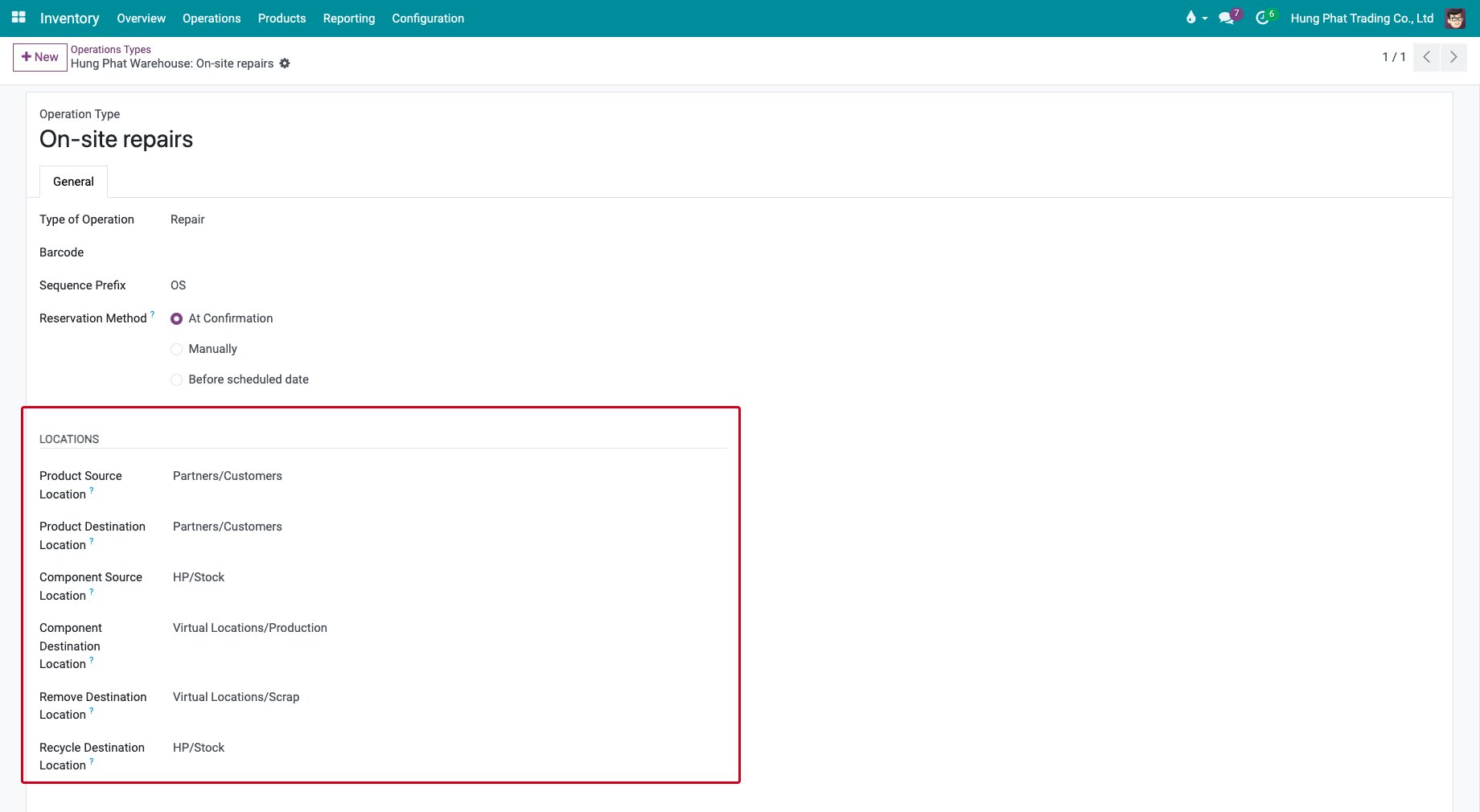
The new type appears on the Repairs overview. To use it, open a repair order and choose it in Operation Type on the Miscellaneous tab, see Repairing at customer’s location.
How do I find my repair orders?
Go to Repairs ‣ Orders. The list shows the priority, the reference, the scheduled date, the product, the status of the components, the customer, the sale order and the status of each order.
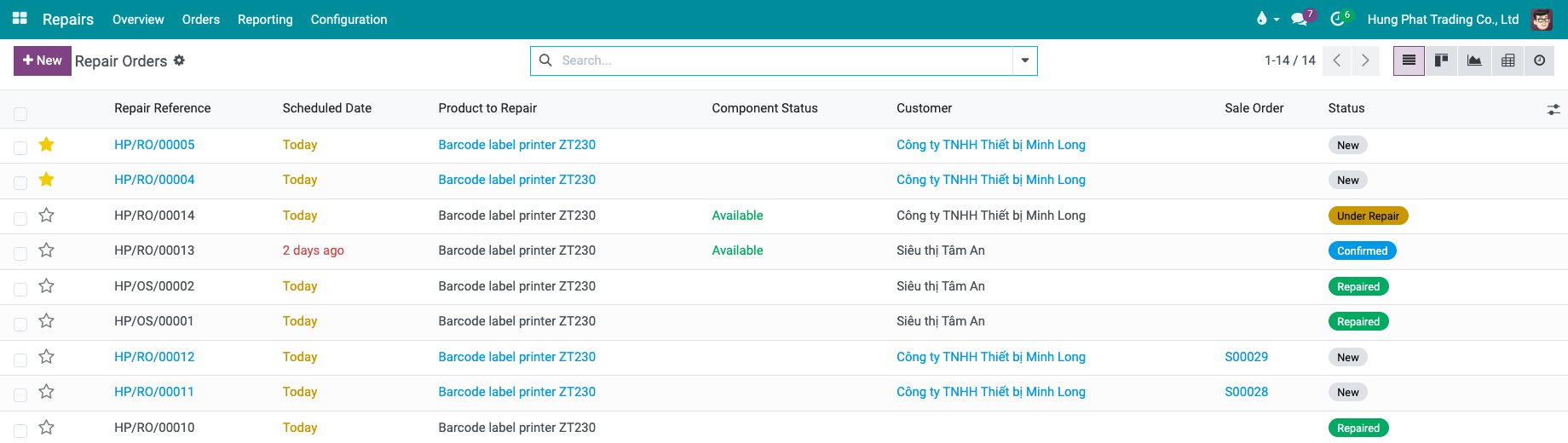
Use the filters New, Confirmed, Under Repair, Repaired, Cancelled, Returned and Late, and group the orders by Customer, Product or Status. The buttons at the top right switch to the kanban, graph, pivot and activity views.
Common errors
Problem |
What to do |
|---|---|
Overview opens the list of orders, not the cards. |
You have one repair operation type. The cards appear from the second type. |
Overview shows “You don’t have enough access rights to run this action.” |
Give the user Inventory: User, see How to install and set up Repairs app. |
The Locations group is missing on the operation type. |
Tick Storage Locations in the Inventory settings. |
A new order gets the wrong reference. |
The order took the operation type by default. Choose the right one in Operation Type. |
Next steps
Create repair order: create a repair order.
Repairing at customer’s location: repair at the customer’s site with the operation type above.
See also
Related articles