
How to read Shop Floor quality steps from an IoT instrument
A Measure step of a work order is often a weighing. On the Shop Floor screen the operator stands at the machine with the product in both hands, and has to read the figure off the scale and type it into the numpad. A figure typed by hand can be misread or mistyped, and nobody can tell afterwards where it came from.
IoT Shop Floor Quality adds one button to the Measure step on the Shop Floor: Read from instrument. One tap takes one fresh reading from the scale that serves the check and puts it in the step. The operator looks at the figure and taps Confirm; only then is the result recorded. The check keeps a record of which instrument gave the figure and when, and nobody can edit that record afterwards.
The module adds no menu, no setting and no screen of its own. Which instrument is asked (the scale chosen on the work center of the work order, else the measuring instrument of the control point), and everything about the reading itself, is explained once in How to read quality measurements from an IoT instrument and is not repeated here. The module works on its own: the station does not need the scanner, footswitch and label printer of IoT Shop Floor.
Who |
The Shop Floor Operator records the Measure steps; the Quality Inspector revises them; the Quality Manager chooses the instruments. |
App |
IoT Shop Floor Quality (with Quality Control IoT for Manufacturing and Shop Floor Control - Quality) |
Before you start
The scale that gives the reading belongs to an IoT box: follow Set up and manage IoT boxes. Then choose the scale on the work center or on the control point (see How are the checks of a work order read?).
The process
To do - the Shop Floor Operator opens the quality step Measure of the work order on the Shop Floor, taps Read from instrument and checks the figure that fills the step. Next: the same operator.
Passed / Failed - the Shop Floor Operator taps Confirm. The tolerance of the control point decides whether the step is Passed or Failed. A Quality Inspector can reopen and revise the check afterwards.
Who uses IoT Shop Floor Quality
Role |
What they do |
Access right to assign |
|---|---|---|
System Administrator |
Installs the module (it installs itself when its two required apps are present) and gives people their access rights. |
Administration / Settings |
Shop Floor Operator |
Runs the work orders at the station and records the Measure steps, reading the figure from the instrument instead of typing it. |
Manufacturing / User |
Quality Inspector |
Performs and revises quality checks. Keeps the right to read and adjust a measurement after the order is done. |
Quality / User |
Quality Manager |
Chooses the measuring instrument on each control point and decides who performs the check with the field Responsible. |
Quality / Administrator |
The Quality / Administrator right includes the Quality / User right.
How do I install IoT Shop Floor Quality?
IoT Shop Floor Quality installs itself as soon as Quality Control IoT for Manufacturing and Shop Floor Control - Quality are both installed, so most databases never install it by hand. If it is not installed:
Open Apps.
Remove the default
Appsfilter, so that modules that are not applications are listed, and search forIoT Shop Floor Quality.Click
Activate. The two apps it needs are installed with it if they are missing.
The module has no switch under Settings. To remove it, open Apps, search for it in the same
way and click Uninstall.
How do I give the access rights?
Open Settings ‣ Users & Companies ‣ Users and open the person.
On the
Access Rightspage, setManufacturingtoUserfor each Shop Floor Operator.Set
QualitytoUserfor each Quality Inspector, or toAdministratorfor each Quality Manager.Save.
The module changes no access right. A Shop Floor Operator needs no IoT access right to read from the instrument of the station.
Each Shop Floor Operator must also be linked to an employee: open the employee in the Employees app and set Related User to the person’s user. Without that link the Shop Floor refuses to start work and answers that the user is not linked to an employee.
Where does the Quality Manager choose the instrument?
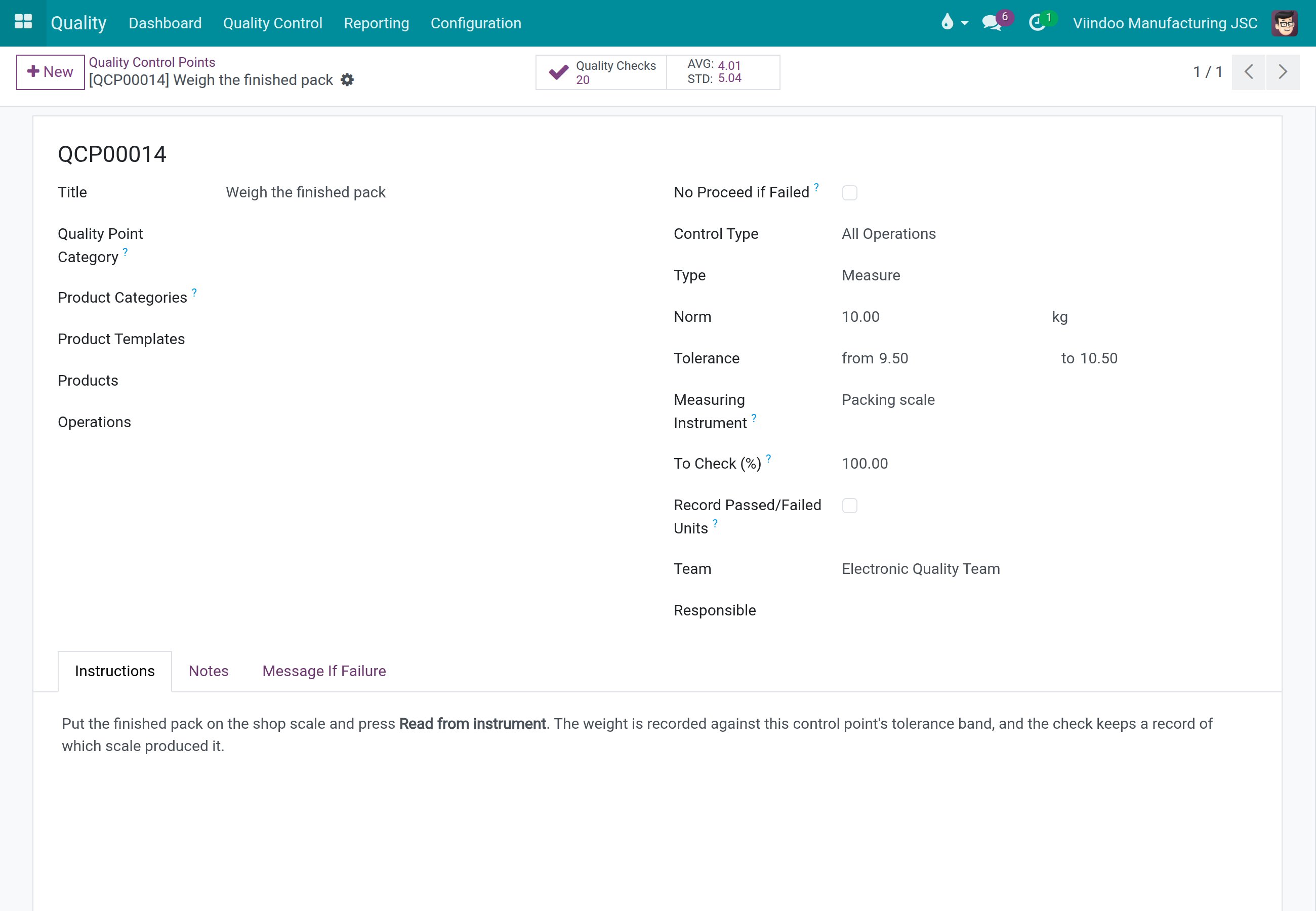
The button is offered on a Measure step only where an instrument is named. Two places can name one, and the rule that picks between them is described in How are the checks of a work order read?.
Open Quality ‣ Quality Control ‣ Quality Controls ‣ Control Points and open the control point, or click
New.Set
TypetoMeasureand enter theNorm, its unit and theTolerance.In
Measuring Instrument, choose the scale to use when the work center of the work order has no scale of its own.Save.
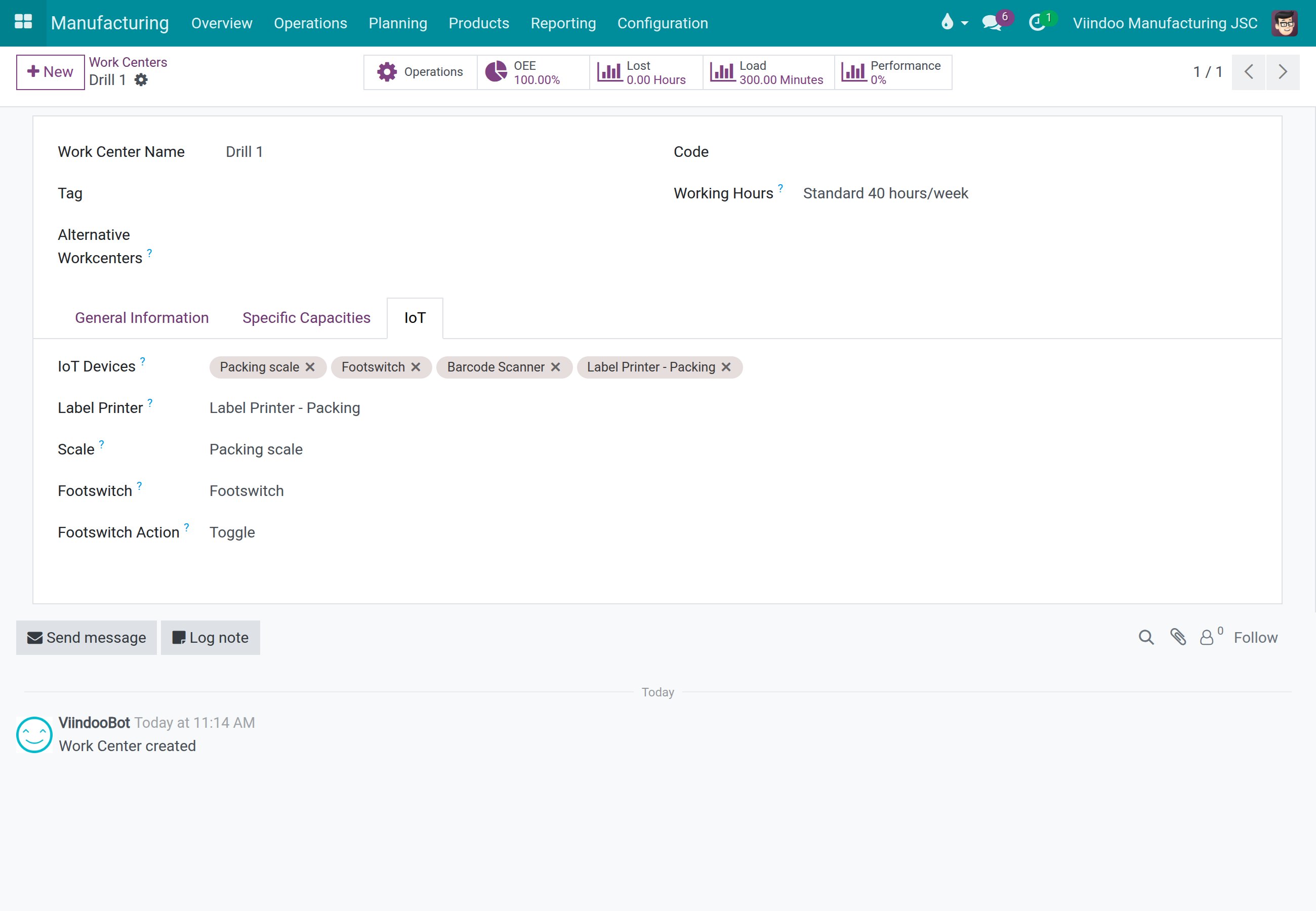
The scale of a work center is chosen on its IoT page, under Manufacturing ‣ Configuration ‣
Work Centers, in the field Scale. When a work center has a scale chosen, a Measure step of a
work order at that work center is read from it.
Leave Responsible empty on control points that are performed by station operators. When a
person is named in Responsible, only that person may record the check, and the button is not
offered to anybody else.
How does the operator read a Measure step from the instrument?
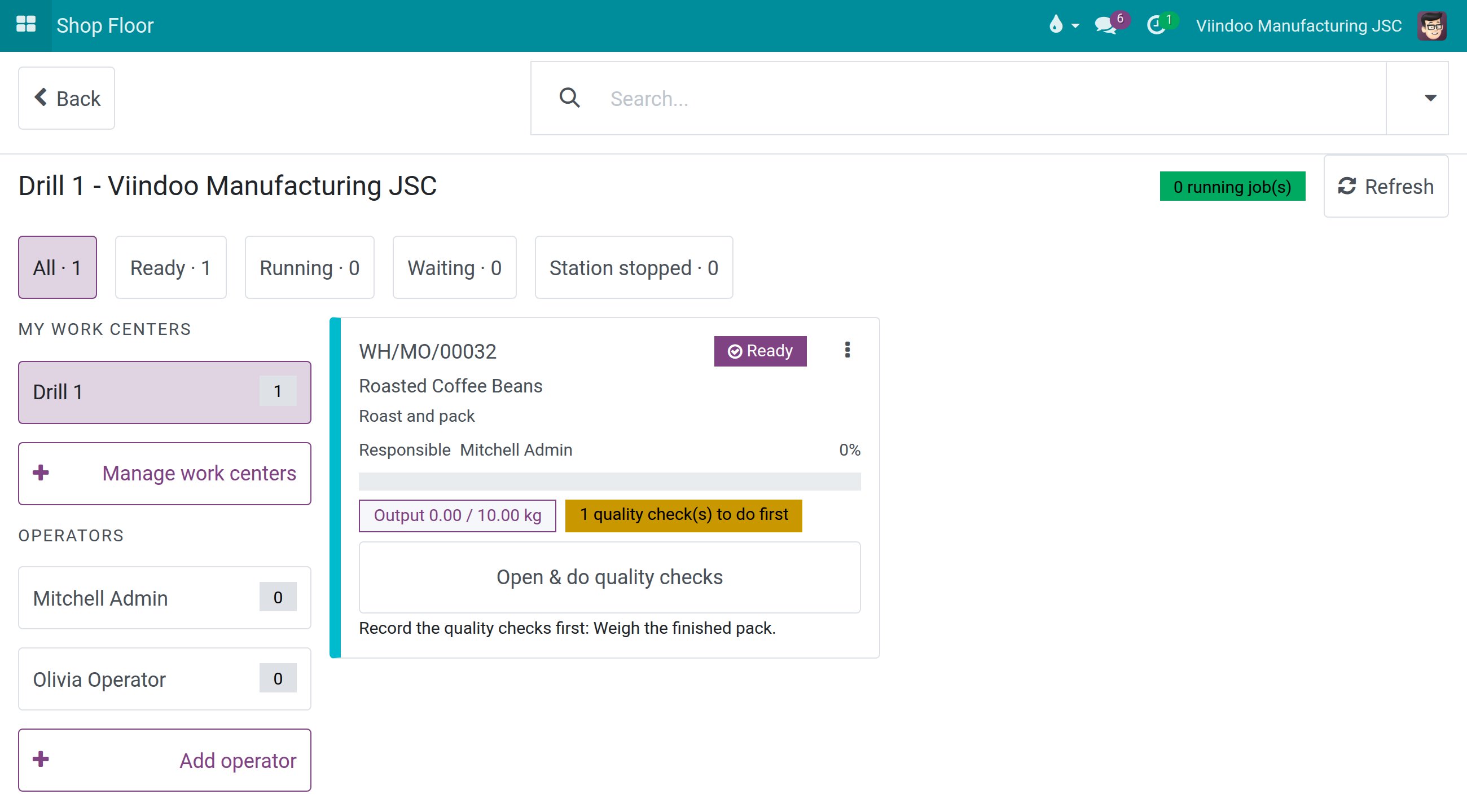
Open the Shop Floor app, choose your work center and click
Open job board.Find the card of the work order. A tag such as
1 quality check(s) to do firstand the lineRecord the quality checks firstmean that the work order is held until its quality steps are recorded.![The job board with a work order held by one quality check]()
Click
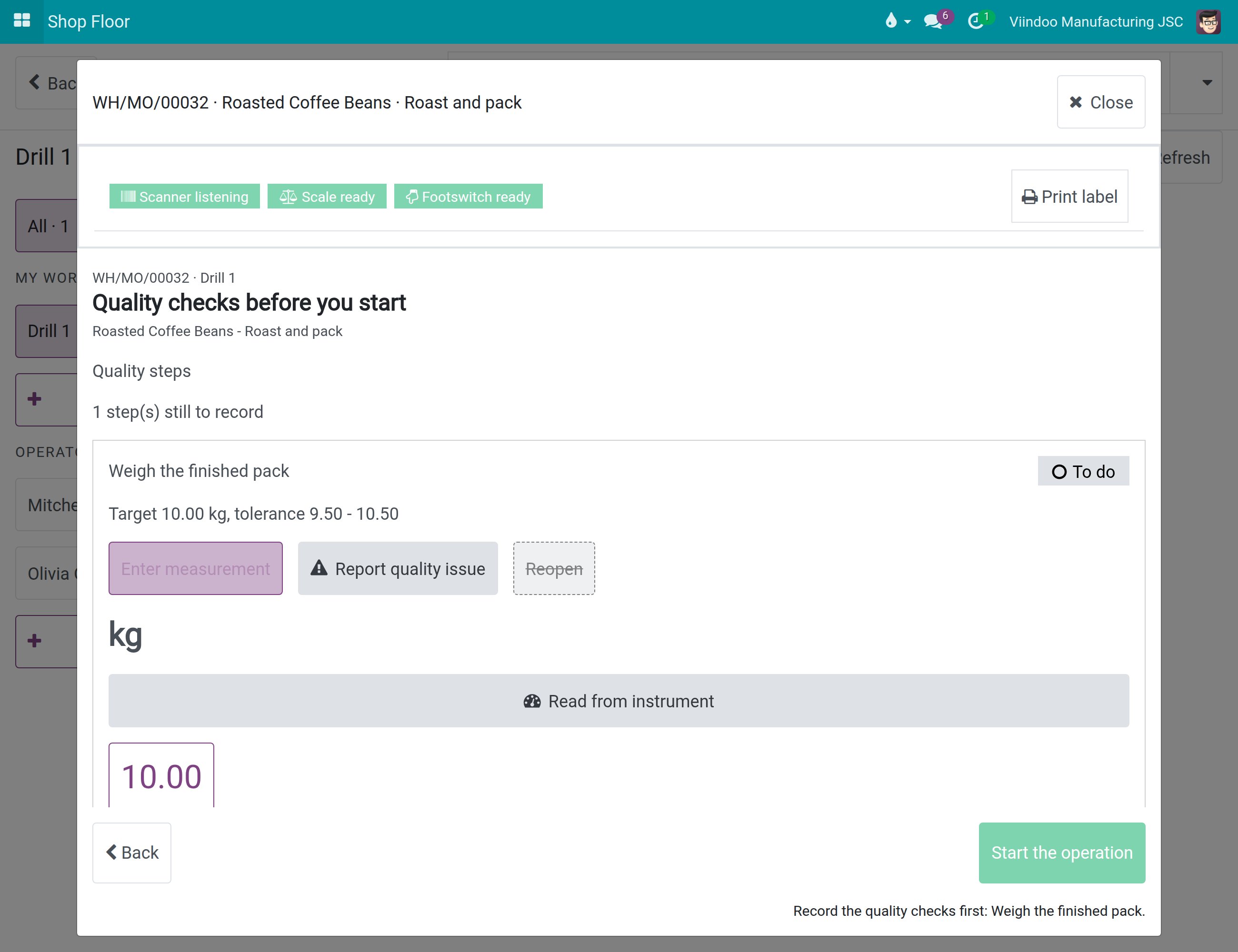
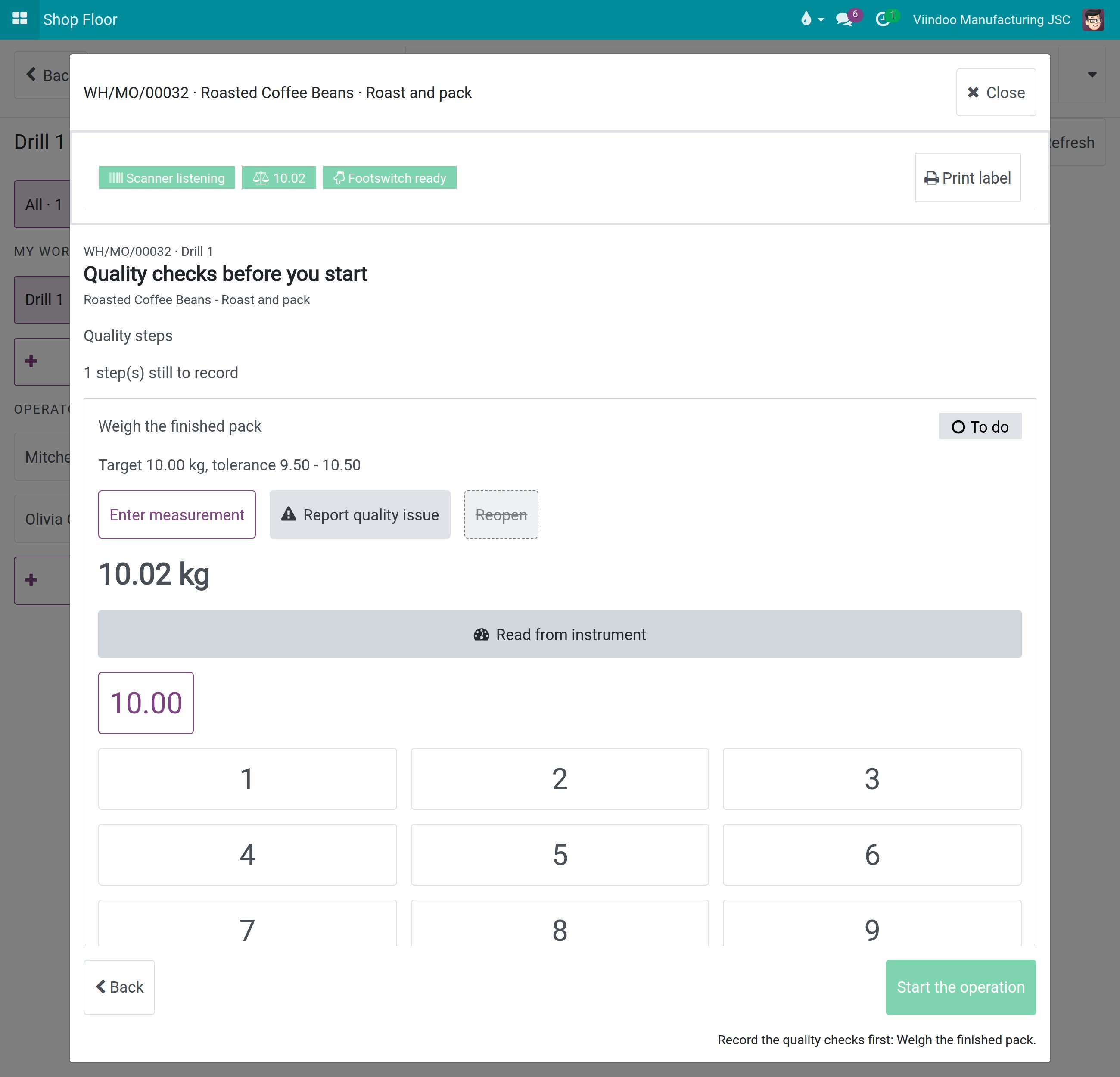
Open & do quality checks. The screenQuality checks before you startlists the steps of the work order.On the Measure step, read the target and the tolerance, then click
Enter measurement. The numpad opens, with the buttonRead from instrumentabove it.![The numpad of a Measure step with the Read from instrument button]()
Put the product on the scale and wait until the weight is steady.
Tap
Read from instrument. While the box answers, the button readsWaiting for the instrument.... One tap takes one fresh reading taken at that moment.The figure fills the step, for example
10.02 kg. Check it. Nothing is recorded yet.![The Measure step with 10.02 kg read from the instrument and the Confirm button below the numpad]()
Tap
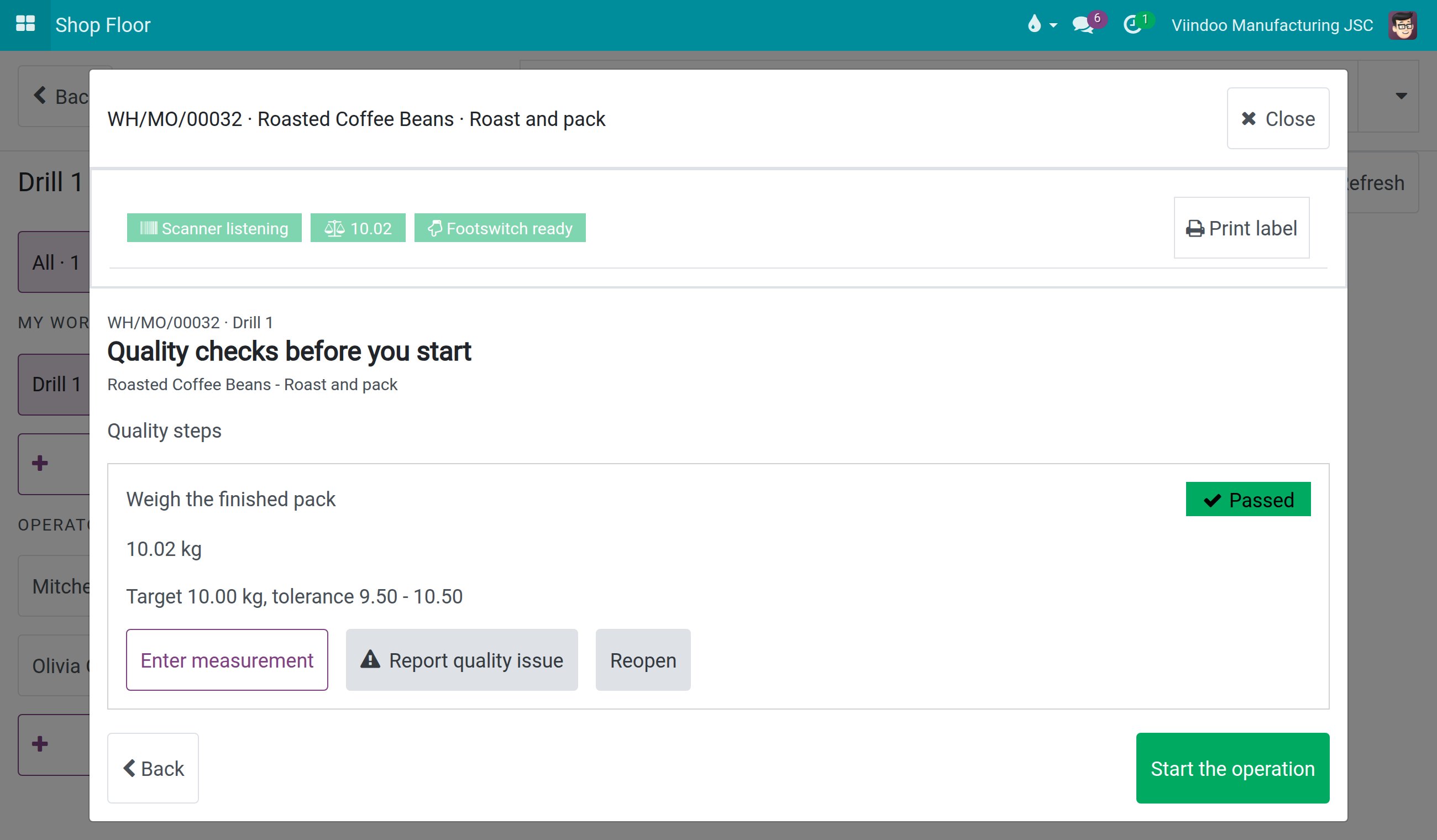
Confirm. The step becomesPassedorFailedaccording to the tolerance of the control point, and the figure is recorded.![The Measure step recorded as Passed with 10.02 kg, and the Start the operation button active]()
When no step is left to do, tap
Start the operation.
If the reading is not what you expected, put the product on the scale again and tap Read from
instrument once more before you tap Confirm: the new reading replaces the figure in the
step. You can also type the figure yourself on the numpad; a value typed by hand is recorded as
Entered manually.
What happens when the box or a device fails?
A refusal or a failed reading is shown in a yellow message right under the button. The numpad and
what you typed stay as they were, so you can always type the figure by hand; it is then recorded
as Entered manually.
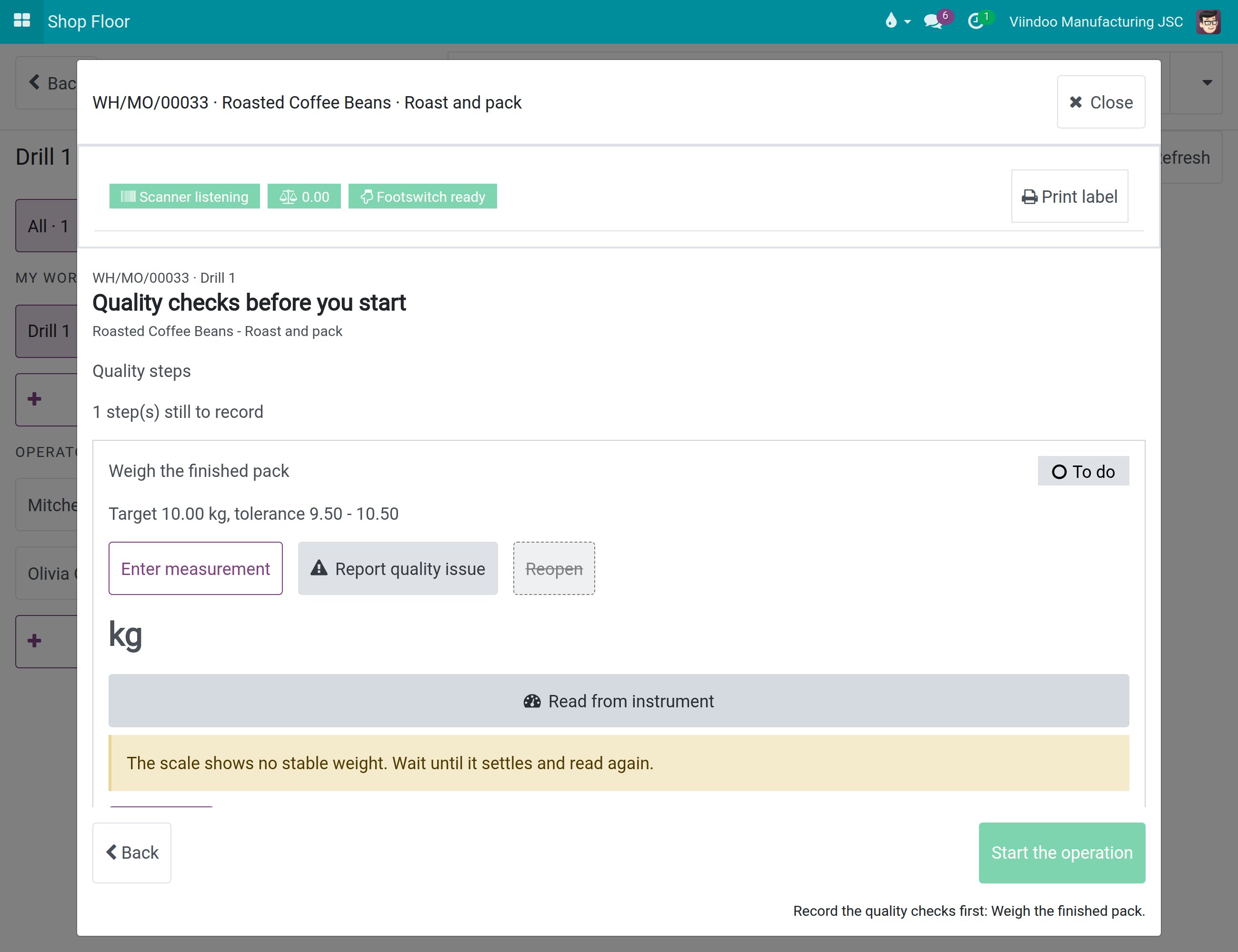
The scale shows no stable weight. Wait until it settles and read again. The scale showed zero or was not steady. A zero weight is never recorded. Wait until the weight settles and tap
Read from instrumentagain.![The message that the scale shows no stable weight under the Read from instrument button]()
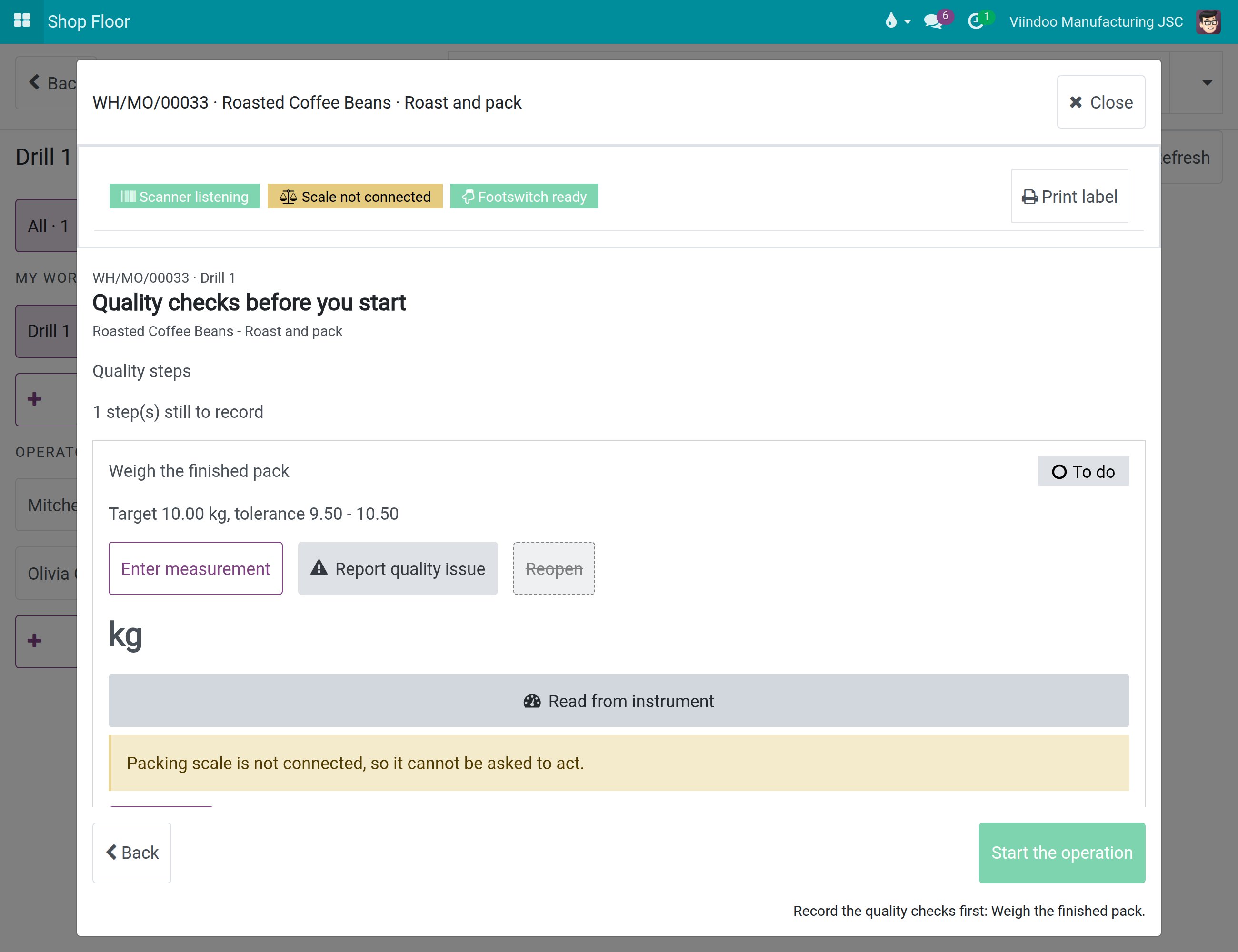
Packing scale is not connected, so it cannot be asked to act. The message starts with the name of the instrument (here
Packing scale). Ask the person who looks after the IoT box to check the box and the scale, then read again.![The message that the scale is not connected under the Read from instrument button]()
The instrument cannot be reached. Type the value by hand. The box did not answer. Type the figure on the numpad, or try again once the box is back.
![The message that the instrument cannot be reached with advice to type the value by hand]()
No reading. Check the instrument and read again, or type the value. The request ended without a usable reading. Check the instrument, then read again or type the figure.
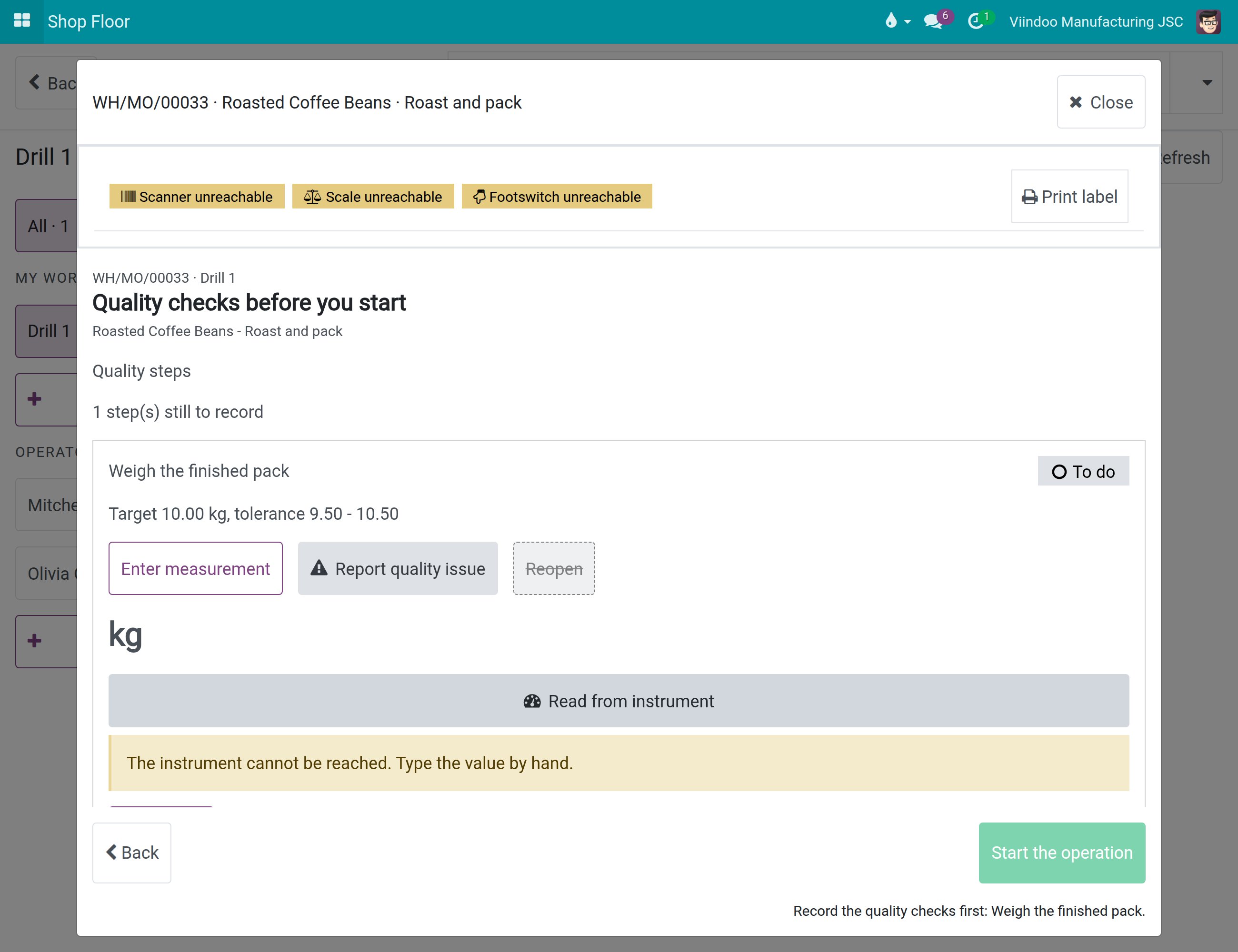
The browser that runs the Shop Floor talks to the IoT box directly. When the Shop Floor page is opened over HTTPS and the box has a private address, your browser may ask for permission to reach devices on the local network; allow it for this site.
How does the Quality Inspector check and revise the measurement?
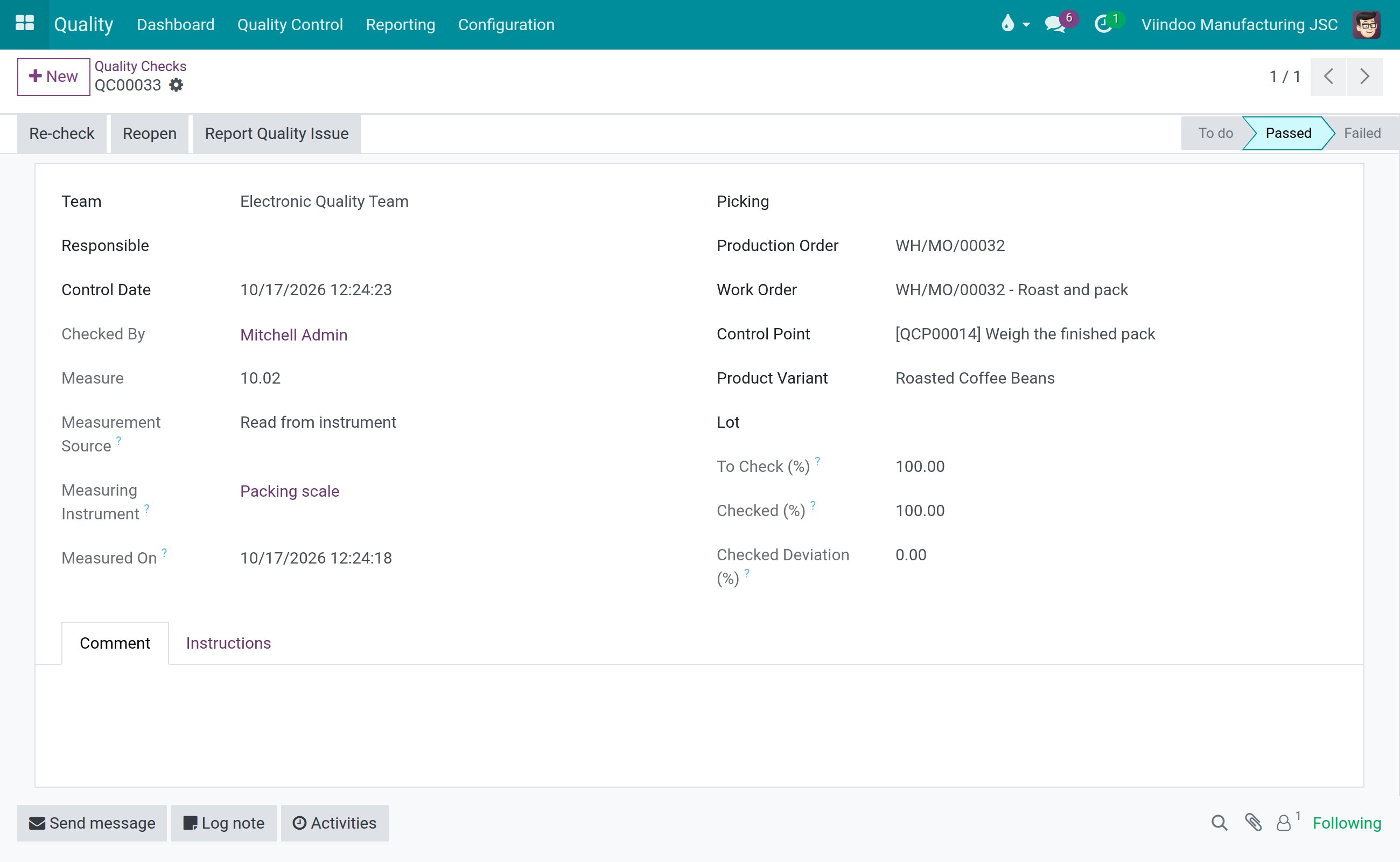
Open Quality ‣ Quality Control ‣ Quality Controls ‣ Quality Checks and open the check of the work order. Its
Work Orderfield tells you which one it is.Look at
Measurement Source,Measuring InstrumentandMeasured On. They show that the value wasRead from instrument(orEntered manually), which instrument gave it and when. Nobody can edit them afterwards.
To take a new measurement of a check that already has a result:
On the Shop Floor, open the step and tap
Reopen, or on the check form clickReopen. The step goes back toTo do.Tap
Enter measurement(on the check form, clickMeasure) and thenRead from instrument.Check the figure and tap
Confirm.
Re-check on a check form never offers an instrument read: to measure again, always reopen the
check first.
An operator is not offered Read from instrument on a cancelled or completed order. A person
with the right Quality / User keeps the right to revise the check from the check form: open it
under Quality ‣ Quality Control ‣ Quality Controls ‣ Quality Checks, click Reopen, then
Measure and Read from instrument.
Common errors
Problem |
What to do |
|---|---|
There is no Read from instrument button on the numpad. |
Neither the work center of the work order nor the control point names an instrument; or the
control point names a |
The message says the scale shows no stable weight. |
The scale showed zero or was not steady. Wait until it settles, then read again. |
The message says the scale is not connected, or cannot be reached. |
The box or the scale is not answering. Type the figure by hand, or ask the person who looks after the IoT box to check it. |
The figure is not the weight on the scale. |
One tap takes one reading at that moment. Put the product on the scale, wait for it to settle
and tap |
The check reads from the wrong scale. |
See How are the checks of a work order read?, which explains which scale is asked. |
FAQ
Is the result recorded as soon as I tap Read from instrument?
No. The figure only fills the step. The result is recorded when you tap Confirm.
Can I still type the value myself?
Yes. A value typed by hand is recorded as Entered manually.
Does the station need the scanner, footswitch and label printer of IoT Shop Floor? No. This module works without them.