
How to link Employees and Users
To link an employee and a user, either click Create employee on the user, or fill in the Related User field on the employee. Depending on roles and responsibilities, not every member of a company needs access to the software (for example security guards or office staff), so Viindoo manages two independent records:
Employees: the employee profiles of the company. An employee has no access to the software.
Users: the accounts that can log in and view, create, edit or delete data within the access rights they have been granted.
When an employee must work in the software (create sales orders, purchase orders, invoices, production plans, and so on), the administrator creates a user and links the employee and the user. One user can be linked to only one employee per company.
Who does this |
Application |
|---|---|
A user with the Officer: Manage all employees access level or higher; creating a user also needs access to Settings |
Settings and Employees |
Create Employee from existing User
How do I create an employee for a user who already exists?
Use this when a user already has a user account but no employee profile yet.
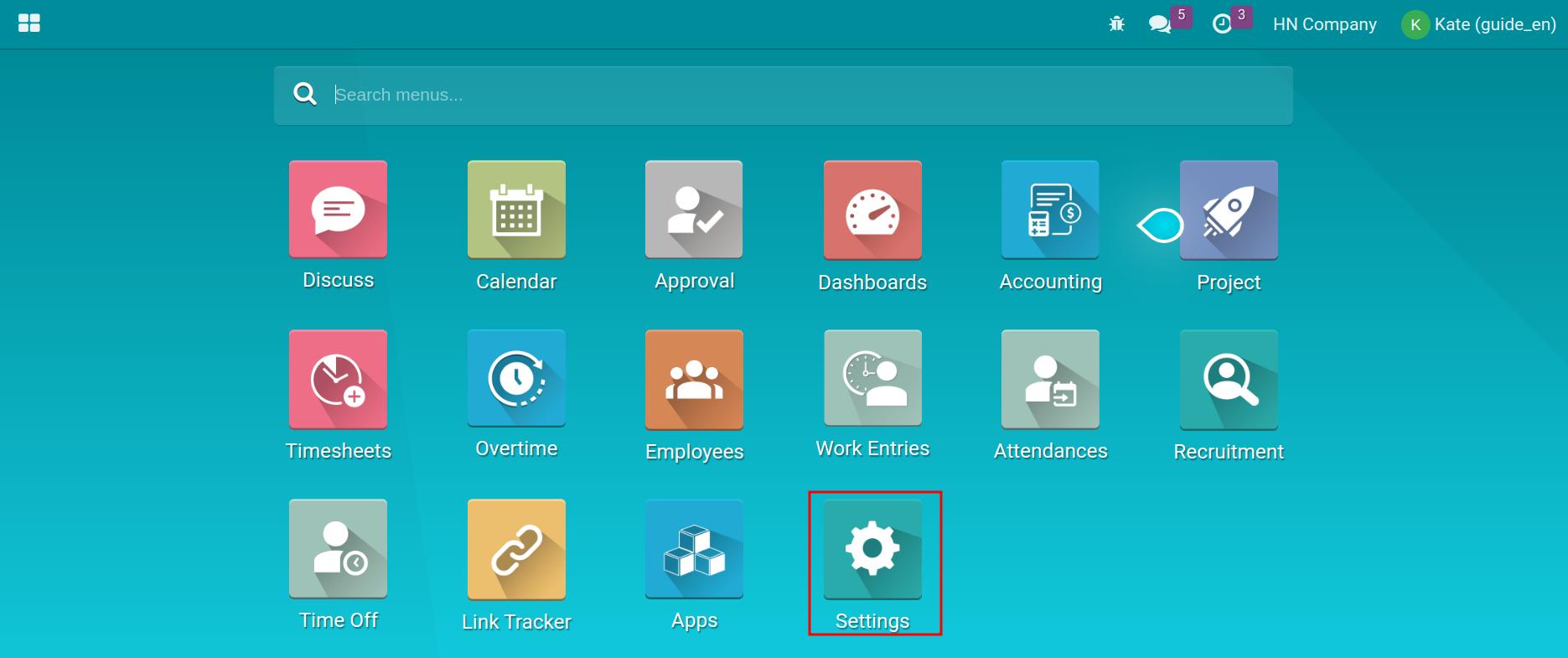
Open Settings.
![The Settings application]()
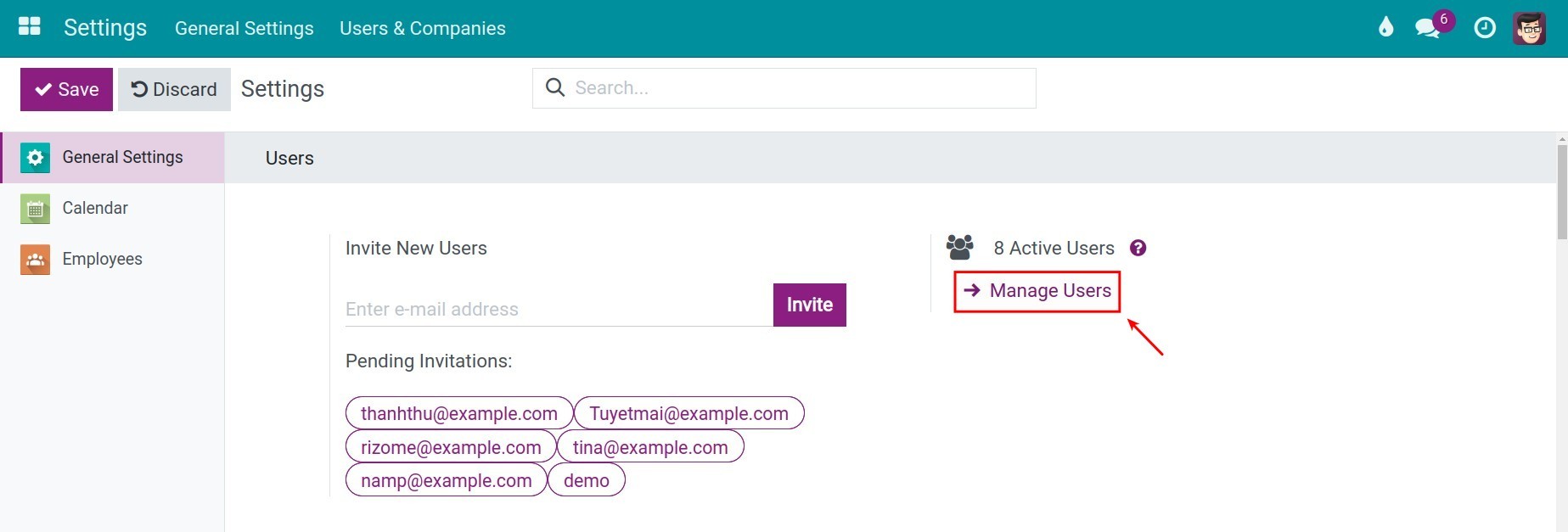
In the Users block, click Manage Users.
![The Manage Users link in Settings]()
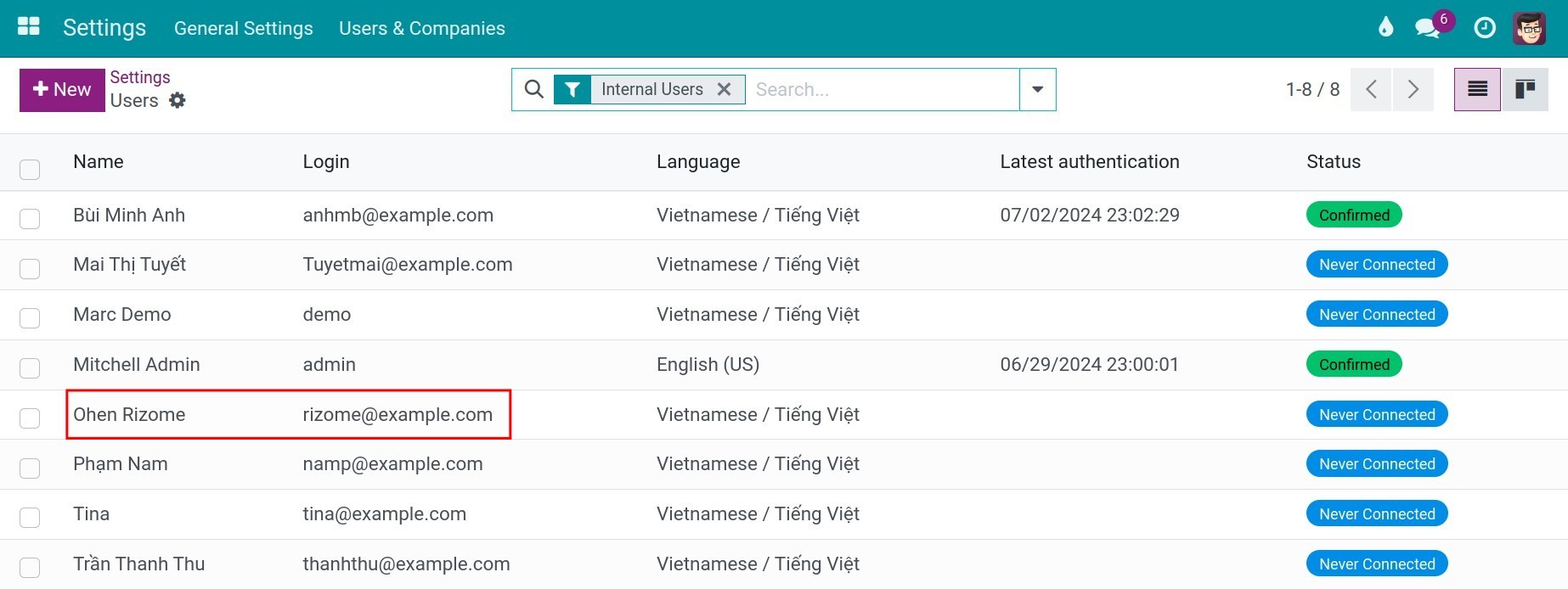
Click the user who needs an employee profile.
![The users list filtered by the user's name]()
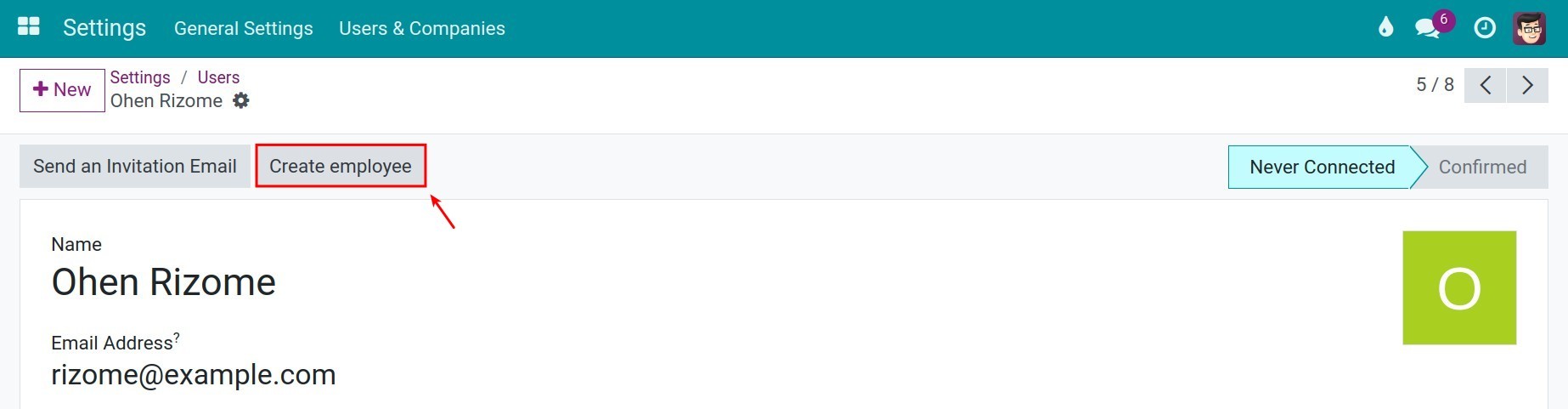
Click Create employee at the top of the user form. The button only appears for a user who has no employee yet.
![The Create employee button on the user form]()
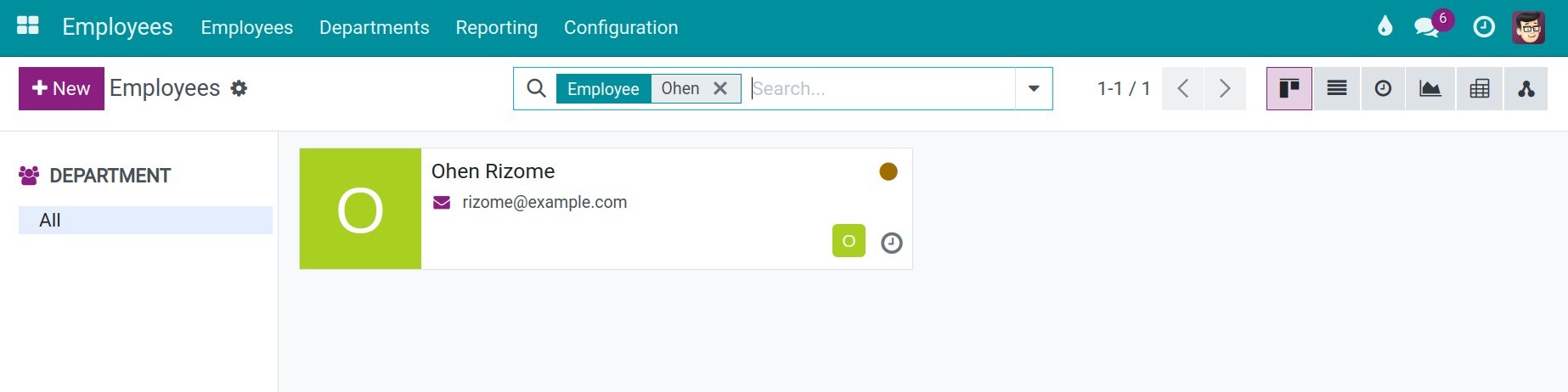
The system creates the employee, named after the user. Click the Employee smart button on the user to open it.
![The employee created from the user]()
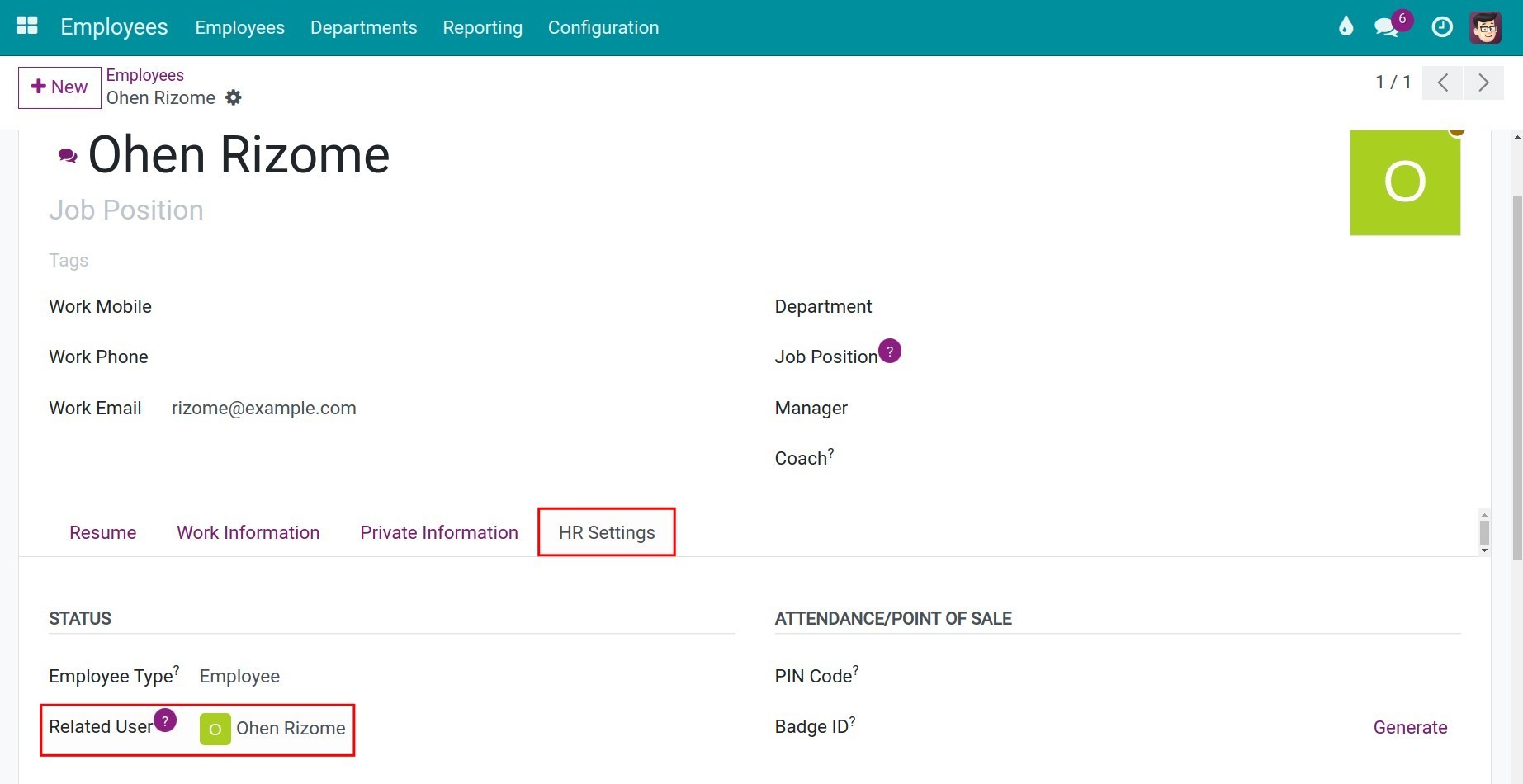
Open the Settings tab of the employee: the user is in the Related User field.
![The employee linked to the user in the Related User field]()
Link User to existing Employee
How do I give an existing employee a user account?
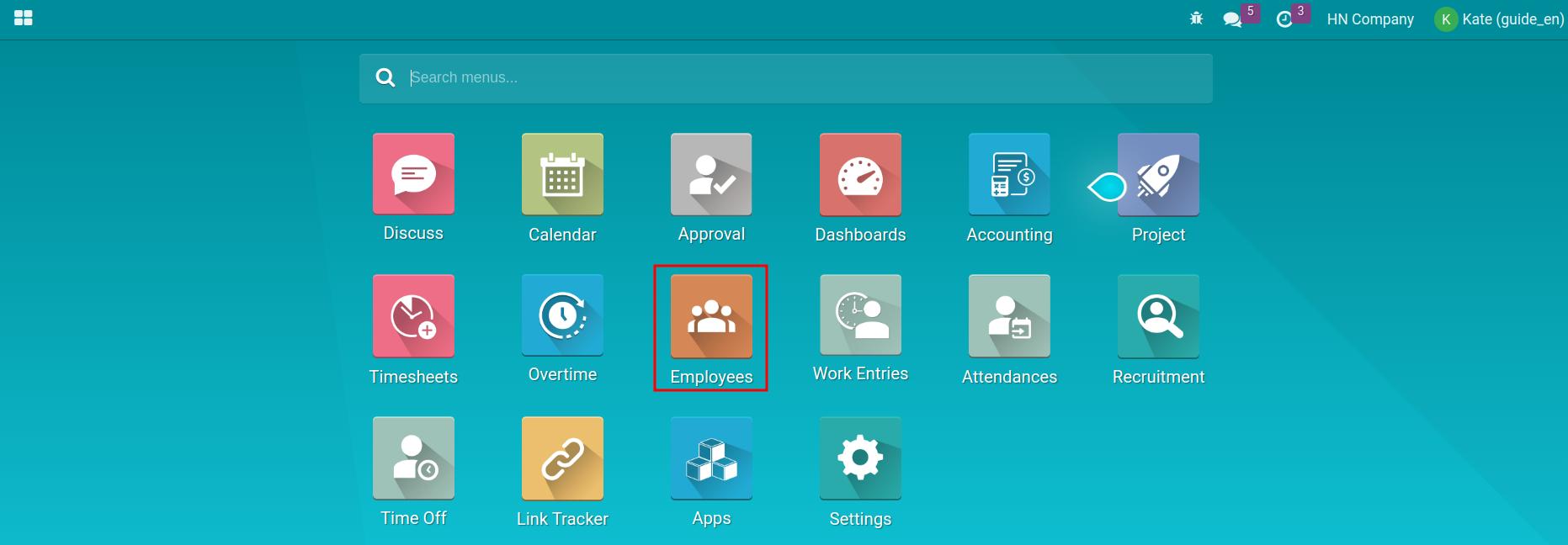
Open the Employees application and click the employee.
![The employee in the Employees list]()
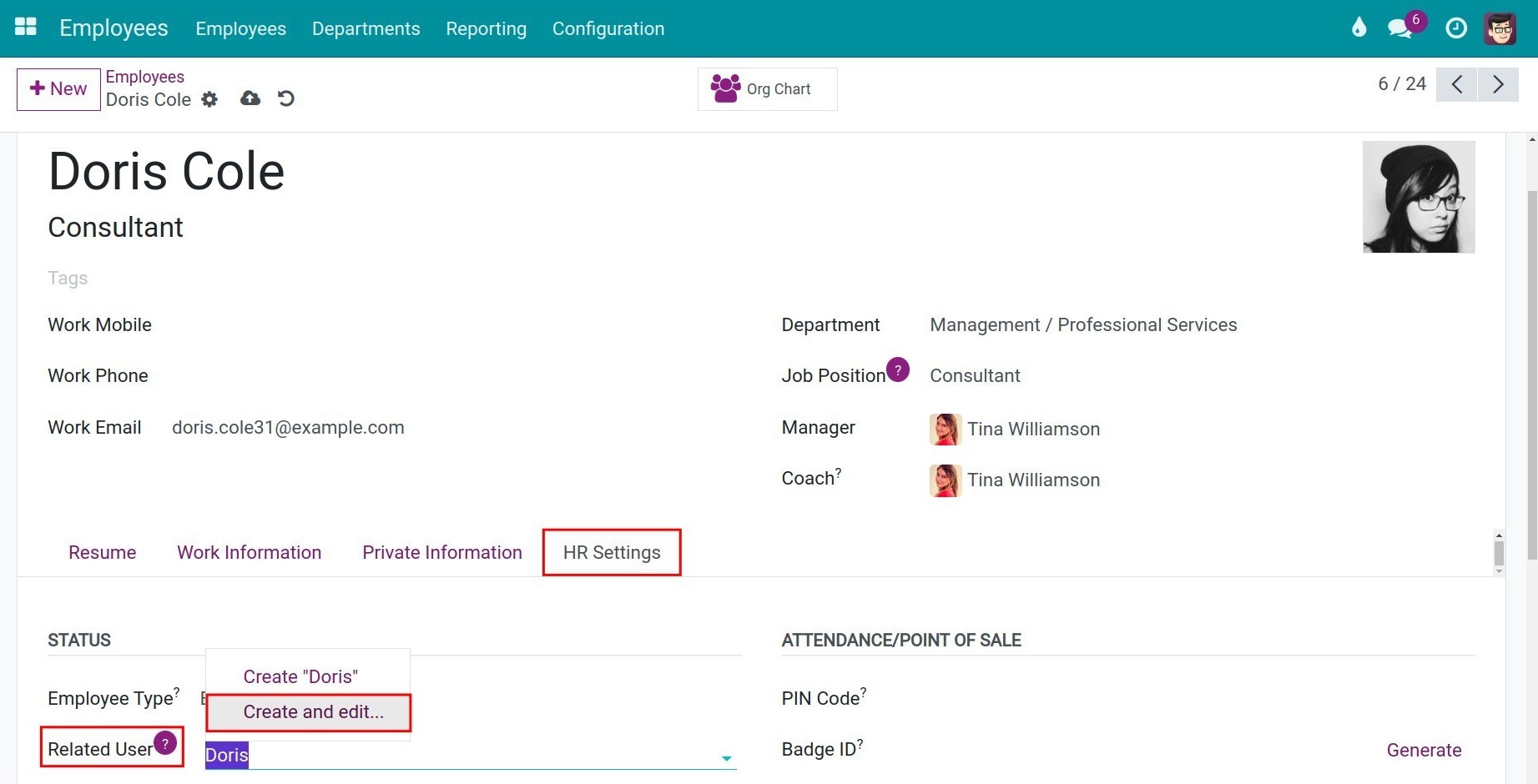
On the Settings tab, enter the name of an existing user in the Related User field and select it. If the user does not exist yet, type the name and click Create and edit…. Clicking the Create User button next to the field does the same with the name and work email of the employee already filled in.
![Create and edit option in the Related User field]()
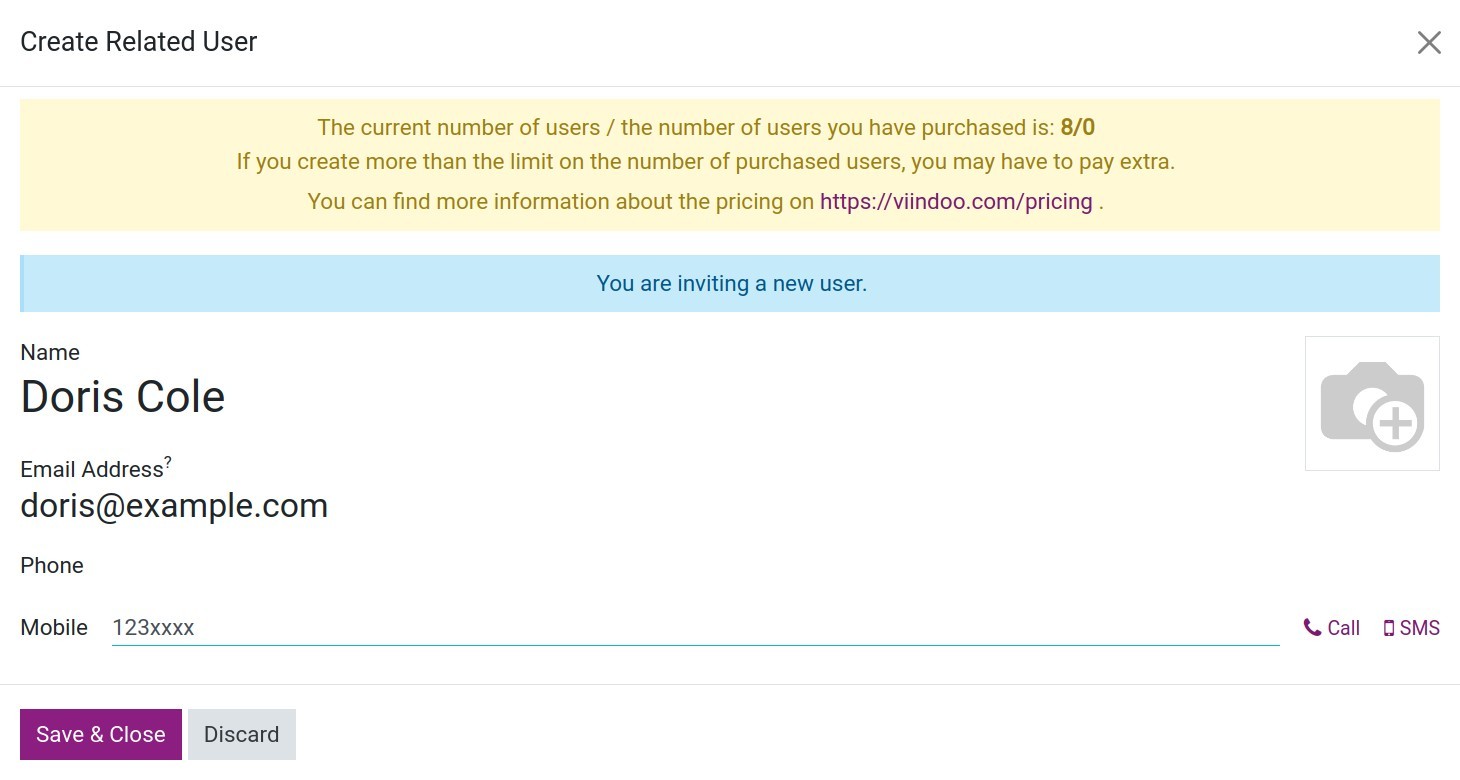
In the Create Related User window, check the Name, enter the Email Address, and click Save & Close. The system invites the new user by email.
![The Create Related User window with the name and email address]()
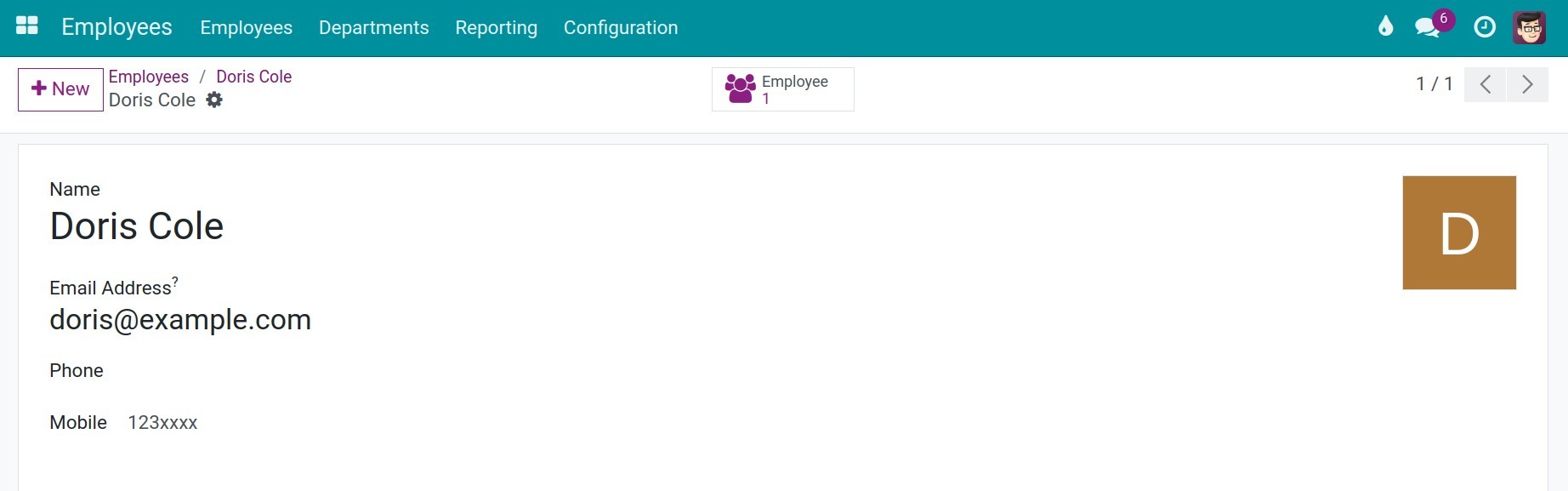
Save the employee. The user is created and linked to the employee.
![The new user account with the Employee smart button]()
Important fields
Field |
Effect |
If left empty or wrong |
|---|---|---|
Related User (employee, Settings tab) |
Links the employee to the user. The work contact and the photo of the employee are taken from the user. |
The employee has no user and cannot log in. |
Create employee (user form) |
Creates an employee named after the user. |
Not shown once the user has an employee. |
Common problems
Problem |
Cause |
What to do |
|---|---|---|
A user is refused in Related User. |
The user is already linked to another employee of the same company. |
Choose another user, or clear the link on the other employee first. |
The user is not offered in Related User. |
Only internal users with access to the employee’s company are listed. |
Check the user type and the allowed companies of the user. |
Create employee is missing. |
The user already has an employee, or the user cannot open Employees as an Officer. |
Use the Employee smart button on the user, or ask for the Officer level. |
See also
Related article
Optional module