
Record output, materials and scrap at the machine
On the operation screen, the operator records what happens at the machine when it happens: the quantity just made on a number pad, the materials really used by lot, a component that is not in the bill of materials and the scrap. Each tap is one recording, so the figures of the order are the ones just made, and the last recording can be undone.
Who |
Machine operators (Manufacturing ‣ User); production managers (Manufacturing ‣ Administrator), who can undo anyone’s recording. |
App |
Shop Floor |
Before you start
The job is open on the operation screen, see Job board and operation screen.
Components tracked by lot are in stock under their lots.
The example follows an order of five Oak stools at the Cutting station: the operation uses two Oak boards tracked by lot for each stool.
How do I record the quantity I have just made?
The output belongs to the manufacturing order: a quantity recorded at one operation counts for the whole order. Record the finished products once, usually at the last operation.
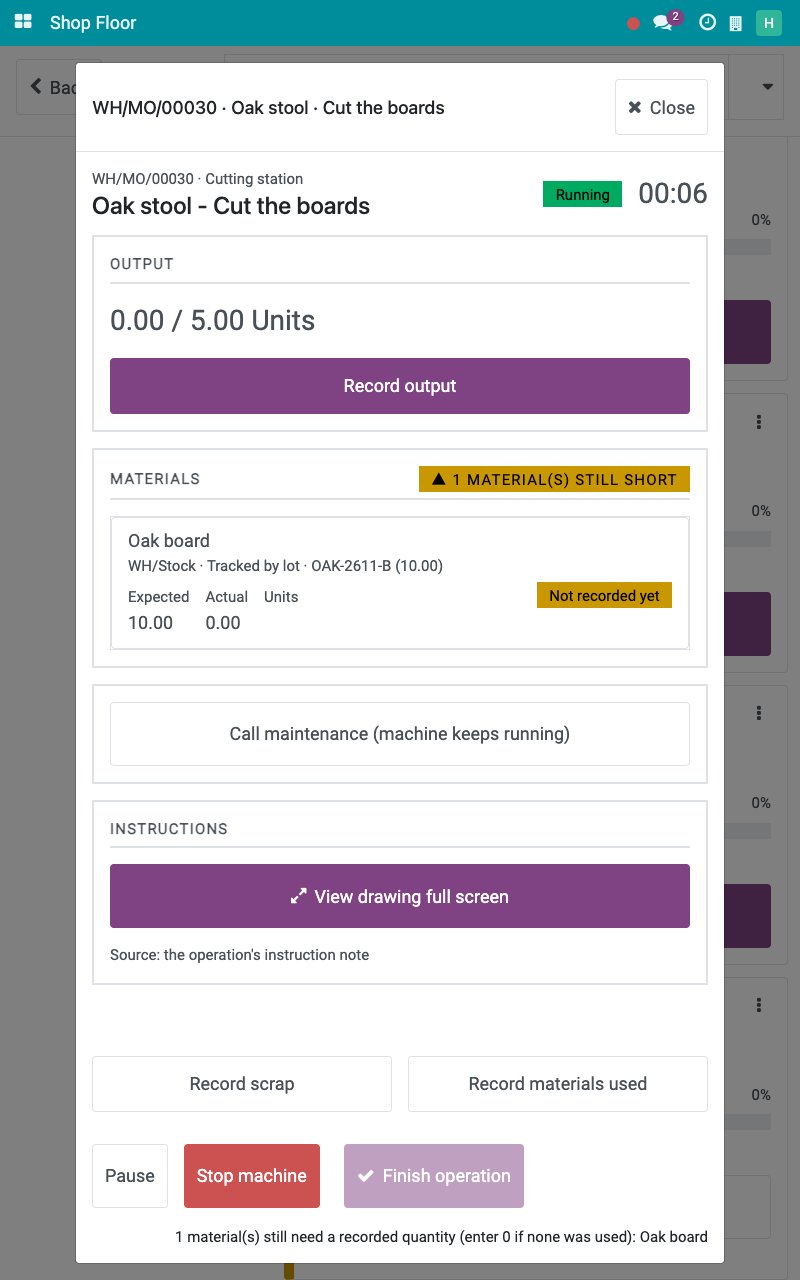
On the operation screen, tap Record output.
![The operation screen with the Record output button]()
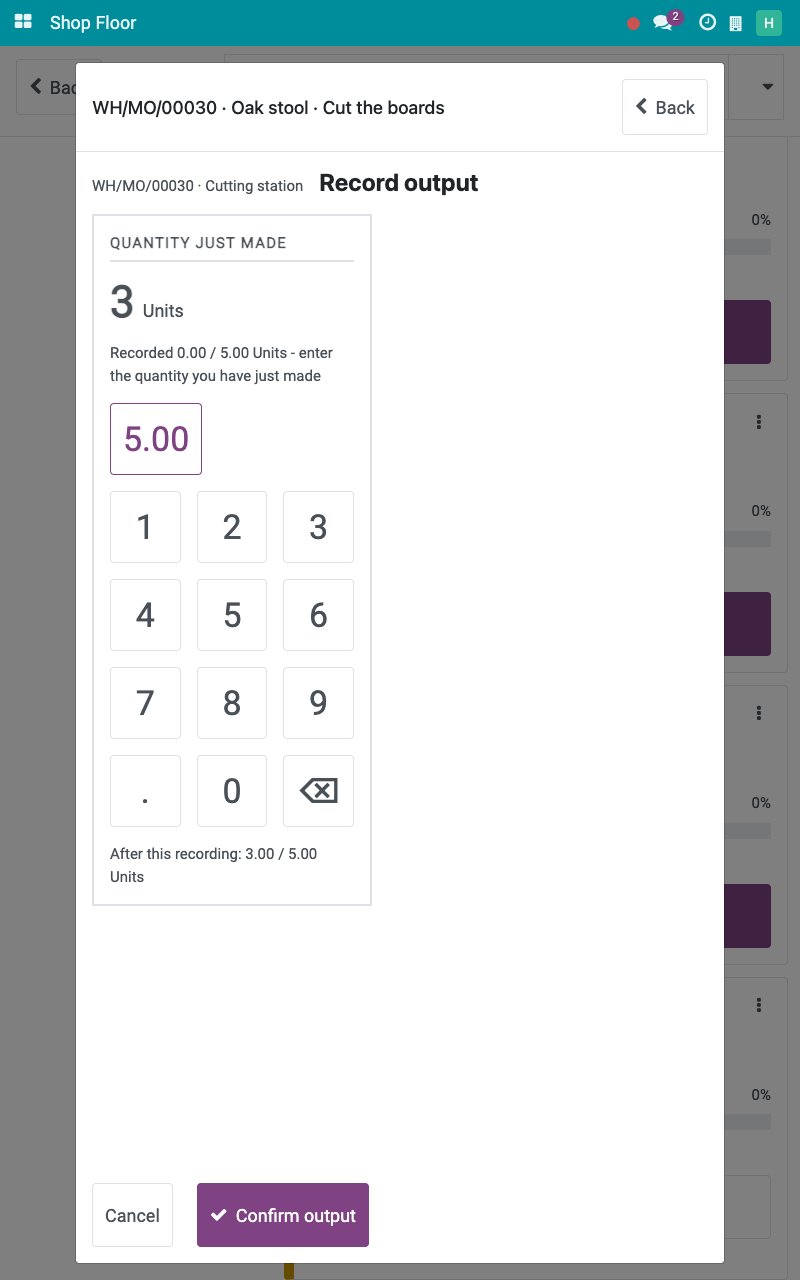
Tap the digits of the quantity you have just made, here 3. The screen reads what the order will show after this recording. A key with the rest of the order fills it in with one tap.
![The quantity 3 on the number pad of Record output]()
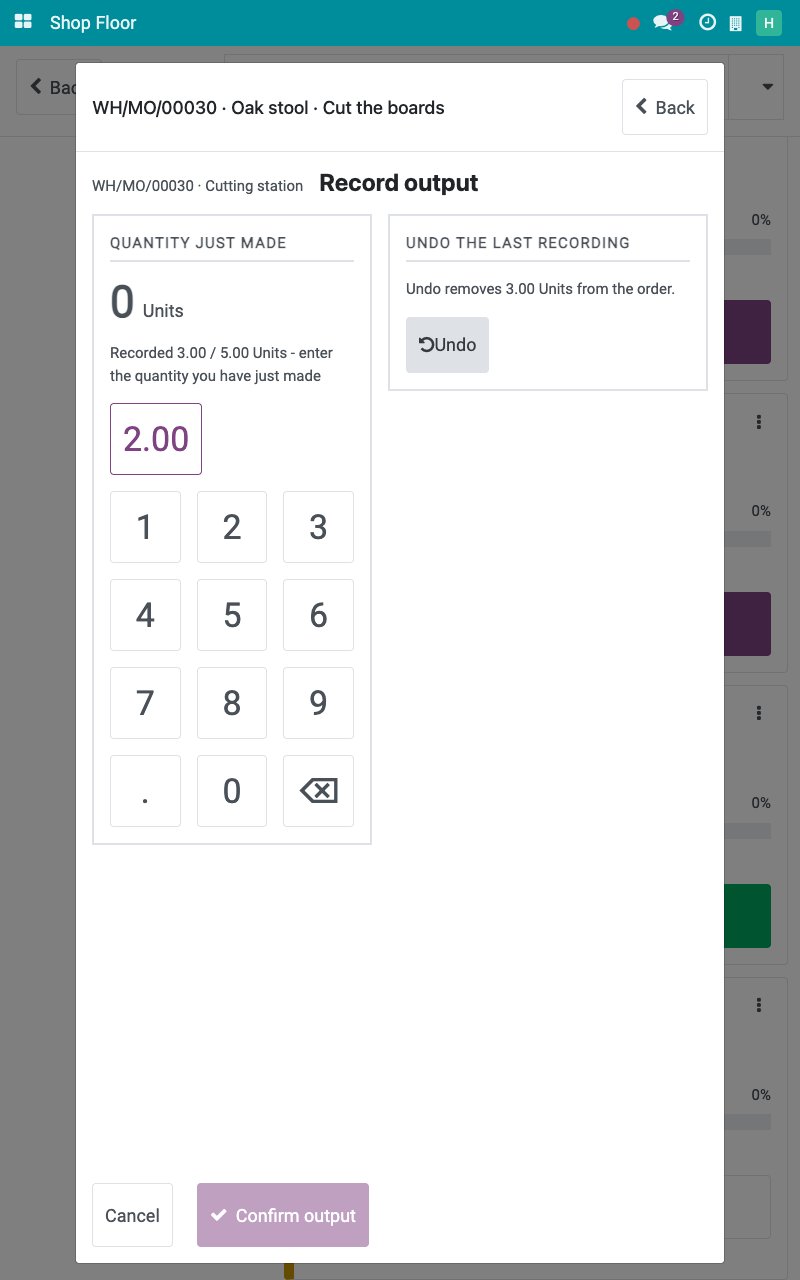
Tap Confirm output. The quantity is added to the order as its own recording. Next time, enter only what you made since then: it is added on top.
![The output recorded and the Undo button]()
Made a mistake? Under UNDO THE LAST RECORDING, tap Undo. It takes back exactly the latest recording.
When the finished product is tracked by lot, Record output first asks for the finished lot: tap Auto-generate lot or pick an existing lot, see Close an order at the machine and record on behalf. An order makes one finished lot.
How do I record the materials I really used?
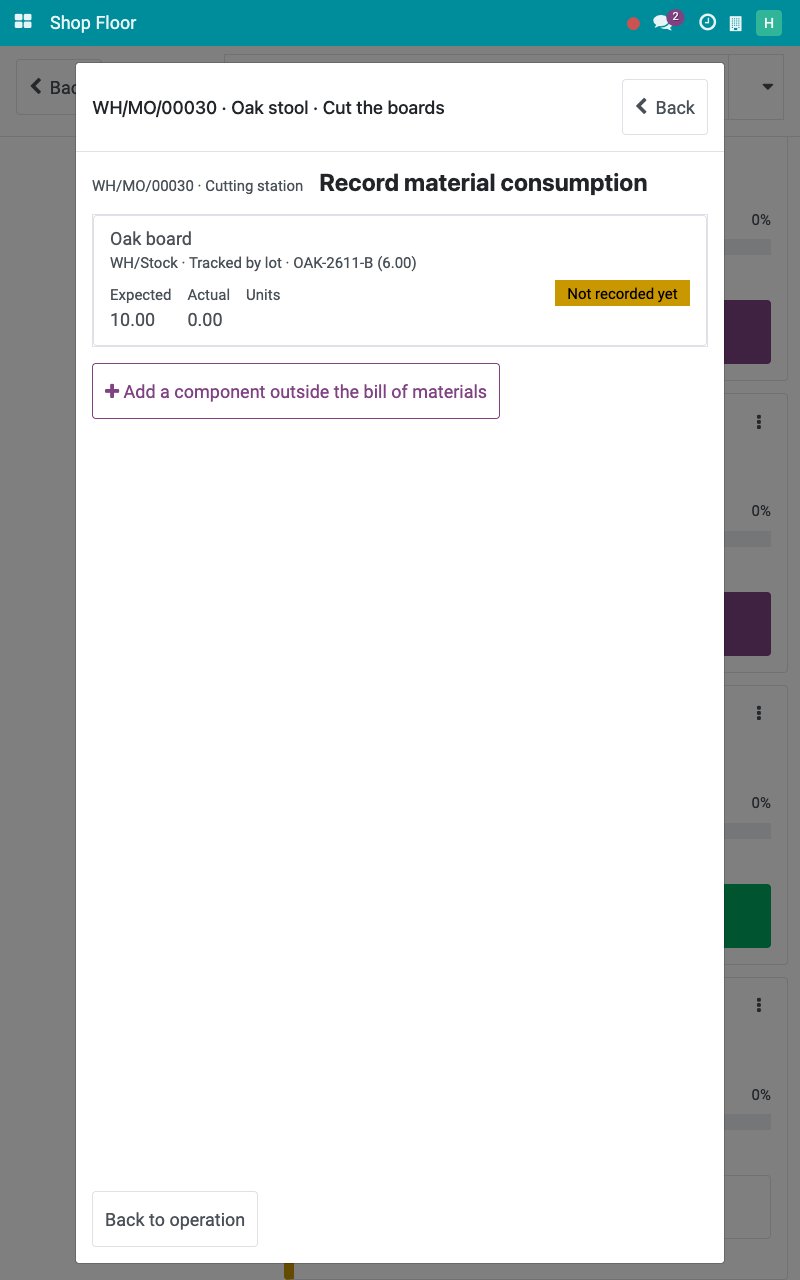
On the operation screen, tap Record materials used. Each component is a row with its Expected and Actual quantities and a chip such as Not recorded yet, Short or Enough.
![The materials of the operation with the expected and actual quantities]()
Tap a component tracked by lot. The lot already reserved for the order is proposed with its quantity; tap the digits to change it, here 4.
![The lot and quantity of a component tracked by lot]()
To add another lot, tap Lots in stock to see the lots with their quantity on hand, or Scan the label where the tablet can scan.
![The lots in stock of the component]()
Tap the lot you used and the digits of its quantity, here 2. Under Confirm consumption, the screen shows the actual quantity after this recording.
![Two lots with their quantities before the confirmation]()
Tap Confirm consumption. The row shows the new Actual quantity, the lots used and an Undo button.
![The component row after the consumption is recorded]()
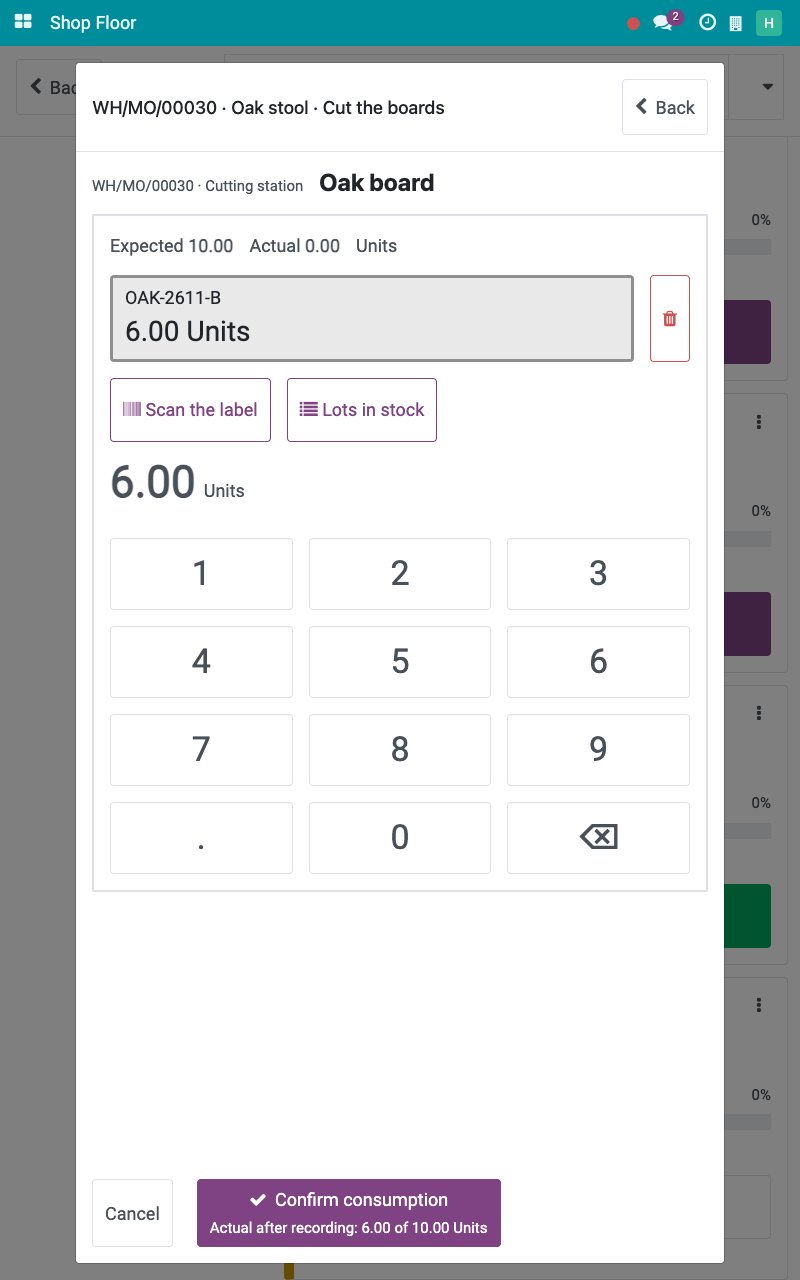
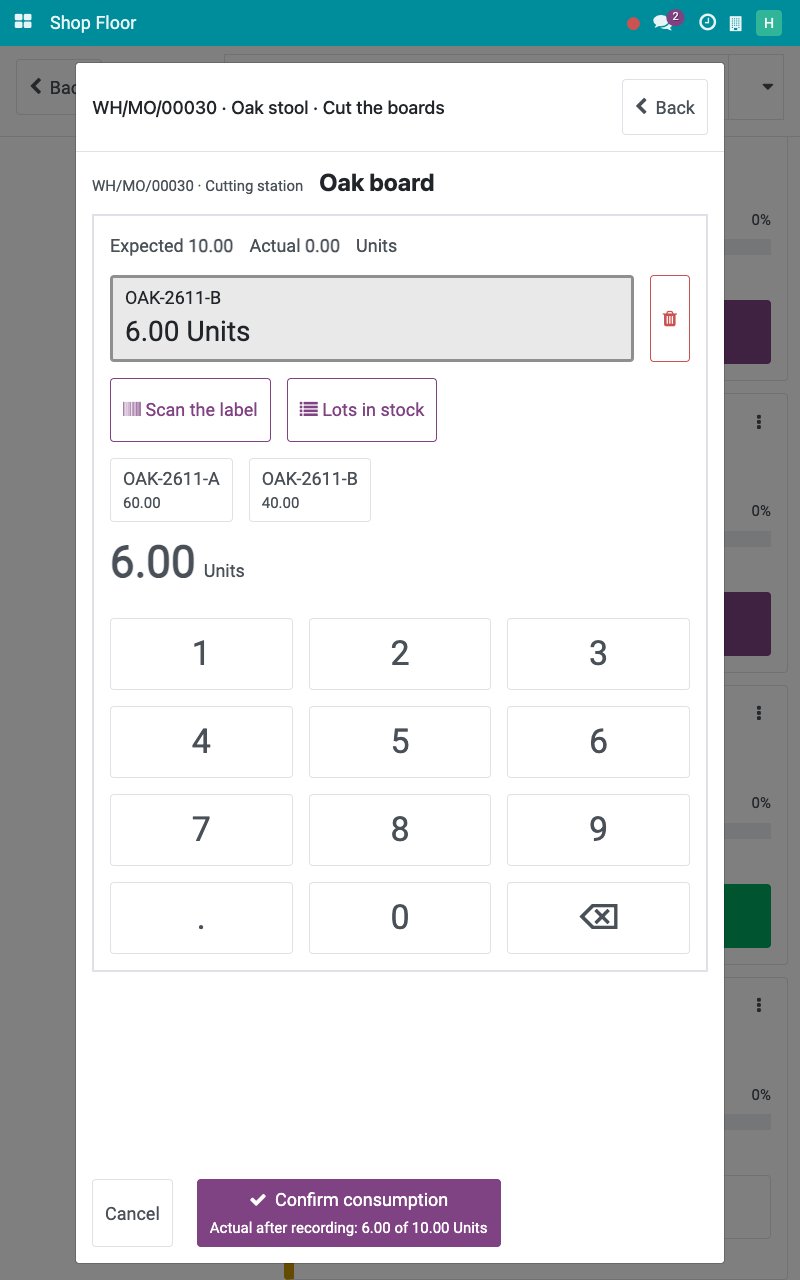
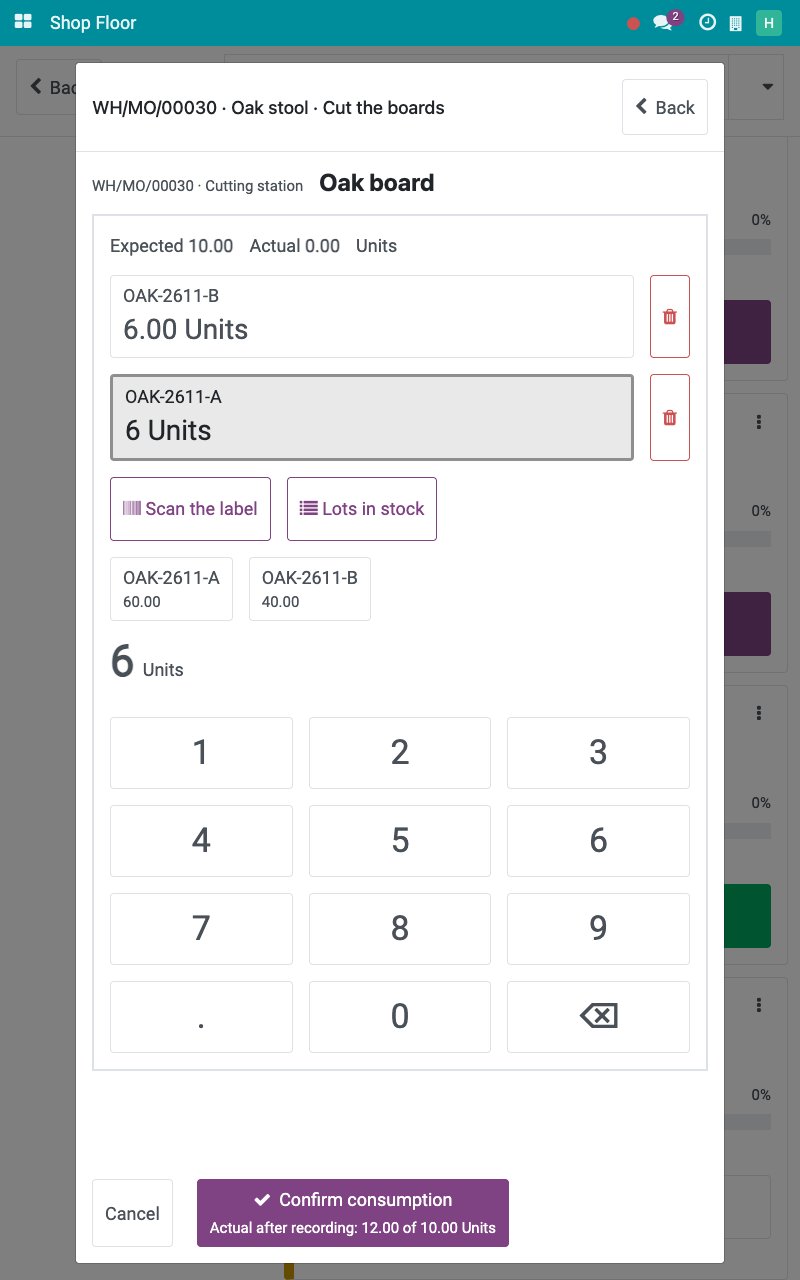
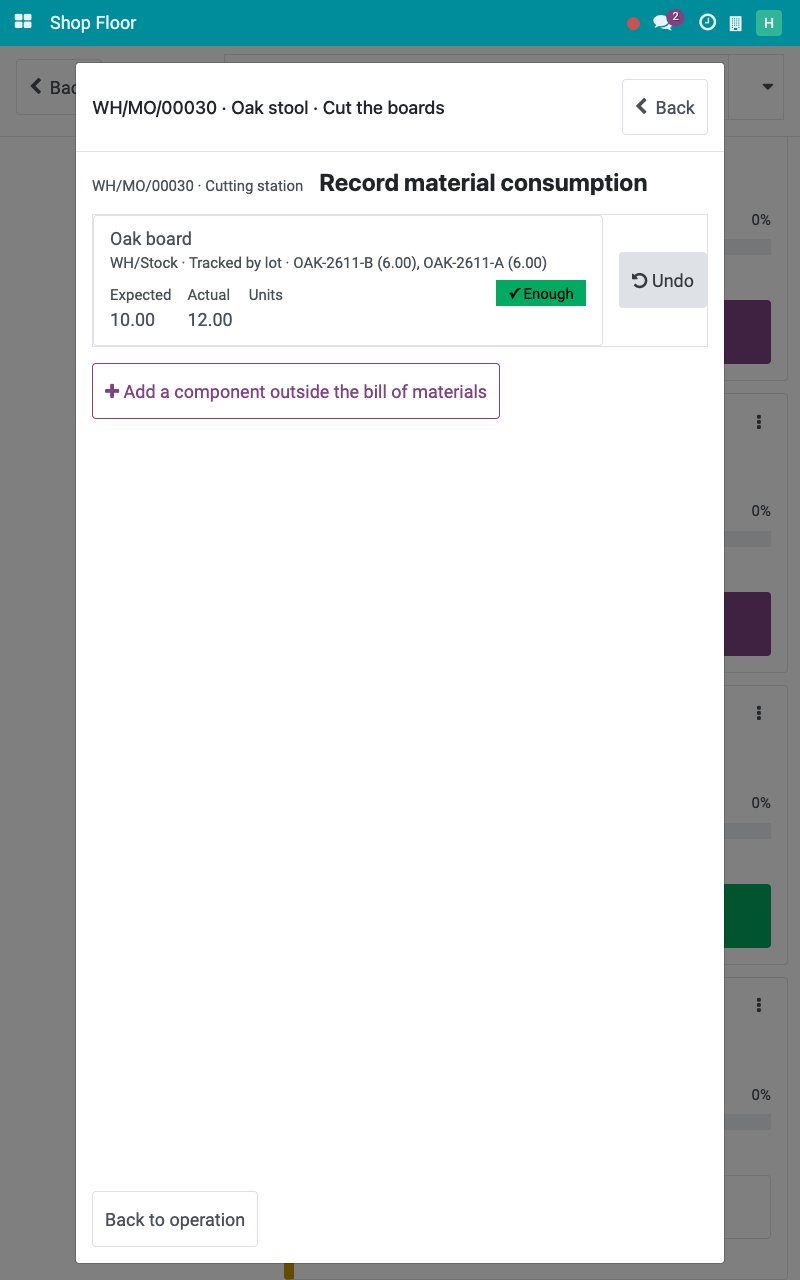
For a component without lots, tap its row, tap the digits of the quantity and confirm. Zero is allowed. Until you confirm a figure yourself, Actual follows the output recorded; once you confirm it, it stays as you entered it.
How do I record a component that is not in the bill of materials?
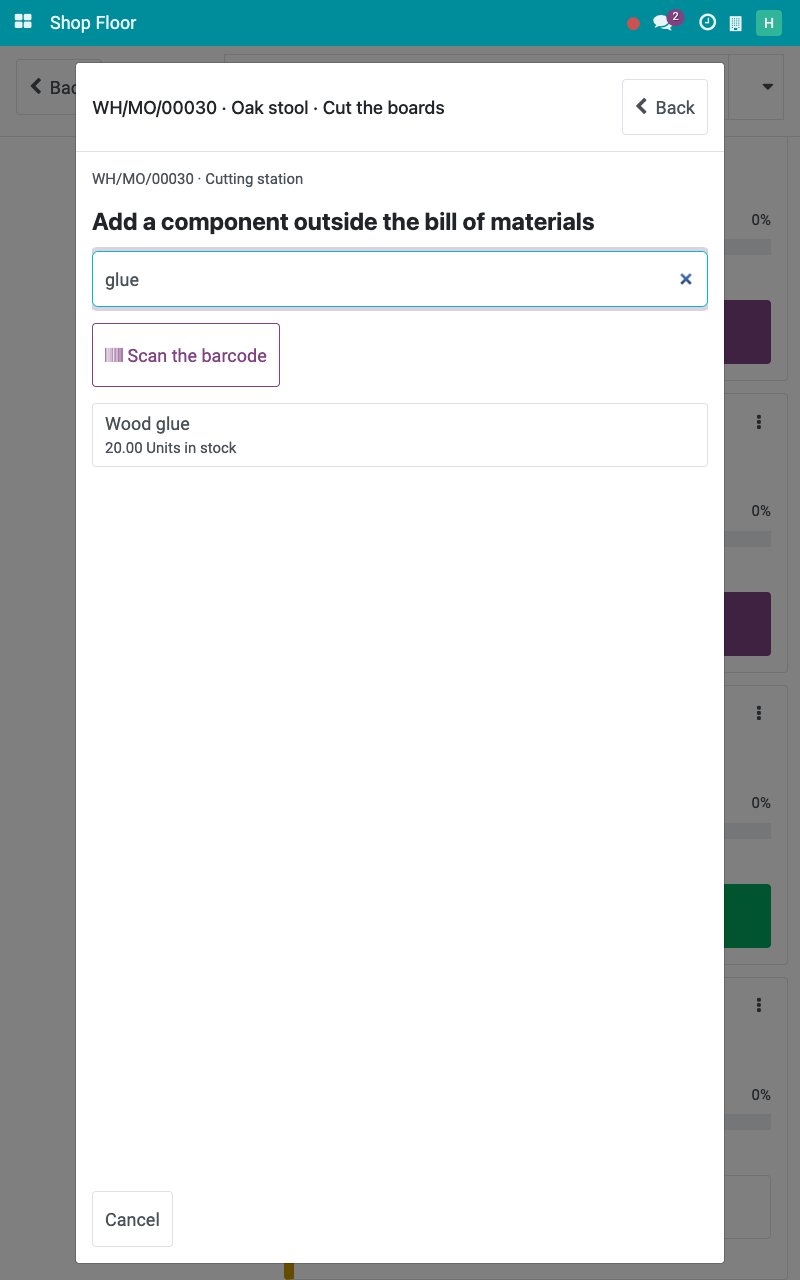
On the materials screen, tap Add a component outside the bill of materials and type part of the name, the reference or the barcode.
![The search of a component outside the bill of materials]()
Tap the product, tap the digits of the quantity and tap Confirm consumption. The row carries the badge Outside the bill of materials.
![The materials with a component outside the bill of materials]()
Tap Back to operation.
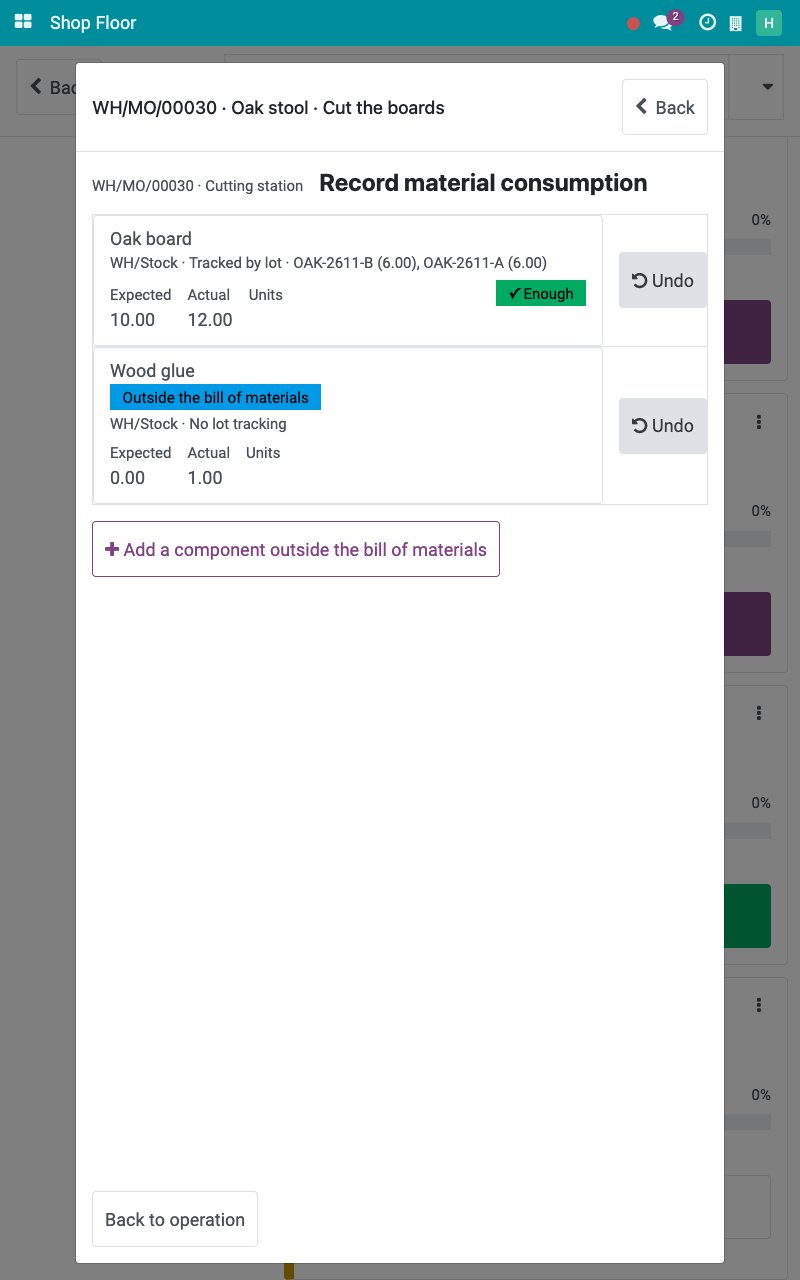
Undo on a row restores its figures before the latest recording of that row. You can undo your own recordings while the operation and the order are open; a production manager can undo anyone’s.
How do I record scrap?
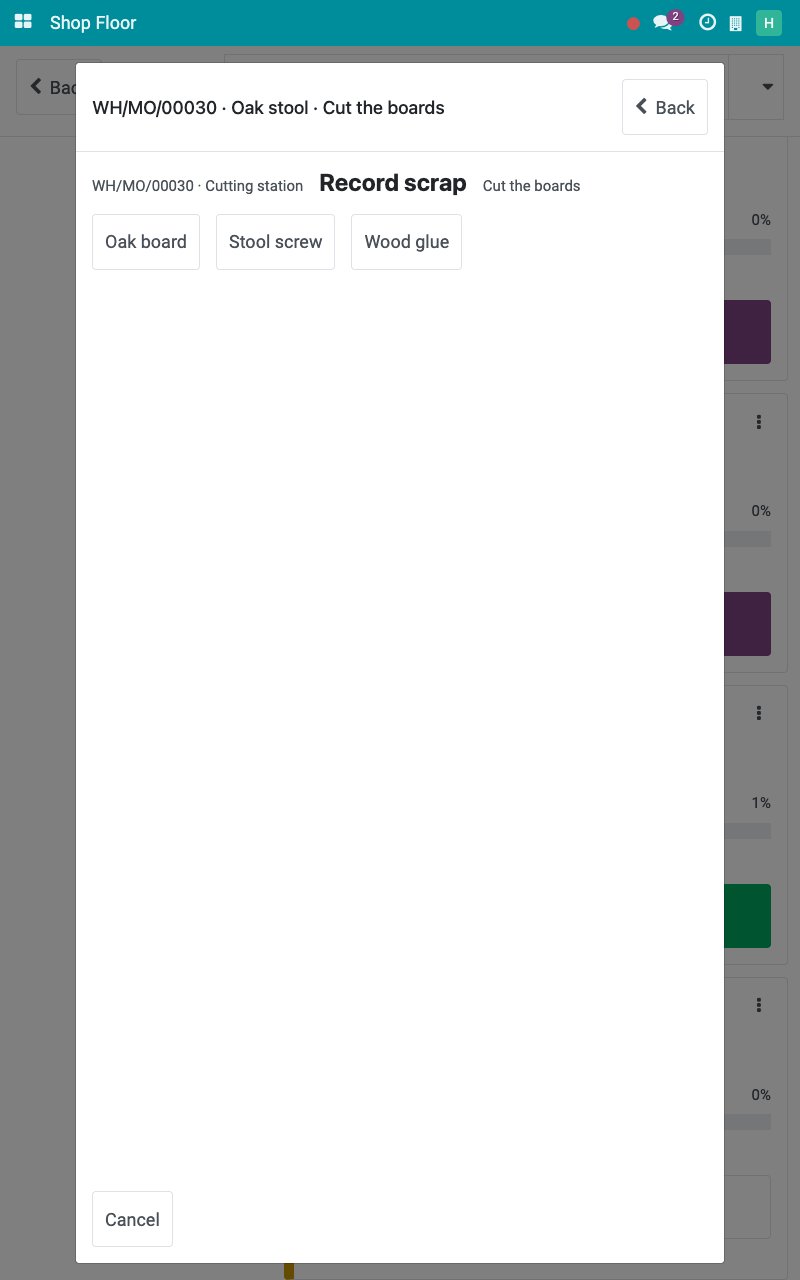
On the operation screen, tap Record scrap and tap the product that was spoiled.
![The products that can be scrapped]()
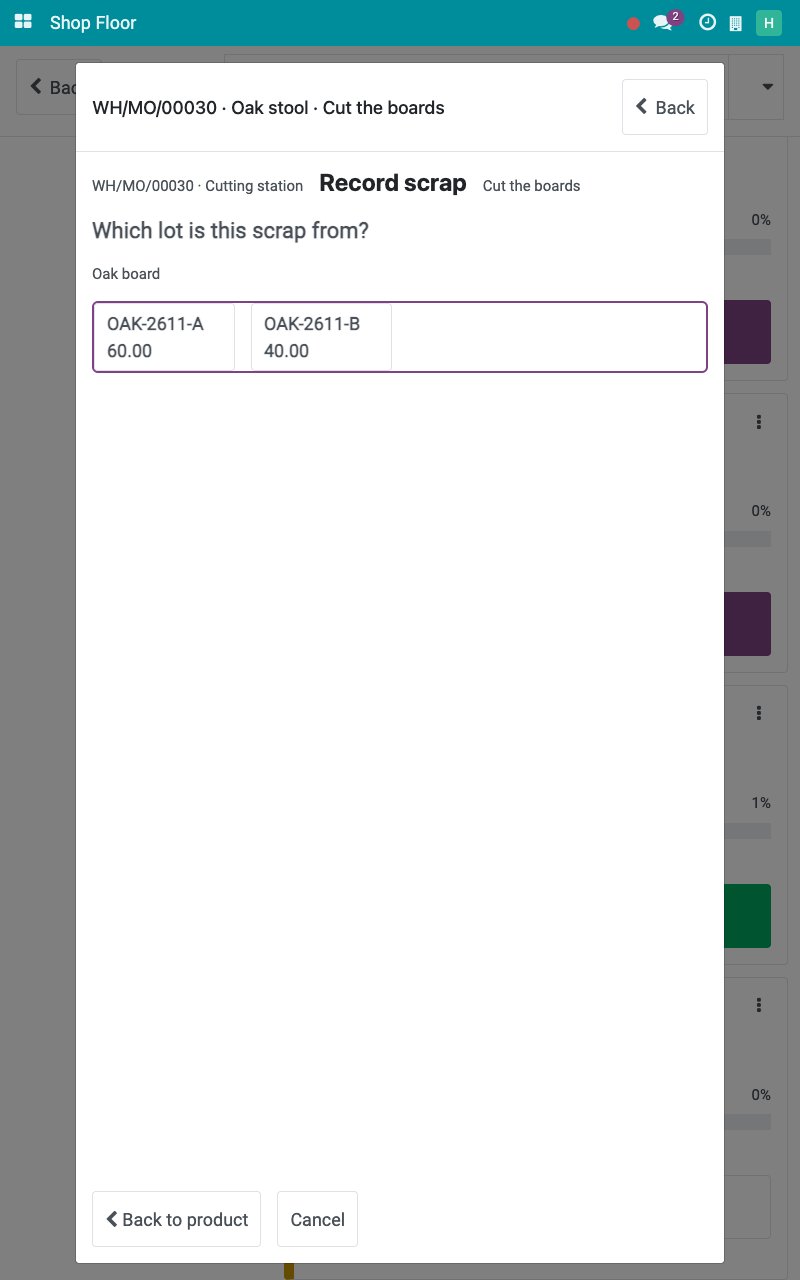
For a product tracked by lot, tap the lot the scrap comes from.
![The lots of the scrapped product]()
Read the warning: scrap cannot be undone from the shop floor and the stock is reduced when you confirm. Tap the digits of the quantity, here 1.
![The warning and the quantity of the scrap]()
Tap Confirm scrap entry. The screen confirms what was scrapped; tap Done to go back to the operation.
![The confirmation of the scrap]()
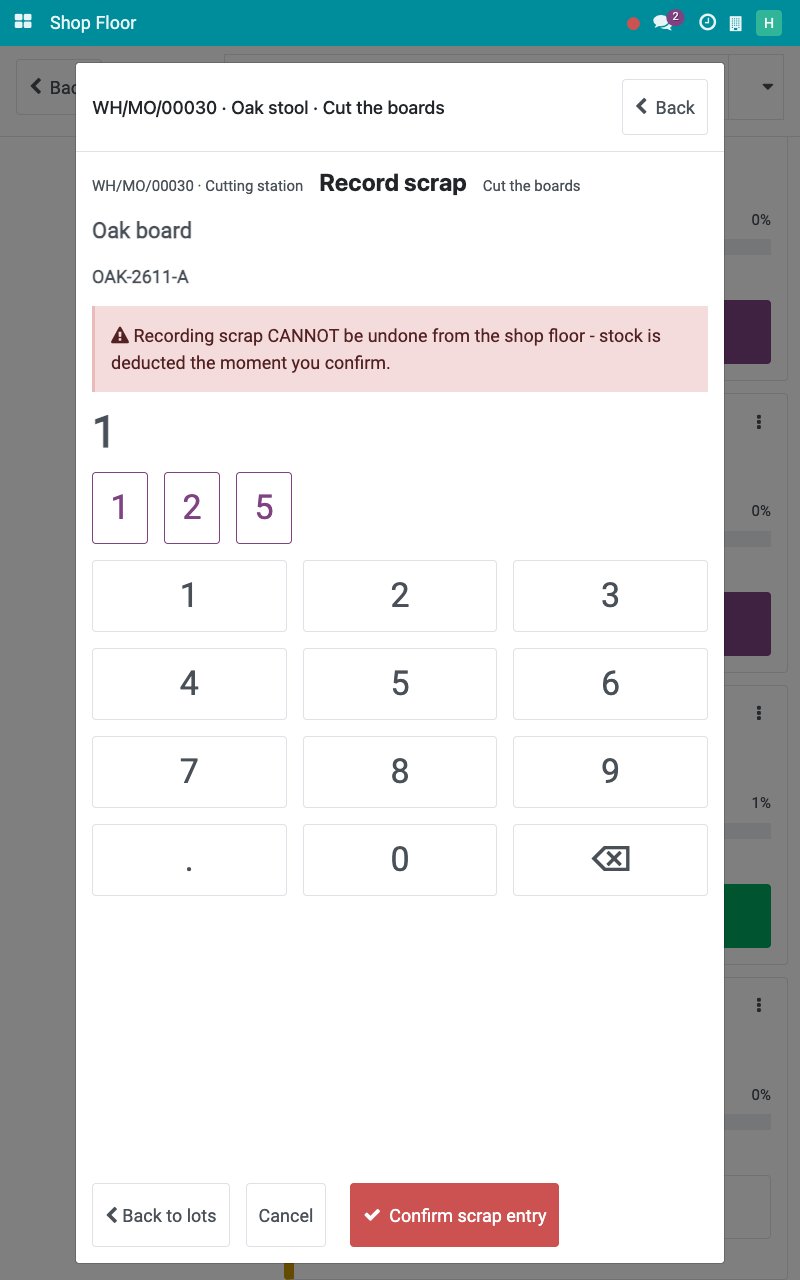
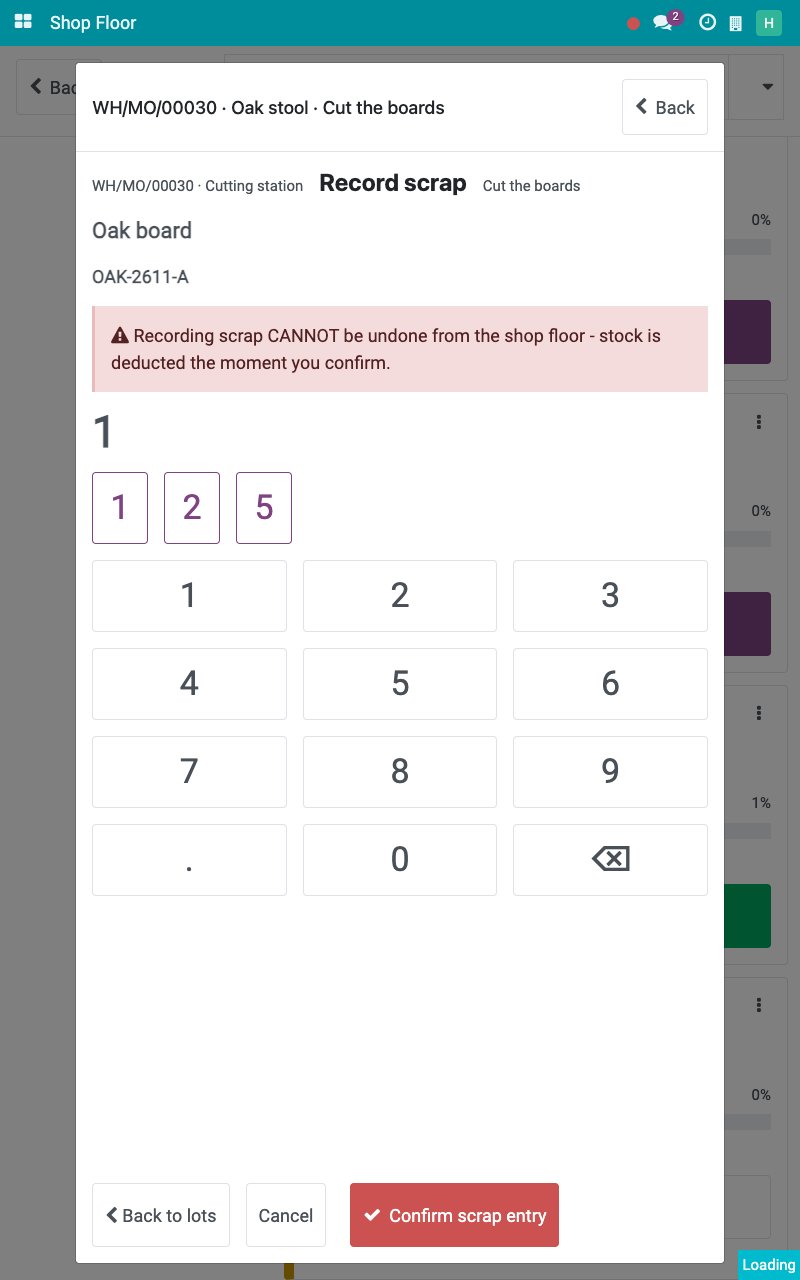
When the lot holds less than the quantity you type, the tablet warns you and lets you discard the entry or scrap anyway.
How do I post the consumption before the order is closed?
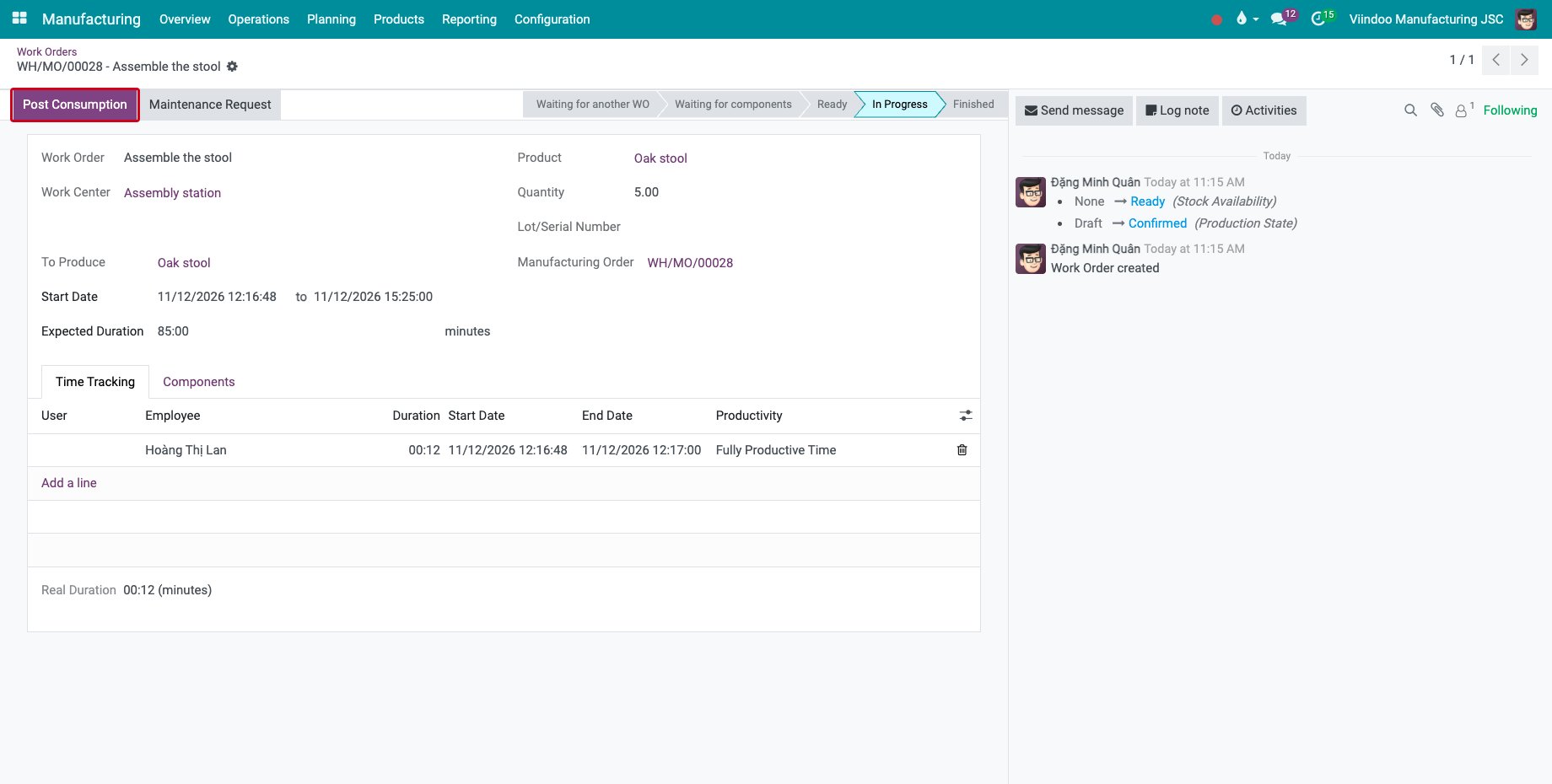
The consumption of the components is posted to stock when the order is closed. To post it earlier, go to Manufacturing ‣ Operations ‣ Work Orders, open the work order in progress and click Post Consumption. The button shows when there is consumption that can be posted.
Common errors
Problem |
What to do |
|---|---|
The order shows more output than was made. |
Output is counted for the whole order. Undo the recording that was made at another operation, then record the output once. |
Finish operation is greyed out and the screen says that materials still need a recorded quantity. |
Record the quantity of each component of the operation in Record materials used. Type 0 for a component that was not used. |
There is no Undo button. |
Only the author of the recording or a production manager can undo it, and only while the operation and the order are open. |
The scrap was recorded by mistake. |
Scrap cannot be undone from the shop floor. Ask a production manager or the warehouse to correct the stock. |
Next steps
Stop a machine, report a breakdown and restart: report a stop of the machine.
Close an order at the machine and record on behalf: finish the last operation and close the order.
See also
Related articles