
How to find your way around the Purchase app
When you open Purchase, Viindoo shows Requests for Quotation: a dashboard on top that counts the RFQs to send, waiting and late, and the list of all RFQs and purchase orders below it. From this screen you reach every menu of the app, open an order, change the view, message a buyer or schedule an activity without opening the order.
Who |
Buyers (Purchase access right User) and purchase managers (Administrator) |
App |
Purchase |
Before you start
How do I open the Purchase app?
Click the apps icon at the top left of any screen, then click Purchase.

What is in each menu?

Menu |
Contains |
|---|---|
Orders |
Requests for Quotation, Purchase Orders (only confirmed orders), Purchase Analysis and Vendors. |
Products |
Products and Product Variants (variants appear when the Variants setting is on). |
Reporting |
Purchase: the purchase analysis in graph and pivot views. Administrators only. |
Configuration |
Settings, Vendor Pricelists and Products (product categories, attributes). Administrators only. |
The menus you see depend on your access right, see How to install the Purchase app and set up access rights.
How do I read the purchase dashboard?

The row All RFQs counts the RFQs of every buyer, the row My RFQs only yours. Click a number to list those RFQs.
Box |
What it counts |
|---|---|
To Send |
RFQs not sent to the vendor yet (status RFQ). |
Waiting |
RFQs sent to the vendor whose Order Deadline has not passed. |
Late |
RFQs (sent or not) whose Order Deadline has passed. |
Avg Order Value |
Average total of the confirmed purchase orders of the current company. |
Purchased Last 7 Days |
Total of the purchase orders confirmed in the last 7 days. |
Lead Time to Purchase |
Average number of days between creating an order and confirming it. |
RFQs Sent Last 7 Days |
Number of RFQs sent to vendors in the last 7 days. |
How do I work with the list of RFQs and orders?
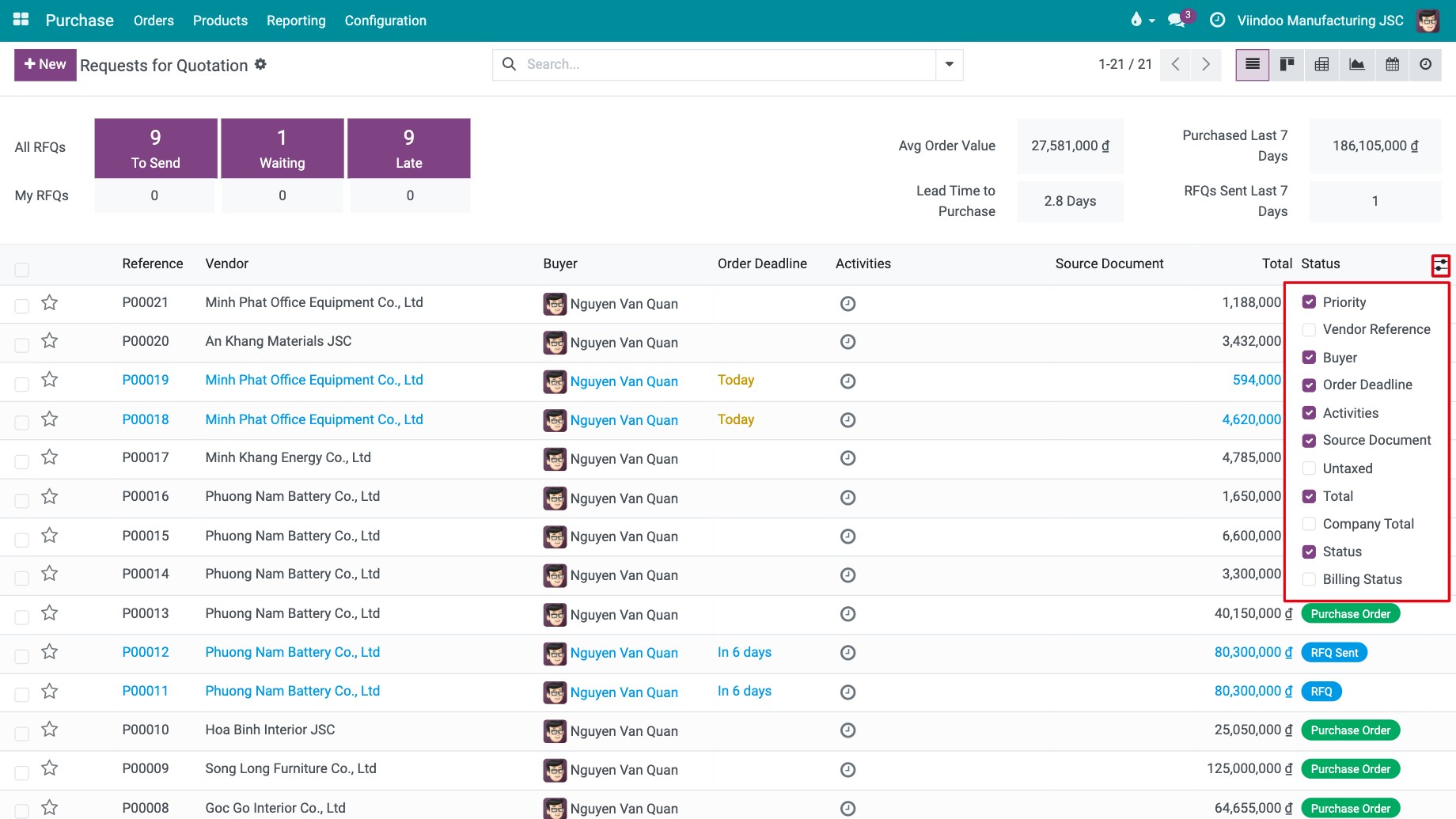
The list shows Reference, Vendor, Buyer, Order Deadline, Activities, Source Document, Total and Status of each RFQ and purchase order. Click a line to open it.

To show more columns, click the settings icon at the right end of the column headers and tick the columns you need, for example Company Total or Billing Status.
![Optional columns menu of the RFQ list]()
To contact a buyer, click their avatar in the Buyer column, then Send message. A chat window opens at the bottom right of the screen.
![Buyer card with the Send message button opened from the RFQ list]()
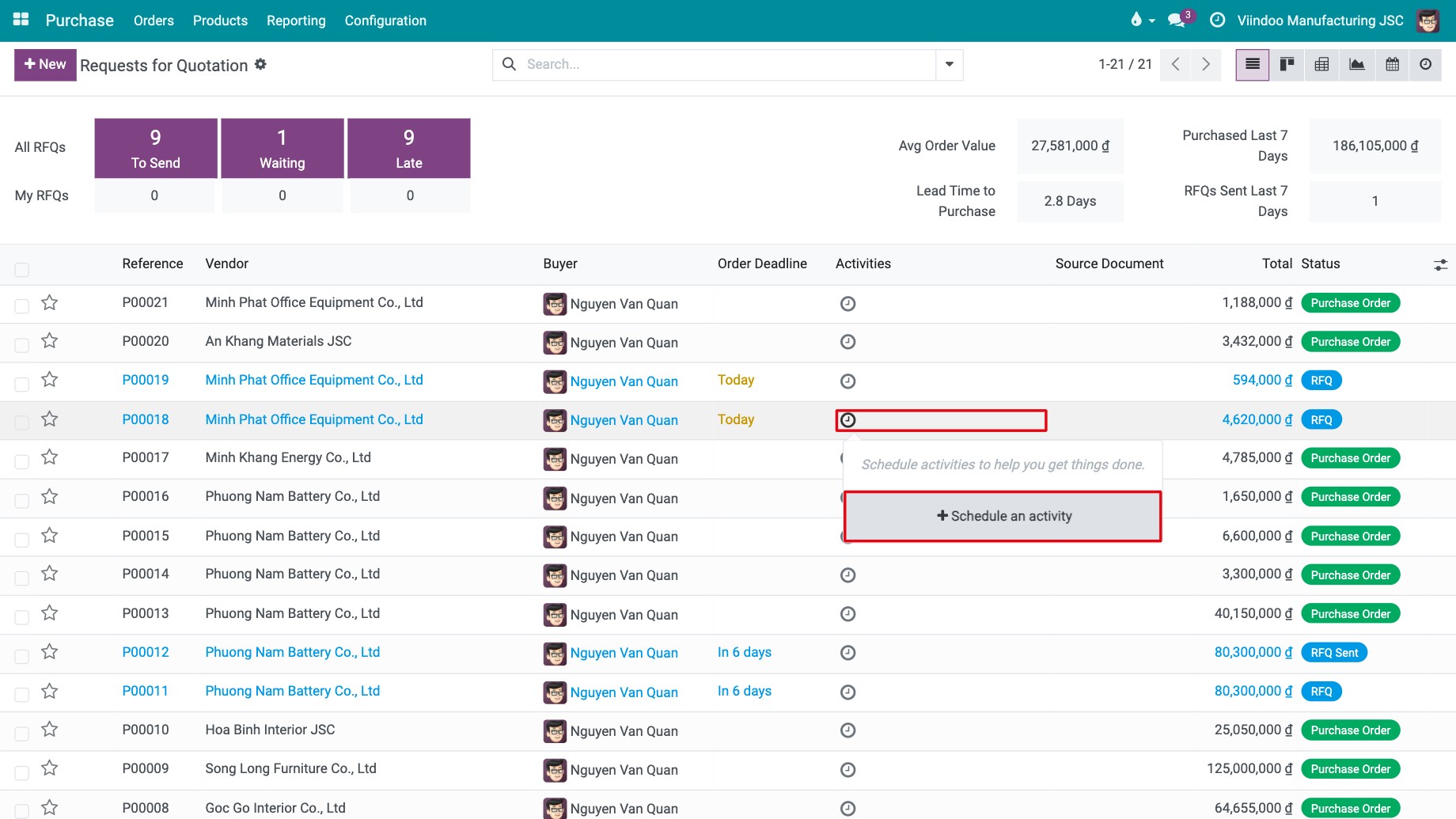
To plan a follow-up, click the clock icon in the Activities column, then Schedule an activity. See Schedule activities.
![Schedule an activity button opened from the Activities column of the RFQ list]()
To see the same records in another view, click a view icon at the top right: List, Kanban, Pivot, Graph, Calendar or Activity. See Views and reports: which view should I use?.
![View switcher of the Requests for Quotation screen]()


To find orders by vendor, product or status, use the search bar, see How to search, filter, group and save searches.
Common errors
Message |
What to do |
|---|---|
I do not see Reporting or Configuration. |
Your Purchase access right is User. Use Orders ‣ Purchase Analysis, or ask the Administrator for the Administrator access right. |
A confirmed order is missing from Purchase Orders. |
Remove the filters in the search bar. Purchase Orders shows only confirmed orders; RFQs are in Requests for Quotation. |
Next steps
How to create a purchase order: create and send an RFQ.
How to analyse your purchases with graphs and pivot tables: analyse your purchases.