
How to create a new product
To create a product in Viindoo, go to Sales ‣ Products ‣ Products (or the Products menu of Inventory, Purchase or Accounting), click New, type the product name, tick Sales and/or Purchase, choose the Product Type and fill in the sales price, cost, taxes and category. The same product is then used in quotations, purchase orders, stock moves and invoices.
Who |
An administrator of Inventory, Sales, Purchase or Accounting (other users can only view products). |
App |
Inventory, Sales, Purchase or Accounting. The tabs and buttons on the product form depend on the apps installed. |
Before you start
Install at least one of Sales, Inventory, Purchase or Accounting, for example Sales. The tabs and buttons described below depend on the apps installed: the screenshots show a product with only Sales installed.
Create the product category the product belongs to.
How do I create a product?
Go to Sales ‣ Products ‣ Products and click New. You can also start from Inventory ‣ Products ‣ Products, Purchase ‣ Products ‣ Products, or Accounting ‣ Customers ‣ Products (or Accounting ‣ Vendors ‣ Products): the form is the same.
![Products menu in the Viindoo Sales app]()
Type the product name and tick what the product is used for (see What should I fill in at the top of the form?).
Fill in the General Information tab (see What goes in the General Information tab?), then the other tabs you need: Sales, Purchase, Inventory, Accounting.
Click the save icon (cloud) or leave the form; the product is saved automatically.

You should now be able to choose the product on quotations, purchase orders and invoices.
What do the buttons at the top of the product form show?
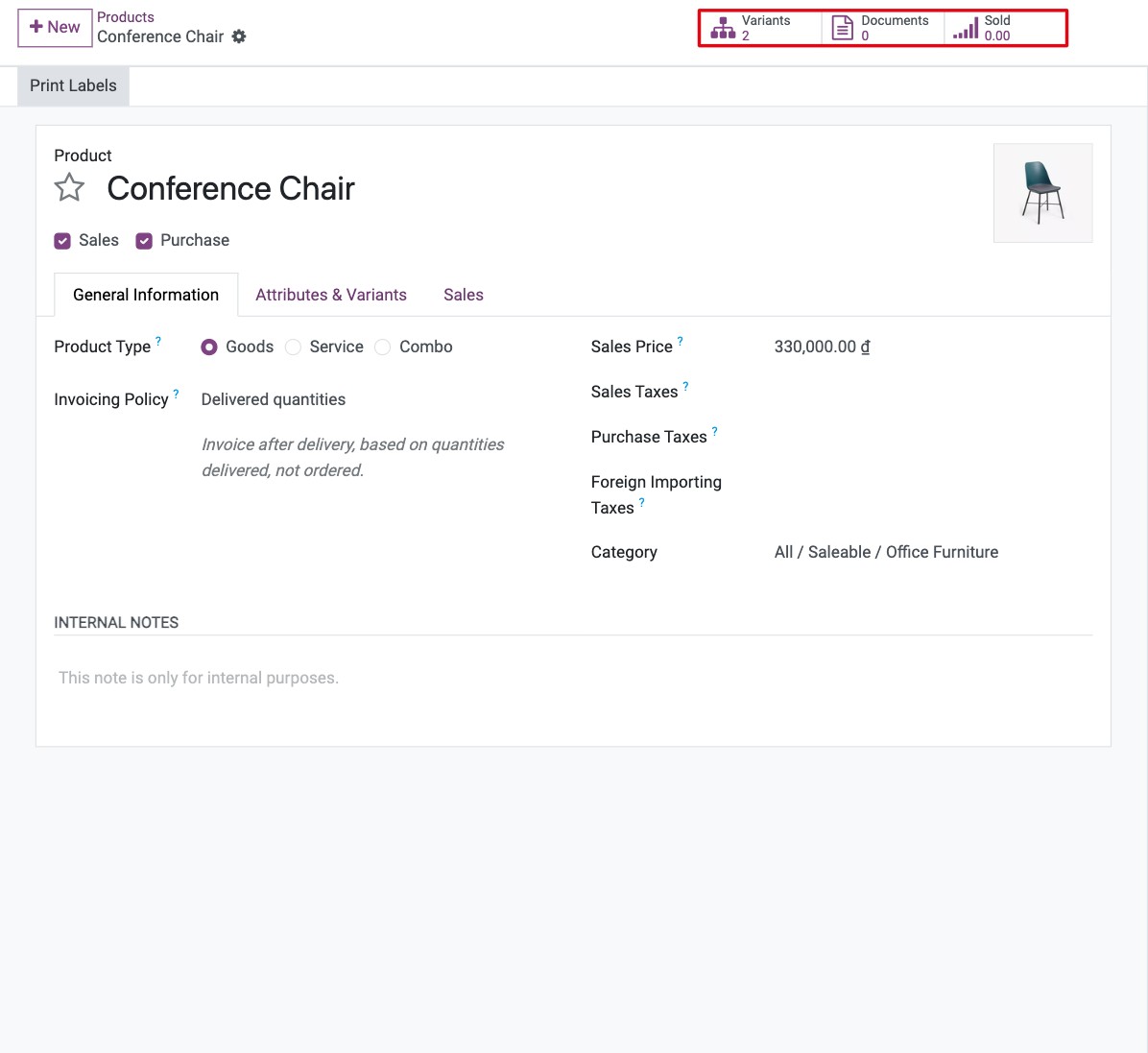
The buttons give quick access to the data of the product. Which ones appear depends on the apps installed:
Pricelists / Rules: the pricelist rules of the product, for example a lower price from 50 units (shown when Pricelists are enabled in the Sales settings).
Documents: files shared with customers on quotations or the website.
Go to Website: the product page on your website.
Bill of Materials: the components of a manufactured product, see Application of BoMs in Viindoo Sales.
On Hand: quantity currently in stock.
Forecasted: On Hand + incoming (confirmed purchase and manufacturing orders) - outgoing (confirmed sales and manufacturing orders).
In / Out: history of the stock moves of the product.
Sold / Purchased: quantities sold and purchased in the last 365 days.
Reordering Rules: minimum and maximum stock that trigger automatic replenishment, see How to set up replenishment rules: minimum stock and make to order.
Putaway Rules: where the product is stored when it arrives, see How to configure putaway rules in a warehouse.
Storage Capacities: how many units of the product a location can hold.
What should I fill in at the top of the form?

Product Name: the name shown on documents. Click the language code next to it to translate the name for foreign customers.
Image: click the camera icon to add a picture.
Sales: tick if the product can be sold.
Purchase: tick if the product can be bought.
Expenses: tick if employees can choose the product in an expense (shown with the Expenses app).
What goes in the General Information tab?

Field |
What it does |
|---|---|
Product Type |
Goods: a physical product. With the Inventory app, tick Track Inventory to manage its stock. Service: an intangible product such as labor or consulting. Combo: a set of products sold together. |
Tracking |
Shown when Track Inventory is ticked and Lots & Serial Numbers is enabled in the Inventory settings. By Unique Serial Number: each unit has its own number, followed from receipt to delivery and after-sales. By Lots: units are grouped in lots, for example by production batch. By Quantity (default): only the quantity is tracked. |
Invoicing Policy |
Ordered quantities: you can invoice as soon as the sales order is confirmed. Delivered quantities: you invoice what has been delivered; the delivered quantity is filled in automatically. |
Sales Price |
The default price on quotations. For prices by customer or quantity, use the Pricelists / Rules button, see How to set several prices for the same product. |
Sales Taxes |
Taxes applied on quotations, sales orders and customer invoices. |
Purchase Taxes |
Taxes applied on purchase orders and vendor bills. |
Category |
The product category, which gives the costing method, routes and accounts. |
Reference, Barcode |
Internal code of the product and barcode for scanners. |
Cost |
The cost of the product, used for margins and stock value. It is computed by the costing method of the category, see Accounting for Stock Valuation. |
Unit of Measure |
The unit used in stock and on documents. Shown when units of measure are enabled, see How to use different units of measure on a product. |
Internal Notes |
Notes for your team, not printed on documents. |
To sell the product in several colors, sizes or versions, see How to create and use product variants.
What goes in the Sales tab?
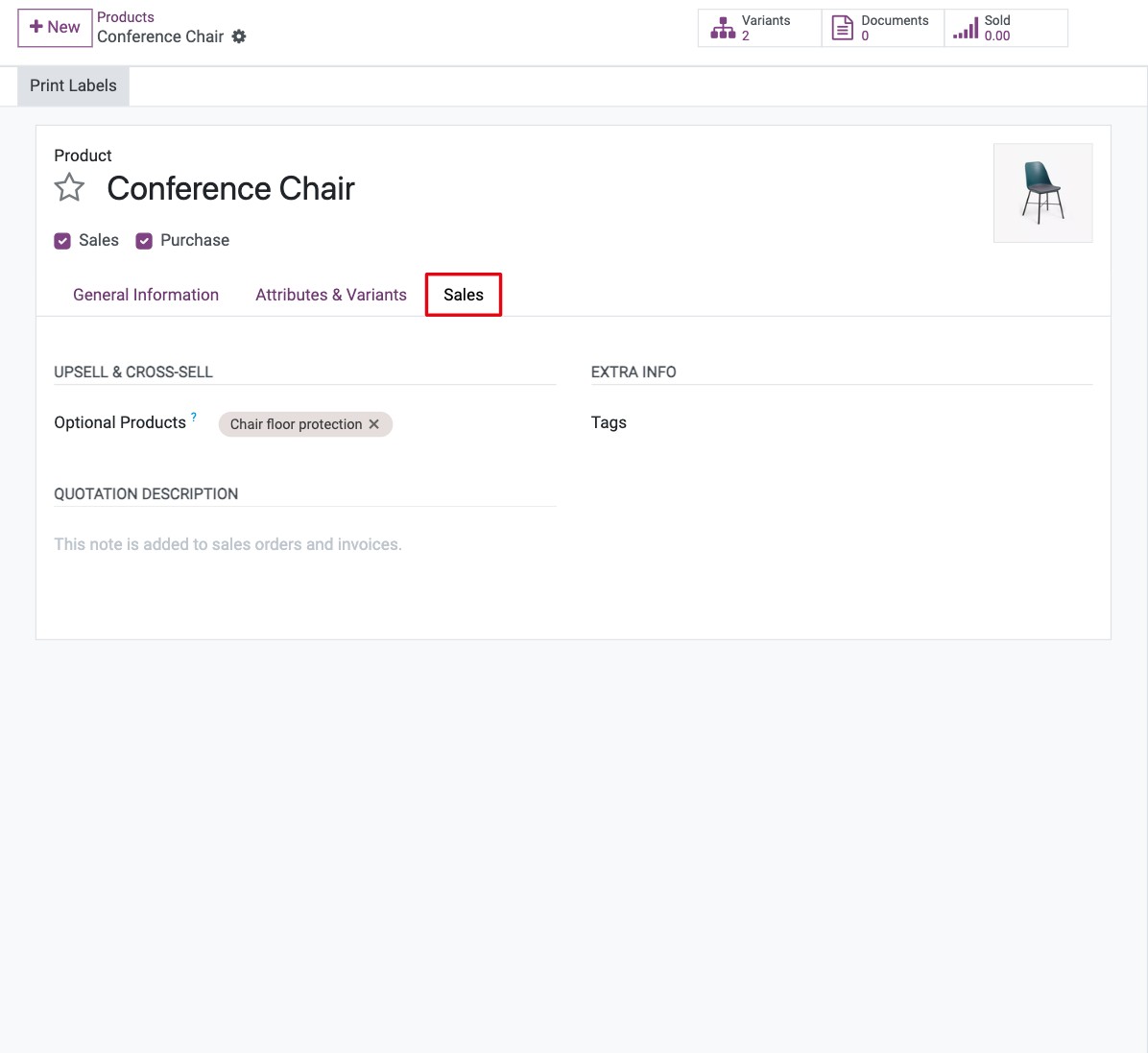
Tags: labels to filter and search products.
Quotation Description: text added to the product line on quotations, sales orders and invoices.
More fields appear in this tab with the Point of Sale and eCommerce apps.
What goes in the Purchase tab?
If you also install the Purchase app, the product form has a Purchase tab:

Vendors: the vendors of the product with their price and delivery lead time. Drag the lines to change the order: the first vendor is used when Viindoo creates purchase orders automatically.
Purchase Unit: the unit proposed on purchase orders (shown when units of measure are enabled).
Control Policy: On ordered quantities: you can record the vendor bill as soon as the purchase order is confirmed. On received quantities: you record the bill for the quantities received.
Purchase Description: text added to the requests for quotation sent to vendors.
What goes in the Inventory tab?
If you also install the Inventory app, the product form has an Inventory tab:

Routes: how the product is replenished and moved (buy, manufacture, multi-step delivery), see How to use routes and pull or push rules to supply a location.
Responsible: the person in charge of the product. By default, the user who created it.
Weight, Volume: used on delivery slips and for shipping costs.
Customer Lead Time: days added to the order date to compute the expected delivery date.
HS Code: customs code of the product (shown with shipping connectors).
Origin of Goods: the country where the product was produced or manufactured.
What goes in the Accounting tab?
If you also install the Accounting app, the product form has an Accounting tab for users who have accounting access rights:

Income Account: revenue account on customer invoices of this product.
Income Refund Account: account on customer credit notes. Leave empty to use the income account.
Expense Account: expense account on vendor bills of this product.
Expense Refund Account: account on vendor refunds. Leave empty to use the expense account.
Price Difference Account: in automated stock valuation, records the difference between the purchase order price and the vendor bill price.
Note
Leave these accounts empty to use the accounts of the product category. Accounts set on the product take priority over the category.
Common errors
Problem |
What to do |
|---|---|
The New button is missing in Products. |
You only have user rights. Ask for administrator rights on Inventory, Sales, Purchase or Accounting. |
The product cannot be found on a quotation or purchase order. |
Tick Sales (for quotations) or Purchase (for purchase orders) on the product. |
On Hand and Tracking are missing. |
Tick Track Inventory next to Product Type (Inventory app required). |
Next steps
How to create and use product variants: sell one product in several versions.
How to create and set up product categories: set the costing method and accounts by category.
Auto-upload product images from Google: add product images quickly.