
How to set up and launch activity plans
An activity plan is a ready-made list of tasks for one situation, for example welcoming a new employee or handling an employee’s departure. You create the plan once in , then launch it from an employee profile: Viindoo schedules every task, assigns it to the right person and sets its deadline for you, so that no important step is forgotten.
This guide is for HR staff of a company that has a new employee joining or loses an employee.
Who can do this, and where?
Task |
Role needed in the Employees app |
Where |
|---|---|---|
Create or edit a plan |
Administrator |
|
Launch a plan for an employee |
Officer or Administrator |
The employee profile, or the employee list |
Before you start
Give each employee a Manager and a Coach if your plan assigns activities to them.
The person that receives an activity (the manager, the coach or the employee) must be linked to a user. If not, Viindoo hands the activity to the closest manager above that person who has a user. If nobody in that chain has a user, the plan cannot be launched and the window shows an error. See How to link Employees and Users.
How do I create an activity plan?
Go to .
![The Activity Plan menu in the Configuration menu of the Employees app]()
The list Employee Plans shows the existing plans. Click New.
![The Employee Plans list with the New button highlighted]()
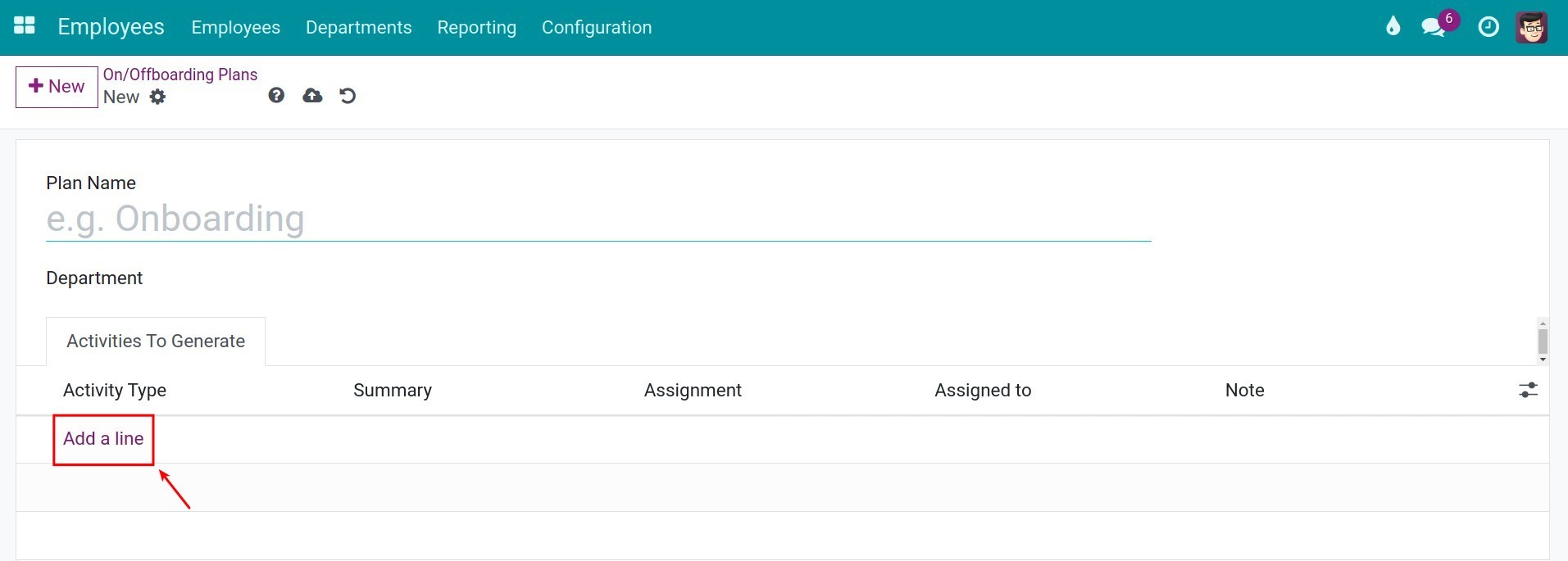
Enter the Plan Name. Leave Department empty to offer the plan for all employees, or choose a department to offer it only for the employees of that department. Then, in the tab Activities To Create, click Add a line.
![A new plan form with the Add a line link highlighted in the Activities To Create tab]()
The window Create Activities opens. Fill in one activity per window, using the fields described below.
![The Create Activities window of an activity plan]()
In Activity Type, choose the type of activity, such as To-Do, Email, Meeting, Call or Upload Document.
![The list of activity types offered in the Create Activities window]()
In Assignment, choose who performs the activity: Ask at launch, Default user, Coach, Manager or Employee.
![The Assignment field of the Create Activities window set to Manager]()
With Ask at launch, nobody is fixed in the plan: the person who launches the plan chooses the assignee in the Launch Plan window.
![The Assignment field set to Ask at launch in the Create Activities window]()
With Default user, the field Assigned to appears. Choose the user who always receives this activity.
![The Assigned to field shown when the Assignment is Default user]()
Click Save & Close to keep the activity, or Save & New to keep it and add another one. Discard closes the window without keeping the activity. When all activities are listed, click the save icon (the cloud) to save the plan.
![A plan with three activities and the save icon highlighted]()




Which fields describe an activity?
Field |
What it does |
If left empty or wrong |
|---|---|---|
Activity Type |
Kind of activity that is created (To-Do, Email, Meeting, Call, Upload Document and so on). |
Required. |
Summary |
Short title of the task, shown in the activity list and in the chatter. |
Optional. |
Assignment |
Who performs the task: the person chosen at launch, a fixed default user, or the employee’s coach, manager or the employee. |
Coach, Manager and Employee need that person to be set on the employee profile. |
Assigned to |
The fixed user, only for Default user. |
Required for Default user. |
Interval, Unit, Trigger |
The deadline: a number of days, weeks or months Before Plan Date or After Plan Date. |
With 0 days, the deadline is the plan date itself. |
Note |
Extra instructions copied into the activity, such as the address or details of the work. |
Optional. |
How do I launch a plan for an employee?
Go to and open the profile of the employee. Check the Manager and the Coach, because the plan may assign activities to them. Click Launch Plan.
![An employee profile with the Launch Plan button, the Manager and the Coach highlighted]()
You can also tick several employees in the employee list and click Launch Plan in the action bar of the list.
In the window Launch Plan, choose the Plan. Only the plans without a department, or with the department of the employee, are offered. You can enter a Plan Date: the deadlines are calculated from this date, and today is used when it is empty. If the plan has an Ask at launch activity, the field Assigned To appears: choose the person who receives it. Check the Plan summary, then click Schedule.
![The Launch Plan window with the plan, the Assigned To field and the Schedule button highlighted]()
The activities are now planned on the employee profile.
![The chatter of the employee profile showing the planned activities and the message that the plan has been started]()


What should I see afterwards?
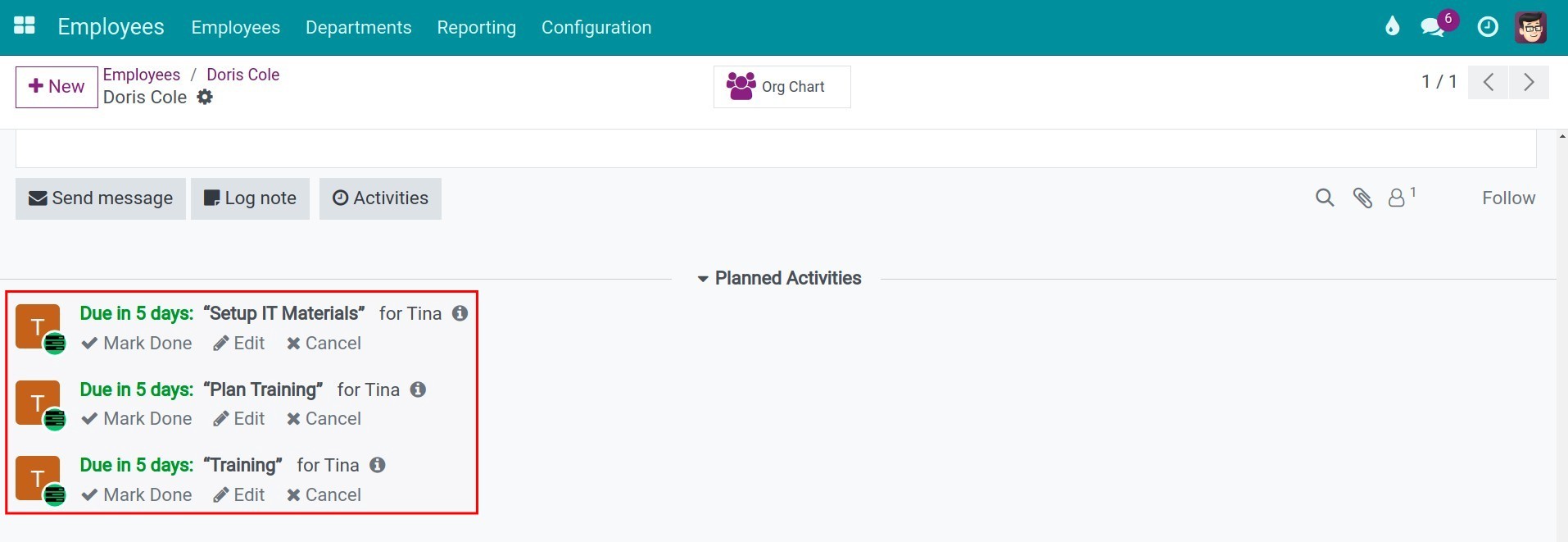
Each activity of the plan appears under Planned Activities in the chatter of the employee profile, with its assignee and its deadline.
The chatter shows the message that the plan has been started and lists every activity with its assignee and due date.
Common problems
Problem |
Cause |
What to do |
|---|---|---|
The menu Activity Plan is not visible |
Your user is not an Administrator of the Employees app. |
Ask an administrator to give you the role, or to create the plan. |
The plan is missing in the Launch Plan window |
The plan has a department that differs from the department of the employee. |
Empty the Department of the plan, or choose the right department on the employee. |
The window shows that the coach or the manager is not set |
The plan assigns an activity to the Coach or the Manager, but the employee has none. |
Set the Coach or the Manager on the employee profile. |
The window shows that someone should be linked to a user |
The assignee (and every manager above) has no user. |
Link the employee to a user, or choose another assignment. |
Next steps
See also
Related article
Optional module