
How to message applicants and schedule interviews
Open the application in Recruitment ‣ Applications ‣ All Applications and use the panel on the right: Send message writes to the candidate and the followers, Log note is for your team only, and Activities schedules a task. The Meeting button at the top opens the calendar to book the interview. Everything stays on the application, so a colleague can read the whole conversation, even when they could not attend the interview.
Who |
Users with the Recruitment ‣ Officer access right, and the interviewers assigned to the application. |
App |
Recruitment, with Calendar |
Before you start
Record the application with the candidate’s email address. See How to add an application in Recruitment.
Your database must be able to send emails (an outgoing email server).
How do I send a message to the candidate?
Go to Recruitment ‣ Applications ‣ All Applications and open the application. The kanban view shows the applications by stage.
![Applications in the kanban view with one application card highlighted]()
In the chatter on the right, click Send message. The To line lists the followers and the candidate; leave the candidate ticked.
Type the message and click Send.
![The Send message box of an application with the candidate as recipient]()
To add a subject, attachments such as a form to fill in, or the formatting toolbar, click the expand icon of the box. The Compose Email window opens.
![The Compose Email window with the candidate as recipient]()


The candidate’s replies come back to the same application, in the same conversation.
How do I let colleagues follow an application?
Followers see the application and receive the messages. Click the followers button (the number next to the person icon) to see them, and Add Followers to add more. Choose the contacts and tick Notify Recipients if you want to tell them now.


Followers need an email address in their contact, or they cannot receive the messages.
How do I book an interview?
Click the Meeting button at the top of the application. It reads No Meeting until you book one, then shows the number of meetings and the date.
![The Meeting button at the top of an application]()
In the calendar, click the day and the time of the interview. Viindoo names the meeting after the candidate and invites the candidate, the manager of the department and the recruiter. Change the title, add attendees if needed and save.
![The calendar with the interview of an applicant]()
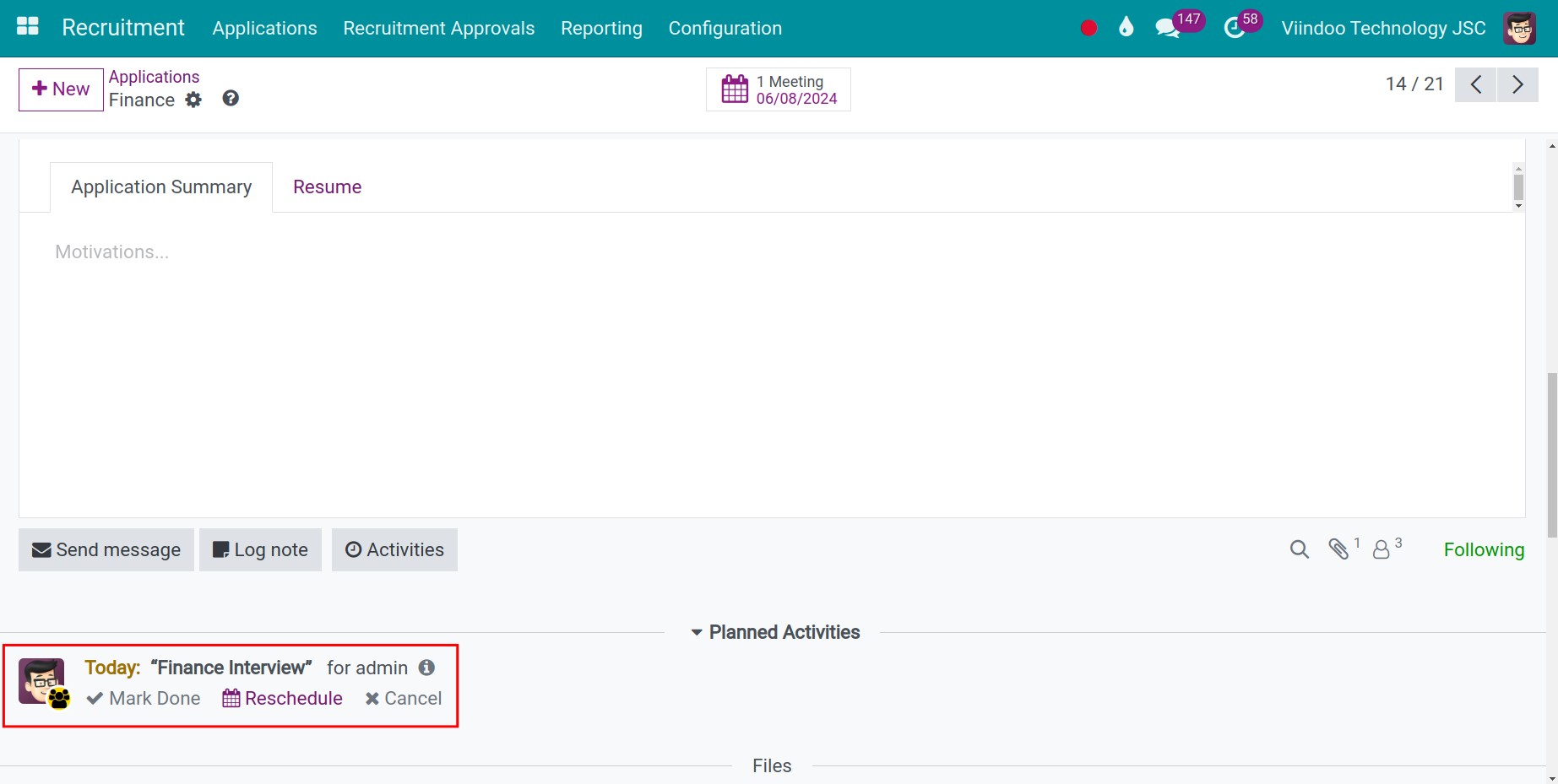
Viindoo creates a scheduled task on the application, due on the day of the interview, so nobody forgets it.
![Planned activity of the interview in the chatter of an application]()

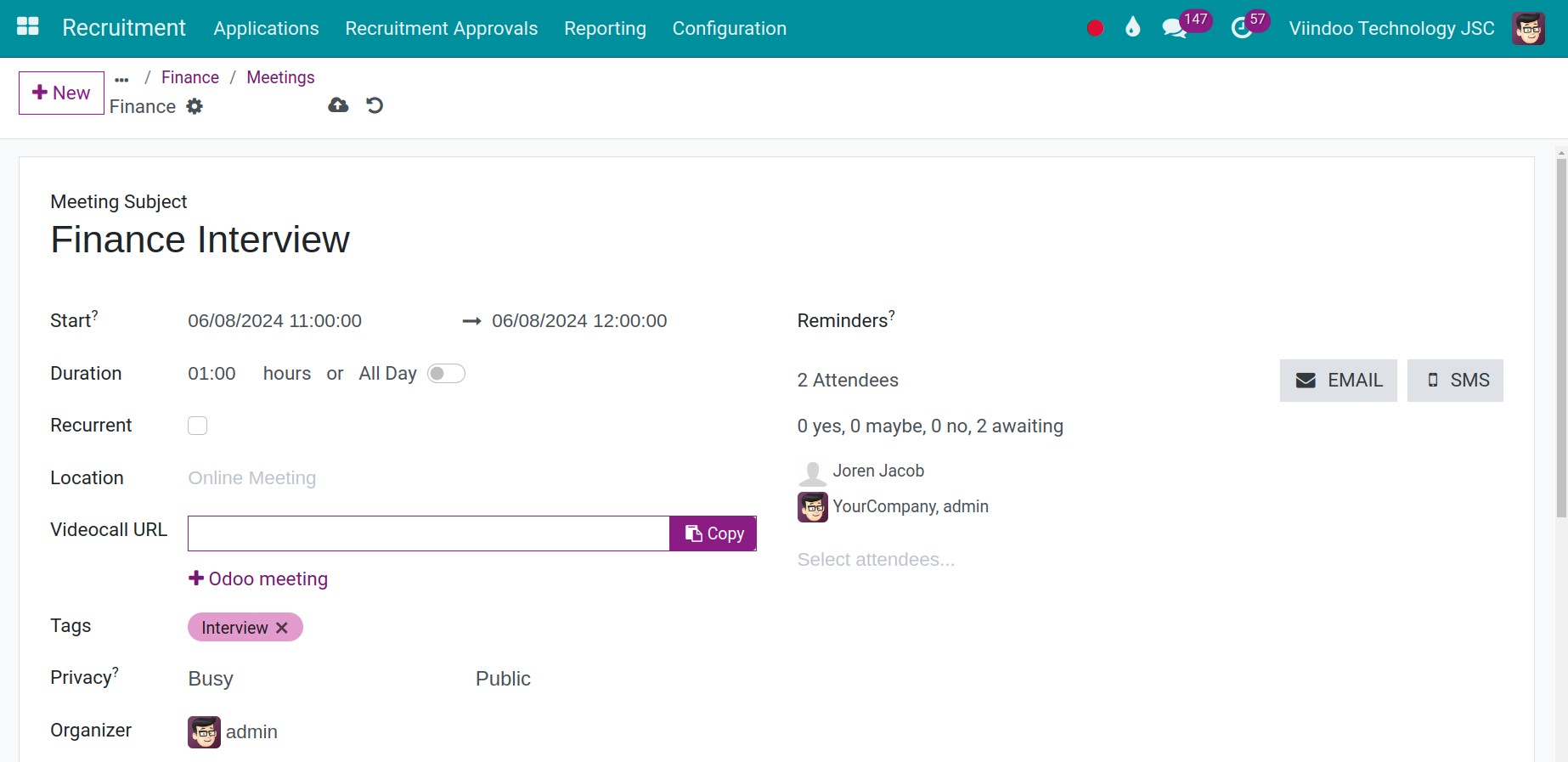
For the other ways to book a meeting, see How to book a meeting in Viindoo.
How do I schedule a follow-up task?
Click Activities, choose the Activity Type, type a Summary, set the Due Date and the person it is Assigned to, then click Schedule. Use it to remind a manager to give an opinion or to call the candidate back.

How do I discuss the application with my team?
Click Log note, write your assessment, and type @ followed by a name to tag someone. The note is seen by your team only, never by the candidate. Use it for the impression after an interview or a question to the manager about the next step.

Common errors
Problem |
What to do |
|---|---|
You must define a Contact Name for this applicant. |
Fill in the candidate name on the application, then click Meeting again. |
The candidate says they received nothing. |
Check the email address of the candidate and that your database has an outgoing email server. |
A follower does not receive the messages. |
Add an email address to the contact of that follower. |
Next steps
How to move applications through the recruitment stages: move the application to the next stage after the interview.