
Overview and Configuration of Viindoo Overtime
Overtime app in Viindoo All-in-one Enterprise Management Solution helps companies implement overtime requests, and approval processes and also manage overtime activities.
Audience: HR officers and system administrators who set up the Overtime app for the first time.
Module Installation
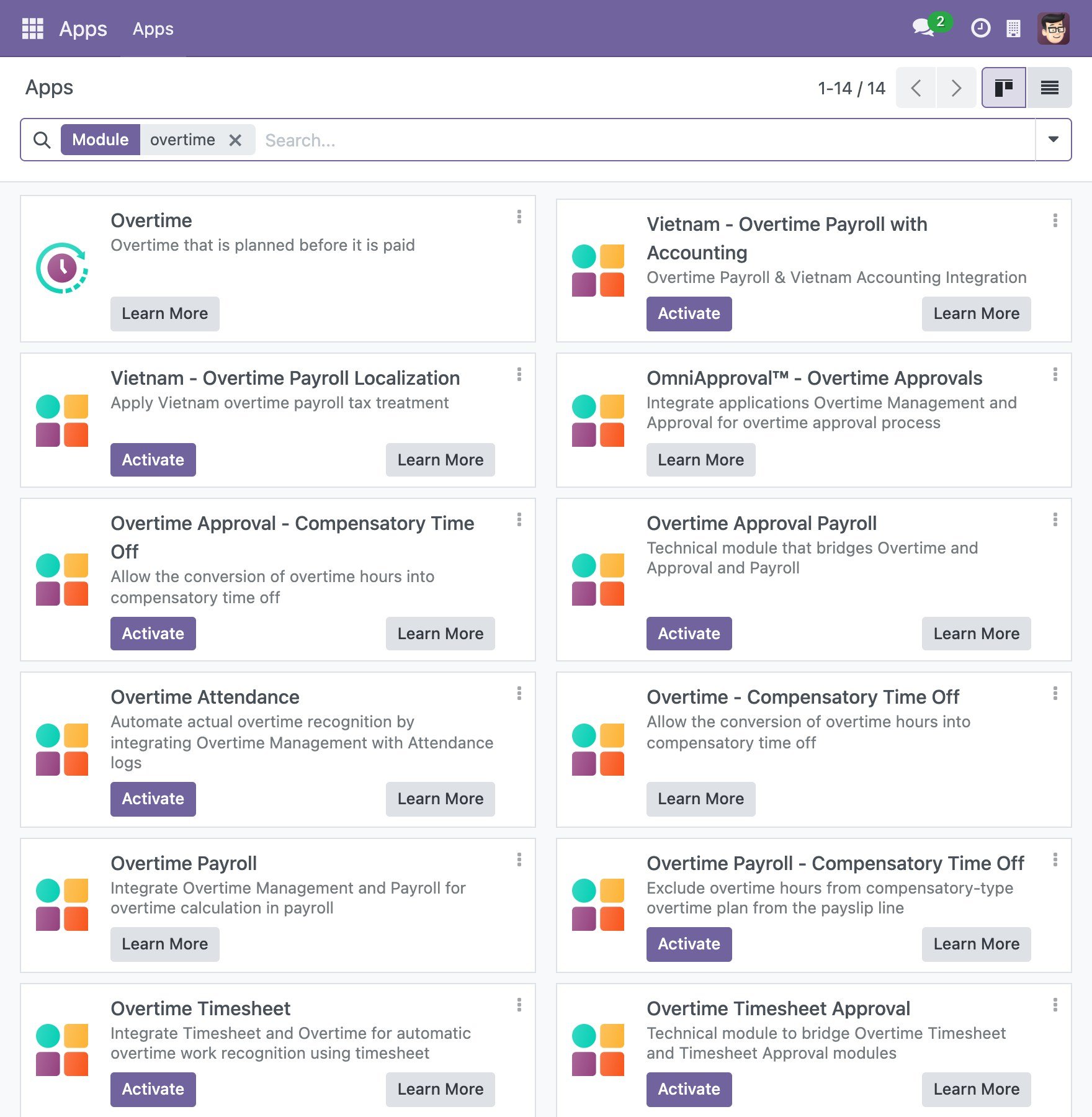
To utilize it, you need to install the Overtime app. You access Viindoo Apps and search for Overtime then click Activate. A module that is already installed shows Learn More only, as in the screenshot.
Access right configuration
After installing the app, you need to grant the user access rights to the Overtime access group by navigating to .
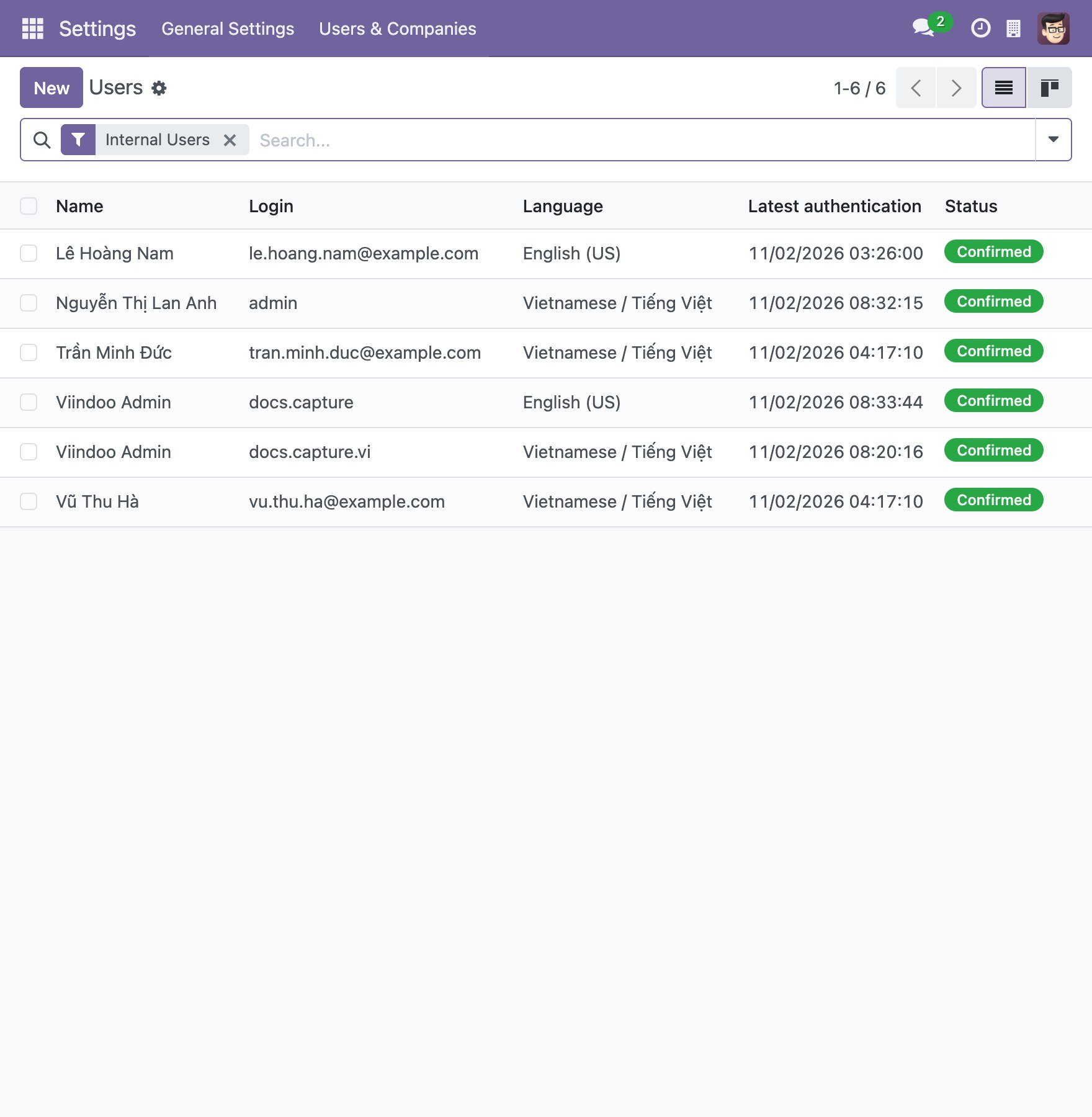
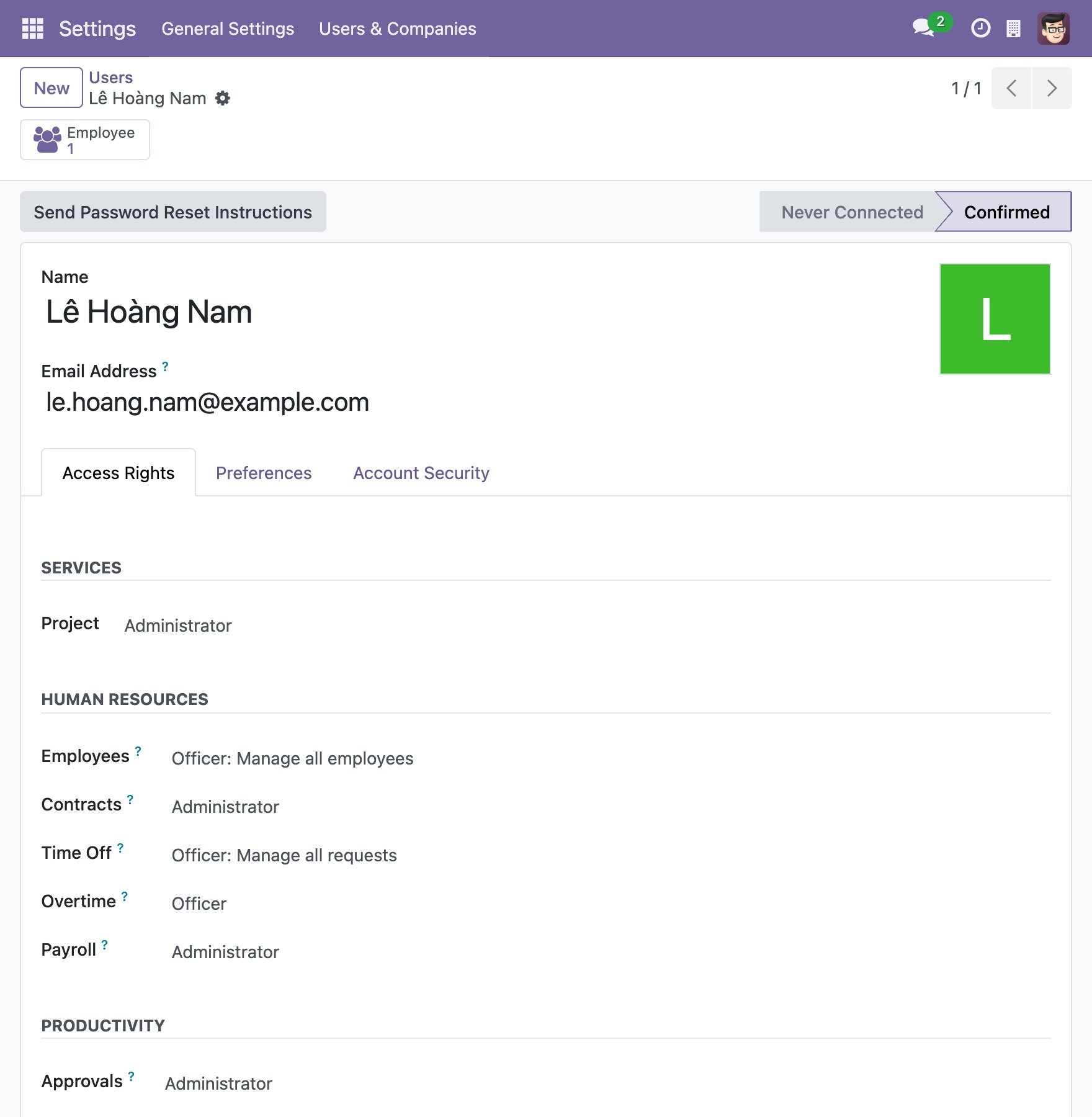
Click on the user that you want to grant access right. On the Access Rights tab, the Overtime line, under Human Resources, holds the access group of the user.
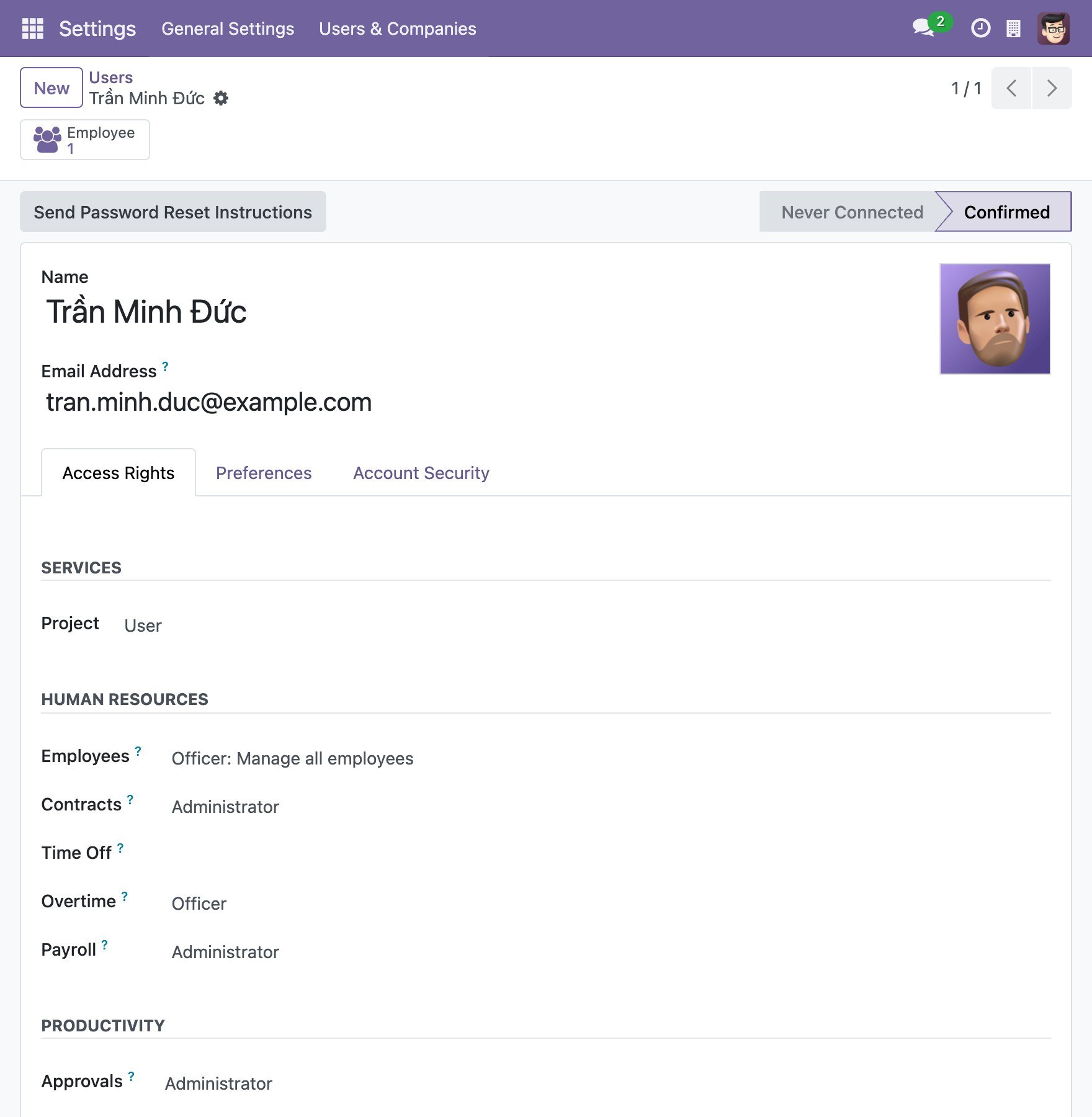
Every internal user can open the Overtime app and works with his or her own overtime plans. The access group of the Overtime line adds the following rights:
Team Approval: the users can plan overtime for the employees who report to them and for the employees of the departments they manage, and can use the Mass Schedule feature for those employees.
Officer: the users can plan and register overtime for all employees in the company, and can open the Reports menu. The Officer group includes the Team Approval group, and also gives the Officer rights of the Approval app.
![A user with the Officer access right in the Overtime app]()
Administrator: the users have the same access right as the Officer plus the Configuration menu, where overtime rules, rule codes and reasons are defined.
![A user with the Administrator access right in the Overtime app]()
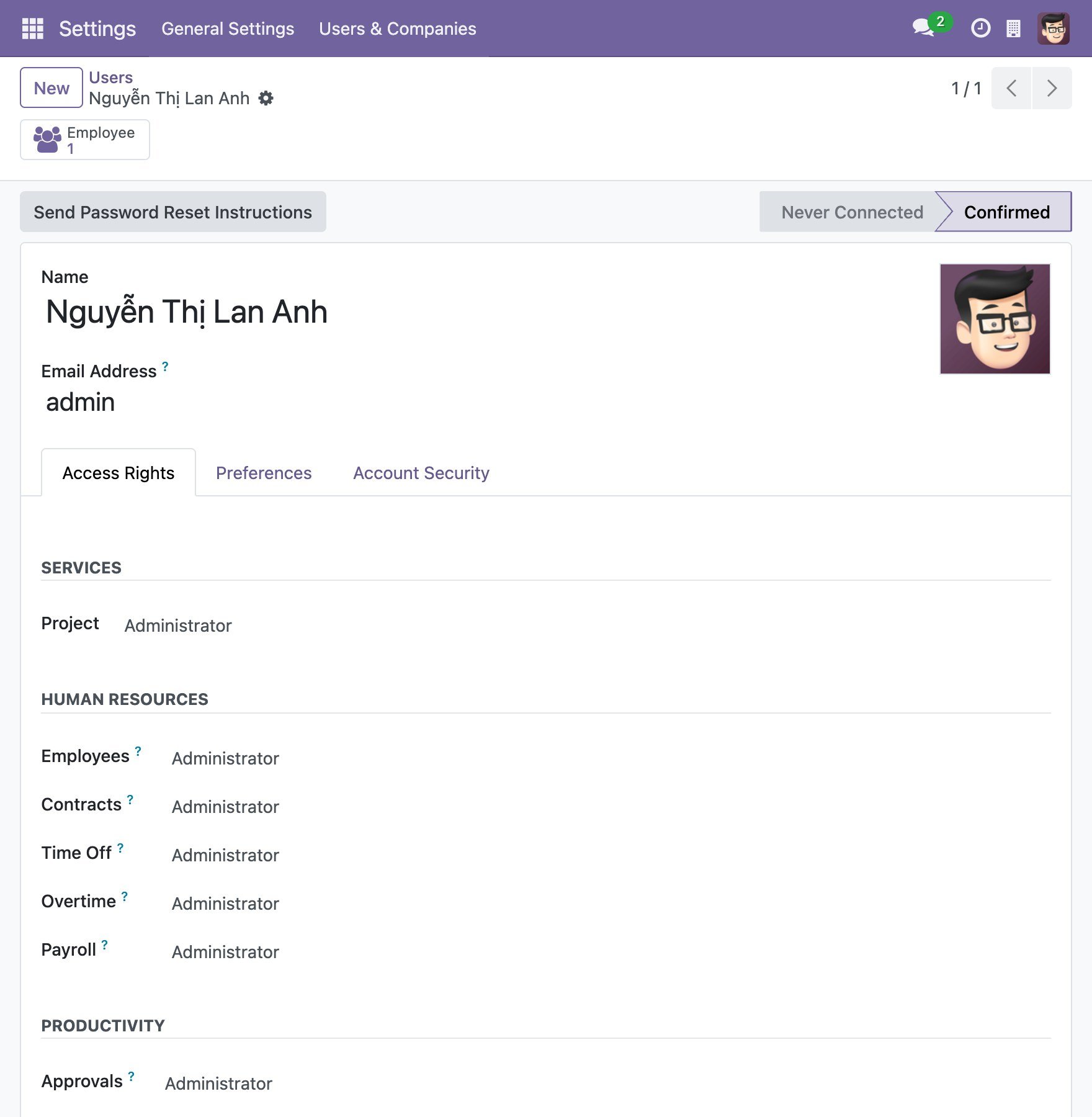
When you use overtime approval requests (see Make Overtime Approval Requests), the approvers of a request are set in the Approval app: the manager of the employee, plus the approvers that you list on the approval type. Users whose Approval access group is Officer or higher can also act on requests of other employees, for example by using Force Approval.
Setting up the app
General Settings
After the application is installed, you go to :
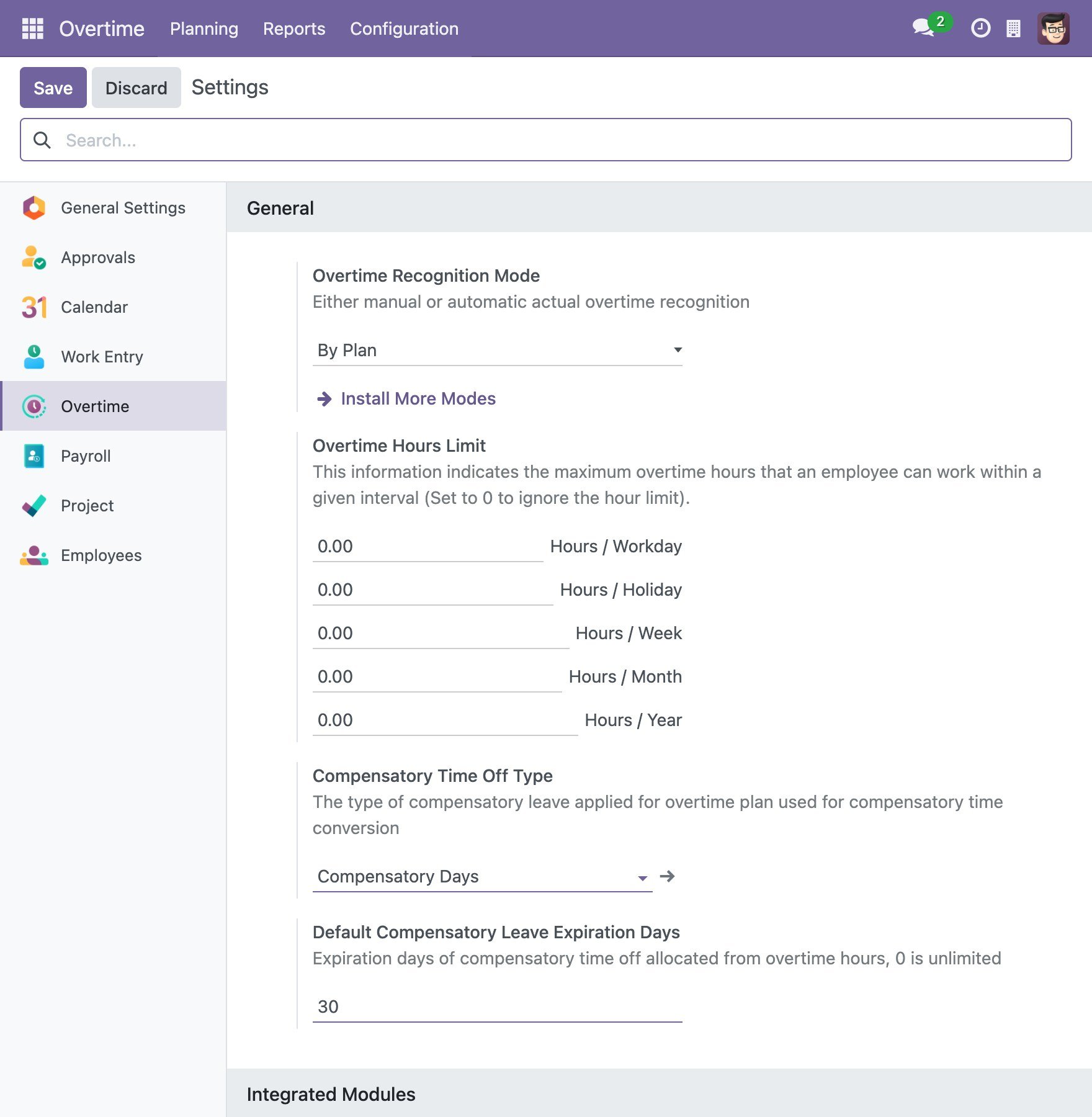
Overtime Recognition Mode: how the actual overtime is counted. By default, the mode is By Plan: the actual overtime equals the approved and planned overtime. Click Install More Modes to see the modules that add more modes.
![Overtime recognition mode]()
Overtime Hours Limit: the maximum overtime hours that an employee can work per Workday, Holiday, Week, Month and Year. Enter 0 to ignore the limit.
Compensatory Time Off Type and Default Compensatory Leave Expiration Days: used when overtime is converted into compensatory time off. See Overtime to Compensatory Time Off Workflow.
The Integrated Modules block switches on the optional features of the app:
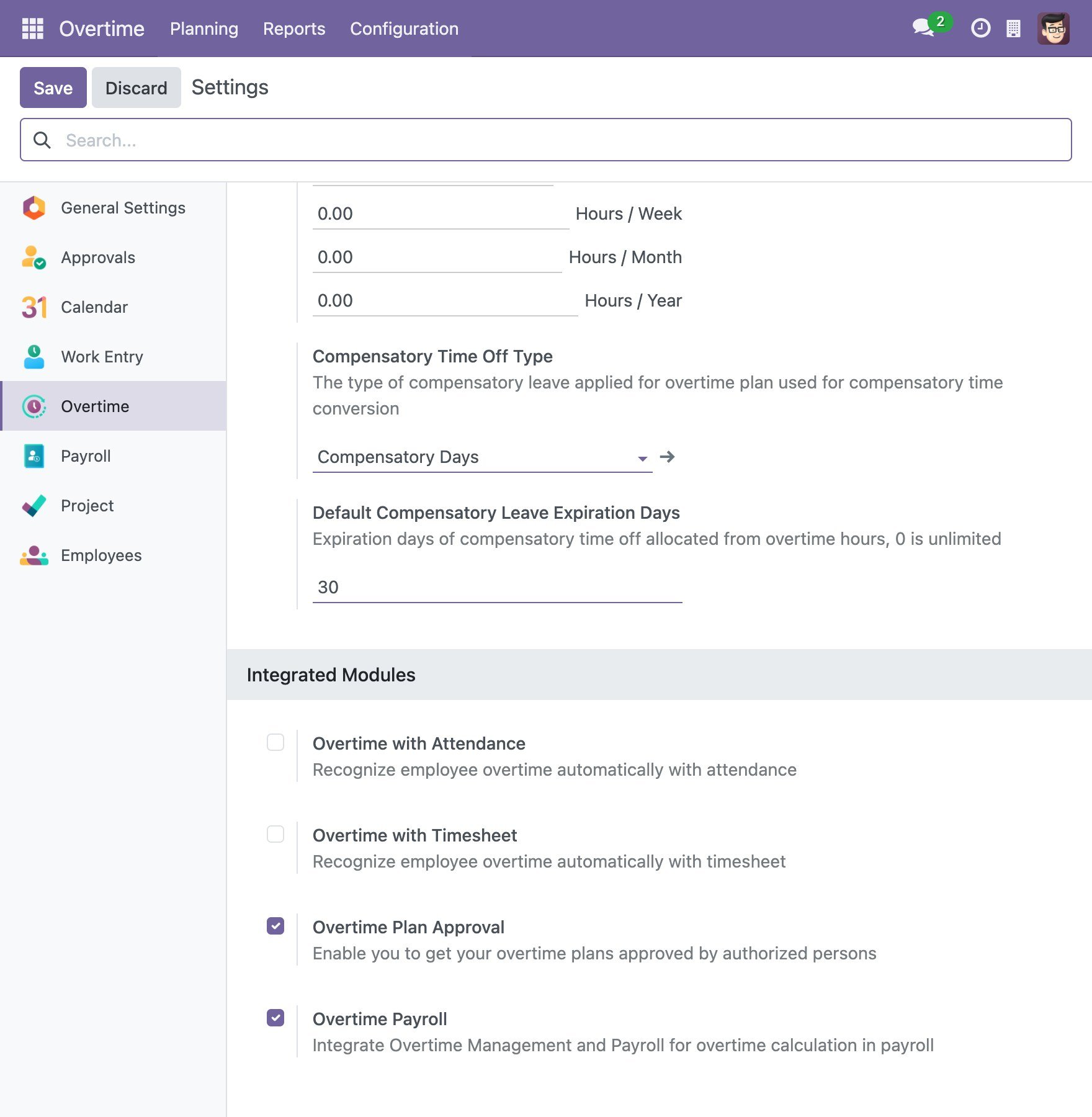
Overtime with Attendance: the actual overtime is recognized automatically by matching the approved plan with the attendance log (fingerprint, face,…). Click Save, and the Attendance mode becomes available in the Overtime Recognition Mode list.
Overtime with Timesheet: the actual overtime is recognized automatically by matching the approved plan with the timesheet log registered in assigned tasks. Click Save, and the Timesheet mode becomes available in the list.
Overtime Plan Approval: employees can send overtime approval requests, and managers can register overtime plans for their department. The managers approve the requests.
Overtime Payroll: use the overtime data in payroll.
Overtime Codes
The overtime codes are used in the auto-calculated formula for the overtime salary.
Note
See more about how to integrate overtime rules and payroll in Calculating overtime salary.
You navigate to app . Here, the system pre-sets the overtime codes. Each of these codes will be tied to only one Overtime Rule. Click New to create a new code.
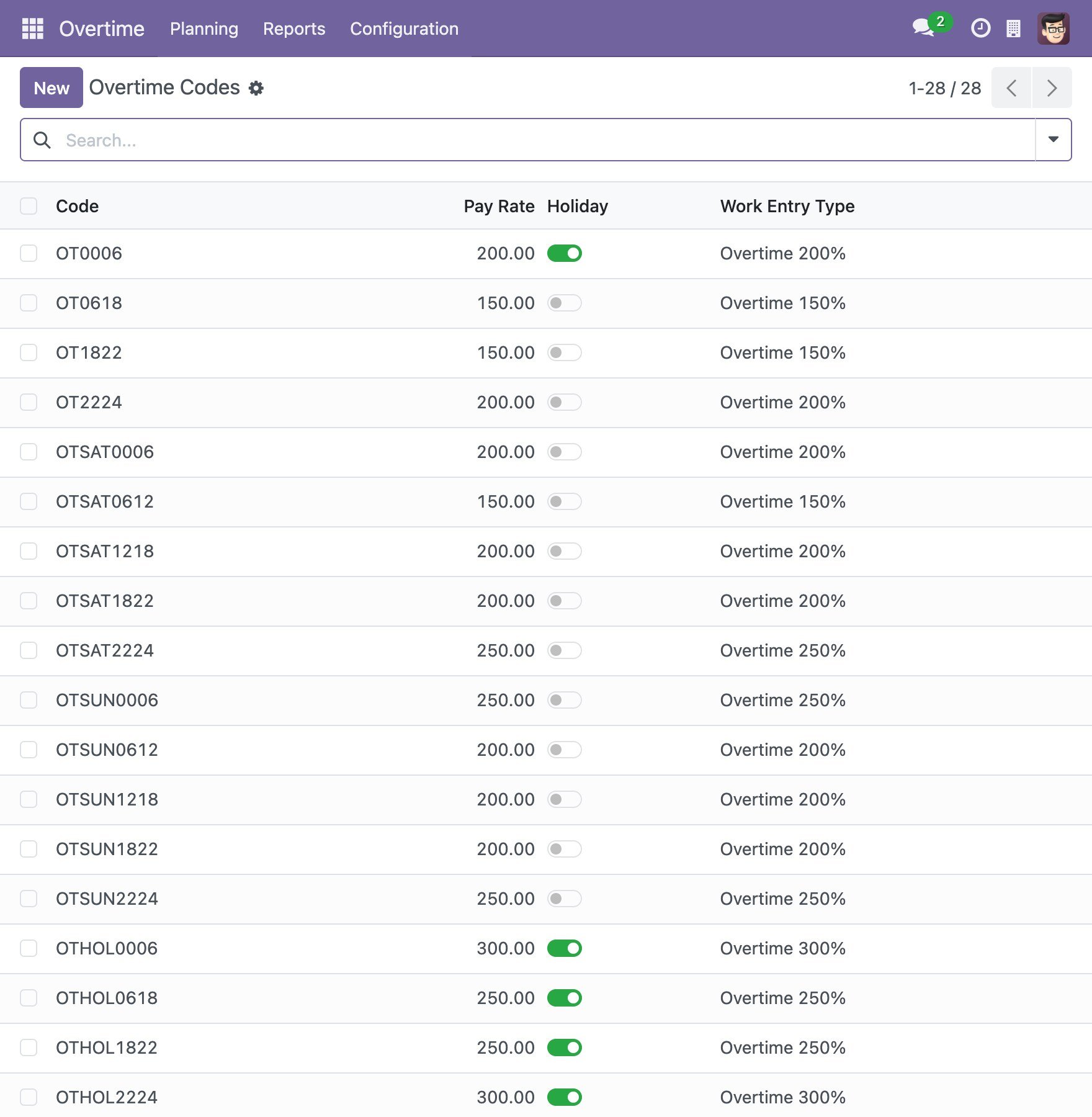
- Code: when naming the code, it should be short, including overtime/date information to easy-to-distinguish.
Pay Rate: the pay rate for overtime registration applied to the above code. This pay rate is set up in accordance with the Labor Code of applied country. For example, in Vietnam:
The rate of pay for overtime on a weekday is 150% of the actual hourly wage paid on a normal working day.
The rate of pay for overtime on a weekend is 200% of the actual hourly wage paid on a normal working day.
The rate of pay for overtime on holiday is 300% of the actual hourly wage paid on a normal working day.
Holiday: check if this is for overtime in holiday. Noted that you should fill the corresponding pay rate.
Work Entry Type: used to classify work entry for salary calculation. The system defaults to the work entry types used for overtime according to the pay rate percentage in the Pay Rate column.
Overtime Rules
You go to . Here, the system pre-sets the overtime rules with the pay rate in accordance with the Labor Code of the applied country. You can click New to create a similar rule.
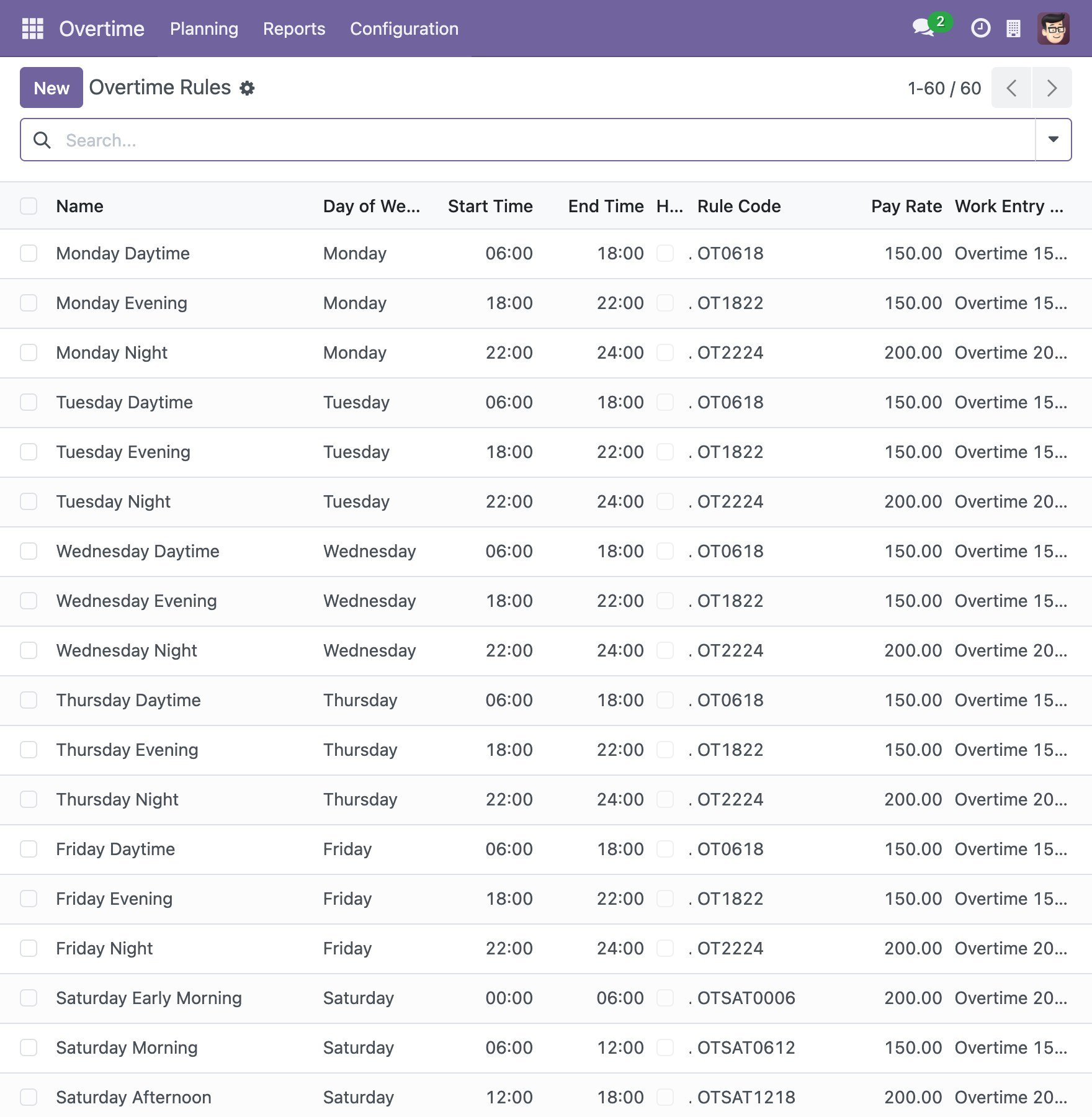
Open a rule to see its details:
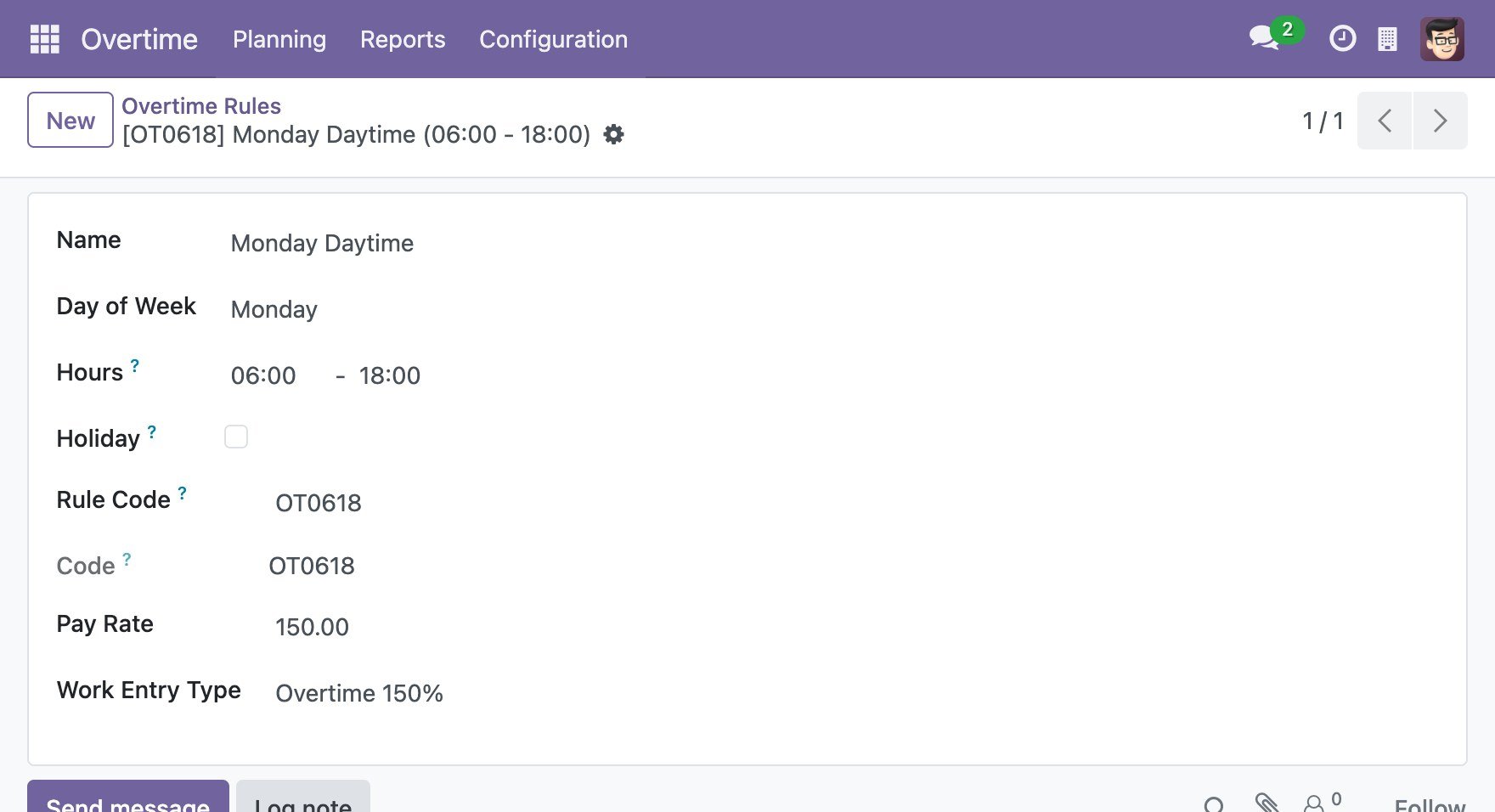
- Name: you can name the rule, noted that it should be short, including information about dates, holidays, time,…
Day of Week: select the overtime day
Hours: add the overtime start and end time
Holiday: tick it if the rule applies to a public holiday.
Rule Code: choose the configured rule code. After that, the system will automatically fill the Code, Pay rate and Work Entry Type as the chosen Rule code.
Overtime Reasons
You navigate to . Here, the system pre-sets the overtime reasons that companies often use. Moreover, you can create other reasons by clicking the New button.
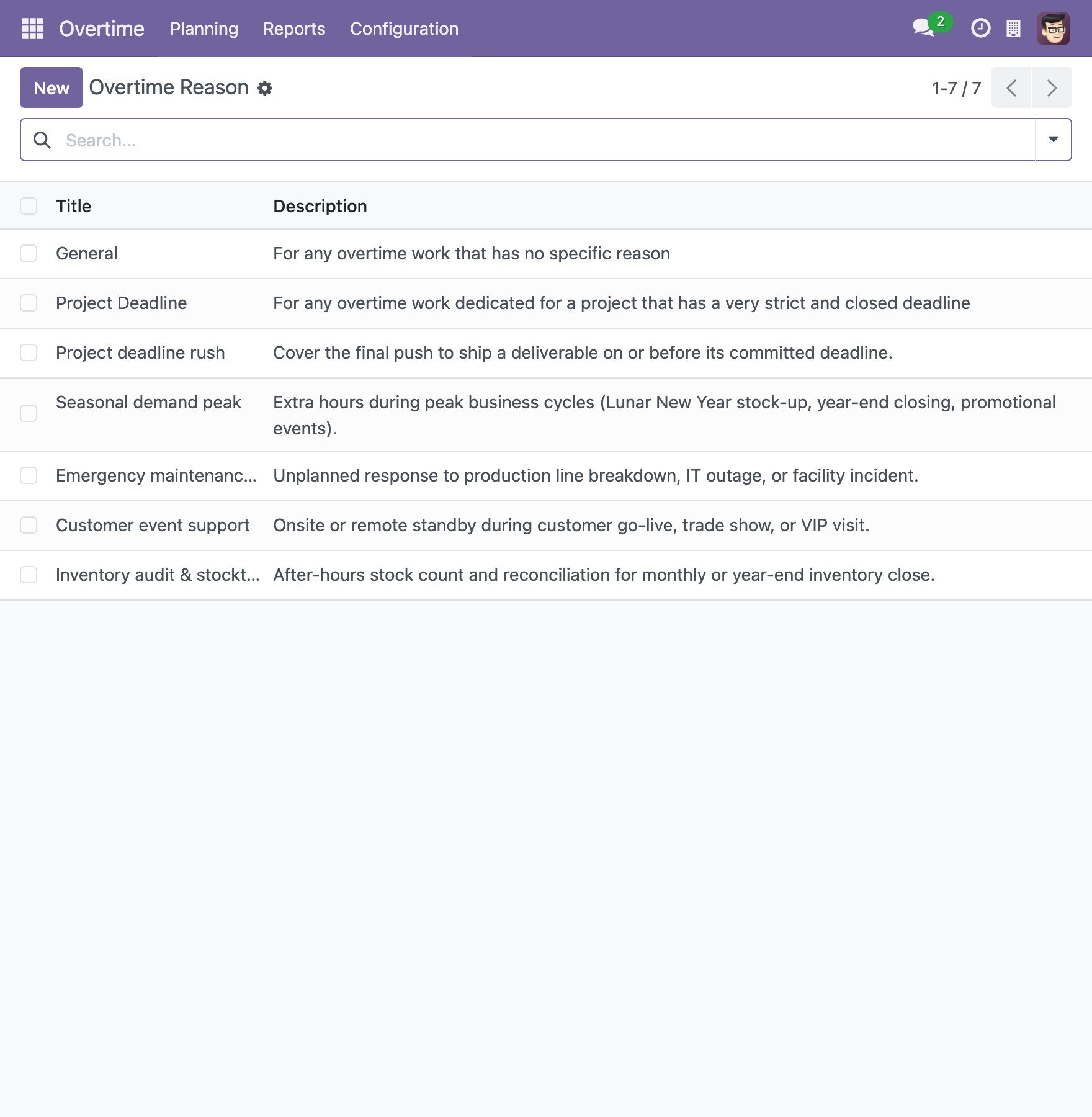
On the view of an Overtime Reason:
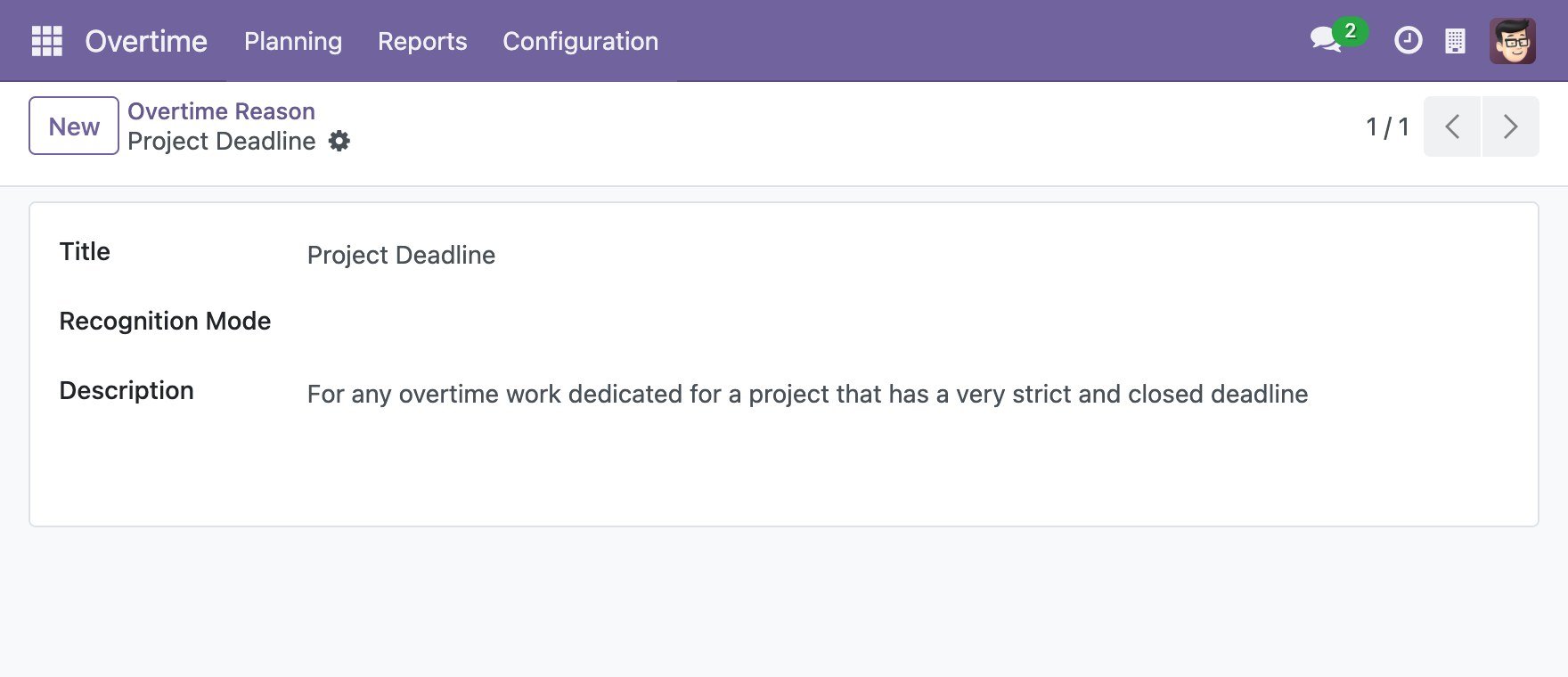
- Title: the title of reason, which is shown on the overtime plan and on the overtime request. The reason title, which is chosen by users in making overtime plan, should be easy-to-understand and related to task-detailed.
Recognition Mode: the mode used to recognize the actual overtime of plans that use this reason. See Overtime Recognition Mode.
Description: more details of overtime reasons help you easily distinguish and look up the information when needed.
See also
Related articles:
Optional modules: