
How to receive, complete and follow your appointments
When an appointment is given to you, Viindoo notifies you in Discuss. Click the link in the notification to open it, click Confirm to put the meeting in the Calendar, and click Done once the meeting has taken place. To find your appointments at any time, go to Appointments ‣ Appointments: the draft and confirmed ones are shown in a calendar, and you can switch to a list, a kanban or an activity view.
Who |
The person in charge of an appointment. A user with User: Own Documents Only sees the appointments he created or is responsible for; User: All Documents and Administrator see all of them. |
App |
Appointments |
Before you start
Install Appointments and get an Appointments access right, see How to get started with Appointments and set up access.
To be notified, keep the notification of your user on Handle in Viindoo, see Set up and classify the notifications in Viindoo Discuss.
To email the customer when you cancel, set up the mail server and the email address of your user.
How do I know an appointment is assigned to me?
Open Discuss. The Inbox shows You have been assigned to <reference> - <customer>. When an appointment of your team is given to another member, the team leader receives a message too.
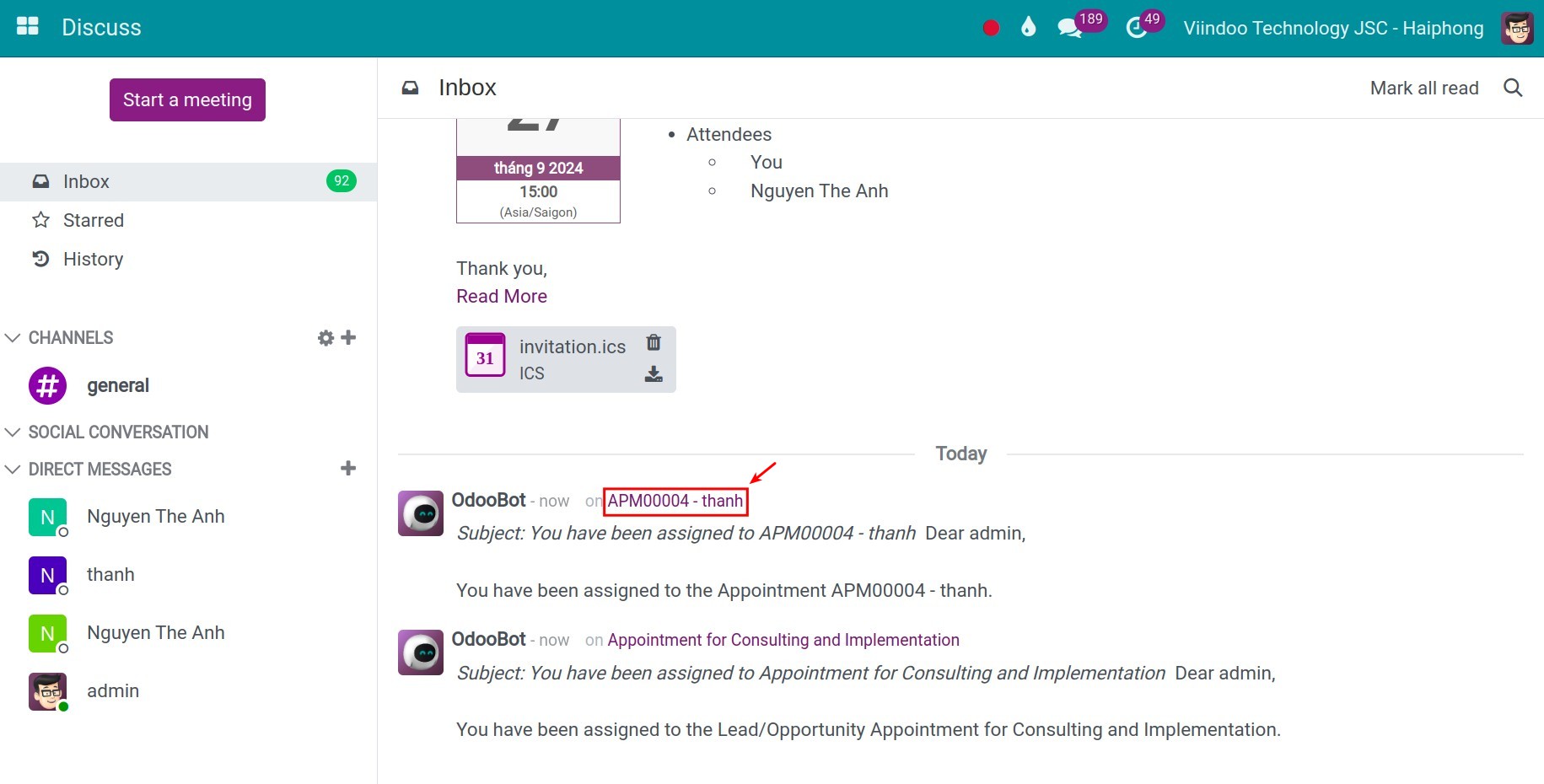
Click the link to open the appointment. Its Meetings button, status bar and chatter show what happened to it.
How do I confirm an appointment?
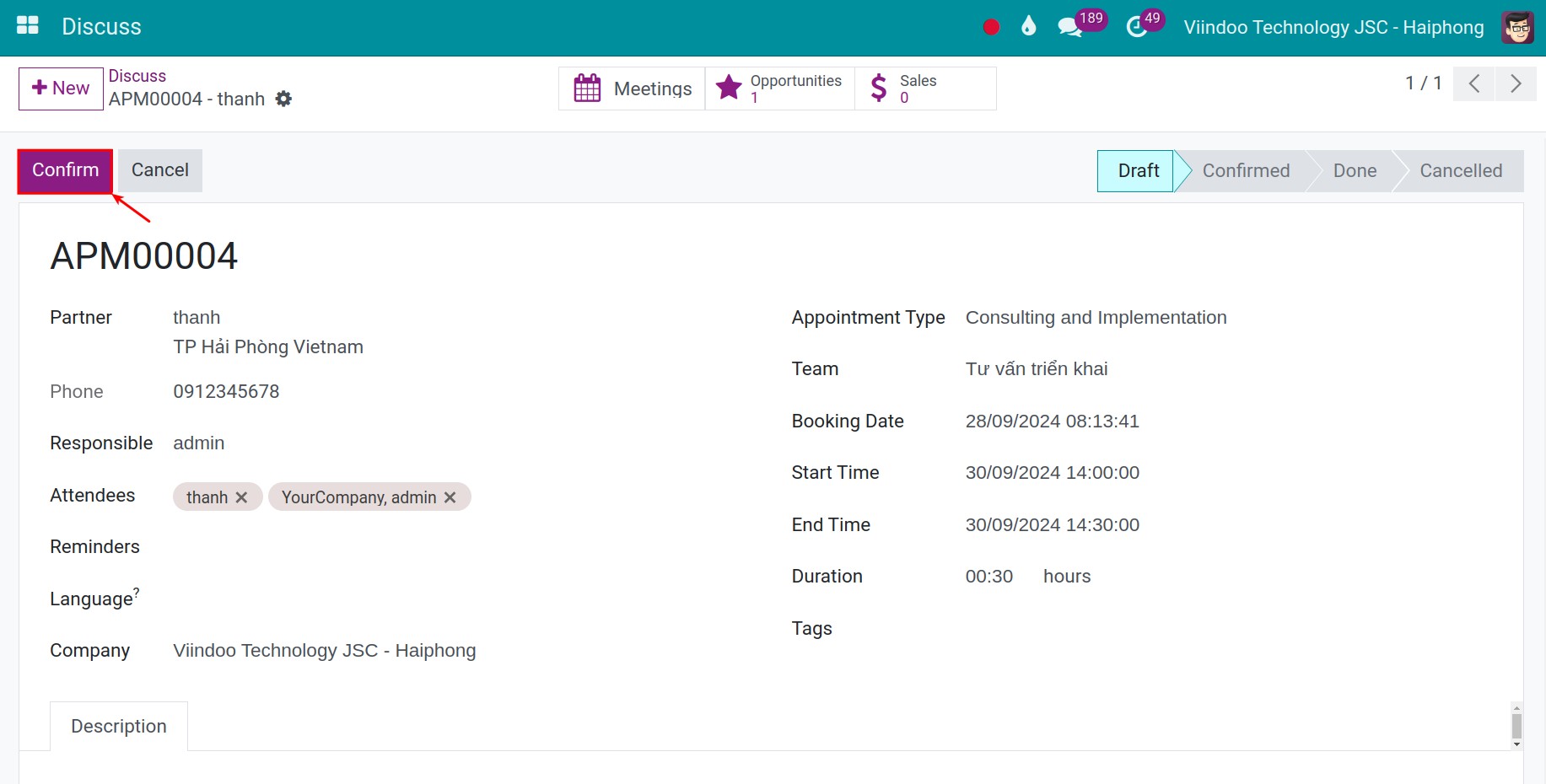
Open the appointment and click Confirm.
![A draft appointment with the Confirm button highlighted]()
The status becomes Confirmed. Viindoo creates the meeting in your Calendar, see how to book a meeting, and invites the attendees. A customer cannot book another appointment with you at the same time on the website.
If you work on a quotation or sales order of the appointment, click the Sales button. It exists when the Sales app is installed, see How to schedule an appointment for a customer.
If you already have another meeting at that time, a warning with a link to it appears at the top of the form before you confirm.
How do I complete or cancel an appointment?
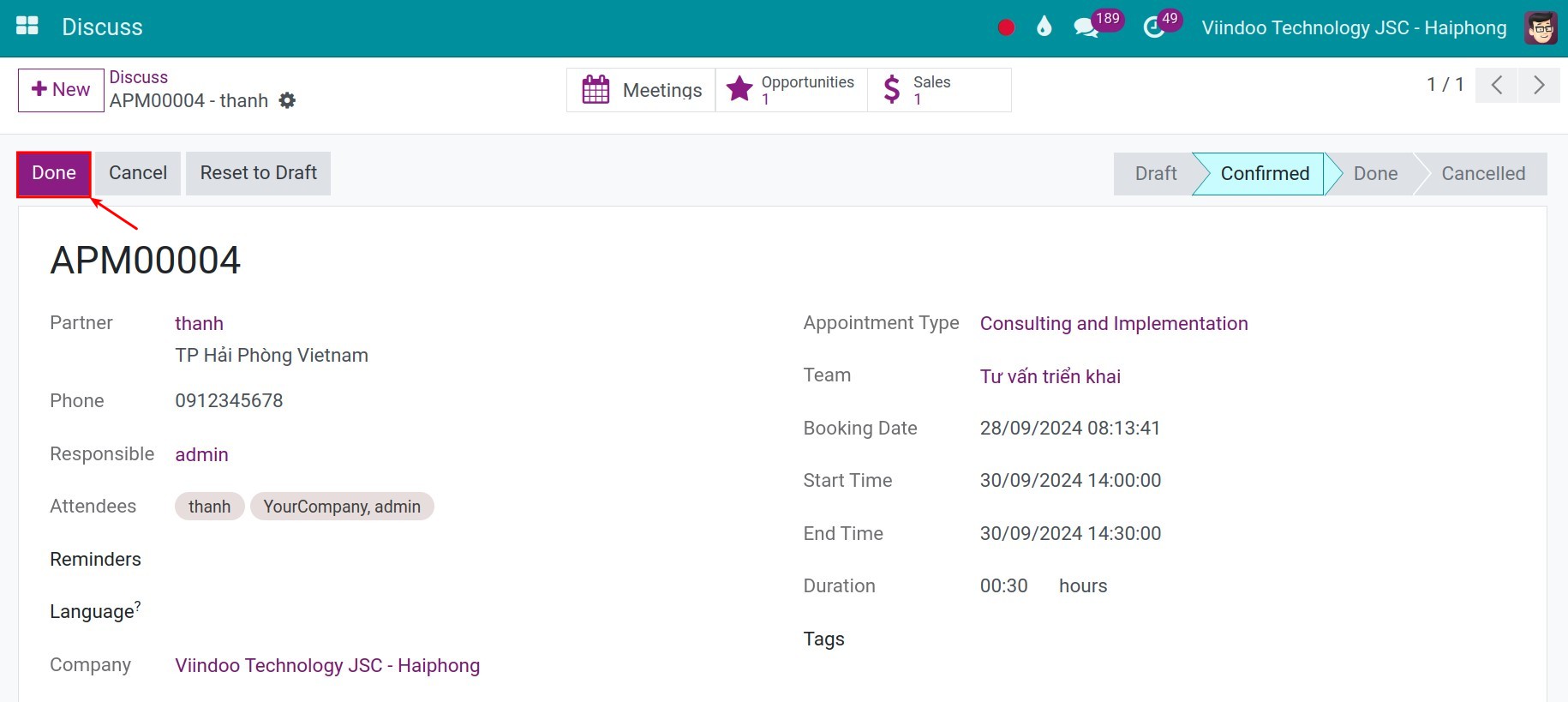
When the meeting has taken place, open the appointment and click Done.
![A confirmed appointment with the Done button highlighted]()
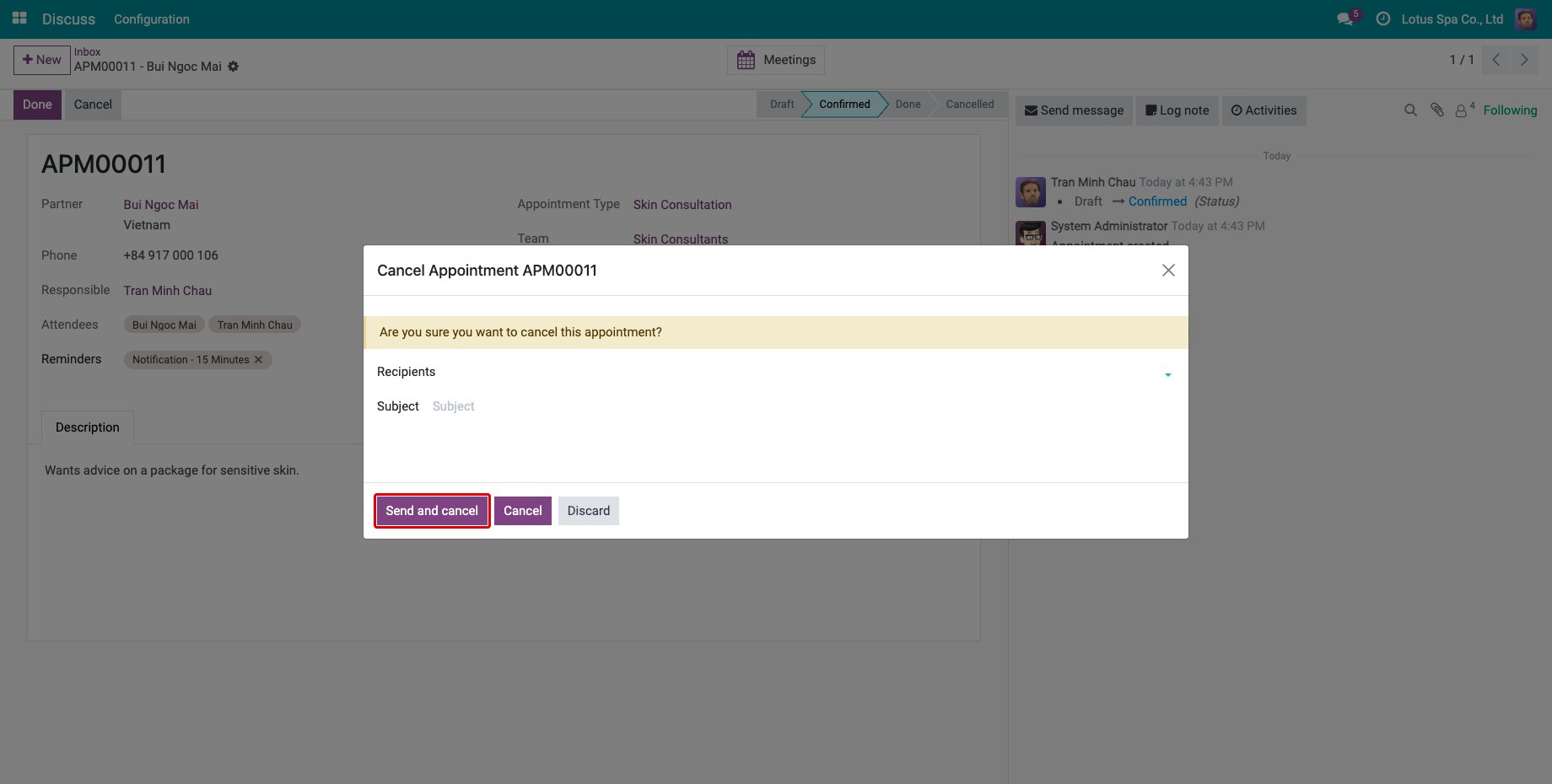
To cancel a draft or confirmed appointment, click Cancel. A window asks Are you sure you want to cancel this appointment?
![The cancellation window with the Send and cancel button highlighted]()
Send and cancel emails the recipients you choose, with the subject and message you write, and cancels the appointment.
Cancel cancels without any email.
Discard closes the window and keeps the appointment.
Cancelling removes the meeting from the Calendar. An administrator can click Reset to Draft on a confirmed, done or cancelled appointment to start again; this also removes its meeting.
How do I find my appointments?
Go to Appointments ‣ Appointments. The calendar shows the week of the appointments you are invited to, with a hatched colour for drafts. Click an appointment to open it.
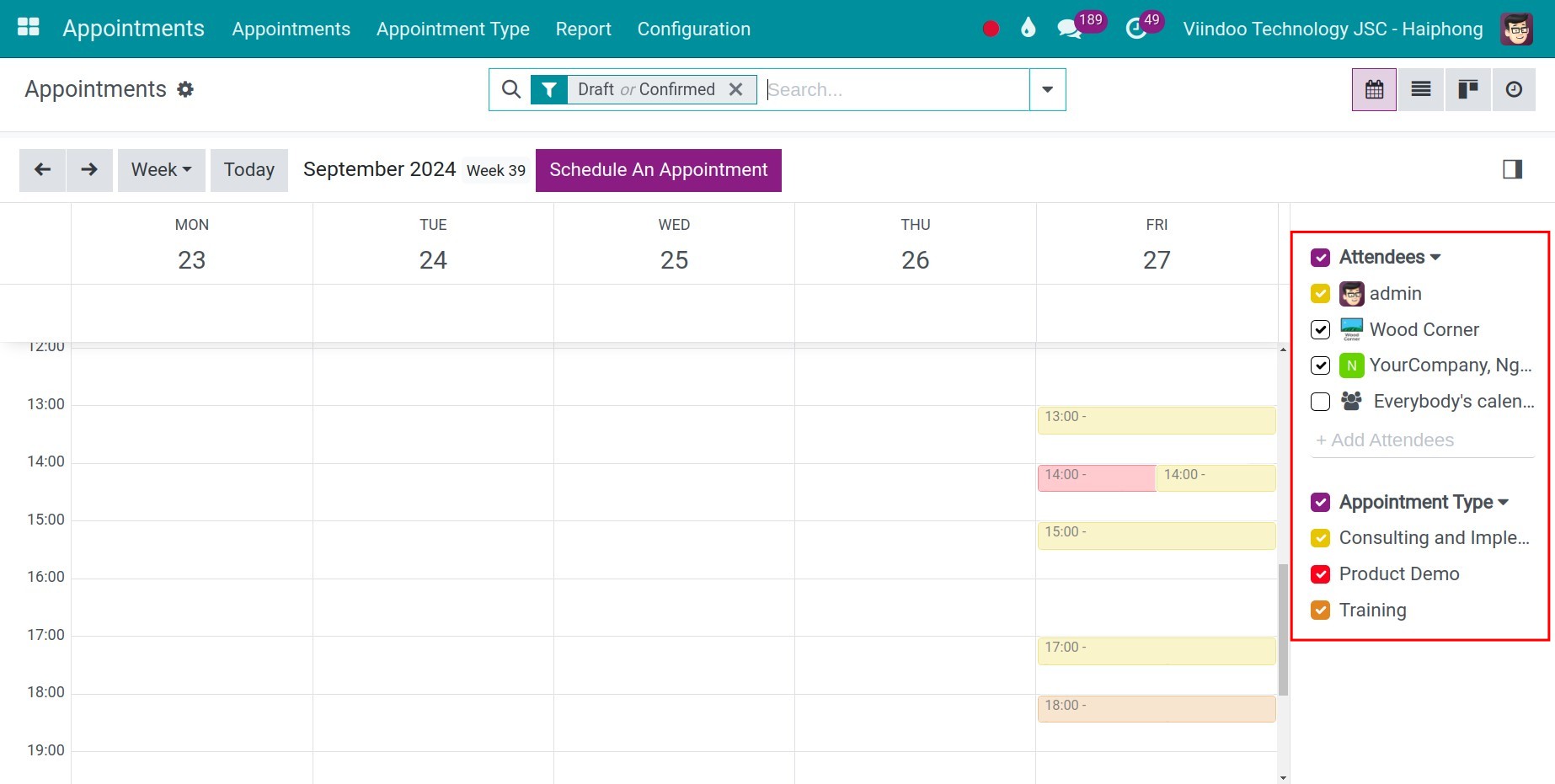
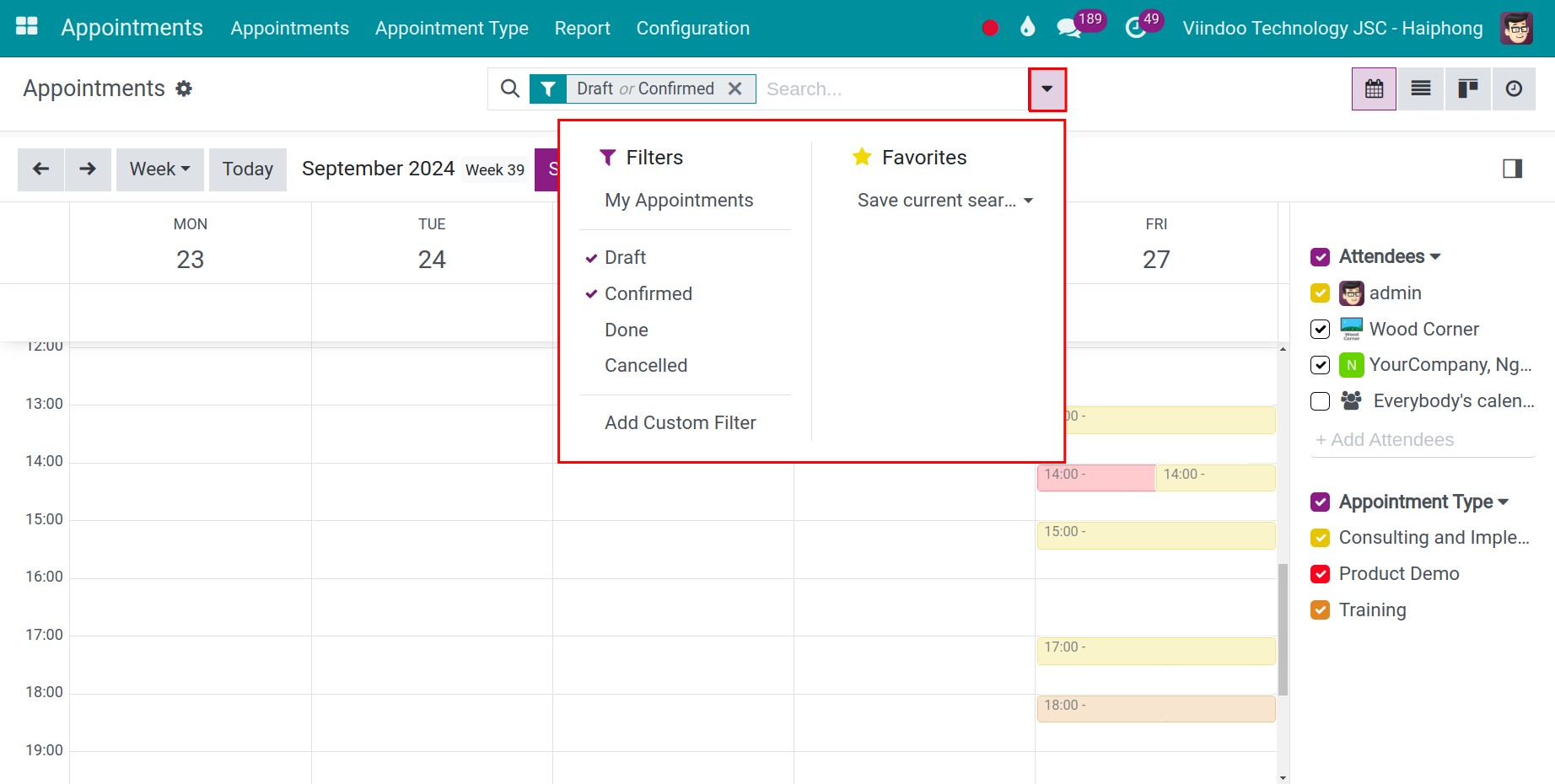
The search bar starts with the filter Draft or Confirmed, so that you see what is still to do. Open the filter menu to choose My Appointments, Draft, Confirmed, Done or Cancelled. In the list view you can also group by partner, responsible, team, appointment type or booking date, and search by reference, customer, phone, tag, responsible or team, see How to search, filter, group and save searches.
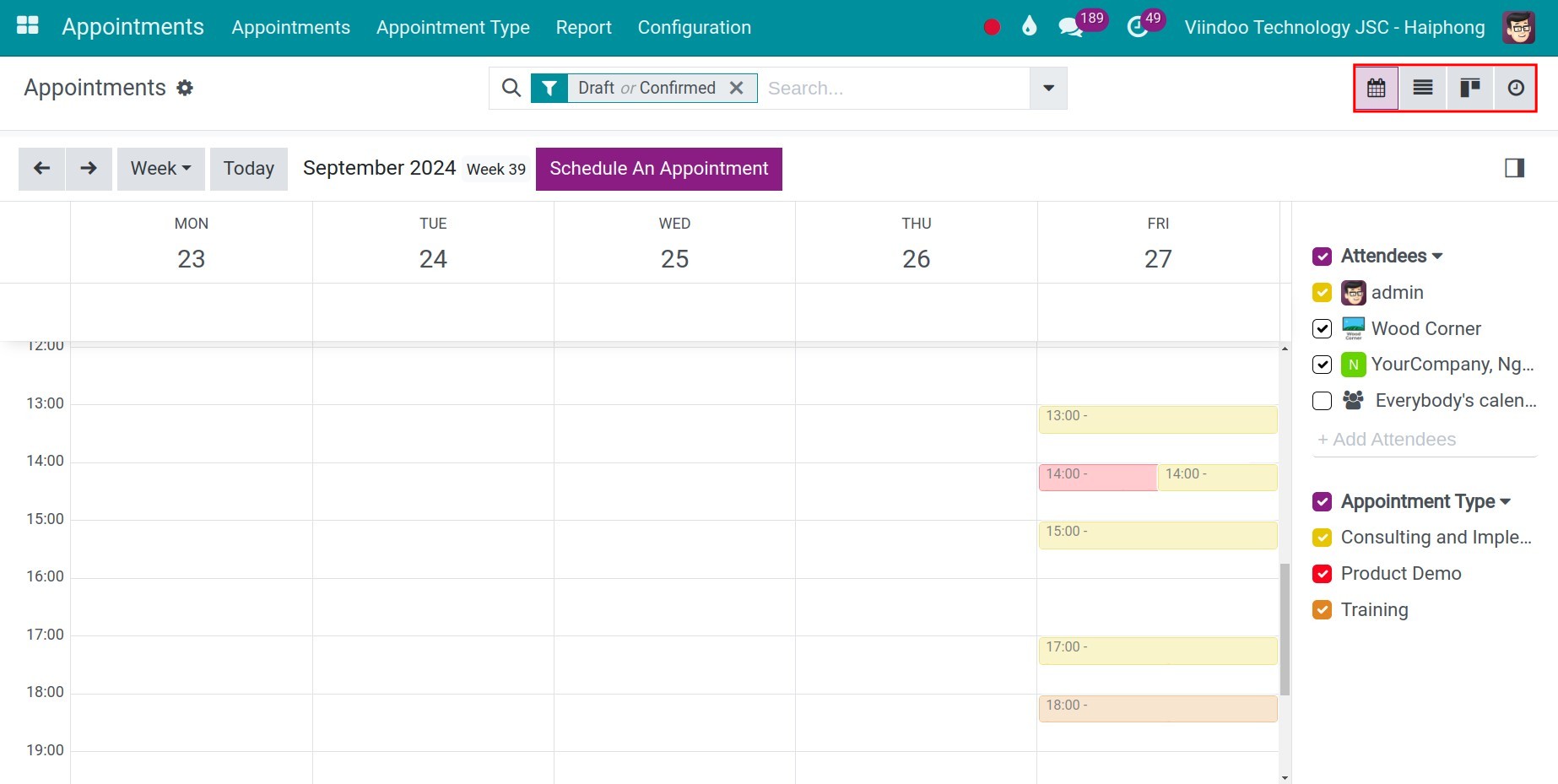
Use the icons at the top right to switch between the calendar, the list, the kanban and the activity views, see Views and reports: which view should I use?.
To see the appointments of one type or one team, open the type or the team and click its Appointments button.
Common errors
Problem |
What to do |
|---|---|
You do not receive any notification. |
Check the notification setting of your user and that you are the person in charge of the appointment. |
Unable to post message, please configure the sender’s email address. |
Fill in the email address of your user, then click Cancel again. |
You do not have permission to modify a calendar event associated with an appointment … |
Only a user with an Appointments access right can change the meeting of an appointment. Change the appointment itself instead, or ask an administrator. |
Appointment … has sale order … was confirmed. You must be cancel this order first. |
Cancel the sales order, then cancel the appointment. |
You cannot delete appointment … You must set it to draft before. |
Only a draft appointment can be deleted. An administrator can click Reset to Draft first. |
Next steps
How to analyze appointments with the Appointment Analysis: measure the appointments.
How to schedule an appointment for a customer: schedule an appointment for a customer.