
How to move applications through the recruitment stages
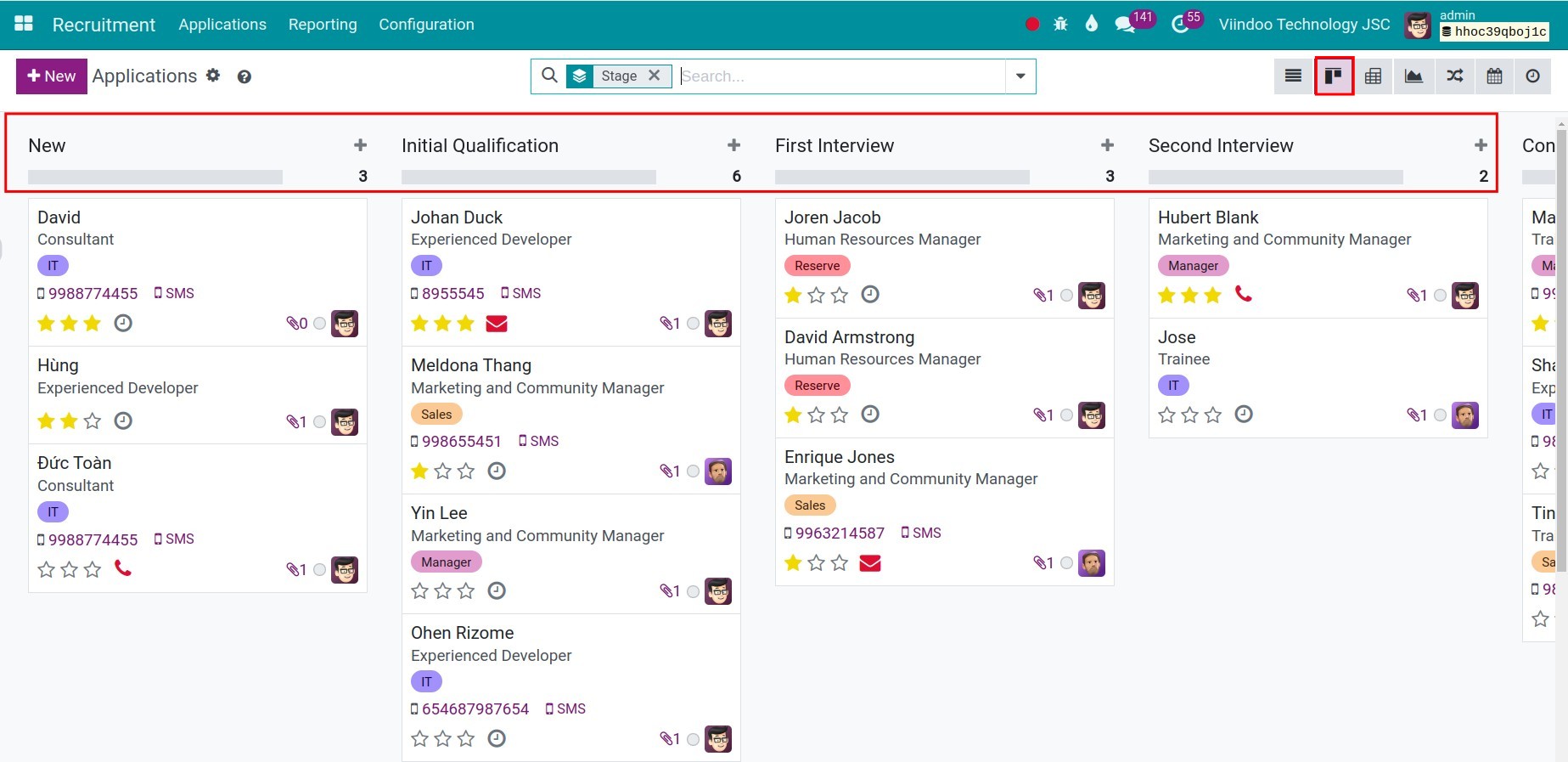
Each column of the applications kanban view is a recruitment stage. To follow an applicant, drag the card from a column to the next one, or click the stage in the status bar of the application. When the card reaches the hired stage, click Create Employee. To change the stages of your company, click the gear of a column, or turn on the developer mode and open Recruitment ‣ Configuration ‣ Job Positions ‣ Stages.
Who |
Users with the Recruitment ‣ Officer access right move the applications. Setting up the stages needs the Recruitment ‣ Administrator access right. |
App |
Recruitment |
Before you start
Install the Recruitment app.
Add the applications you want to follow.
Which stages does Viindoo propose?
New, Initial Qualification, First Interview, Second Interview, Contract Proposal and Contract Signed. The last one is the hired stage. Keep them, rename them or add your own to match the rounds of your company.
How do I see where each applicant is?
Go to Recruitment ‣ Applications ‣ All Applications and switch to the kanban view. The cards of each stage are in one column, with the number of applications at the top.
How do I move an application to the next stage?
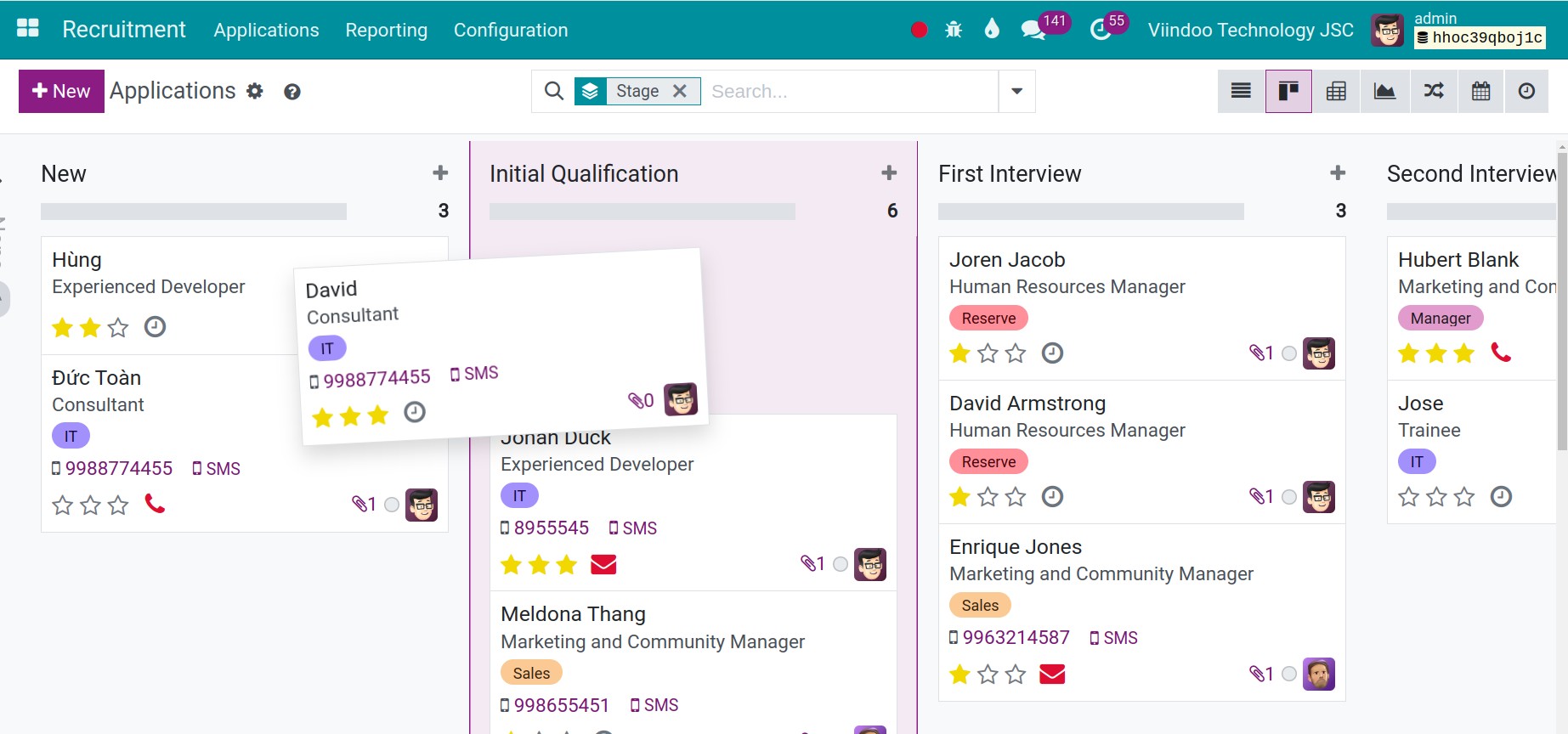
In the kanban view, drag the card to the column of the next stage.
![An application card in the Initial Qualification column of the kanban view]()
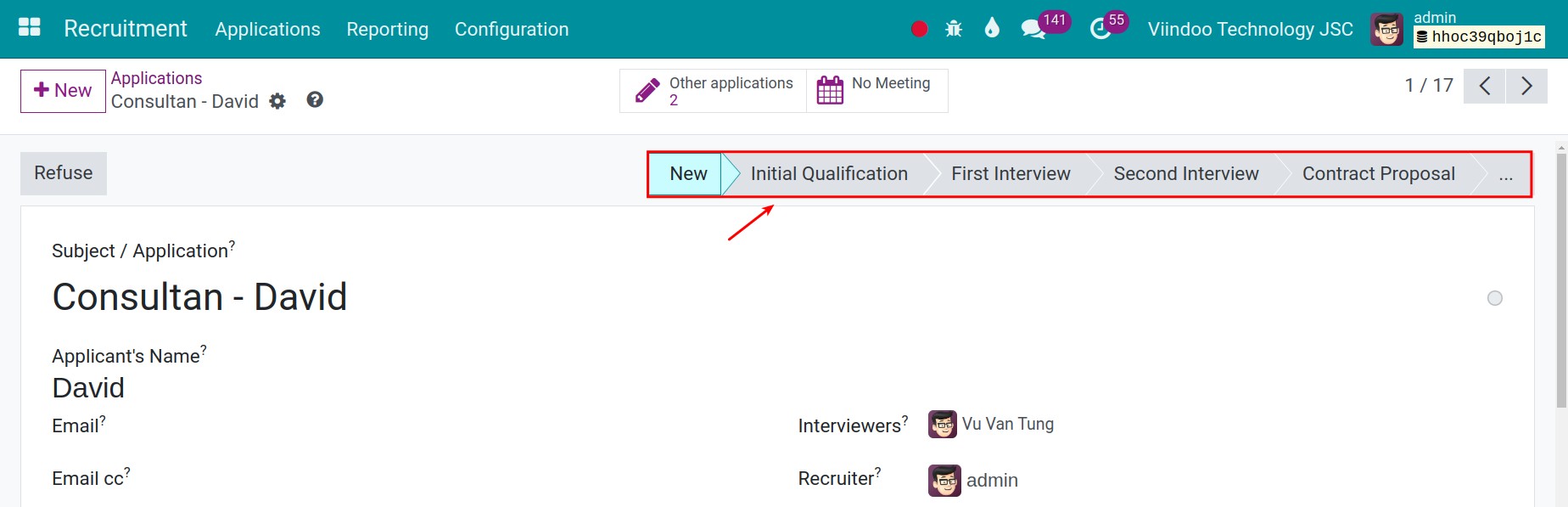
Or open the application and click the stage in the status bar.
![The status bar of an application with the recruitment stages]()
If the stage has an email template, Viindoo posts that message on the application when the card arrives in it.
How do I show that an application is blocked or ready?
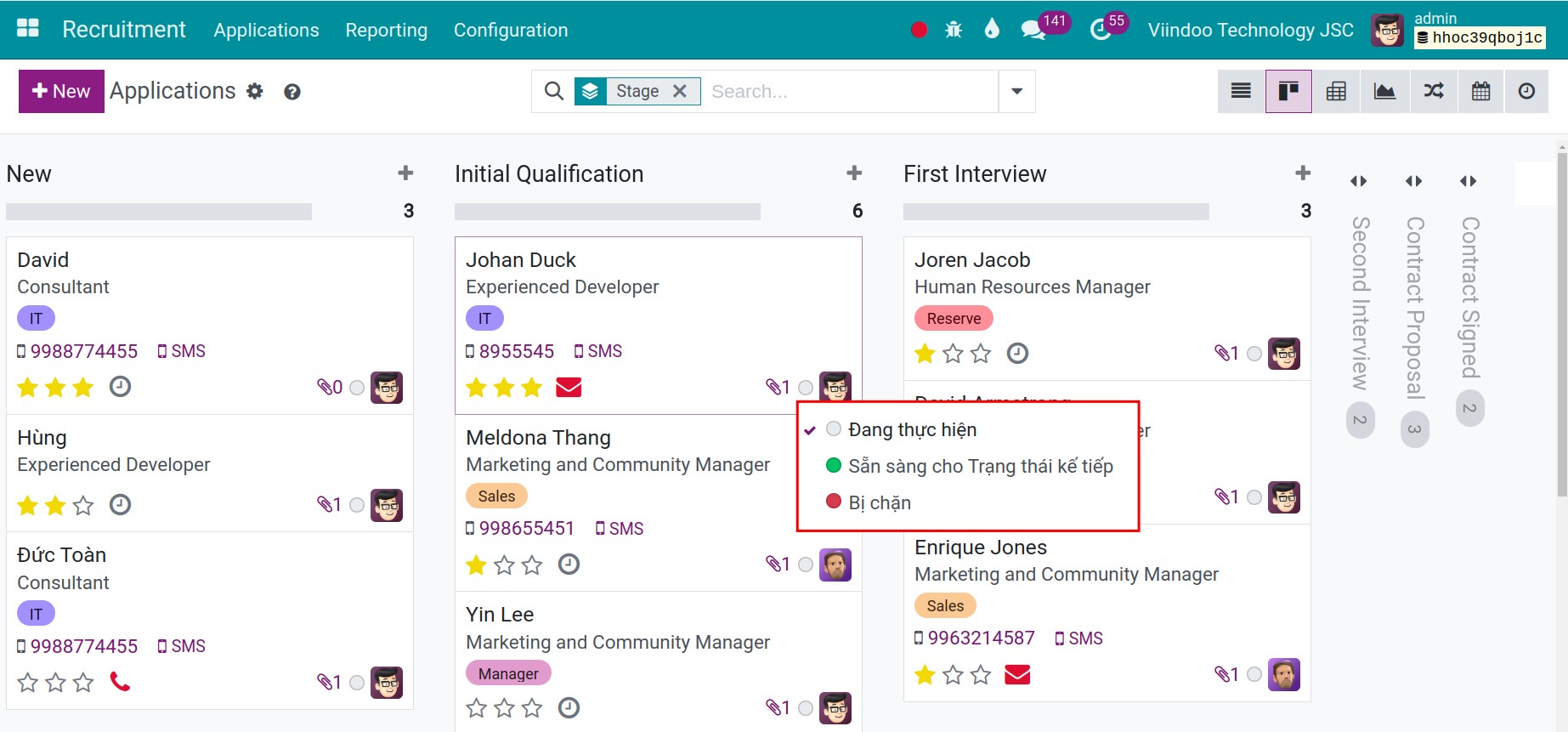
Click the round status icon of a card (or at the top right of the application) and choose one of the three states. By default they mean In Progress (grey), Blocked (red) and Ready for Next Stage (green). The colour also shows in the progress bar at the top of the column.
How do I refuse an application?
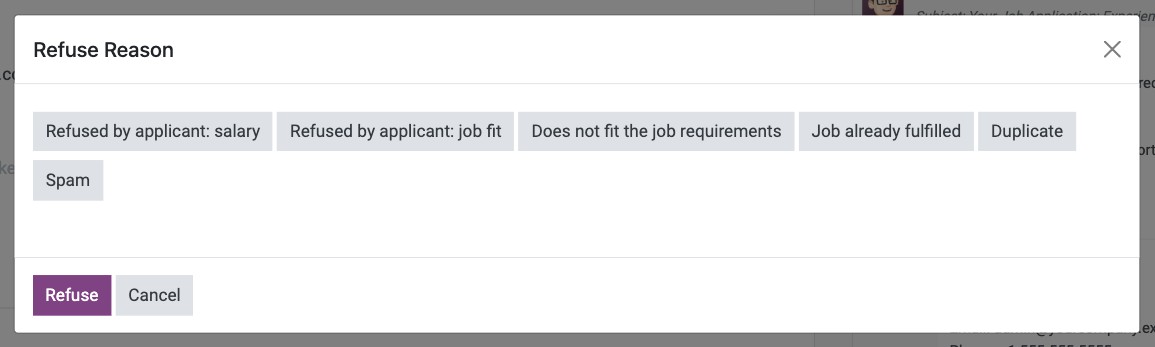
Click Refuse on the application, choose the reason and confirm. The application is archived with that reason.
How do I hire the candidate?
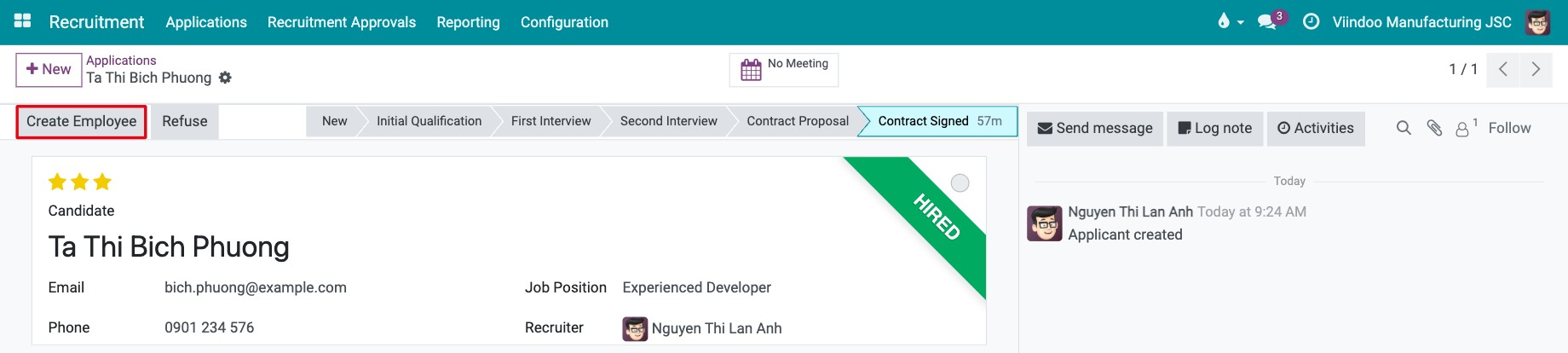
Move the application to the stage marked as Hired Stage (Contract Signed by default). Viindoo records the hire date and shows a Hired ribbon. Click Create Employee to open the employee form already filled in with the candidate’s data.
How do I add or change a stage?
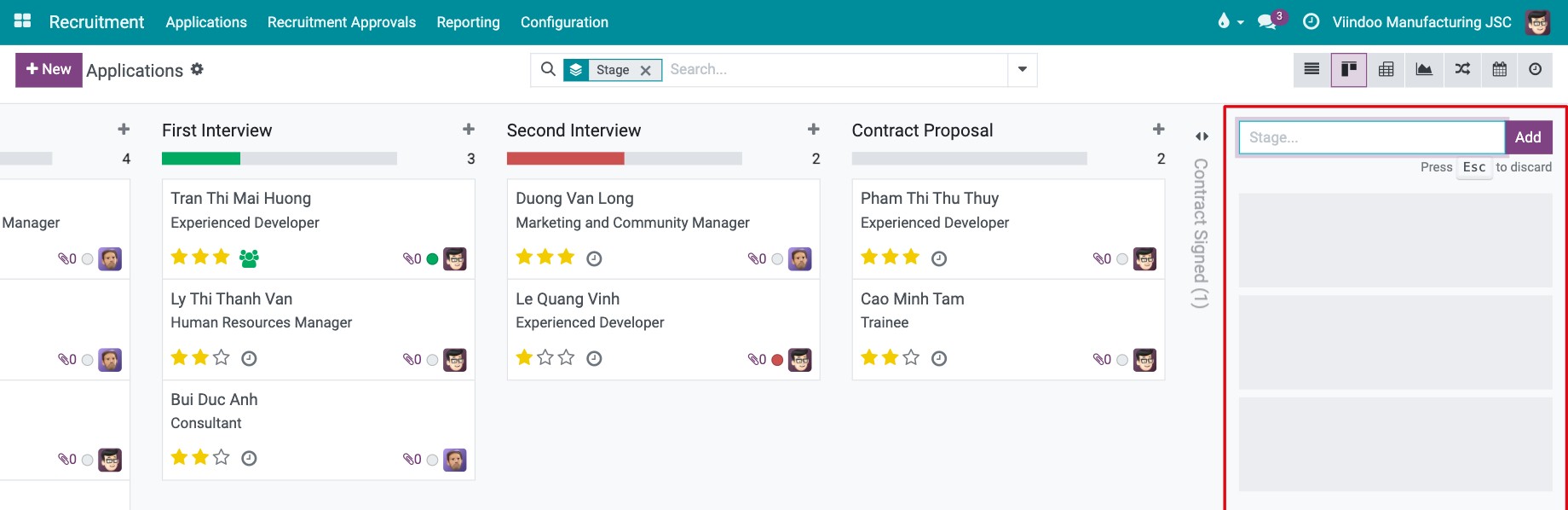
In the kanban view, scroll to the last column and click + Stage. Type the name and click Add. The stage appears at the end; drag the column to move it.
![The form to add a stage at the end of the kanban view]()
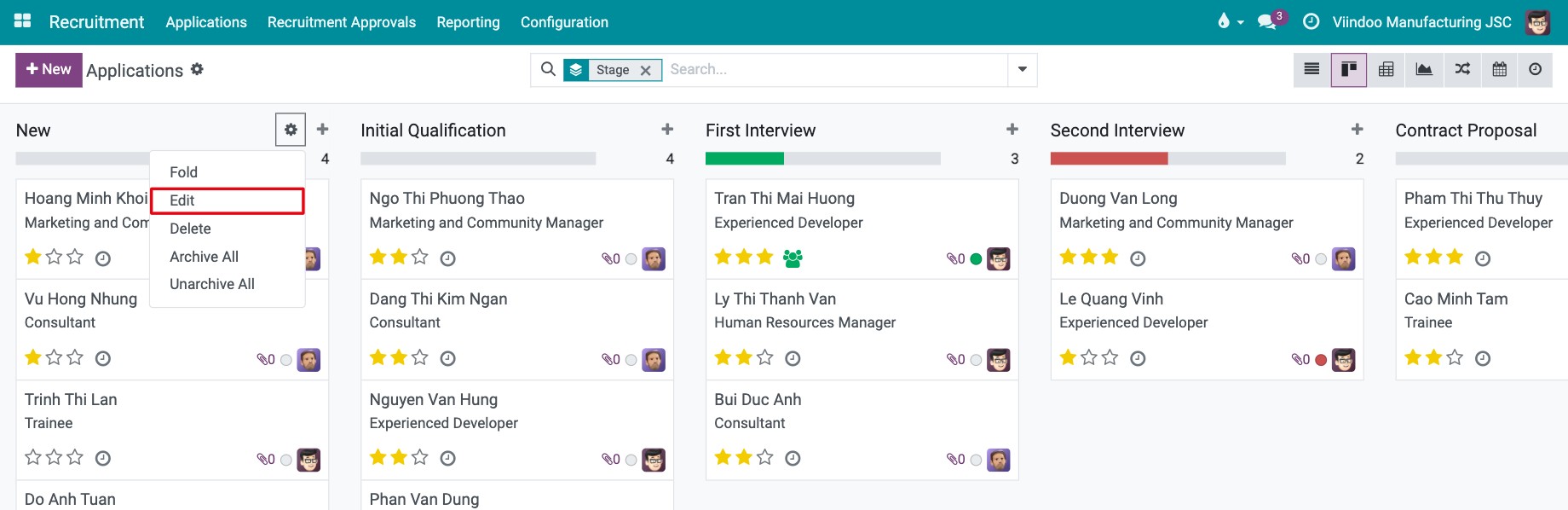
To change an existing stage, click the gear at the top of its column and choose Edit. The same menu has Fold, Delete, Archive All and Unarchive All.
![The menu of a kanban column with the Edit command]()
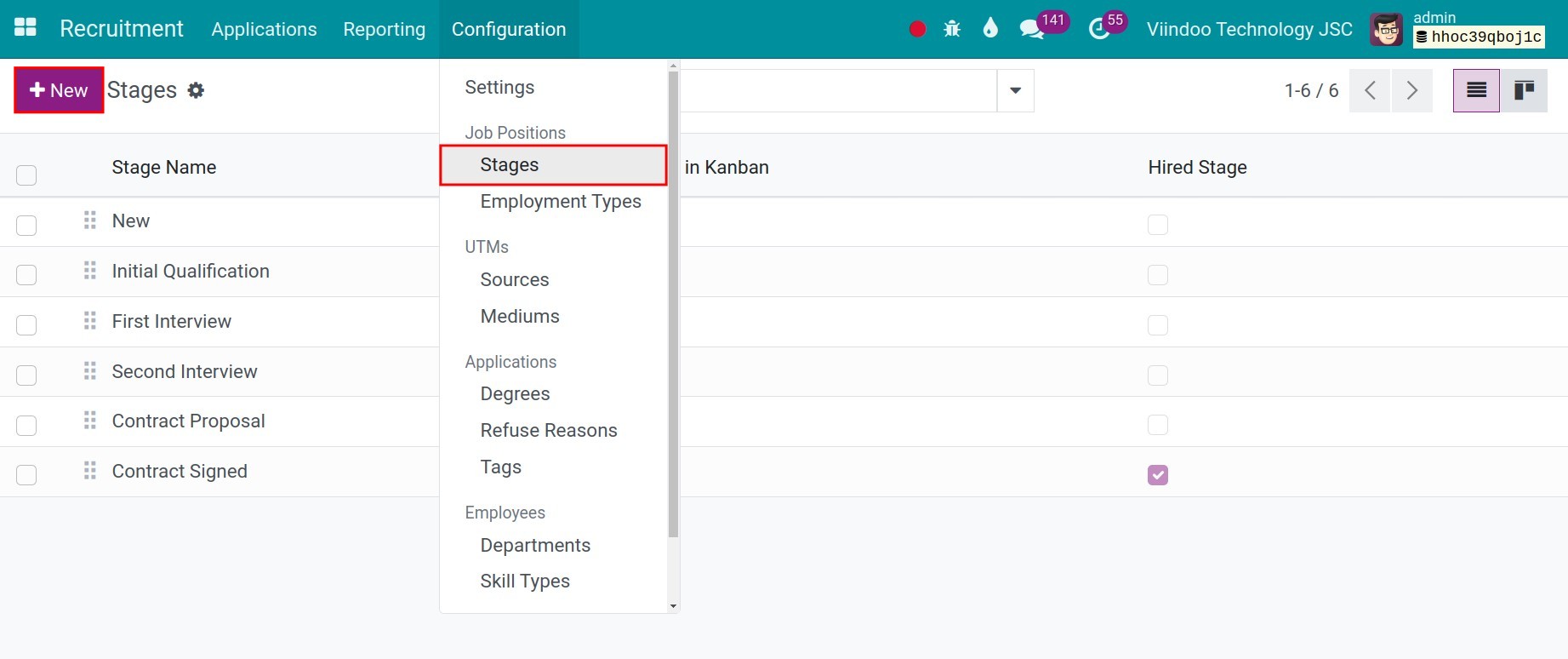
As an alternative, turn on the developer mode and go to Recruitment ‣ Configuration ‣ Job Positions ‣ Stages. The list shows all the stages in order.
![The list of recruitment stages in developer mode]()
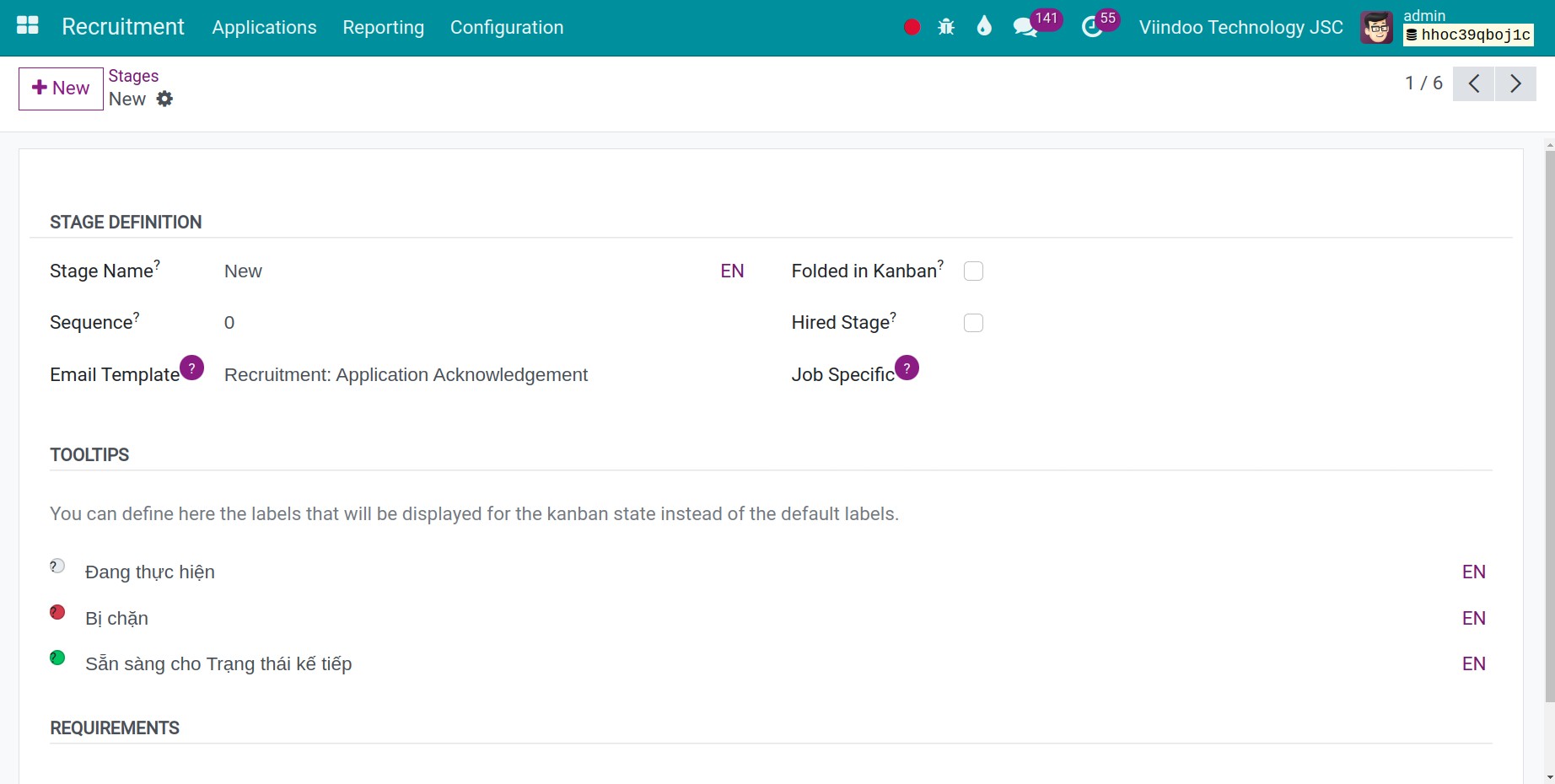
Fill in the stage form and save.
![The form of a recruitment stage]()
Which fields of a stage matter?
Field |
What it does |
If it is wrong |
|---|---|---|
Stage Name |
Name of the round, for example First Interview. Keep it short. |
A vague name makes the process hard to follow. |
Sequence |
The order of the stages, from left to right. Shown in developer mode. |
Wrong order puts the stages in the wrong order of the process. |
Email Template |
If set, a message is posted on the application with this template when the application arrives in the stage. |
A wrong template sends the wrong message to the candidate. |
Folded in Kanban |
The column is folded when it has no application. Use it for stages you rarely open. |
None. |
Hired Stage |
Applications that reach this stage get a hire date and the Create Employee button. |
Unticking it removes the hire date and the hired status of every application in the stage. |
Job Specific |
Limits the stage to some positions. Empty means all positions. |
A position outside the list does not show the stage. |
Grey, Red and Green Kanban Label |
The meaning of the three status colours for this stage. |
None. |
Requirements |
What an application needs to enter the stage. Shown when you hover the title of the column. |
None. |
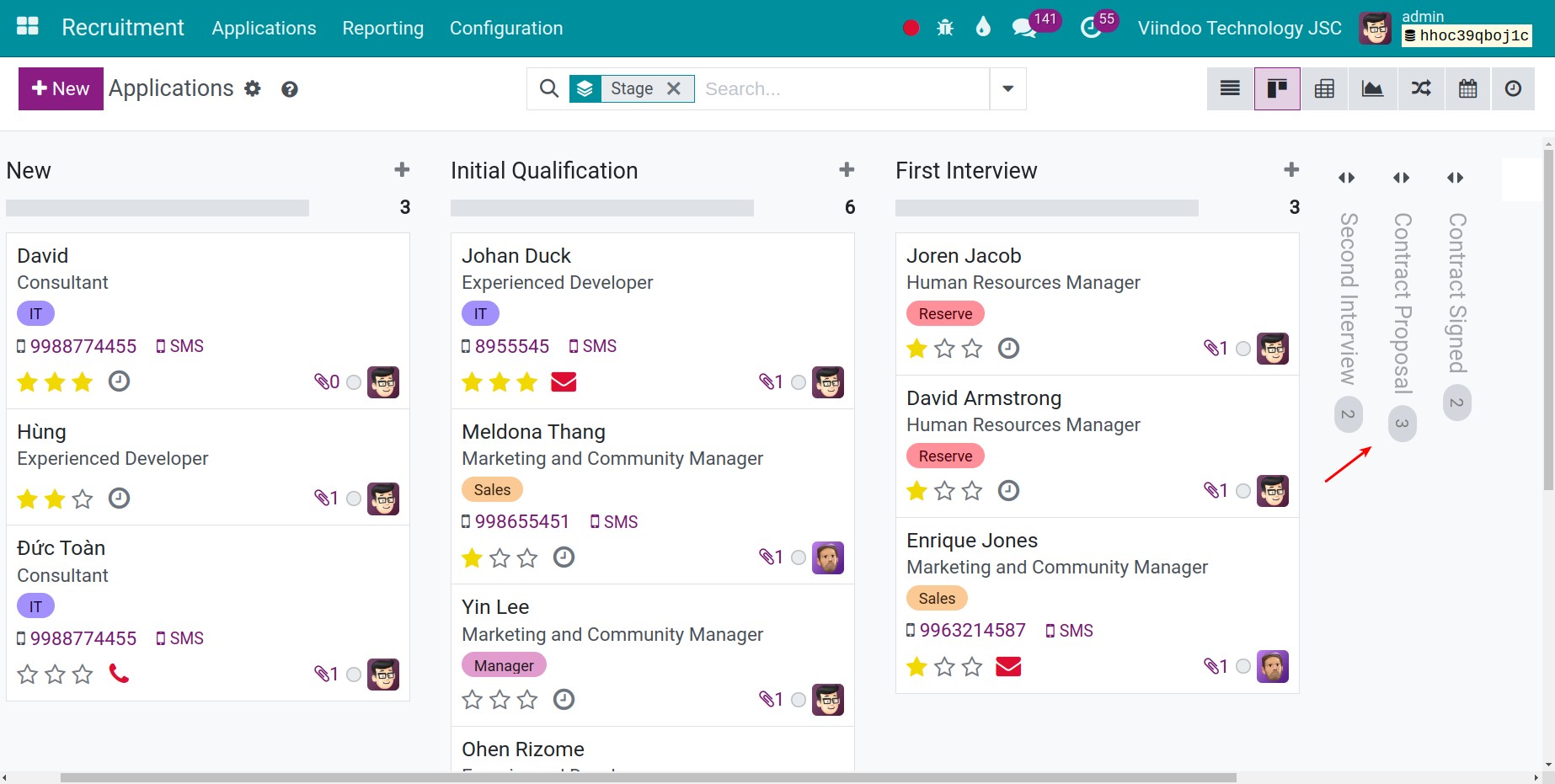
A folded column shows only its name and the number of applications. Click it to open it.
Common errors
Problem |
What to do |
|---|---|
A stage is missing in the kanban view of one position. |
Open the stage and check Job Specific. |
There is no Create Employee button. |
Move the application to the stage with Hired Stage ticked, or check that the application is not already linked to an employee. |
The Stages menu is missing. |
Turn on the developer mode, or use the gear of a column. |
Next steps
Recruitment Analysis Reports: measure the recruitment by stage and by position.
How to create a new employee: complete the employee record of the new hire.