
How to auto-upload product images from Google
Viindoo can fill in the image of many products at once. It searches Google Images for the barcode of each product that has no image yet and saves the first usable picture on the product. To use it, turn on Google Images in Settings ‣ General Settings, enter your Google API Key and Search Engine ID, then select products in a product list and click Actions ‣ Get Pictures from Google Images.
Warning
Google has closed the Custom Search JSON API to new customers: a Google account that did not already have an API key for it can no longer get one, so this feature only works for accounts that already had a key. Google stops the service on 1 January 2027. The option to search the entire web now also requires registering with Google, with the same deadline. See Google’s announcement.
Who |
An administrator with access to Settings. Only administrators can run the action in the Actions menu. |
App |
Settings, then the product list of Sales, Inventory, Purchase or Accounting. |
Before you start
Create the products and fill in their Barcode (see How to create a new product). Products without a barcode are skipped, because the barcode is the search keyword.
Leave the product Image empty. Products that already have an image are never replaced.
Use a Google account that already has a Custom Search JSON API key and a search engine (see Where do I find the API Key and Search Engine ID?).
Warning
Some pictures found on Google may not be royalty-free. Check the rights of each picture before you publish it on your website or in a catalogue.
Where do I find the API Key and Search Engine ID?
You need an API Key of a Google Cloud project that has the Custom Search API enabled, and the Search engine ID of a search engine created in Programmable Search Engine. In the control panel of that search engine, open Overview ‣ Search features and turn on Image search in Search settings. Image results there are not the same as the results of Google Images. This part is done on Google’s websites, not in Viindoo. Google changes its screens from time to time, so the names may look slightly different. Google no longer issues new keys for this API (see the warning above).
Google limits the searches per day. For existing customers, Google’s published limits are 100 searches per day for free, then US$5 per 1000 searches, up to 10,000 searches per day. When the limit is reached, Viindoo stops and continues the next day by itself.
How do I enter the keys in Viindoo?
Go to Settings ‣ General Settings and find Google Images (Get product pictures using Barcode) in the Integrations section. Tick it and click Save. Viindoo prepares the feature and reloads the page.
Open General Settings again. Type the API Key and the Search Engine ID copied from Google, then click Save.
![Google Images option ticked with the API Key and Search Engine ID fields in Viindoo General Settings]()

How do I fetch images for my products?
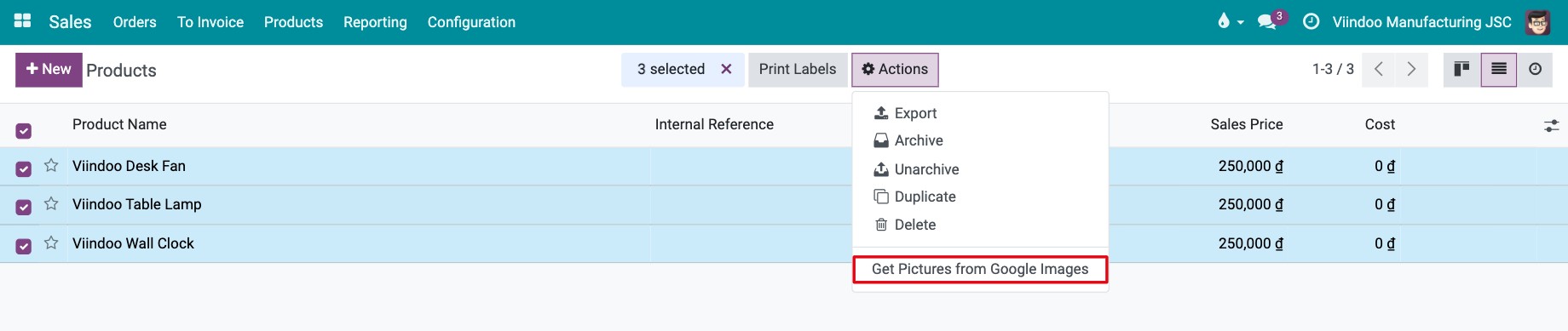
Open the product list, for example Sales ‣ Products ‣ Products (or the Products menu of Inventory, Purchase or Accounting), and switch to the list view.
Tick the products that need an image. To take all products on the page, tick the box in the header of the list.
Click Actions ‣ Get Pictures from Google Images.
![Three products selected in the Viindoo product list with Get Pictures from Google Images in the Actions menu]()
The same action is in the Actions menu of a single product form.
The window shows how many of the selected products will be processed. Click Get Pictures.
![Window listing the number of selected products and the Get Pictures button]()
Products that already have an image, or have no barcode, are left out and counted in the window.

You should now see a message at the top of the screen. For a small selection (up to 10 products) Viindoo finishes at once and reports how many pictures it found, for example 3 matching images have been found for 3 products. For a larger selection it fetches the first 10 products immediately, then processes the rest in the background and shows Products are processed in the background. Images will be updated progressively. Reload the product list after a few minutes to see the pictures.
How does Viindoo choose the picture?
For each product Viindoo asks Google Images for large photos found with the product’s barcode, with Google’s safe search turned on and restricted to pictures marked as public domain or with a Creative Commons licence. It looks at the first 10 results and saves the first one that can be downloaded as an image. If Google finds nothing usable, the product stays without an image; you can select it again later, or add the image by hand.
How do I add an image to each variant?
Each variant has its own barcode and its own image, so every variant is searched separately.
Give each variant its own Barcode: open the product, click the Variants button, open each variant and fill its barcode. On a product with several variants, the barcode field of the product itself is hidden.
Select the product in the product list and run Actions ‣ Get Pictures from Google Images. Viindoo then processes all variants of the product that have a barcode and no image. You can also run the same action from Sales ‣ Products ‣ Product Variants (shown when product variants are enabled in the Sales settings) to pick individual variants.
See How to create and use product variants for how to create variants.
Which fields matter?
Field |
What it does |
If left empty or wrong |
|---|---|---|
API Key |
Lets Viindoo run searches in your Google project. |
Empty: the action stops with a message. Wrong: Your API Key or your Search Engine ID is incorrect. |
Search Engine ID |
Tells Google which search engine to use for the pictures. |
Same as the API Key. |
Barcode of the product or variant |
The keyword sent to Google. |
Empty: the product is skipped. |
Image of the product or variant |
The place where the picture is saved. |
Already filled: the product is skipped and its image is kept. |
Common errors
Message |
What to do |
|---|---|
The API Key and Search Engine ID must be set in the General Settings. |
Fill in both fields in Settings ‣ General Settings ‣ Google Images and save. |
Your API Key or your Search Engine ID is incorrect. |
Copy both values again from Google, without extra spaces. |
The Custom Search API is not enabled in your Google project… |
Enable the Custom Search API in your Google Cloud project. If you enabled it recently, wait a few minutes and try again. |
A task to process products in the background is already running. |
A previous run is still fetching images. Wait until it finishes, then run the action again. |
This action is already scheduled. Please try again later. |
The background task is already waiting for its turn. Try again later. |
The scheduled action “Product Images: Get product images from Google” has been deleted… |
Ask your system administrator to restore the scheduled action or to reinstall the feature. |
The window says some products will not be processed |
Those products already have an image or have no barcode. Fill in the barcode or clear the image if you want Viindoo to search for it. |
Next steps
How to create a new product: create products and fill in their barcode.
How to create and use product variants: sell one product in several colors, sizes or versions.
How to create and set up product categories: group the products you fetch images for.