
Getting started with Attendances in Viindoo
The Attendances app records when each employee starts and stops working. Employees check in and check out from the top bar, from a kiosk or on a biometric attendance machine, and the app compares each attendance with the working schedule of the employee. To start, install the Attendances app from Apps, then give each user the access right that matches what they do with attendances.
Who |
Users with the Administration ‣ Settings access right, who install apps and set access rights. |
App |
Attendances, Settings |
Before you start
The Attendances app works with the employee records of the Employees app, see How to create a new employee.
An employee checks in from the top bar only when the employee record is linked to their user.
How do I install the Attendances app?
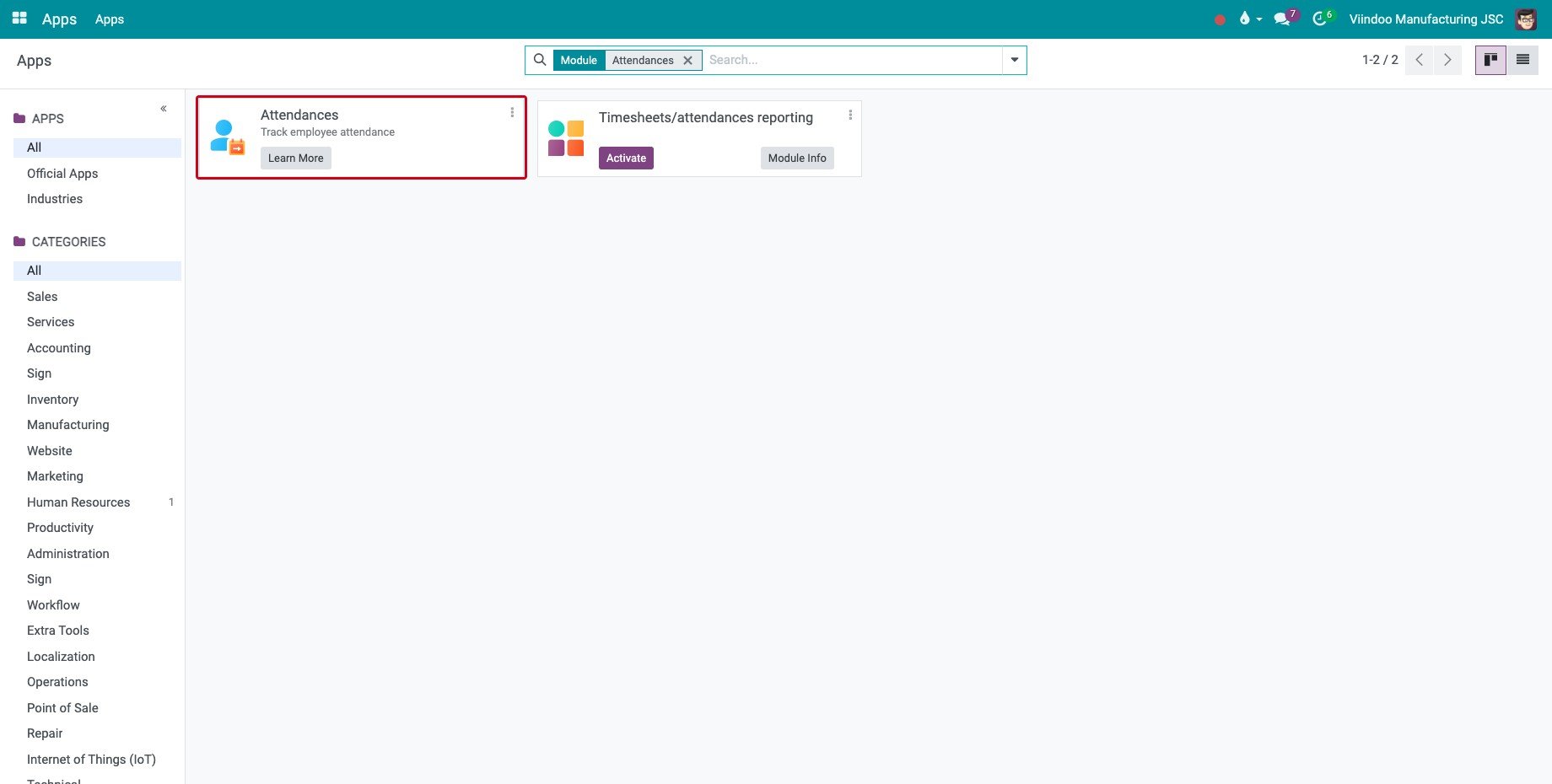
Go to Apps. Remove the Apps filter from the search bar, type Attendances and press Enter.
On the Attendances card, click Activate. Once the app is installed, the card shows Learn More instead.
![The Attendances app in the Apps list]()
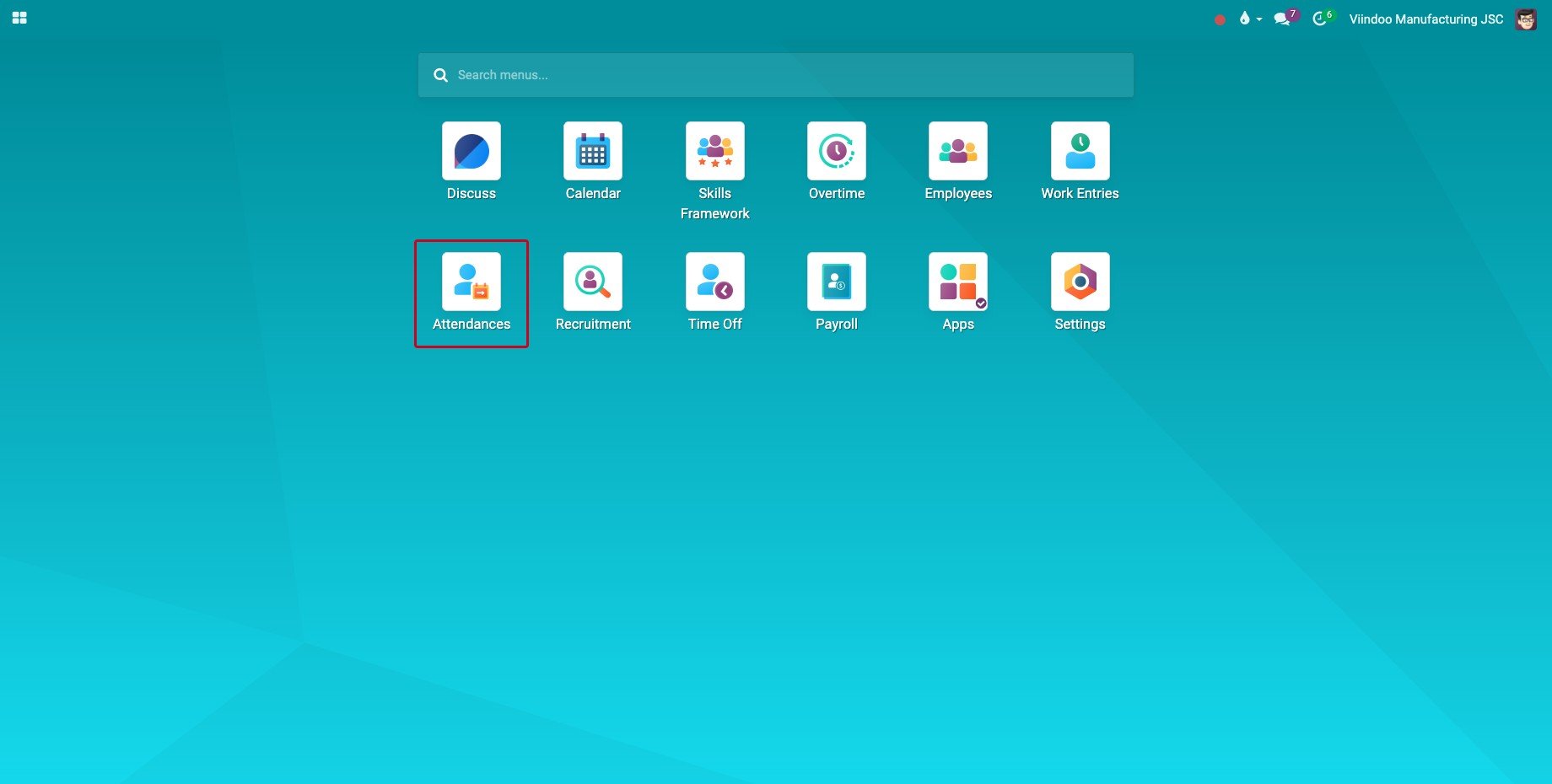
Open the home menu. The Attendances app is now listed with the other apps.
![The Attendances app on the home menu]()
Which access right does each user need?
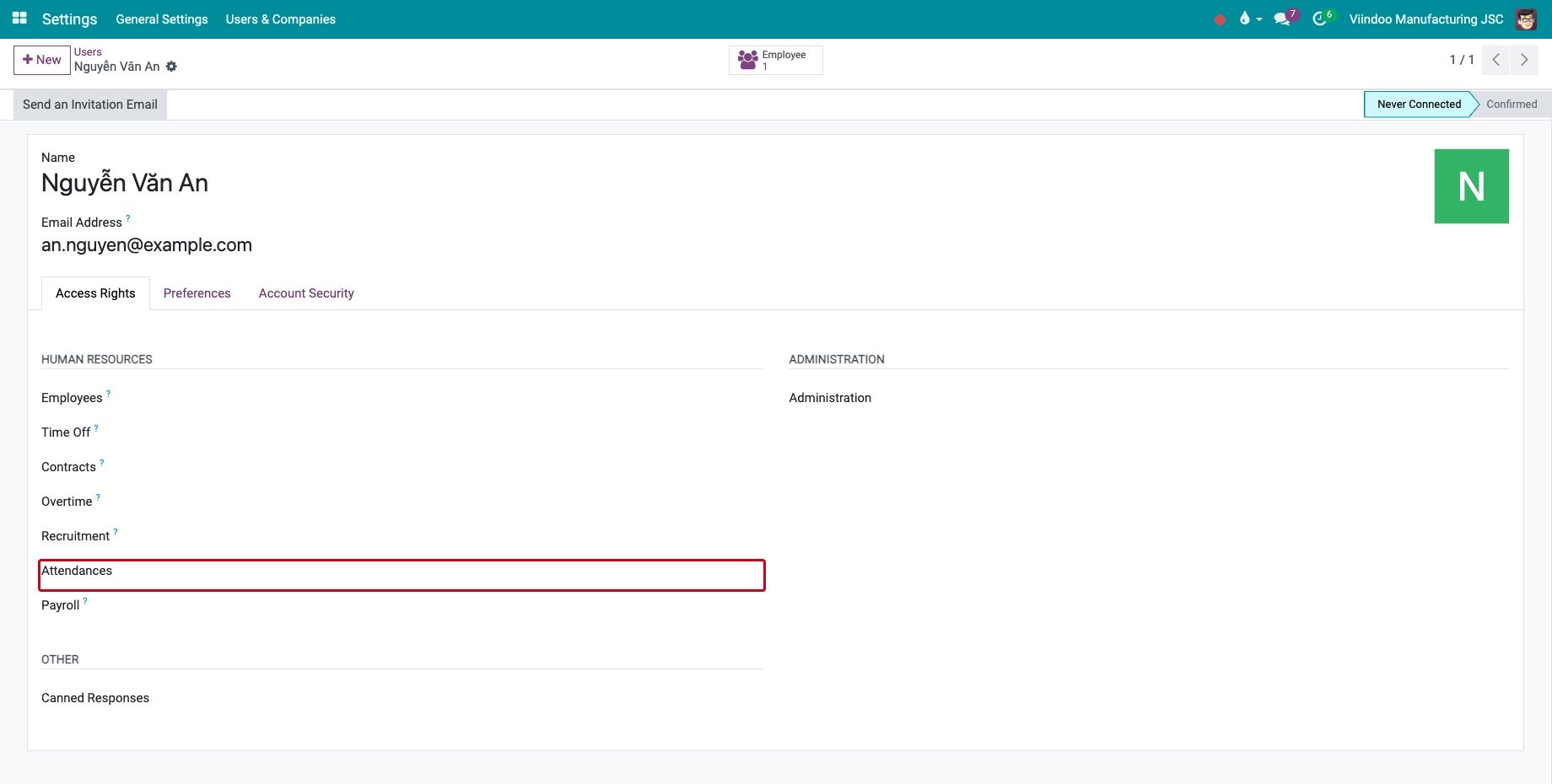
Go to Settings ‣ Users & Companies ‣ Users and open the user.
In the Access Rights tab, section Human Resources, set Attendances to Administrator, or leave it empty, then click Save.
![The Attendances access right of a user]()
To make the user an officer, activate the developer mode, open the user again and tick Officer: Manage attendances in the Technical section of the Access Rights tab, then click Save.
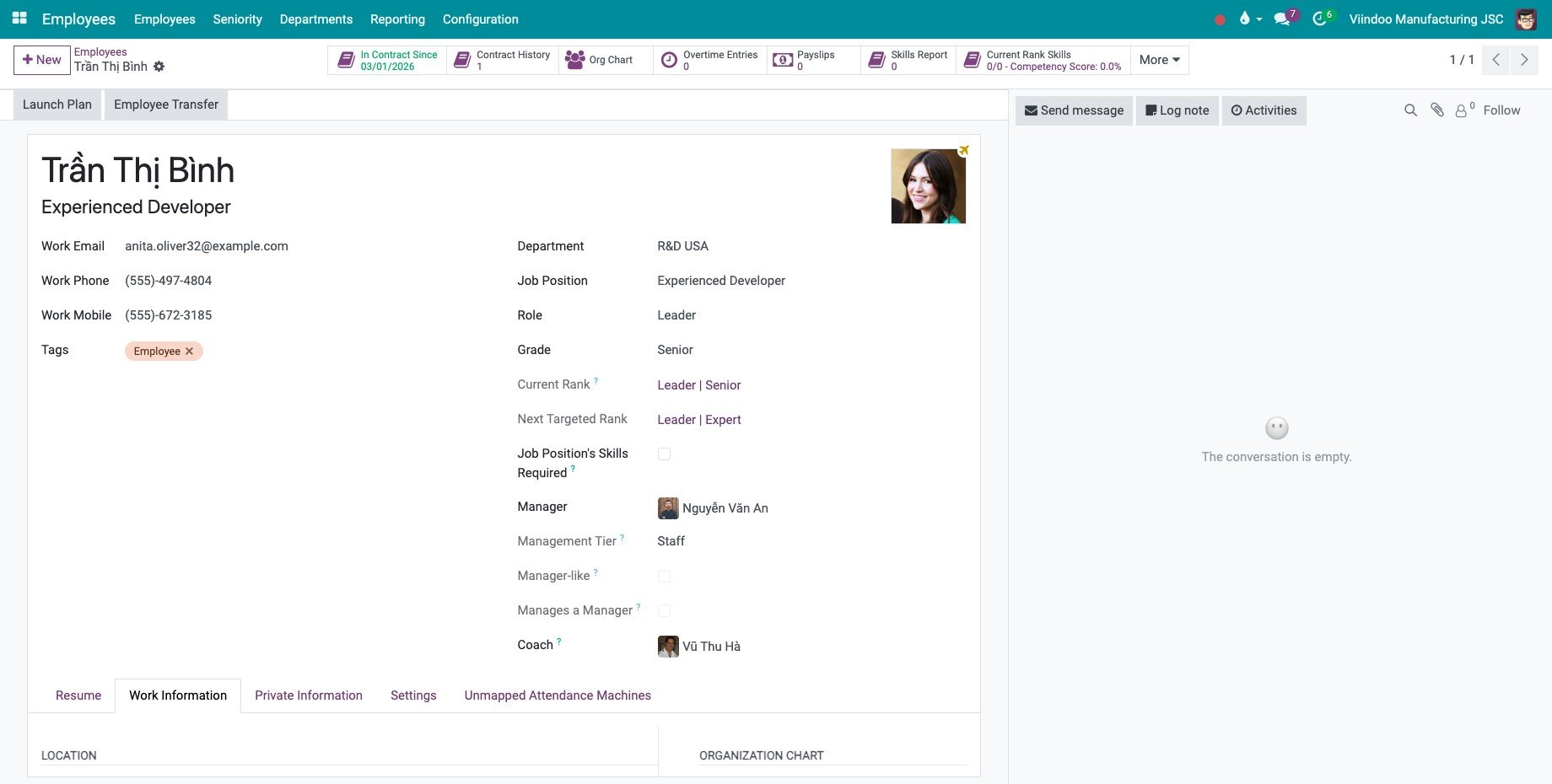
An officer manages the attendances of the employees they approve. Open each of these employees, go to the Work Information tab and choose the officer in Attendance, under Approvers.
![The Attendance approver of an employee]()
Access right |
What the user can do |
|---|---|
Attendances empty |
Checks in and checks out from the top bar and reads their own attendances. The user does not see the Attendances app. |
Officer: Manage attendances |
Opens the Attendances app with Overview, Management and Reporting, and creates, changes and deletes the attendances of the employees whose Attendance approver they are. |
Administrator |
Manages the attendances of all employees and also opens Kiosk Mode, Attendance Machines and Configuration. |
How does an employee check in and check out?
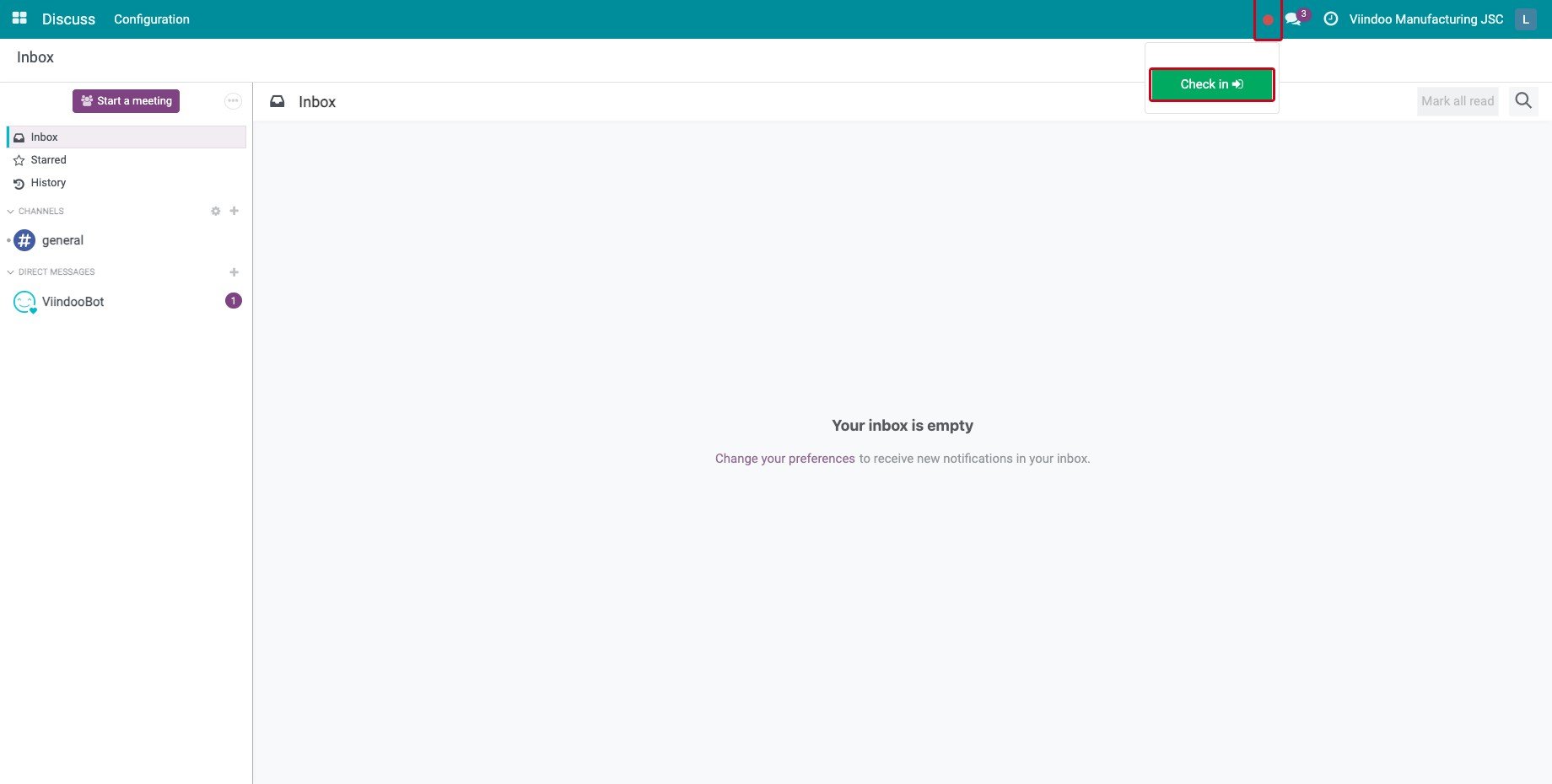
In the top bar, click the dot next to the chat icon. The dot is red while the employee is checked out and green while they are checked in.
Click Check in when the work starts. Click the dot again and click Check out when the work stops.
![The Check in button in the top bar]()
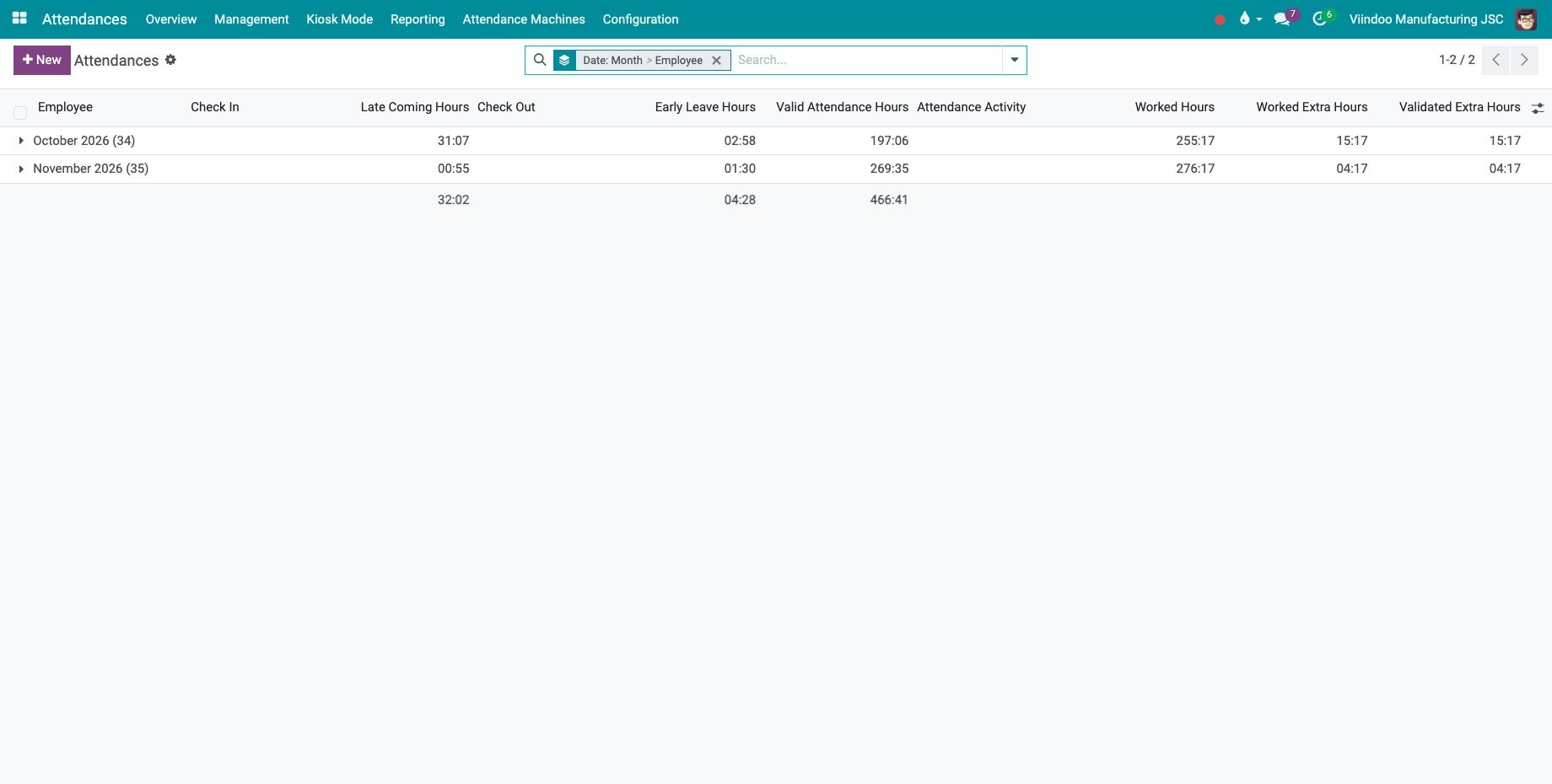
Each check in and check out pair becomes one attendance. Officers and administrators find all attendances in Attendances ‣ Overview, grouped by month and by employee.
Common errors
Problem |
What to do |
|---|---|
An employee has no dot in the top bar. |
Link the user to the employee record, or ask an administrator to tick Attendances from Backend in Attendances ‣ Configuration ‣ Settings. |
An officer does not see the attendances of an employee. |
Choose the officer in the Attendance approver field of that employee. |
Officer: Manage attendances is not in the user form. |
Activate the developer mode, then open the user again. |
Next steps
Manage attendance data: read the late coming, early leave and valid hours of each attendance.
Biometric attendance device intergration: connect a biometric attendance machine.
See also
Related articles
Optional modules