
Job board and operation screen
The job board lists the work orders of your work centers, one card per job. A tap on the labelled button of a card opens the job and starts the clock; the operation screen then shows the output, the materials, the instructions and the buttons to pause, stop the machine or finish the operation.
Who |
Machine operators (Manufacturing ‣ User) at the work center; production managers who plan the work orders on the desktop. |
App |
Shop Floor, Manufacturing |
Before you start
Set up the Shop Floor and choose your work centers, see Getting started with Shop Floor.
The manufacturing order is confirmed, so that its work orders are on the board.
The example follows an order of five Oak stools at the Cutting station.
What does the job board show?
The tabs All, Ready, Running, Waiting and Station stopped each show how many jobs they hold; Ready also lists the paused jobs. Each card shows the manufacturing order, its state, the product, the operation, the person responsible, a progress bar and the output recorded so far. When a job cannot run yet, the card says why, for example Components not available yet - you can start anyway.
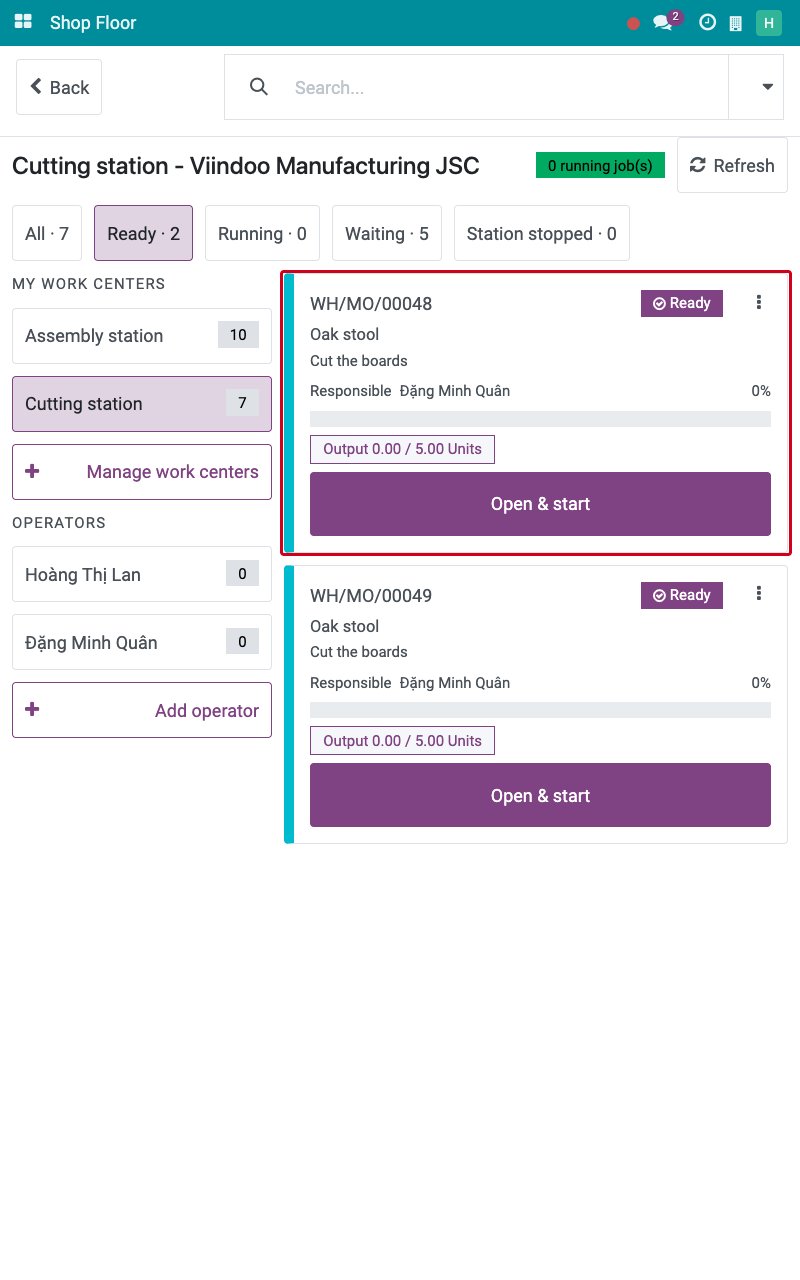
Type an order reference in the search bar to keep only its cards.
Under OPERATORS, tap an operator to keep only the jobs they work on, or Add operator to add one to the list.
Tap Refresh to read the latest state of every job.
How do I start, pause and resume a job?
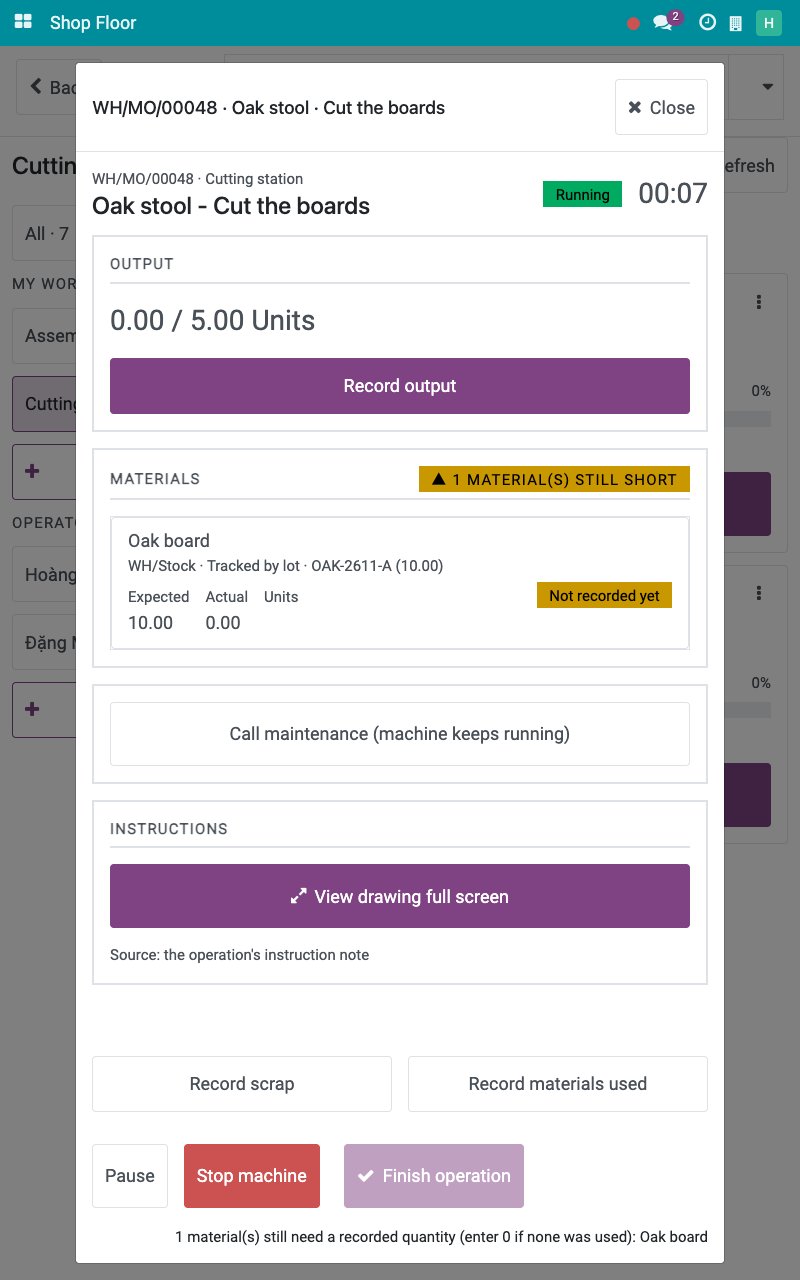
On the card, tap Open & start. The operation screen opens, the job is Running and its timer counts. A tap anywhere else on the card only opens the job, without starting the clock.
![The operation screen of a running job]()
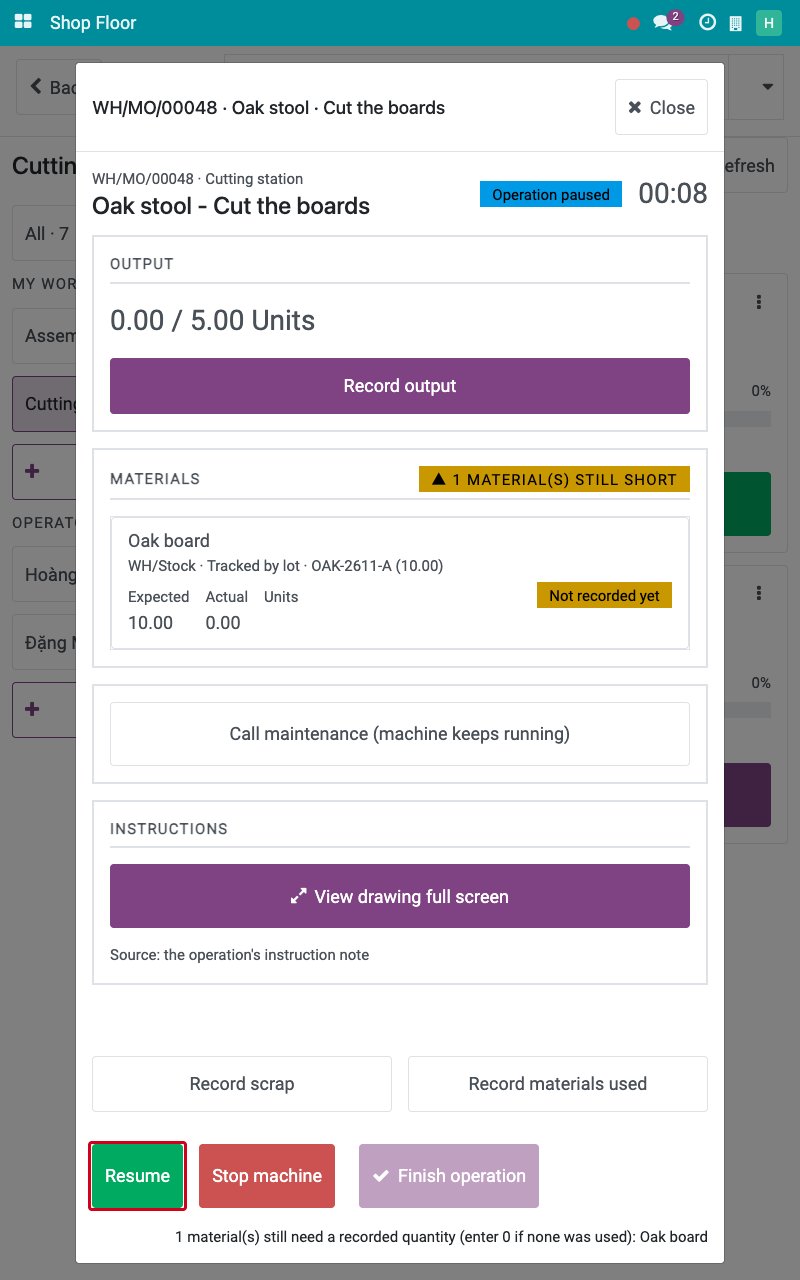
To take a break, tap Pause. The job is Operation paused and the button becomes Resume.
![A paused operation with the Resume button]()
Tap Resume when you are back. The clock starts again for you.
On the board, the card of a running job offers Continue operation and the card of a paused job offers Resume operation.
How do I read the instructions of the operation?
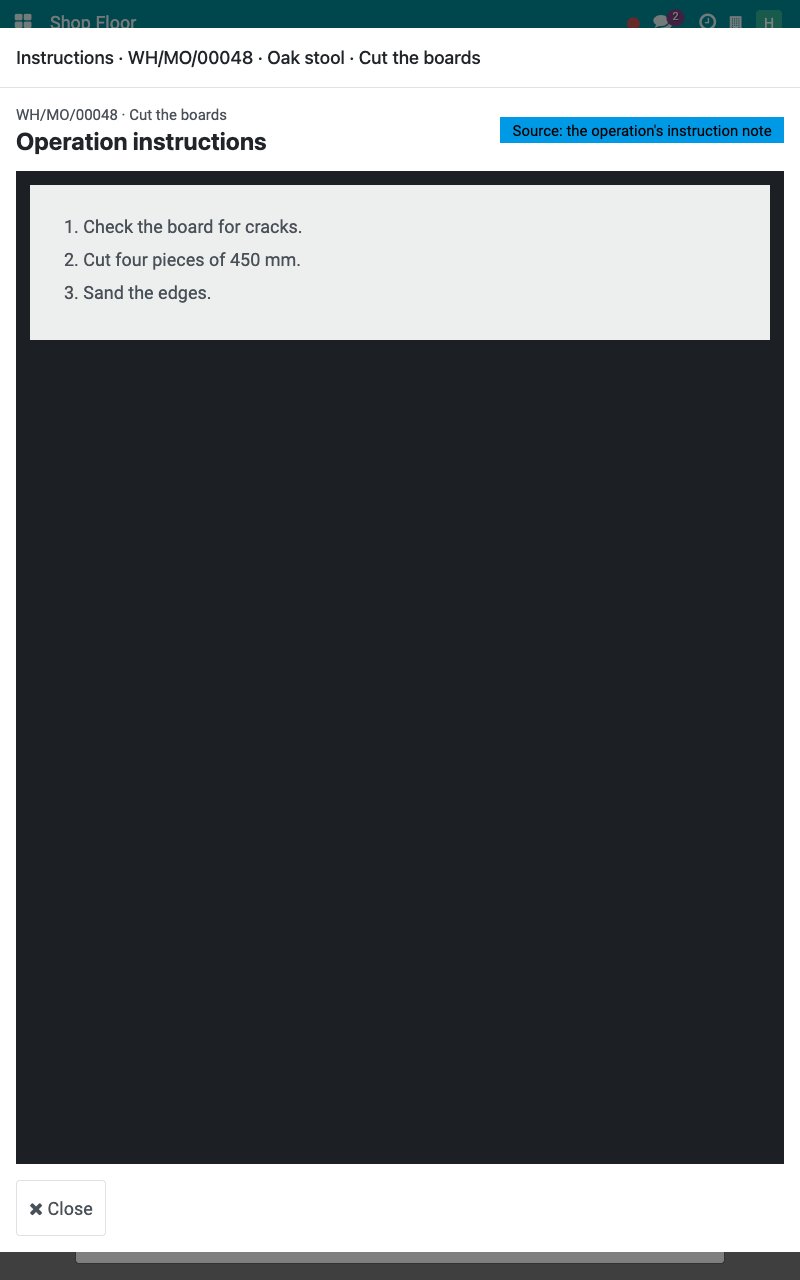
The INSTRUCTIONS panel shows the work sheet of the operation: a PDF, a slide deck or a note, set on the Work Sheet tab of the operation. Tap View drawing full screen to read it on the whole screen.
How do I plan the work orders on the desktop?
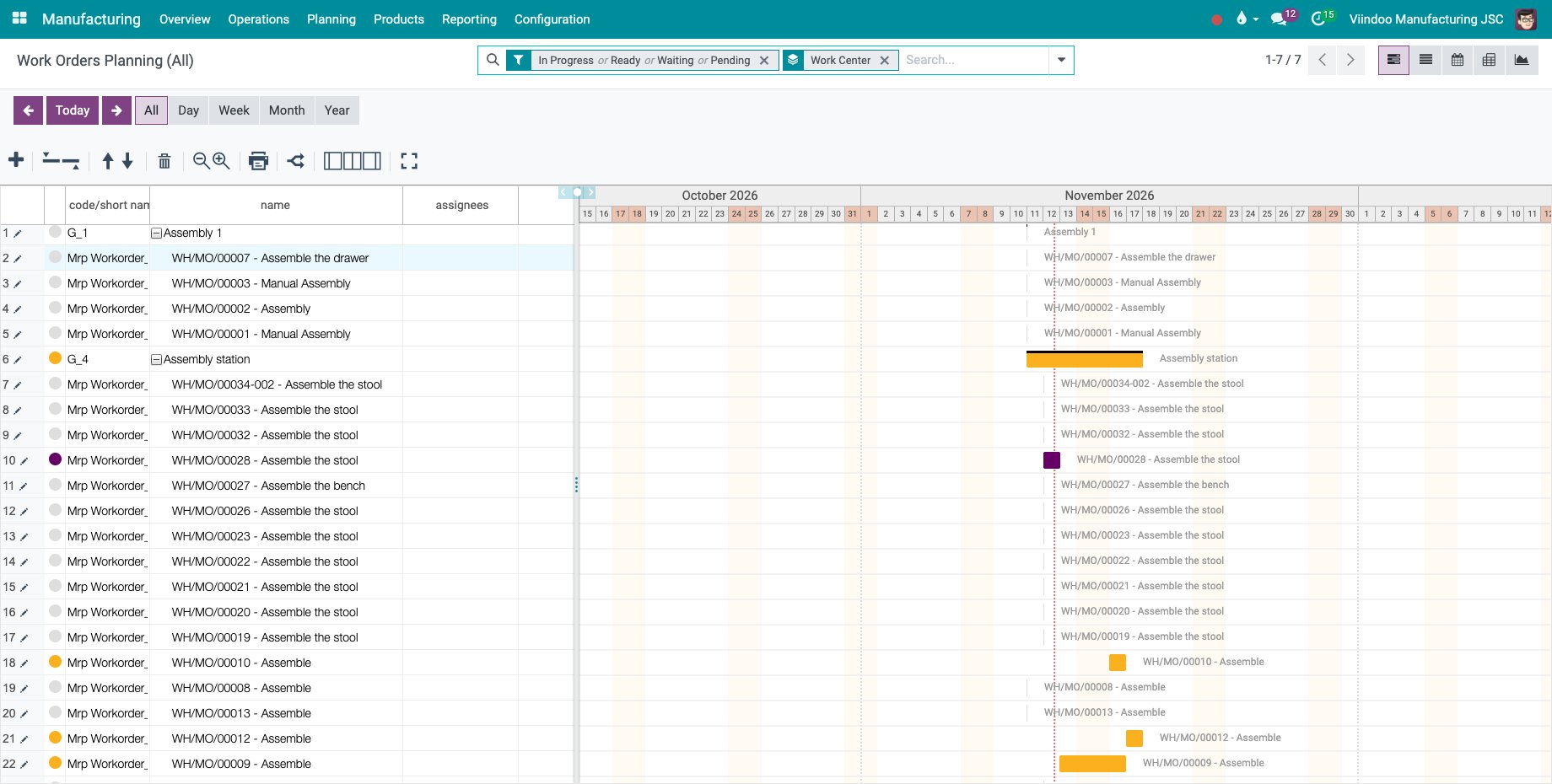
Go to Manufacturing ‣ Planning ‣ Work Orders and choose Planning by Production or Planning by Workcenter. The work orders of each order or of each work center are shown on a timeline.
Common errors
Problem |
What to do |
|---|---|
A tap on the card did not start the job. |
This is intended. Tap the labelled button of the card, for example Open & start, or Start on the operation screen. |
The job is not on the board. |
Check that the work center is one of yours under MY WORK CENTERS and that the order is confirmed. Tap Refresh. |
Start, Pause or Finish operation are refused. |
The work center is stopped. See Stop a machine, report a breakdown and restart. |
Next steps
Record output, materials and scrap at the machine: record what you made and used.
Close an order at the machine and record on behalf: finish the last operation and close the order.