
Backdate manufacturing operations
Paper job cards often reach the office days after the work. With the backdate right, the start and the end of a work order and the completion of a manufacturing order are recorded with the date they really happened. The durations, the stock moves of the components and of the finished product, and their accounting entries all take that date.
Who |
Production supervisors and cost accountants who are given the Mrp Backdate Operations access right. |
App |
Manufacturing |
Before you start
Install the Manufacturing Backdate module. With the Shop Floor app, the Shop Floor Control - Backdate module is installed with it.
An administrator gives the user the Mrp Backdate Operations right: activate the developer mode, open Settings ‣ Users & Companies ‣ Users, open the user and tick it under Extra Rights on the Access Rights tab.
The example of this article records an order of 4 Oak wall shelves that was made two days ago, from 8:00 to 16:00.
How do I start and finish a work order on a past date?
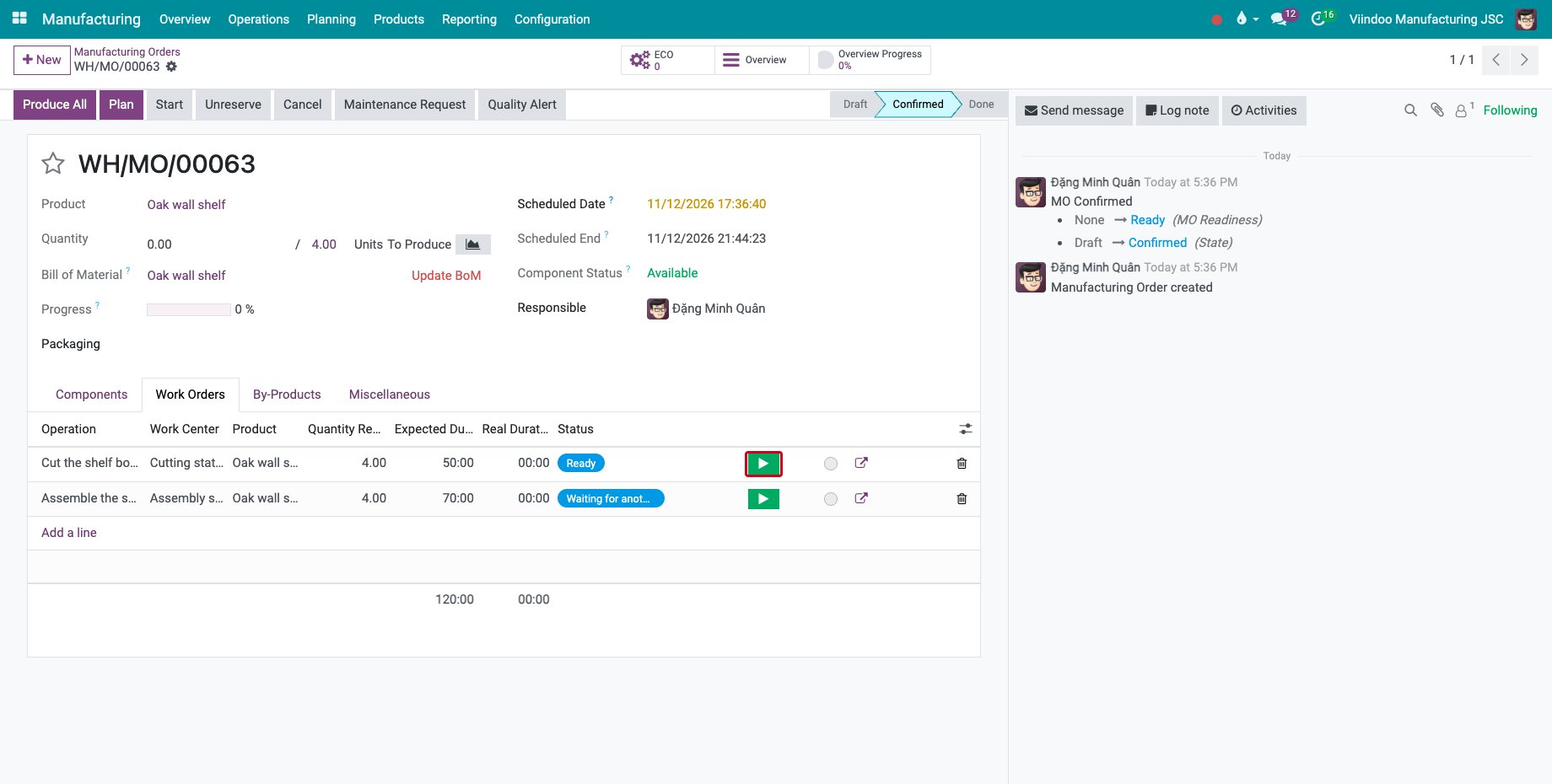
Open the order, go to the Work Orders tab and click the start button of the first work order.
![The start button of the first work order]()
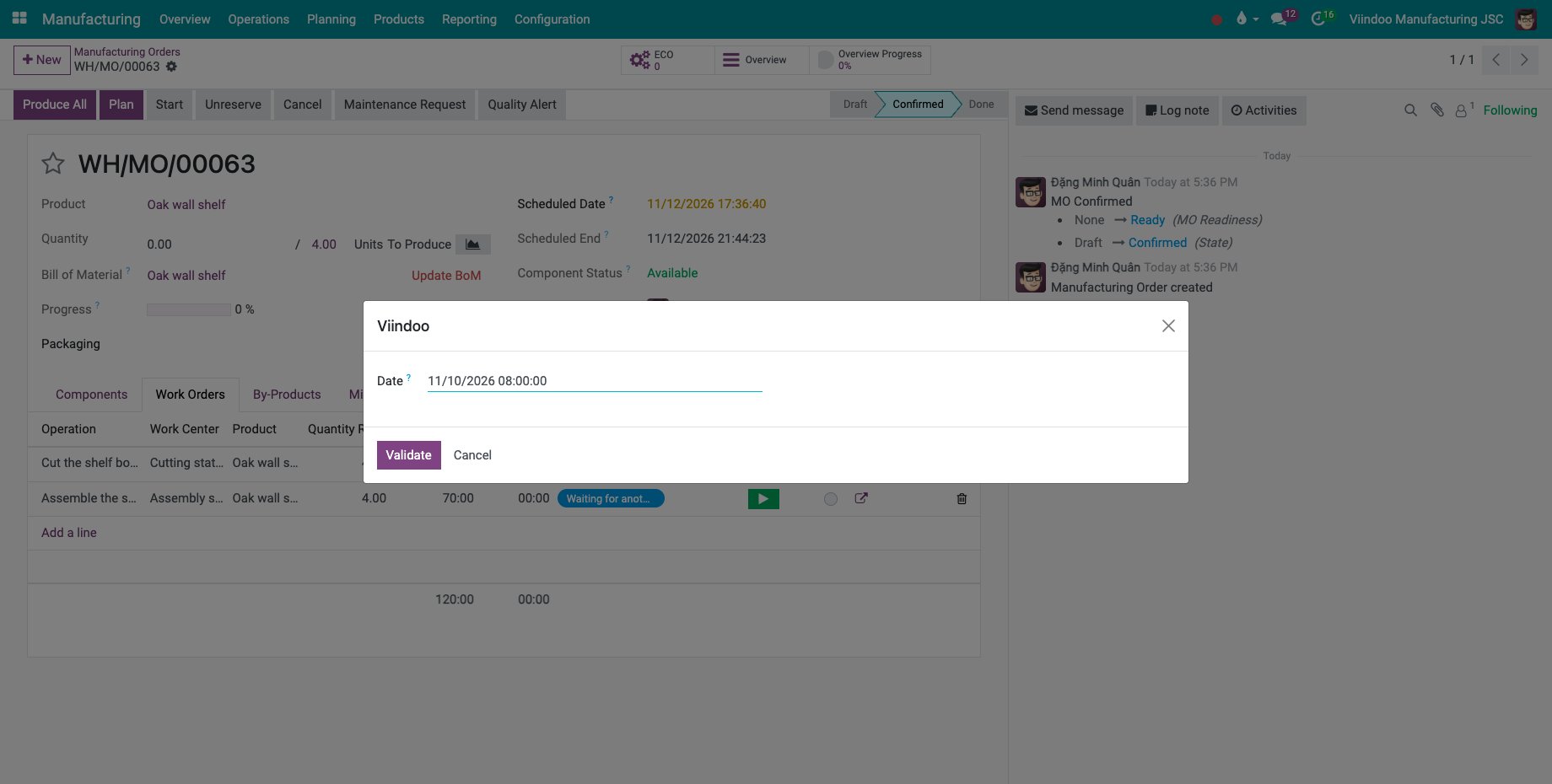
A window asks for the Date. Type the real start, here 8:00 two days ago, and click Validate.
![The date of the start of the work order]()
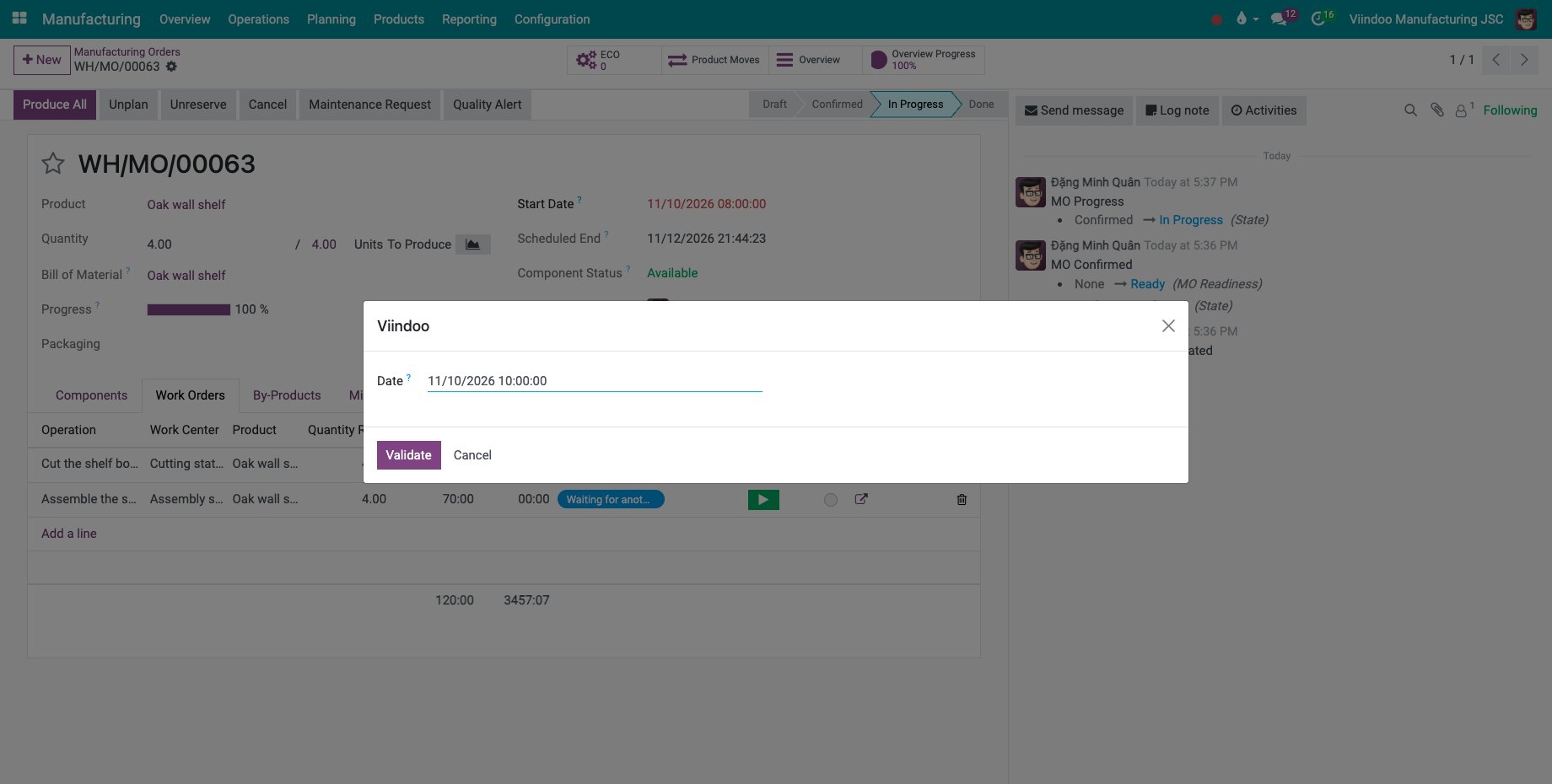
Click the finish button of the work order. Type the real end, here 10:00, and click Validate. The real duration of the work order is the time between the two dates.
![The date of the end of the work order]()
Pause works the same way. Dates in the future are refused.
How do I complete an order on a past date?
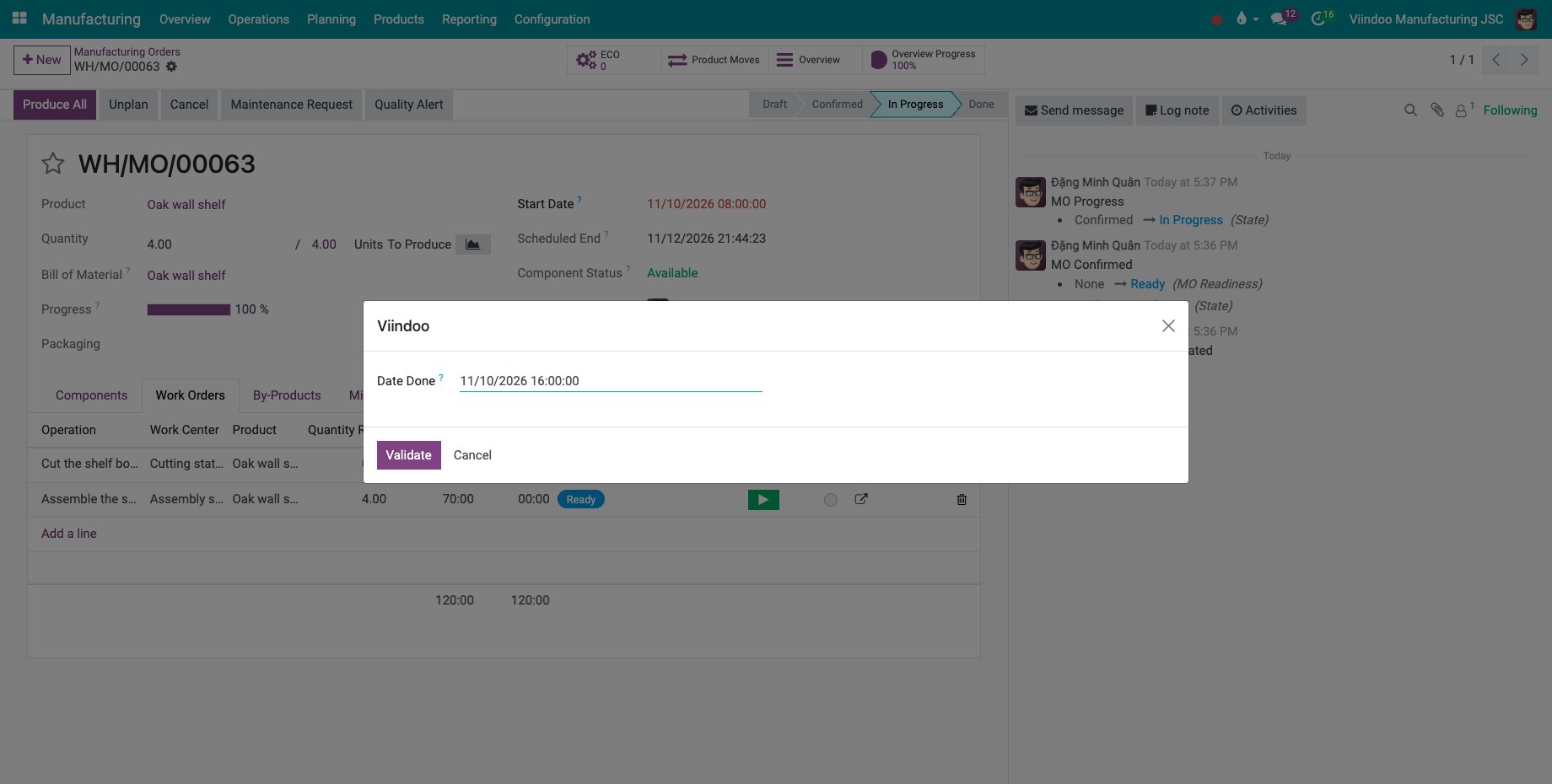
Click Produce All (or Produce). The window asks for the Date Done; type it, here 16:00, and click Validate.
![The date done of the manufacturing order]()
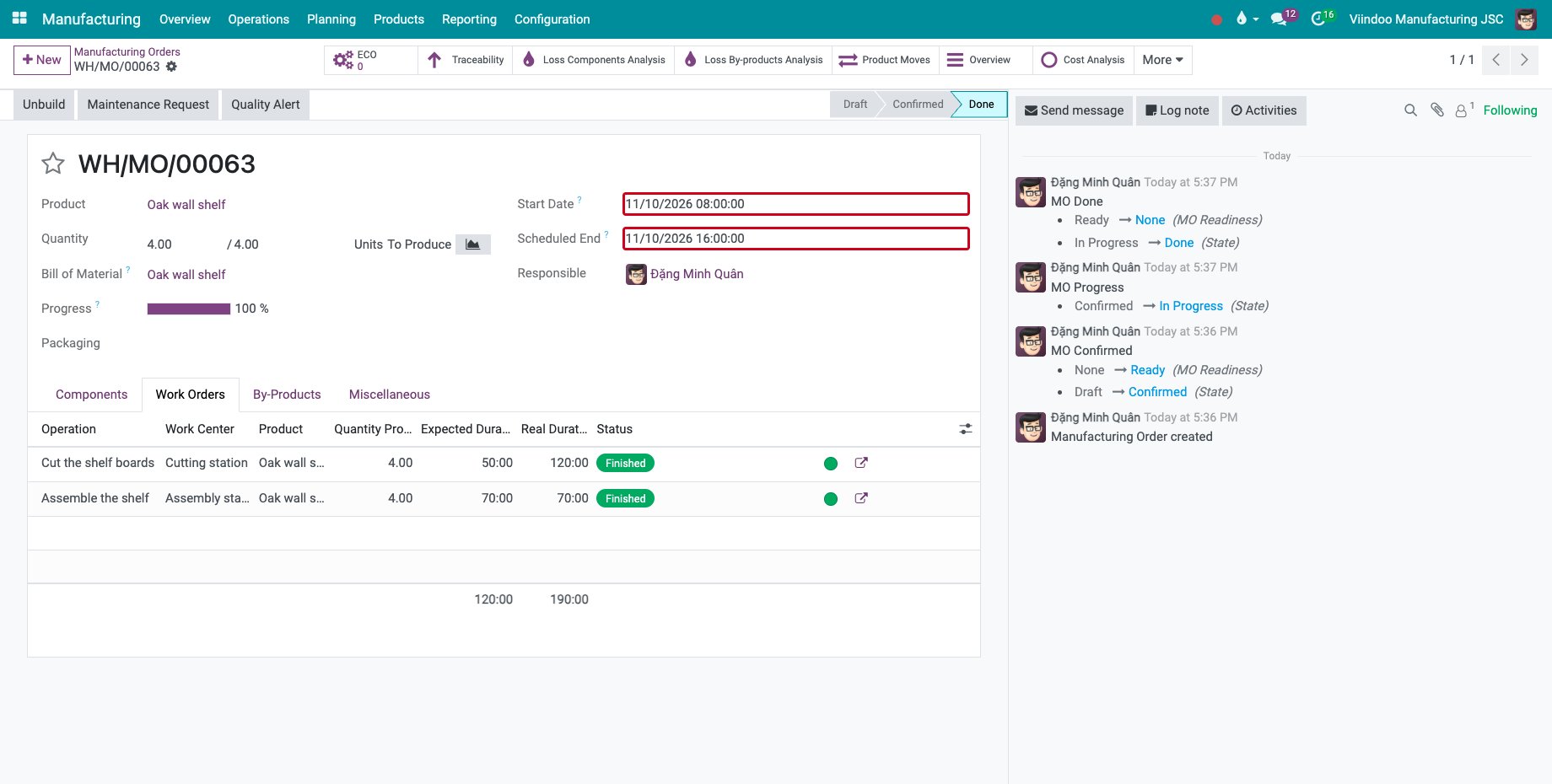
The order is done with the Start Date and the end date you typed, and the work orders show their real durations.
![The done order with its start and end dates in the past]()
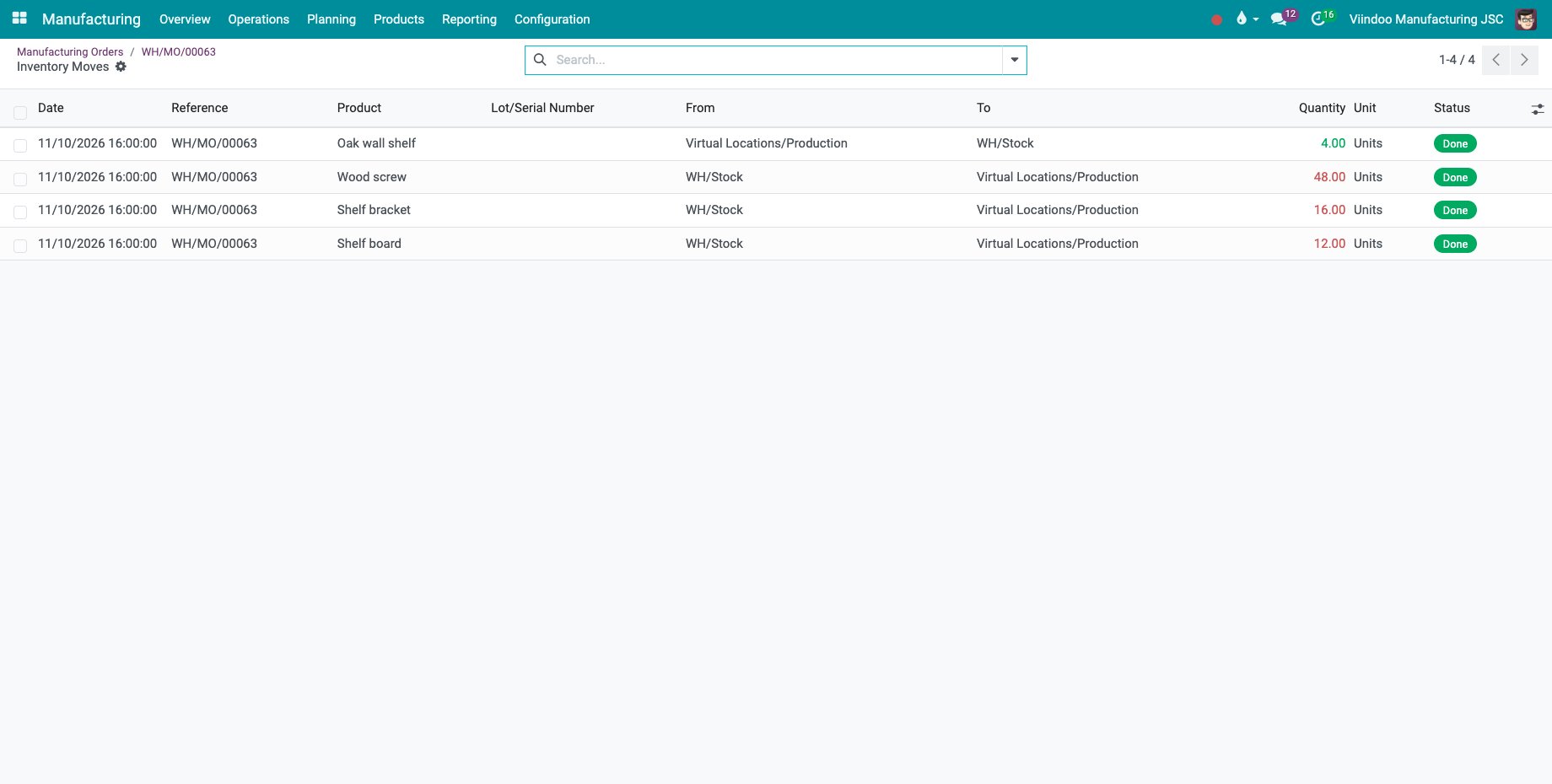
Click Product Moves: the components and the finished product moved on the past date.
![The stock moves of the order on the past date]()
What about the Shop Floor app?
On the Shop Floor tablet, a user with the backdate right is never asked for a date: start, pause, finish and closing the order are recorded at the moment of the tap. Backdating stays a desktop task, in the manufacturing order.
Common errors
Problem |
What to do |
|---|---|
No date window opens. |
The user does not have the Mrp Backdate Operations right. |
You may not be able to specify a date in the future! |
Type a date in the past or the current time. |
The finished date must be greater than the start date. |
The order started after the date typed. Type a date after its Start Date. |
Next steps
How to understand manufacturing reports: read the durations and costs of the orders.
Job board and operation screen: start, pause and finish the work orders on the Shop Floor tablet.
See also
Related articles