
How to create and manage user accounts
To give someone access to Viindoo, go to , click New, enter their name and email, choose what they can do in each app on the Access Rights tab, then click Send an Invitation Email. The person receives an email, sets a password and can sign in. From the same form, an Administrator can change the user’s password, link the user to an employee and adjust their preferences.
Who |
Users with the Administrator (Settings) access right. |
App |
Settings |
Before you start
Install the apps the user will work in, so that you can grant their access rights (How to install, upgrade and uninstall apps and modules).
To choose a user type other than Internal User, turn on developer mode.
How do I create a user?
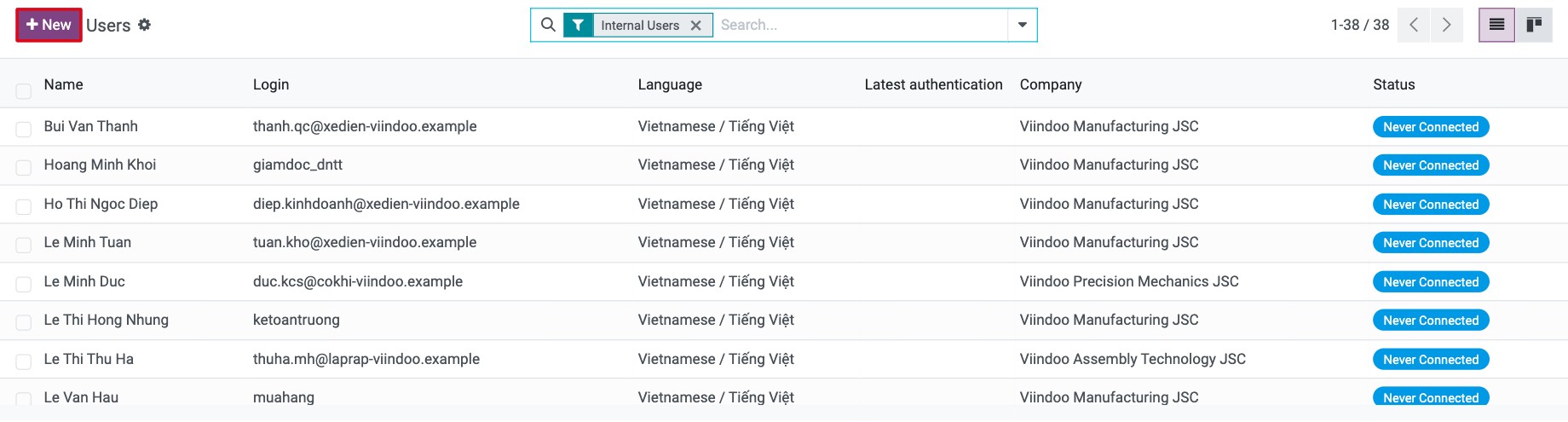
Go to and click New.
![Users list in Viindoo Settings with the New button]()
Enter the Name and the Email Address. The email address is also the login of the user. To add a photo, click the camera icon on the right.
Check Allowed Companies and Default Company in Multi Companies if you work with several companies. By default the user gets the company you are working in.
With developer mode on, choose the User Type (see the table below). New users are Internal User by default.
![New user form with Name, Email Address and User Type]()
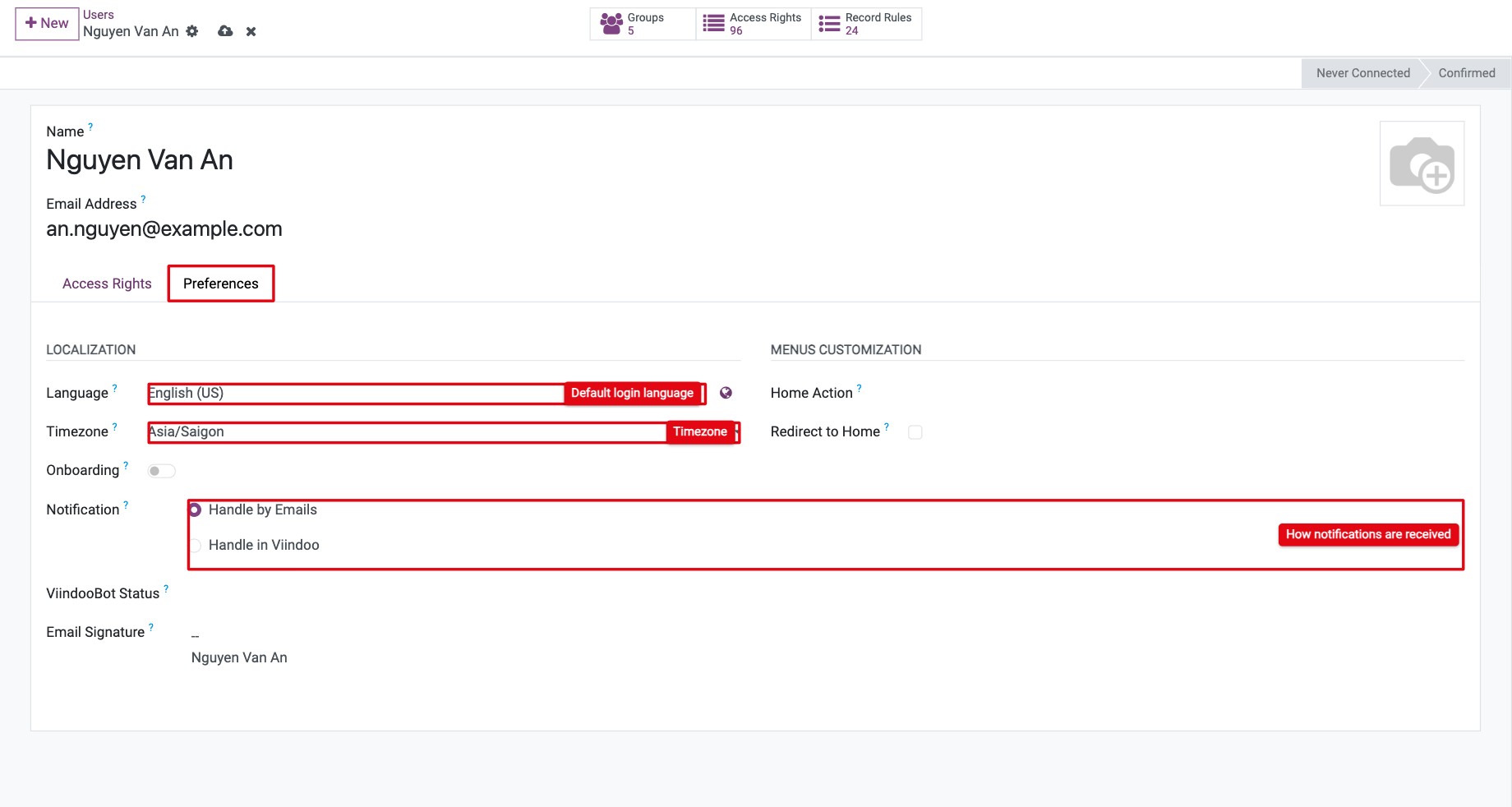
Open the Preferences tab and set the Language, Timezone and Notification of the user (see the table below).
![Preferences tab of a new user with Language, Timezone and Notification]()
For an internal user, grant access rights (next section). Then save.
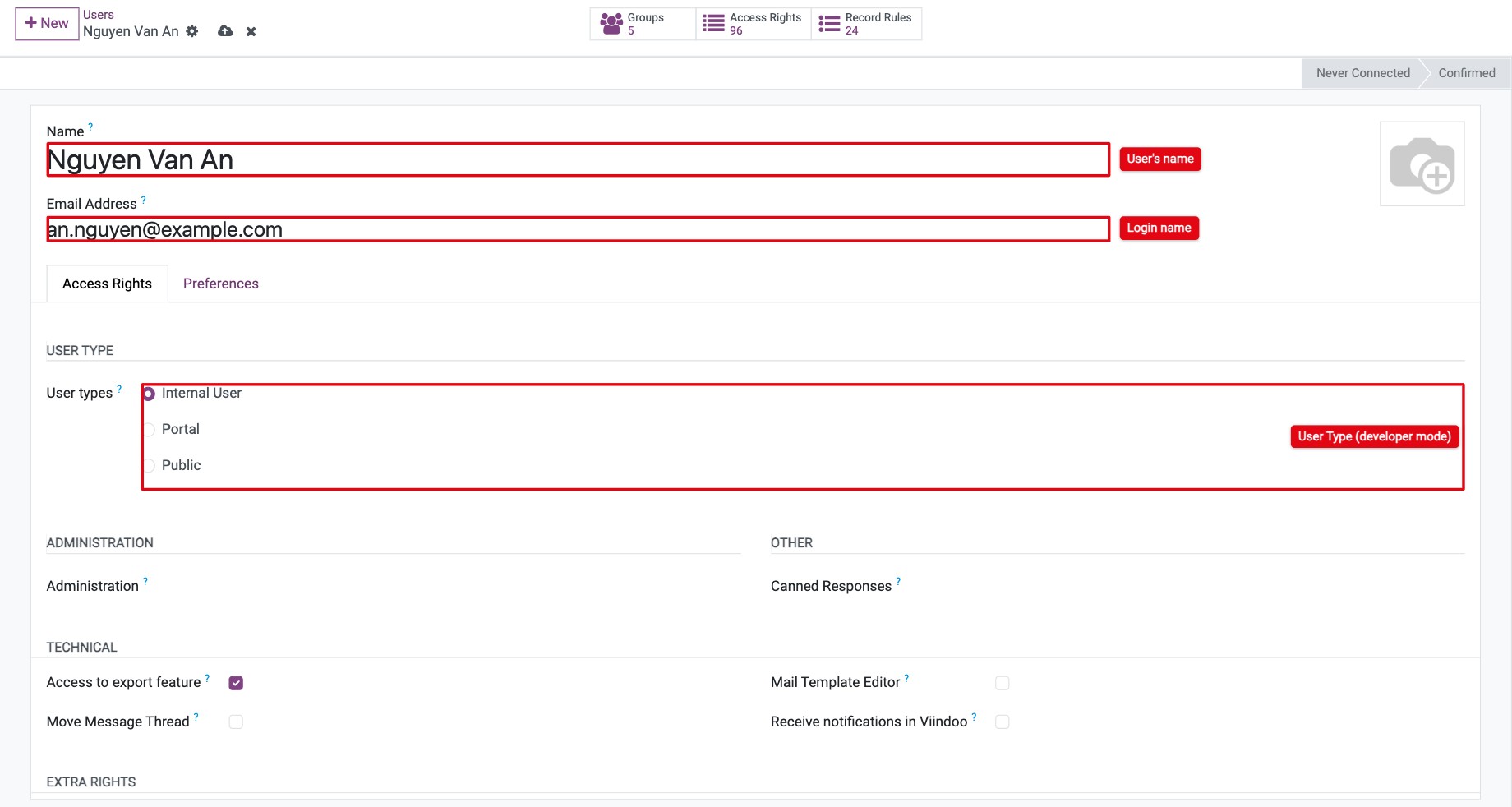
Which user type should I choose?
User type |
Who it is for |
|---|---|
Internal User |
Employees and anyone who works in the Viindoo apps, such as an outside accountant. |
Portal |
Customers and vendors who only see their own documents (quotations, orders, invoices, projects) on the website portal. |
Public |
Website visitors who are not signed in. You rarely create such users yourself. |
What do the preference fields do?
Field |
Effect |
|---|---|
Language |
The language the user sees. See How to add languages and change the interface language. |
Timezone |
Dates and times in the interface and in emails are shown in this time zone. A wrong time zone shifts meeting and deadline times. |
Notification |
Handle by Emails: notifications are sent to the user’s email. Handle in Viindoo: notifications stay in the Viindoo inbox. To get both, install the Inbox Notifications and Emails module. See Set up and classify the notifications in Viindoo Discuss. |
Email Signature |
Added at the end of every email the user sends from Viindoo. |
How do I grant access rights to an internal user?
On the Access Rights tab, each installed app has a field. Choose the level the person needs for their role, for example User or Administrator. Leave the field empty to give no access to that app.
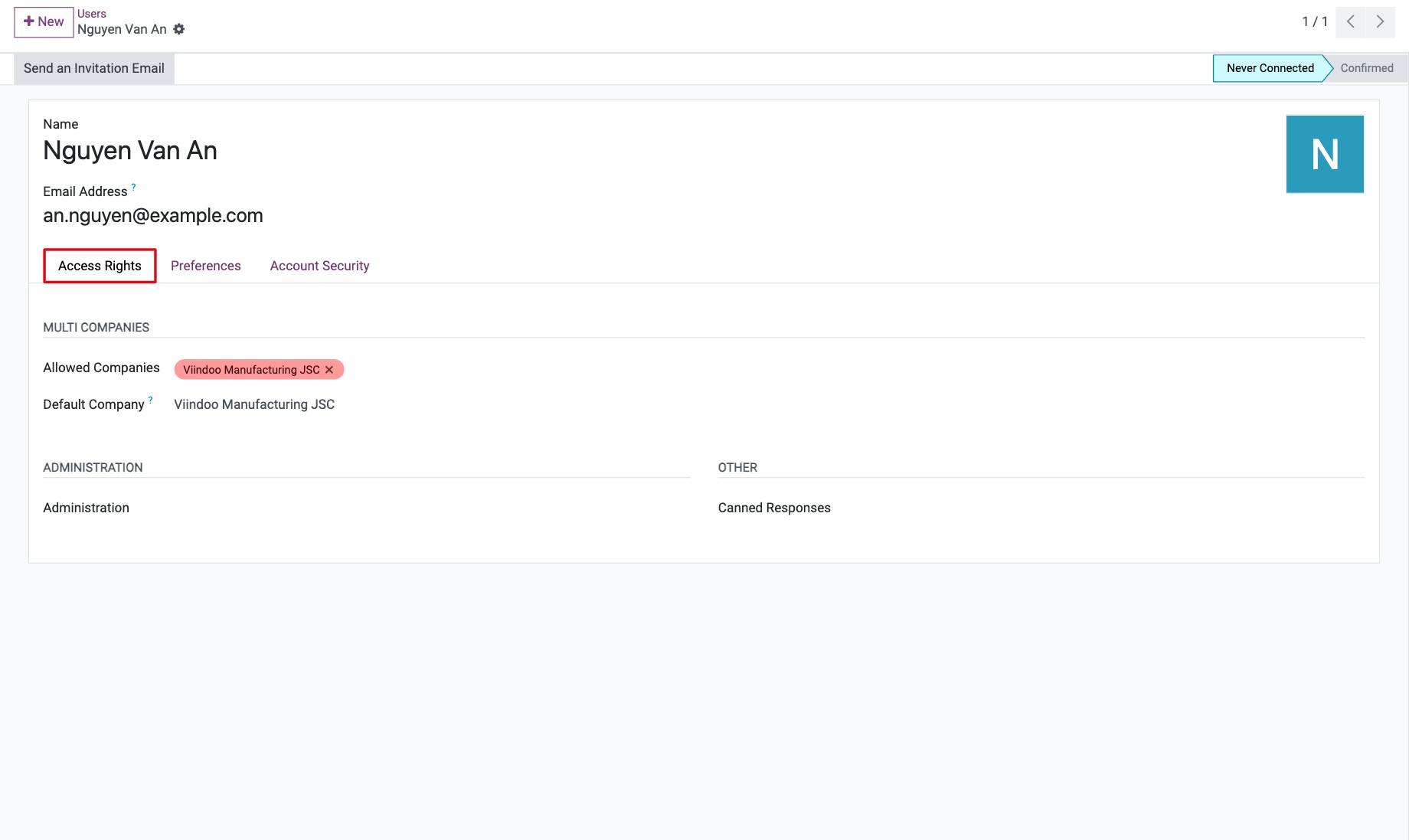
Tip
Each app explains its access levels in its getting started guide, for example Sales, Purchase and Inventory.
With developer mode on, the tab also shows Technical and Extra Rights check boxes for features such as exporting data, creating contacts or using several currencies; the apps you install add their own, for example for warehouses or serial numbers. Some of them are ticked automatically when you turn on the matching option in an app’s settings.
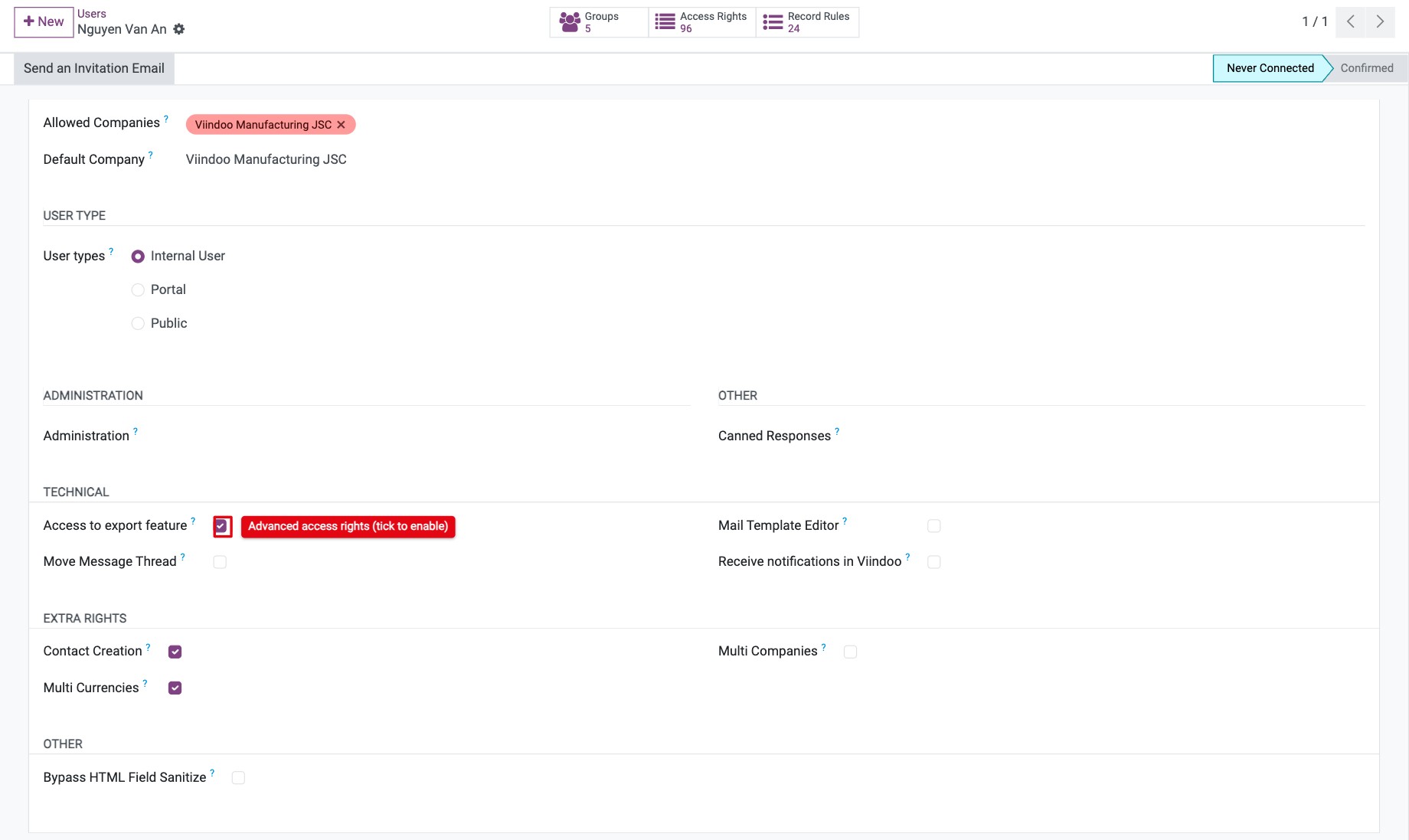
To check exactly what a user can do, see How to set user access rights with groups.
How does the new user sign in for the first time?
On the user form, click Send an Invitation Email.
![Send an Invitation Email button at the top of the user form]()
The user opens the email and clicks Accept invitation.
On the page that opens, the user enters a password twice and confirms. They are signed in and can use Viindoo.
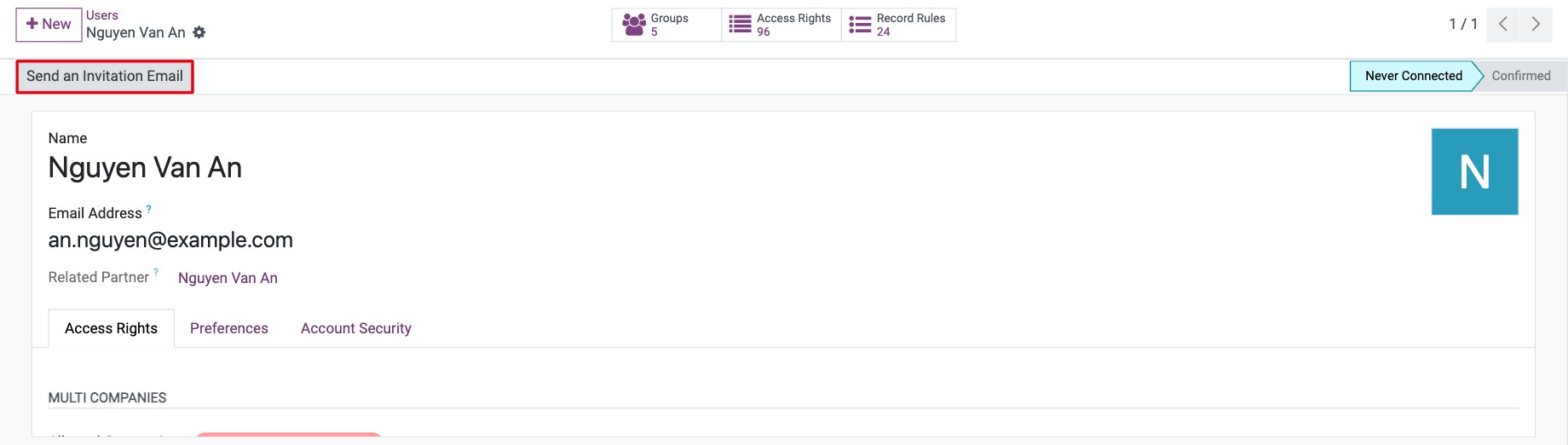
The status at the top of the form changes from Never Connected to Confirmed after the first sign-in. If the user has already signed in and forgot their password, use Send Password Reset Instructions instead.
How do I change the password of a user?
An Administrator can set a new password without knowing the old one.
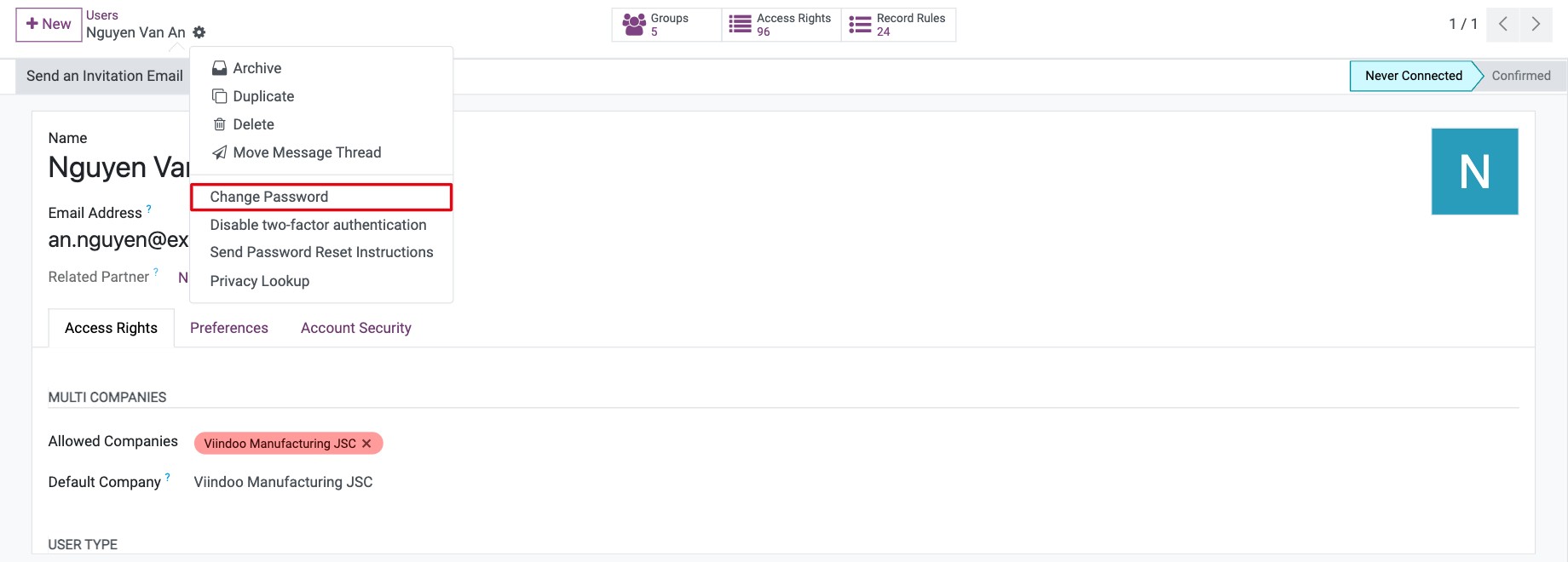
Open the user and click the gear icon ⚙ ‣ Change Password.
![Change Password in the gear menu of the user form]()
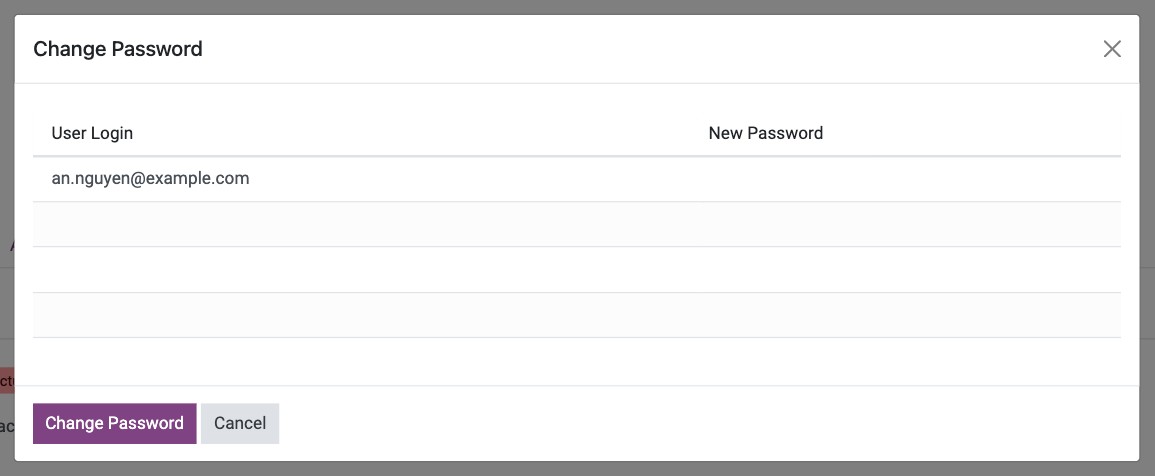
Type the new password in New Password and click Change Password.
![Change Password window with the New Password column]()
Give the new password to the user and ask them to change it in their profile (How to change your preferences and password).
How is a user linked to a contact and an employee?
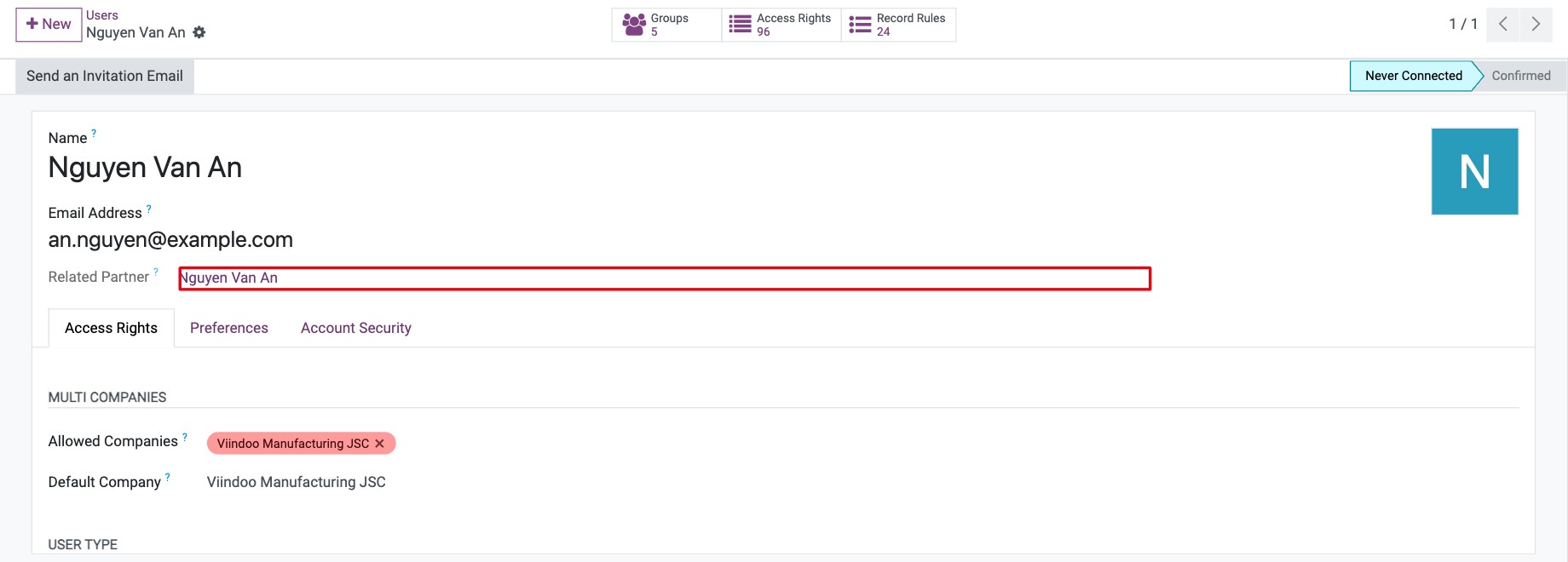
Contact: every user has a contact with the same name, created automatically. With developer mode on, the Related Partner field under the email shows it. Use the contact to store the person’s address and phone numbers (How to create a new contact).
![Related Partner field under the email address of a user]()
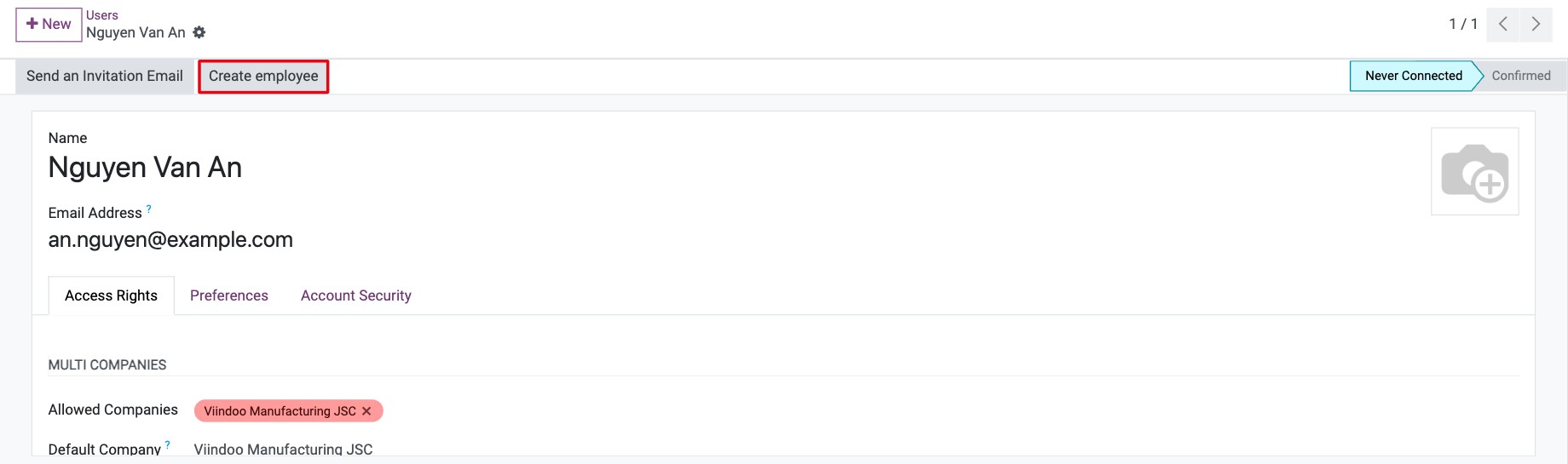
Employee: if you also install the Employees app, click Create employee at the top of the form of an internal user to create an employee already linked to this user. See How to link Employees and Users.
![Create employee button at the top of the user form]()
Common errors
Problem |
What to do |
|---|---|
The user did not receive the invitation. |
Check the email address and that your outgoing mail server works, then click Send an Invitation Email again. |
The user cannot see an app. |
The app’s field on the Access Rights tab is empty. Choose an access level. |
I cannot find User Type. |
Turn on developer mode. |
Next steps
How to set user access rights with groups: review the rights of a user in detail.
How to change your preferences and password: what each user can change in their own profile.
How to turn on two-factor authentication: protect accounts with two-factor authentication.