
How to configure the Stringee integration in Viindoo
To make real calls, Viindoo needs the keys of your Stringee project, the hotline numbers and the agents of that project, and one agent for each user who calls. Open Stringee ‣ Configuration ‣ Settings, enter the keys and click Save; then, in Stringee ‣ Configuration ‣ Numbers and Agents, click Fetch Data to load what exists in Stringee and link each agent to a Viindoo user. Until you have a Stringee account, keep the Stringee Environment on Demo: every screen works and the calls are simulated.
Who |
Users with the VoIP ‣ Administrator access right. The Settings menu also needs the Administration ‣ Settings access right. |
App |
Stringee VoIP |
Before you start
Install the Stringee VoIP app and give the access rights, see Overview of Stringee VoIP in Viindoo.
In your Stringee project, get the SID Key, the Secret Key and the Signing Secret Key, buy at least one hotline number and create the agents (or create them later in Viindoo).
The Viindoo server must reach
icc-api.stringee.comandapi.stringee.com. The browser of every agent must reachcdn.stringee.comand the WebSocket servers entered in the settings.The screenshots of this page use fake keys. Never publish or share the real keys of your project.
How do I connect Viindoo to my Stringee project?
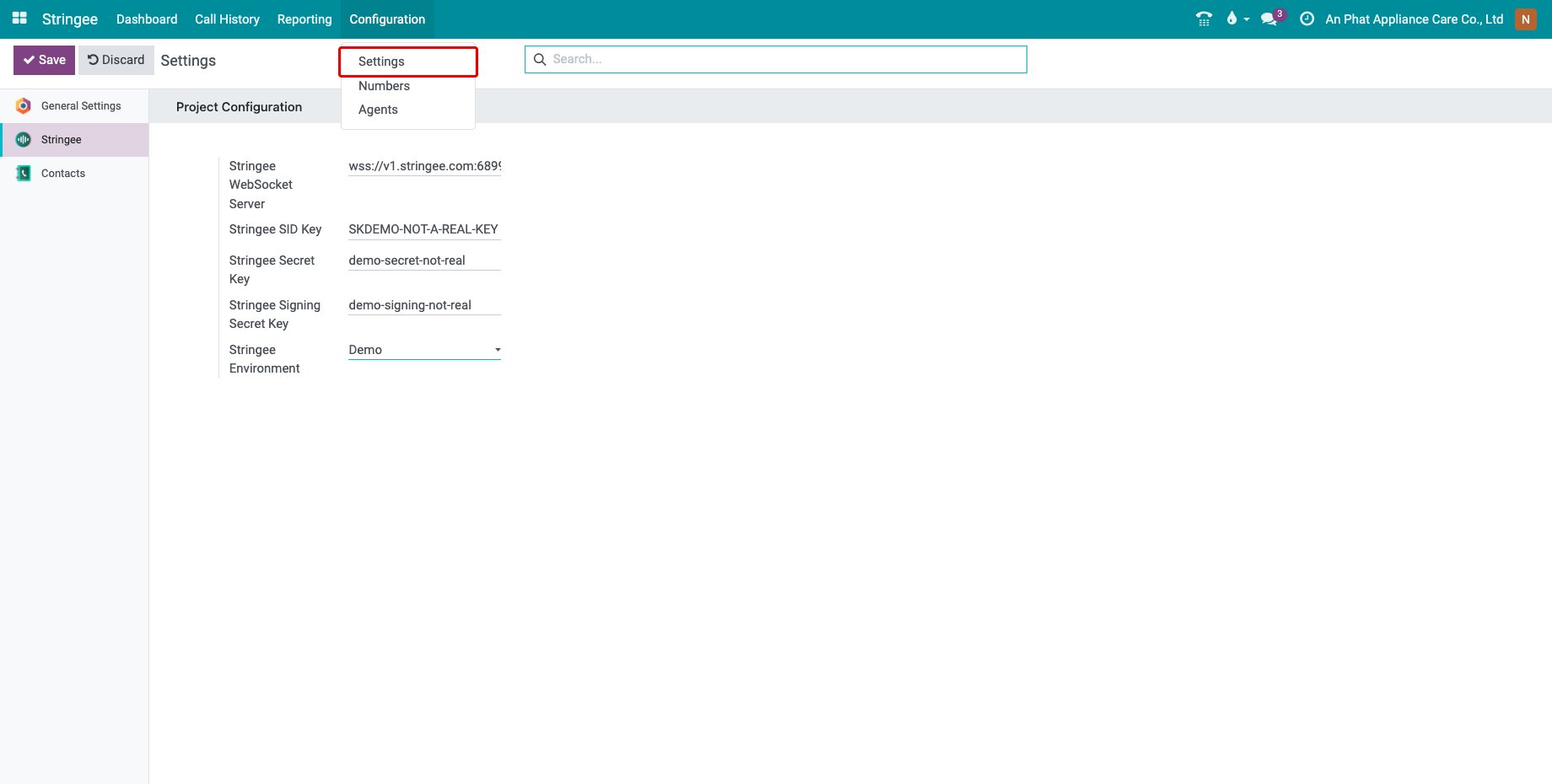
Go to Stringee ‣ Configuration ‣ Settings.
![The Settings menu of the Stringee application]()
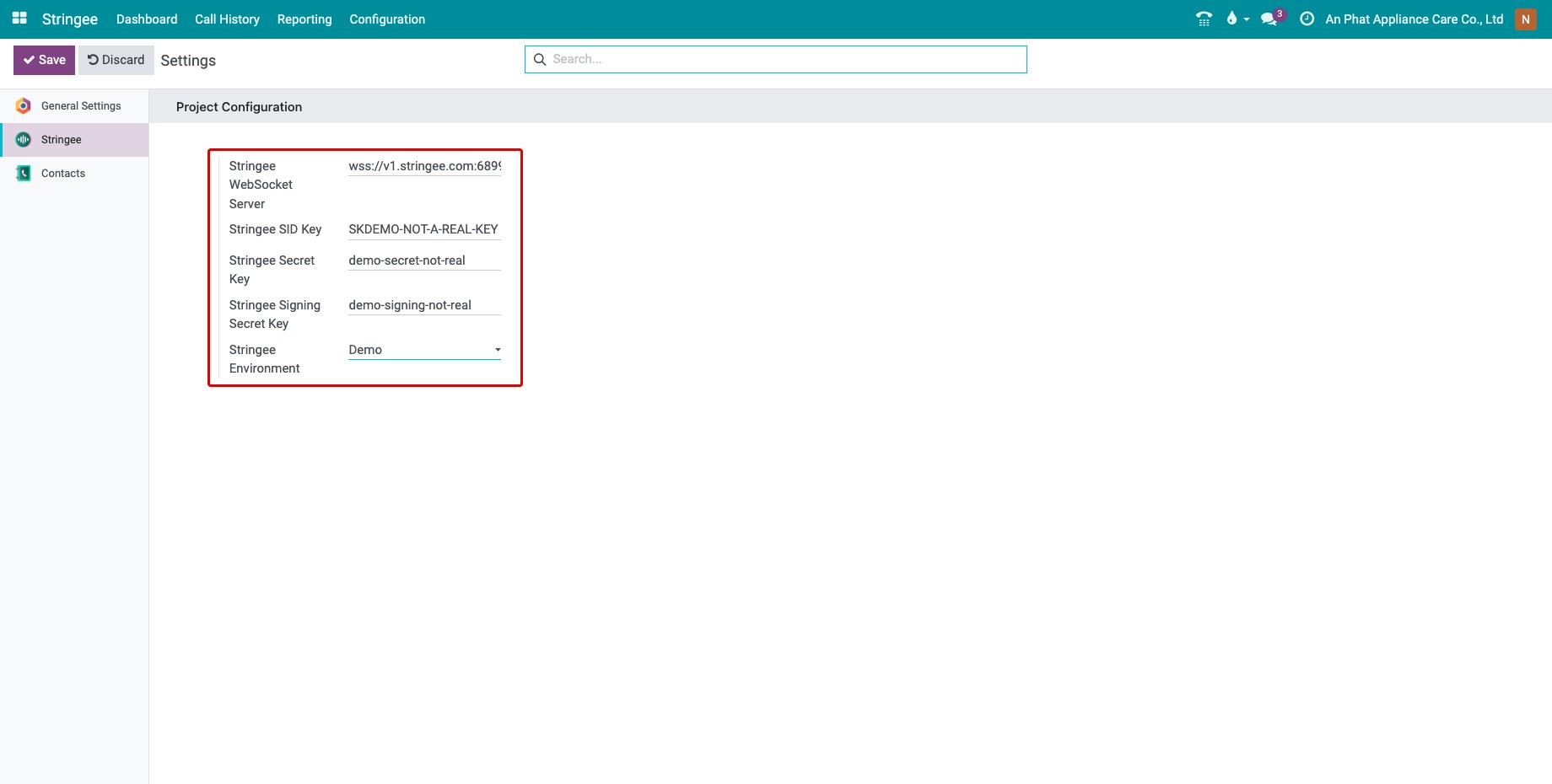
Fill in the fields of the Stringee block and click Save.
![The Stringee settings with the WebSocket server, the three keys and the environment]()
Field
What it does
If it is wrong or empty
Stringee WebSocket Server
The addresses of the Stringee servers the browser connects to, separated by commas. It is filled with the two standard Stringee servers.
The softphone shows Please configure websocket servers.
Stringee SID Key
Identifies your Stringee project in the access tokens Viindoo creates.
Calls and agent updates fail with Cannot connect to Stringee.
Stringee Secret Key
The secret used with the SID Key to sign the access tokens of the server and of the agents.
Same as above.
Stringee Signing Secret Key
The key that checks the signature of the notifications Stringee sends to Viindoo (see the recordings section).
Viindoo rejects every notification, so recordings never arrive.
Stringee Environment
Demo is for testing: the softphone is always connected, no Stringee account is needed and calls are simulated. Production is for real calls.
In Production the four fields above are required.
How do I load the hotline numbers?
Go to Stringee ‣ Configuration ‣ Numbers and click Fetch Data.
![The Numbers list with the Fetch Data button]()
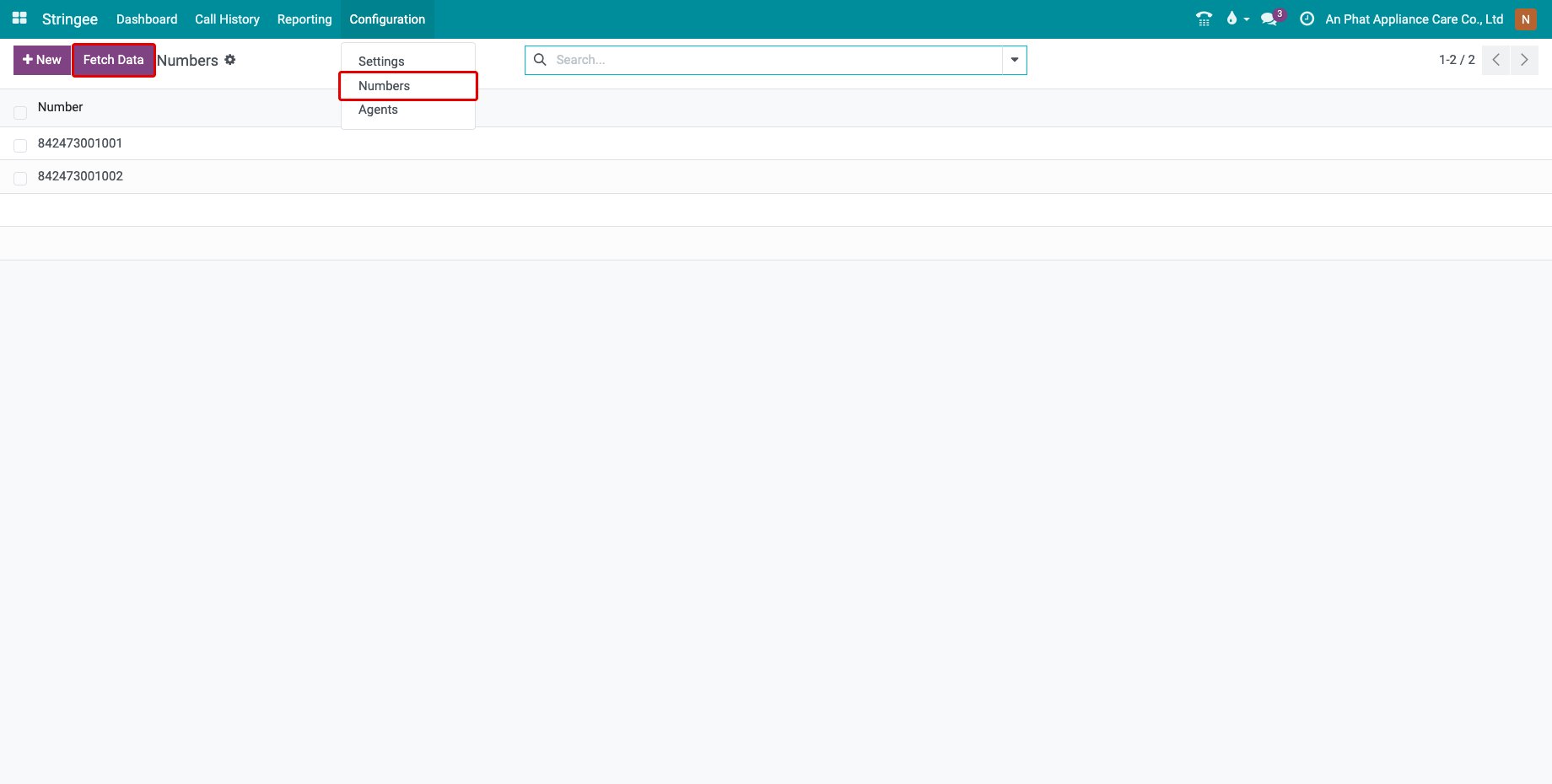
Viindoo reads every hotline number of your Stringee project and lists it. A number is read only: buy or release numbers in Stringee, then click Fetch Data again.
How do I load the agents and link them to users?
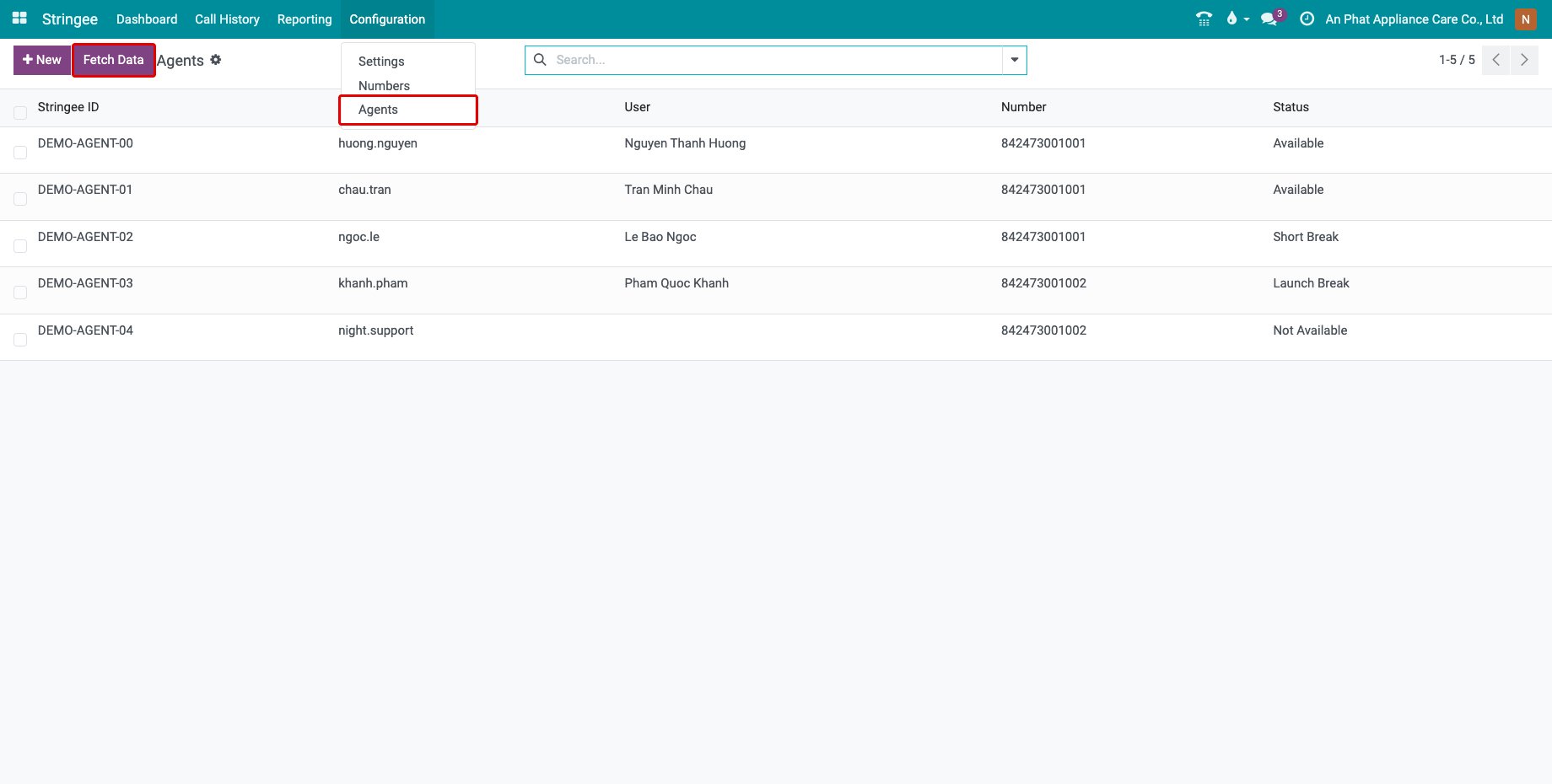
Go to Stringee ‣ Configuration ‣ Agents and click Fetch Data to load the agents of your Stringee project. An agent that has no User yet does not appear on the Dashboard.
![The Agents list with the Fetch Data button]()
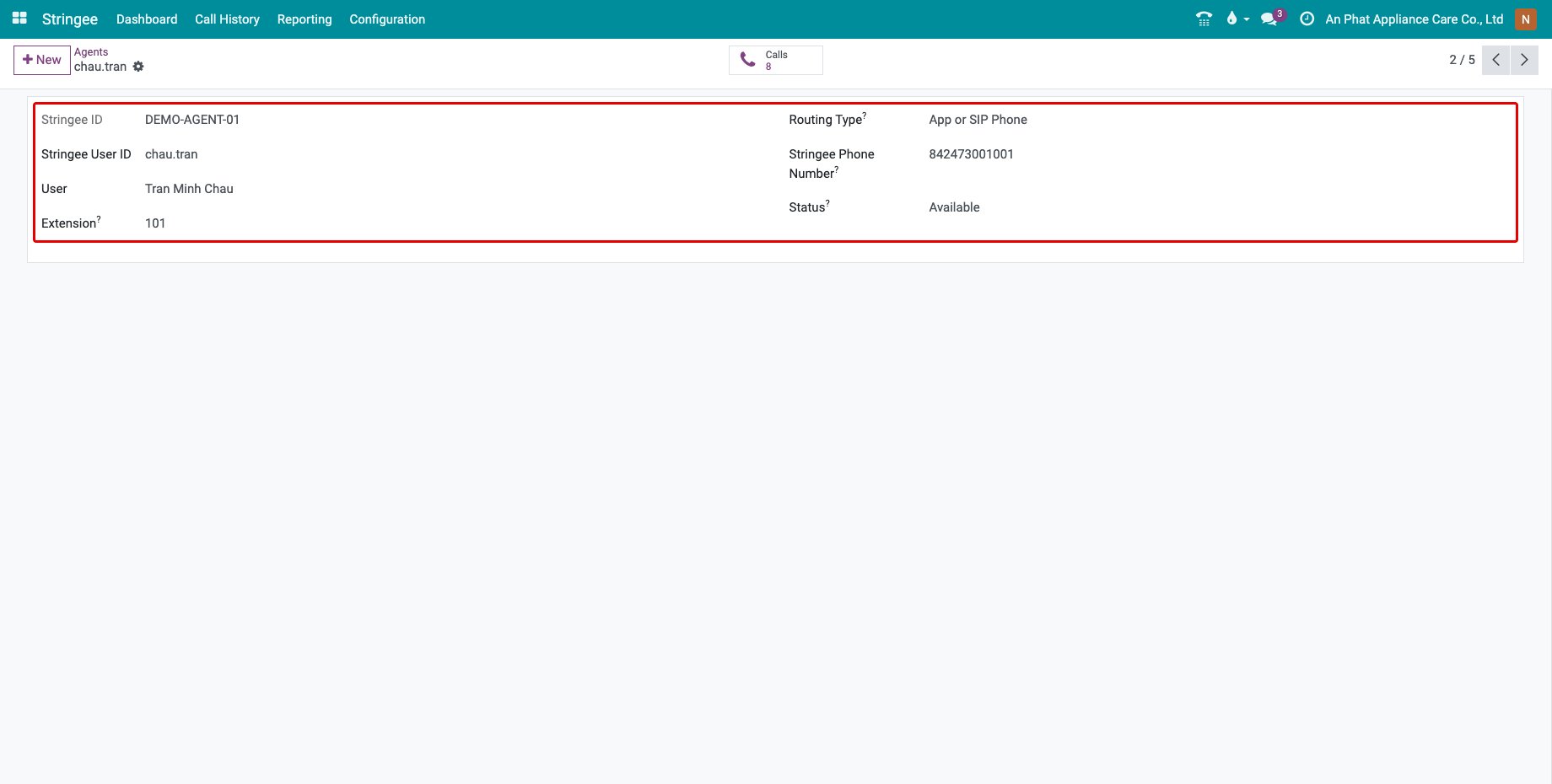
Open an agent, fill in the form and click Save. To add an agent that does not exist in Stringee yet, click New: Viindoo creates it in Stringee when you save.
![The form of an agent with user, extension, hotline number, routing type and status]()
Field
What it does
If it is wrong or empty
Stringee User ID
The identifier of the agent in Stringee. It must be unique.
The agent must be unique! when it already exists.
User
The internal user who works as this agent. One user can be linked to only one agent.
The user has no softphone in Production and the agent does not show on the Dashboard. The user can only be assigned to one agent! when the user is already linked.
Extension
The SIP phone extension of the agent.
Viindoo does not check it. Stringee uses it for SIP phones.
Routing Type
App or SIP Phone: calls ring in the softphone of Viindoo or in a SIP phone. To agent’s phone number: calls ring on the phone number of the agent.
Calls ring on the wrong device.
Stringee Phone Number
The hotline number the agent calls out with and receives calls on. Pick one of the numbers you loaded.
Required. In Production the user does not get the softphone without it.
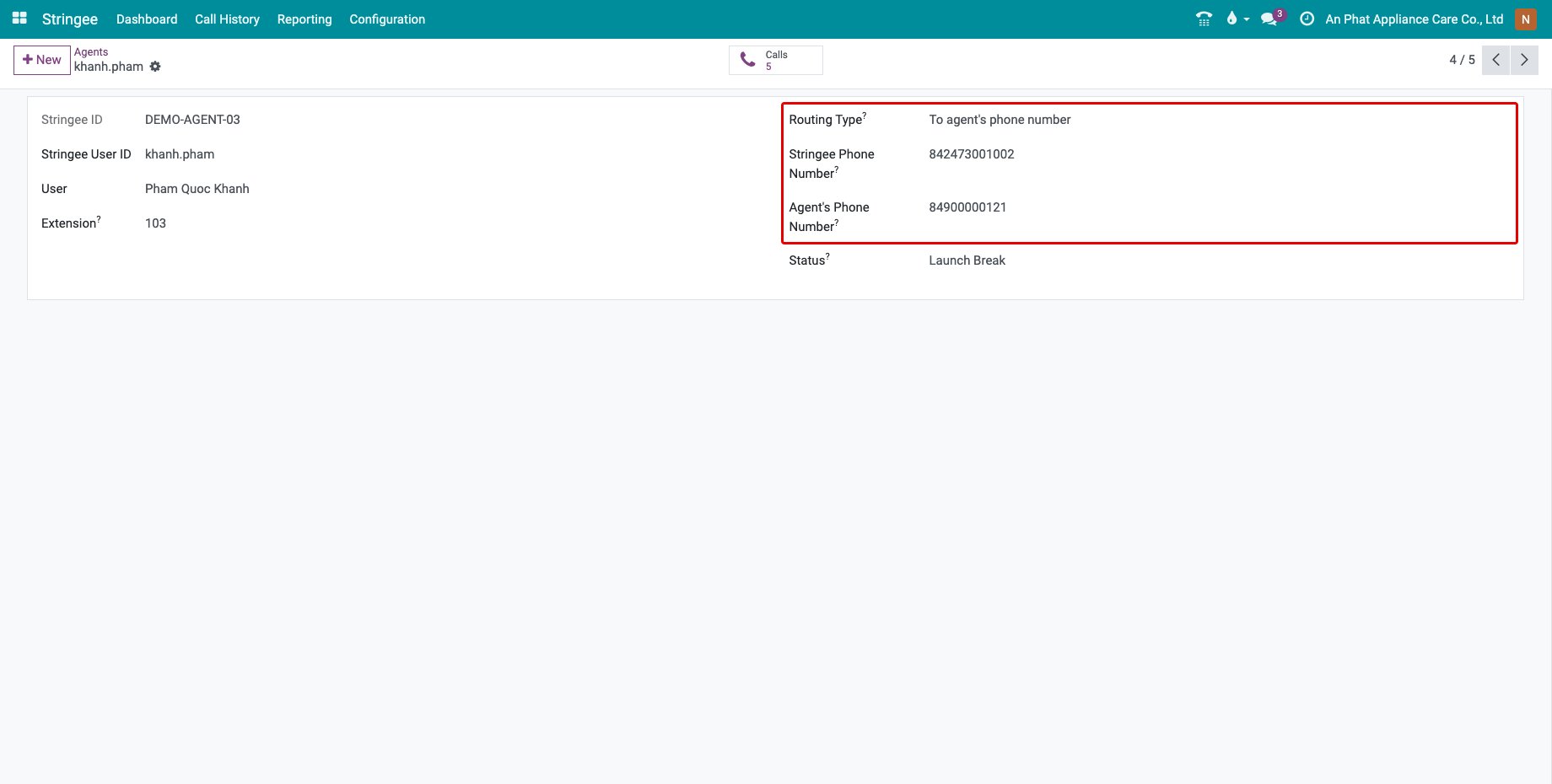
Agent’s Phone Number
Shown for To agent’s phone number only, and required then. Viindoo writes it in the international form without the plus sign. The same number must be set in the Queue parameter
from_number_callout_to_agentof your Stringee project.Calls to the agent’s phone fail.
Status
Available, Launch Break, Short Break or Not Available. Agents change it themselves in the softphone.
Stringee uses the status to decide whether the agent takes calls.
For an agent whose calls must ring on a phone, set Routing Type to To agent’s phone number and enter the Agent’s Phone Number.
![An agent whose routing type is To agent's phone number, with the agent's phone number]()
When you delete an agent, Viindoo deletes it in Stringee too.
How does Viindoo receive the call recordings?
Stringee sends a notification to the address https://<your Viindoo address>/stringee/event when
the recording of a call is ready. Viindoo checks the signature of the notification with the Stringee
Signing Secret Key, finds the call, and stores the recording in its Recorded File field. Enter
this address as the event address of your Stringee project in Stringee, and use the same signing key in
both places. A notification with a wrong signature is ignored without any message.
If a recording does not arrive, open the call in Call History and click Update Recording File.
How do I check that the connection works?
Sign in as an agent. The phone icon appears in the top bar and the softphone title is VoIP. Click the icon: in Production the title shows Connecting… and then VoIP when the connection is made.
Make a test call. See How to make calls and manage the call history with Stringee in Viindoo.
Common errors
Problem |
What to do |
|---|---|
The phone icon is missing in Production. |
The user has no agent, or the agent has no Stringee Phone Number. Fix it in Agents. |
The softphone shows Disconnected or Please configure …. |
Check the WebSocket servers, the keys, the Stringee User ID and the Stringee Phone Number of the agent. |
Cannot connect to Stringee when you save an agent or click Fetch Data. |
The SID Key or the Secret Key is wrong, or the Viindoo server cannot reach Stringee. |
Could not create Stringee Agent or Could not update Stringee Agent, followed by a message. |
Stringee refused the agent. Read the message, for example an unknown phone number. |
The number must be unique. |
The number already exists. Use Fetch Data instead of creating it by hand. |
The recording of a call does not arrive. |
Check the Stringee Signing Secret Key and the event address in Stringee, or click Update Recording File on the call. |
You do not see Configuration ‣ Settings. |
The menu needs the VoIP ‣ Administrator and the Administration ‣ Settings access rights. |
Next steps
How to make calls and manage the call history with Stringee in Viindoo: make calls, manage the call history and read the reports.
Overview of Stringee VoIP in Viindoo: access rights of the VoIP levels.