
How to create vendor bills for many orders
To bill many purchase orders at once, go to Purchase ‣ Orders ‣ Purchase Orders, apply the Waiting Bills filter, tick the orders and click Create Bills. Viindoo creates one draft vendor bill per vendor (and currency) with every quantity still to bill on the selected orders, and links each bill to its orders.
Who |
A Purchase user with access to vendor bills (Invoicing). |
App |
Purchase, Invoicing |
Before you start
Install the Purchase app (Invoicing is installed with it).
The orders are confirmed and have quantities to bill (see How to control when vendor bills are created).
How do I create the bills of several orders?
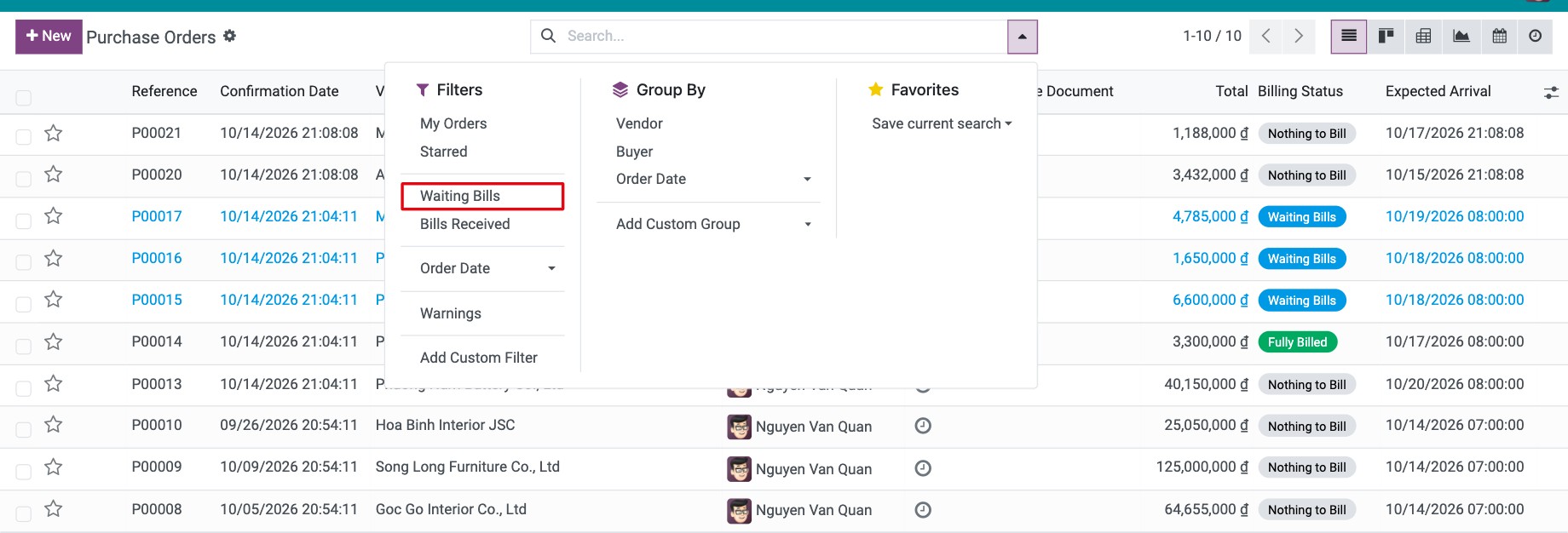
Go to Purchase ‣ Orders ‣ Purchase Orders. Open the search options and click Waiting Bills under Filters. Only orders with something to bill remain in the list.
![Waiting Bills filter in the search options of the purchase order list]()
Tick the orders to bill, then click Create Bills above the list. You can also use Actions ‣ Create Vendor Bills.
![Three purchase orders in Waiting Bills selected with the Create Bills button]()

Viindoo opens the list of the new draft bills. Orders from the same vendor are gathered into one bill: its Reference lists the vendor references of the orders and its source document lists the order numbers.

The selected orders now show Fully Billed (or still Waiting Bills if some quantities remain to bill). Check each draft bill against the vendor’s invoice before you confirm it (see Vendor Bills Management).
Which orders are billed?
Only the orders with the Waiting Bills status. Selected orders with Nothing to Bill or Fully Billed are skipped without a message.
Each bill contains the quantities to bill of each line, according to the product’s Control Policy (ordered or received quantities).
Orders of the same vendor in different currencies get separate bills.
Common errors
Message or problem |
What to do |
|---|---|
There is no invoiceable line. If a product has a control policy based on received quantity, please make sure that a quantity has been received. |
None of the selected orders has anything to bill. Apply the Waiting Bills filter and select orders from that list. |
Create Vendor Bills is missing from the Actions menu. |
The action is only for users with access to vendor bills. Ask your administrator for Invoicing access. |
You need one bill per order instead of one per vendor. |
Click Create Bill on each order instead. |
Next steps
How to control when vendor bills are created: choose whether bills follow ordered or received quantities.
How to pay a vendor in advance for a purchase order: pay the vendor in advance.
Related apps: Inter-Company Rule for Sale/Purchase, Purchase Advance Payment, Purchase Confirmation Backdate.
Version notes
Compared with the version 17 guide, you select the orders with the Waiting Bills filter (the list has no Billing Status grouping by default), and only those orders are billed.