
How to create a department
Create departments in Employees > Departments > New, or in Recruitment > Configuration > Employees > Departments. Give each department a name, a manager and, for a sub-department, its parent department. There is no limit on the number of departments or on the number of levels. The departments then appear as a tree in the Employees application, where you can filter employees by department.
Who does this |
Application |
|---|---|
A user with the Officer: Manage all employees access level or higher |
Employees, or Recruitment if it is installed |
Requirements
This tutorial requires the installation of the following applications/modules:
To create departments from Recruitment, the Recruitment application must also be installed.
Create and set up a department
How do I create a department from the Employees application?
Open the Employees application and click the Departments menu. The departments are displayed as cards.
![The Departments menu of Employees and the New button]()
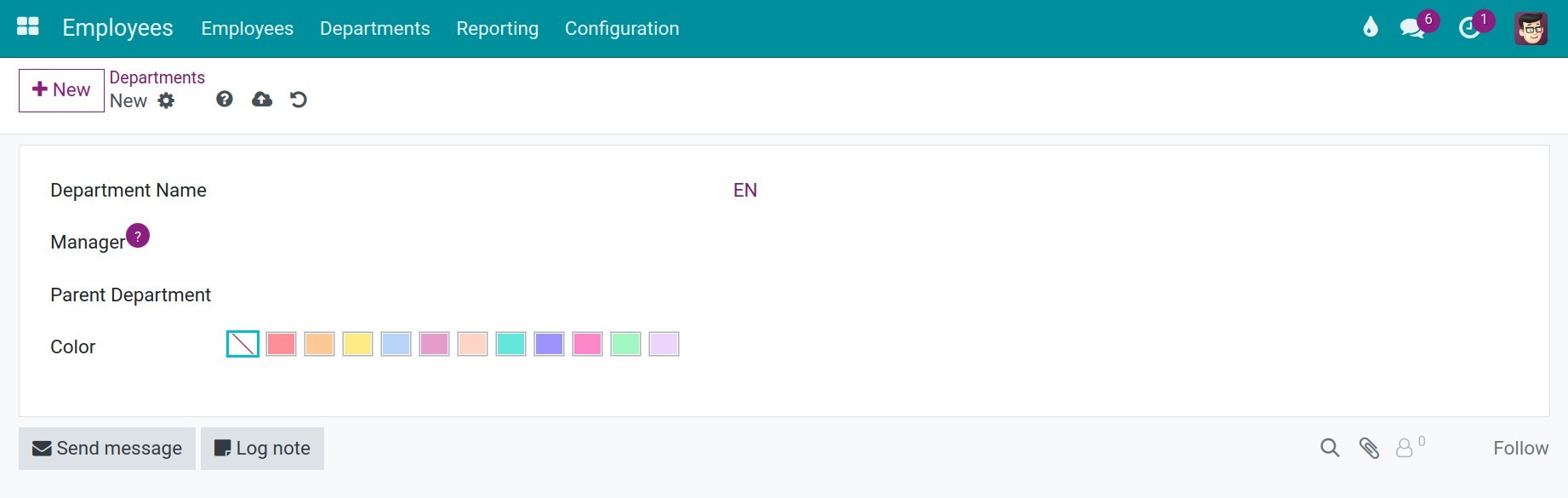
Click New and fill in the form. The name of the department is entered in the title at the top of the form.
![A new department form with a name, a manager and a parent department]()
Click the cloud icon to save.

To edit a department, click its card, change the fields and save.
How do I create a department from the Recruitment application?
The same departments can be managed from the Recruitment application.
Open Recruitment and go to .
![The Departments entry in the Configuration menu of Recruitment]()
The departments are displayed as a list. Click New.
![The list of departments in Recruitment with the New button]()
A department form opens, the same as in Employees. Enter the name, the Manager, the Parent Department and a Color.
![A new department form opened from Recruitment]()
Click the cloud icon to save. To edit a department, click it in the list, change the fields and save.


Important fields
Field |
Effect |
If left empty |
|---|---|---|
Name (title of the form) |
Name of the department, shown on the card and in the department tree. |
The department cannot be saved. |
Manager |
On the employee form, the employees of this department automatically get this person as their manager. |
Employees of the department get no automatic manager. |
Parent Department |
The nearest upper level of this department. If the parent does not exist yet, type its name and click Create and edit…. |
The department is a top level department. |
Color |
The color of the department card, to tell departments apart. |
No color. |
Functions, Tasks |
Free text describing what the department is responsible for and which tasks it performs. |
Nothing is shown. |
Expected result
The new department is on the department cards. In the Employees application, the department tree on the left follows the levels you set; click a department to list its employees.

Common problems
Problem |
Cause |
What to do |
|---|---|---|
The New button is missing. |
The user is not an Officer. |
Ask the administrator to grant the Officer: Manage all employees level. |
A sub-department is not under the expected parent. |
The Parent Department field is empty or wrong. |
Open the department, correct the field and save. |
See also
Related article
Optional module