
How to create and use product variants
Product variants let you manage one product that comes in several versions, for example a motorbike in 5 colors and 2 versions, instead of creating 10 separate products. To use them, enable Variants in Sales ‣ Configuration ‣ Settings, create the attributes (Color, Version…) and their values in Sales ‣ Configuration ‣ Products ‣ Attributes, then add the attributes to the product in its Attributes & Variants tab. Viindoo creates one variant per combination, each with its own reference, stock and extra price.
Who |
A Sales administrator (to enable the feature and create attributes); users who can create products (to add attributes to products). |
App |
Sales (the same settings exist in Purchase and Inventory) |
Before you start
Install the Sales app.
Know how to create a product.
Example used in this page: the product Viindoo Lumi Electric Motorbike has two attributes: Vehicle Color with 5 values (Pearl White, Matte Black, Moss Green, Burgundy Red, Cement Gray) and Vehicle Version with 2 values (Standard, Premium). Viindoo creates 5 x 2 = 10 variants, for example Viindoo Lumi Electric Motorbike (Pearl White, Premium).
How do I enable product variants?
Go to Sales ‣ Configuration ‣ Settings.
In the Product Catalog section, tick Variants and click Save.
![Variants option in the Product Catalog section of the Sales settings]()

How do I create an attribute and its values?
Go to Sales ‣ Configuration ‣ Products ‣ Attributes and click New.
![List of product attributes with display type and variant creation mode]()
Fill in the attribute (see Which attribute settings should I choose?) and add its values in the Attribute Values tab with Add a line.
![Vehicle Color attribute with display type, variant creation and its color values]()


Which attribute settings should I choose?
Field |
What it does |
|---|---|
Attribute Name |
The characteristic that changes between variants, for example Color, Size, Version. |
Display Type |
How the values are shown when a salesperson or a website customer picks a variant: Radio (option buttons, for short lists), Pills (buttons), Select (drop-down list, for long lists), Color (color swatches, using the color or image of each value), Multi-checkbox (several values can be ticked; only with Variant Creation set to Never). |
Variant Creation |
Instantly: all combinations are created as soon as the attribute is added to a product. Dynamically: a variant is created only when its combination is added to a sales order. Never: no variant is created; the value is only an option written on the order line. Cannot be changed once the attribute is used on a product. |
eCommerce Filter |
Visible or Hidden in the shop filters of the website. Shown when the eCommerce app is installed. |
Values: Value, Free text, Color / Image, Default Extra Price |
Each value of the attribute. Tick Free text to let the customer type their own value (for example an engraving text). Color and Image are used by the Color display type. Default Extra Price is added to the product price when the value is chosen. |
Tip
After changing values or default extra prices, click Add to products or Update extra prices in the Attribute Values tab to apply them to the products that already use the attribute.
How do I add variants to a product?
Open the product (Sales ‣ Products ‣ Products) and go to the Attributes & Variants tab.
Click Add a line, choose the attribute and its values. Add one line per attribute.
![Attributes and Variants tab with the Vehicle Color and Vehicle Version attributes]()
Save. The Variants button at the top of the form shows the number of variants created, here 10.
![Variants button showing the number of variants of the product]()
Click Variants to see them. Each variant can have its own internal reference, barcode and stock.
![List of the 10 variants of the product with reference and sales price]()


Warning
Adding or removing attributes or values on a product that already has variants deletes and recreates its variants. Variants already used on documents are archived instead of deleted.
How do I set a different price for a variant?
In the Attributes & Variants tab, click Configure on the attribute line.
![Configure button on the Vehicle Version attribute line]()
Enter the Extra Price of each value. In the example, Premium costs 3,500,000 ₫ more.
![Extra price of the Standard and Premium values]()


The sales price of each variant is the product price plus the extra prices of its values. With a sales price of 24,500,000 ₫, the Standard variants sell at 24,500,000 ₫ and the Premium variants at 28,000,000 ₫, whatever the color.

How do I use variants in orders and transfers?
Sales orders: when you add the product to a quotation, a window asks you to choose the values (color, version), then adds the right variant at its price.
![Product configuration window with color swatches and version options on a sales order]()
Purchase orders: choose the variant directly in the Product column of the purchase order.
![Variants proposed in the product field of a request for quotation]()
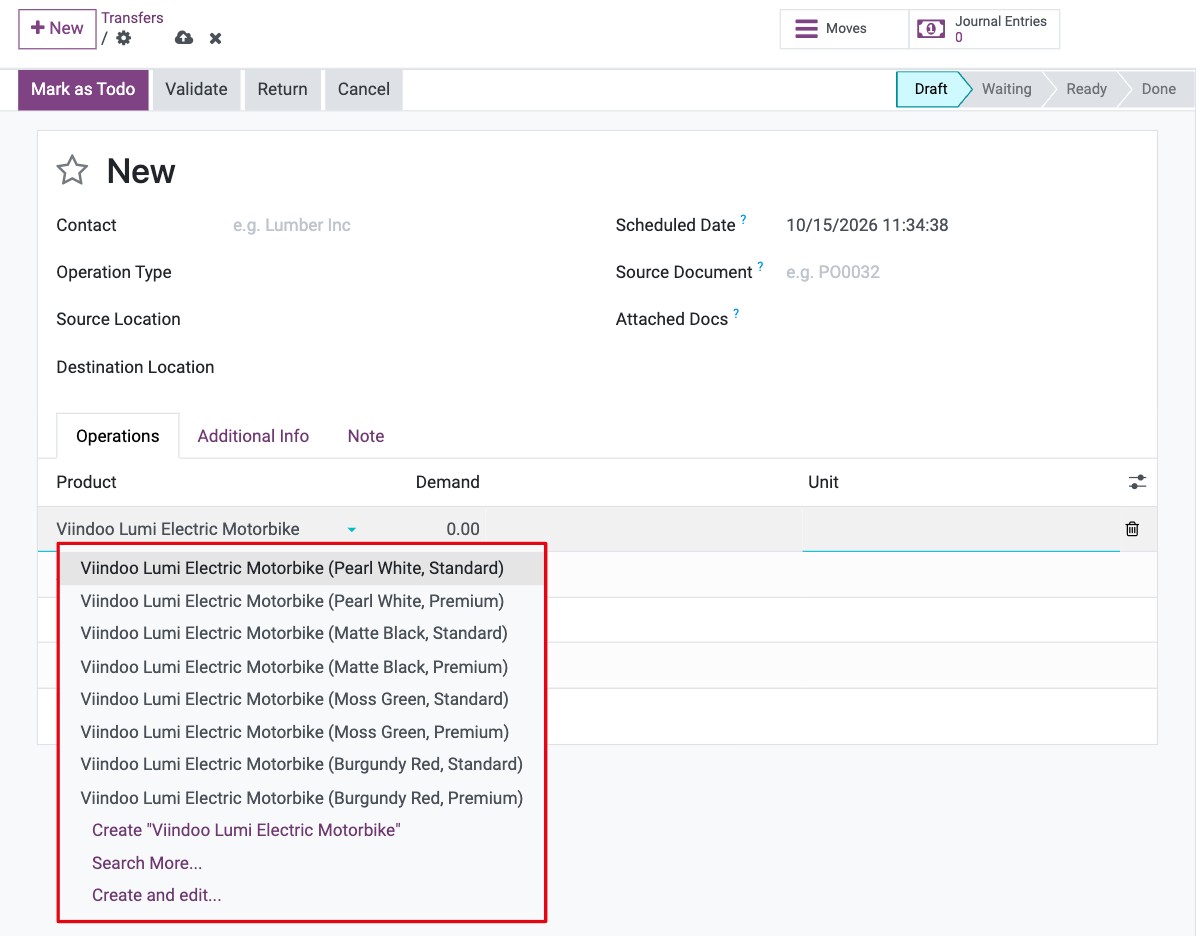
Stock transfers: choose the variant in the Product column of the transfer, see How to move goods between warehouses with an internal transfer.
![Variants proposed in the product field of a stock transfer]()


Common errors
Message |
What to do |
|---|---|
You cannot change the Variants Creation Mode of the attribute … because it is used on the following products |
Create a new attribute with the mode you need, or remove the attribute from those products first. |
You cannot delete the attribute … because it is used on the following products |
Remove the attribute from the products listed first. |
You cannot archive this attribute as there are still products linked to it |
Remove the attribute from its products before archiving it. |
The Attributes & Variants tab or the Attributes menu is missing. |
Enable Variants in Sales ‣ Configuration ‣ Settings. |
Next steps
How to create a new product: fill in the other product information.
How to create and set up product categories: set the costing method and accounts of the products.
Auto-upload product images from Google: add an image to each variant.