
How to sign up and create your Viindoo instance
An instance is your own Viindoo system, at an address such as yourcompany.viindoo.com. To create one, sign up on viindoo.com, open the instance creation page from Pricing or from My Account ‣ Viindoo Instances, enter a domain name, choose your apps, region, language and country, and click Deploy. The instance is ready after a few minutes; then activate it from the email Viindoo sends you to get the full free trial.
Who |
Anyone who wants to try or use Viindoo, usually the person who will administer the system. |
App |
The viindoo.com website |
Before you start
An email address you can open (the activation email is sent there).
The list of apps you want to start with. You can install more apps later.
How do I sign up on viindoo.com?
Go to viindoo.com and click Sign up in the main menu.
![Sign up button on the viindoo.com homepage]()
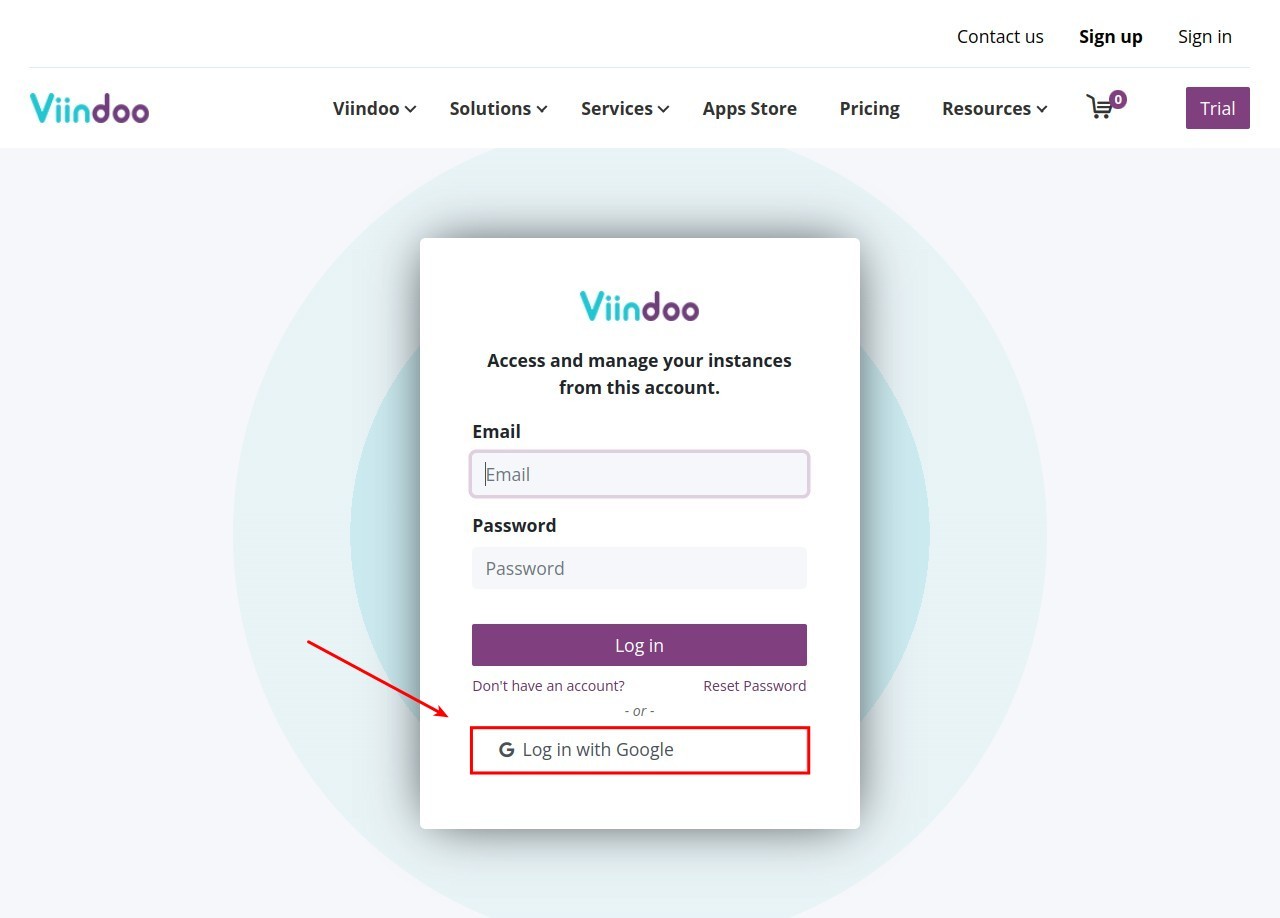
You can also click Sign in, then Don’t have an account?.
![Don't have an account link on the sign-in page]()
Fill in the form:
Your Email: the email address of your account. Confirmations and notifications are sent to it.
Your Name: the name shown in Viindoo.
Your Phone Number.
Password and Confirm Password: use uppercase and lowercase letters, digits and special characters.
![Sign-up form with email, name, phone number and password]()
Tick I have read and agree to the Terms of Use and click Sign up.


You can also sign in with your Google account with the Google button of the sign-in page.
How do I open the instance creation page?
There are two ways.
From the Pricing page
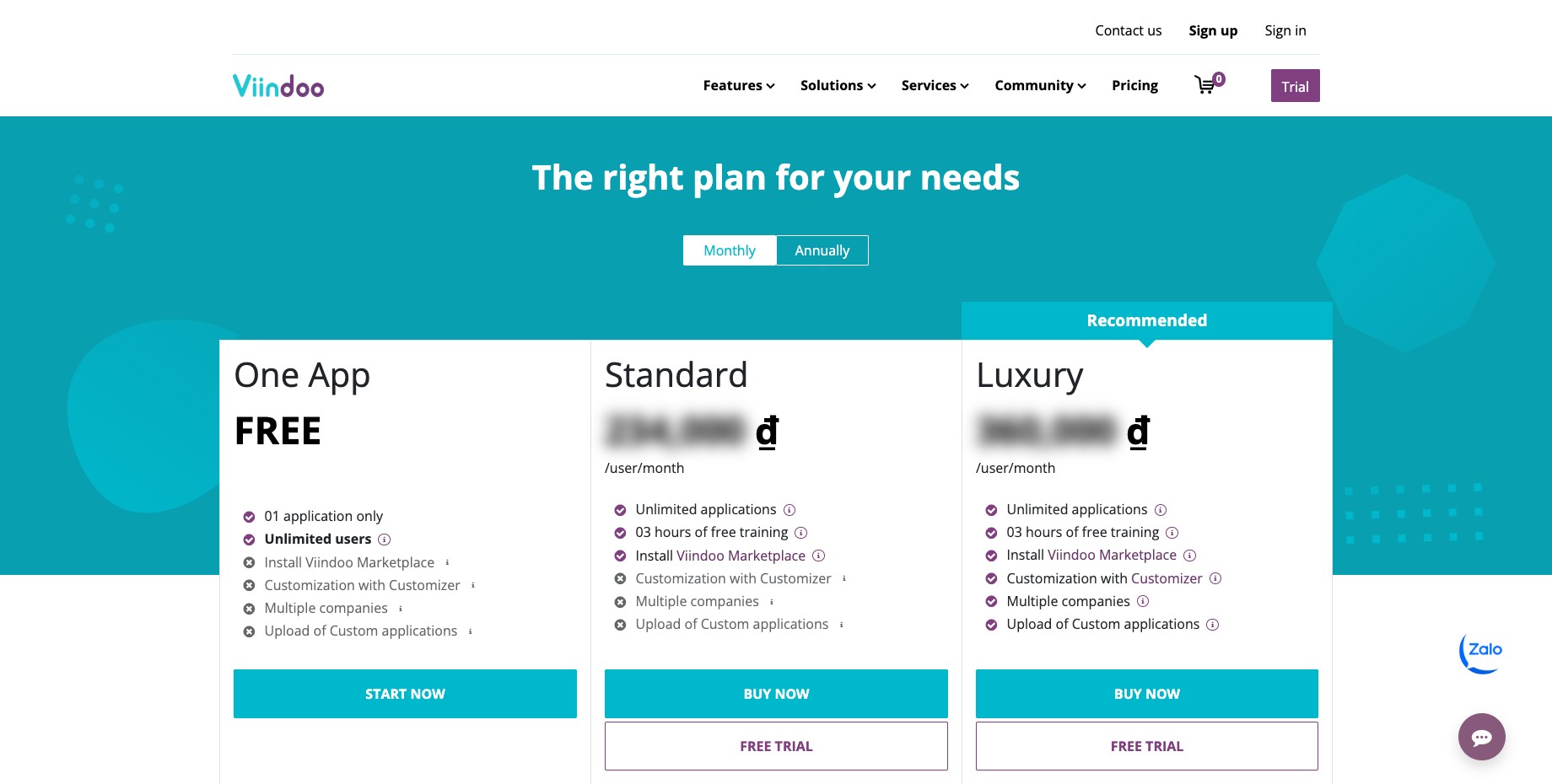
Go to Pricing and pick the plan that fits your business.
![Plans on the viindoo.com Pricing page]()
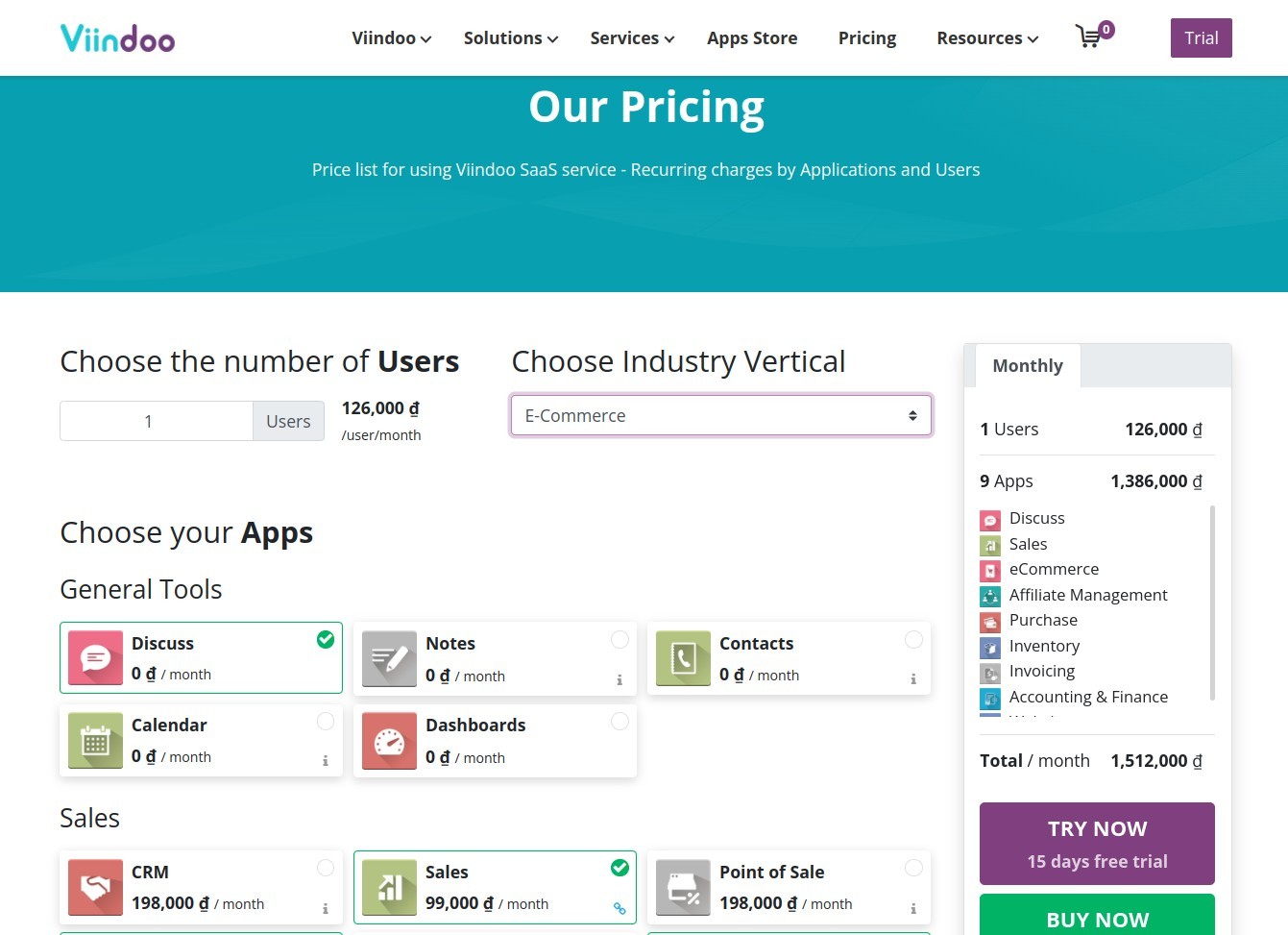
Choose the number of users (you can add users later), your apps, or an Industry Vertical that selects the usual apps of your industry. The Discuss app is always included for free. Apps with a small green icon come with other apps, free or paid.
![Choice of users, apps and industry on the Pricing page]()
Check the monthly cost shown on the right, then click:
TRY NOW to start a free trial. If you are not signed in, Viindoo asks you to sign in or sign up first. You then reach the instance creation page.
BUY NOW to go to payment. Check the selected items before you pay.
![TRY NOW and BUY NOW buttons next to the monthly cost]()

From My Account
Click your name at the top of viindoo.com and choose My Account.
In the Documents section, click Viindoo Instances.
![Viindoo Instances in the Documents section of My Account]()
Click Create an Instance.
![Create an Instance button]()


How do I deploy the instance?
On the instance creation page, fill in the fields described in Which instance settings should I choose?.
![Instance creation page with domain name, plan, region, apps and settings]()
Click Deploy. Creating the instance takes about 3 to 20 minutes, depending on the number of apps. Do not close or reload the page meanwhile.
![Waiting screen while the instance is being created]()
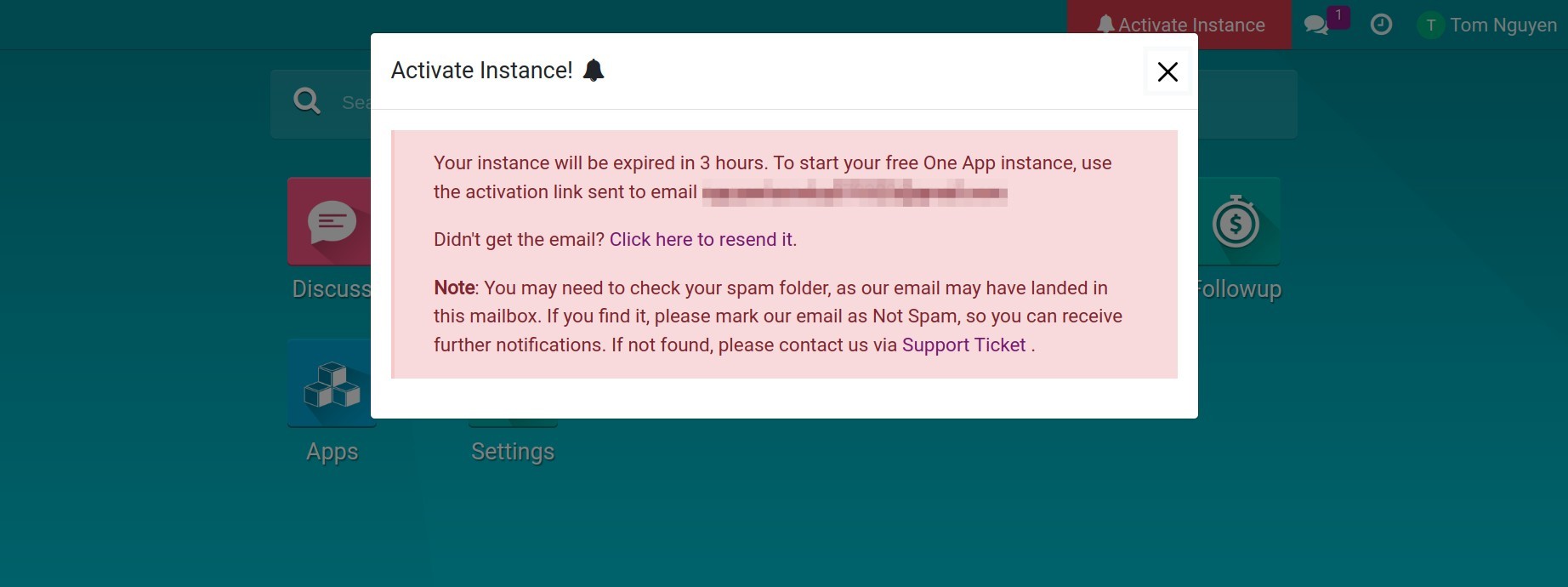
When the instance opens, click the red Activate Instance button at the top right and follow the instructions in the email Viindoo sends you.
![New trial instance with the Activate Instance button]()
![Message about activating the instance by email]()


Warning
An instance that is not activated is disabled after a few hours (4 hours by default). Once activated, you get the full trial period shown on the Plan card (15 days by default). After the trial, a payment is needed to keep using the instance.
Which instance settings should I choose?
Field |
What to choose |
|---|---|
Domain Name |
A unique name, usually your company name. Entering abc gives the address abc.viindoo.com. If you do not have your own domain, this address can also be used for your Viindoo website. |
Viindoo Version |
The version of the instance. Hidden when only one version is offered. |
Plan |
The trial plan by default. Click Buy on the card to choose a paid plan. Add-ons of your plan are listed in the Addons card. |
Datacenter Region |
Where the instance is hosted. The nearest region is listed first and gives the fastest connection. |
Industry Vertical |
Selects the usual apps of your industry. Shown only when it applies to your plan. |
Apps |
The apps installed at creation. The more apps, the longer the creation. Start with the essentials and install more apps later. |
Language (Settings card) |
The default language of the instance, see How to add languages and change the interface language. |
Country (Settings card) |
Installs the localization of the country, for example the Vietnamese chart of accounts for Vietnam, see Fiscal Localization Packages. |
Install Demo Data (Settings card) |
Loads sample data to explore Viindoo. |
Warning
With demo data, the instance stays a trial instance and cannot become a production instance later. To explore Viindoo with sample data, use the ready-made demo instances at viindoo.com/page/demo instead, or contact us.
Next steps
Viindoo basics: modules, apps, menus, records and accounts: learn the words used in Viindoo.
How to install, upgrade and uninstall apps and modules: install more apps.
How to create and manage user accounts: invite your colleagues.
How to connect Viindoo to your own mail servers: send emails from your own domain.