
How to set up Helpdesk: stages, teams, ticket types, SLA and ratings
To set up Helpdesk, open Helpdesk ‣ Configuration and work through five menus: Stages (the steps a ticket goes through), Helpdesk Teams (who handles the tickets and how they are assigned), Ticket Types and Ticket Tags (how tickets are sorted), SLA Policy (how fast a ticket must reach a stage). Then tick Use Rating on Helpdesk in Settings if you want customers to rate the support they got. Each section below is independent: start with the teams, which is the only step you cannot skip.
Who |
Users with the Helpdesk ‣ Administrator access right. |
App |
Helpdesk |
Before you start
Install the Helpdesk app and give the access rights, see How to get started with Helpdesk and set up access.
Create the users who will be team leaders, assigners and members. Only internal users can take these roles.
Check the Working Hours of your company. A team uses them to count the hours of an SLA policy.
How do I set up the stages of a ticket?
A stage is a step of the support process. Helpdesk comes with New, Assigned, On Hold, Resolved and Cancelled; a new team starts with New, Assigned, Resolved and Cancelled.
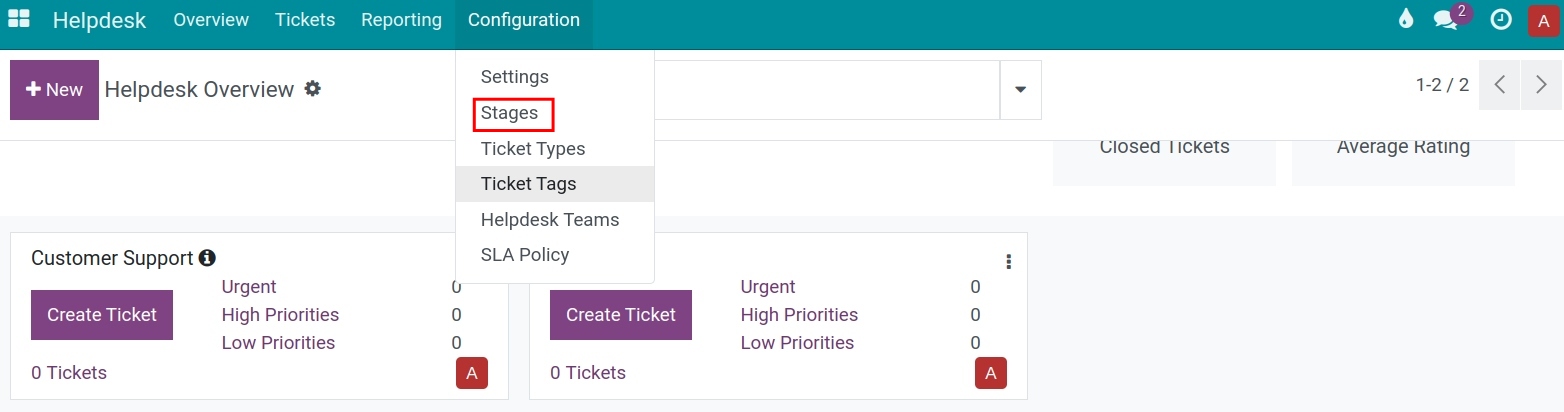
Go to Helpdesk ‣ Configuration ‣ Stages.
![The list of stages with the Stages menu highlighted]()
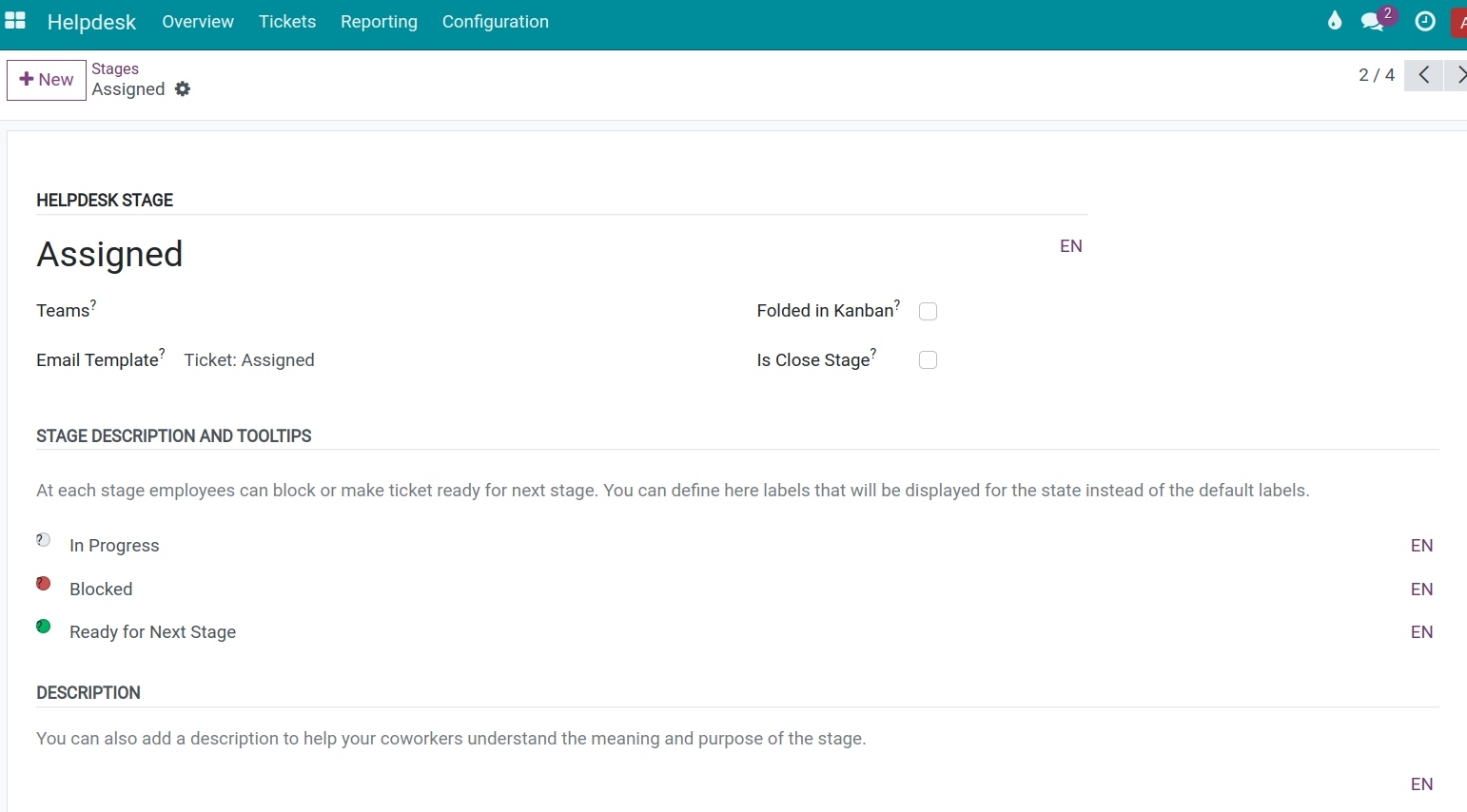
Click New to add a stage, fill in the form and click Save. Drag the handle of a stage in the list to change the order.
![A new stage with its name and email template]()
Field
What it does
If it is wrong
Helpdesk Stage
The name of the stage, shown on the stage bar of the ticket.
Agents cannot tell the steps apart.
Email Template
The email sent to the contact each time a ticket reaches the stage, when the ticket has Send Notification Email ticked.
Customers hear nothing, or get the wrong message.
Folded in Kanban
Folds the column in the kanban view when it holds no ticket.
The column takes room for nothing.
Is Close Stage
Marks the end of the process. A ticket that reaches this stage gets its Close Date and counts as closed in the dashboard and in the reports.
Tickets never count as closed.
Stage Description and Tooltips
The three labels of the ticket status circle: in progress, blocked, ready for the next stage.
The default labels are shown.
Description
Explains the purpose of the stage to your colleagues.
None.
How do I create a helpdesk team?
A team groups the people who handle one kind of request, for example Customer Support or Accounting Helpdesk. Every ticket belongs to one team.
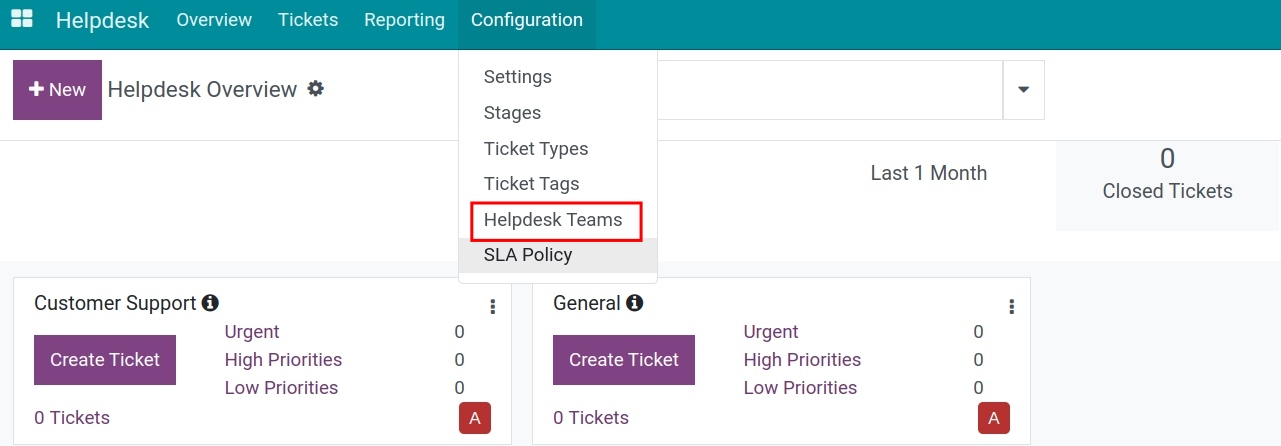
Go to Helpdesk ‣ Configuration ‣ Helpdesk Teams.
![The list of helpdesk teams with the Helpdesk Teams menu highlighted]()
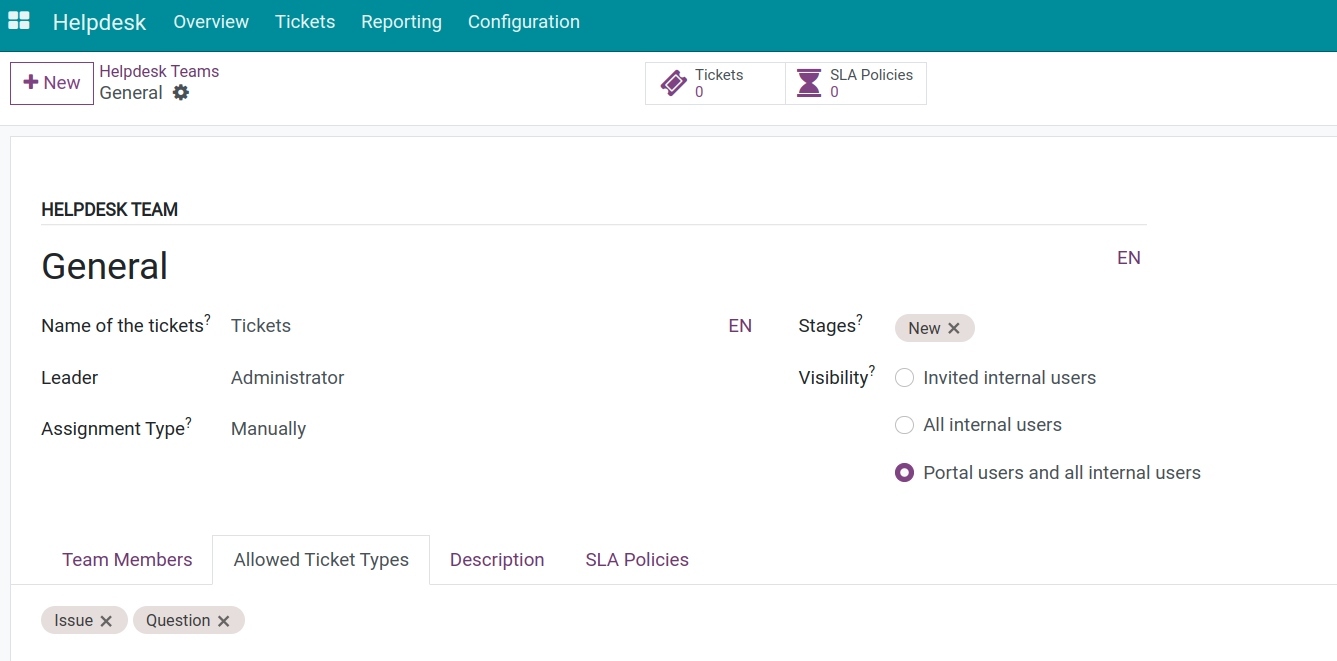
Click New, fill in the form and click Save.
![A new helpdesk team with leader, assigners, assignment type and visibility]()
Field
What it does
If it is wrong
Helpdesk Team
The name of the team. It must be unique in the company.
Viindoo refuses to save a second team with the same name.
Name of the tickets
The word used for the tickets of the team, for example tickets or support requests. It appears on the team card of the Overview.
Cards show a word your users do not use.
Leader
The person in charge of the team. The leader is always a team member.
Nobody follows the new tickets.
Assigners
Users who, like the leader, are told when someone else creates a ticket for the team, so that they can assign it.
Tickets stay unassigned.
Assignment Type
Manually: the leader or an assigner picks the person. Balanced: the member with the fewest open tickets gets the new ticket. Random: the members get tickets in turn.
Tickets pile up on one person, or on nobody.
Team Leader Excluded
For Balanced and Random, keeps the leader out of the automatic assignment.
The leader receives tickets.
Stages
The stages of the team. Only these stages are available on its tickets.
A ticket cannot reach a stage the team does not have.
Visibility
Invited internal users: only the members and followers see the team. All internal users: every internal user sees it. Portal users and Invited internal users: portal users also see it, so customers can open tickets for it.
Customers cannot open a ticket for the team, or too many colleagues see it.
The tabs of the team complete the setup:
Team Members: the users who work on the tickets. Click Add to add members.
Allowed Ticket Types: the ticket types the team handles. A team needs at least one type, and you cannot remove a type that a ticket of the team still uses.
Description: a short text shown as a tooltip on the team card.
Emails: the email alias of the team. A mail sent to this address becomes a ticket. The tab appears when an email alias domain is set up in your database.
SLA Policies: shows the Working Hours in which the SLA deadlines of the team are counted. The tab fills in once the team has an SLA policy.
Open the Overview. The new team appears as a card. Click Create Ticket on a card to open a ticket for that team.
![The Overview with the card of the Customer Support team highlighted]()
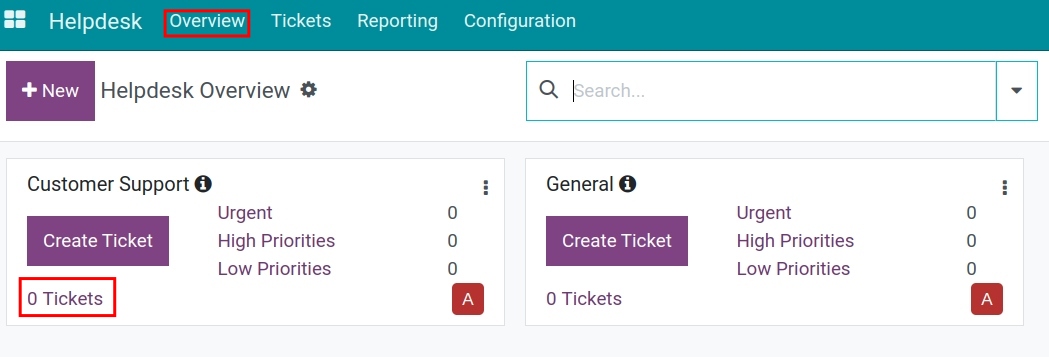
To change a team later, open the menu of its card and click Edit Team, or go to Helpdesk ‣ Configuration ‣ Helpdesk Teams. A team that holds tickets cannot be deleted.
How do I create ticket types?
A ticket type tells what the request is about, for example a question or a feature request. It also lets you show a hint to the person who fills the ticket.
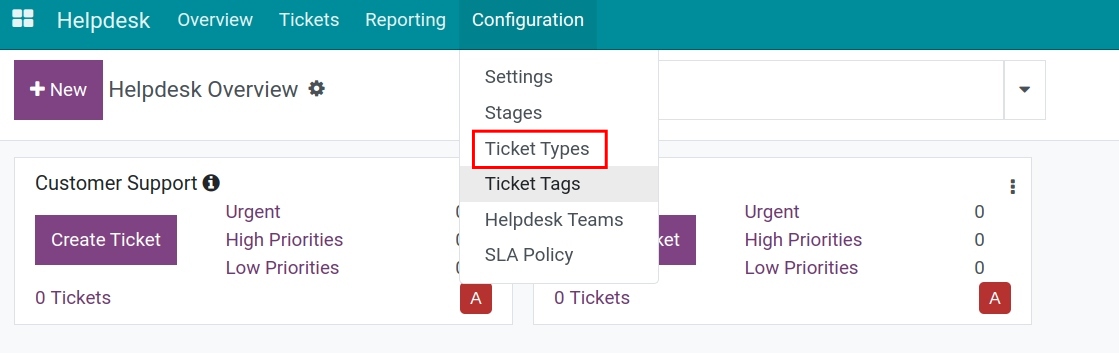
Go to Helpdesk ‣ Configuration ‣ Ticket Types. The types Question, Issue and Feature Request exist already.
![The list of ticket types with the Ticket Types menu highlighted]()
Click New, fill in the form and click Save.
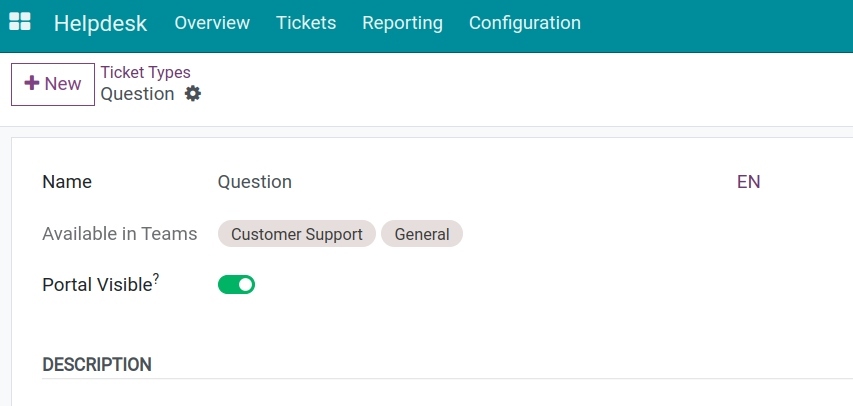
![A new ticket type with the Portal Visible option and a description]()
Field
What it does
If it is wrong
Name
The name of the type. It must be unique.
Viindoo refuses to save a second type with the same name.
Portal Visible
Offers the type to customers who open a ticket from the portal.
Customers cannot choose the type.
Description
A hint shown on the ticket and on the portal form: tell what information to give.
Requests arrive without the details you need.
Available in Teams
Read only. Lists the teams that handle the type. Add the type in the Allowed Ticket Types tab of a team.
The type does not appear on the tickets of the team.
Choose the types a new team starts with in Helpdesk ‣ Configuration ‣ Settings, field Team Default Ticket Types.
How do I create ticket tags?
Tags classify tickets in a second way, for example by product or by topic, and make them easier to filter.
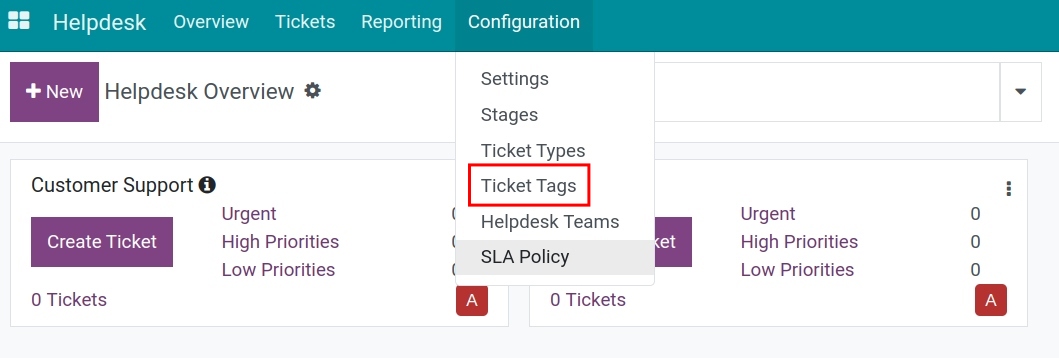
Go to Helpdesk ‣ Configuration ‣ Ticket Tags.
![The list of ticket tags with the Ticket Tags menu highlighted]()
Click New, type the name of the tag, choose its colour and click Save.
![A new tag typed in the first row of the list]()

A tag name must be unique.
How do I set up an SLA policy?
An SLA (service level agreement) policy sets the time a ticket has to reach a stage. For example, urgent tickets must be resolved within 8 hours. Helpdesk then shows the status of each SLA on the ticket and in the SLA Analysis report.
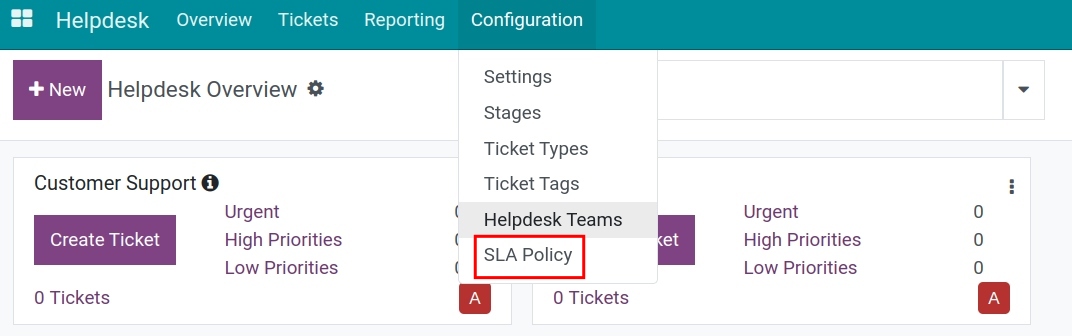
Go to Helpdesk ‣ Configuration ‣ SLA Policy.
![The list of SLA policies with the SLA Policy menu highlighted]()
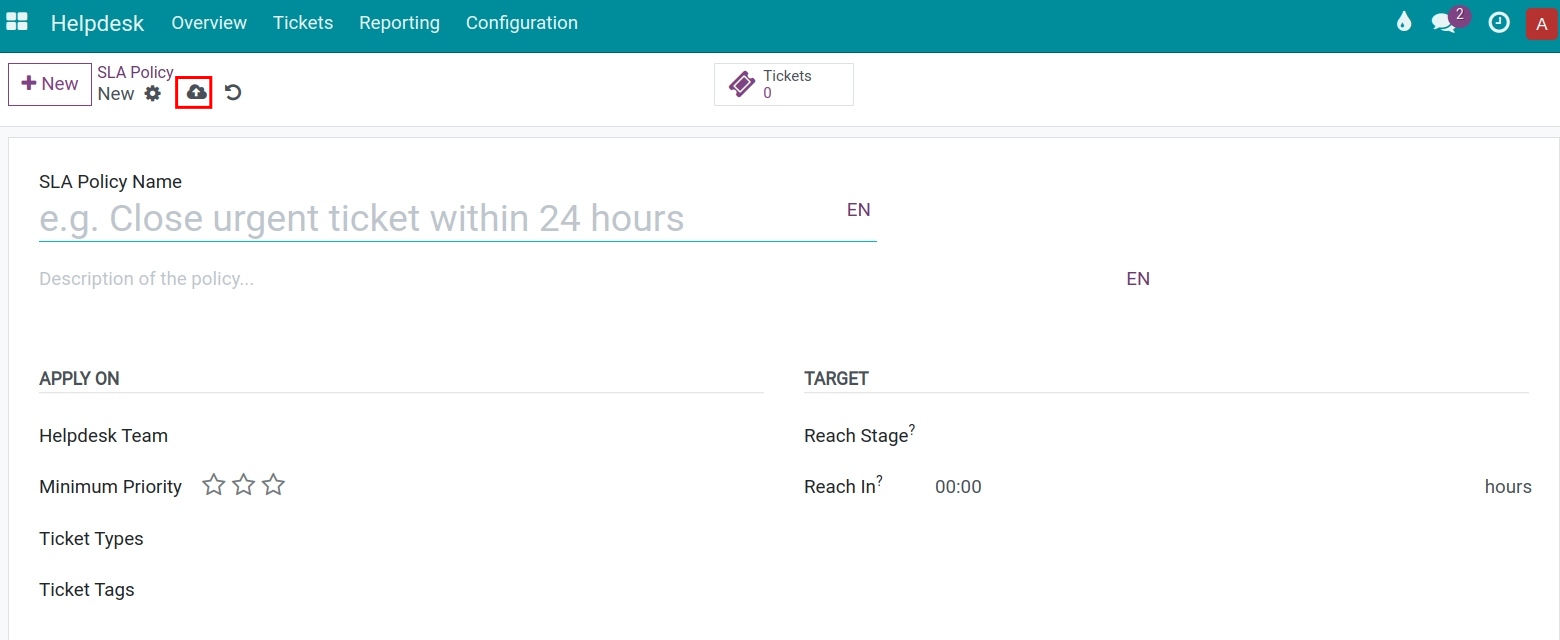
Click New, fill in the form and click Save.
![A new SLA policy with its team, target stage and deadline reminder]()
Field
What it does
If it is wrong
SLA Policy Name
The name of the policy.
None.
Helpdesk Team
The team whose tickets the policy applies to.
The policy applies to nobody.
Minimum Priority
The policy applies to the tickets that have at least this priority. Leave the stars empty for every ticket.
Tickets of a lower priority are left out.
Ticket Types, Ticket Tags
Narrow the policy to these types or tags. Leave them empty for every ticket.
The policy covers too many or too few tickets.
Reach Stage
The stage the ticket must reach, for example Resolved.
The SLA is never reached.
Reach In
The number of hours, counted from the creation of the ticket, in the working hours of the team. With 8 hours, a ticket must reach the stage within 8 working hours.
Tickets fail the SLA too early or too late.
Send Upcoming Deadline Reminder
Sends the email template of your choice to the team leader, the assigners and the assignee, the number of minutes, hours or days you set before the deadline.
People learn about a late ticket after the deadline.
Send Missed Deadline Reminder
Sends the same kind of email after the deadline has passed.
None.
Note
Two policies of the same team with the same stage, priority, types, tags and hours are refused: Conditions must not overlap with other SLAs.
How do I get customer ratings on tickets?
After a ticket is resolved, Helpdesk can email the customer a rating request. Turn the feature on first, then choose how each team uses it.
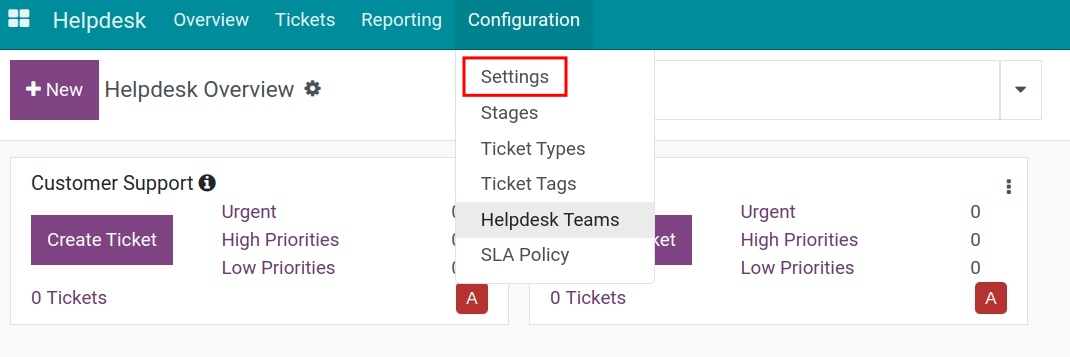
Go to Helpdesk ‣ Configuration ‣ Settings.
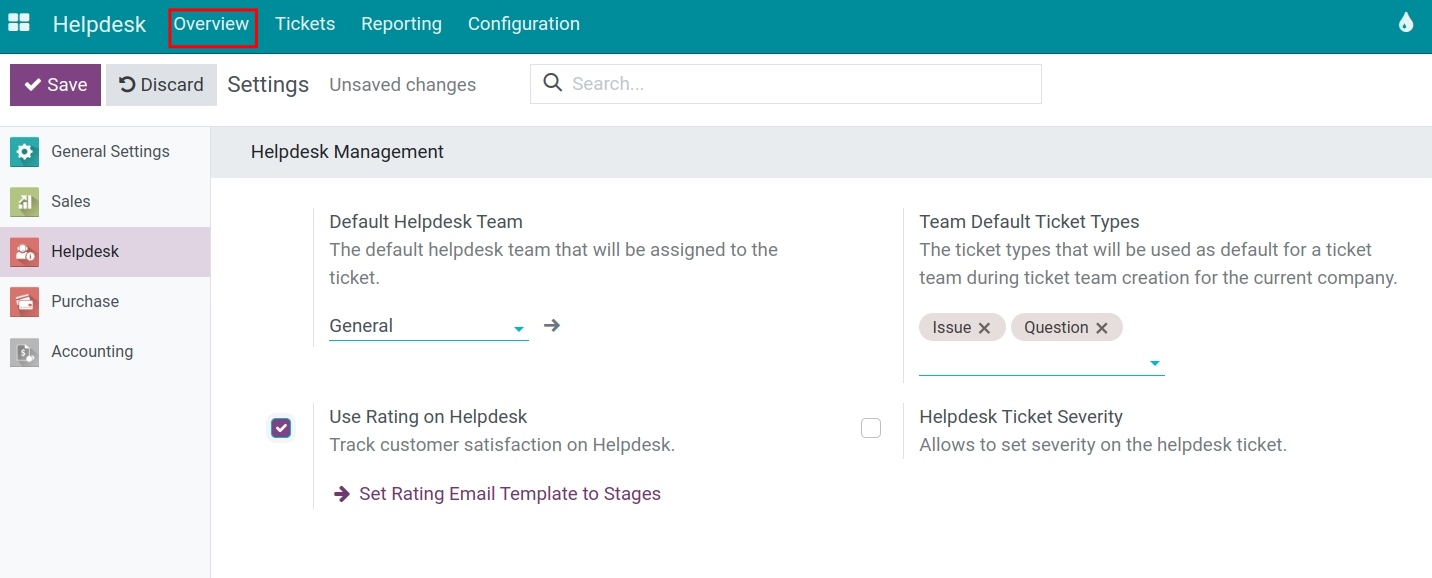
![The Helpdesk settings with the Use Rating on Helpdesk option highlighted]()
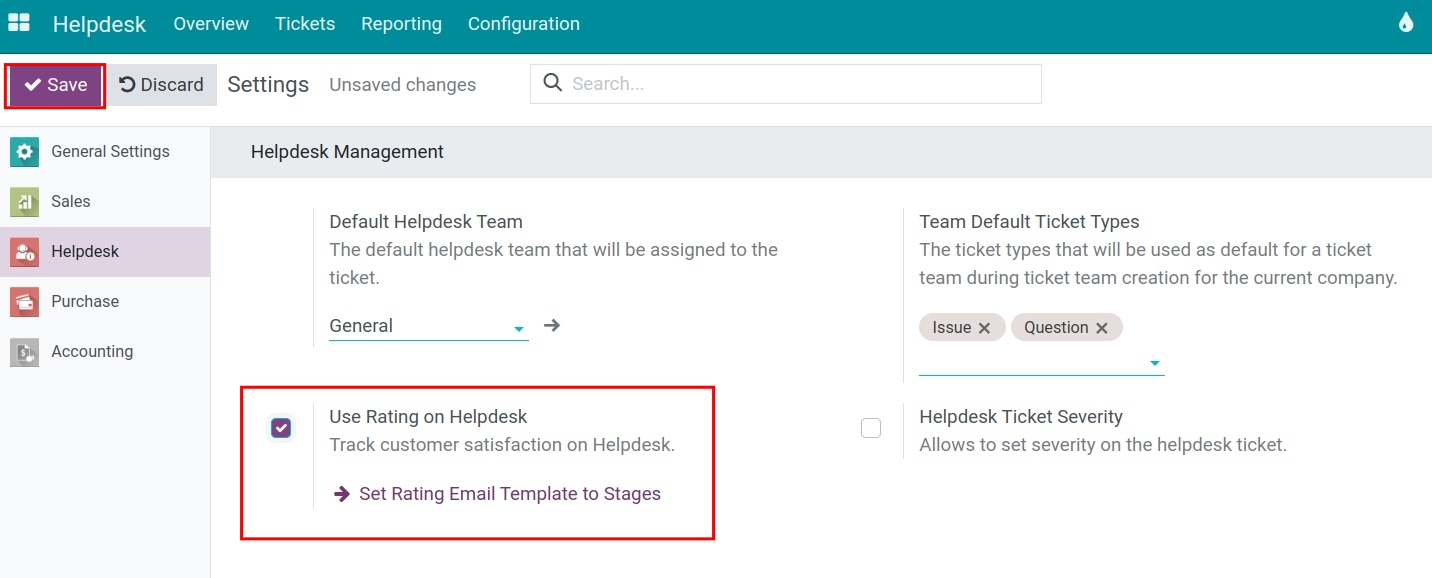
Tick Use Rating on Helpdesk and click Save. The link Set Rating Email Template to Stages opens the stages, where you choose the rating email of the stage Resolved.
![The Use Rating on Helpdesk option ticked]()
Go to the Overview, open the menu of the team card and click Edit Team.
![The menu of a team card with Edit Team highlighted]()
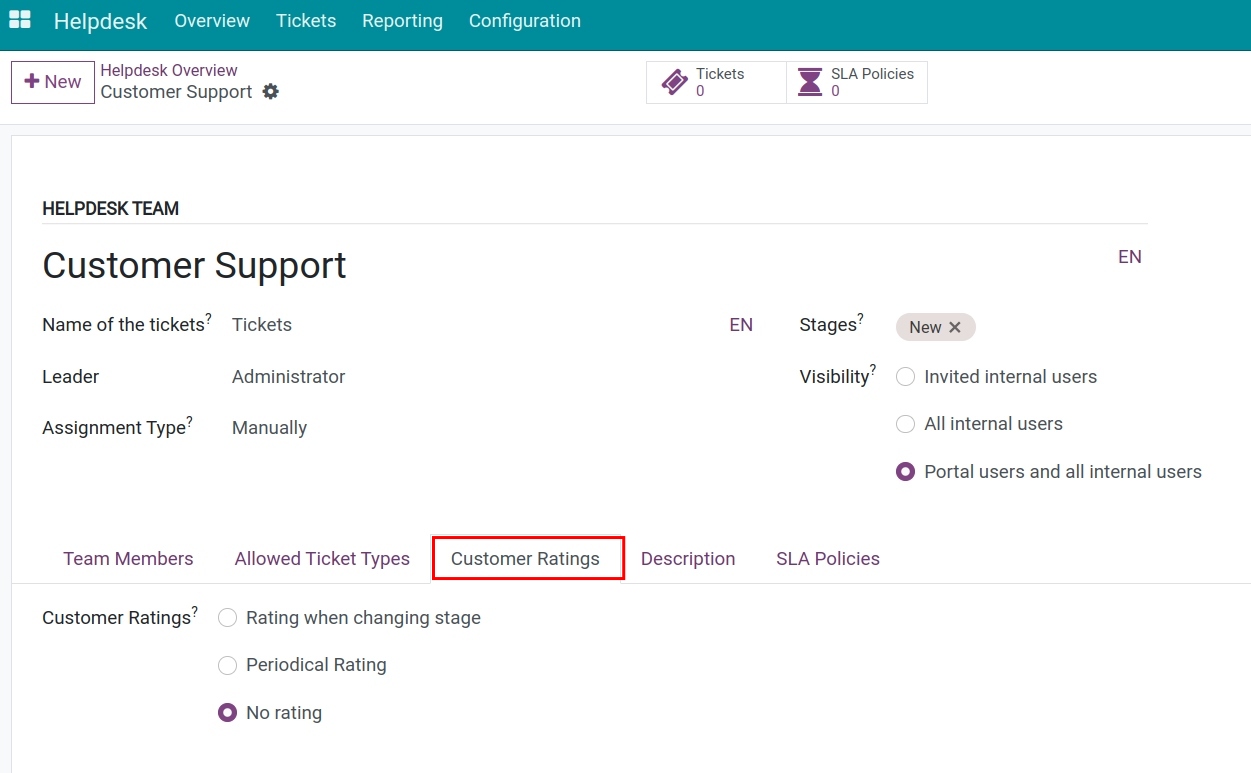
Open the Customer Ratings tab, choose a rating mode and click Save.
![The Customer Ratings tab of a team with its three modes]()
Rating when changing stage: the rating email is sent when the ticket reaches a stage that has a rating email template.
Periodical Rating: the rating email is sent regularly, at the frequency you choose.
No rating: the team is not rated.
Tick Rating visible publicly to show the ratings on the portal; the Public page button then opens the page of the team’s ratings.
A new ticket takes the mode of its team. You can change the mode of a single ticket in its Customer Ratings tab.
What else can I set up if I install other applications?
With the Project integration, each team gets a Project tab to choose the default project of its tickets.
Configuration ‣ Settings gets the Helpdesk Ticket Severity option. Ticking it installs the Helpdesk Ticket Severity module.
Common errors
Problem |
What to do |
|---|---|
You cannot see the Configuration menu. |
The menu is for the Administrator level. Change the Helpdesk field of your user. |
You must specify at least one ticket type for the team. |
Open the Allowed Ticket Types tab of the team and add a type. |
The ticket type … is still referred by a ticket. |
A ticket of the team uses the type. Change the type of that ticket first, or keep the type in the team. |
You cannot delete a Team containing Tickets … |
Archive the team, or delete or move its tickets first. |
The Customer Ratings tab is missing. |
Tick Use Rating on Helpdesk in Configuration ‣ Settings. |
Conditions must not overlap with other SLAs. |
Change the hours, priority, types or tags of one of the two policies. |
Next steps
How to create and manage helpdesk tickets: create tickets and move them through the stages.
How to integrate Helpdesk with other applications: open tickets from CRM, Sales, the website, live chat and projects.