
Employee Advance Process
An advance is the money the company gives to an employee before the employee spends it. In Viindoo the employee creates the request, sends it for approval, the approver accepts or refuses it, and the accountant pays it. The next step, once the employee has spent the money, is the reconciliation.
This guide is for employees, approvers and accountants. The example follows one advance of 3,500,000 VND for the employee Anna Pham, who travels to the Da Nang showroom.
Requirements
This tutorial requires the installation of the following applications/modules:
The access rights of the users are explained in Getting started with Employee Advance in Viindoo.
Who can do this, and where?
Task |
Role needed |
Application |
|---|---|---|
Create the advance and send it for approval |
Employee (any internal user) |
Employee Advance |
Approve or refuse the request |
Approver of the approval type |
Approval |
Pay the advance |
Employee Advance: User, or Accounting: Bookkeeper |
Employee Advance |
How do I create an advance request?
Go to and click New.
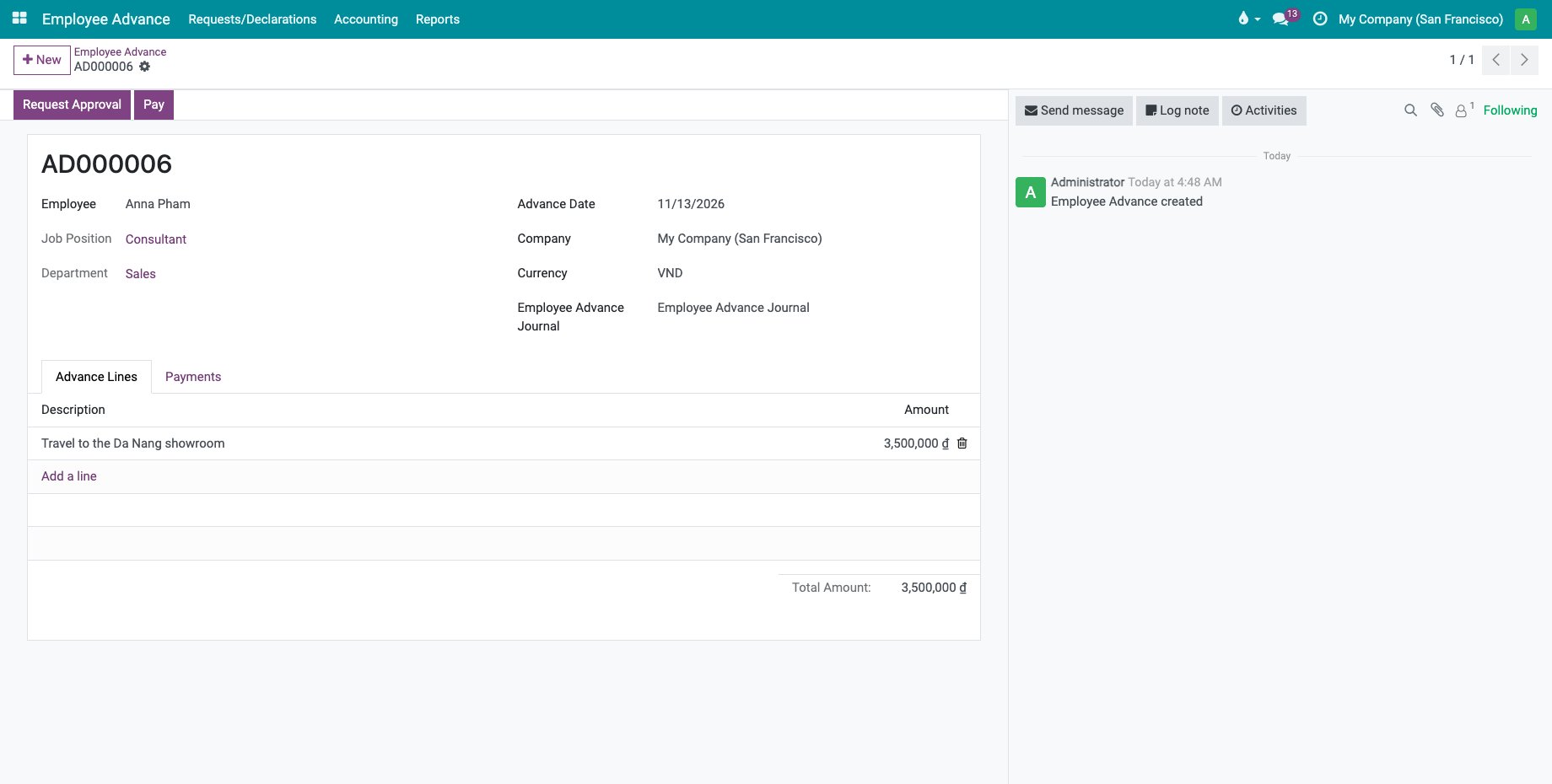
Fill in the form, then click Save.
![The form of an employee advance with one advance line of 3,500,000 VND for Anna Pham]()
Field
What to enter
Employee
The person who needs the advance. It is you by default. An employee with the level User or Administrator can choose a colleague.
Job Position, Department
Filled in from the employee.
Advance Date
The date of the request.
Employee Advance Journal
The journal in which the payments of the advance are posted.
Advance Lines
One line per expense: click Add a line and enter the Description and the Amount. The Total Amount is the sum of the lines.
Note
When the employee still has an advance that is not reconciled, the form shows a warning with the list of these advances. Reconcile them first, see Employee advance reconcile.
How do I send the request for approval?
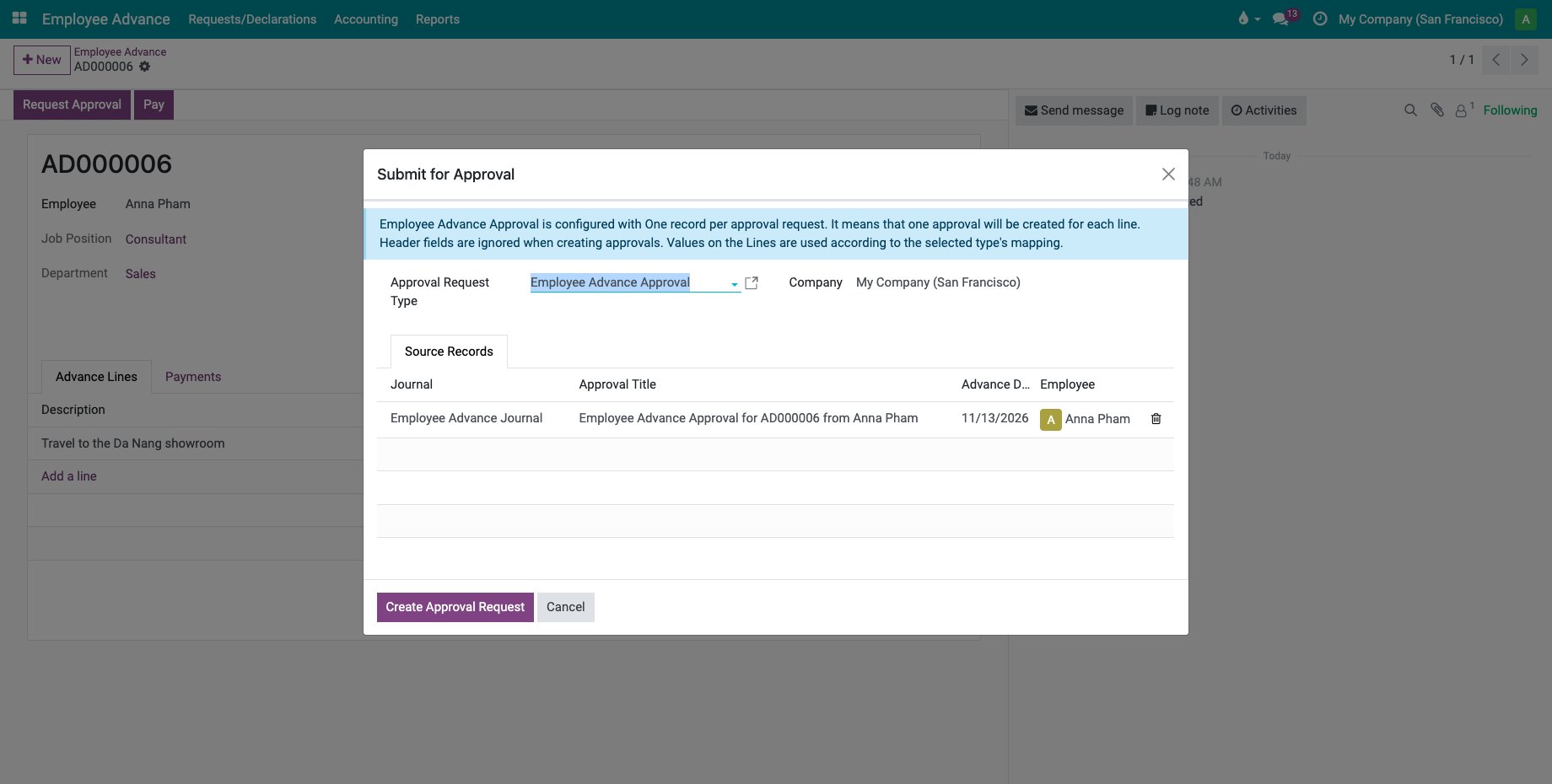
On the advance, click Request Approval. In the window Submit for Approval, keep the Approval Request Type Employee Advance Approval and click Create Approval Request.
![The window Submit for Approval with the approval type Employee Advance Approval]()
The approval request opens with the data of the advance. Click Submit.
![The approval request created from the advance with the Submit button]()
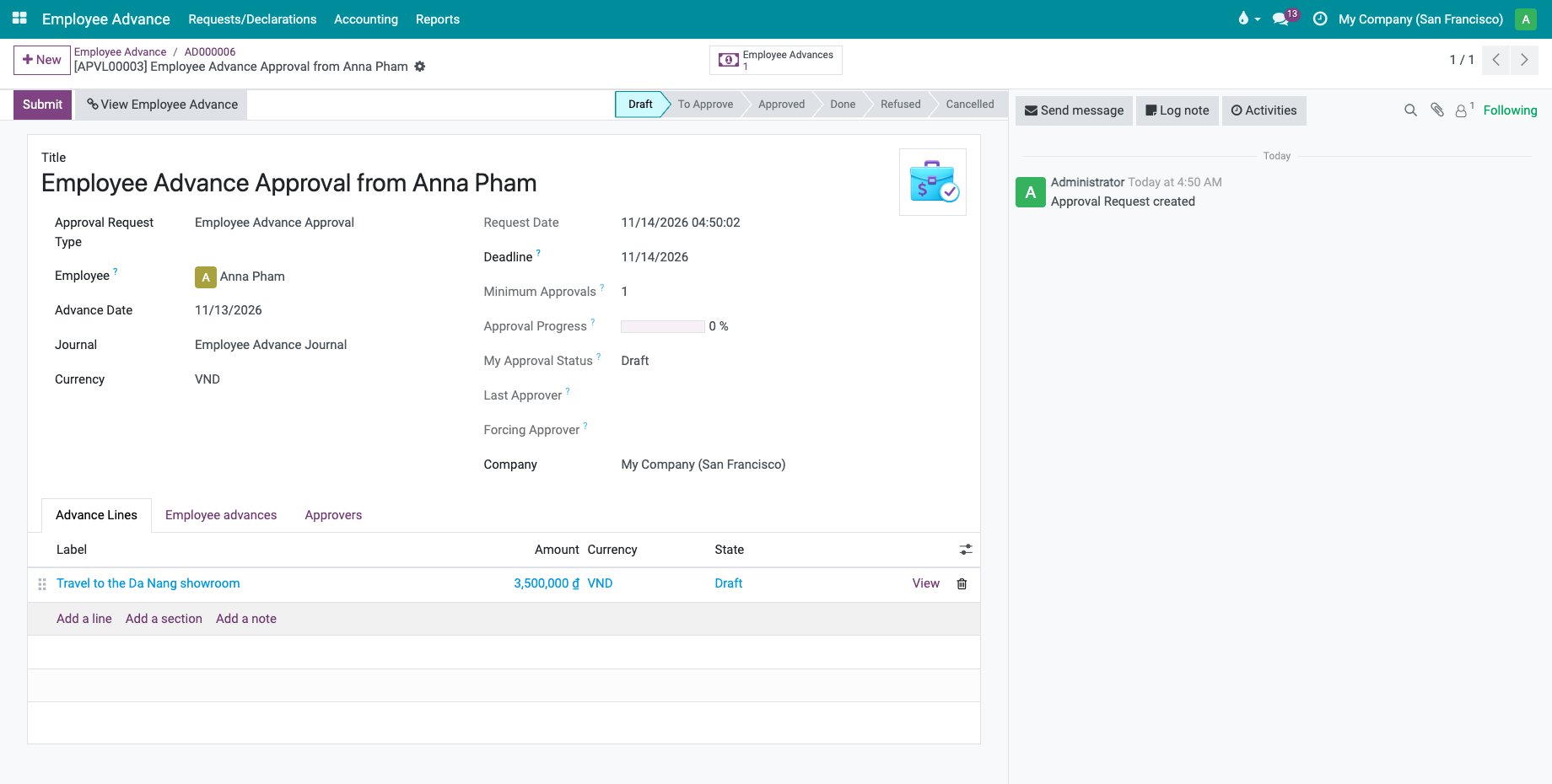
The approval request goes to To Approve and the approvers of the approval type receive an activity. You follow the progress from the field Approval Request of the advance.
How does the approver decide?
The approver opens the request from the activity or from , checks the lines and clicks Approve or Refuse.
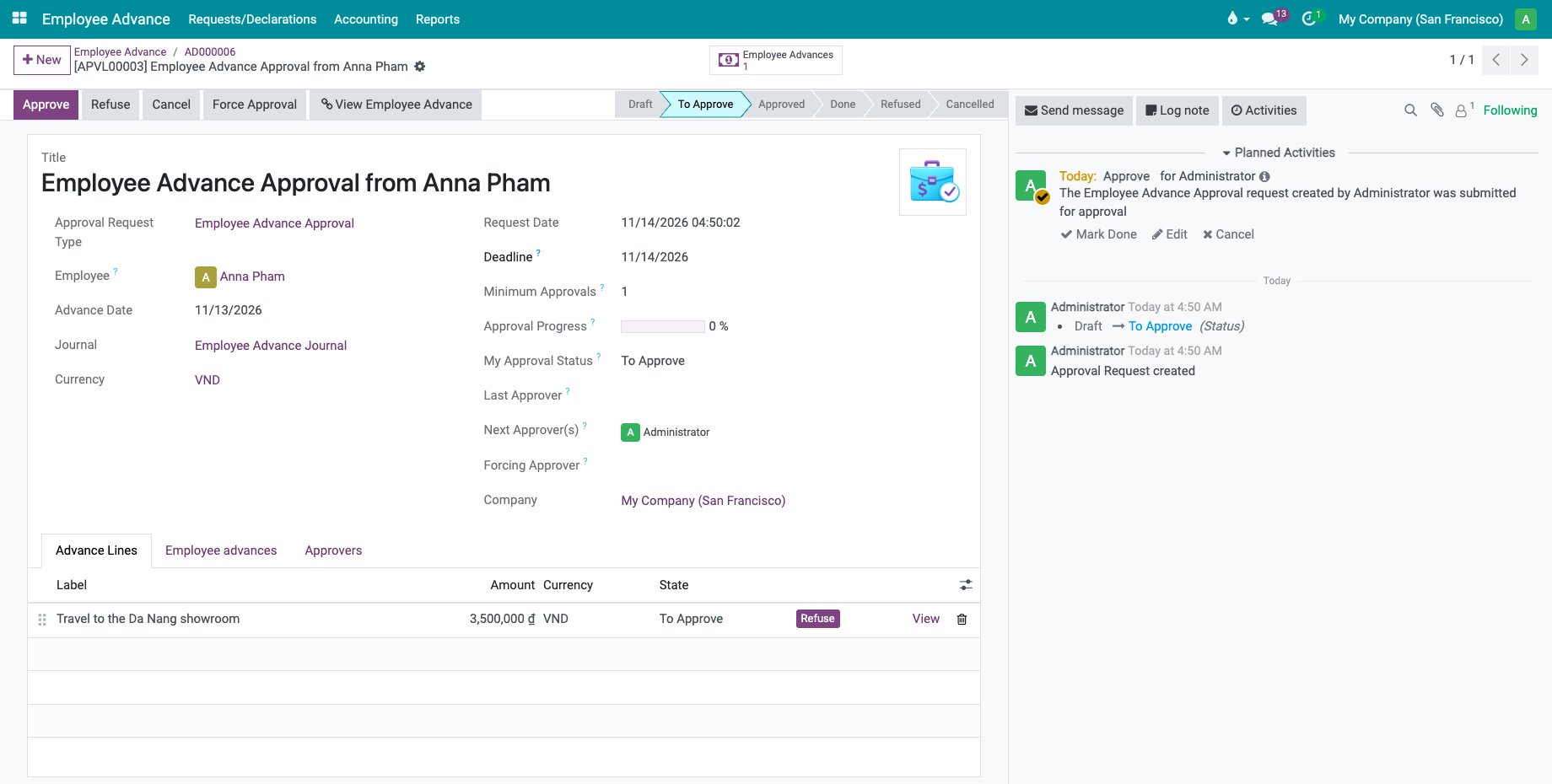
Each line can also be refused on its own. The approved amount of the advance is then the total of the approved lines.
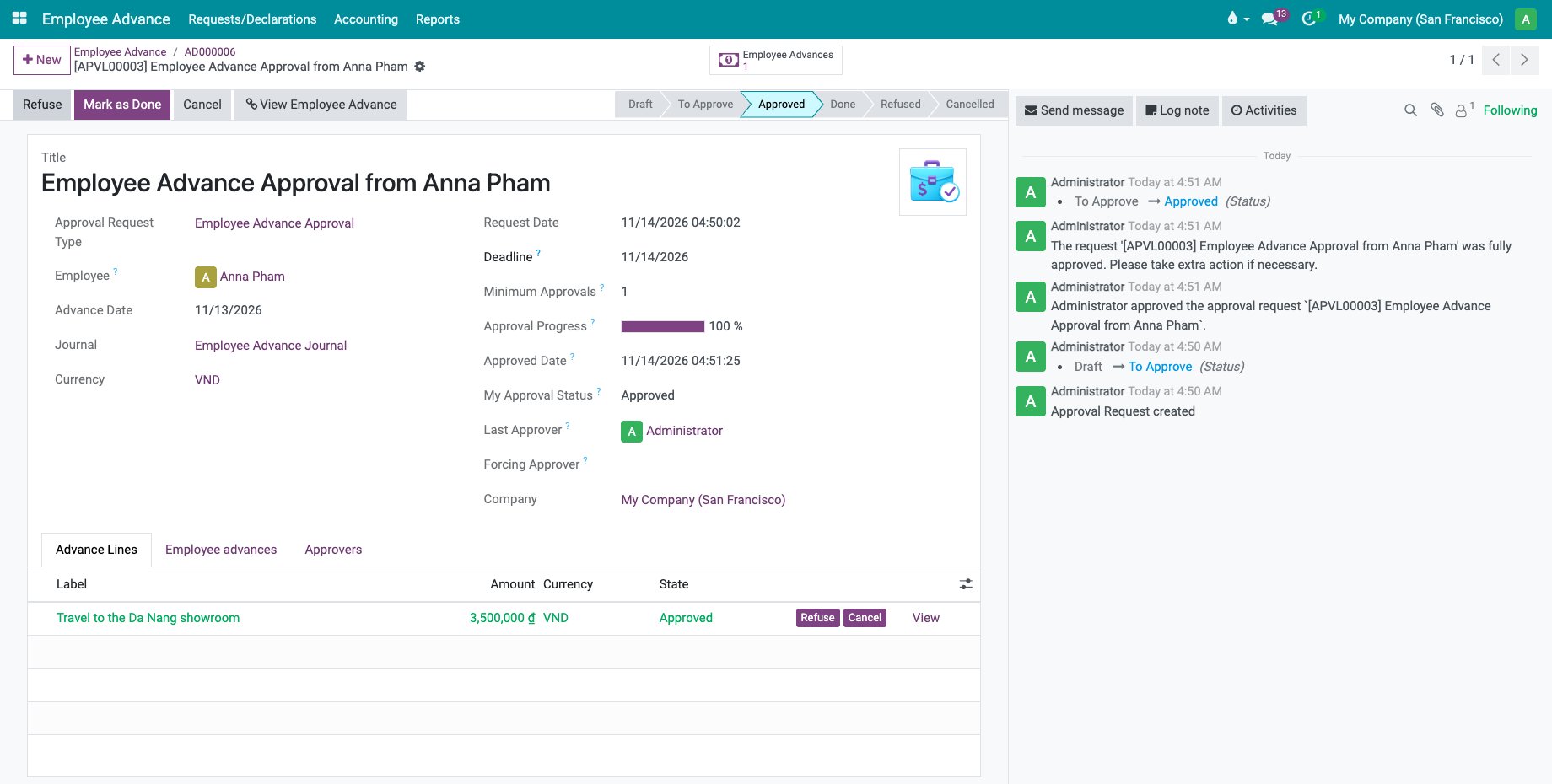
After the approval, the approver can click Mark as Done to close the request and tell the employee and the accountant in the chatter that the advance can be paid.
How does the accountant pay the advance?
The accountant opens the advance. The button Pay is available as long as an amount is left to pay, even before the approval is finished. The amount proposed is the most that can be paid: the approved amount once the advance is approved, the requested amount before, minus what is already paid.
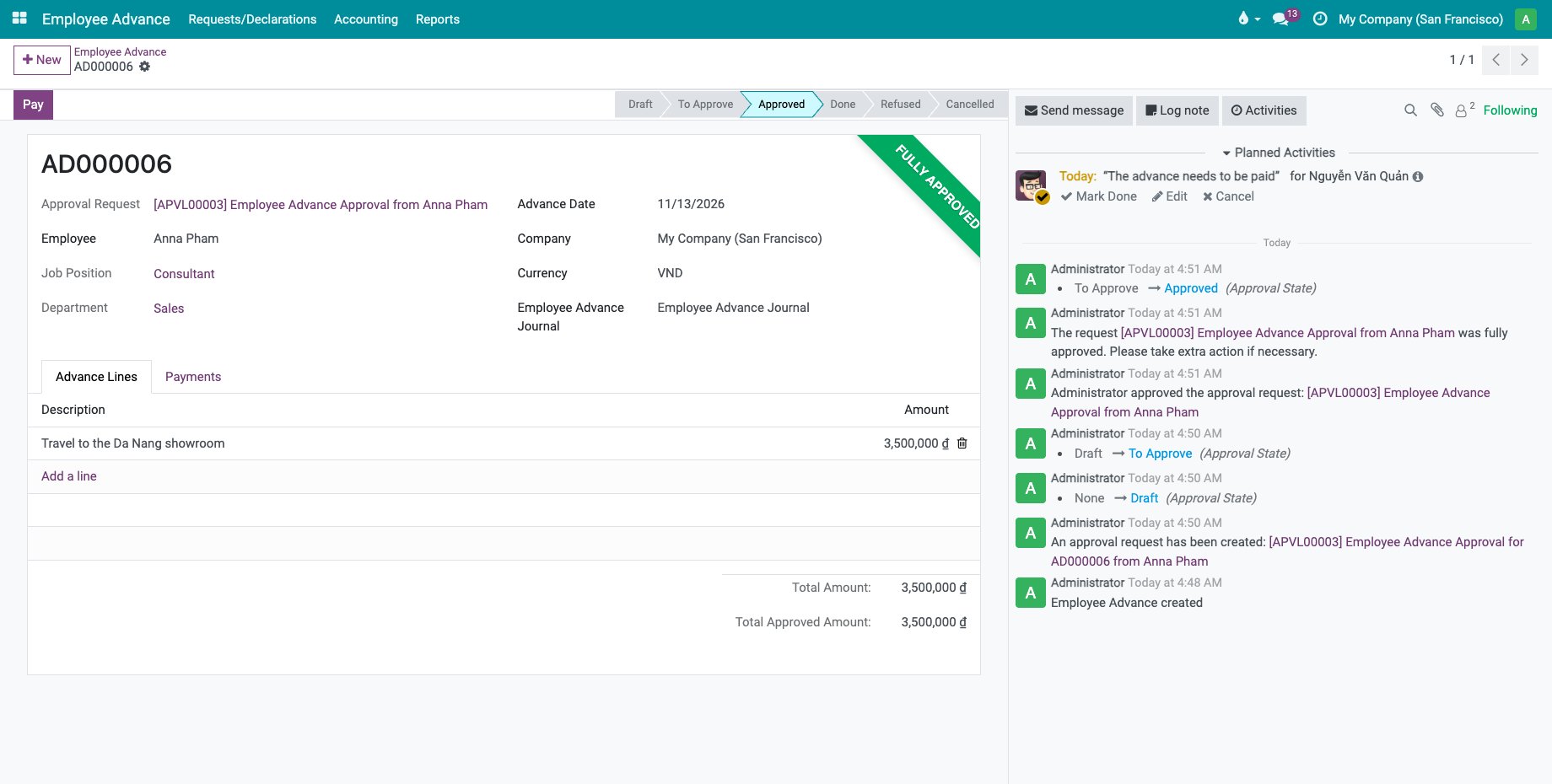
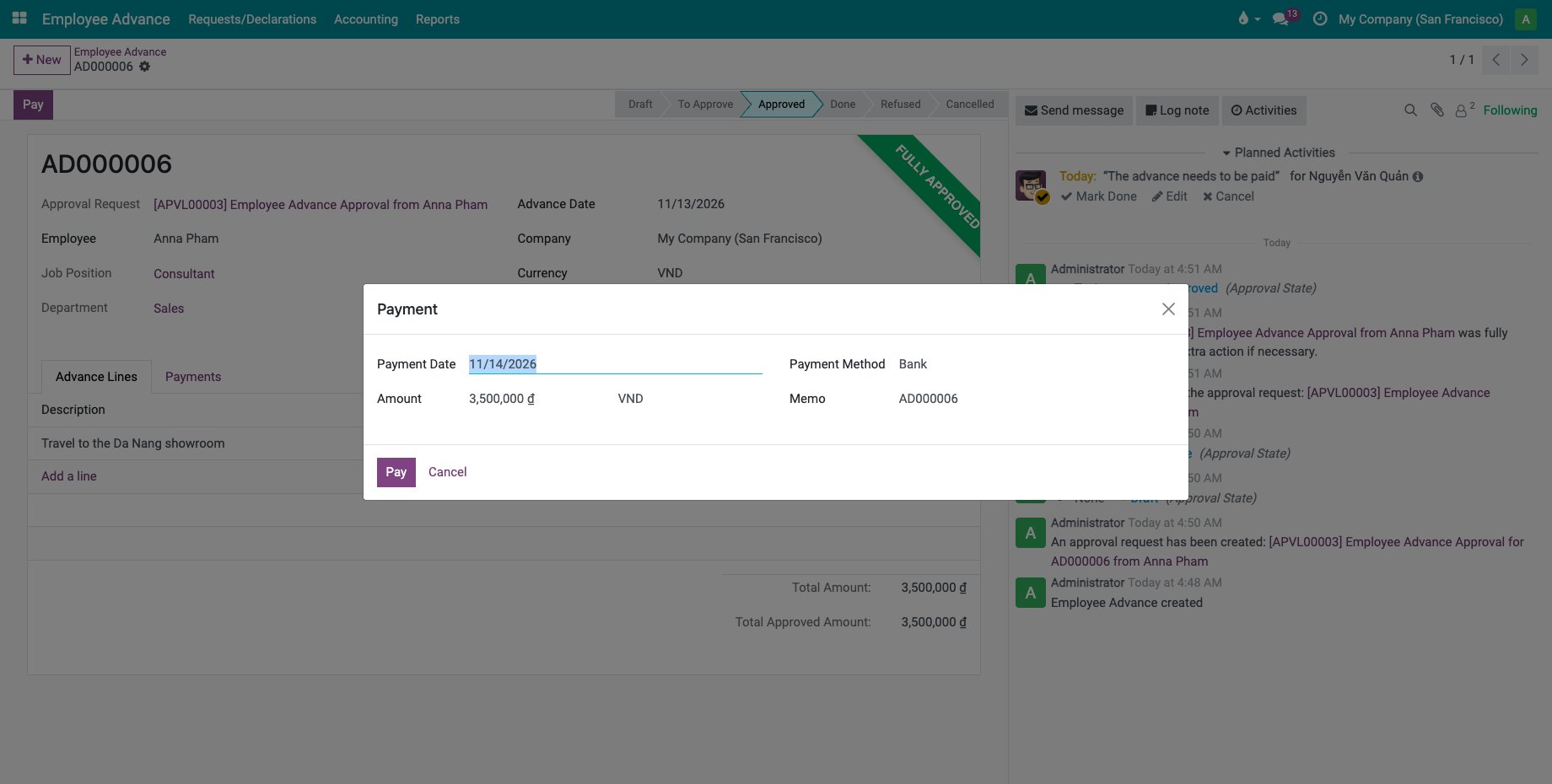
Click Pay.
In the window, check the payment date, the amount, the payment method and the memo.
Click Pay.
![The payment window of the advance with the proposed amount]()
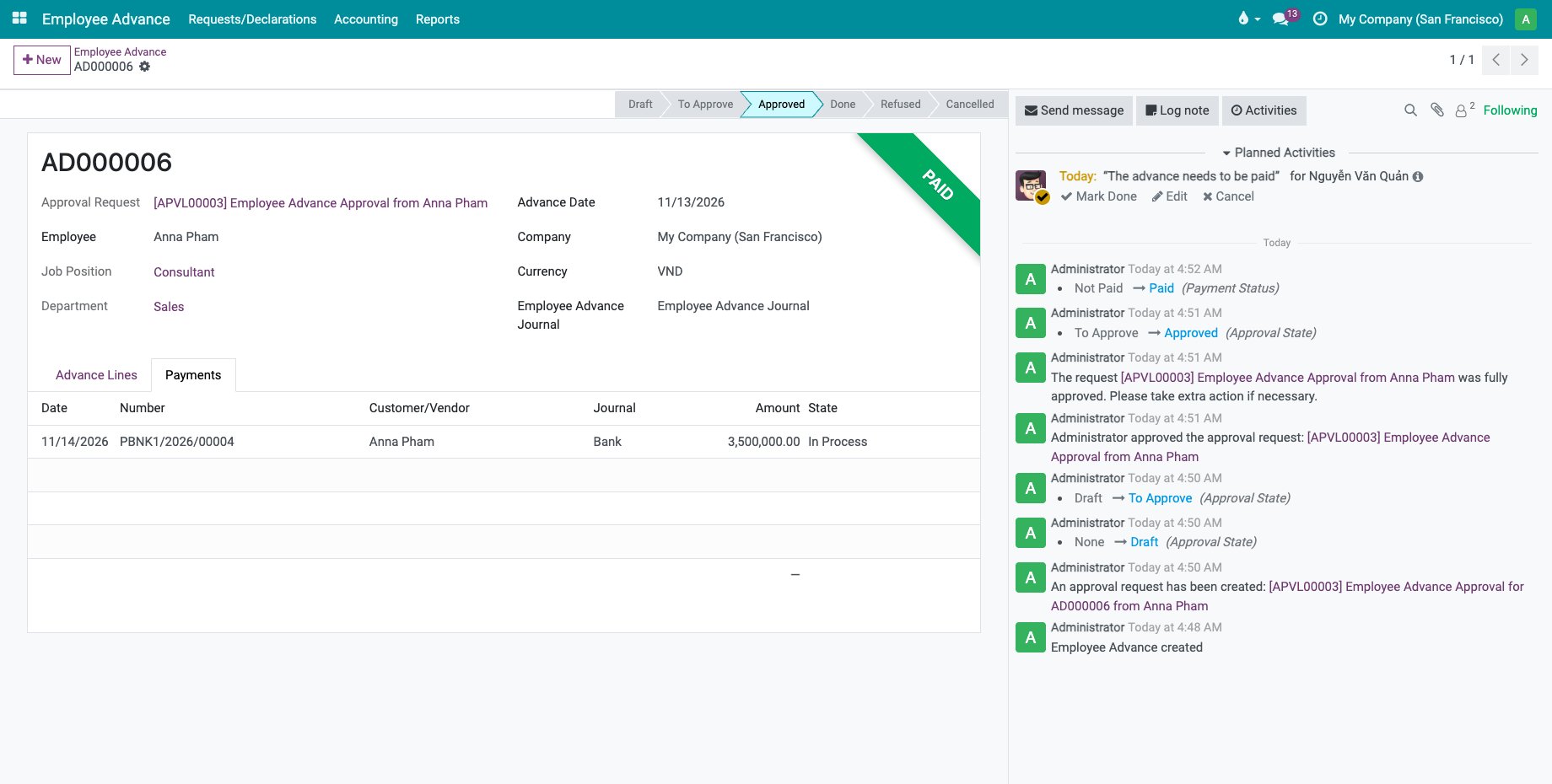
Once nothing is left to pay, the button Pay disappears and the advance is marked Paid. The tab Payments lists each payment with its status.
Common problems
Problem |
Cause |
What to do |
|---|---|---|
The button Pay is missing |
The advance is already fully paid, or your user is neither Employee Advance: User nor Accounting: Bookkeeper. |
Check the payment status of the advance and your access rights. |
The approver does not receive the request |
The approval type requires the manager of the employee and the employee has no manager. |
Fill in the manager on the employee form, or check the approvers of the approval type in . |
Next steps
See also
Related article
Optional module