
How to create a warehouse and its locations
To create a warehouse, go to , click New, enter the name, short name and address, choose the receipt and delivery steps and save. To add a place inside it, go to , click New, name the location and choose its parent. Viindoo then lets you receive, move and deliver products in that warehouse.
Who |
Users with the Inventory Administrator access right. |
App |
Inventory ‣ Configuration |
Before you start
Install the Inventory app (see How to install Inventory and give users access to it).
Know the difference between the two (see How to tell warehouses from locations and organize your storage).
To choose 2 or 3 steps for receipts and deliveries, and to see the Removal Strategy of a location, turn on Multi-Step Routes in . To create locations, turn on Storage Locations there.
How do I create a warehouse?
Go to and click New.
Enter the Warehouse name, the Short Name and the Address.
![New warehouse form with the warehouse name, short name, address and the Warehouse Configuration tab]()
On the Warehouse Configuration tab, choose how receipts and deliveries are processed, and from which warehouses this one is resupplied (see the table below).
Click Save.

You should now see the warehouse in the list, with its stock location named after the short name, for example HP/Stock, and its own cards in the Inventory overview.
Field |
Effect |
If wrong or empty |
|---|---|---|
Warehouse |
Name of the warehouse in lists and documents. |
Must be unique in the company: The name of the warehouse must be unique per company! |
Short Name |
Up to 5 characters. It is the prefix of the warehouse locations and of its transfer numbers, for example HP/Stock. |
Must be unique in the company: The short name of the warehouse must be unique per company! |
Address |
Address of the warehouse. It is the company address by default. |
Keep the default if the warehouse has no address of its own. |
Incoming Shipments |
Steps to receive goods: Receive and Store (1 step), Receive then Store (2 steps) or Receive, Quality Control, then Store (3 steps). See How to choose the receipt flow of a warehouse. |
1 step by default; the other choices need Multi-Step Routes. |
Outgoing Shipments |
Steps to deliver goods: Deliver (1 step), Pick then Deliver (2 steps) or Pick, Pack, then Deliver (3 steps). See How to choose the delivery flow of a warehouse. |
1 step by default; the other choices need Multi-Step Routes. |
Resupply From |
The warehouses that may resupply this one. Viindoo creates a route for each. See How to resupply a warehouse from another warehouse. |
Leave empty if the warehouse is never resupplied from another warehouse. |
Note
The Company field is shown, read only, when you work with several companies. A warehouse belongs to the company you are working in.
How do I create a location inside a warehouse?
Go to and click New.
Enter the Location Name and choose its Parent Location, for example HP/Stock.
![New location form with the location name and the parent location]()
In Additional Information, choose the Location Type. It is Internal Location by default, which is right for a shelf or a bin.
![Location Type choices of a location: vendor, view, internal, customer, inventory loss, production and transit]()
Fill in the other fields you need (see the table below), then click Save.
![Location form with additional information, cyclic counting and logistics sections]()


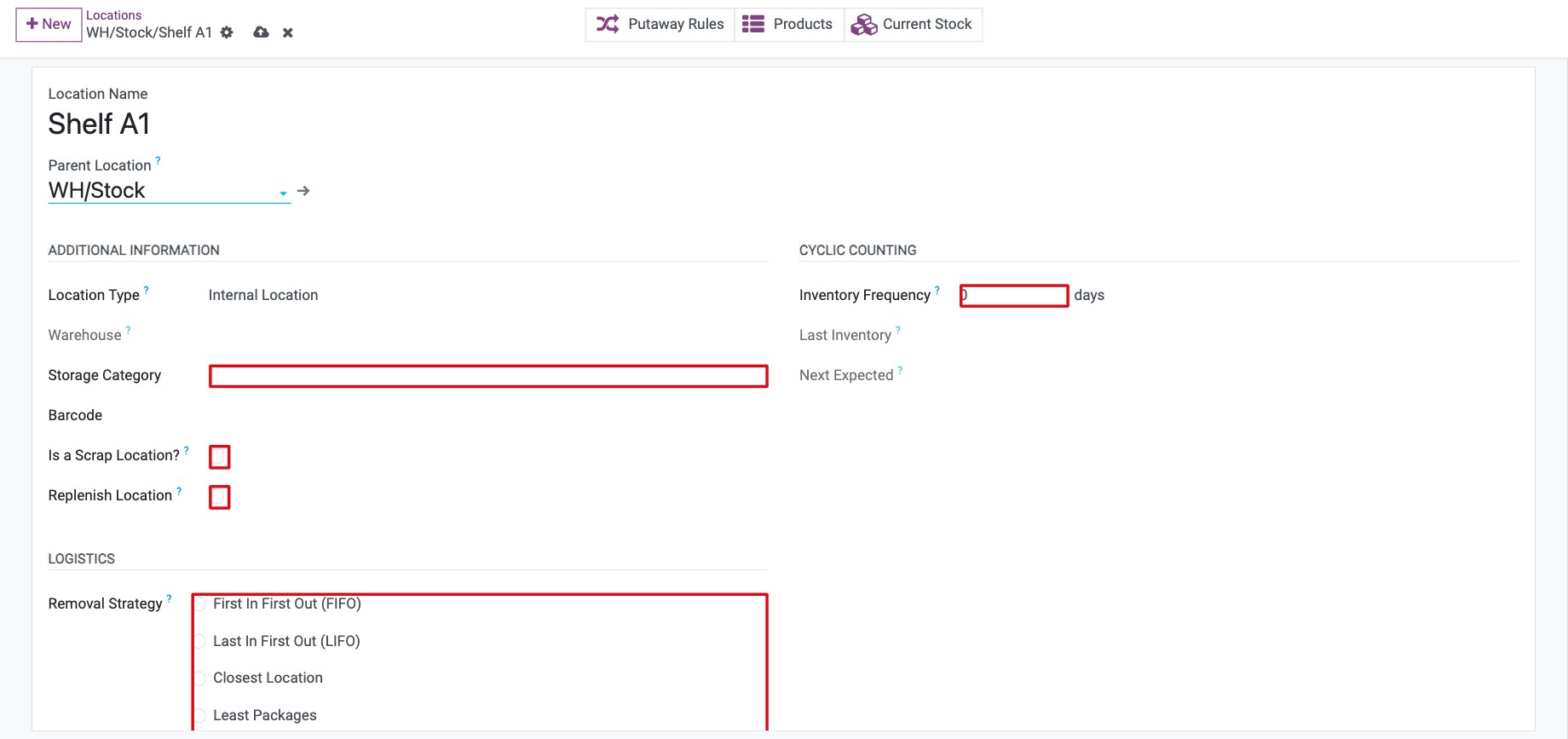
Field |
Effect |
If wrong or empty |
|---|---|---|
Parent Location |
Places the location in the tree of the warehouse. The full name becomes, for example, HP/Stock/Shelf 1. |
Without a parent the location is not part of any warehouse. |
Location Type |
What the location is, see How to tell warehouses from locations and organize your storage. |
A location that holds products cannot become a View: This location’s usage cannot be changed to view as it contains products. |
Warehouse |
Shown for information: the warehouse the parent chain leads to. |
Cannot be edited. |
Storage Category |
Applies the capacity rules of a storage category to an internal location. |
Leave empty if you do not limit capacity. |
Barcode |
The code scanned to select this location. It starts as the full name of the location. |
Must be unique in the company: The barcode for a location must be unique per company! |
Is a Scrap Location? |
Allows the location to receive scrapped or damaged goods. |
A location with stock cannot be changed to a scrap location. |
Replenish Location |
Lets the replenishment calculation count the stock of this location (the stock location of each warehouse is already ticked). Only for internal locations. |
A parent and its child cannot both be ticked: Another parent/sub replenish location … exists, if you wish to change it, uncheck it first |
Inventory Frequency |
Number of days between two counts of the location. Viindoo then proposes the next counting date in Next Expected. |
0 means no automatic schedule. |
Removal Strategy |
Which products Viindoo suggests taking first from this location: First In First Out (FIFO), Last In First Out (LIFO), Closest Location or Least Packages. See How to choose which goods leave first with removal strategies. |
If empty, Viindoo uses the strategy of the product category, then the one of the parent location. |
What should I see when it works?
The location appears in with its full name and warehouse. Its form has the smart buttons Putaway Rules, Products and Current Stock.
Common problems
Message or problem |
What to do |
|---|---|
The Locations menu or the Parent Location choice is missing. |
Turn on Storage Locations in . |
You cannot archive location … because it is used by warehouse … |
A warehouse needs its stock location. Archive the warehouse instead, or choose another stock location for it. |
You can’t disable locations … because they still contain products. |
Move the products out of the location (and of its children) before archiving. |
The Incoming Shipments and Outgoing Shipments choices show only one step. |
Turn on Multi-Step Routes in . |
Next steps
How to resupply a warehouse from another warehouse: resupply this warehouse from another one.
How to configure putaway rules in a warehouse: decide where received products are stored.
Version notes
The Is a Return Location? and Default returns location options of earlier versions no longer exist.
If you also install Inventory Backdate you can enter the date of past transfers.