
How to configure approval types as a system administrator
An approval type decides who approves, which fields of a business document are copied into the request, and what the system does when the request is submitted, approved, refused, cancelled, reset to draft or done. This page is for the system administrator who tunes a type beyond the basic setup: the approval steps, the field mapping and its directions, the Python hooks on every transition, the domain that makes an approval mandatory, the audit notes written after submission, and how an update of the modules treats what you changed.
Who |
A user with the Approvals ‣ Administrator access right configures the types. The Inline Hooks / Process Automation tab is shown only to users with the Settings access right. |
App |
Approval (OmniApproval), with the Settings app for the hooks and automation rules |
Before you start
Read Manage Approval Types for the basic fields of a type, and Approval Overview for the three access rights.
Work on a test database or at a quiet time: a hook changes how every request of the type behaves as soon as you save it.
How do the approval steps and access rights work?
Go to Approval ‣ Configuration ‣ Approval Types, open a type and look at the Approval Process tab.
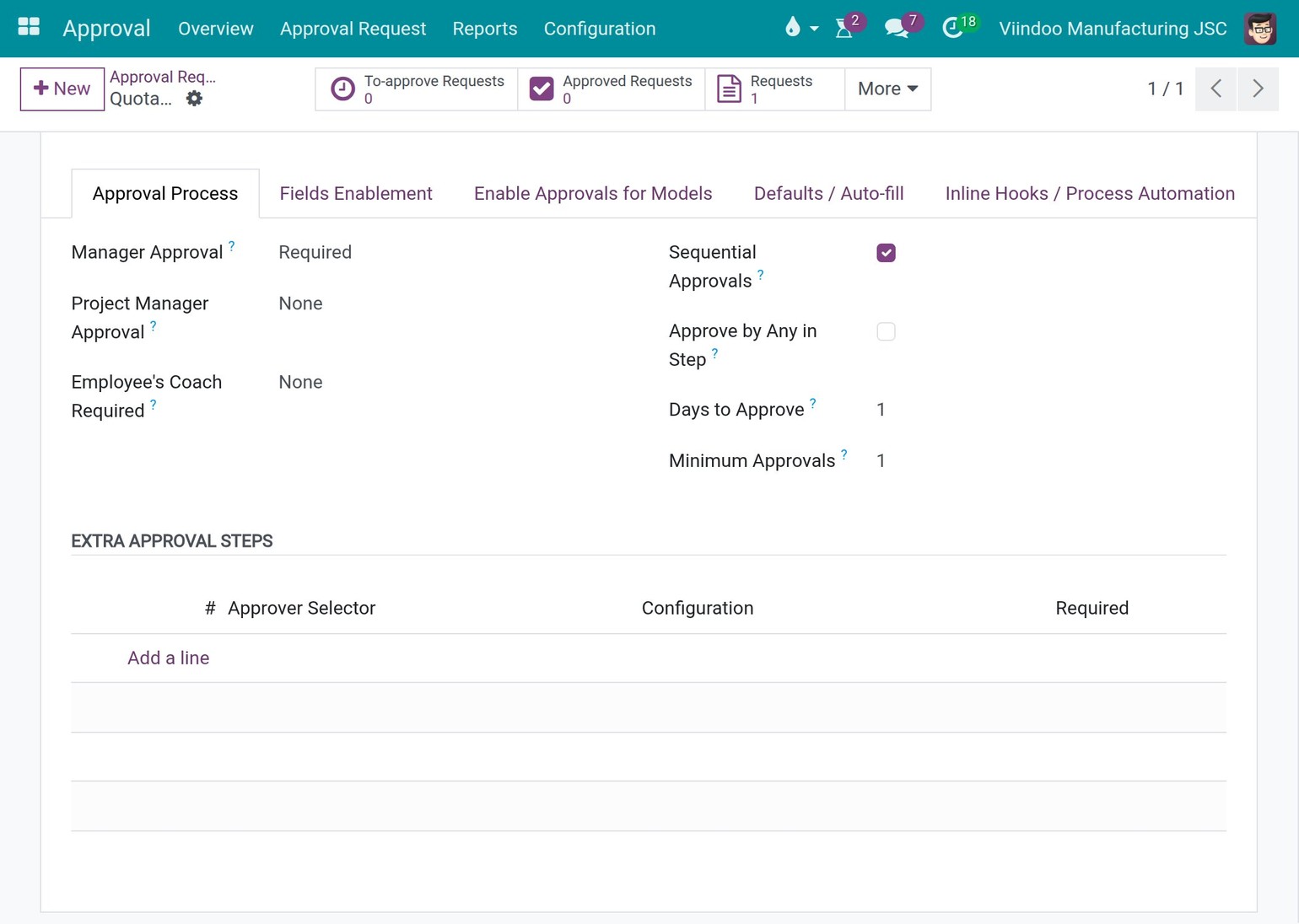
The types that come with the modules ask the employee’s manager at the first level (Manager Approval set to Required). They do not name any approver: the Extra Approval Steps list is empty, so the type works on the organisation chart of the company.
The manager approves only with the Approvals ‣ Team Approver access right. The right follows the employee hierarchy:
The user of an employee’s manager receives it when the manager is set on the employee.
The user of a department manager receives it when the manager is set on the department, on creation or on change.
A manager whose user is linked later receives it when the user is linked.
Every manager already in place, of an employee or of a department, receives it when the approval types of a company are created (installing an approval module, creating a company).
Members are only added, never removed. You can still add or remove members by hand, in Settings ‣ Users & Companies ‣ Users.
Nobody receives the Approvals ‣ Administrator access right by default. Give it explicitly, in Settings ‣ Users & Companies ‣ Users, to the people who configure types and who may force an approval or a refusal.
A required step with no usable approver stops the submission with a message that names the type, the step and the access right that can fix it. The request stays in Draft.
To add approvers of your own, click Add a line in Extra Approval Steps and choose an Approver Selector: specific users, a job position, a department, employee tags, the users of a related record, or Python code. A user named as an approver needs at least the Approvals ‣ Officer access right to approve. The selectors are described in Manage Approval Types.
How do I map a business document to the request?
Open the Enable Approvals for Models tab. The Field Mapping list says which field of the source document fills which field of the request, and in which direction the value travels.
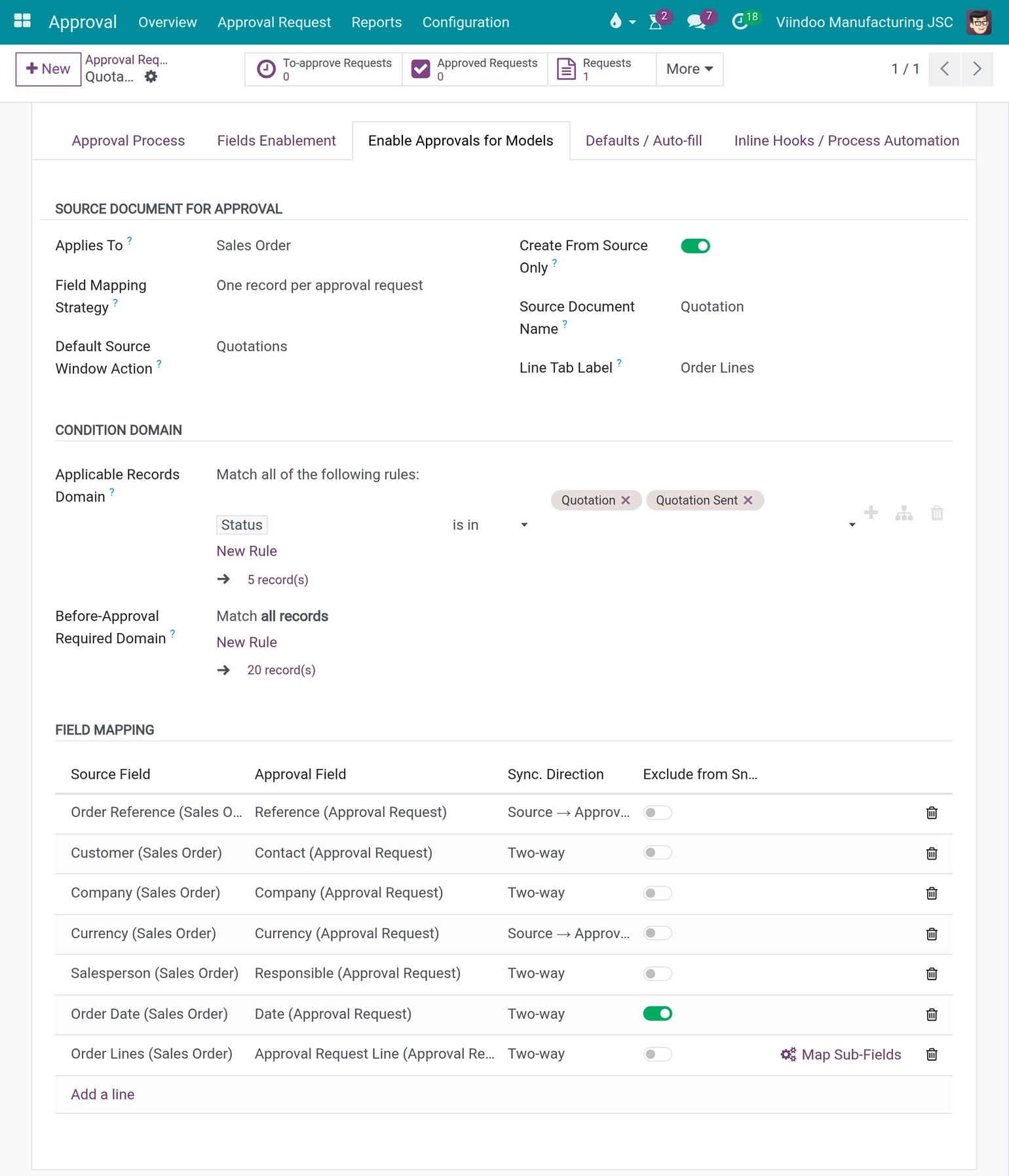
Click Add a line.
Choose the Source Field (the field of the document) and the Approval Field (the field of the request). Their types must match.
Choose the Sync. Direction.
Tick Exclude from Snapshot if a later change of this field must not be reported (see How does Viindoo report a change after submission?).
Sync. Direction |
What happens |
Use it for |
|---|---|---|
Two-way |
The value is copied from the document to the request and back. |
Fields that the requester or the approver may correct. |
Source → Approval only |
The value is copied from the document to the request only. |
Reference, currency, unit price, taxes. |
Source ← Approval only |
The value is copied from the request back to the document only. |
A value the approvers decide. |
Watch only |
The value is never copied and no approval field is needed. The source field is only compared. |
Fields you want to monitor while the request is waiting for approval. |
The settings that follow the mapping
Adding, removing or changing a mapping line can recompute four settings of the type, replacing what you set by hand: Enable Request Lines and Lines Required (the request has lines), Has Reference (a reference is mapped) and Create From Source Only (the mapping cannot fill the required fields of a request on its own). Check them after you change the mapping. A Watch only line never changes them.
How do I map the lines of a document?
A line field such as the order lines is mapped to the request lines. Click Map Sub-Fields on that line to map the columns of one document line to the columns of one request line, with their own direction and Exclude from Snapshot.
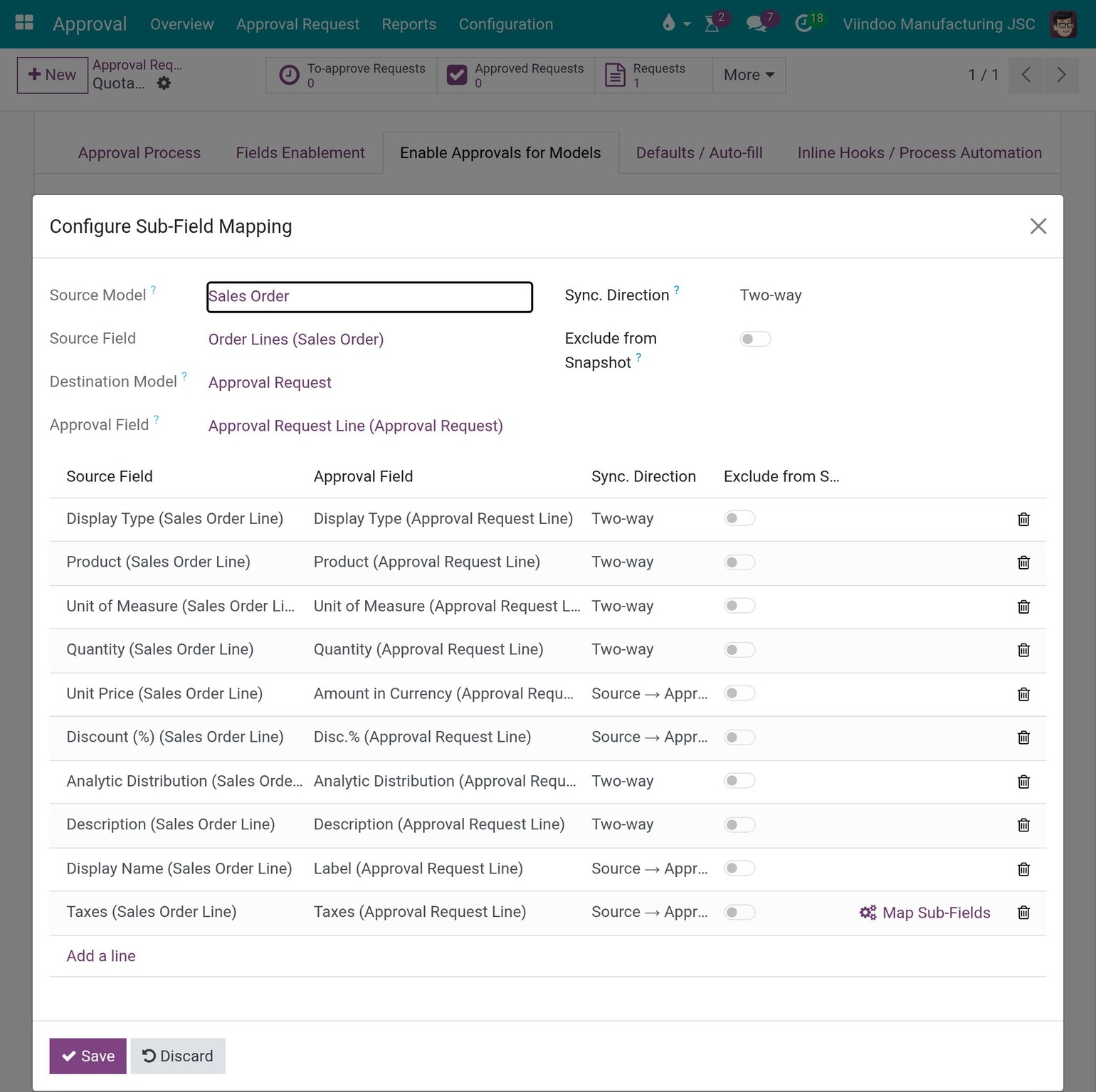
Map every column the approvers must see, for example the product, the quantity, the unit of measure, the unit price, the discount (Disc.%) and the taxes. A column of the request line shows only when its toggle is on in the Fields Enablement tab.
What happens to my mapping when the modules are updated?
An update keeps the direction and the approval field of a mapping line that you changed. When you changed the direction or the approval field of a seeded line, the update leaves it as it is and posts one internal note on the approval type, which names the line and the direction the seed now uses. Change the line by hand if you want to follow the seed.
A line that you deleted is not added back when the update only changes a setting of a line that Viindoo already seeded: one internal note says that the line is not there. A line that Viindoo seeds for the first time is added when it is missing, unless the pair of lines it belongs to was changed or deleted: a note then asks you to add the line by hand.
How do I write a hook for a transition?
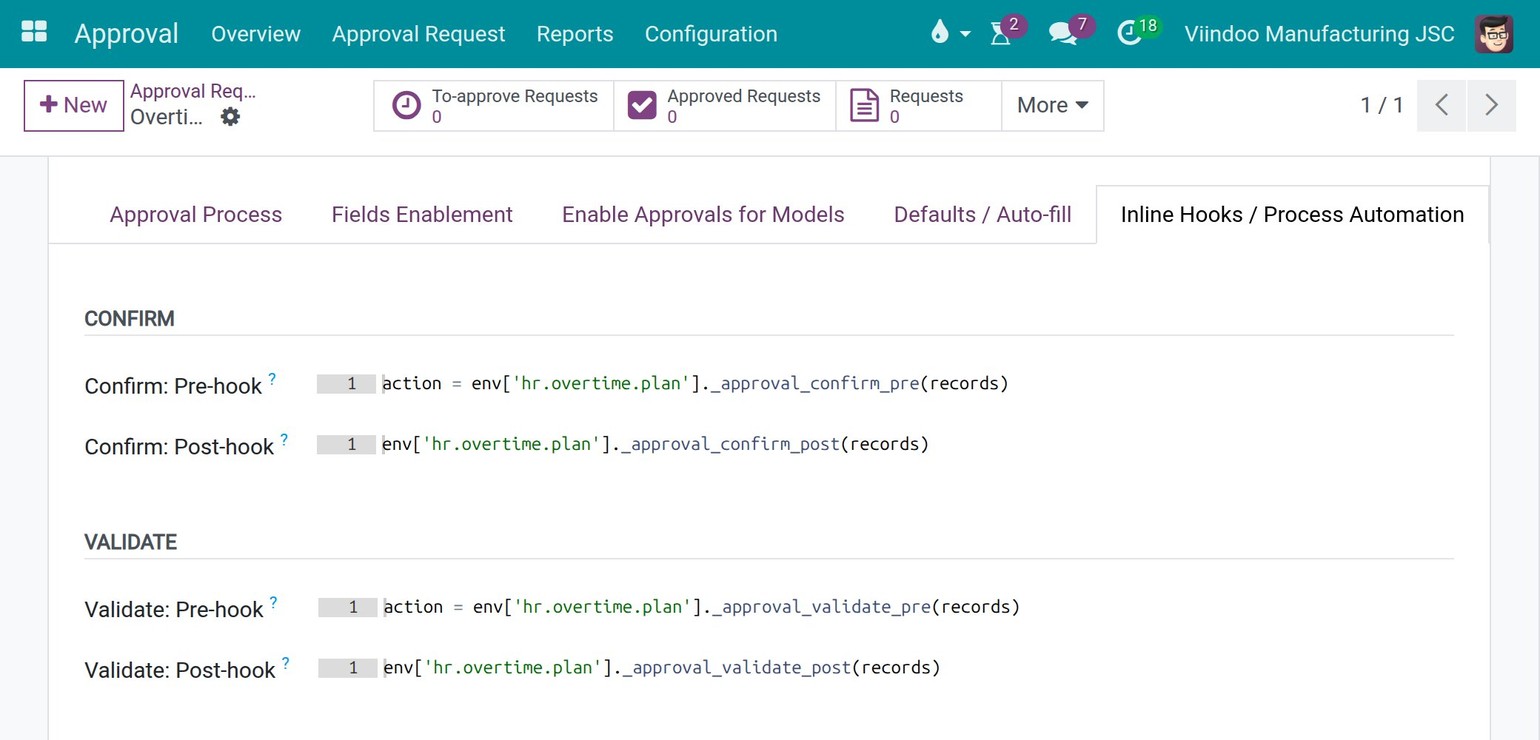
A hook is a short Python script that runs on the server around a transition of the request. Open the Inline Hooks / Process Automation tab. Each transition has a Pre-hook (before it) and a Post-hook (after it).
Field |
Runs |
Receives |
|---|---|---|
Confirm: Pre-hook / Post-hook |
When the requester submits the request. |
The submitted requests. |
Validate: Pre-hook / Post-hook |
When the last required approver approves. |
The approved requests. |
Refuse: Pre-hook / Post-hook |
When a request is refused. |
The refused requests. |
Cancel: Pre-hook / Post-hook |
When a request is cancelled. |
The cancelled requests. |
Back to Draft: Pre-hook / Post-hook |
When a request is reset to draft. |
The requests moved back to draft. |
Done: Pre-hook / Post-hook |
When a request is marked as done. |
The requests marked as done. |
A hook runs once per type and per action, on the whole batch of requests that the action concerns. Loop over
recordsfor a per-request rule.A Post-hook receives only the requests that really completed the transition. On a type that needs several approvals, the first approval leaves the request in To Approve, so the Validate: Post-hook does not run for it. Opening the refuse-reason window runs no refuse hook.
When a user cancels or refuses single request lines, the Cancel and Refuse pre hooks also run, with the variable
linesholding those lines. For a request-level actionlinesis empty.The Confirm: Pre-hook runs before the source documents of the request are generated, so a request that does not have its source yet has nothing in
res_ref.
The names you can use in a hook
Name |
What it is |
|---|---|
|
The environment of the user who clicked the button, not of an administrator. It carries
|
|
The batch of requests of this type. |
|
The request lines a user acts on one by one; empty for a request-level action. |
|
The approval type of the requests. |
|
Writes an audit entry that names the user, the records and the type. |
|
Date helpers and the translation function. |
|
The errors you may raise. |
Besides these, the usual helpers len, min, max, sum, any, all, sorted,
enumerate, zip, list, dict, set, range, getattr and hasattr are
available. import is not.
How do I block a transition, or open a window instead?
Raise UserError or ValidationError in a Pre-hook: the transition does not happen, the
request keeps its state and the user reads your message.
for r in records:
    if not r.company_id:
        raise ValidationError(_(
            "Company is required on '%(name)s'", name=r.display_name))
A pre hook can also assign a window action to the variable action. The transition then stops
and the user is taken to that window. The Overtime type does it on Confirm and Validate:
action = env['hr.overtime.plan']._approval_confirm_pre(records)
An error raised in a Post-hook undoes the transition inside the same operation. Any other error of your code is reported as Inline hook failed with the name of the field, and the transition is stopped.
A short post hook that launches a procurement once the request is approved, as the Procurement type does:
todo = records.filtered(lambda r: r.state == 'validate')
todo.with_context(raise_error=False)._launch_procurement()
Warning
A hook runs with the access rights of the user who clicked the button. A relational field that this user cannot read comes back empty inside the hook, so never use a plain field read as an access check. Viindoo checks the syntax when you save: an invalid script is refused with a message that names the field. Lines that contain only comments count as empty.
A hook edited by hand is recorded in the chatter of the approval type. See also Does approval block my business documents? for the cases in which a company adds a block to its business documents.
What happens to my hooks when the modules are updated?
An update writes the hook lines it needs only into a field that is empty or still holds the stock help text. When you edited the field, the update leaves your text as it is and posts one internal note on the approval type, addressed to the Settings administrators. The note names the field and the line to add by hand; it is not posted again for the same line.
How do I make an approval mandatory before a sensitive action?
In the Enable Approvals for Models tab, the Condition Domain block has two domains:
Applicable Records Domain: the records the type may approve.
Before-Approval Required Domain: the records that must be approved before a sensitive action. A record is approval required only if it matches this domain and the Applicable Records Domain, when one is set. An empty domain means that no record is required. To require all the records of the model, leave the applicable domain empty and enter
[('id', '!=', 0)].
A source document that needs an approval shows a ribbon at the top right of its form: Fully Approved, Waiting for Approvals, Partially Approved, Missing Approval, Approval Refused or Approval Cancelled.
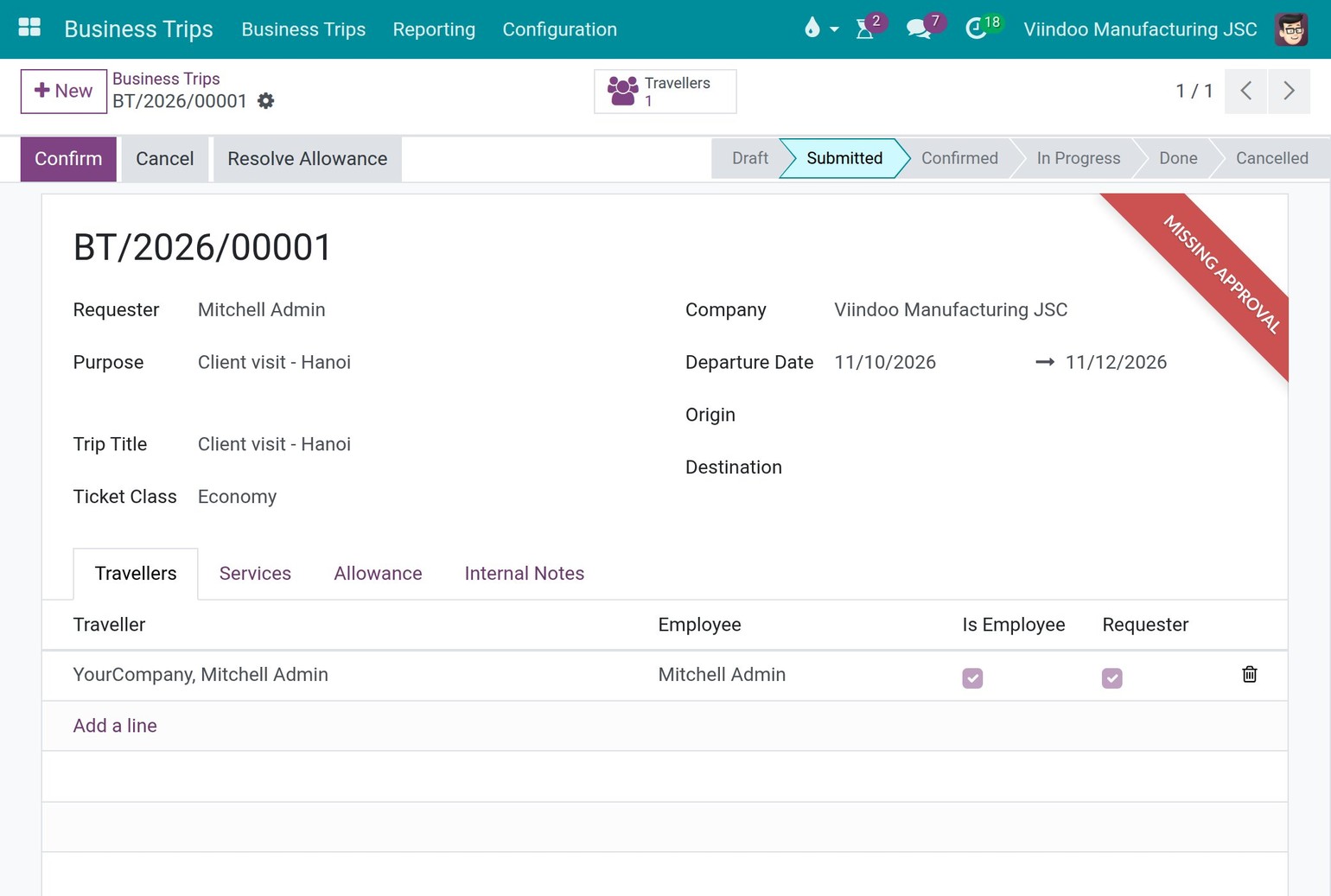
The ribbon informs; it blocks nothing by itself. A module can use the domain as a gate. The Salary Disbursement Approval module does: a payroll run cannot be executed until it is approved, but only on a type whose Before-Approval Required Domain matches the run. Without a domain the run stays executable, so installing the module changes nothing until you opt in.
How does Viindoo report a change after submission?
When a request is submitted, Viindoo stores a snapshot of the mapped fields: one for the request and one for each request line. After that, a change of a mapped field of the source document is compared with the snapshot.
The request shows a warning and its chatter receives the note The document … has been modified after approval submission, which lists the changed fields and the added, removed or modified lines. The note is informative: nothing is blocked and nobody has to approve again.
A field with Exclude from Snapshot ticked is not compared, although it still synchronises. The seeded Quotation type excludes the order date, for example.
A Watch only line is compared only while the request is waiting for approval.
A document edited back to the approved values stops being reported as changed. Moving the document to its normal next business step after approval, such as confirming an approved quotation, leaves no note.
What happens when the source document is deleted?
A submitted request stays, and its chatter receives the note Linked document(s) were deleted. A request still in Draft loses the lines of the deleted document, with a note; a draft left with no source and no line is deleted.
How do I block edits or deletions of an approved document?
Approval never blocks a business document by itself. To add a block, either raise an error in a pre hook of the type, or create an automation rule on the model of the document. The recipe, with a screenshot, is in Block edits or deletions of an approved record.
What if something does not work?
What you see |
Why |
What to do |
|---|---|---|
The submission stops with a message about a step. |
A required step has no usable approver. |
Add an approver to the step, or give the manager the Team Approver right. |
The type cannot be saved: Inline Python hook has errors. |
The script does not compile. |
Correct the field named in the message. |
The Validate: Post-hook did not run after an approval. |
The type needs more approvals: the request is still To Approve. |
Wait for the last approval; the hook runs then. |
Enable Request Lines or Create From Source Only changed by itself. |
A mapping line was added, removed or changed. |
Set the settings again after the mapping is final. |
An internal note on the type asks you to add a line by hand. |
A module update found a hook or mapping line that you edited. |
Merge the line in the field the note names. |
See also
Related articles