
Quote and invoice repair orders
A repair order creates the quotation of your customer with one click: every part you add becomes a line of the sales order. You add your labour on the quotation, send it, and invoice it with the usual tools of the Sales app.
Who |
Repair managers and sales staff who quote and invoice repairs. |
App |
Repairs, Sales |
Before you start
Activate the Repairs app, see How to install and set up Repairs app.
The repair order has a Customer and its parts, see Create repair order.
The user has an Inventory access right and the Sales: User: Own Documents Only access right. To invoice, the user needs an invoicing access right.
Create a product for your labour, for example Repair service fee, as a service.
How do I quote a repair?
Open the repair order and click Create Quotation.
Click the Sale Order button to open the quotation.
The quotation has one line for each part of type Add, at the sales price of the part. Add a line for your labour with the service product, then click Send by Email or Confirm.
The parts of type Remove and Recycle are not on the quotation: you do not charge the parts you take off the product. When you change the quantity of a part on the repair order, its line of the quotation follows, and when you delete a part, its quantity on the quotation becomes 0. The sales order also shows the Repairs button that goes back to the order.
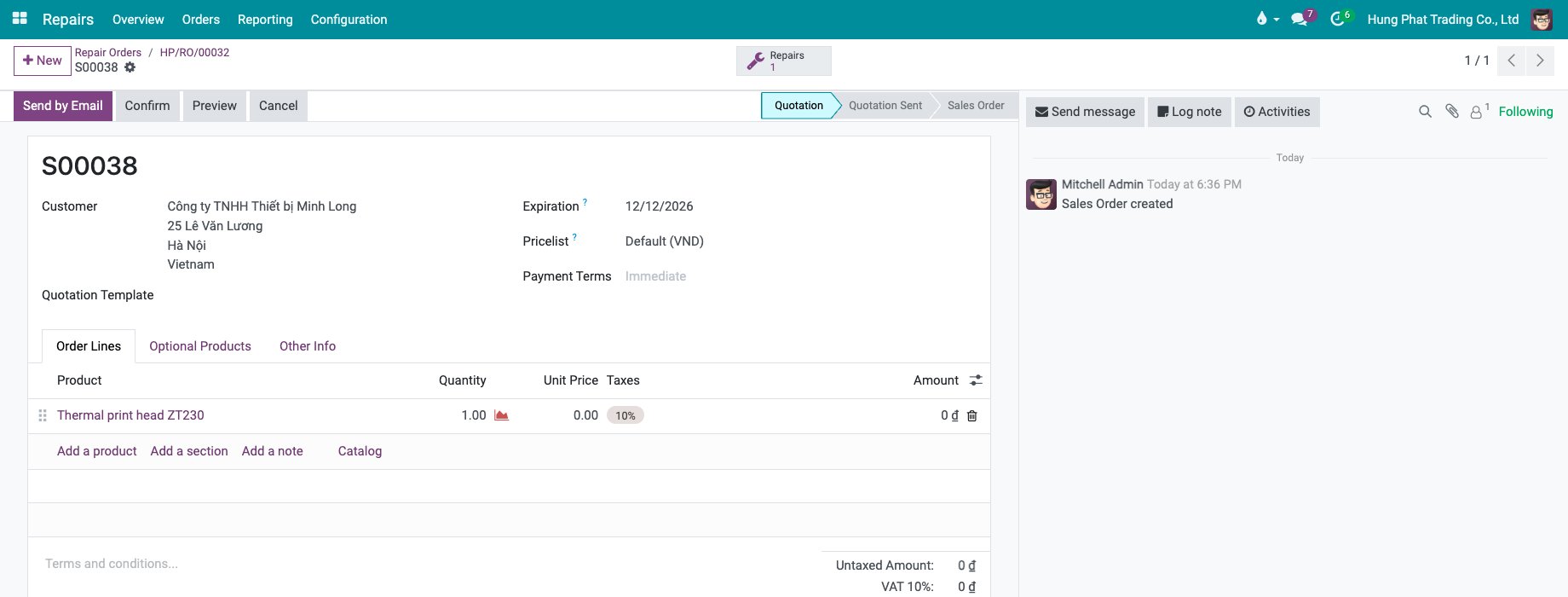
For the same steps with screenshots, see Repairing at an internal location.
How do I repair a product under warranty?
Tick Under Warranty on the repair order, before or after you click Create Quotation.
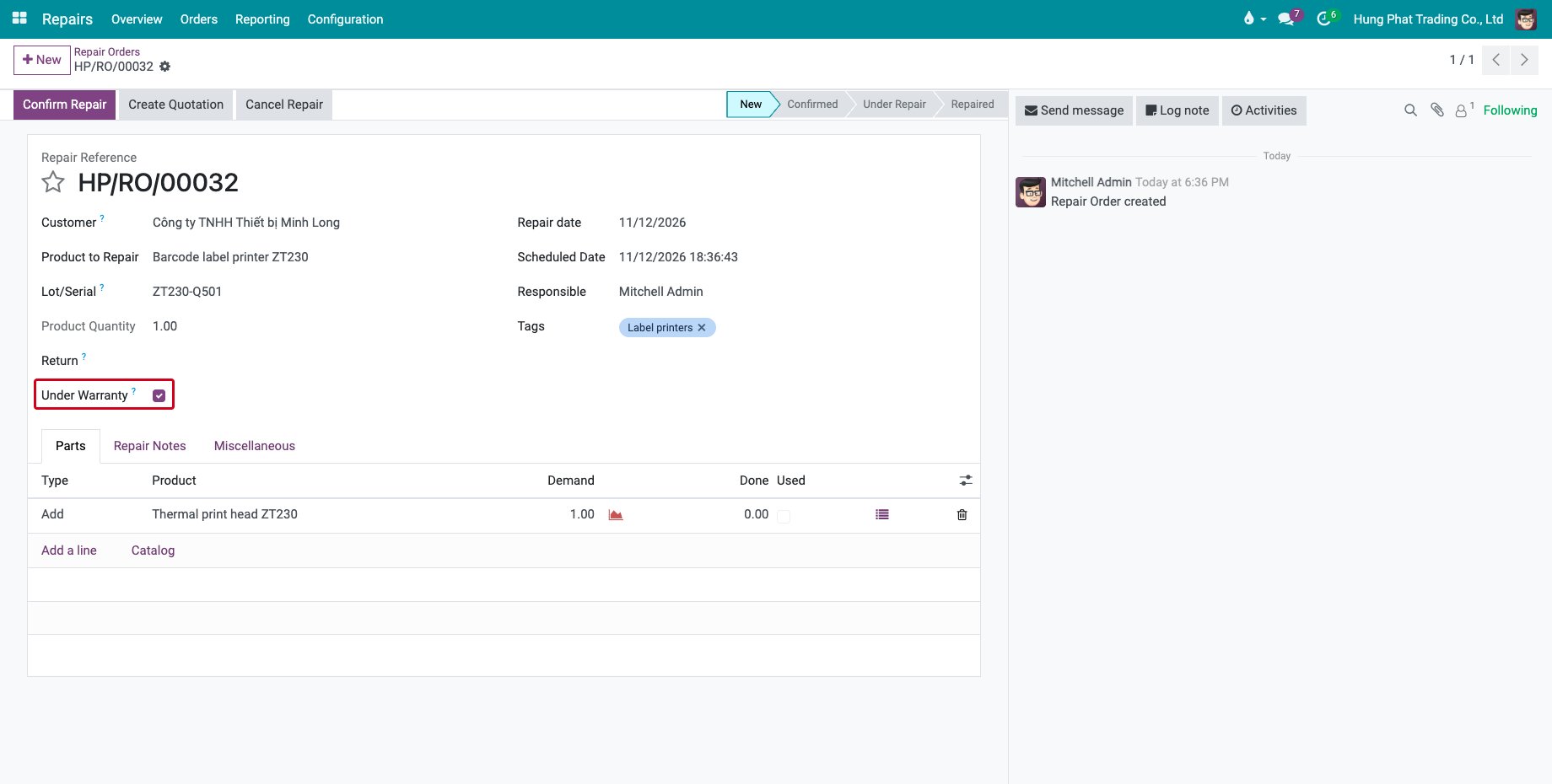
The parts of type Add are then on the quotation at the price 0, as the quotation above shows. You can still add a line for a labour that the customer pays.
How do I invoice the repair?
Invoicing is done on the sales order, as for any sale.
Open the sales order and click Confirm.
Click Create Invoice.
![The Create Invoice button on the confirmed sales order]()
Keep Regular invoice and click Create Draft.
![The Create Invoices dialog]()
The draft invoice lists the parts and the labour. Click Confirm to post it.
![The draft invoice created from the sales order]()
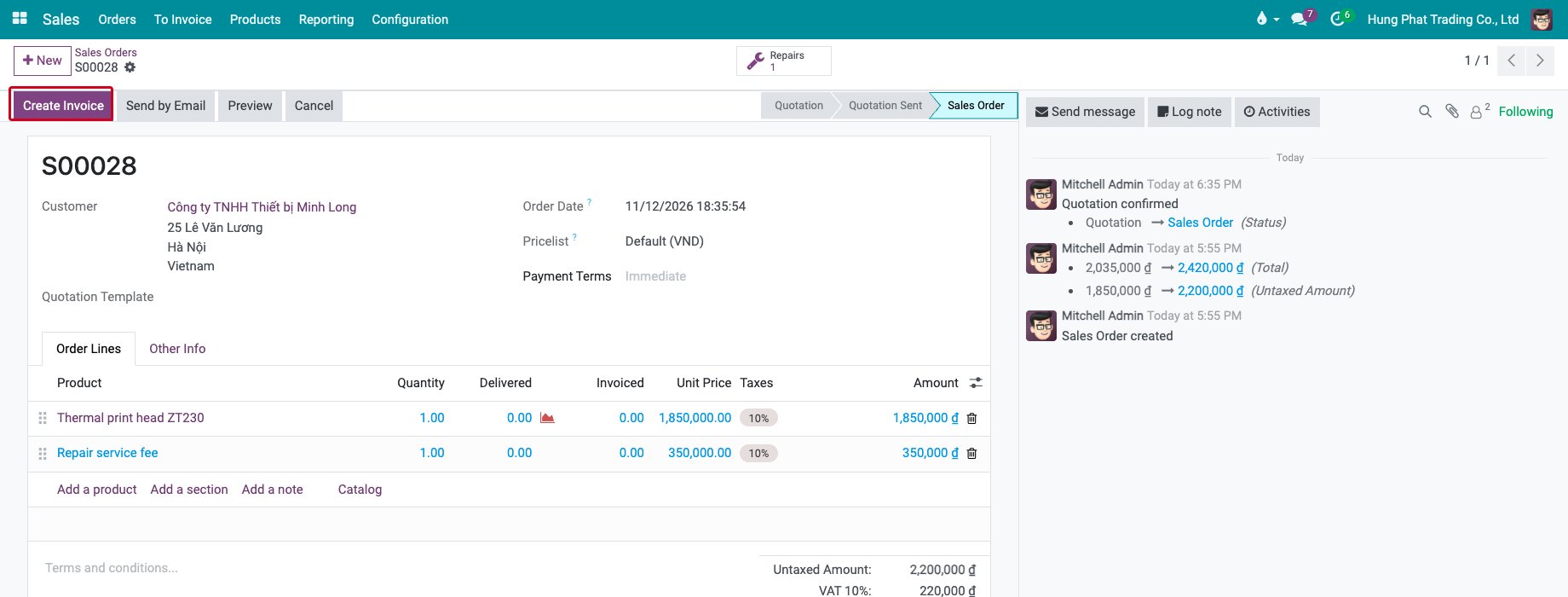
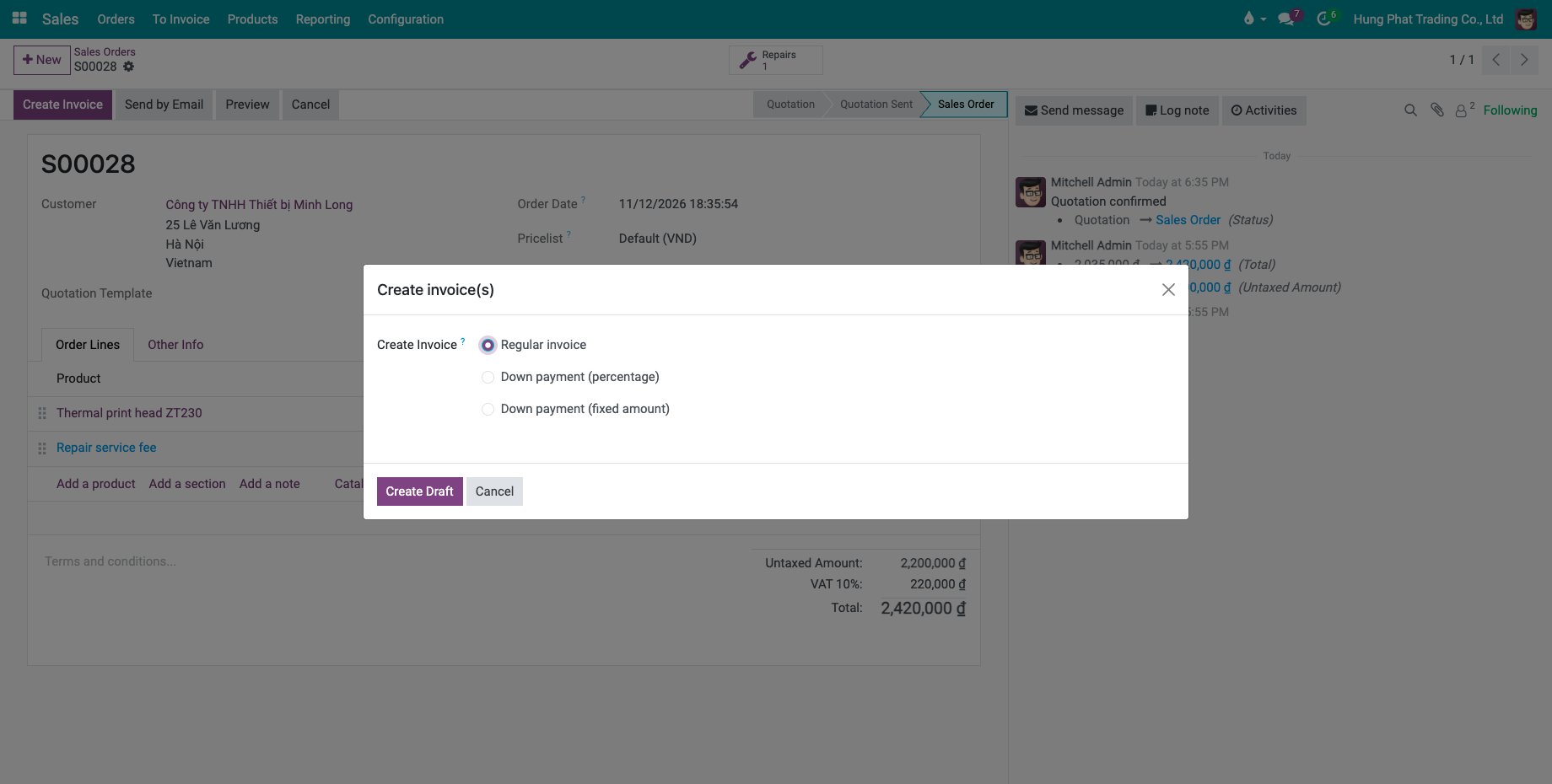
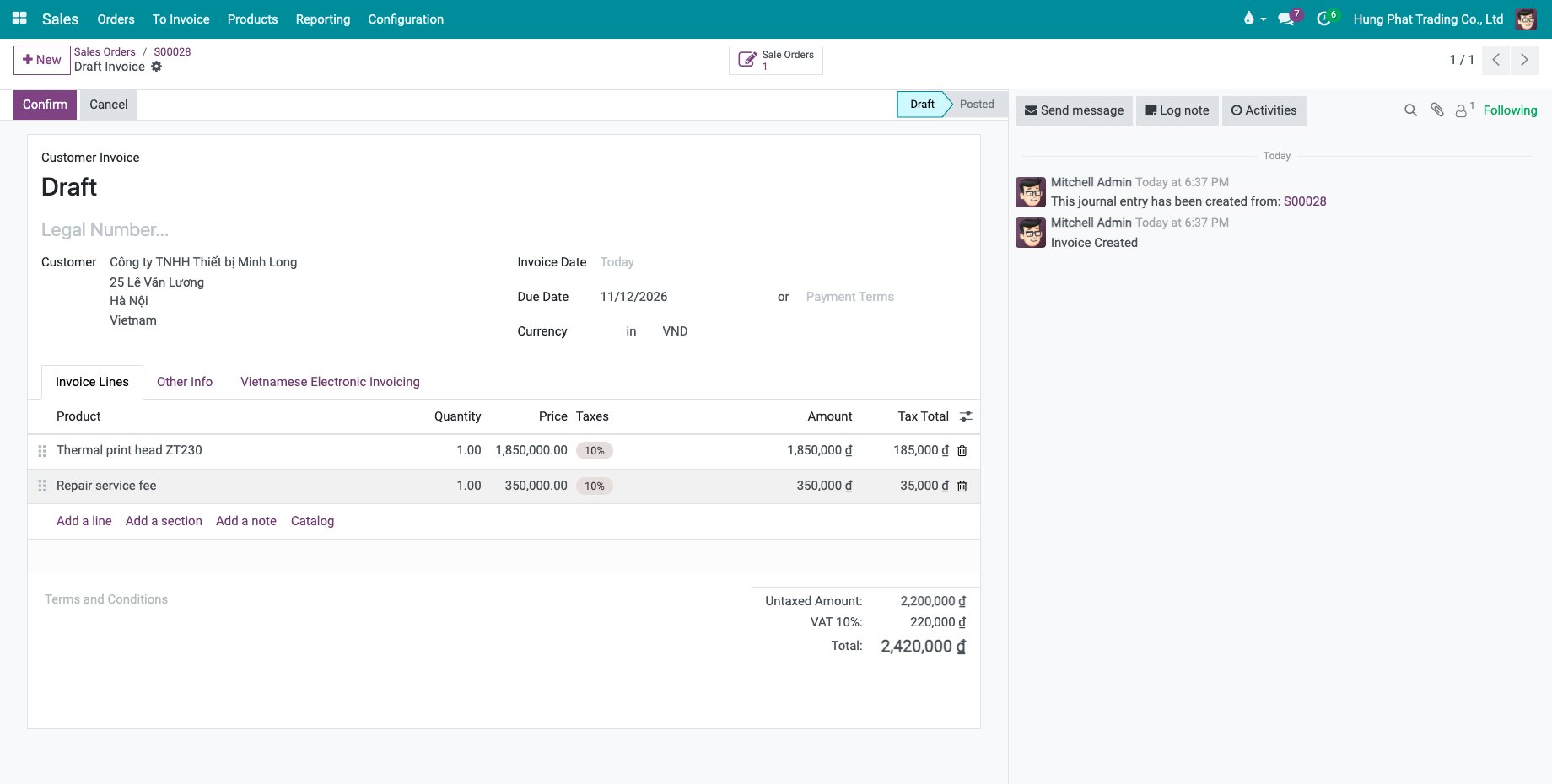
The invoicing policy of the products decides what you can invoice: with Ordered quantities, the lines are ready to invoice as soon as the sales order is confirmed.
How do I print the repair order?
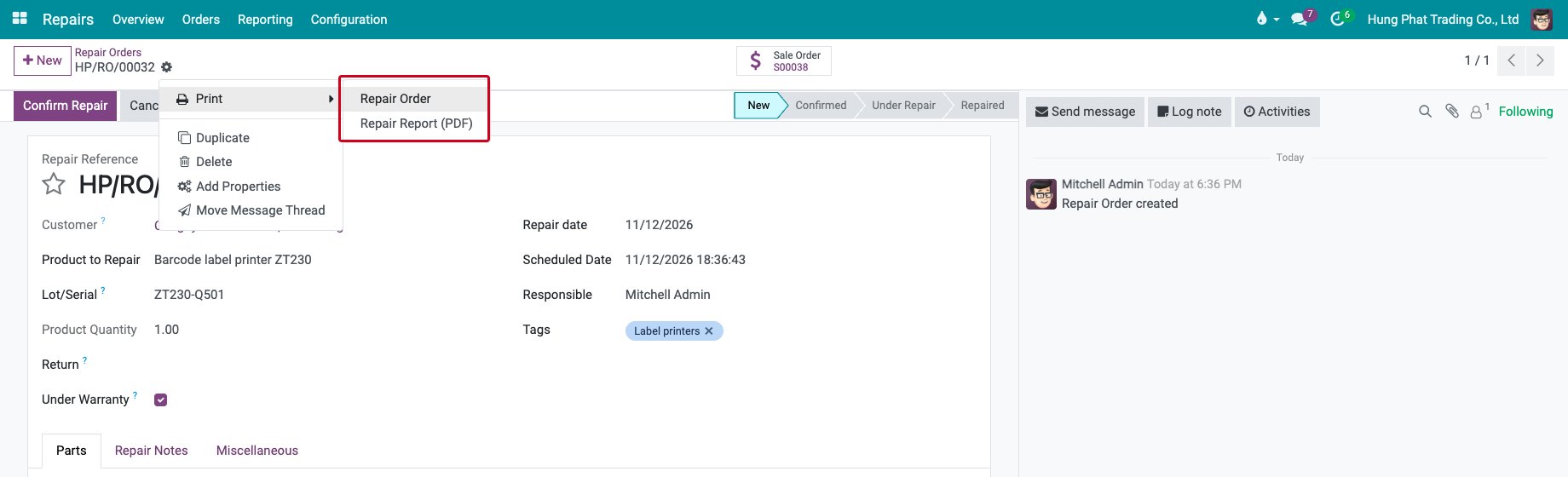
On the repair order, click the gear icon next to its reference, then Print. Choose Repair Order for the order or Repair Report (PDF) for the report of the order.
Common errors
Problem |
What to do |
|---|---|
Create Quotation shows “You need to define a customer for a repair order”. |
Fill in the Customer of the order. |
Create Quotation shows “You are not allowed to create ‘Sales Order’ records”. |
Give the user the Sales: User: Own Documents Only access right. |
A part is charged again after I changed its quantity on an order under warranty. |
Set the price of the line to 0 again on the quotation. |
Create Quotation is missing. |
The order has a quotation already or is Cancelled. Use the Sale Order button. |
Next steps
Manage parts in repair orders: choose the parts you charge.
Track the repair history of products: follow the repairs of a product.
See also
Related articles