
Using Forum on your website
The view of the website forum
To access the created and configured forum, open your website and click Forum in the top menu (or go to Website > Configuration > Forum > Forums, open the forum and click Go to Website). Users could see the active forums according to the Privacy of the forum.
Select the Troubleshooting forum that was created before.

The main view of the forum includes:
Left sidebar: Your profile (name and XP), the All Posts, My Posts, Favourites, People and Badges links, the Moderation tools (To Validate, Flagged, Closed) and the forum tags.
Filter and search bar: Filter the posts (All, Solved, Unsolved, Unanswered) and search contents.
New Post button: Create a new question or topic.
Post list: View the posts with their replies, views and last activity.

Use the forum’s features
View the questions in the forum
To view the questions in the forum, click on All Posts in the left sidebar:
Click the filter drop-down list next to the search bar to show all posts, or only solved, unsolved or unanswered ones.
The listed questions will be shown with: Title, tags, replies, views and last activity.
View a question by clicking on it.
Vote positive or negative for the questions by clicking the up and down arrows symbol.
Filter the questions list by clicking the tags in the left sidebar or on forum posts.

Create questions in the forum
Create new questions as the following instruction:
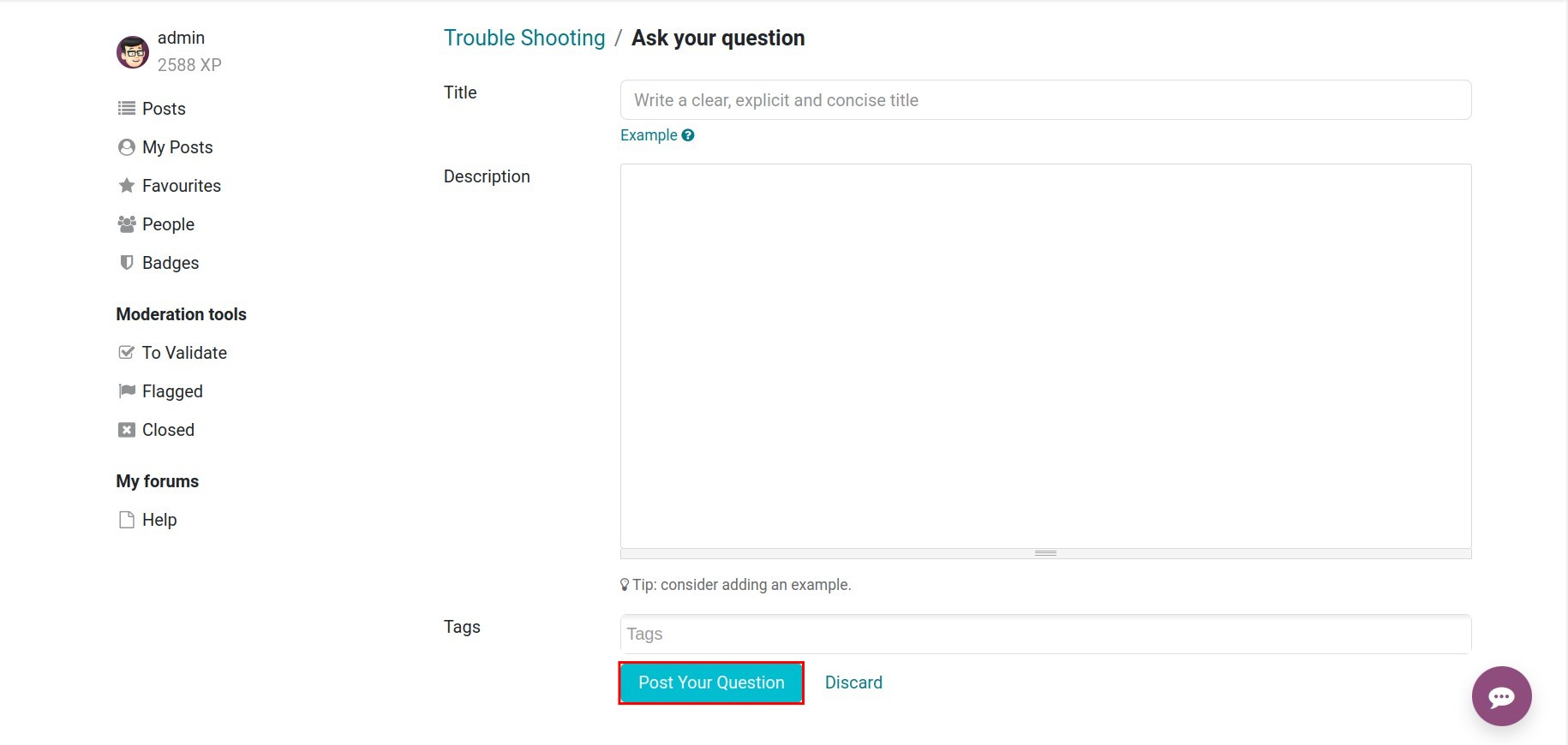
Click on New Post on the forum page.
Enter a title for the question.
Enter descriptions for the question, users could use text tools to make the question more vivid.
Select tags and click on the Post Your Question button.
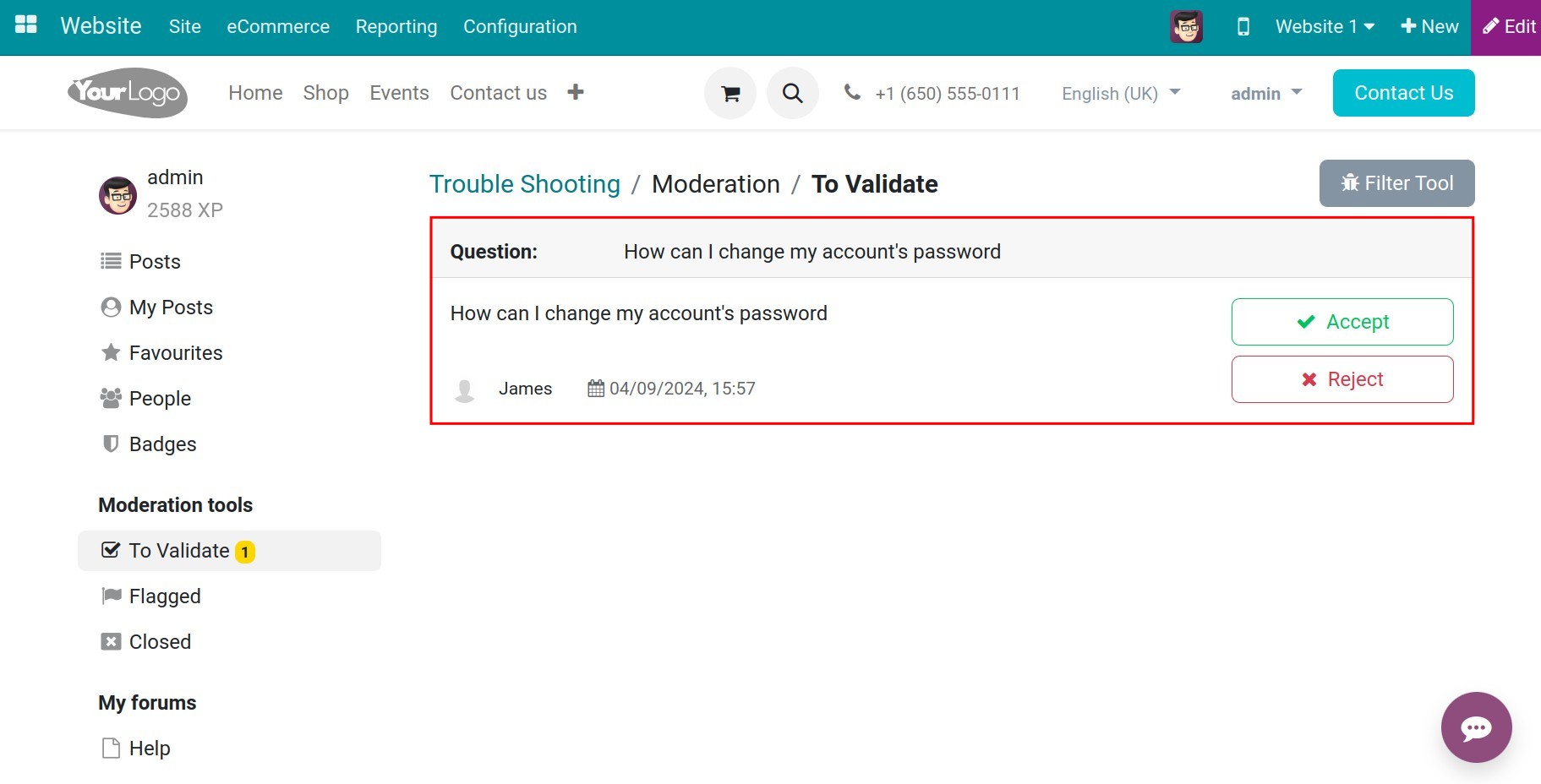
If the author has fewer Karma points than the forum’s Ask questions without validation right, the question is not published immediately. A moderator reviews it: click To Validate in the Moderation tools of the left sidebar, then click Accept to publish the question to the forum (or Reject to refuse it).

Answer the question in the forum
To answer the question, click on it and:
Click on Reply to answer the question.
Click on the speech bubble icon under an answer to leave a comment.
Share the question on social networks by clicking the share icon.
Mark the question by clicking the star icon at the top right to save it to the favorite list.
Click on the three dots icon to edit, close, delete or flag a post.
Follow the question by clicking on the bell icon.
Write your answer and click on Post Answer.


Manage the personal information
Click on your name in the left sidebar to show your profile. The profile includes:
Current rank: The current rank of the user.
Next rank: The next rank and the XP (Karma points) still required to ascend in rank. See Karma.
Joined and Badges: The joining date and the number of badges the user got.
About: Show the achieved Badges (see Set up the basic forum features).
Questions: The list of created questions.
Answers: The list of created answers.
Activity: Record all the users’ activities.
Votes: The users’ question votes.

Click on EDIT PROFILE to edit information and then click on Update.

See also
Related article
Optional module