
Supply parts for repair orders
When the product to repair and its parts are stored in other places than your repair location, the Repair Supply Chain module moves them for you. Confirming the repair order creates the transfers that bring everything to the repair location, and ending the repair creates the transfers that send the repaired product and the unused parts back.
Who |
Warehouse staff who prepare the repairs, and repair managers. |
App |
Repairs, Inventory |
Before you start
Activate the Repairs app, see How to install and set up Repairs app.
Activate the optional Repair Supply Chain module: it is not installed automatically. It adds a Repair Supply operation type to each warehouse.
Tick Storage Locations in the Inventory settings, and create the locations where the products and the parts are stored.
How do I activate the module?
Go to Apps, remove the Apps filter, search Repair Supply Chain and click Activate.

How do I say where the product and the parts come from?
Create the repair order as described in Create repair order.
In Product Origin Location, choose the place where the product to repair is stored. Leave it empty when the product is already at the repair location.
In the Parts tab, the Part Origin Location column appears for the parts of type Add. Choose where each part is stored, or leave it empty when it is already at the repair location.
![The product origin location and the part origin location on a repair order]()
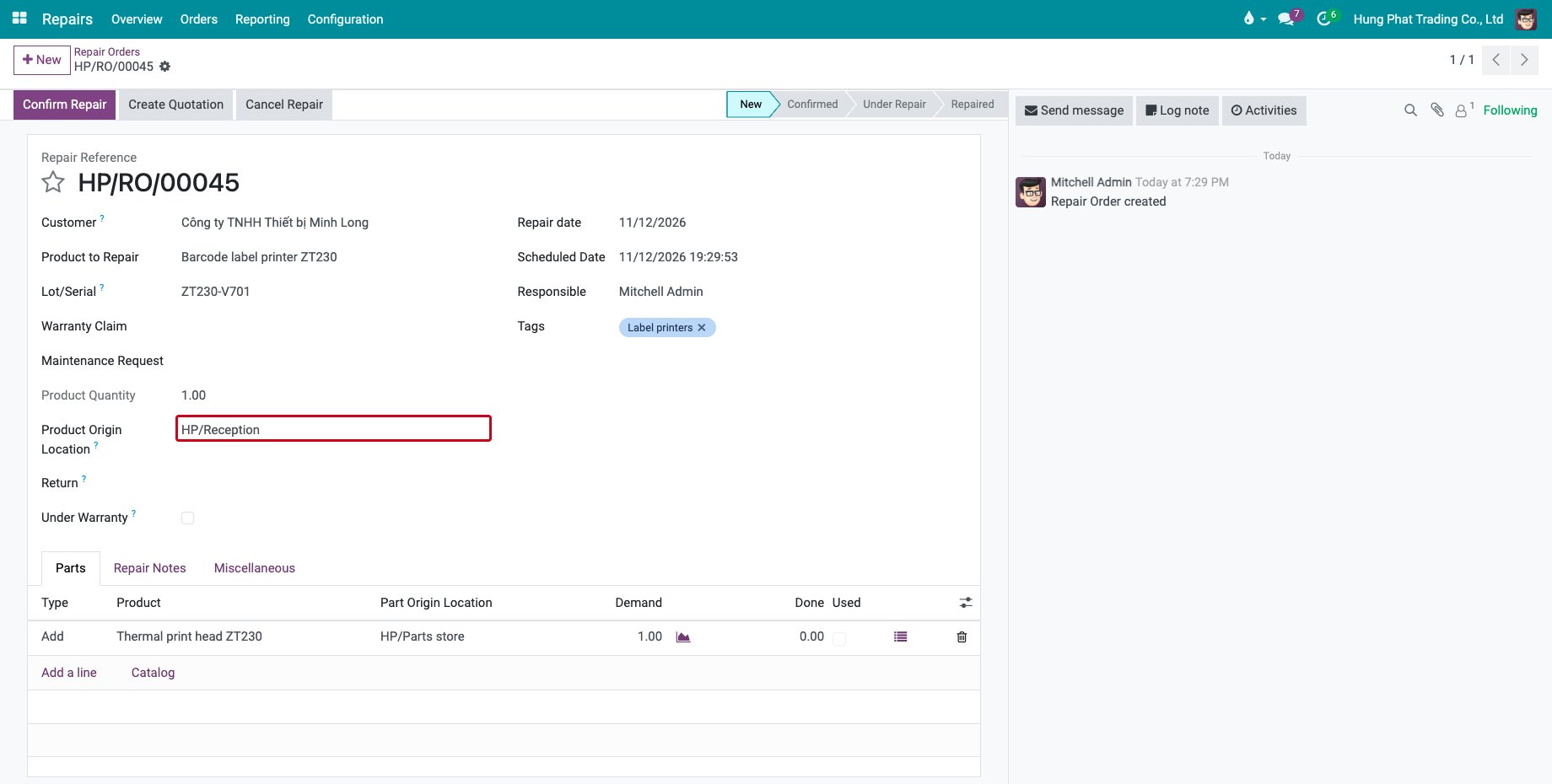
The repair location is the Component Source Location of the operation type, see Repair overview and operation types. Both fields can be edited in the New status only. An origin cannot be the repair location itself.
What happens when I confirm the order?
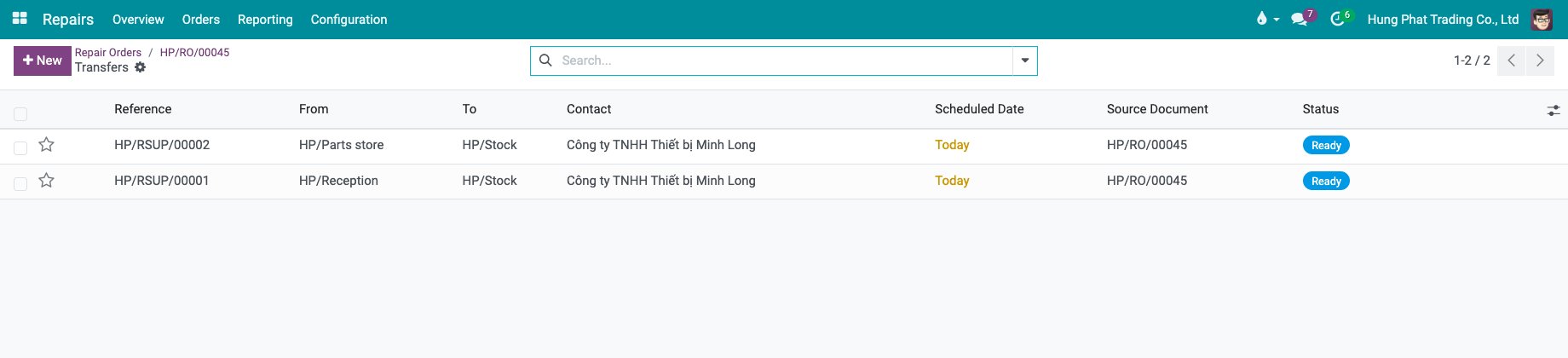
Click Confirm Repair. Viindoo creates one transfer for the product and one for each origin of the parts, of the Repair Supply type, and shows them in the Transfers button.
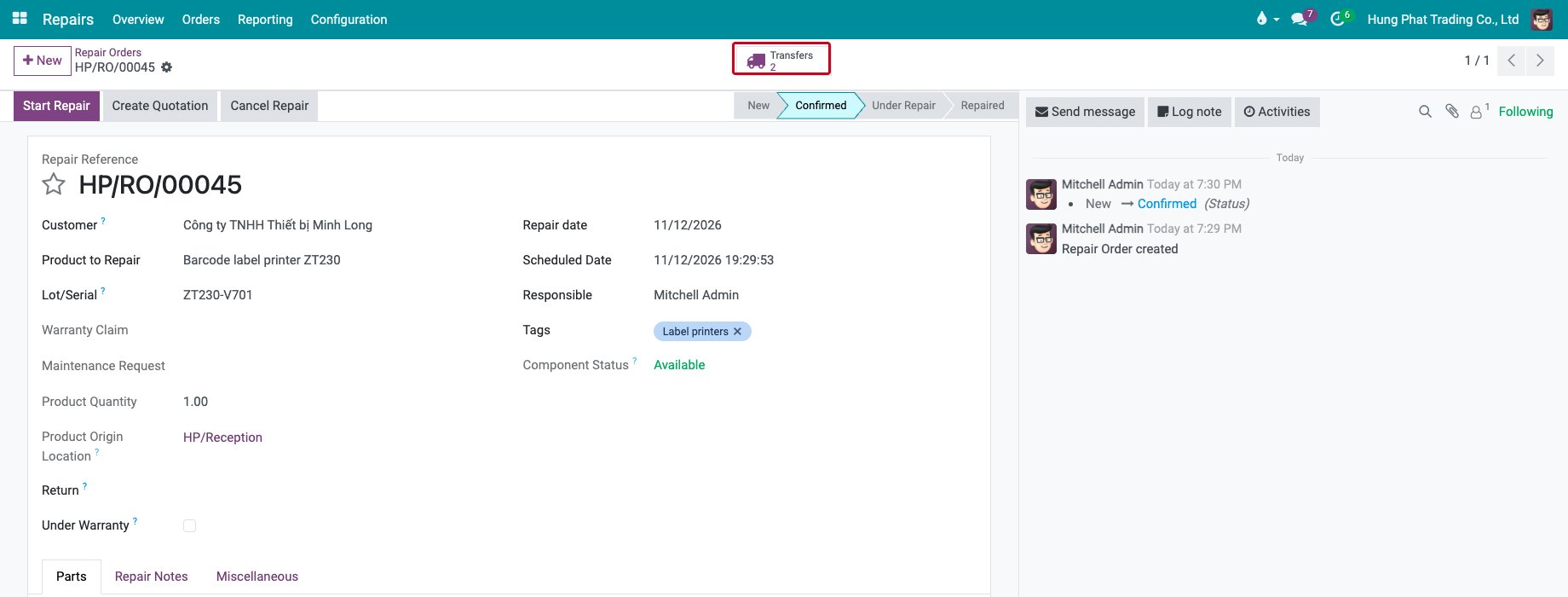
Click Transfers to open them, then validate them like any transfer of the Inventory app.
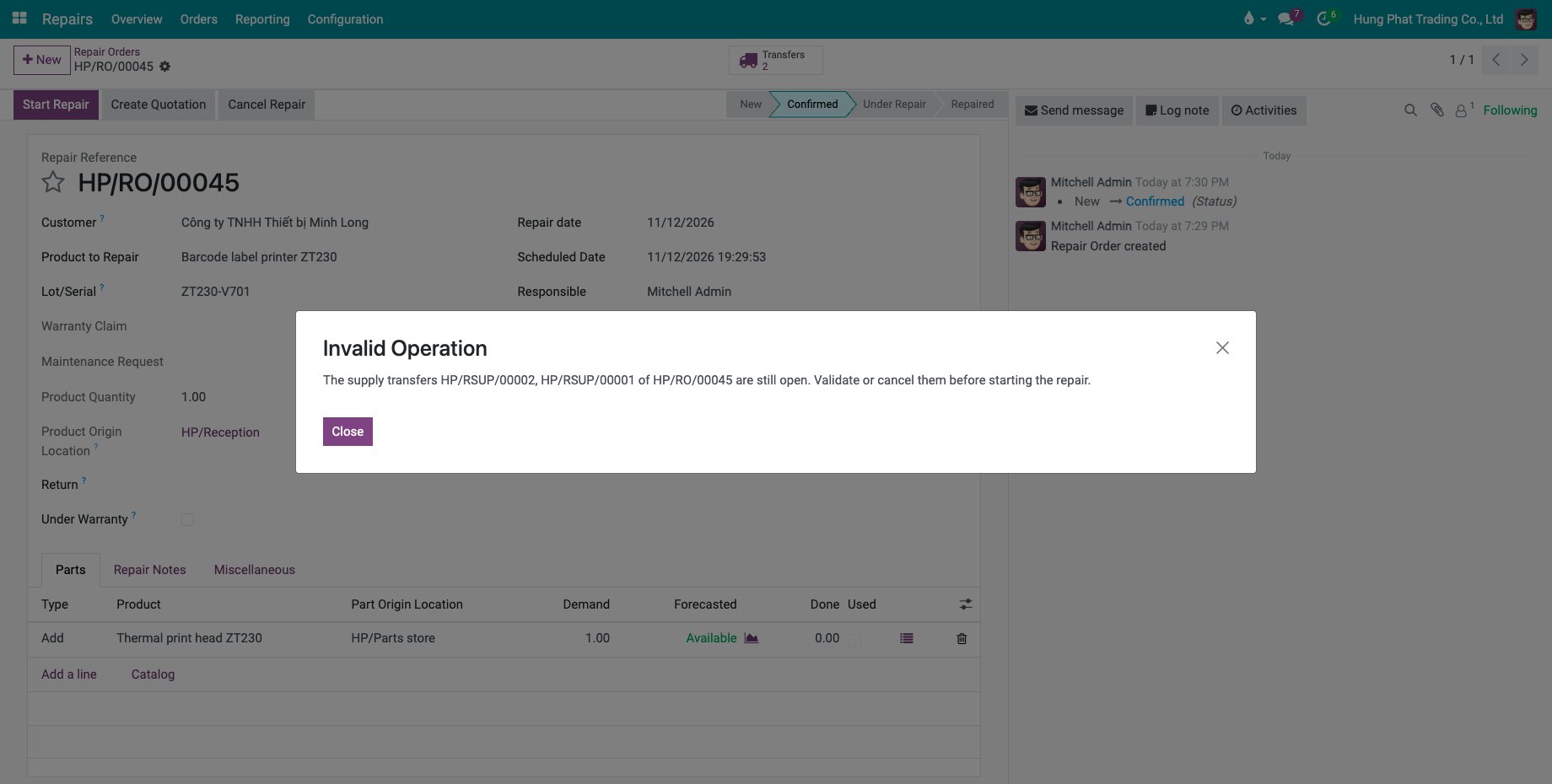
You cannot start the repair before they are validated or cancelled. Start Repair shows the message “The supply transfers … are still open. Validate or cancel them before starting the repair.”
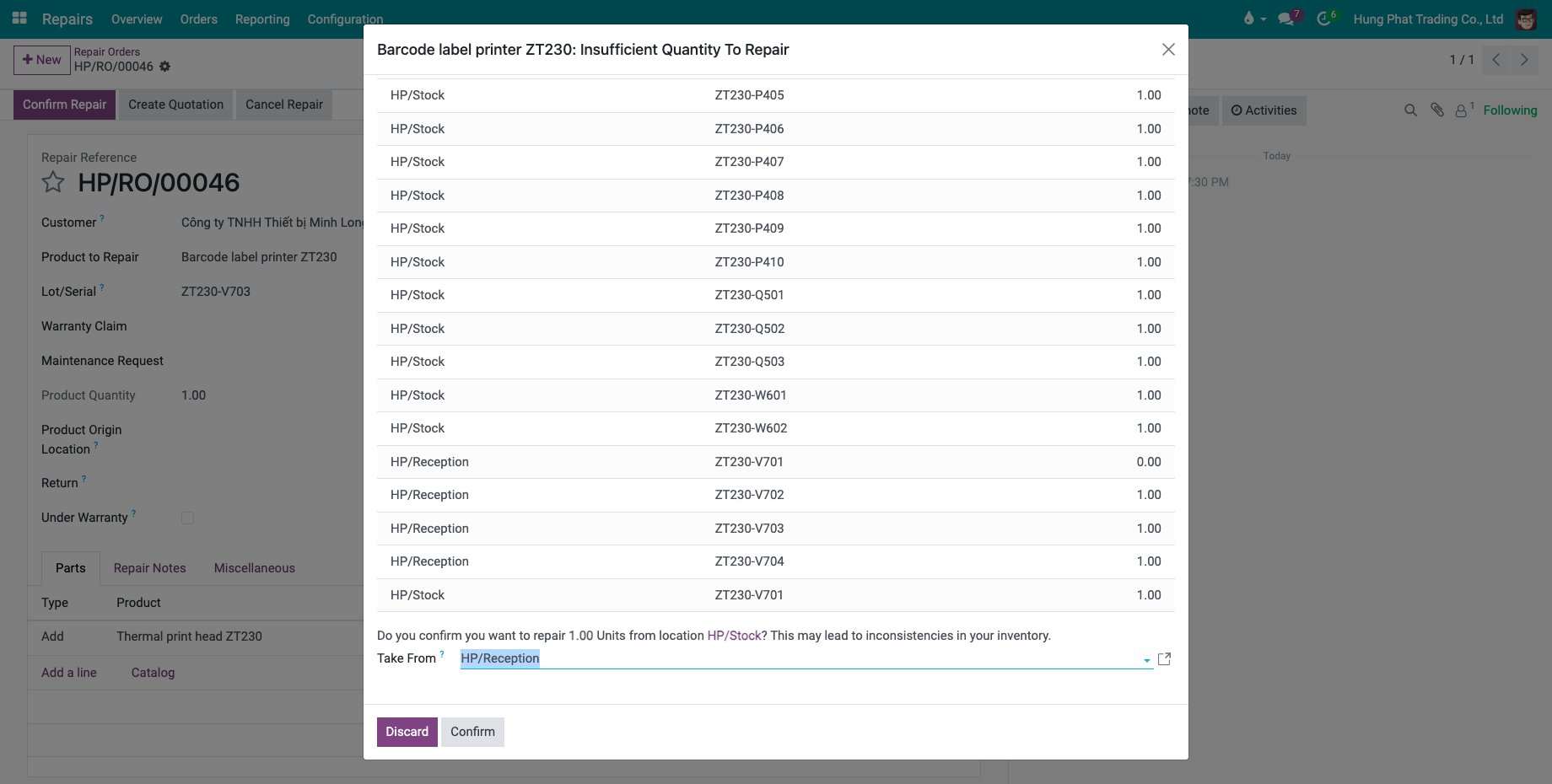
When the product is not at the repair location and you have not named an origin, the dialog “Insufficient Quantity To Repair” offers the Take From field. Choose the location where the product is, then click Confirm to create the transfer from that location.
What happens when the repair ends?
Click Start Repair and then End Repair as usual, see Repairing at an internal location. Ending the repair creates the return transfers: the repaired product goes back to its origin, and the parts that were brought in and not used go back too. They appear in the Transfers button next to the supply transfers.
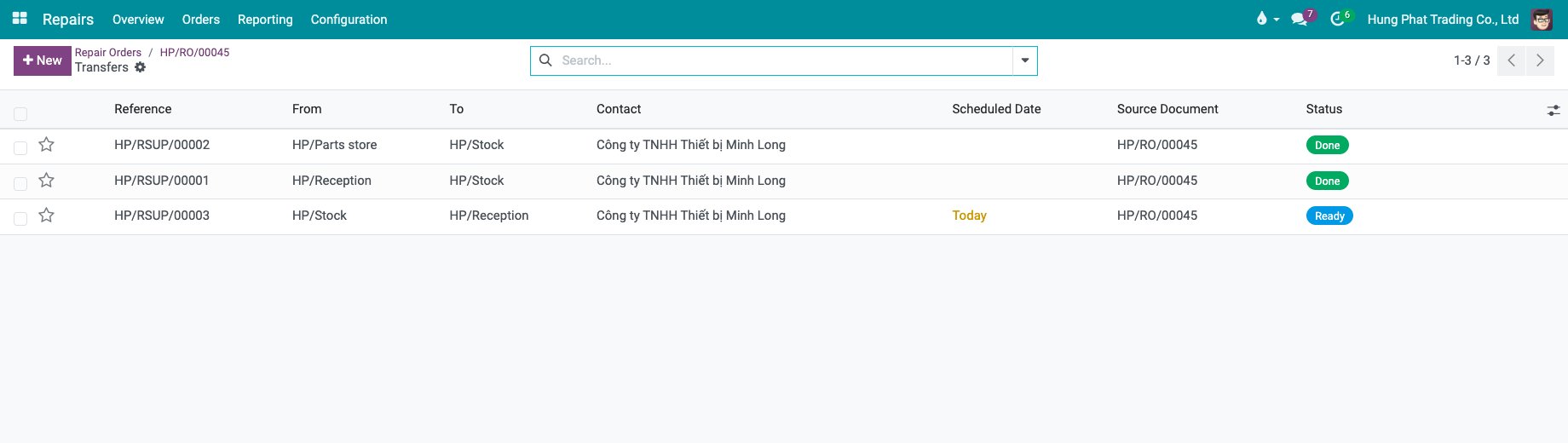
When you cancel the order, the transfers still open are cancelled, and a return transfer is created for what already arrived at the repair location.
Common errors
Problem |
What to do |
|---|---|
Start Repair shows “The supply transfers … are still open”. |
Open Transfers, validate or cancel the transfers. |
The Product Origin Location field is missing. |
The Repair Supply Chain module is not installed. |
“Product … cannot come from …: that is already the repair location”. |
Leave the origin empty, or choose another location than the repair location. |
The repair location cannot be changed. |
A supply transfer of the order is already done. |
Next steps
Manage parts in repair orders: the parts of the order.
Link repair orders with purchase and manufacturing orders: order the missing parts.