
How to turn on two-factor authentication
Two-factor authentication (2FA) protects your Viindoo account with a second step after your password: a 6-digit code from an authenticator app on your phone. To turn it on, open your profile, go to the Account Security tab, switch on Two-factor Authentication, scan the QR code with the app and enter the code it shows. From then on, Viindoo asks for a new code each time you sign in.
Who |
Every user, for their own account. An Administrator can turn 2FA off for another user but cannot turn it on for them. |
App |
Your user profile (no app to install) |
Before you start
Install an authenticator app on your phone, for example Google Authenticator, Microsoft Authenticator, Authy or FreeOTP. Many password managers, such as 1Password and Bitwarden, can also generate the codes. This guide uses Google Authenticator.
How do I turn on two-factor authentication?
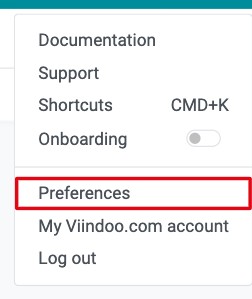
Click your avatar in the top right corner and choose Preferences (My Profile if the Employees app is installed).
![Preferences in the user menu at the top right of Viindoo]()
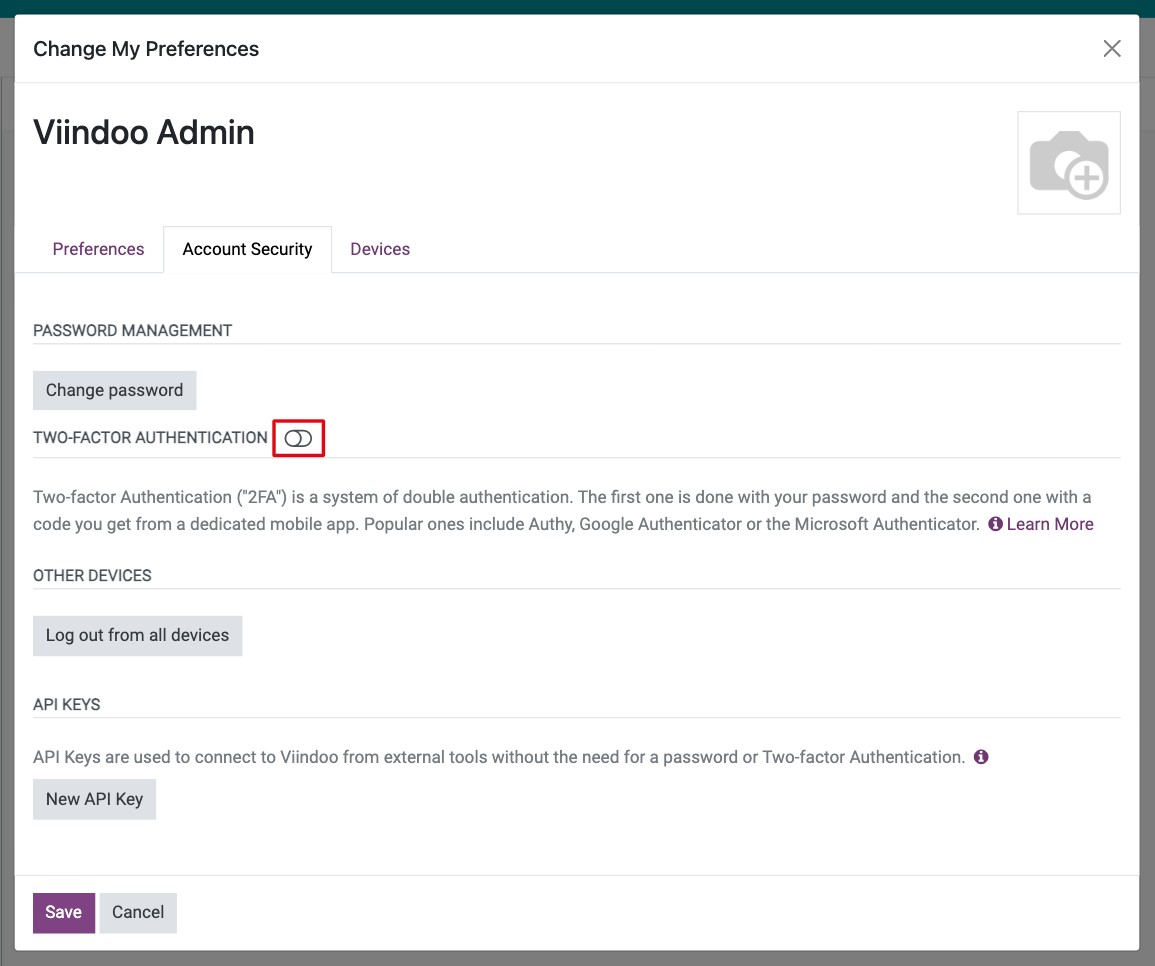
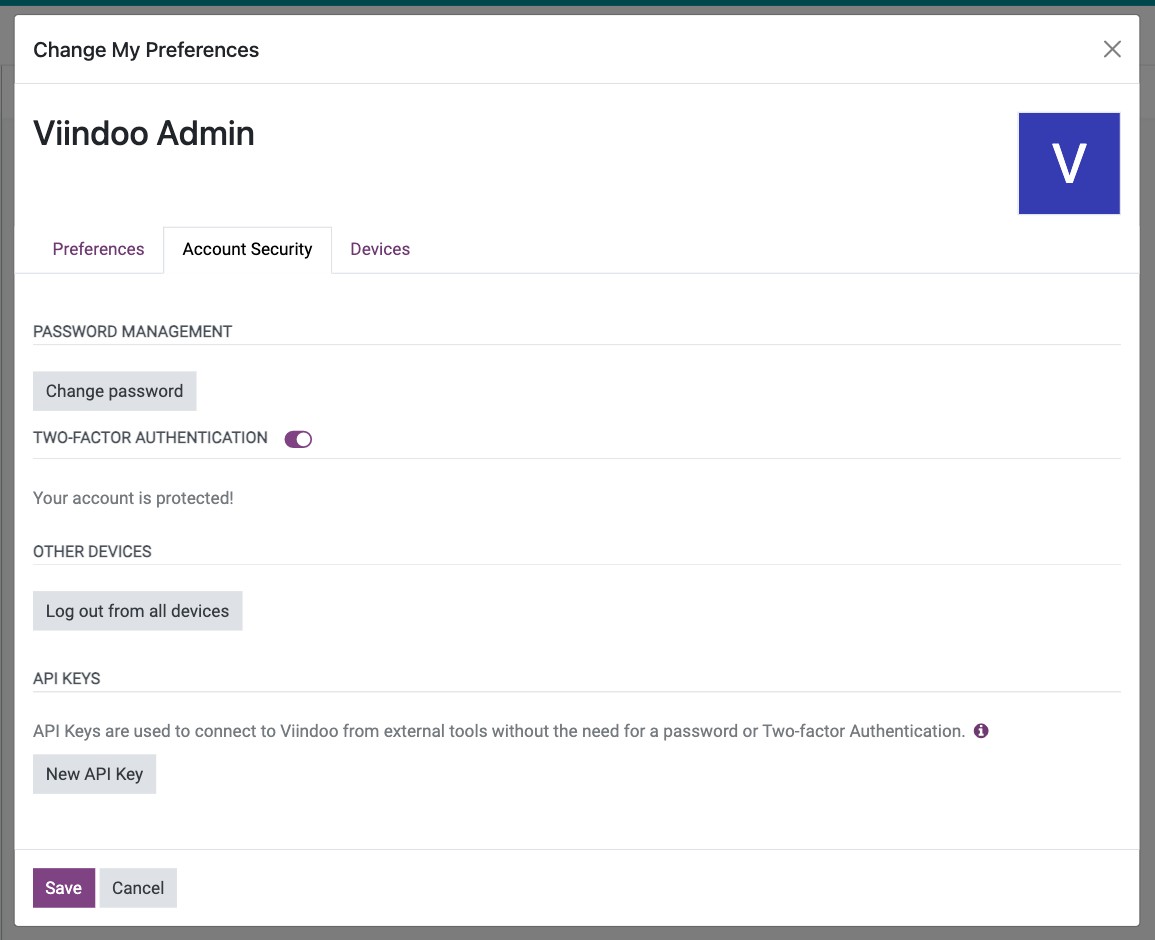
Open the Account Security tab and click the Two-factor Authentication toggle.
![Two-factor Authentication toggle in the Account Security tab of the user profile]()
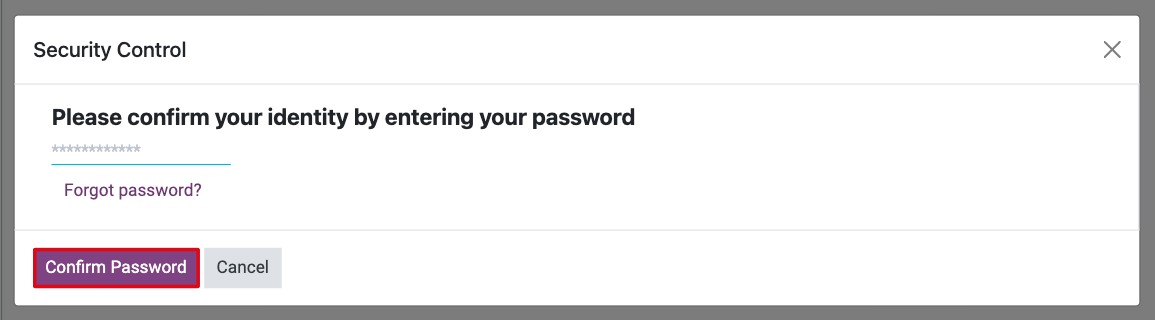
In the Security Control window, enter your Viindoo password and click Confirm Password.
![Security Control window asking for your password before turning on 2FA]()
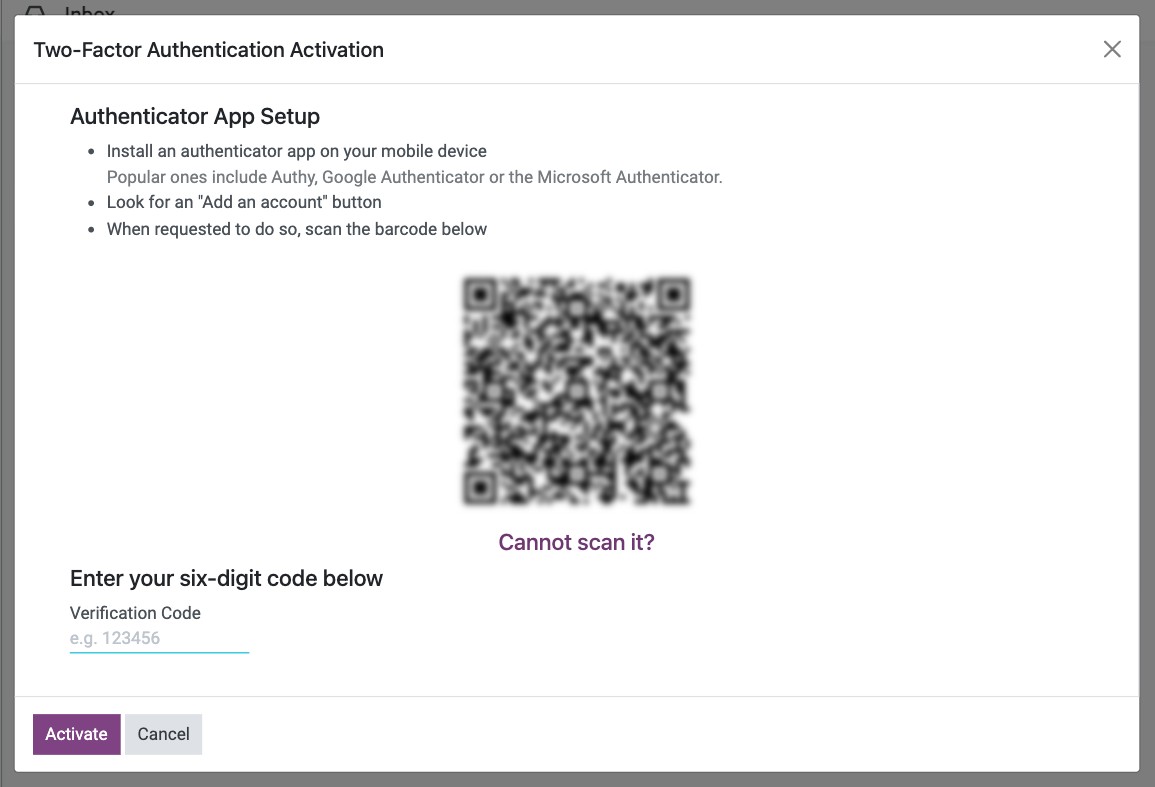
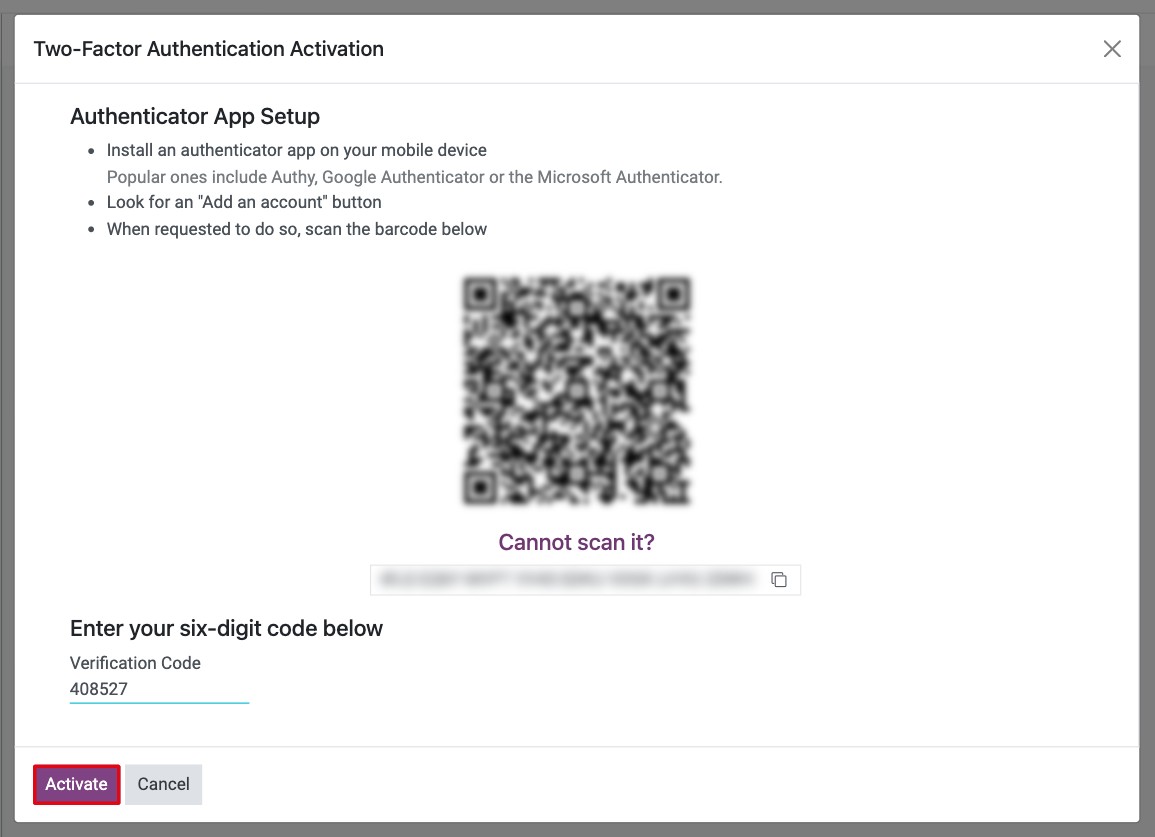
The Two-Factor Authentication Activation window shows a QR code. Keep it open.
![Two-Factor Authentication Activation window with the QR code and the Verification Code field]()
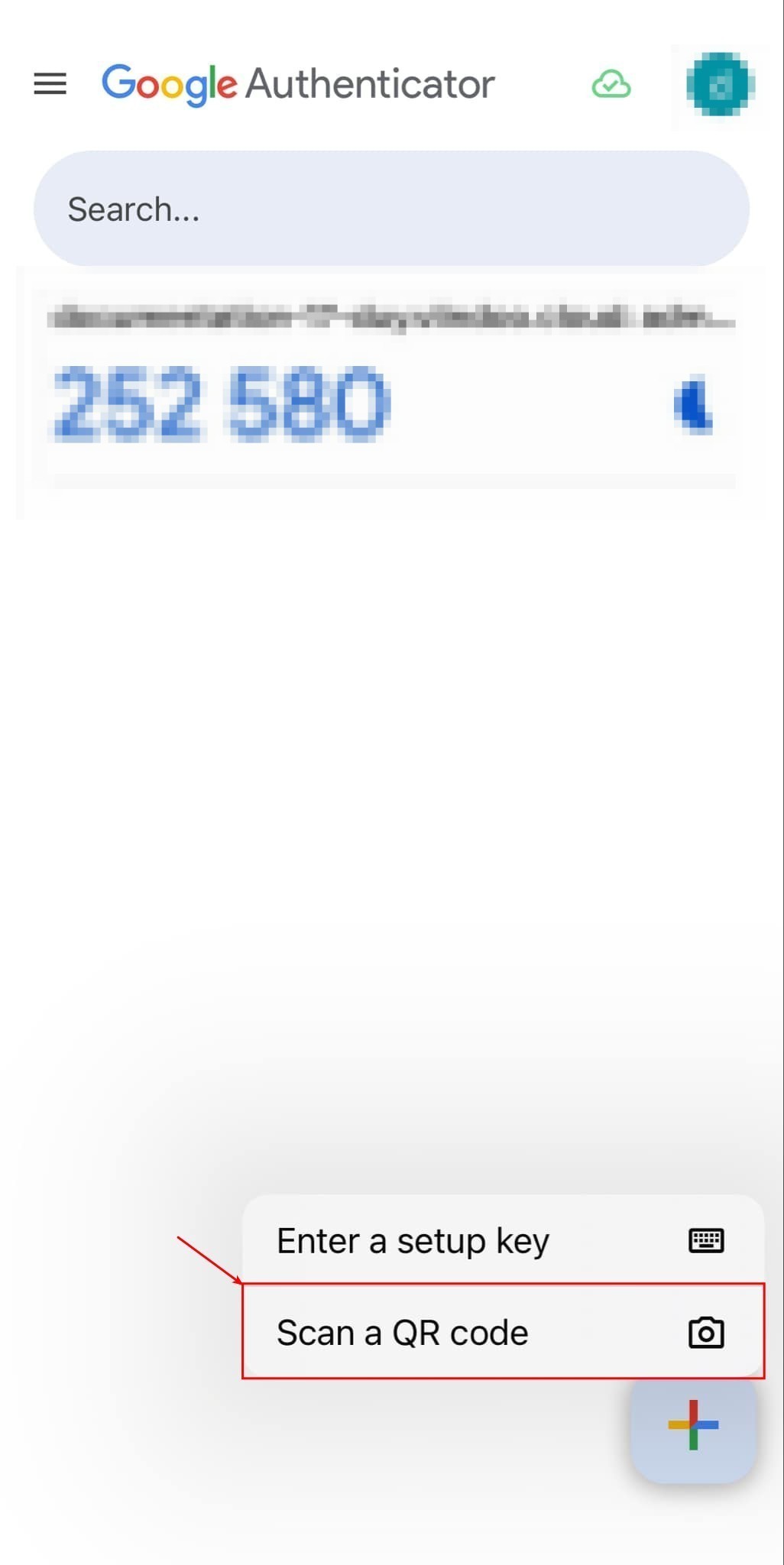
In Google Authenticator, tap + then Scan a QR code, and scan the code on your screen. If you cannot scan it, click Cannot scan it? in Viindoo and type the key shown into the app (Enter a setup key).
![Scan a QR code and Enter a setup key options in Google Authenticator]()
The app now shows a 6-digit code for your Viindoo account that changes every 30 seconds. Type the current code in Verification Code and click Activate.
![Six-digit code typed in the Verification Code field before clicking Activate]()
The toggle is now on and the tab shows Your account is protected!.
How do I sign in with two-factor authentication?
Sign in with your email and password as usual.
On the Two-factor Authentication screen, type the code shown in your authenticator app in Authentication Code and click Log in.
![Two-factor Authentication sign-in screen with the Authentication Code field]()
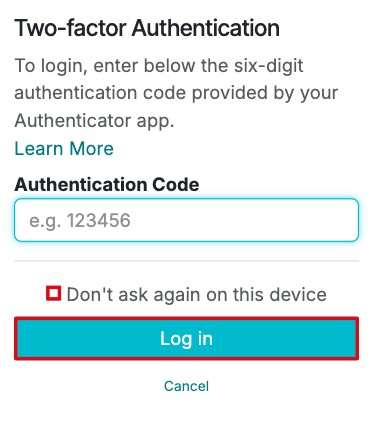
Tick Don’t ask again on this device before clicking Log in if you use your own computer. Viindoo then stops asking for a code on that browser. The device is listed under Trusted Devices in the Account Security tab, where you can remove it at any time with Revoke All.
What if I lose my phone?
You cannot sign in without the code. Ask an Administrator to turn 2FA off for your account: in , open your user, go to the Account Security tab and click the Two-factor Authentication toggle. Then sign in with your password and turn 2FA on again with your new phone.
Common errors
Message |
What to do |
|---|---|
Verification failed, please double-check the 6-digit code |
The code expired or was mistyped. Wait for the next code in the app and enter it at once. If it keeps failing, check that the time on your phone is set automatically. |
The verification code should only contain numbers |
Type only the 6 digits, without spaces. |
Two-factor authentication can only be enabled for yourself |
Each user must turn on 2FA from their own profile. An Administrator cannot do it for them. |
Next steps
How to change your preferences and password: change your password, signature and preferences.
How to create and manage user accounts: manage user accounts as an Administrator.