
How to process an inventory adjustment
To correct your stock after a count, go to Inventory ‣ Operations ‣ Adjustments ‣ Physical Inventory, enter the Counted Quantity of each line and click Apply. Viindoo records the difference as a stock movement to the inventory adjustment location, so the on-hand quantity becomes the quantity you counted and the history of the product keeps the correction.
Who |
Inventory User: count and apply. Inventory Administrator: also Request a Count, Relocate and Clear. |
App |
Inventory |
Before you start
Install the Inventory app.
Products must be stored goods (Track Inventory ticked).
Optional: tick Storage Locations in Inventory ‣ Configuration ‣ Settings to count per location, and set the Annual Inventory Day and Month of your yearly count in the same settings.
How do I enter the counted quantity?
Go to Inventory ‣ Operations ‣ Adjustments ‣ Physical Inventory. Each line is one product in one location (and one lot, serial number, package or owner when you use them).
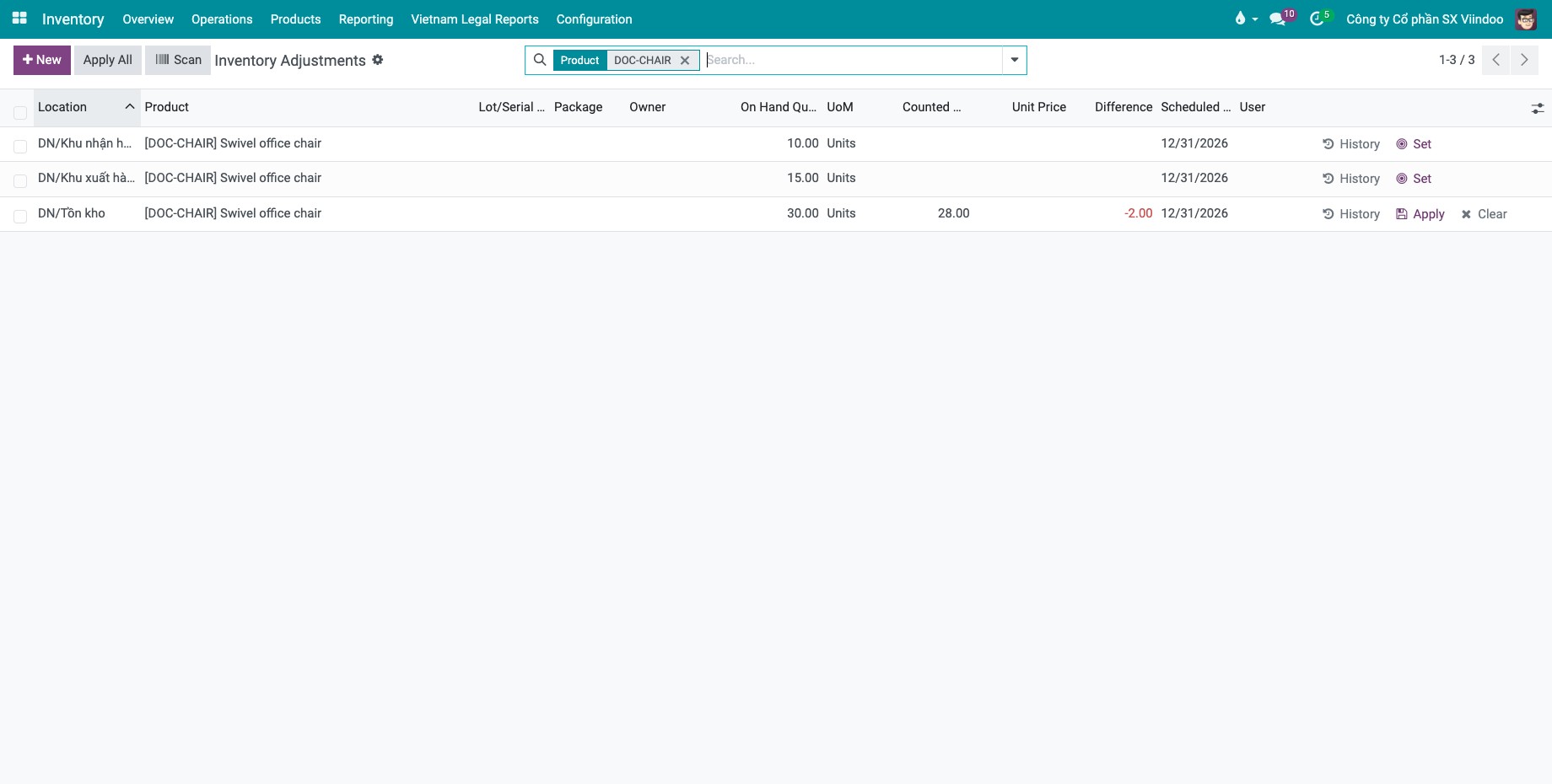
Find the line, for example by typing the product name in the search bar. To count a product that has no line yet, click New and fill the line.
Click the Counted Quantity cell and enter the quantity you counted. Difference is computed from the On Hand Quantity. Click Set instead to take the on-hand quantity as the counted quantity when nothing differs.
![Physical Inventory list with the On Hand Quantity, Counted Quantity and Difference columns]()
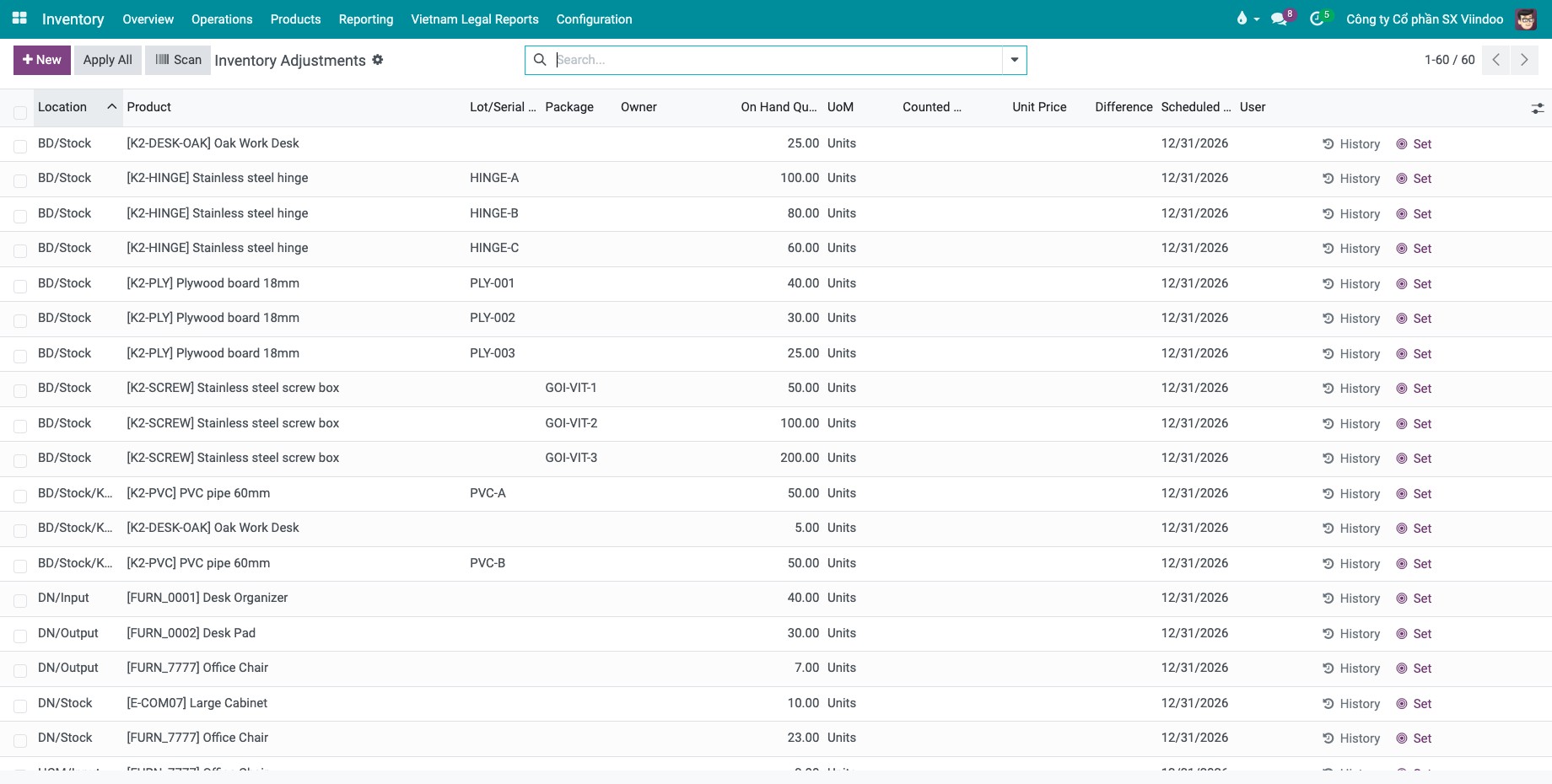
Column |
Meaning |
|---|---|
Location |
The location where the product is stored. |
Lot/Serial Number |
The lot or serial number, for tracked products. |
On Hand Quantity |
The quantity Viindoo expects, in the unit of measure of the product. |
Counted Quantity |
The quantity you counted. Empty means not counted yet. |
Difference |
Counted quantity minus on-hand quantity. Red when stock is missing, green when there is more. |
Scheduled Date |
The date of the next count of the line, from the annual inventory date of the settings. |
User |
The person in charge of counting the line. |
How do I apply the count?
Click Apply at the end of a line to correct that line, or tick several lines and click Apply at the top of the list. Apply All applies every line that has a counted quantity.
![Physical Inventory list filtered on one product, with a counted quantity and a negative difference on one line and the Apply and Clear buttons at the end of that line]()
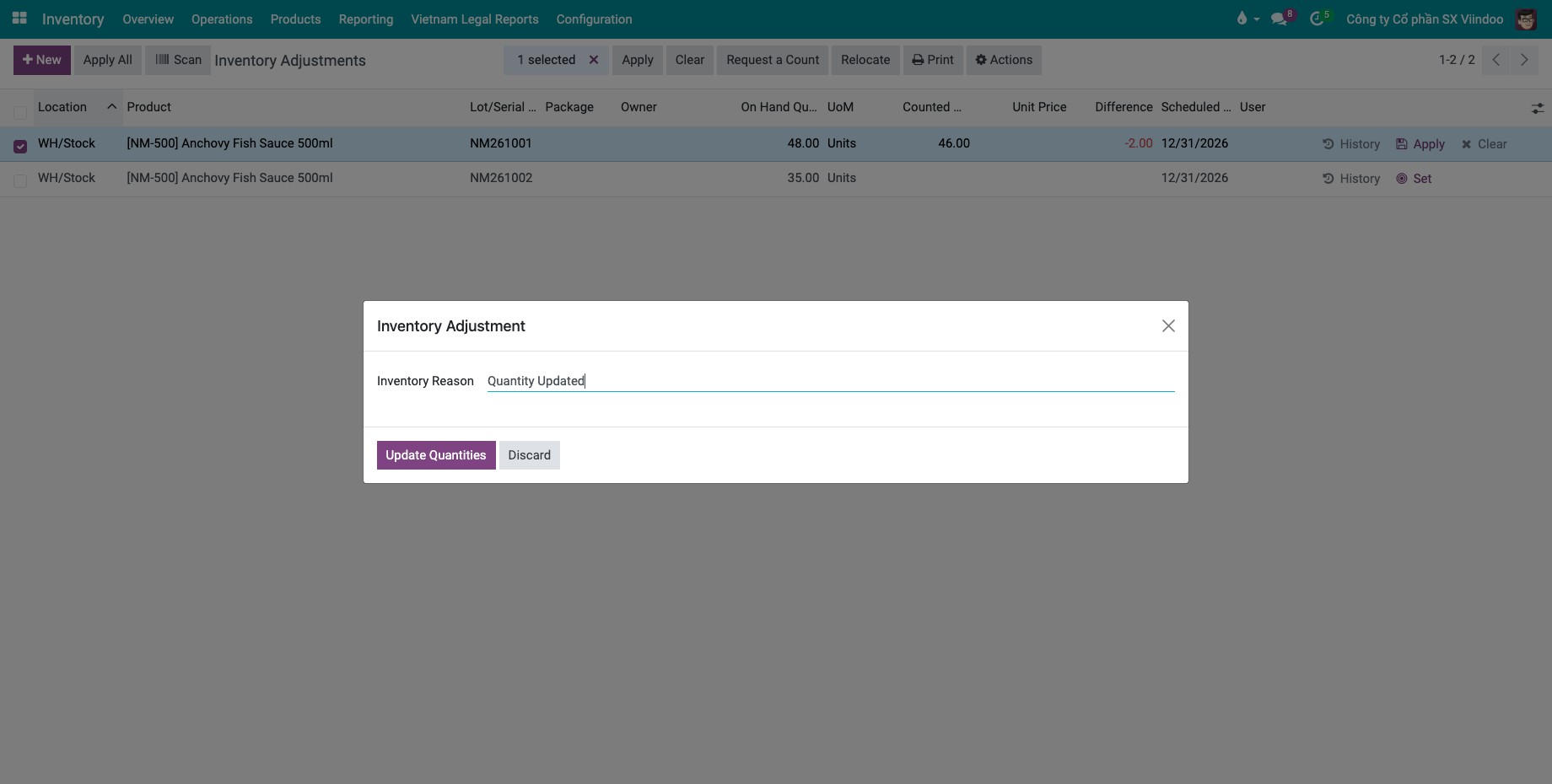
In the Inventory Adjustment window, keep or edit the Inventory Reason (default Quantity Updated) and click Update Quantities.
![Inventory Adjustment window with the Inventory Reason field]()
To undo a count you have not applied, click Clear on the line.
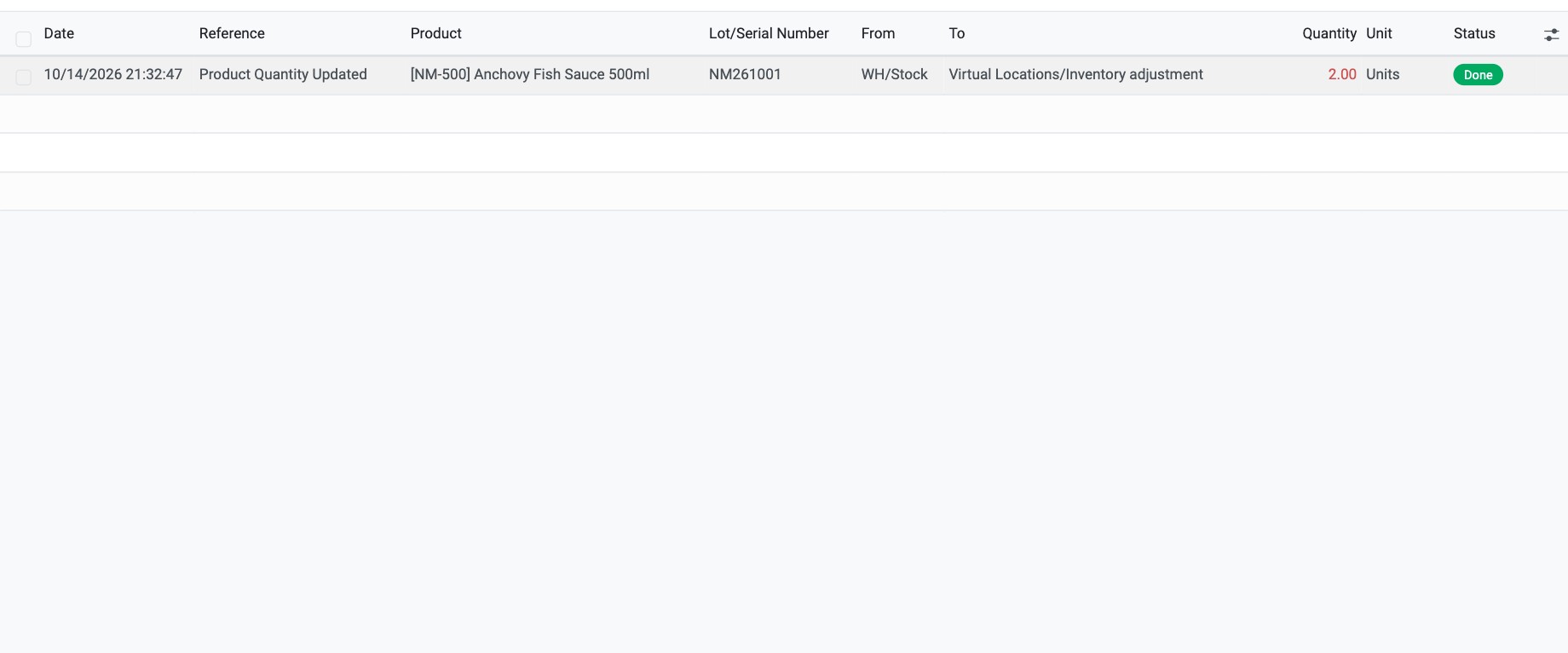
You should now see the on-hand quantity equal to the counted quantity. Click History on the line to open the movements of the product, including the adjustment you just made.
How do I ask someone to recount products?
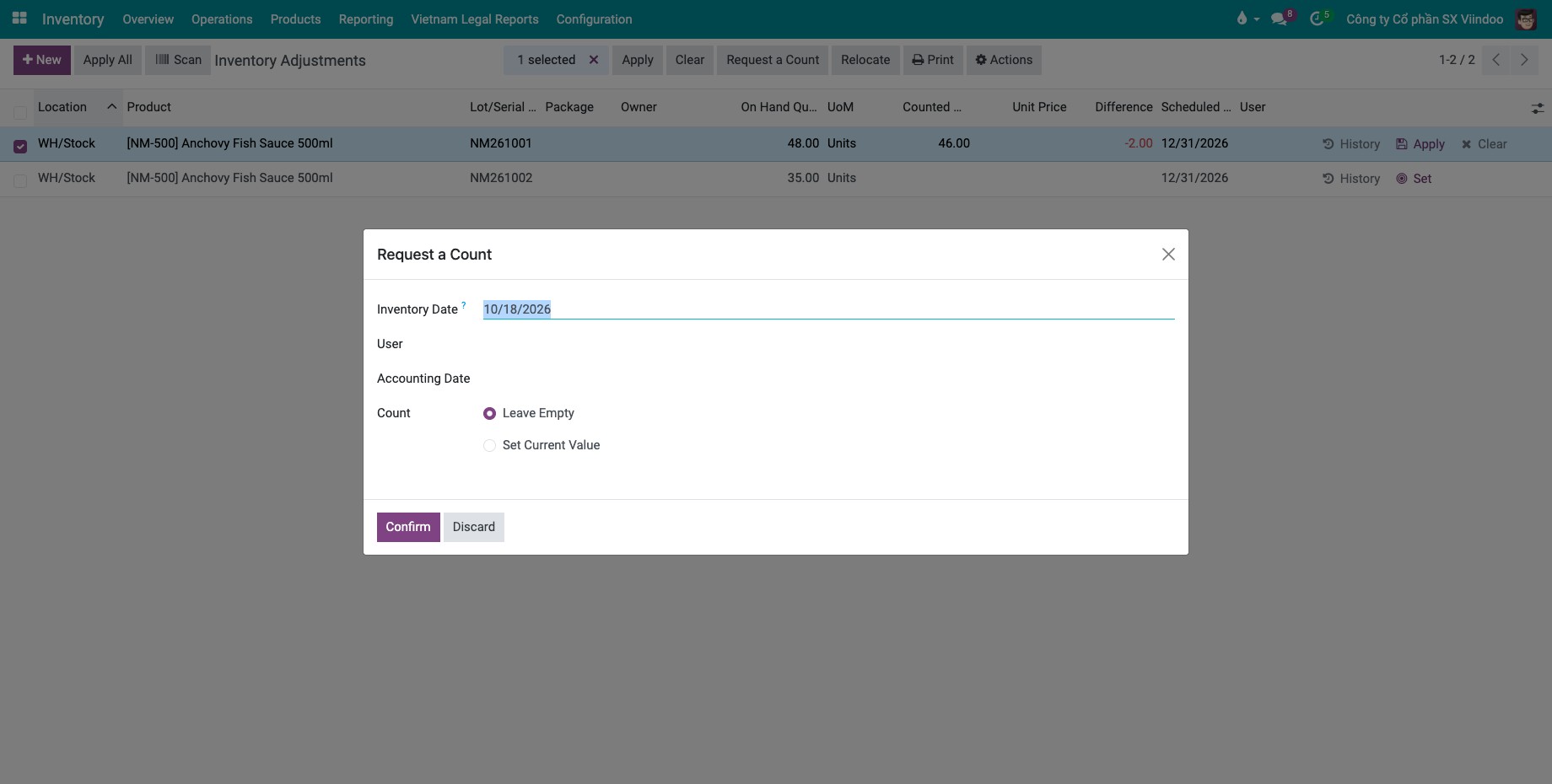
Tick the lines to recount, then click Request a Count (Inventory Administrator).
Choose the Inventory Date, the User who counts, and how to fill the lines:
Leave Empty: Counted Quantity stays empty; the counter types what they find.
Set Current Value: Counted Quantity takes the on-hand quantity; the counter only changes the lines that differ.
![Request a Count window with the Leave Empty and Set Current Value options]()
Click Confirm. The selected user finds the lines in Physical Inventory under the My Counts filter.
For lot or serial-tracked products, Viindoo adds the other lots of the same product and location to the request.
How do I move counted products to another location?
Tick the lines, click Relocate (Inventory Administrator), choose To Location, optionally a To Package, write the Reason for relocation and click Confirm. Only positive quantities can be relocated.
Common errors
Message |
What to do |
|---|---|
Conflict in Inventory Adjustment: Due to some stock moves done between your initial update of the quantity and now, the difference of quantity is not consistent anymore. |
Stock moved after you entered the count. Choose Keep Counted Quantity (the difference is recomputed) or Keep Difference (the counted quantity changes by the same difference), or Discard and check the movements. |
Tracked Products in Inventory Adjustment |
A tracked product line has no lot or serial number. Fill it before applying. |
You can only move positive quantities stored in locations used by a single company per relocation. |
Select only lines with stock, from one company, then relocate again. |
Quants are auto-deleted when appropriate. If you must manually delete them, please ask a stock manager to do it. |
Only an Inventory Administrator can delete a line. Ask one, or set the counted quantity to 0. |
Next steps
How to record stock operations on a past date: record the adjustment on a past date.
Version notes
The menu is Operations ‣ Adjustments ‣ Physical Inventory.
If you also install the Accounting app, the adjustment creates the matching journal entry.