
Split, merge and change the quantity of manufacturing orders
Plans change after an order is confirmed. The quantity of a manufacturing order can be changed, one order can be split into several smaller ones, and several orders of the same product can be merged into one. Locking decides whether the quantities to consume can still be edited.
Who |
Production planners with the Manufacturing ‣ User access right; the setting Unlock Manufacturing Orders needs the Manufacturing ‣ Administrator access right. |
App |
Manufacturing |
Before you start
Install the Manufacturing app.
Splitting and merging work on orders in the Draft or Confirmed state that have a bill of materials.
The example of this article uses orders of Oak wall shelves.
How do I change the quantity to produce?
Open a confirmed order and click the quantity to produce, here 10.00.
![The quantity to produce of a confirmed order]()
In Change Quantity To Produce, type the new Quantity To Produce, here 15, and click Set Quantity.
![The window Change Quantity To Produce]()
The quantities of the components follow the new quantity.
![The components of the order for 15 shelves]()
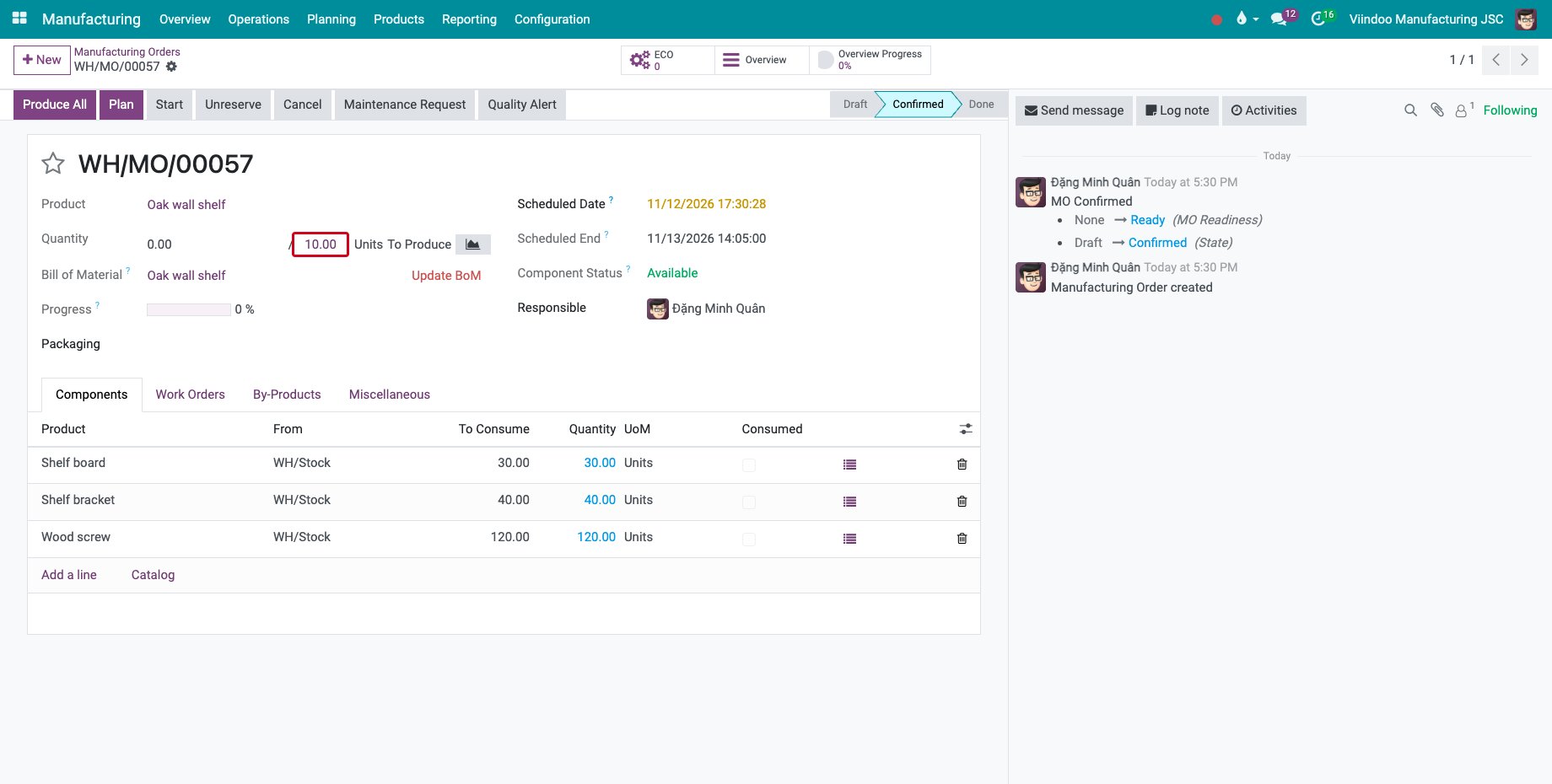
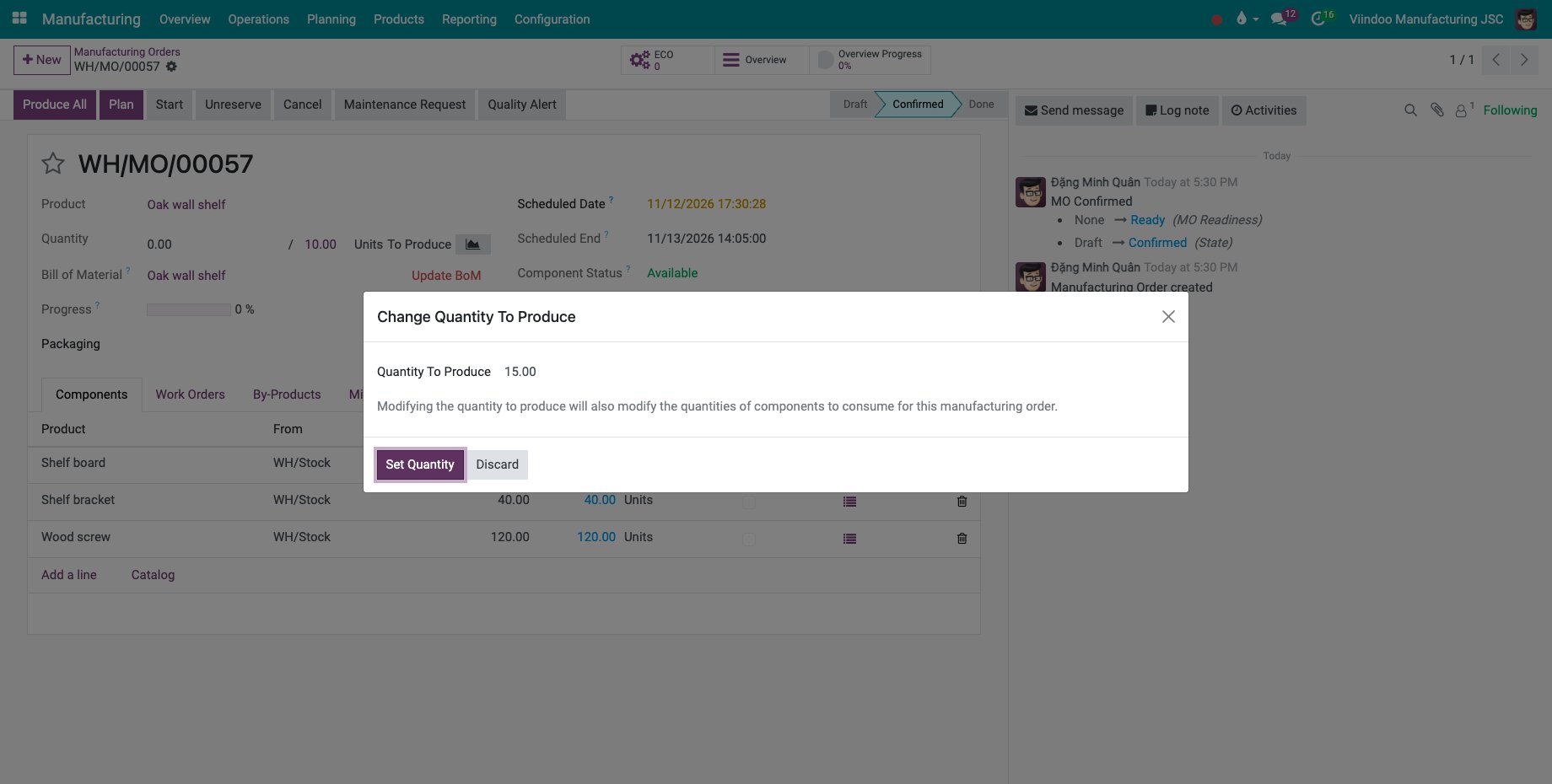
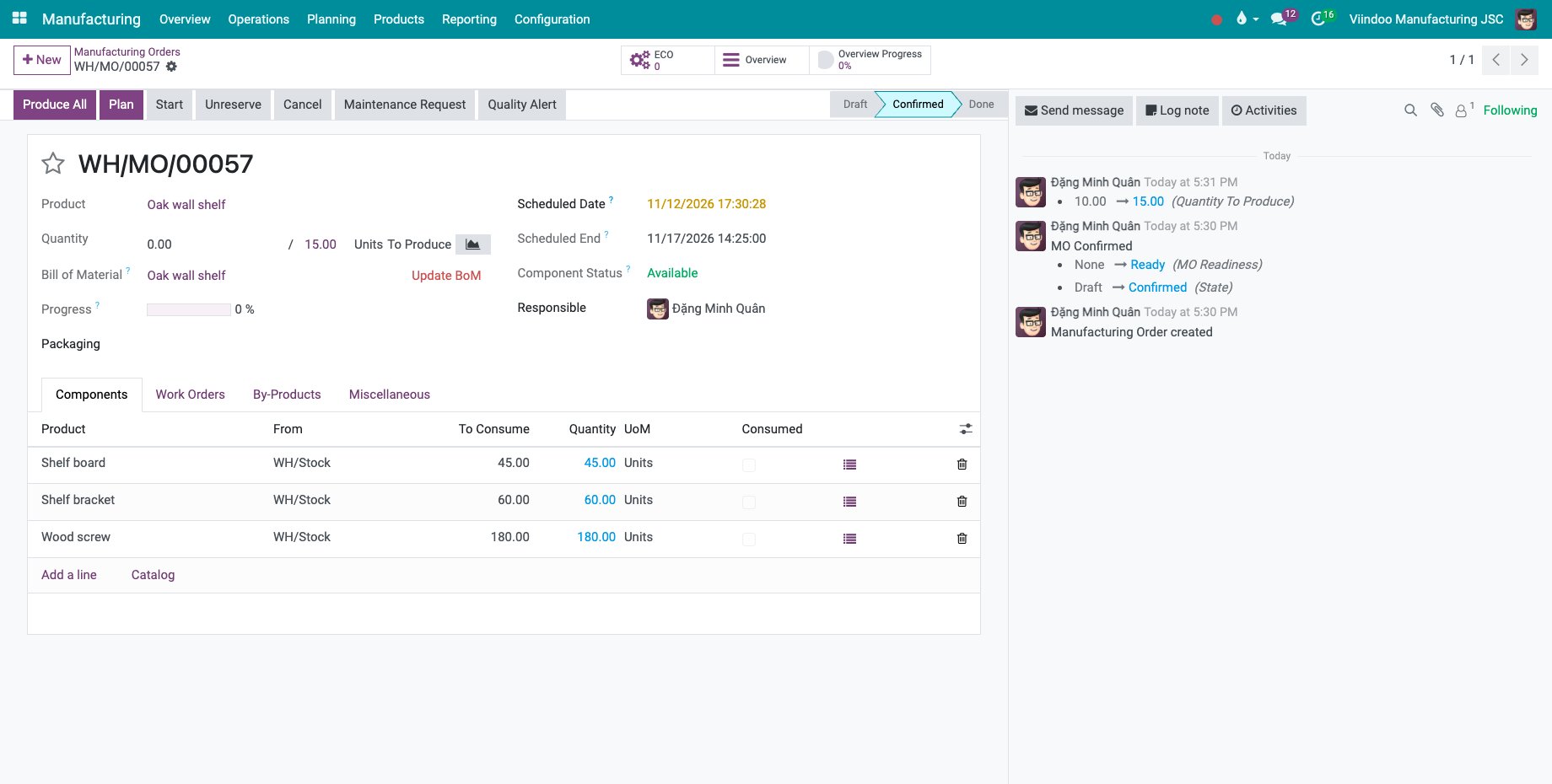
The quantity of a draft order is typed directly; a done or cancelled order cannot be changed.
How do I split an order?
Open the order, here 12 shelves, and choose Split in the gear menu.
![Split in the gear menu of the order]()
In Split production, type the number of orders in Split #, here 3. One line per order shows its Schedule Date, Responsible and Quantity To Produce; change them if needed. The quantities must add up to the quantity of the order.
![The window Split production with three lines of 4 shelves]()
Click Split. The order becomes three orders -001, -002 and -003.
![Three orders of 4 shelves after the split]()
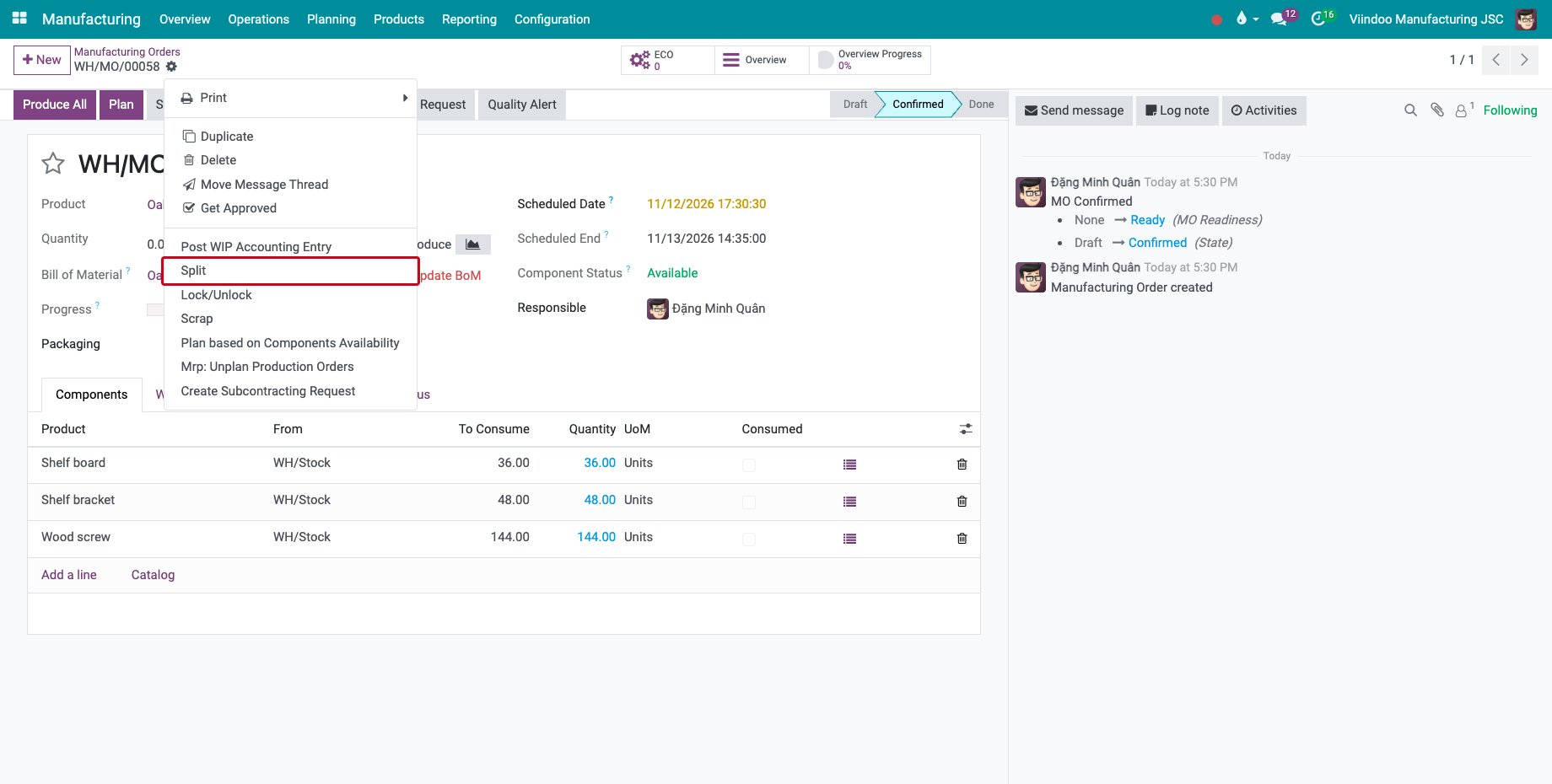
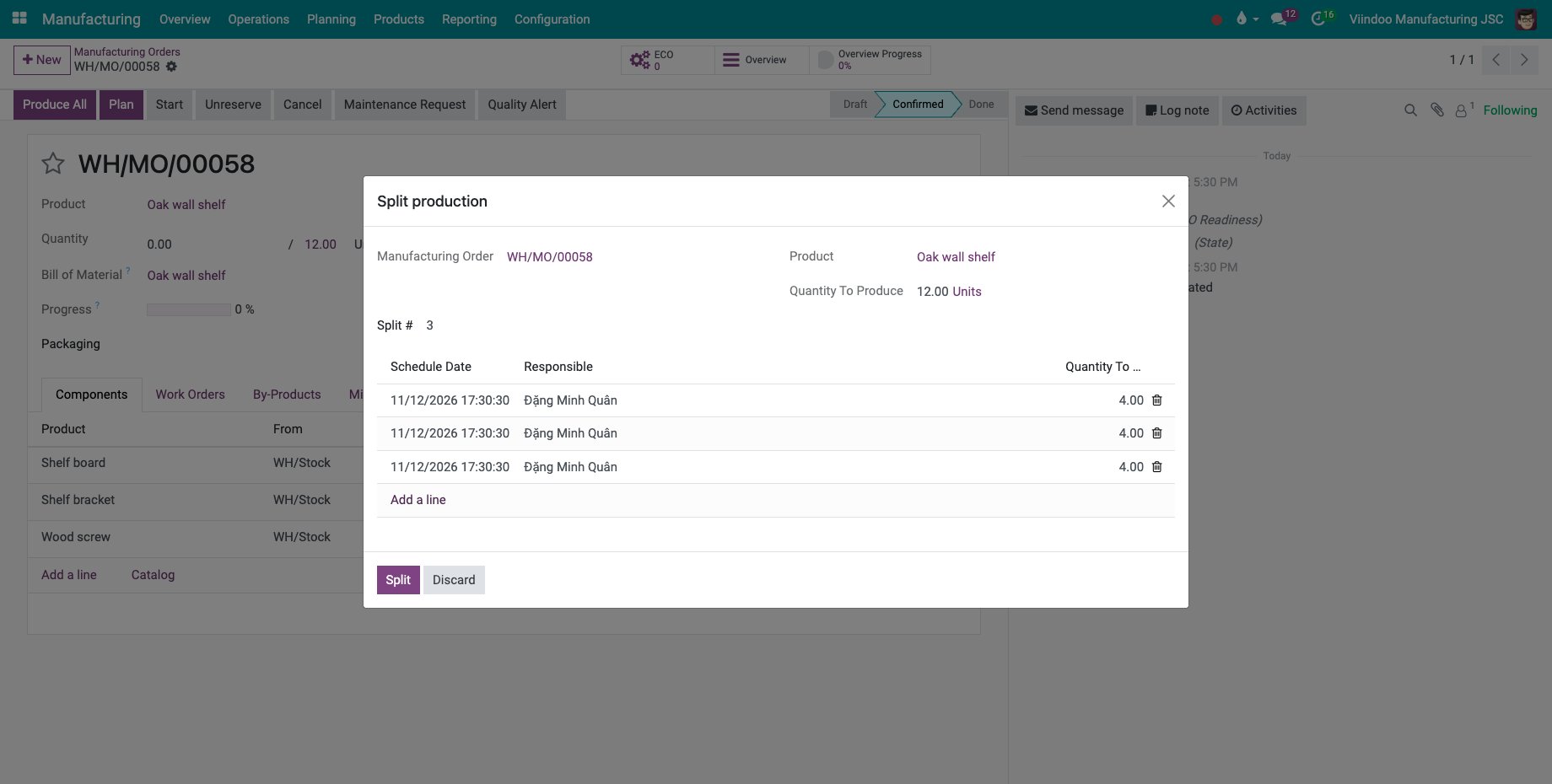
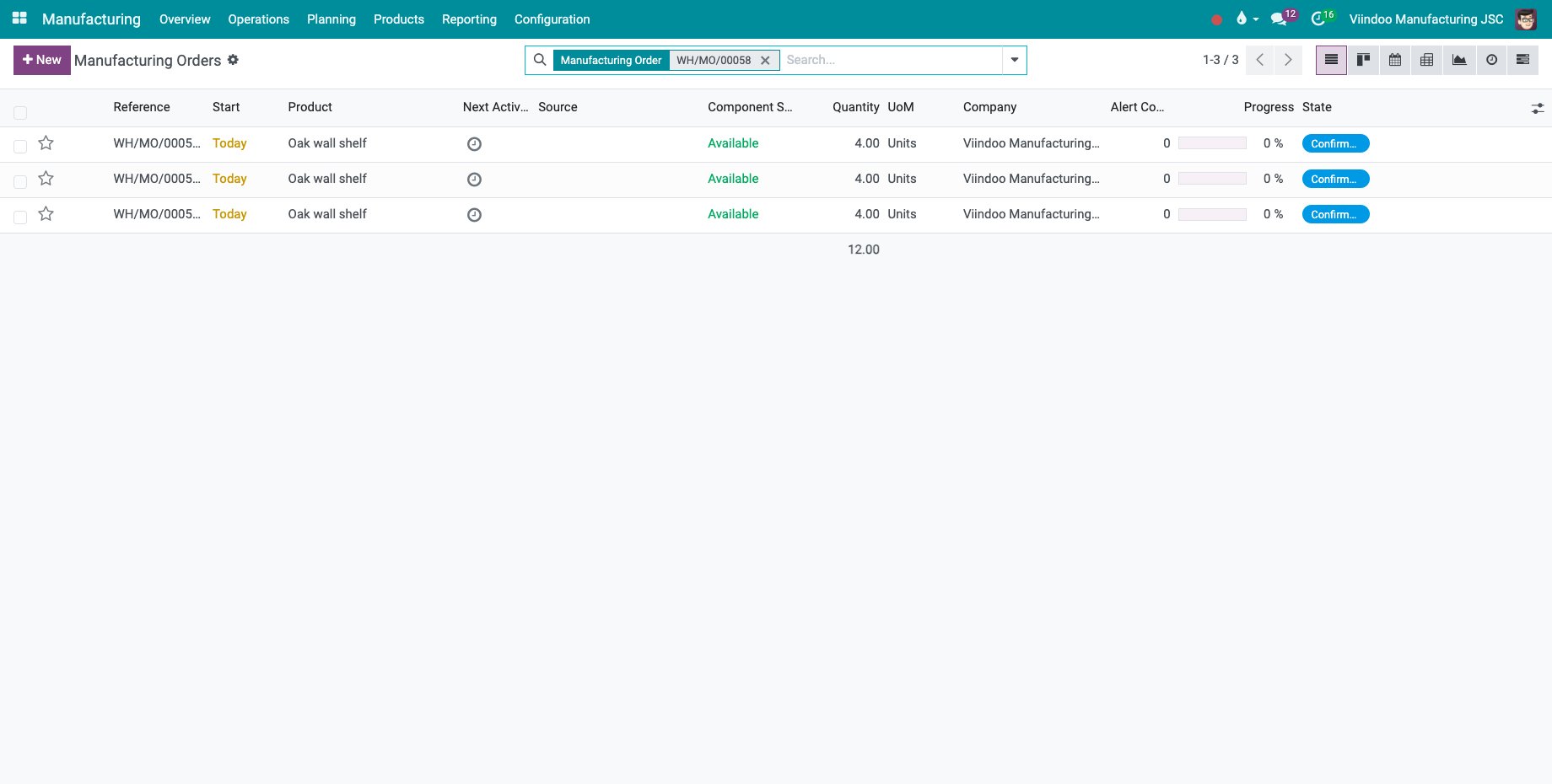
To split several orders at once, select them in the list and choose Actions ‣ Split: one window lists the orders and opens the split of each.
How do I merge orders?
In the list of manufacturing orders, select the orders and choose Actions ‣ Merge.
![Merge in the Actions menu of two selected orders]()
A new order for the total quantity opens, here 8 shelves; the merged orders are cancelled.
![The merged order of 8 shelves]()
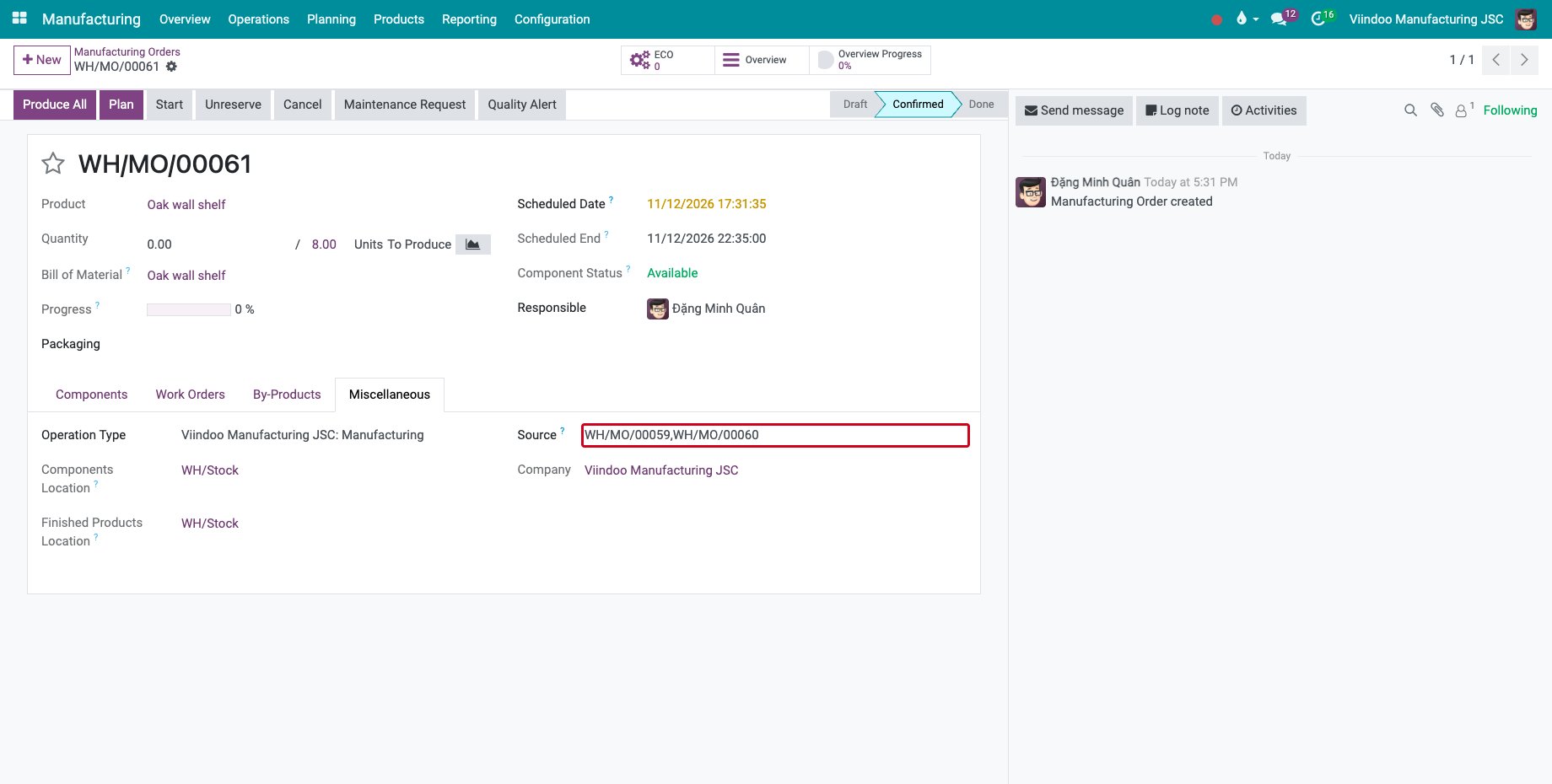
The Source on the Miscellaneous tab keeps the references of the merged orders.
![The Source field with the references of the merged orders]()
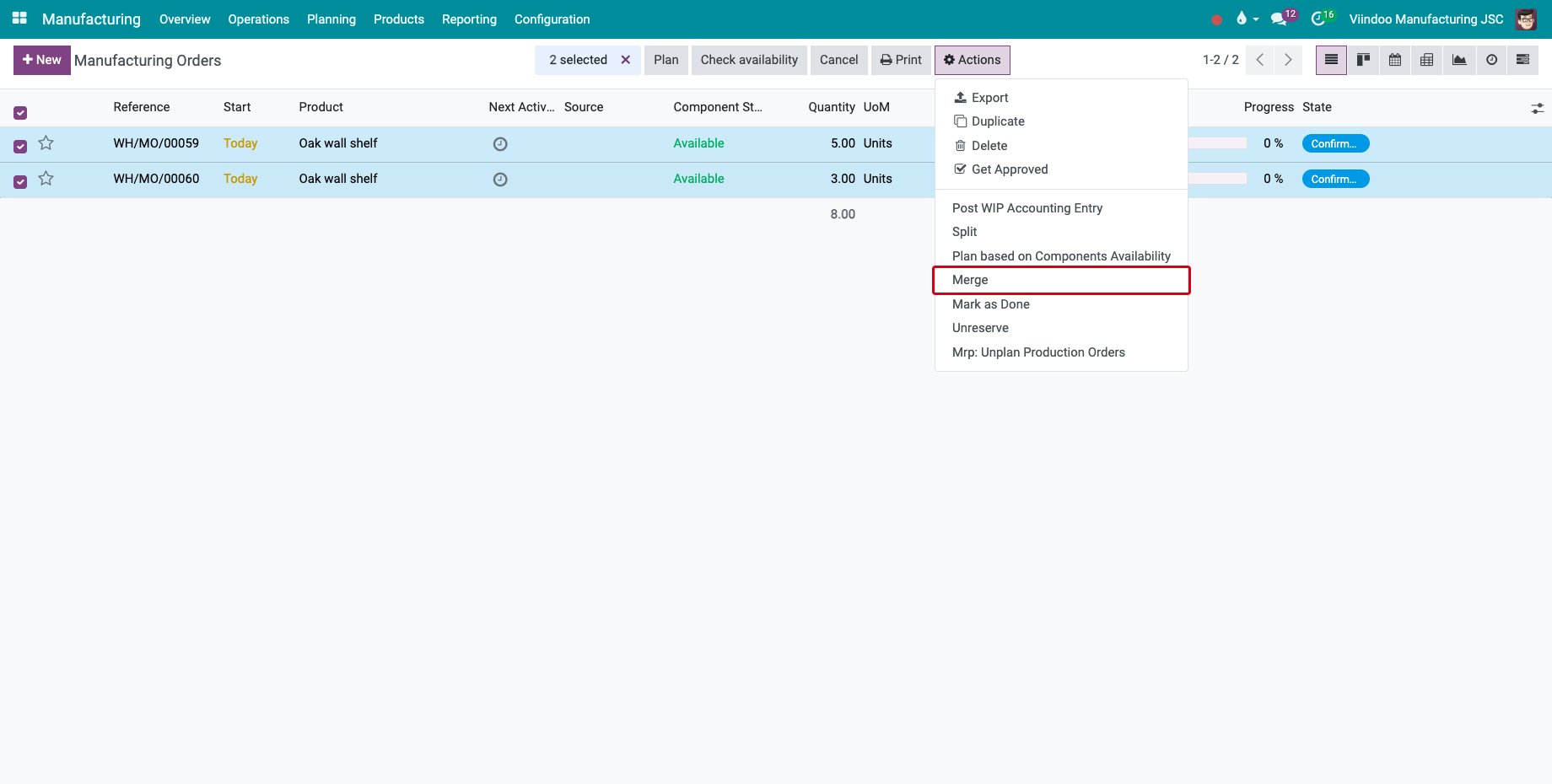
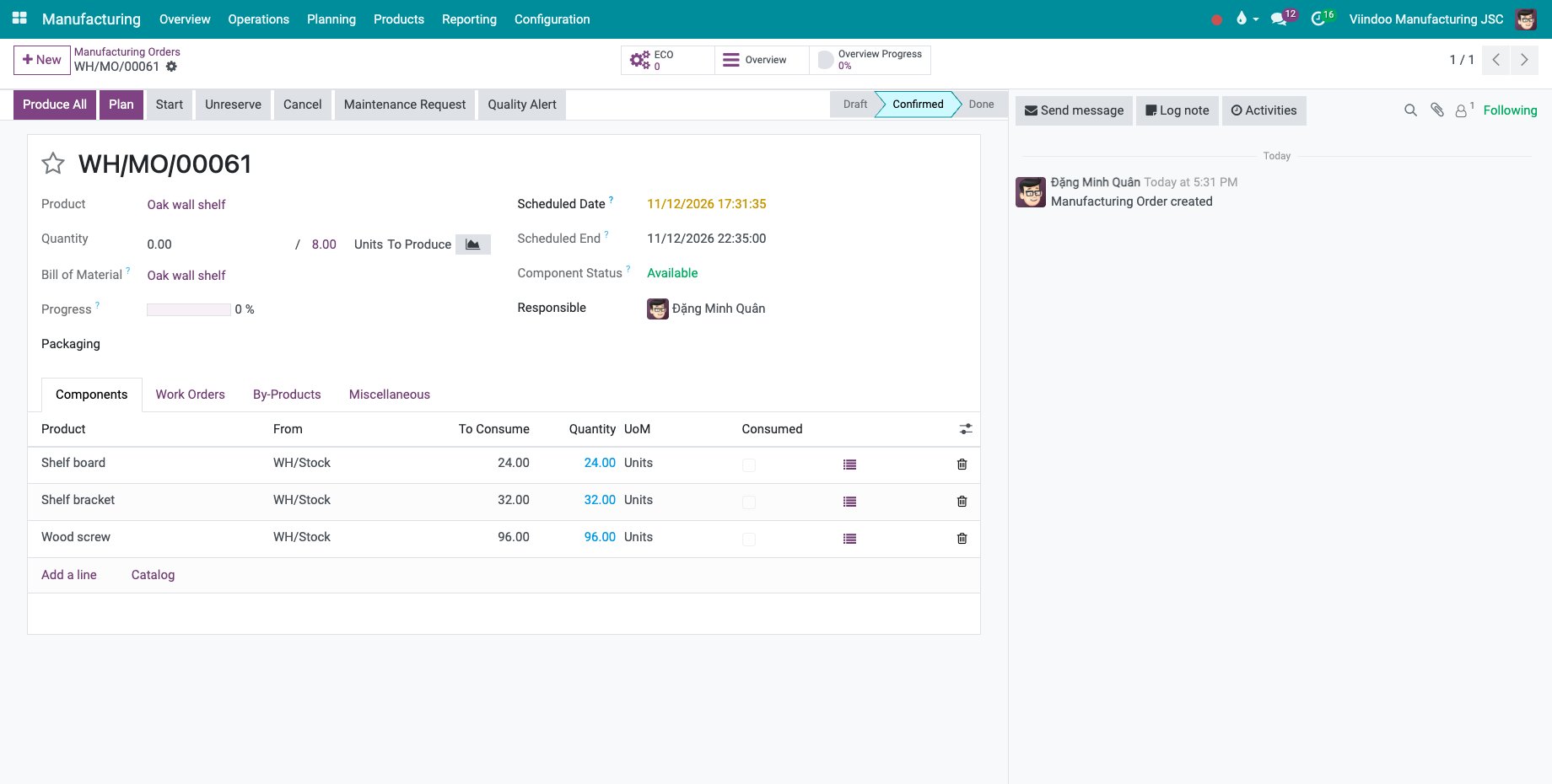
Orders can be merged only when they make the same product with the same bill of materials, are in the same state and operation type, and have no component or by-product added by hand.
How do I lock or unlock an order?
A locked order keeps the quantities of its components: after confirmation the quantities to consume cannot be edited, and once the order is done its quantities cannot be changed either.
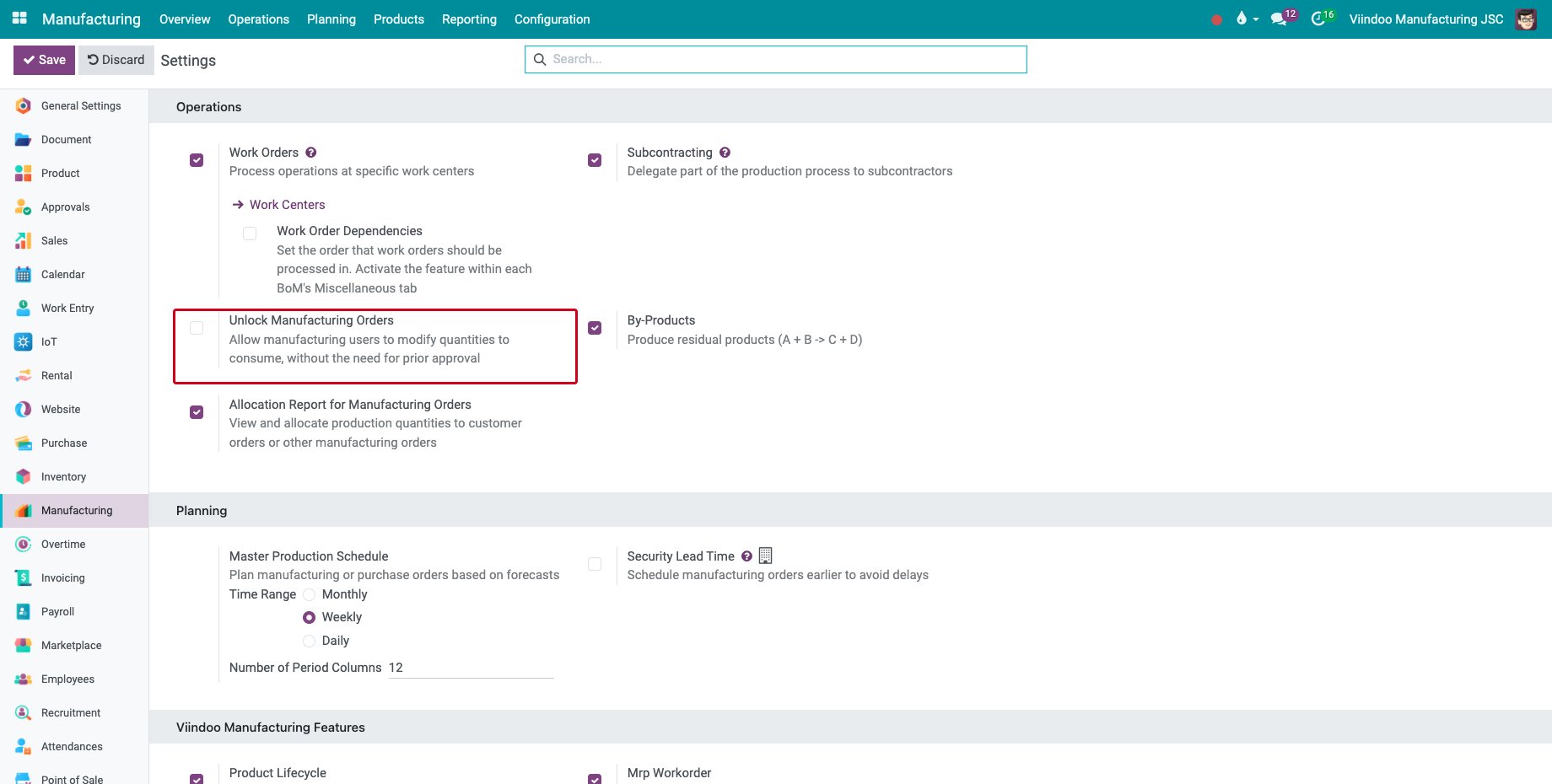
Orders are locked when they are created. To create them unlocked, go to Manufacturing ‣ Configuration ‣ Settings and tick Unlock Manufacturing Orders: users can then change the quantities to consume without prior approval.
![The setting Unlock Manufacturing Orders]()
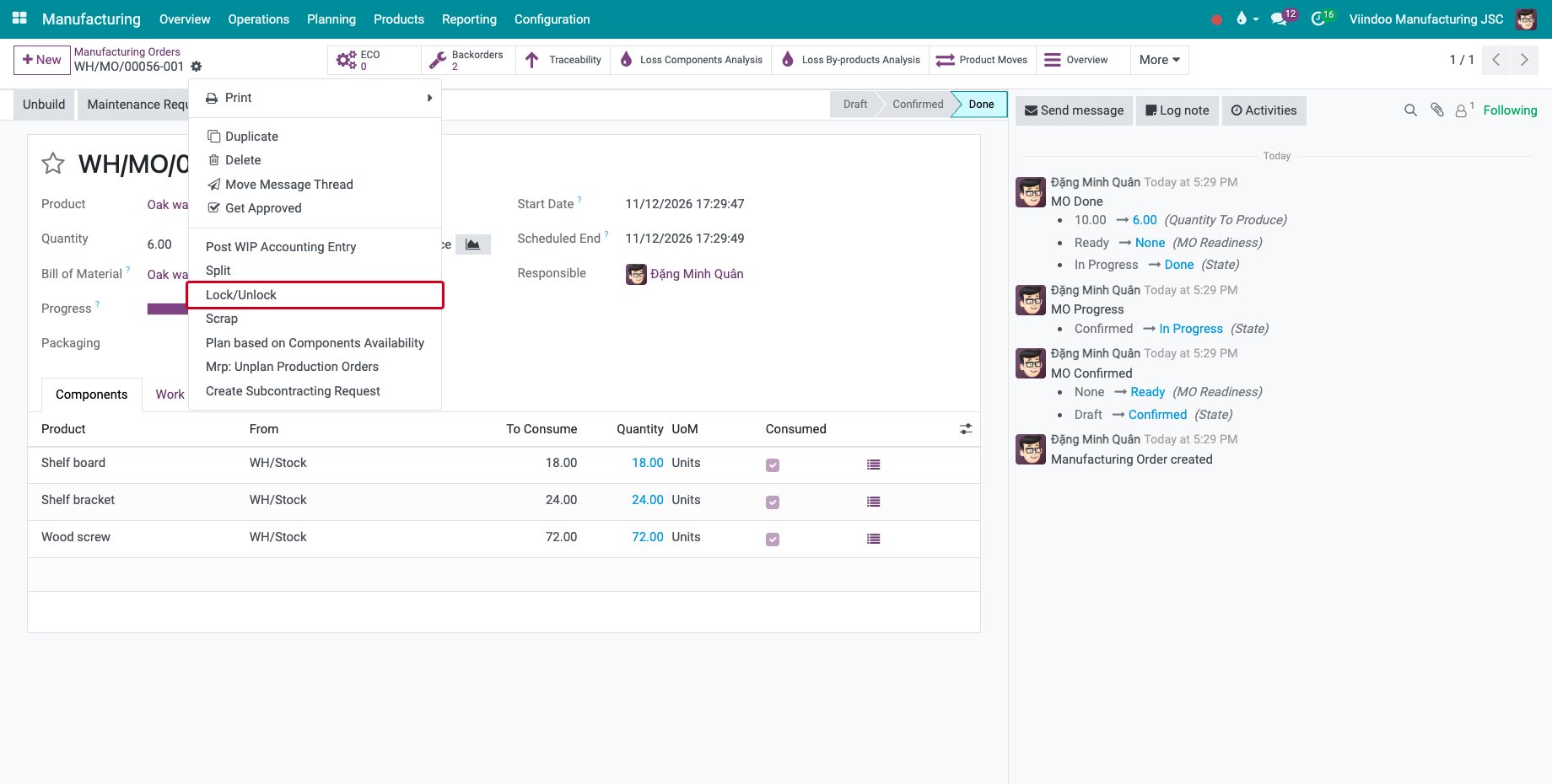
To lock or unlock one order, open it and choose Lock/Unlock in the gear menu, for example to correct a quantity on a done order.
![Lock/Unlock in the gear menu of a done order]()
Common errors
Problem |
What to do |
|---|---|
Only manufacturing orders in either a draft or confirmed state can be split or merged. |
The order has started or is done. Split it with a backorder instead, see Produce part of an order and create a backorder. |
You can only merge manufacturing orders of identical products with same BoM. |
Select orders of one product and one bill of materials. |
The Split button is grey. |
The quantities of the lines do not add up to the quantity of the order. |
Next steps
Plan by component availability and operation order: plan the orders once their quantities are right.
See also
Related articles