
How to return goods
To take back goods from a customer, open the done delivery order and click Return; to send goods back to a vendor, open the done receipt and click Return. Enter the quantity to return and click Return: Viindoo creates a linked transfer that moves the goods back and keeps the link with the original document. Use Return for Exchange to also create the transfer that sends the replacement.
Who |
Inventory User |
App |
Inventory |
Before you start
Install the Inventory app.
The original delivery or receipt must be in the Done state. Only done transfers can be returned.
Optional: if you also install Product Return Reasons, you can record the reason of the return.
Where do returned goods go?
The destination follows the Returns Type of the operation type of the original transfer. Open Inventory ‣ Configuration ‣ Warehouse Management ‣ Operations Types, choose the operation type and read the Returns Type field. By default the returns type of Delivery Orders is Receipts, and the returns type of Receipts is Delivery Orders.

For a delivery returned by a customer, the goods go to the default destination location of the returns type (for example the stock location of the warehouse).
For a receipt returned to a vendor, the goods go back to the source location of the receipt, the vendor location.
How do I take back goods from a customer?
Go to Inventory ‣ Operations ‣ Transfers ‣ Deliveries and open the done delivery order. Search by the Source Document of the order if you do not know the delivery.
Click Return.
In the Return window, enter the Quantity to take back on each product line. The default quantity is 0.
![Return window with the product line, the quantity and the Return, Return All and Return for Exchange buttons]()
Click Return (or Return All to take back the whole delivered quantity).
Validate the new receipt. You can follow the receipt process.

Back on the original delivery, the Returns smart button shows the number of returns and opens them.

How do I refund or replace the goods for a customer?
Refund: follow How to use Credit Notes in Viindoo Accounting. This needs the Accounting app.
Replace with the same products: in the Return window click Return for Exchange instead of Return. Viindoo creates the return and a new delivery of the same products, so the customer gets replacement goods.
Replace with different products: return the goods, then add the new products on the sales order (if the Sales app is installed) or create a new delivery order. Viindoo creates the new delivery for the added products.
How do I return goods to a vendor?
Go to Inventory ‣ Operations ‣ Transfers ‣ Receipts and open the done receipt.
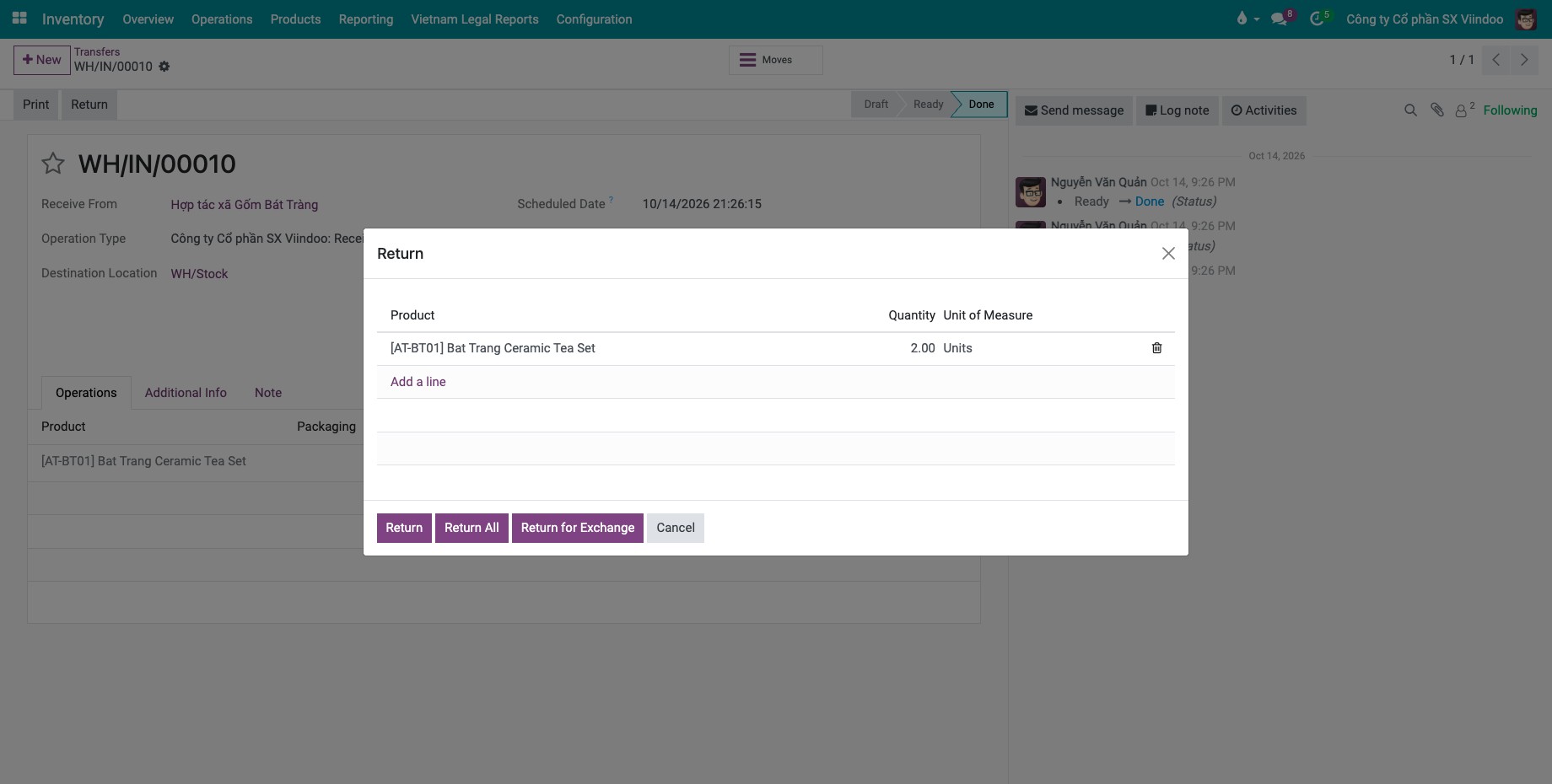
Click Return, enter the Quantity to send back, then click Return. The goods are returned to the vendor location.
![Return window opened from a done receipt]()
Viindoo opens the new delivery order. Click Validate when the goods leave your warehouse.
To receive replacement goods from the vendor, use Return for Exchange in the Return window: Viindoo creates a new receipt for the same products. For other products, create a new receipt or add the products to the purchase order (if the Purchase app is installed).
For a refund from the vendor, use a vendor credit note in the Accounting app.
Common errors
Message |
What to do |
|---|---|
You may only return Done pickings. |
Validate the delivery or receipt first, then return it. |
Please specify at least one non-zero quantity. |
Enter a quantity greater than 0 on at least one line, or click Return All. |
No products to return (only lines in Done state and not fully returned yet can be returned). |
Everything of this transfer was already returned. |
You may only return one picking at a time. |
Open the transfers one by one, do not select several in the list. |
Next steps
How to value returned goods at average cost: value of the returned goods.
Version notes
The Return window has no location field; the destination comes from the Returns Type.
Return All and Return for Exchange are buttons of the Return window.