
How to monitor and maintain IoT boxes
Open IoT ‣ Overview to see each box as Connected or Disconnected, IoT ‣ Devices for its devices and IoT ‣ Reporting ‣ Device Logs for what the boxes report. A box updates its software by itself; restarts, the clock and the shell password are in Advanced ‣ Maintenance on the box page.
Who |
The Maintenance / IT Technician (User right) watches boxes, devices and logs; everything they do is read-only. The IoT Administrator (Administrator right) keeps the box register and reads the settings codes. |
App |
How do I check which boxes are connected?
Open IoT ‣ Overview. Each card is one IoT box.
A green Connected label means the box is reporting; a red Disconnected label means it has stopped.
Click the device count on a card (for example 5 Devices) to see that box’s devices.
Click IoT Home Page to open the box page in a new tab. This works once the box has reported its address.
Viindoo checks every minute and shows a box Disconnected, together with all its devices, once it has not reported for two minutes (by default). It judges nothing during the first two minutes after the Viindoo server starts, so that boxes can reconnect first.
How do I open a box?
In IoT ‣ Overview, click a card.
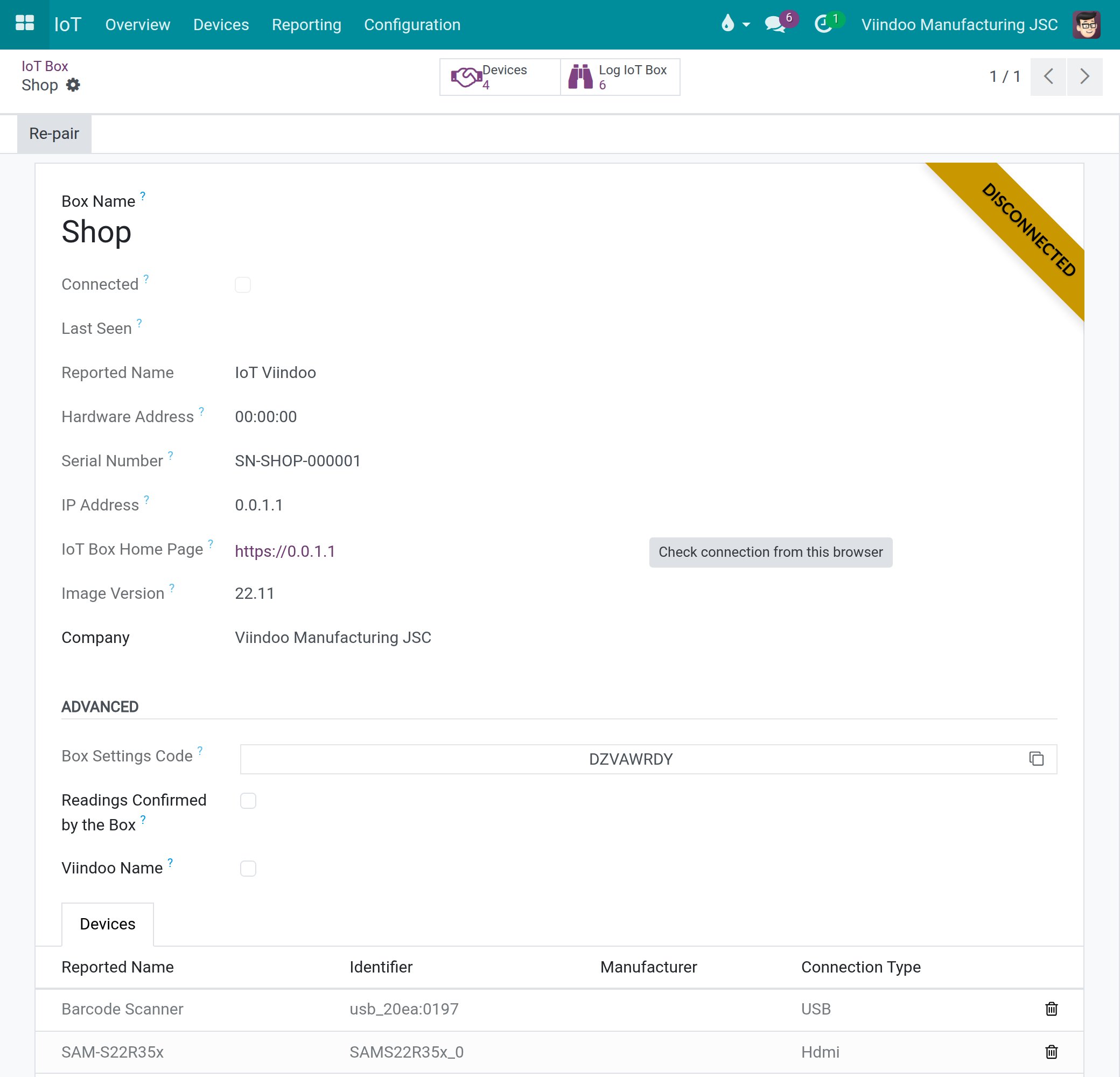
Read Connected, Last Seen, Reported Name, Hardware Address, Serial Number, IP Address, IoT Box Home Page and Image Version.
The Devices tab lists the box’s devices, in green when connected and greyed out when not.
Click the Devices or Log IoT Box button at the top to jump to that box’s devices or logs.
On the PC where a device fails, click Check connection from this browser.
How do I browse the devices?
Open IoT ‣ Devices. Devices are grouped by box.
Each card shows the device name, its box and Connected or Disconnected.
Use the search options to group by device type or connection type, or to show only connected or only disconnected devices.
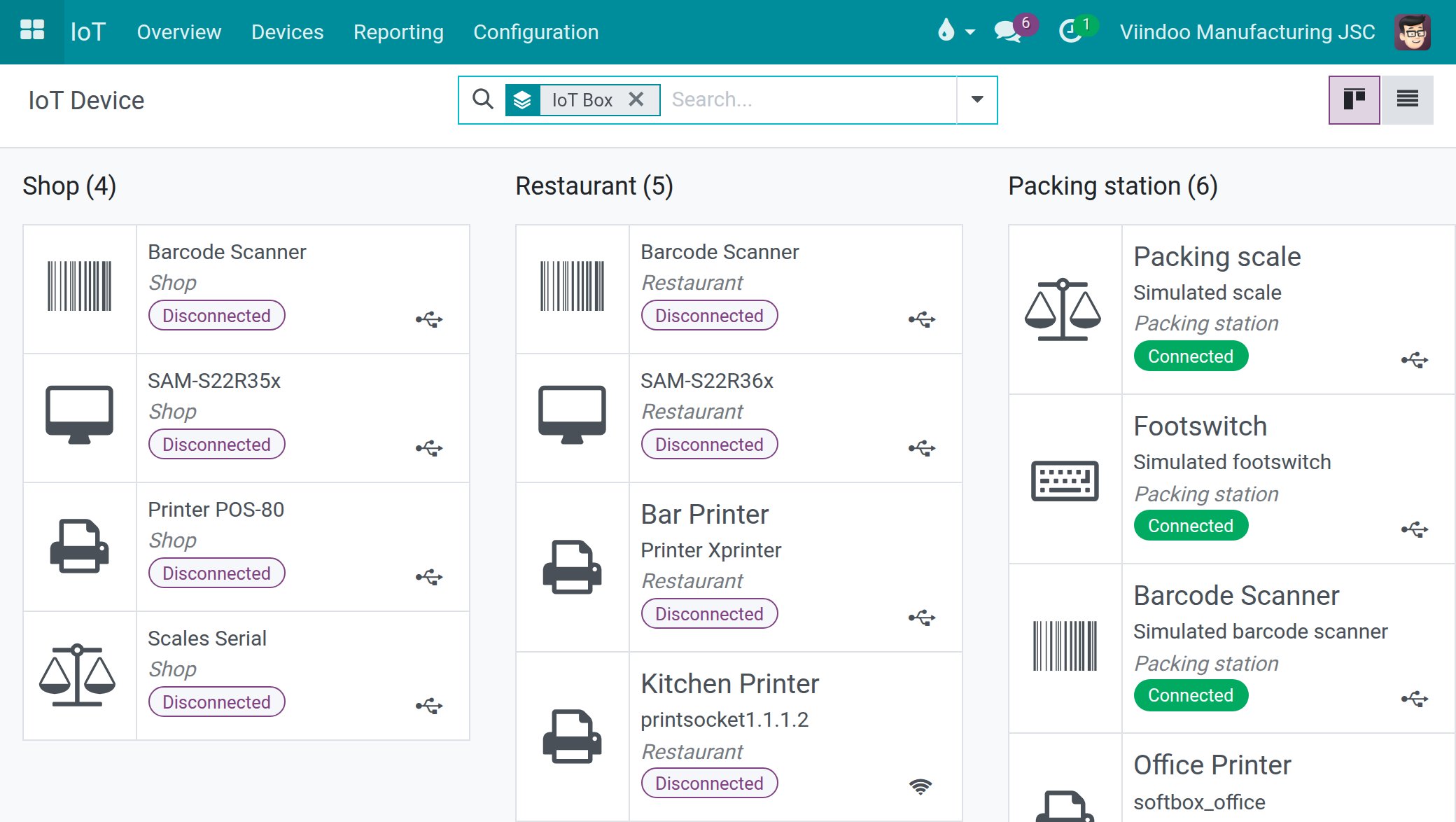
Open a device to see its Device Name, Reported Name, Type, Identifier, Connection Type, Manufacturer, IoT Box and Company. A printer also shows its Printer Kind (Receipt Printer, Label Printer or Office Printer). Apps that print labels look for a Label Printer, so check that a label printer is recognised as one.
How do I read the box logs?
Open IoT ‣ Reporting ‣ Device Logs (the screen is titled Data Log From IoT Box), or click Log IoT Box on a box.
Logs are grouped by box. Expand a box to read each line’s time, level, log type (Debug, Information, Warning, Error or Critical), module and description.
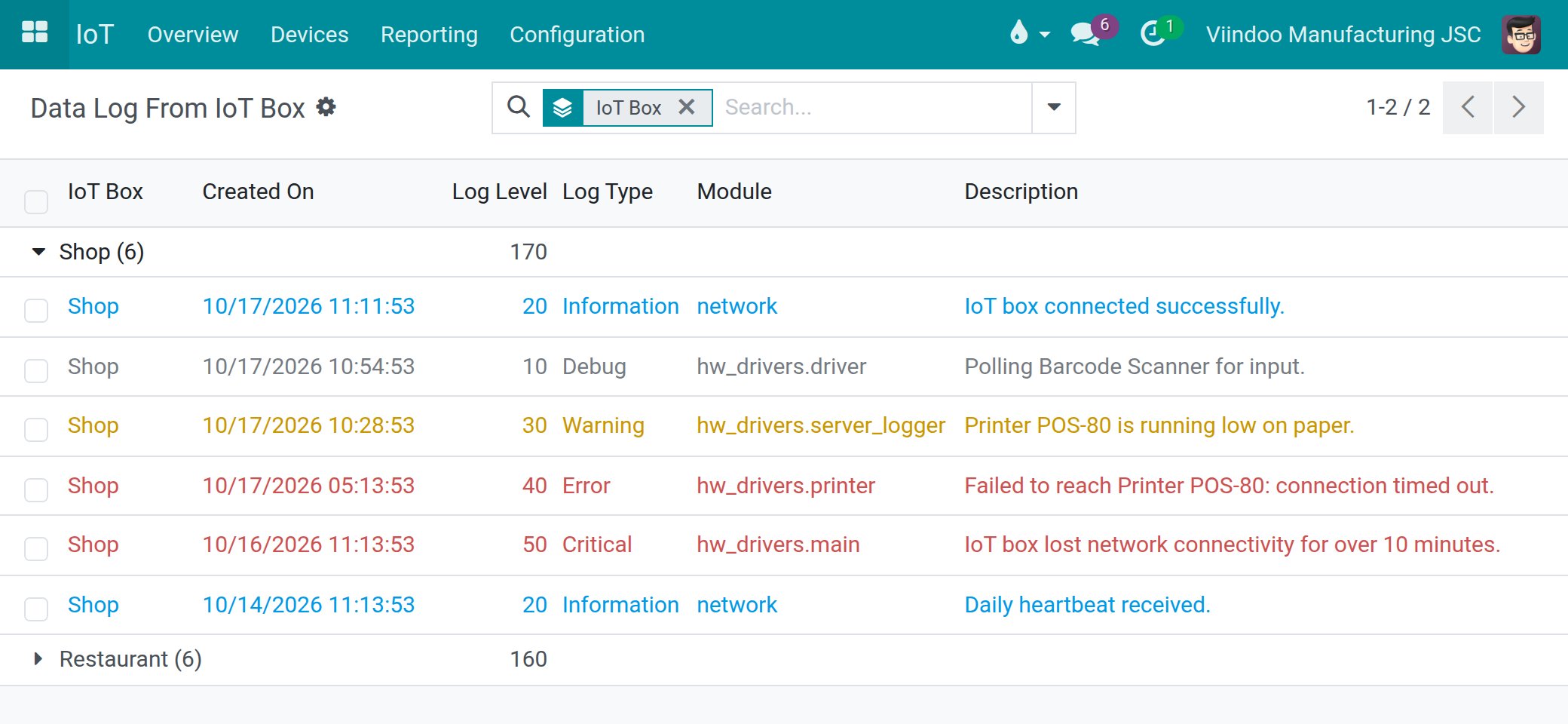
Use the logs to start a support conversation from evidence: for example an Error line saying a printer could not be reached. You read them from Viindoo, without going to the box.
Three places hold logs:
IoT ‣ Reporting ‣ Device Logs, or the Log IoT Box button of a box: the lines the box sends to Viindoo, grouped by box. The box sends its warnings and errors by default; a self-test line that fails is written there once (“Self-test: <line> failed …”) and again when it recovers.
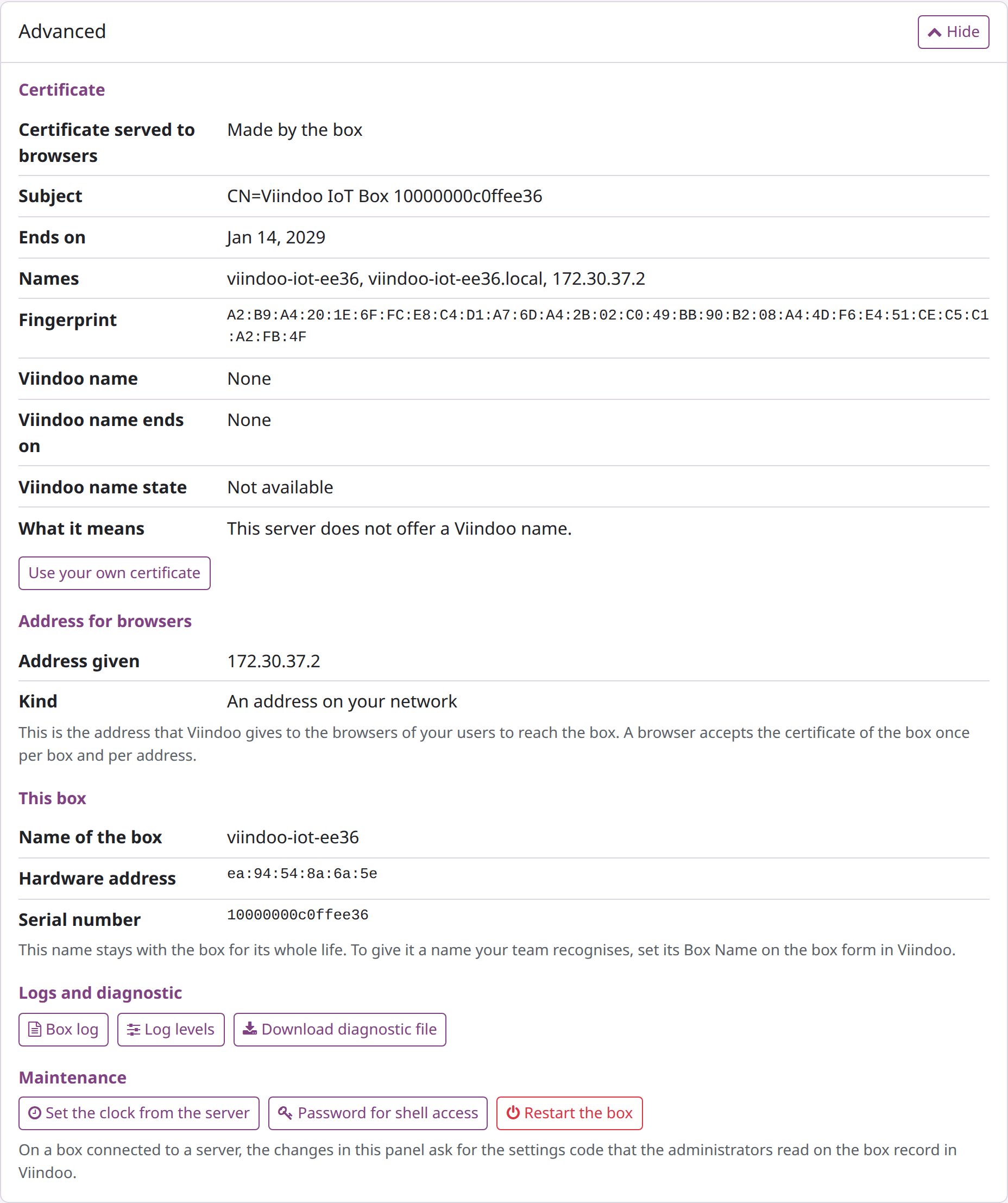
On the box page, Advanced ‣ Box log opens the live log of the box.
Download diagnostic file (self-test or Advanced) saves one file with the self-test, the configuration and the last log lines, without any password, code or key. Send it to support.
When you contact support, give three answers: is the box Connected, Disconnected or missing in
Viindoo; the self-test (a screenshot or the diagnostic file) from http://<box address>; and what
Check connection from this browser says on the PC where a device fails.
How do I keep the register of boxes?
The administrator needs the Administrator access right.
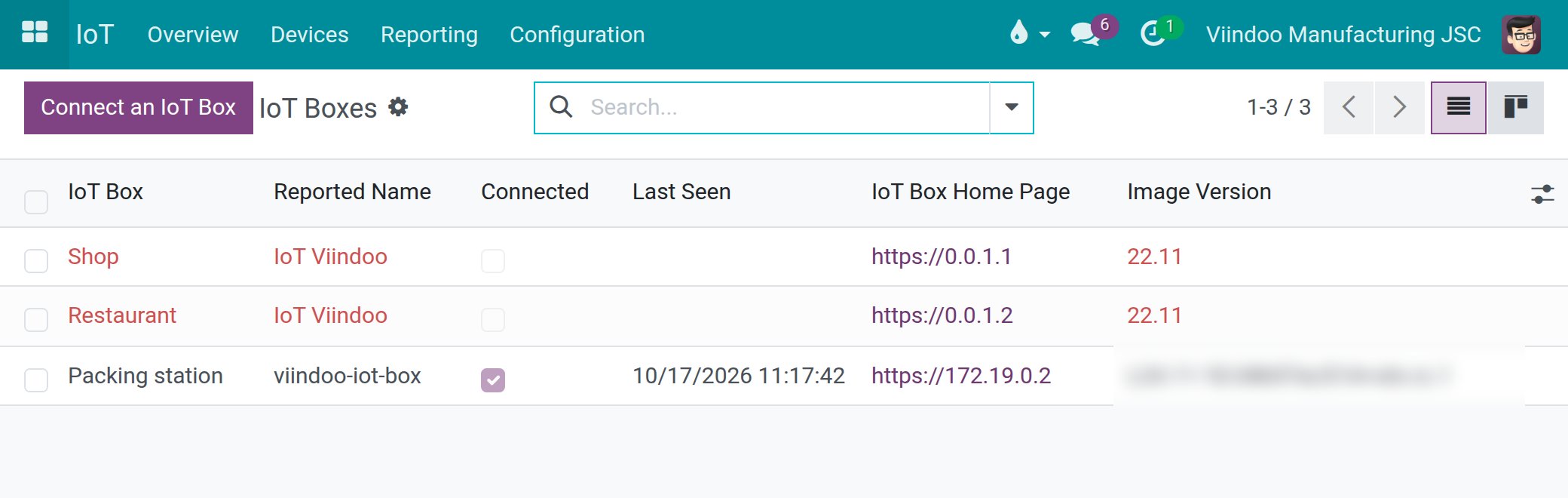
Open IoT ‣ Configuration ‣ IoT Boxes for a list of every paired box: name, reported name, status, last seen, home page and image version. Disconnected boxes are shown in red. Use All in the search options to include archived boxes. Connect an IoT Box is also here.
On each box, the Advanced group shows the Box Settings Code that the box page asks for, and the box’s other administrator settings (see How do I name the box?). Give the code only to the person at the box, when the box asks for it.
Each box also holds credentials for talking to the server, made at pairing and replaced at each pairing. No screen shows them; nobody types them.
An integrator cannot read a box’s settings code: ask an IoT Administrator for it when the box page asks.
How does the box update its software?
A box follows the supported release of its series and nothing else. It looks for a new release when it starts, every night at midnight on its clock, and when you click Look for a new release in the Software section. With Update automatically on (the default) it applies a new release by itself and restarts. A release that does not start well is undone by the box itself and never tried again. Updates need internet access; the devices do not.
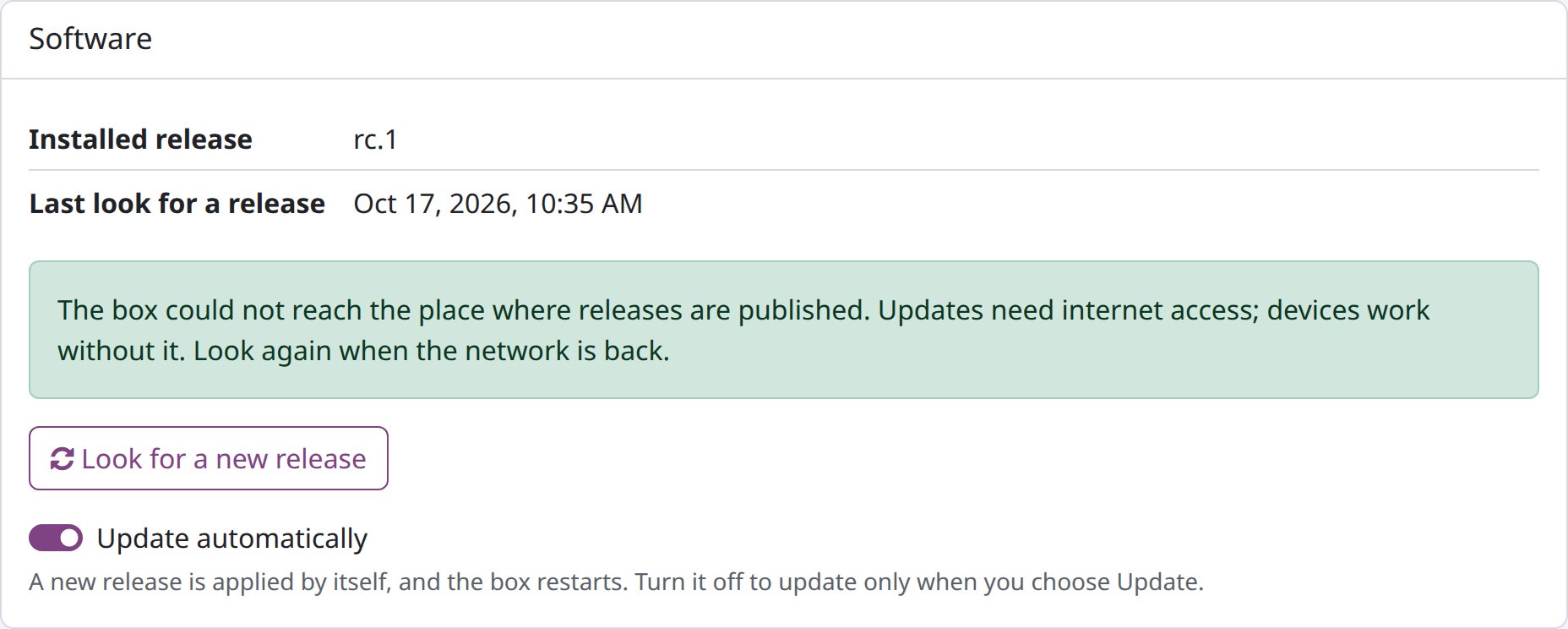
The sentence in the Software section says where the box stands, for example “The box software is the latest release.”, “A new release is on trial after a restart; the box keeps it once it runs well.”, or, on a network without internet, “The box could not reach the place where releases are published.” When a release is offered and Update automatically is off, click Update to <release>. If the box says the new release needs a newer image, write a newer image to its card (see How to download, check and write the IoT box image), then pair it again with Re-pair: writing a card erases the pairing, but the box keeps its devices and their assignments in Viindoo.
Image Version on the box form shows which image and release the box reports.
To pair a box again, replace it or move it to another database, see How do I pair a box again, replace a box or move a box?; to reset a box nobody can unlock, see What if nobody can unlock the box?.
How do I restart the box, set its clock or give a shell password?
All in Advanced ‣ Maintenance:
Restart the box restarts the box software (settings code needed). Devices and printing pause for about a minute; the page waits for the box.
Set the clock from the server compares the box’s clock with the server and sets it. It does not need the settings code, and it is refused when a time server already keeps the clock.
Password for shell access generates a password for a technician, only when support asks. Note it at once: the box does not show it again, and a paired box replaces it at each restart.
What happens to an action sent to a device?
When an app drives a device - printing a label, for example - Viindoo records the action and waits for the box to confirm it. Every action ends in one outcome:
Dispatched - sent to the box and still inside its time window.
Completed - the box confirmed it carried out the action.
Refused - the command could not be sent.
Never Confirmed - no confirmation arrived within Device Action Timeout (seconds).
Replaced - a newer request for the same device took its place.
Never Confirmed does not mean the action failed; it means the box did not answer in time. There is no separate screen for these records: check Device Logs for the box and the device in question.
How do apps read and use devices?
These rules are the same in every app that uses the hardware:
One tap or press gives one fresh reading, taken at that moment. A scale that shows 0 or is not stable is refused; wait until the weight settles and read again.
A value typed by hand is recorded as manual. Who took a reading, with which device, when, and whether it was typed or read from the instrument cannot be edited afterwards.
When the box confirms its readings (Readings Confirmed by the Box on the box), a reading is recorded only if the box confirmed that same value.
One screen holds a scanner or a footswitch at a time. If a second screen opens the same station (another browser tab, a team leader’s computer), it takes the device and the first screen shows that the device is in use by another screen. Touching the first screen takes the device back. Nothing is ever recorded twice.
A screen opened while the box is still starting shows the device as unreachable and recovers by itself.
What do I do when the box or a device fails?
Open IoT ‣ Overview. A red Disconnected label means the box stopped reporting; its devices are shown Disconnected too.
Open the box and read Last Seen, then open Log IoT Box and look at the latest Warning, Error and Critical lines.
Open the box page (IoT Home Page) and read its self-test: each line that needs you says what to do. Check power and network at the box.
When the box reports again, it and its devices return to Connected on their own.
While it is down, the people at the till or on the shop floor see a chip or a warning in their own app. They can type the value by hand (a weight, for example); it is recorded as manual.
A printer that is offline is reported to the operator at once. After a paper jam or an empty roll, the label can be printed again from the app (see How to use IoT devices in Manufacturing).
Known limits
A reading travels from the box through the browser to the server. Unless the box confirms its readings, a person who is allowed to use a device could submit one invented value for a request they opened themselves. Typed values are always marked as manual.
A till that types the box’s address by hand, without choosing the box, is not protected from driving the box’s default screen.
If one screen loses its network at the very moment a second screen takes a device, and the box restarts before any event reaches the first screen, the first input after the restart can be acted on by both screens once.
Devices unplugged while the box was offline can show as connected again until the box’s next report.
Next steps
How to troubleshoot an IoT box: every self-test line and message, with what to do.