
How to read the product forecast report
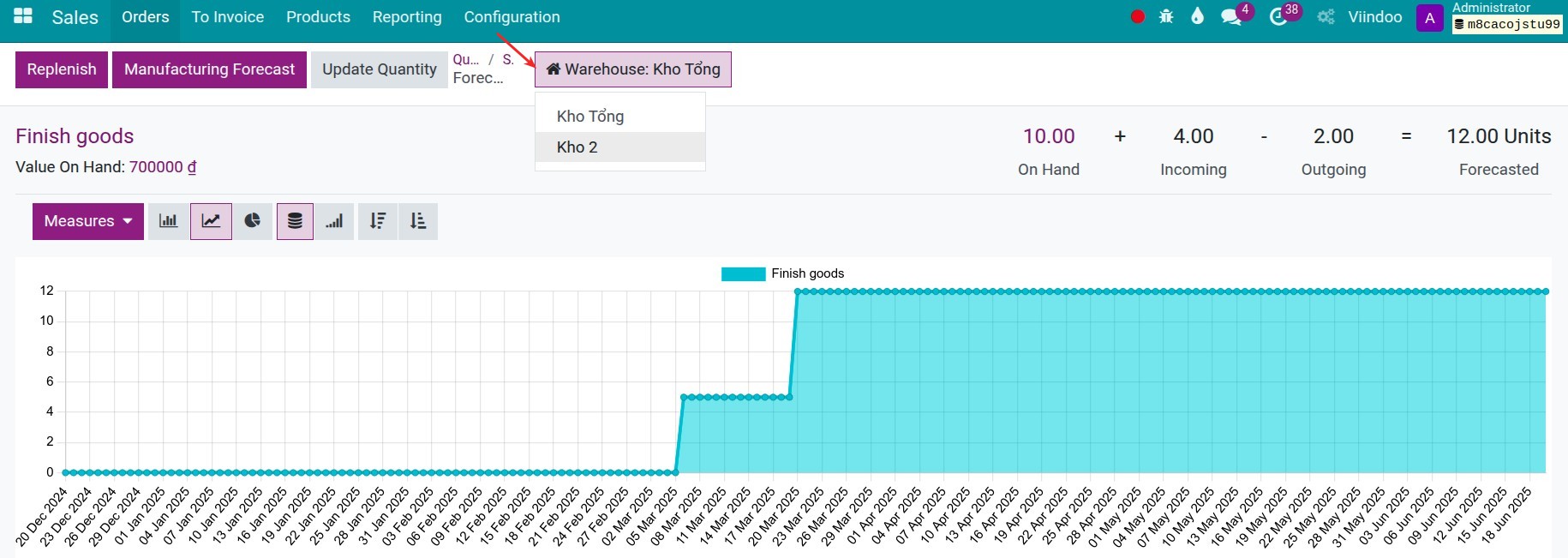
Open a product and click its Forecasted button to see the forecast report. It shows the stock on hand, the quantity coming in and going out, and the forecasted quantity by date, with the receipts and deliveries behind each number. A negative forecast warns you that demand is higher than what is available or on its way, so you can order in time with the Replenish button.
Who |
Users with the Inventory User access right. |
App |
Inventory (also reachable from Sales, Purchase and Manufacturing) |
Before you start
Install the Inventory app (see How to install Inventory and give users access to it).
The report exists only for products that track inventory (Track Inventory ticked on the product).
How do I open the forecast report?
Click the Forecasted button at the top of the product form (). You can also open it from the Forecast button of a line of , from the chart icon of a line of , and, if you install the matching apps, from the lines of sales orders, purchase orders and manufacturing orders.

What do the numbers mean?
At the top right of the report, the quantities add up:
Quantity |
Meaning |
|---|---|
On Hand |
Stock physically in your warehouses now. |
Incoming |
Quantity expected from confirmed receipts (and manufacturing orders). |
Outgoing |
Quantity reserved or promised in confirmed deliveries and other outgoing operations. |
Forecasted |
On Hand + Incoming - Outgoing. |

The graph shows the forecasted quantity by date. Use Measures and the chart buttons to change the view. In a company with several warehouses, click the Warehouse button to see one warehouse only.
How do I read the table of operations?
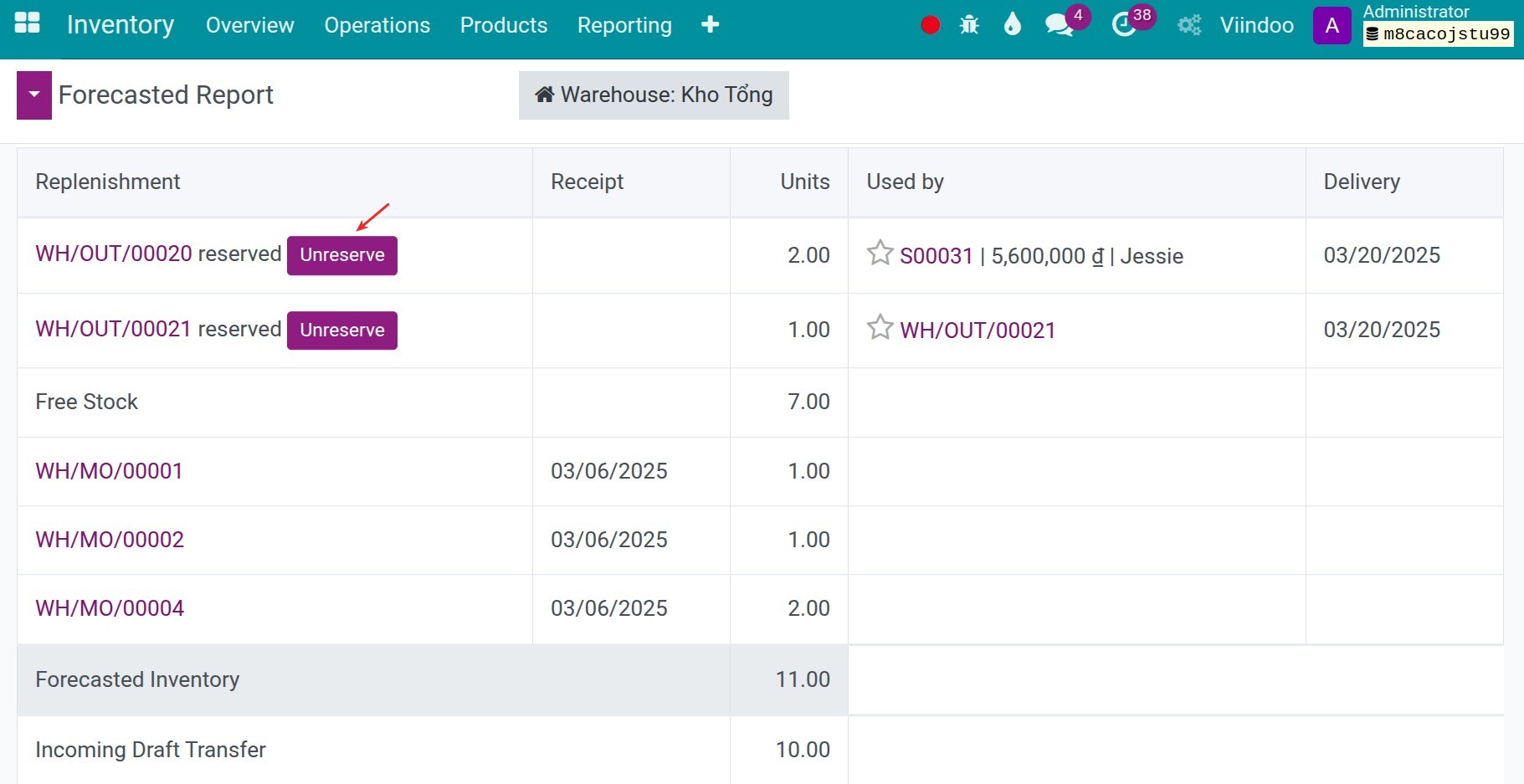
The table lists each planned operation that changes the forecast.

Column or line |
Meaning |
|---|---|
Replenishment |
The operation that brings the product in, for example a receipt, linked to its document. |
Receipt |
The planned date of the incoming operation. |
Units |
The quantity of the incoming or outgoing operation. |
Used by |
The outgoing operation that uses the quantity, for example a delivery. |
Delivery |
The planned date of the delivery. |
Free Stock |
The quantity on hand that is not reserved. |
Forecasted Inventory |
The forecast from confirmed operations. |
Incoming Draft Transfer, Outgoing Draft Transfer |
Quantities of transfers still in draft. |
Forecasted with Pending |
The forecast including the draft transfers (and, with the matching apps, quotations and draft manufacturing orders). |
How do I reserve or unreserve stock from the report?
A user with Inventory access can click Reserve or Unreserve on a line of the Used by column to allocate the stock to a delivery, or free it for another one.
How do I replenish from the report?
Click Replenish at the top left of the report.
![Replenish window opened from the forecast report]()
Enter the Quantity, the Scheduled Date, the Warehouse and the Preferred Route (for example Buy, Manufacture or a resupply from another warehouse).
Click Confirm. Viindoo creates the matching purchase order, manufacturing order or transfers.

How do I read the forecast of a manufactured product?
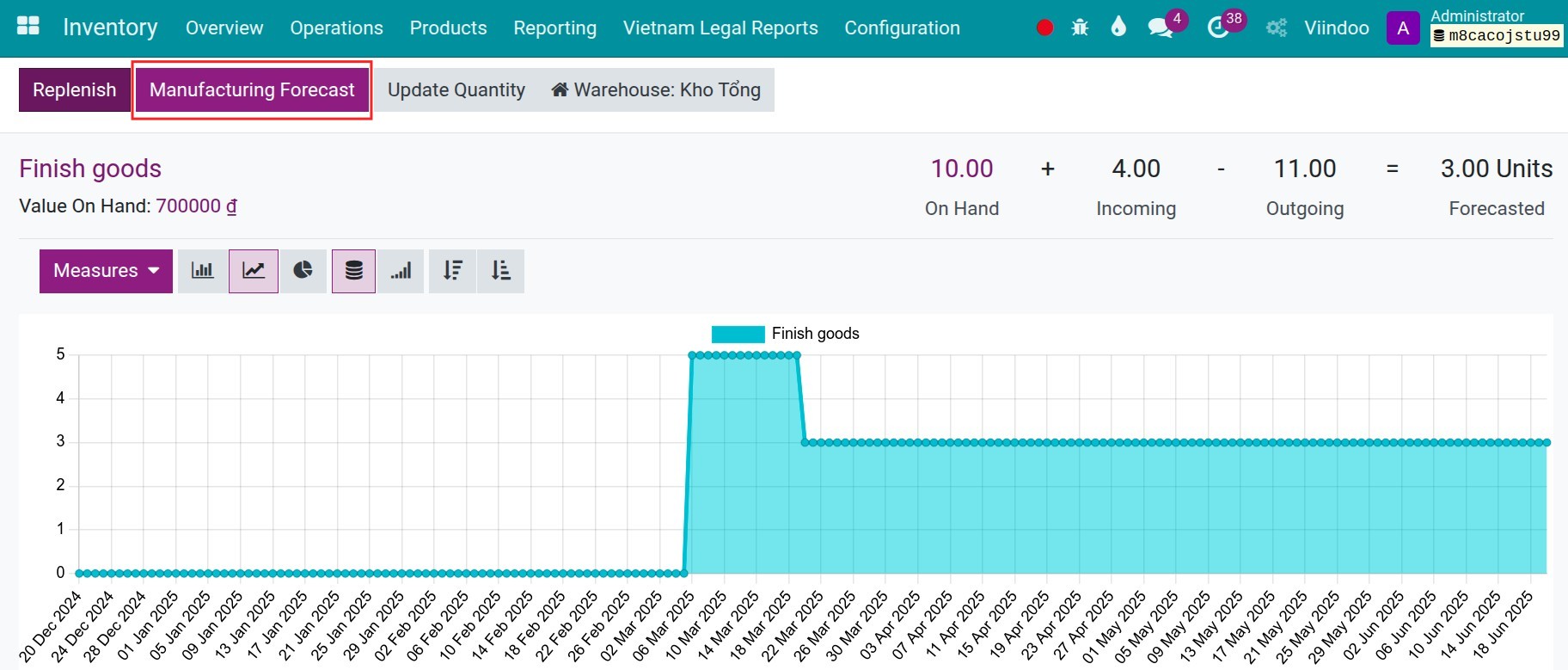
If you also install Manufacturing, a product with a bill of materials has a Manufacturing Forecast button. Enter the quantity to produce and the warehouse, and the report shows the quantity Free to Use, the quantity you can produce with the available components and the availability of each component.
Which cases should I watch for?
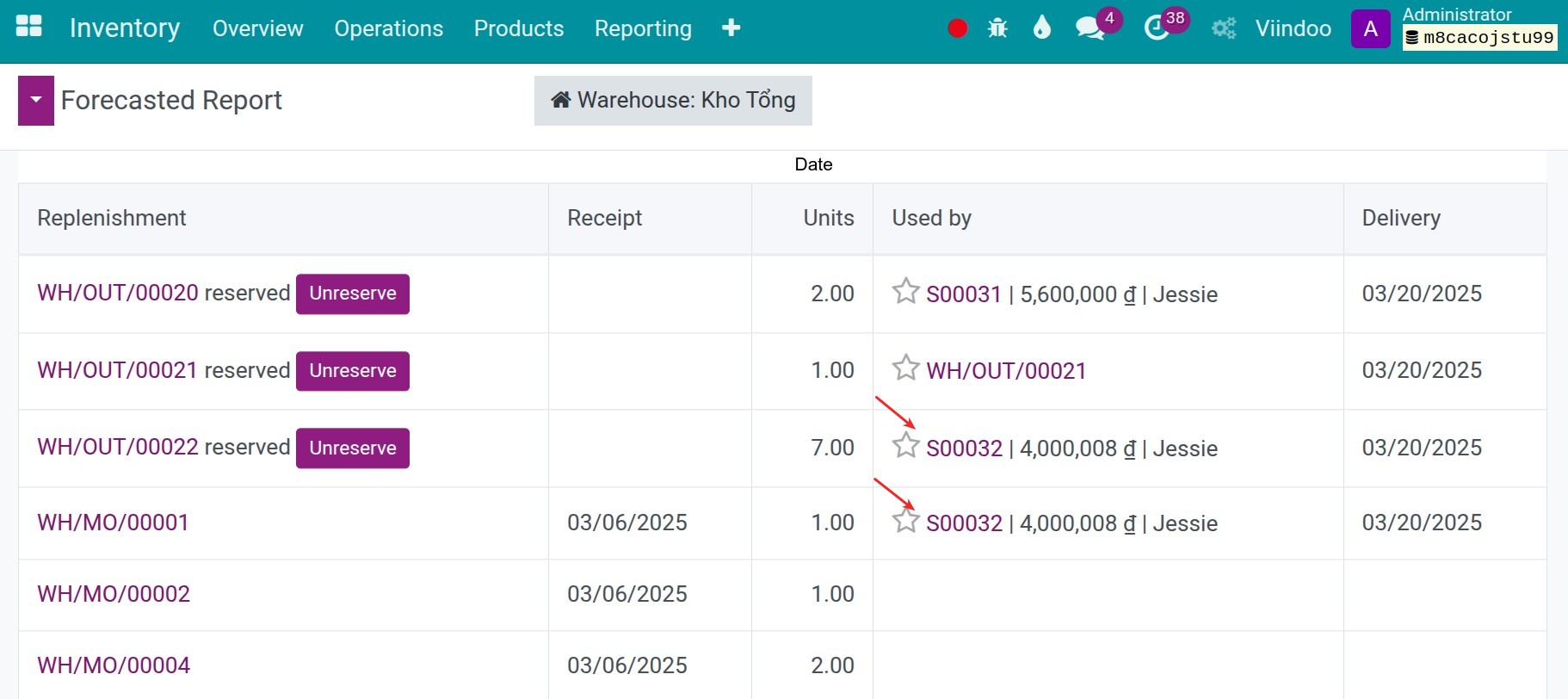
A product that is split across orders
When stock is not enough for several orders, the report shows how the current stock is reserved for the first delivery and which operation will bring the rest.
A negative forecast

A negative forecast means that demand is higher than the stock on hand and incoming. It happens when orders need more than is available or expected, or when a receipt or manufacturing order is late. Then:
Prioritize the orders that must be delivered first.
Order more or speed up the open purchase orders.
Tell your customers about the delay early.
What should I see when it works?
The forecasted quantity matches your confirmed operations, and after Replenish ‣ Confirm a new operation appears in the table with its planned date.
Common problems
Problem |
What to do |
|---|---|
There is no Forecasted button. |
Tick Track Inventory on the product: the report is for these products only. |
The forecast looks wrong for one warehouse. |
Use the Warehouse button to see the warehouse you work with. |
Replenish offers no route. |
Select the routes on the product (see How to set up replenishment rules: minimum stock and make to order). |
Next steps
How to replenish stock with automatic or manual reordering rules: replenish with reordering rules.
How to read the real-time stock reports: the other stock reports.
Version notes
The forecast report is for products that track inventory; the Storable product type of earlier versions is now the Track Inventory option of the product.
If you also install Accounting & Finance you get the valuation reports next to the forecast.