
How to publish a job on your website
To show a position on your website, turn on Online Posting in the Recruitment settings, then switch the Published toggle on the position in Recruitment ‣ Applications ‣ By Job Positions. Candidates see the position in your Jobs page, open it and send their application through an online form. Each form creates an application in Recruitment by itself.
Who |
Users with the Recruitment ‣ Officer access right. Turning on Online Posting needs the Recruitment ‣ Administrator access right. |
App |
Recruitment, with Website |
Before you start
Install the Recruitment app.
Create the job position and, if you use recruitment requests, get the request approved.
How do I turn on job posting on the website?
Go to Recruitment ‣ Configuration ‣ Settings.
In Job Posting, tick Online Posting and click Save. Viindoo installs the Website app if it is not installed yet.
![The Online Posting option in the Recruitment settings]()

The website then has a Jobs menu that lists the published positions.
How do I publish a position?
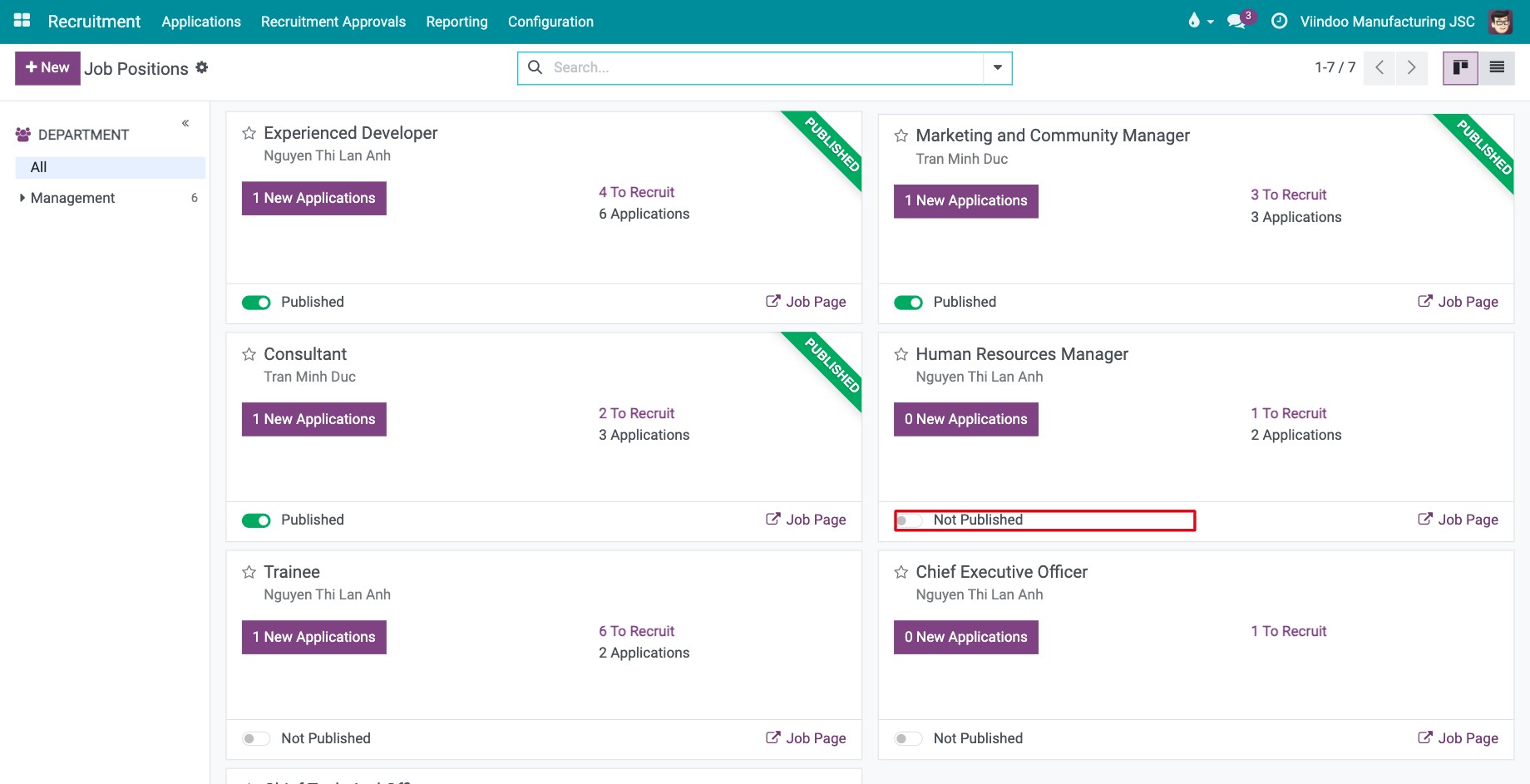
Go to Recruitment ‣ Applications ‣ By Job Positions. Each position is a card.
![Job position cards with the Not Published toggle highlighted]()
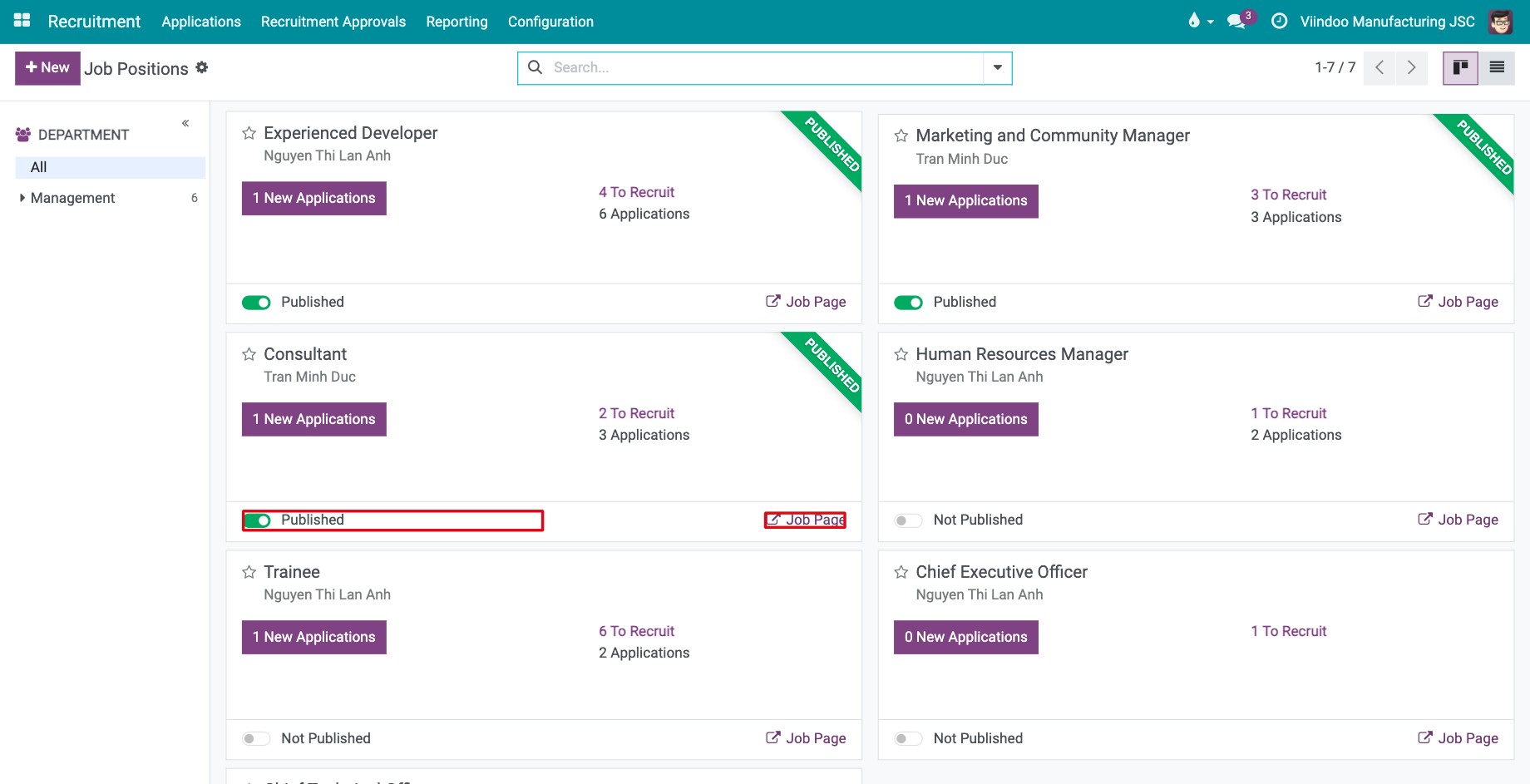
Switch the toggle at the bottom of the card from Not Published to Published. The card gets a green Published ribbon.
![A published job position card with the Published toggle and the Job Page link]()
Click Job Page on the card to open the position on your website.
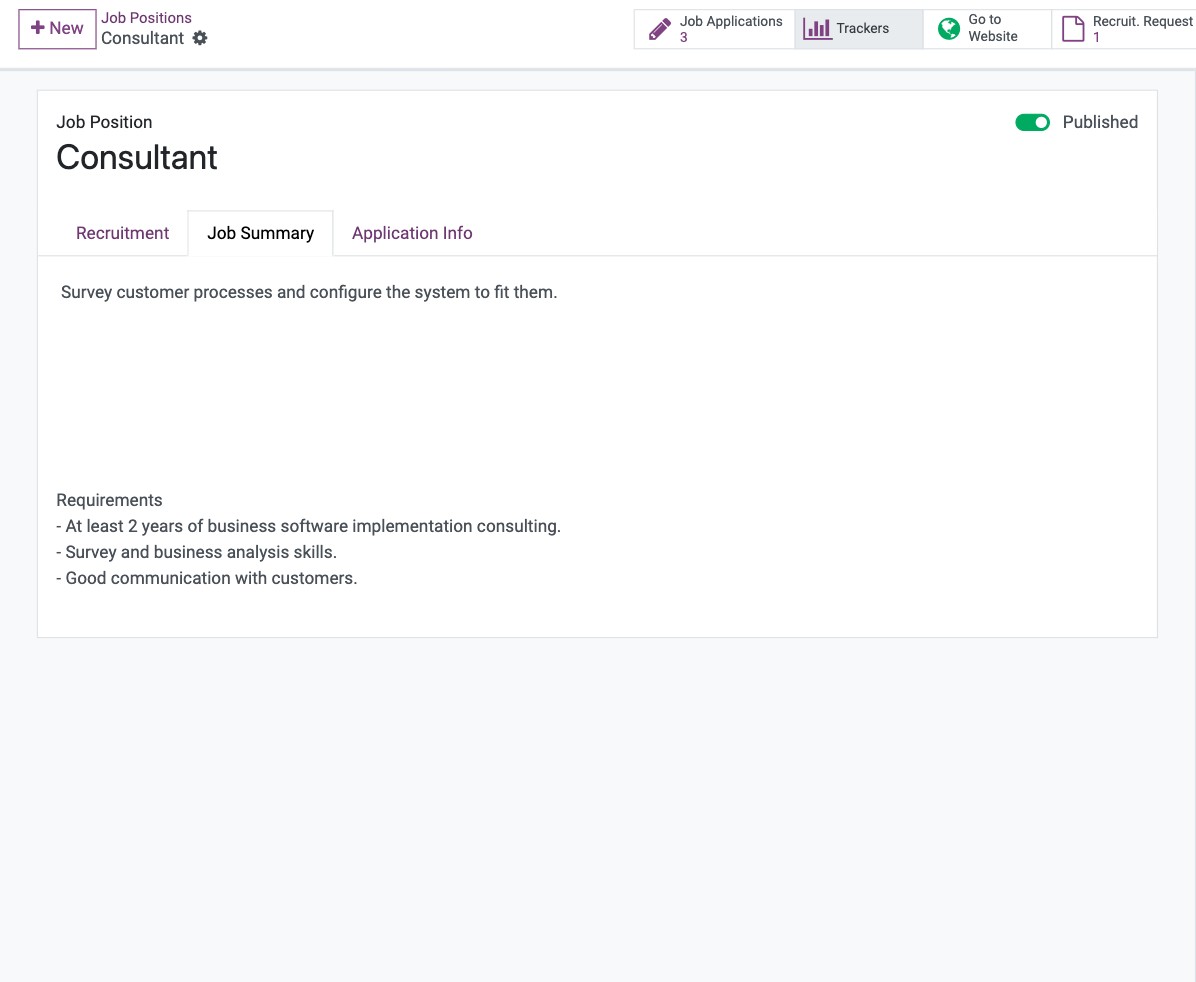
You can also switch the same toggle at the top right of the position form (open the card menu and choose Configuration).
To stop showing a position, switch the toggle back to Not Published.
How do I write what candidates read?
Open the position (card menu ‣ Configuration) and fill in:
Job Summary tab: the description that candidates read on the job page.
Application Info tab: extra information shown on the page where they send their application.
Recruitment tab: the department, location, employment type and number of people to recruit (Target) shown on the job card.
What do candidates see?
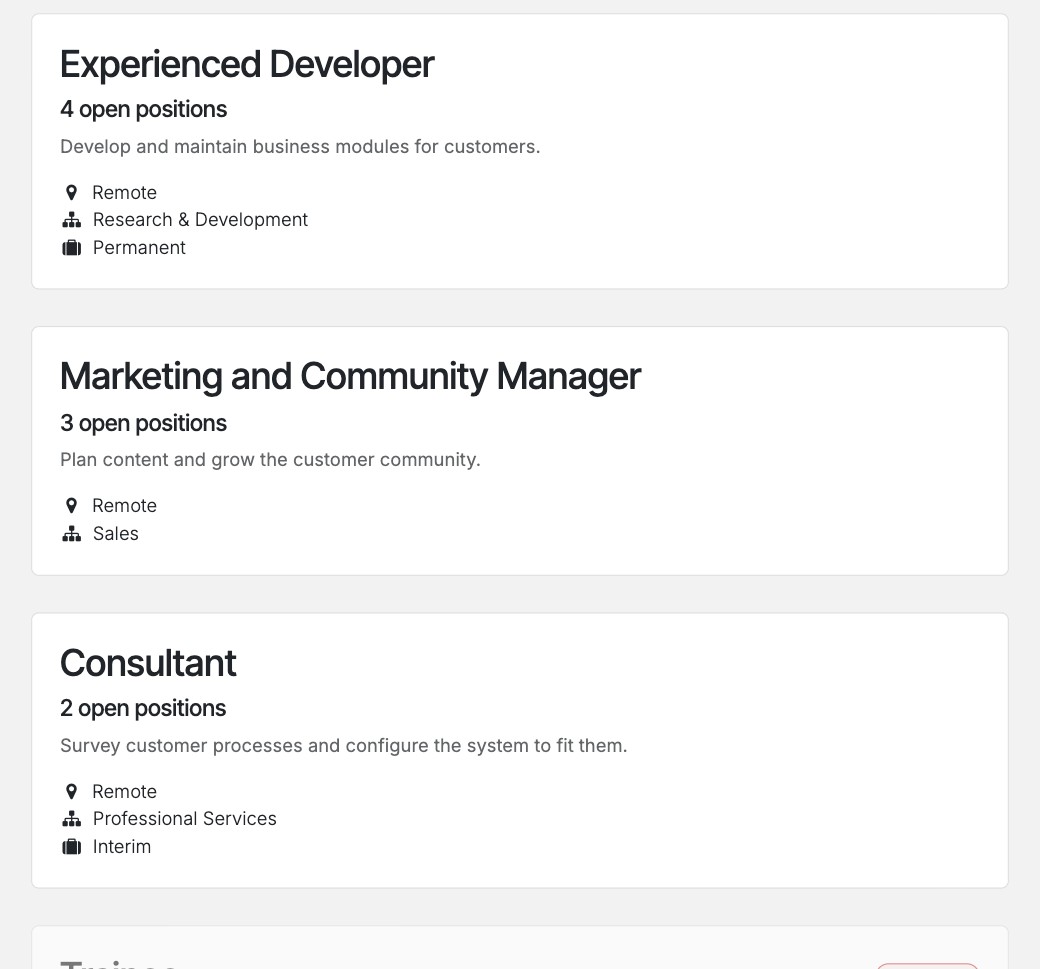
The Jobs page lists the published positions with the number of open positions, the department and the employment type.
![The Jobs page of the website with the published job positions]()
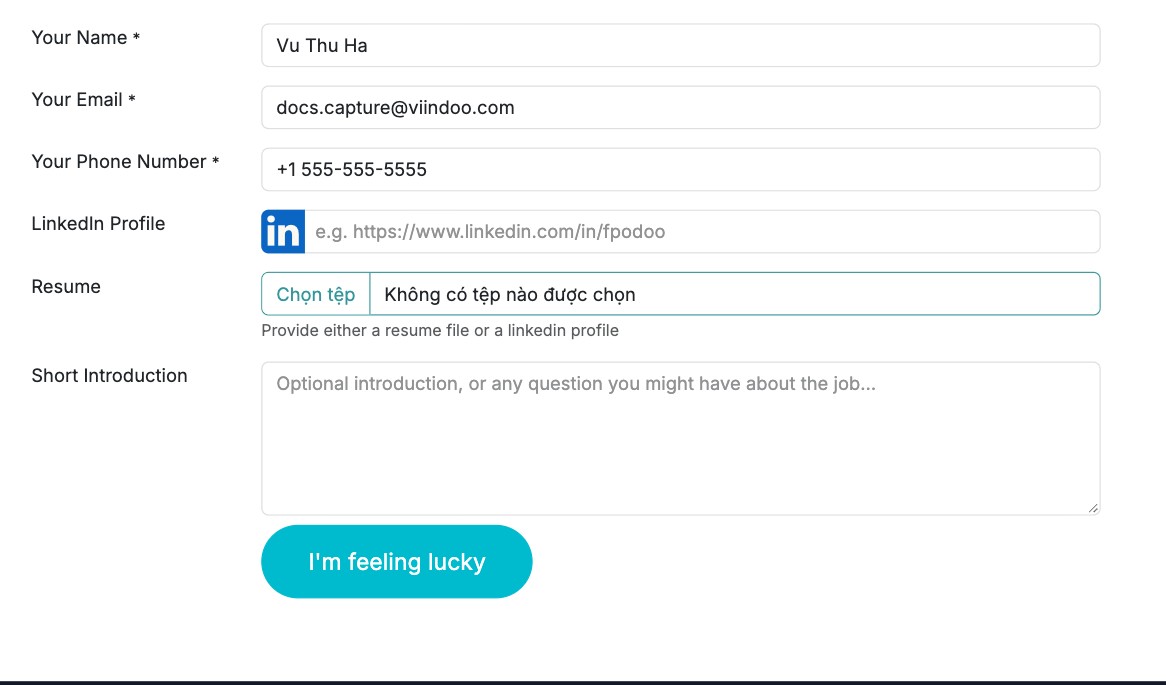
After they open a position, they fill in the application form: name, email and phone are required, plus a LinkedIn profile or a resume file and an optional short introduction. When they submit it, Viindoo creates the application. See How to add an application in Recruitment.
![The online application form of a job position]()
Who can edit the job pages on the website?
Users with the Website Editor and Designer access right can edit the job pages with the website builder when you tick one of the options in Editor Settings.
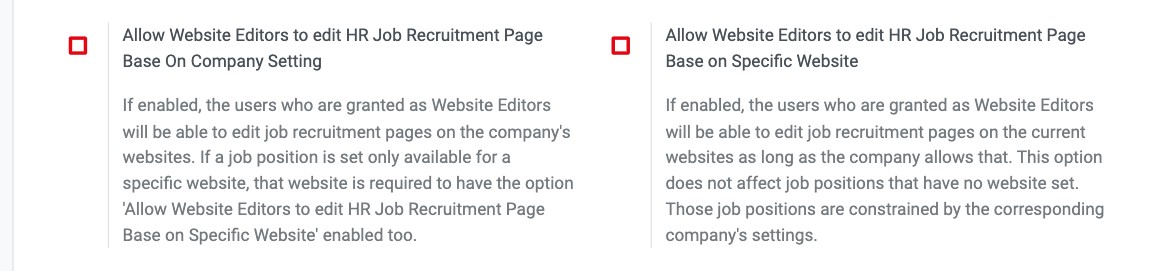
Allow Website Editors to edit HR Job Recruitment Page Base On Company Setting: editors can edit the job pages of all the company’s websites.
Allow Website Editors to edit HR Job Recruitment Page Base on Specific Website: editors can edit the job pages of the current website. A position that is limited to one website needs this option on that website too.
Common errors
Problem |
What to do |
|---|---|
The position does not appear on the website. |
Check that the toggle reads Published. If the position is limited to one website in its Recruitment tab, open that website. |
There is no Jobs menu on the website. |
Check that Online Posting is ticked, then add the Jobs page (URL /jobs) to the menu with the website builder. |
The application form says a field is required. |
Name, email and phone must be filled in, and either a resume file or a LinkedIn profile. |
Next steps
How to add an application in Recruitment: see how the applications arrive and how to add your own.
How to track where your applicants come from: find out which channel brings the best candidates.