
Standard quantity and margin in production costs
The production cost report shows, next to what each manufacturing order really consumed, the Standard Quantity of its bill of materials, so an over-consumption is visible at a glance. The cost of a manufactured product can be computed from its bill of materials, and the sales order shows the margin of what you make and of the kits you sell.
Who |
Cost accountants and production managers. Computing the cost from a bill of materials needs the Manufacturing ‣ Administrator access right. |
App |
Manufacturing, Sales, Inventory |
Before you start
Install the Advanced MRP Accounting module and tick MRP Standard Consumption in Manufacturing ‣ Configuration ‣ Settings. The Manufacturing Standard Consumption Analysis module, which adds the Standard Quantity column, installs itself with the two.
For the margin, tick Margins in Sales ‣ Configuration ‣ Settings. For the margin of kits, also install the Sale Mrp Margin module from Apps.
The production cost report itself is explained in Cost accumulation and product cost report.
The example of this page is an order of 5 oak wall shelves. The bill of materials asks for 3 shelf boards per shelf, 15 in all; the workshop used 16.
How do I compare the standard and the actual consumption of an order?
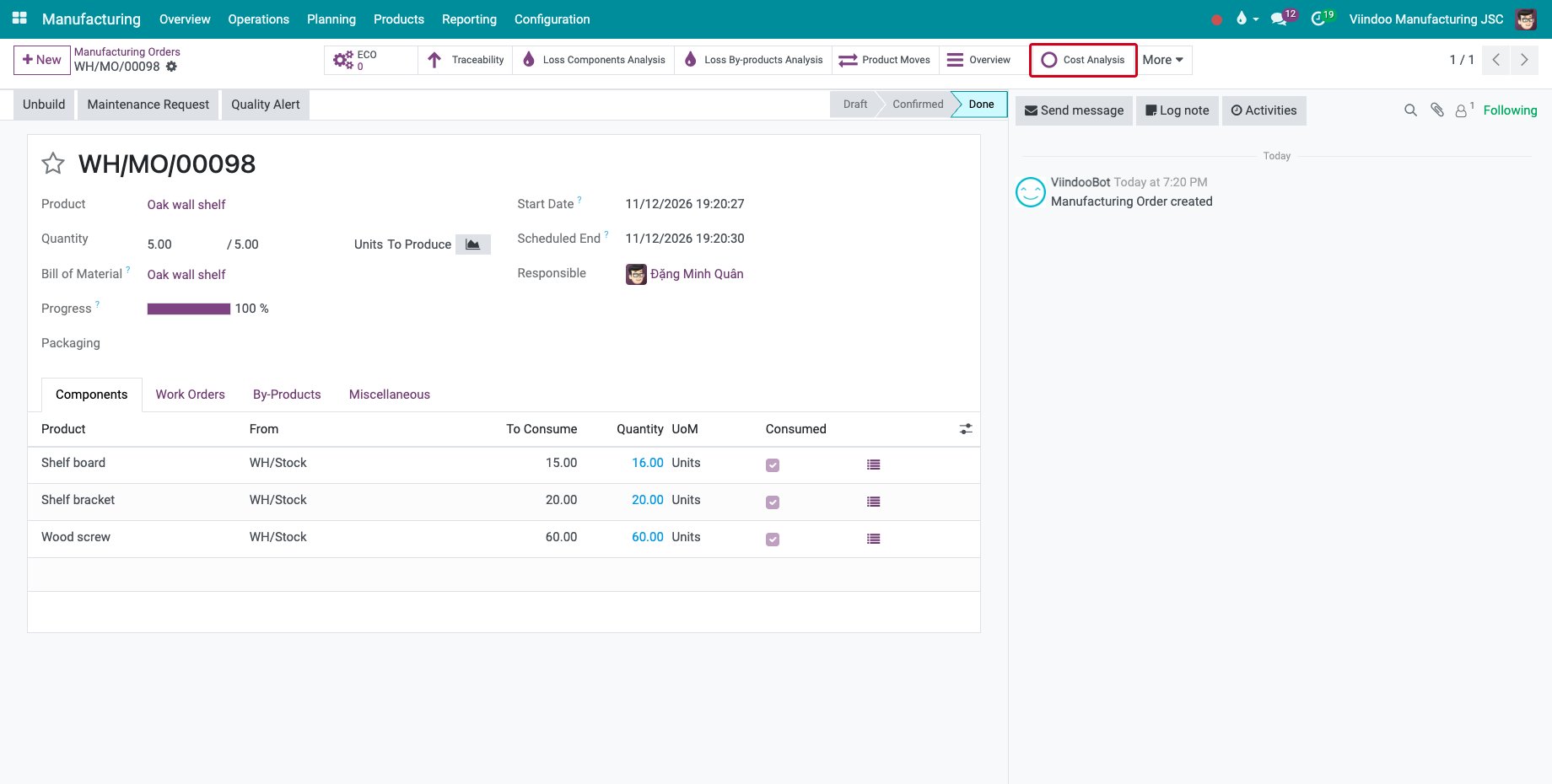
Open the done manufacturing order and click Cost Analysis.
![The Cost Analysis button of a done manufacturing order]()
In Direct Materials Costs, read the Standard Quantity of each component next to its Actual Consumption Quantity. Here 15 shelf boards were planned and 16 consumed, so the extra board is in the Total Cost of the order.
![Standard Quantity and Actual Consumption Quantity of the shelf boards]()
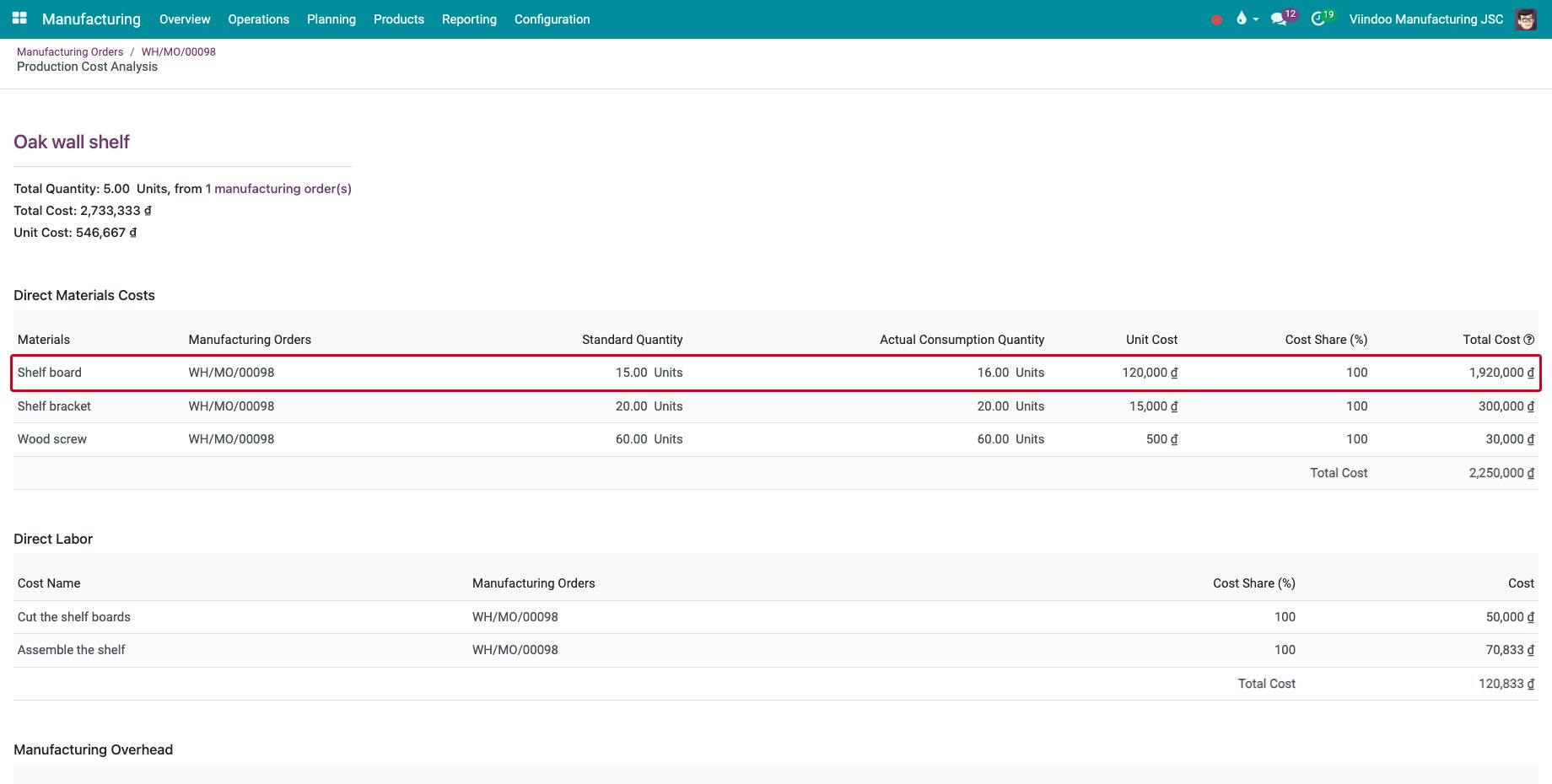
The Standard Quantity is the standard quantity of the bill of materials, without its loss rate, for the quantity produced. A component consumed on several lines shows its standard quantity on its first line only, so the column can be added up. By-products have the same column.
How do I compare them over a period?
Go to Manufacturing ‣ Reporting ‣ Production Cost Report. Each product made in the period has one line with its direct material, direct labor, manufacturing overhead and extra costs, the Total Quantity made and the Unit Cost. Change the period, compare it with another period or choose Products at the top.
![The production cost report with the line of the oak wall shelf]()
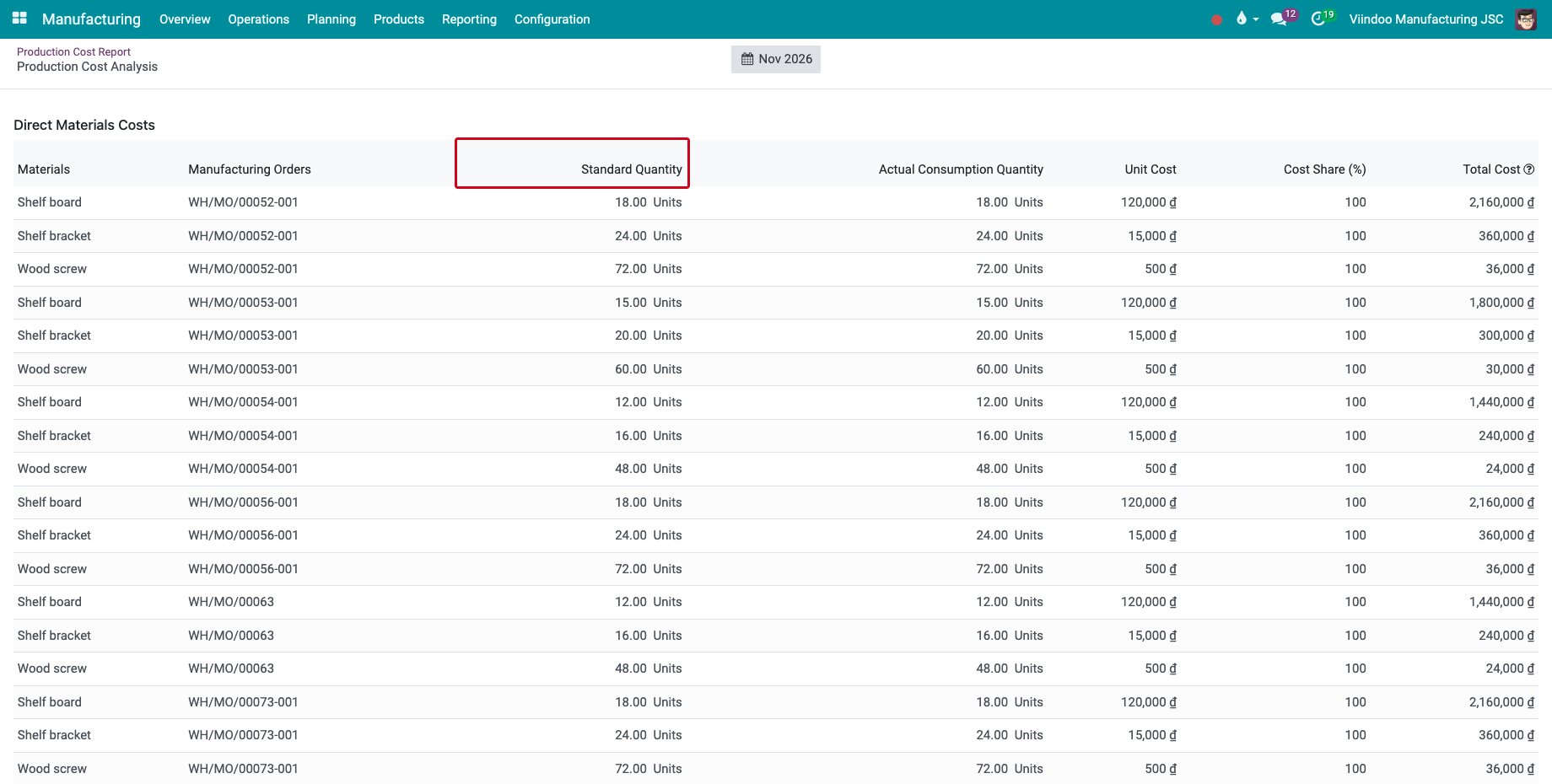
Click the product. The chart shows the unit cost of each manufacturing order of the period, and the tables below list every order with its Standard Quantity and its actual consumption.
![The Standard Quantity of the components of every order of the period]()
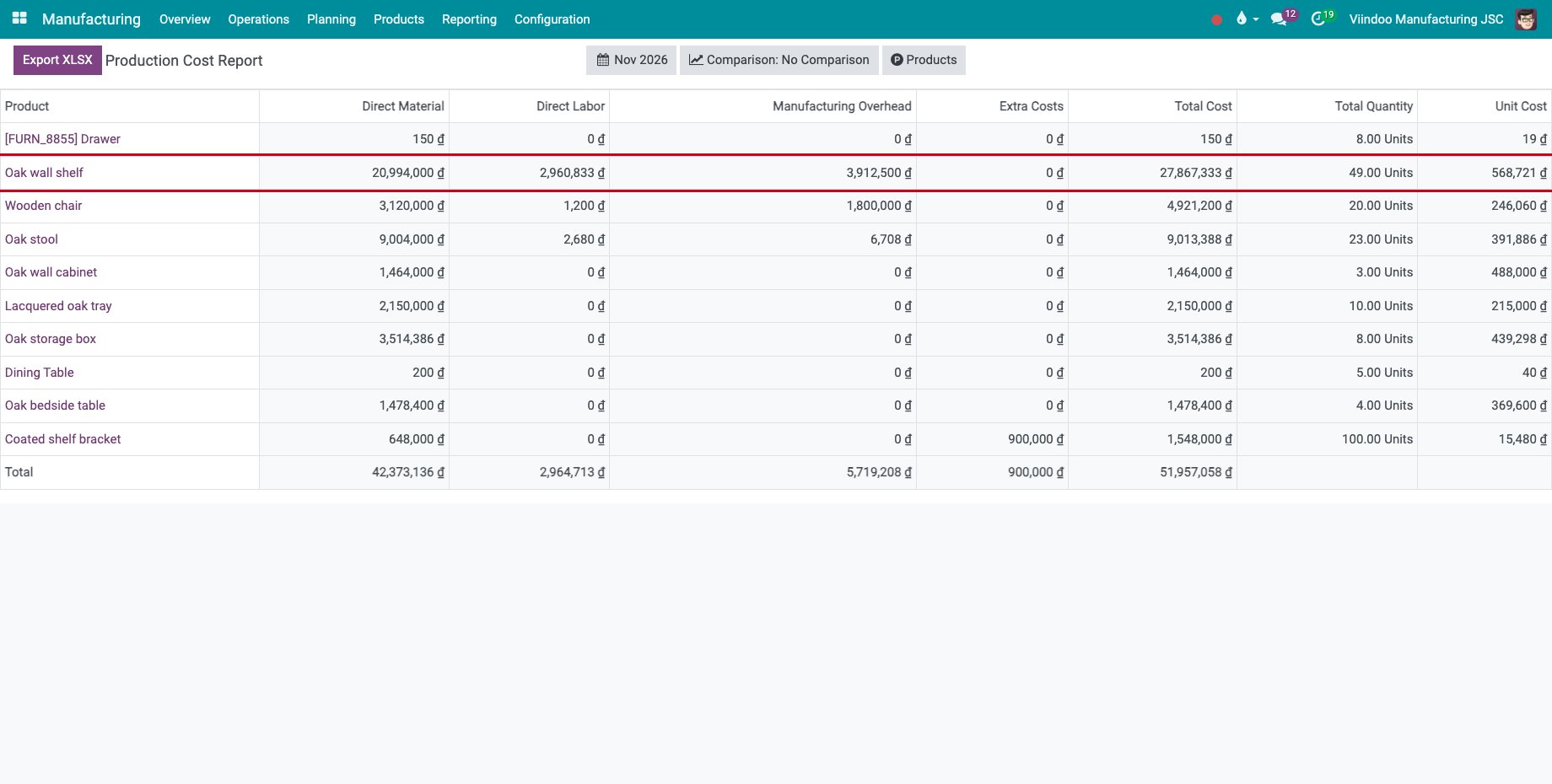
The Extra Costs column holds the costs added to the orders afterwards, see Accounting for general production costs.
How do I compute the cost of a product from its bill of materials?
For a product whose cost is set by hand, the bill of materials gives the cost to use before the first order is made.
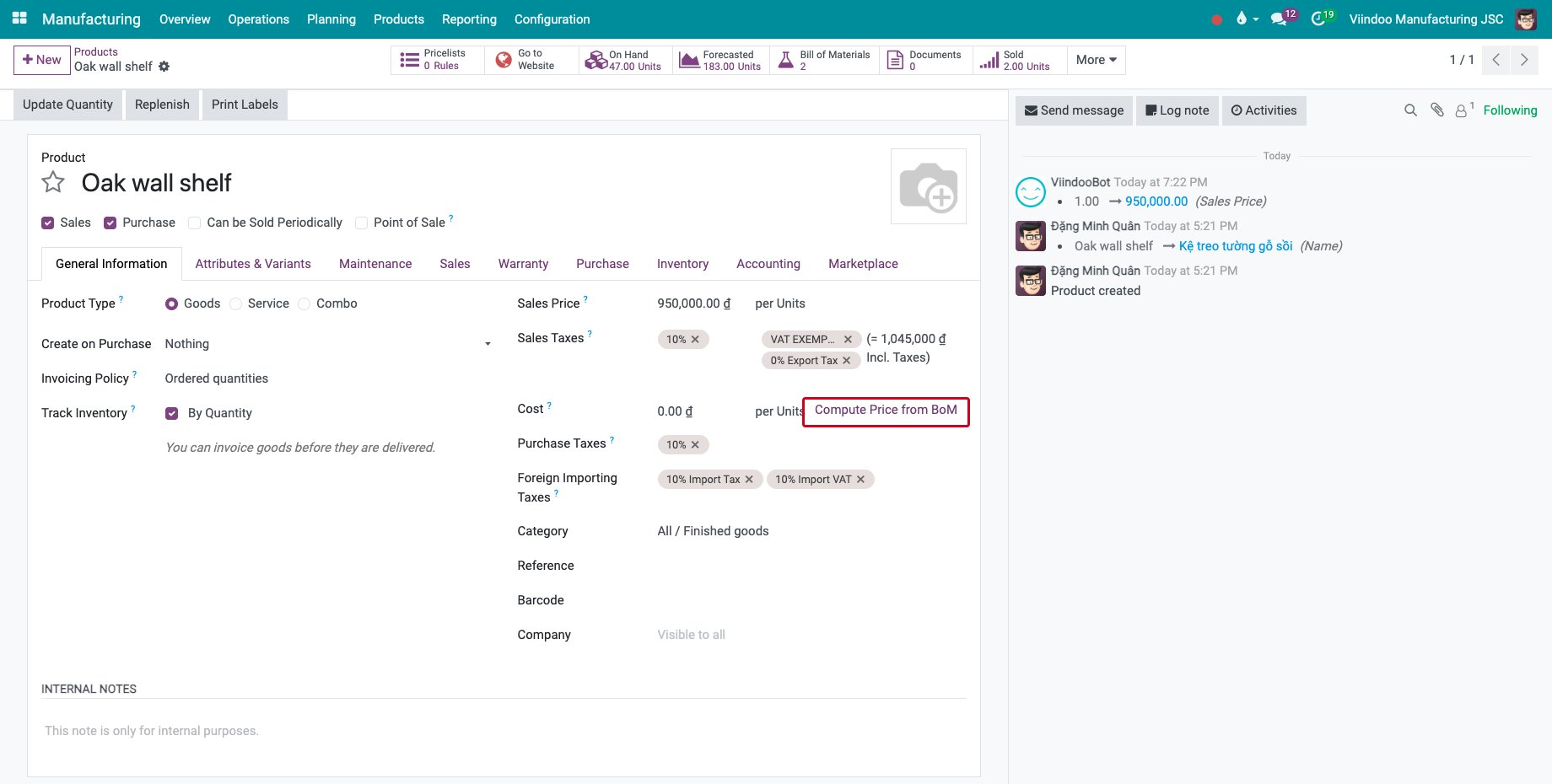
Open the product in Manufacturing ‣ Products ‣ Products and click Compute Price from BoM next to Cost.
![Compute Price from BoM next to the cost of the product]()
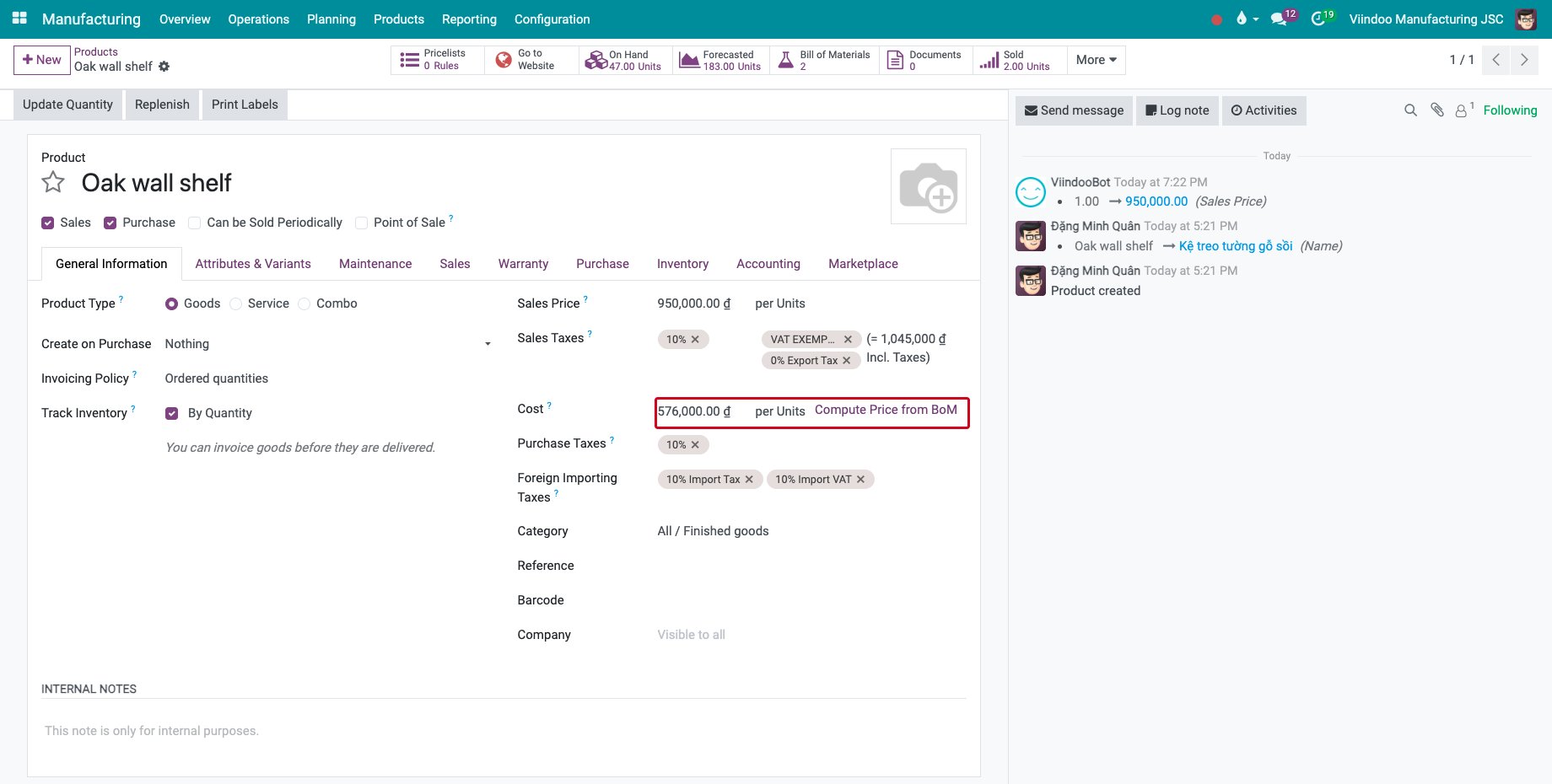
The Cost is filled with the cost of the components and of the operations of one unit: each component at its own cost, each operation at the expected time times the cost per hour of its work center. The share of the by-products is taken off.
![The cost of the product computed from its bill of materials]()
Compute Price from BoM is not offered on a product without a bill of materials, nor on a product whose category uses First In First Out (FIFO) with automated valuation.
How do I read the margin of what I make on a sales order?
Open the sales order. Margin below the total shows the margin of the order in amount and in percent; the Margin column of the lines can be shown with the column selector.
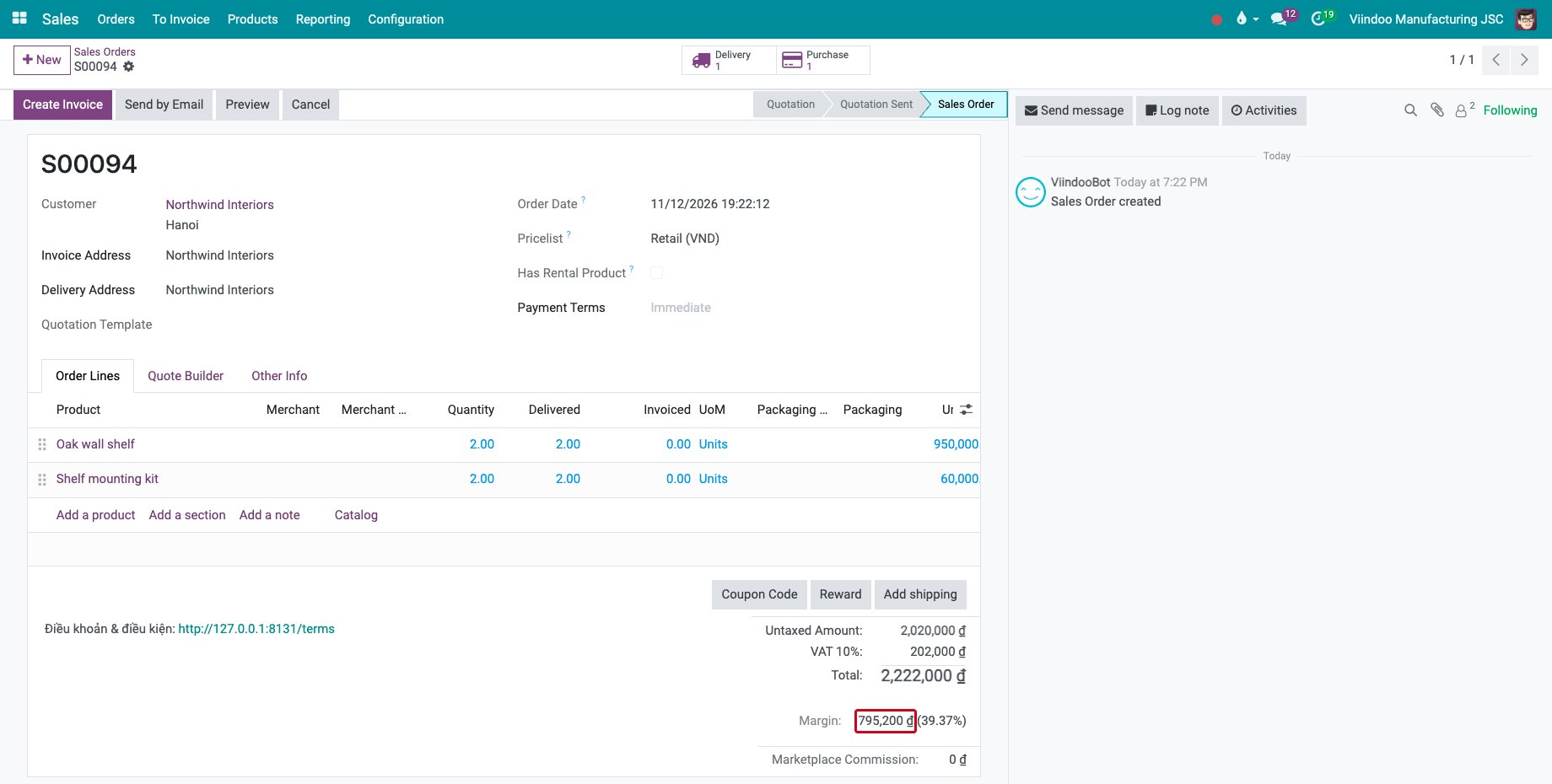
The cost behind the margin depends on the costing method of the product category:
Standard Price: the Cost of the product, for example the one computed from the bill of materials.
Average Cost (AVCO) or First In First Out (FIFO): the value of the products delivered. For a kit, it is the value of the components delivered, so the margin follows the real cost of the components.
Common errors
Problem |
What to do |
|---|---|
The Standard Quantity column is missing. |
Tick MRP Standard Consumption in the Manufacturing settings. Orders done before that show zero. |
Compute Price from BoM is missing. |
Give the user the Manufacturing ‣ Administrator right, create a bill of materials, or check the costing method of the product category. |
The margin of a kit equals its sales price. |
The kit is in a Standard Price category and its Cost is zero. Click Compute Price from BoM on the kit, or put it in an Average Cost (AVCO) category. |
Margin is not on the sales order. |
Tick Margins in the Sales settings. |
Next steps
Accounting for general production costs: add the general production costs to the orders.
Manufacturing costs by project and analytic account: follow the production costs by project.