
Before you start
The master already has its three houses consolidated (5 / 8 / 12 CBM, 25 CBM total) and is booked with the carrier: see Consolidate LCL export shipments under a master.
The master carries one buy-only charge that is not yet allocated to any house and not yet committed to a vendor bill or purchase order: Terminal Handling Charge (THC), Vendor Wan Hai Lines, Cost Price 2,600,000 VND, Unit Price 0.00 - added on the Charges tab the same way as any other charge line (see Record charges, invoice the customer, and bill vendors). The master’s Ocean Freight - FCL charge from its booking qualifies in the same way.
Every house has at least one cargo package: the split uses the CBM of each house’s packages, so create them before you start.
You are in the User: All Shipments group, or you are a User: Own Shipments user who is Responsible for the master and for every house under it: the person who looks after a consolidation looks after all of its houses. The button is always shown, but the wizard lists only the houses you can read - see Known limitations.
Step 1: Open the Allocate Costs wizard
The THC on the container was paid once, for the whole load - nothing on the master yet tells Accounting how much of it belongs to Song Hong, how much to Long Bien and how much to Tay Nguyen.
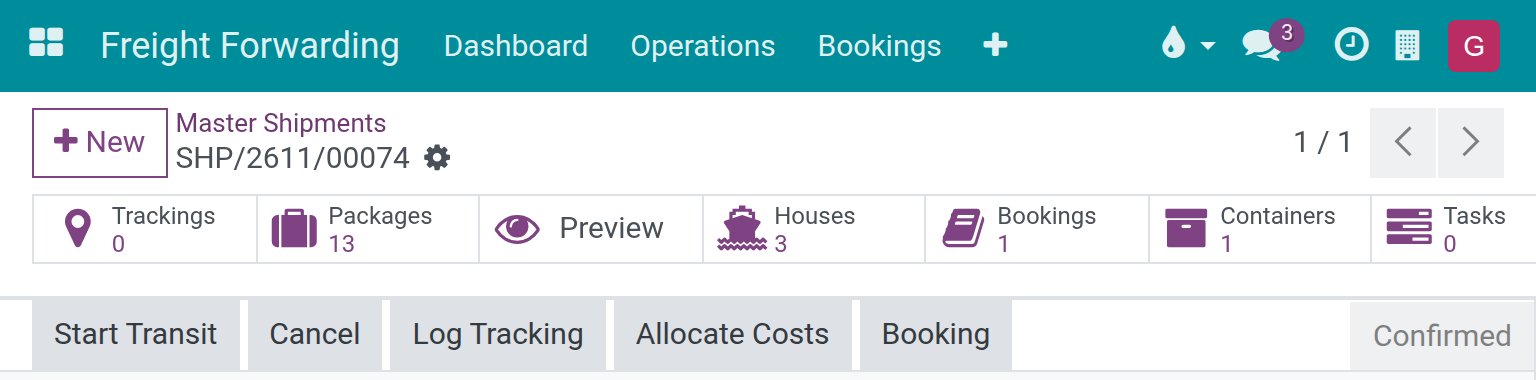
Go to and open the master shipment holding container WHLU2233445. In the header, click Allocate Costs.
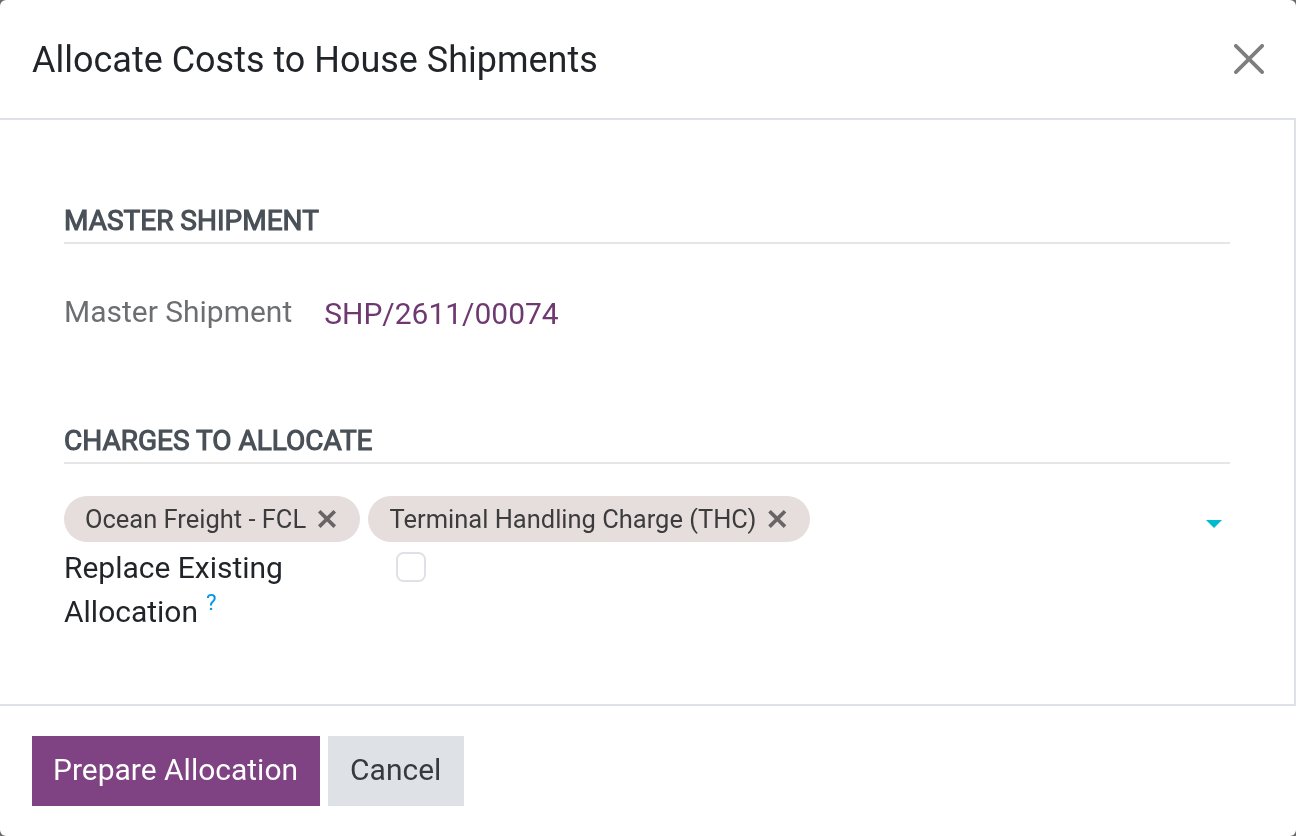
After you click it, the Allocate Costs to House Shipments window opens with the Charges to Allocate field already carrying the Terminal Handling Charge (THC) line - Viindoo pre-selects every charge still eligible for allocation, not an empty list.
Note
Pre-selection is a default, not a lock: if the master had a second shared charge you did not want to split this round, it would appear ticked too, and you would remove it in Step 2, not here.
Tip
Step 1 is done when: the window opens with the Terminal Handling Charge (THC) already ticked under Charges to Allocate - not a blank list. The master’s Ocean Freight - FCL charge is ticked beside it when the master has been booked.
Step 2: Review the charge, then click Prepare Allocation
Confirming which charge to split now avoids splitting the wrong one later - a charge that was already billed directly to one house, or already allocated once, cannot be selected here at all.
Keep Terminal Handling Charge (THC) ticked (untick any charge you do not want to split this round - for this walkthrough, Ocean Freight - FCL can stay ticked or be split in its own round), then click Prepare Allocation.
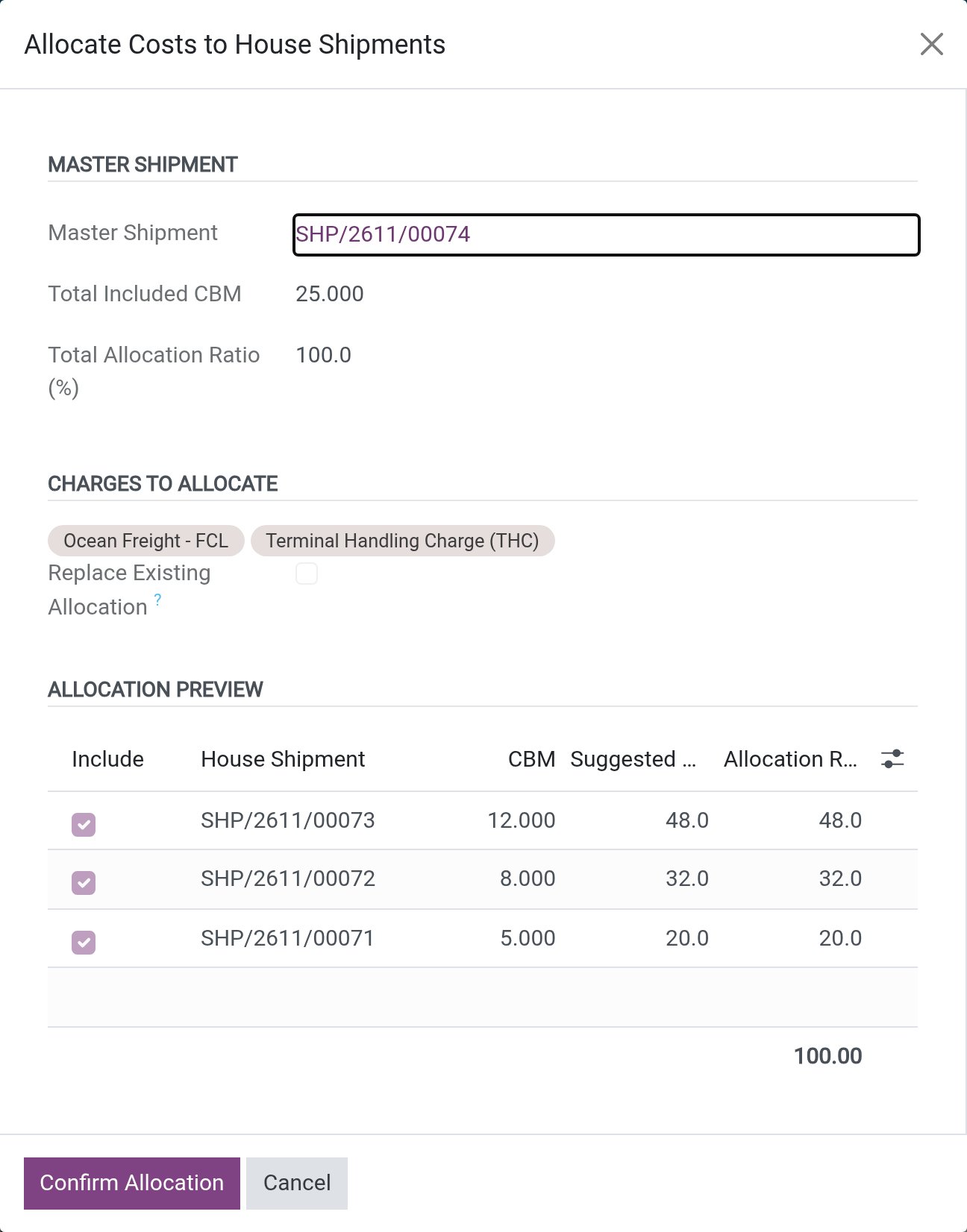
After you click it, an Allocation Preview table appears with one line per house: Include, House Shipment, CBM, Suggested Ratio (%) - each house’s CBM against the total - and Allocation Ratio (%), which starts at the suggested ratio. Total Included CBM and Total Allocation Ratio (%) above the table add up the houses that are ticked.
Note
A house’s CBM is read in this order: the volume measured on a confirmed Outturn Report, else the CFS Actual Volume (CBM) of the house when it is filled, else the volume of the house’s cargo packages. A house with a CBM of 0 - for example a shipper who never delivered - is left unticked automatically and the wizard shows a warning naming it. Check that every house you expect is listed and ticked; see Decide how to handle a no-cargo house below.
Tip
Step 2 is done when: all three houses are listed - CBM reads 5 / 8 / 12 - and Total Allocation Ratio (%) at the top reads exactly 100.0.
Step 3: Confirm the allocation
Each house starts with the ratio its CBM suggests, and you can change it here before anything is written to the houses.
On the Allocation Preview, Allocation Ratio (%) reads 20.0 (Song Hong), 32.0 (Long Bien) and 48.0 (Tay Nguyen), the same as the suggested ratios. Keep them, or click a house’s ratio and type another one when an agreement says so. Click Confirm Allocation.
Warning
The cost is shared in proportion to the Allocation Ratio (%) of the ticked houses, so the ratios do not have to add up to 100, and a ratio you type moves cost from one house to another. Agree the basis with Accounting before you change a ratio, and do not add independent house costs and bill the same underlying cost again from the master.
Note
The suggested ratios come from CBM, so a wrong volume gives a wrong suggestion: correct the cargo packages (or the Outturn Report) when the real volume differs, rather than forcing a percentage. A house needs a ratio above 0 to take a share. Check the preview before confirming - see Known limitations.
Tip
Step 3 is done when: clicking Confirm Allocation closes the window without an error and Total Allocation Ratio (%) read 100.0 just before you clicked it.
Step 4: Check the allocated line on each house
The wizard writes straight to each house’s own Charges tab - checking here, not on the master, is what confirms the split actually landed where it should.
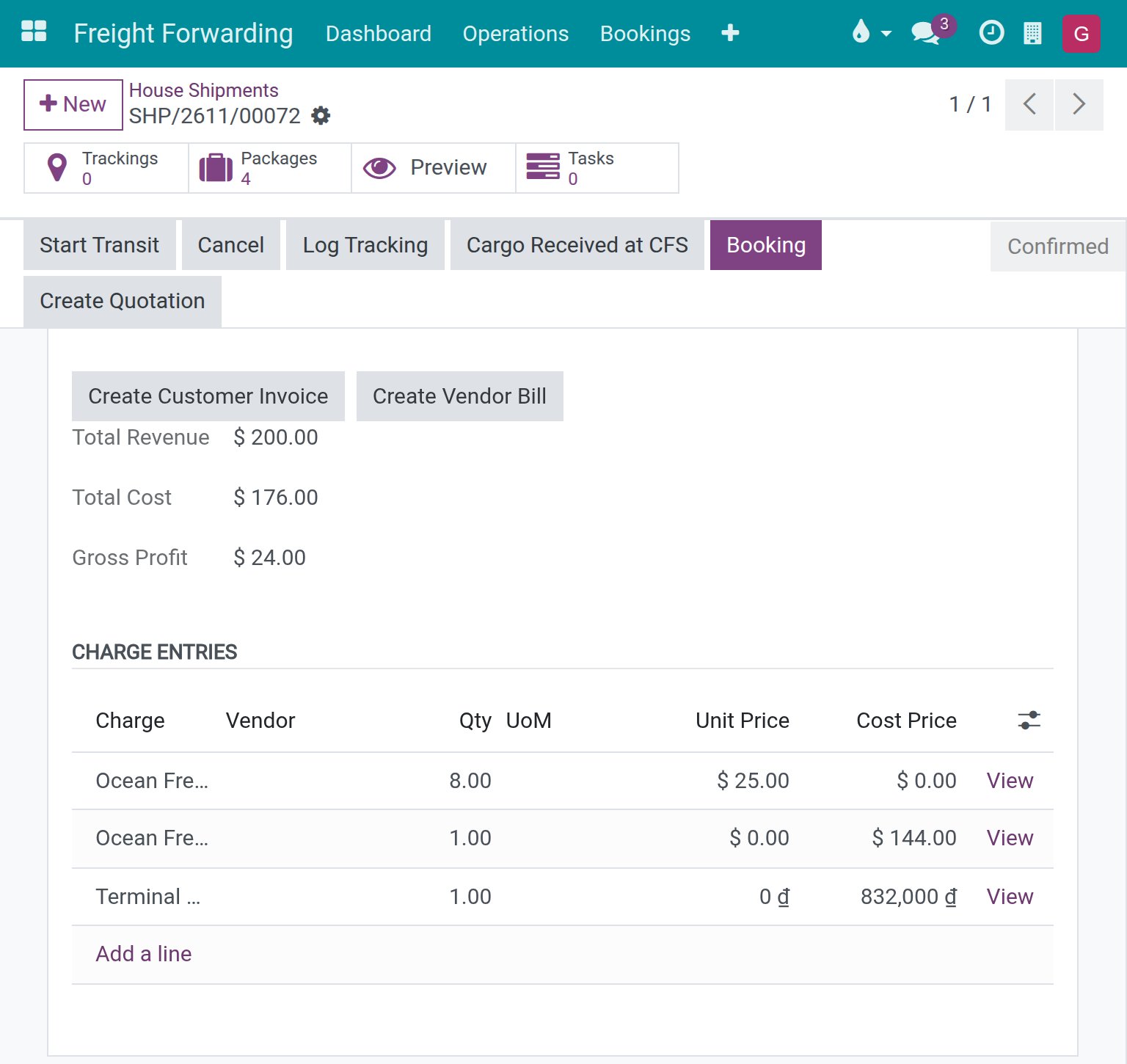
Open each house shipment and its Charges tab. Each now carries one additional Terminal Handling Charge (THC) line from the allocation, buy-only (Unit Price 0.00) and with no vendor, because the vendor bill is made once, from the master. If you also left Ocean Freight - FCL ticked in Step 2, a second allocated line appears for it in the same way (for Long Bien, USD 144.00). The cost on these lines is the house’s real cost. The allocated lines read:
Song Hong Handicraft Co., Ltd.: Cost Price 520,000 VND.
Long Bien Ceramics Export Co., Ltd.: Cost Price 832,000 VND.
Tay Nguyen Coffee Export Co., Ltd.: Cost Price 1,248,000 VND.
Tip
Step 4 is done when: the three houses read 520,000 / 832,000 / 1,248,000 VND on their own Charges tab, adding back up to the master’s original 2,600,000 VND.
Tuan (Accounting) checks these three lines before billing the vendor on Record charges, invoice the customer, and bill vendors - each house now carries its own share of the THC instead of the master carrying the whole amount alone.
Decide how to handle a no-cargo house
Option |
Use when |
What changes |
|---|---|---|
Let Viindoo exclude it automatically |
The house has no cargo package, so its CBM is 0 |
That house takes no share of the cost and the wizard shows a CBM = 0 warning naming it; the other houses split 100% of it by their own CBM |
Untick Include by hand |
A commercial agreement excludes a house with cargo from this particular cost |
Same effect as above, applied on purpose rather than because CBM happens to be 0 |
Include the houses that the approved allocation policy says should share this cost. Viindoo excludes a house with no package from a CBM-based allocation and warns you, but a house with cargo may still be excluded only when the commercial agreement permits it. Confirm the house list and allocation basis with Operations/Pricing before confirming the allocation.
Decide where to bill the allocated cost
Option |
Use when |
What changes |
|---|---|---|
Bill the original charge on the master |
Always, for the carrier’s cost: the allocated lines carry no vendor, so the carrier is billed once, from the master |
The allocated lines on the houses are blocked from being billed a second time; on a house, Create Vendor Bill reports “No unbilled charges with a vendor set found.” |
An allocated line already shows each house’s share of the cost in its gross profit, so there is nothing to bill on the houses. Do not look for a per-house vendor bill: the vendor bill is created on the master’s Charges tab, once. Allocate before you bill the master, so the houses’ profit is right when the bill is posted.
See also
Viindoo blocks the same underlying cost from being billed twice, on either side, once it is linked here - see Record charges, invoice the customer, and bill vendors for how Create Vendor Bill picks up (or skips) an allocated charge.
Known limitations
Step |
What Viindoo does today |
What you do instead |
|---|---|---|
Step 3 - allocation ratio |
The suggested ratio is computed straight from CBM, and the wizard accepts any non-negative ratio you type, whether or not the ratios add up to 100 |
Correct inaccurate CBM from verified cargo measurements. Type another ratio only on an agreed basis, and read Total Allocation Ratio (%) and the preview before you confirm |
Step 3 - a house with no cargo package |
The house is left unticked with a CBM = 0 warning, and the other houses take 100% of the cost |
Create the house’s packages before running the wizard, and check on the preview that every house you expect is listed |
Step 1 - houses a User: Own Shipments user can read |
Allocate Costs is always shown, but the wizard lists only the houses the user can read. A house the user cannot read is left out without an error, so 100% of the cost falls on the listed houses |
Keep one person Responsible for the master and every house under it: before consolidating, the Responsible of each house hands it over to the person who will consolidate. Otherwise run this wizard as a User: All Shipments user (see Grant freight access by role) |
Troubleshooting
Allocate Costs does not appear on the master
Symptom: opening a master with three consolidated houses does not show Allocate Costs in the header.
Cause: the button is hidden when the shipment is not a master, has no house, or has no remaining charge that qualifies - each one is either already allocated, already billed to a vendor, or was charged directly to one house using the same product. Who owns the master or its houses does not hide it.
Fix:
Open the master’s Charges tab and check for a buy-side charge that is not yet allocated and not yet committed to a vendor bill or purchase order.
If every shared cost was already billed, there is nothing left to split - this is expected, not an error.
Confirm Allocation stops with a ratio error
Symptom: “No house shipments included in the allocation.”, “Total allocation ratio must be greater than zero.” or “Allocation ratio cannot be negative.”
Cause: every house was unticked under Include, the ticked houses have a total ratio of 0 (for example no house has a cargo package, CBM = 0, which the wizard also flags with a warning at the top), or a ratio was typed as a negative number.
Fix:
Create the cargo packages of at least one house that genuinely has cargo, tick Include for it and make sure its Allocation Ratio (%) is above 0, then click Confirm Allocation again.
Running the wizard again says the charge is already allocated
Symptom: “The following charges have already been allocated. Delete the existing allocated charges on house shipments before re-allocating, or tick ‘Replace Existing Allocation’:…”
Cause: this charge already went through Confirm Allocation once, and the resulting lines are still on the houses.
Fix:
Tick Replace Existing Allocation and click Prepare Allocation to preview the replacement. The earlier uncommitted lines are replaced only when you click Confirm Allocation; review the new CBM shares before confirming.
Replace Existing Allocation is still blocked
Symptom: “Cannot replace: the following allocated charges are already committed (invoice, vendor bill, or purchase order). Release them on the document that carries them, then allocate again: …” followed by the names of the charges.
Cause: one or more of the earlier allocated lines is on a vendor bill, customer invoice, or purchase order - even a Draft one counts as committed.
Fix: Ask Accounting to identify every document the message points to, then release each charge on the document that carries it:
On a customer invoice or vendor bill, delete the line, or delete the whole draft document. If it is already posted, reset it to draft, then delete the line. Reset to Draft or cancelling the document alone does not release the charge: it stays on the document until you delete the line, and this includes a cancelled customer invoice.
On a purchase order, cancel the order - this releases the charge (a locked order must first be unlocked by a purchase manager) - or delete its line while the order is still an RFQ.
Click Prepare Allocation and Confirm Allocation again.
Accounting must handle each document through the approved correction process. Reset documents can leave a draft behind: correct or remove its old lines through the normal accounting workflow before billing the replacement allocation, to avoid charging twice.
See also
Related articles
Consolidate LCL export shipments under a master - the consolidation step that creates the master and houses this guide splits costs across
Track on-behalf payments for customers - a different kind of shared cost, one that passes through the shipment without affecting gross profit