
Plan by component availability and operation order
An order planned for today is of no use if a component only arrives next week. Plan based on Components Availability starts the order on the date its last component is expected. Work order dependencies then decide which operations wait for others and which run in parallel.
Who |
Production planners with the Manufacturing ‣ User access right; the settings and the bills of materials need the Manufacturing ‣ Administrator access right. |
App |
Manufacturing |
Before you start
Install the Manufacturing app and turn on Work Orders in Manufacturing ‣ Configuration ‣ Settings, see Manage Manufacturing process in Viindoo.
The bill of materials has its operations.
The example of this article is an Oak coat rack made in three operations: Cut the rack board at the Cutting station, Paint the hooks at the Paint station and Assemble the rack at the Assembly station. The Coat hooks are out of stock and a receipt is expected in five days.
How do I set the order of the operations?
By default each work order waits for the previous one. With dependencies, you say which operations wait for which, and the others can run at the same time.
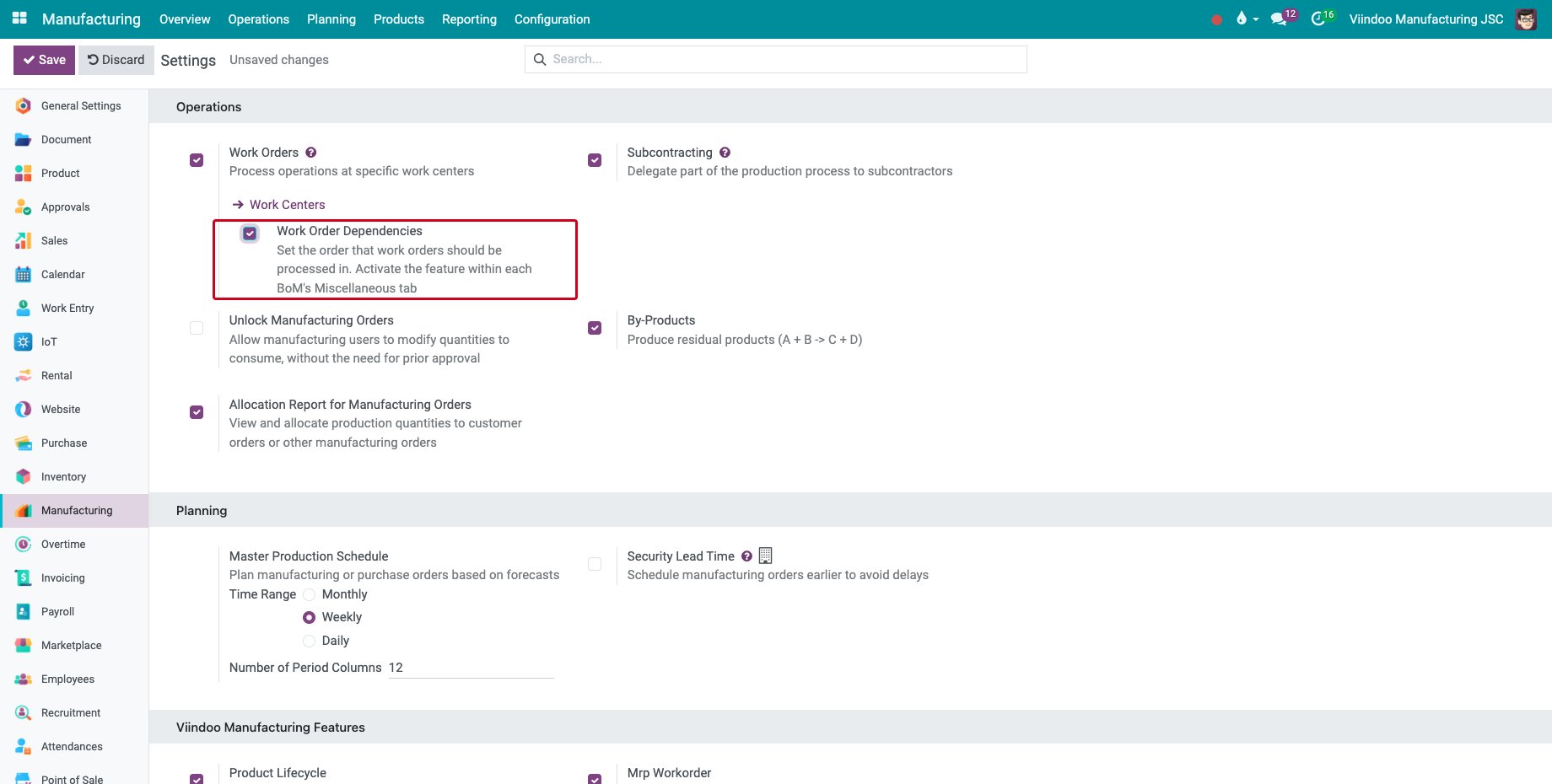
Go to Manufacturing ‣ Configuration ‣ Settings, tick Work Order Dependencies and click Save.
![The setting Work Order Dependencies]()
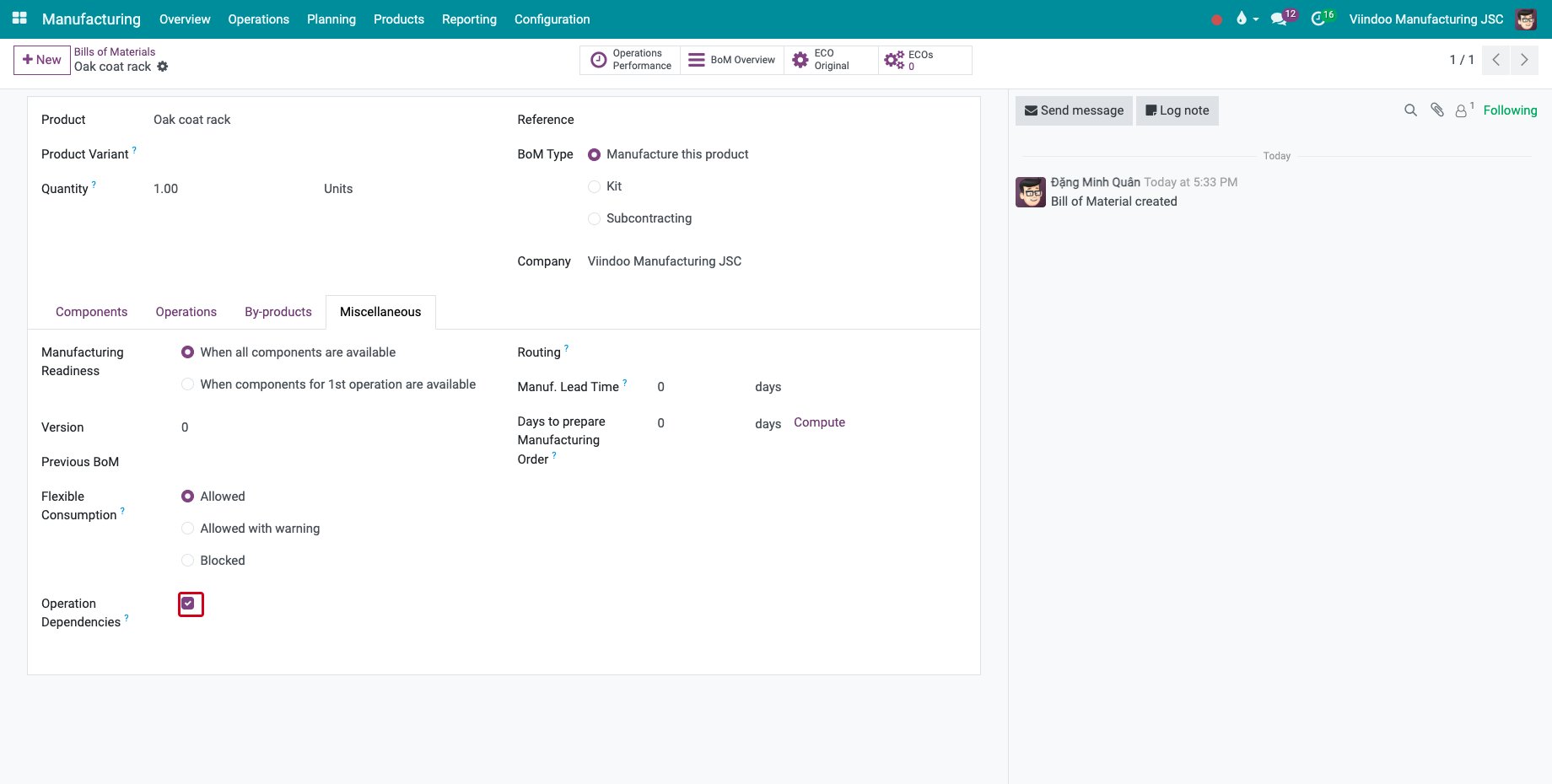
Open the bill of materials, go to the Miscellaneous tab and tick Operation Dependencies.
![Operation Dependencies on the Miscellaneous tab of the bill of materials]()
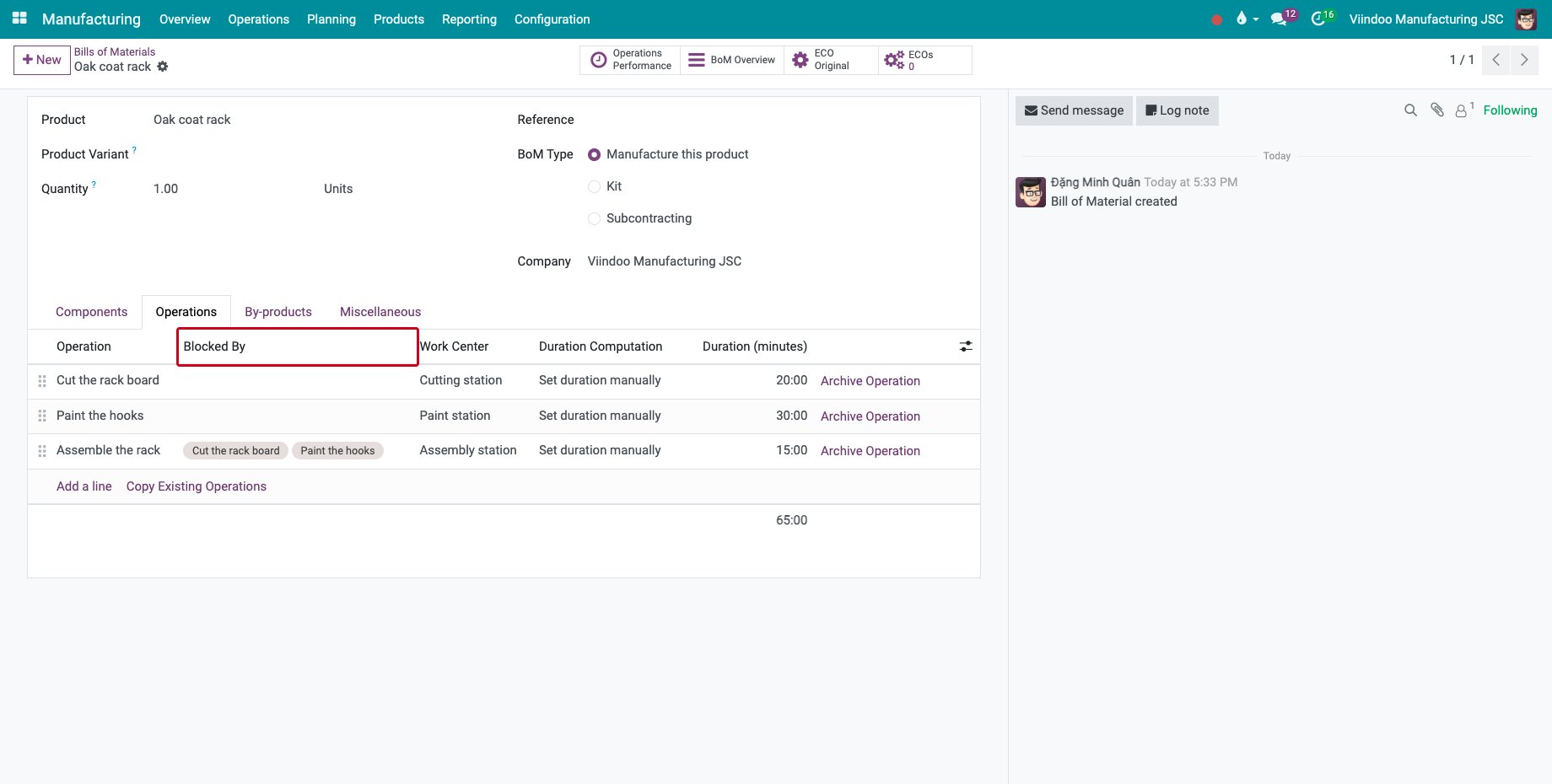
On the Operations tab, show the Blocked By column with the column menu at the end of the header and fill it in: here Assemble the rack is blocked by the two other operations, which are blocked by nothing and can start together.
![The Blocked By column of the operations]()
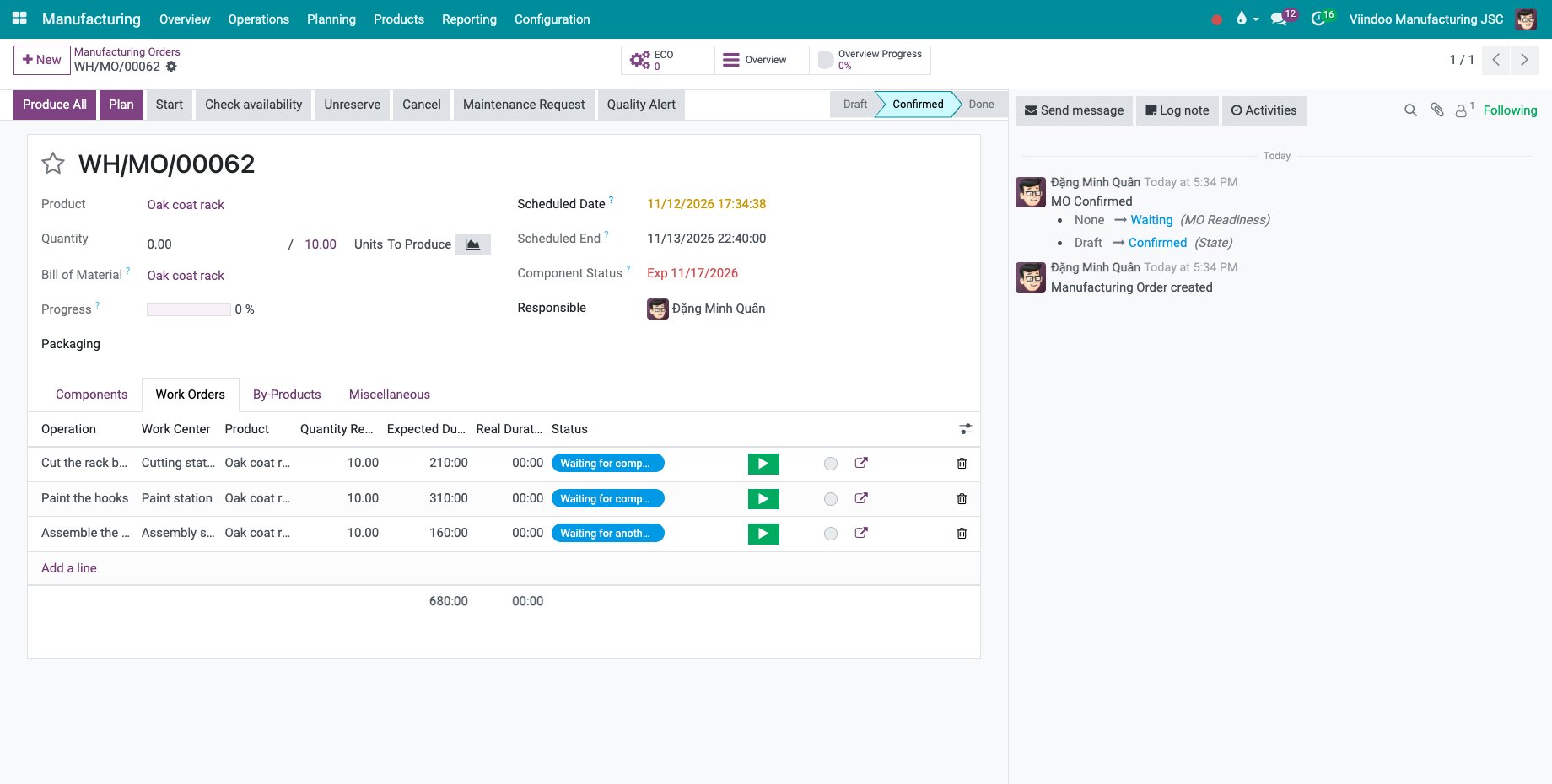
On a new order, the Work Orders tab shows the result: the assembly is Waiting for another WO until the cutting and the painting are done.
![The work orders of the order with the assembly waiting for another work order]()
When Operation Dependencies is ticked and no operation is blocked, all operations can start at the same time.
How do I plan an order from the arrival of its components?
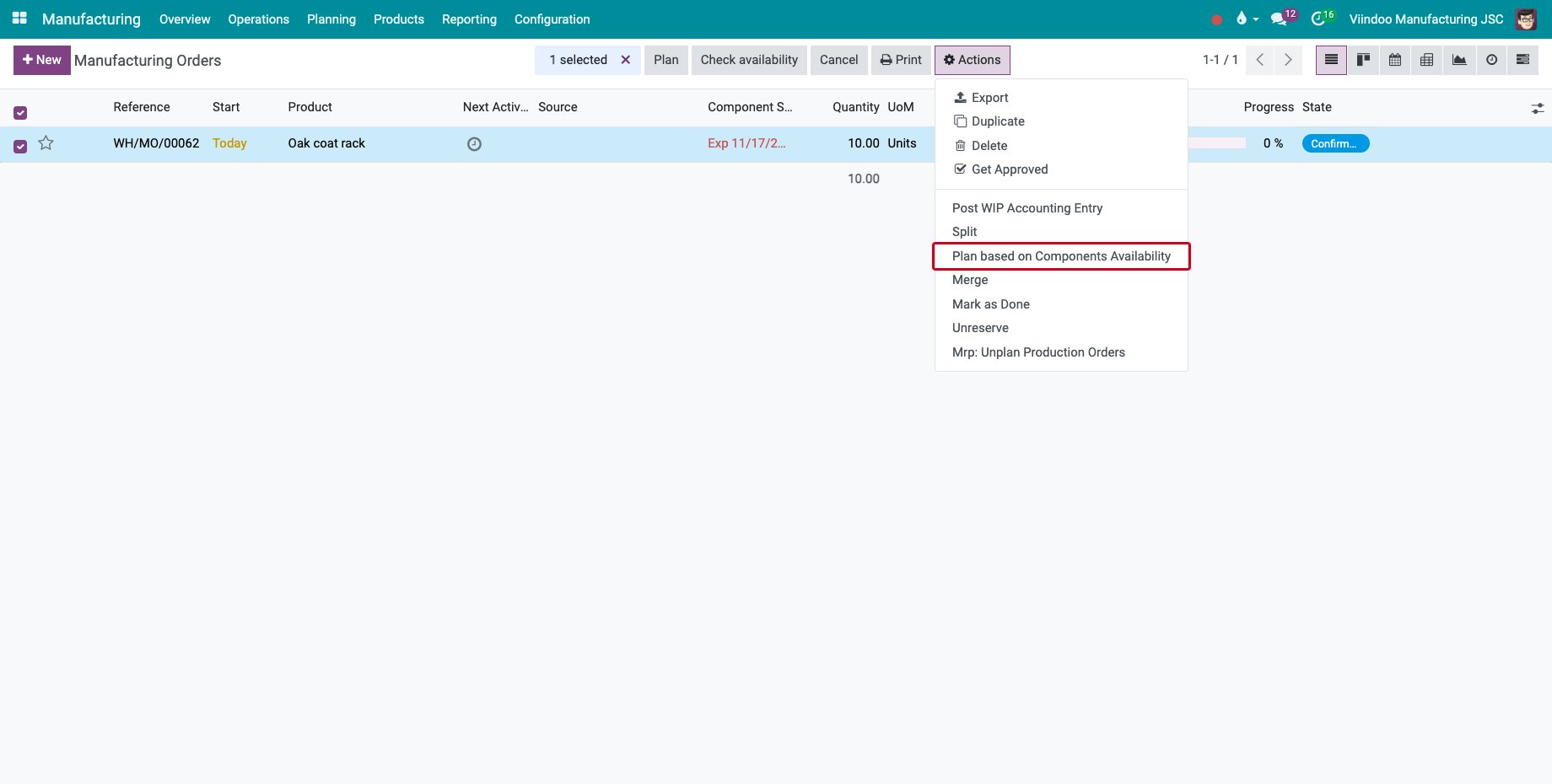
In Manufacturing ‣ Operations ‣ Manufacturing Orders, select the order and choose Actions ‣ Plan based on Components Availability.
![Plan based on Components Availability in the Actions menu]()
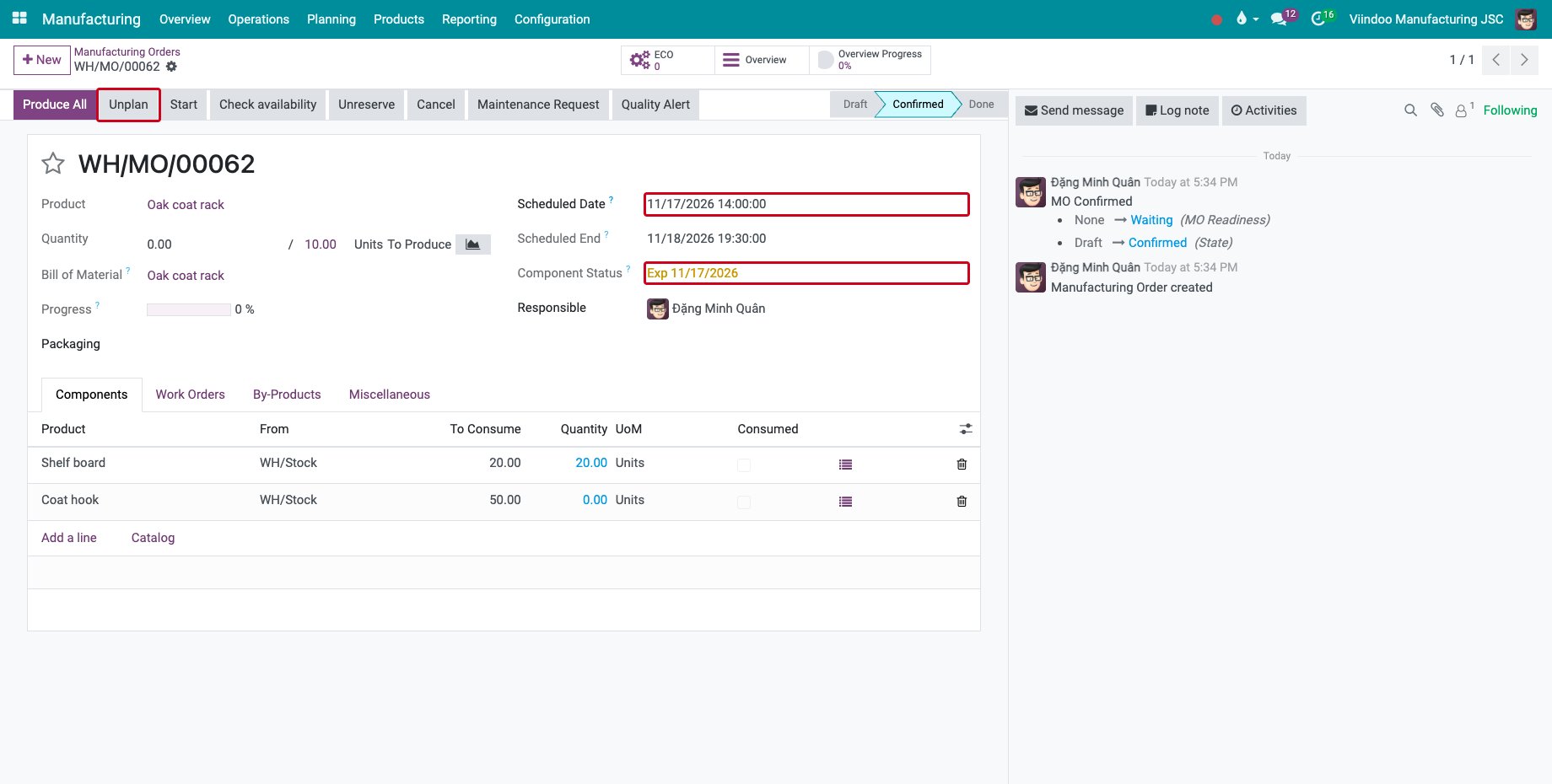
The Scheduled Date moves to the date the last component is expected, here the date of the coat hook receipt shown in Component Status, and the work orders are planned from that date. A draft order is confirmed first.
![The order scheduled on the receipt date of its components with the Unplan button]()
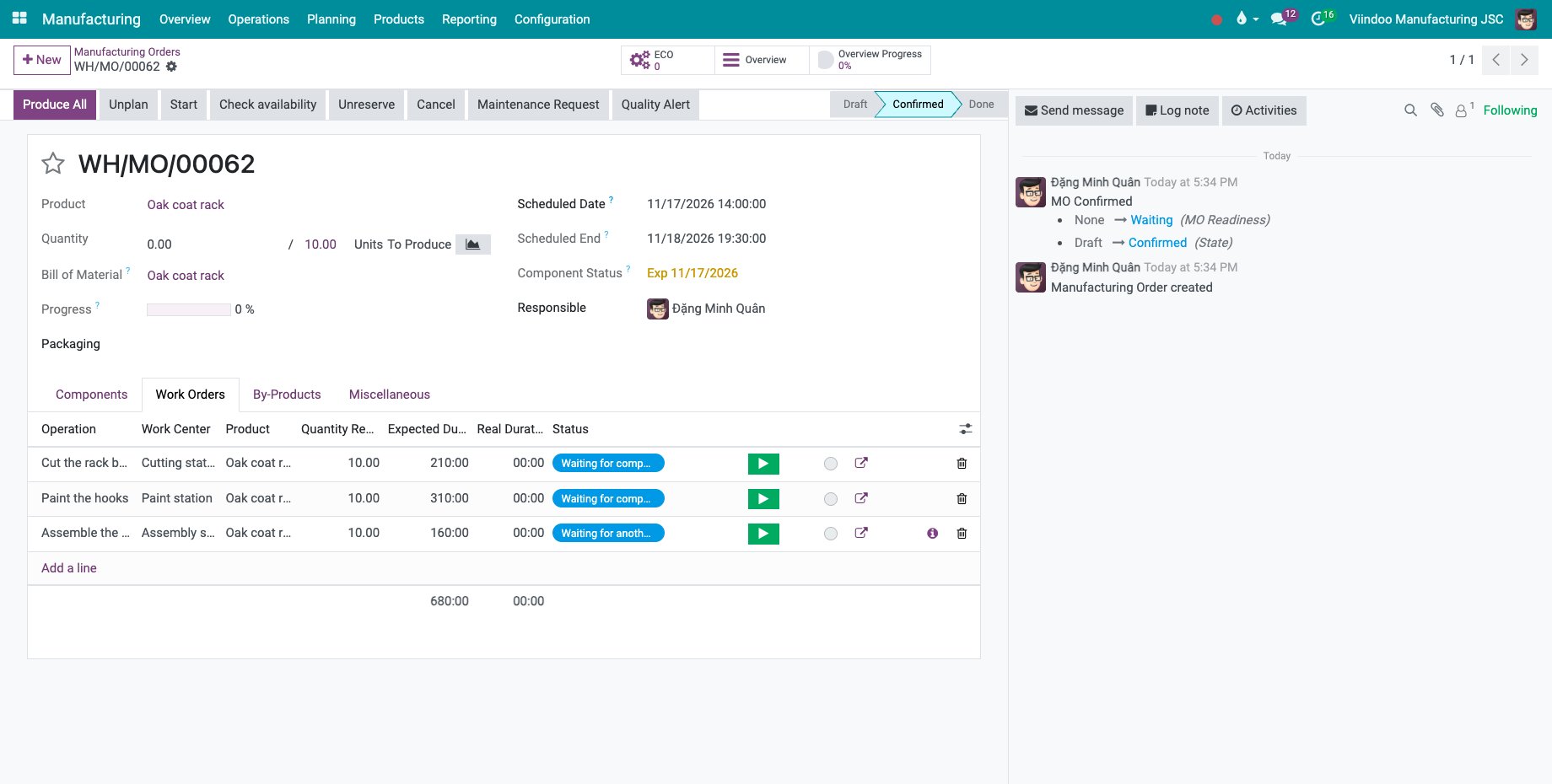
The Work Orders tab lists the planned work orders.
![The planned work orders of the order]()
Plan, the button of the order, plans from the scheduled date without looking at the components.
How do I unplan an order?
Click Unplan on the order: the work orders lose their dates and free the work centers. Several orders are unplanned with Actions ‣ Mrp: Unplan Production Orders in the list. An order whose work orders are started or done cannot be unplanned.
Common errors
Problem |
What to do |
|---|---|
The date does not move after Plan based on Components Availability. |
No receipt or order is expected for a missing component. Order the component first; the order is then planned from the date it is expected. |
Some work orders are already started, so you cannot unplan this manufacturing order. |
Unplanning only works before the work starts. |
The Blocked By column is missing. |
Tick Work Order Dependencies in the settings and Operation Dependencies on the bill of materials. |
Next steps
Work center load: check that the work centers can take the planned work.
Manufacturing report in Gantt: move the planned orders in a Gantt chart.
Job board and operation screen: find the planned work orders on the job board at the machine.
See also
Related articles