
How to manage product expiration dates
To manage expiry, track the product by lot or serial number, tick Expiration Date on the product and enter the number of days for the Expiration Date, Best Before Date, Removal Date and Alert Date. Viindoo computes these four dates on every new lot or serial number from the receipt date, flags the lots that reached their alert date, and warns you before you deliver an expired lot.
Who |
Inventory Administrator to turn on the feature and set the product; Inventory User to follow the alerts. |
App |
Inventory |
Before you start
Install the Inventory app.
Tick Lots & Serial Numbers in Inventory ‣ Configuration ‣ Settings ‣ Traceability and set the product to be tracked by lot or by serial number.
Tick Expiration Dates in the same block of the settings. This installs the Expiration Dates module (
product_expiry) of Viindoo, so allow a few moments after you click Save.
How do I turn on expiration dates?
Go to Inventory ‣ Configuration ‣ Settings.
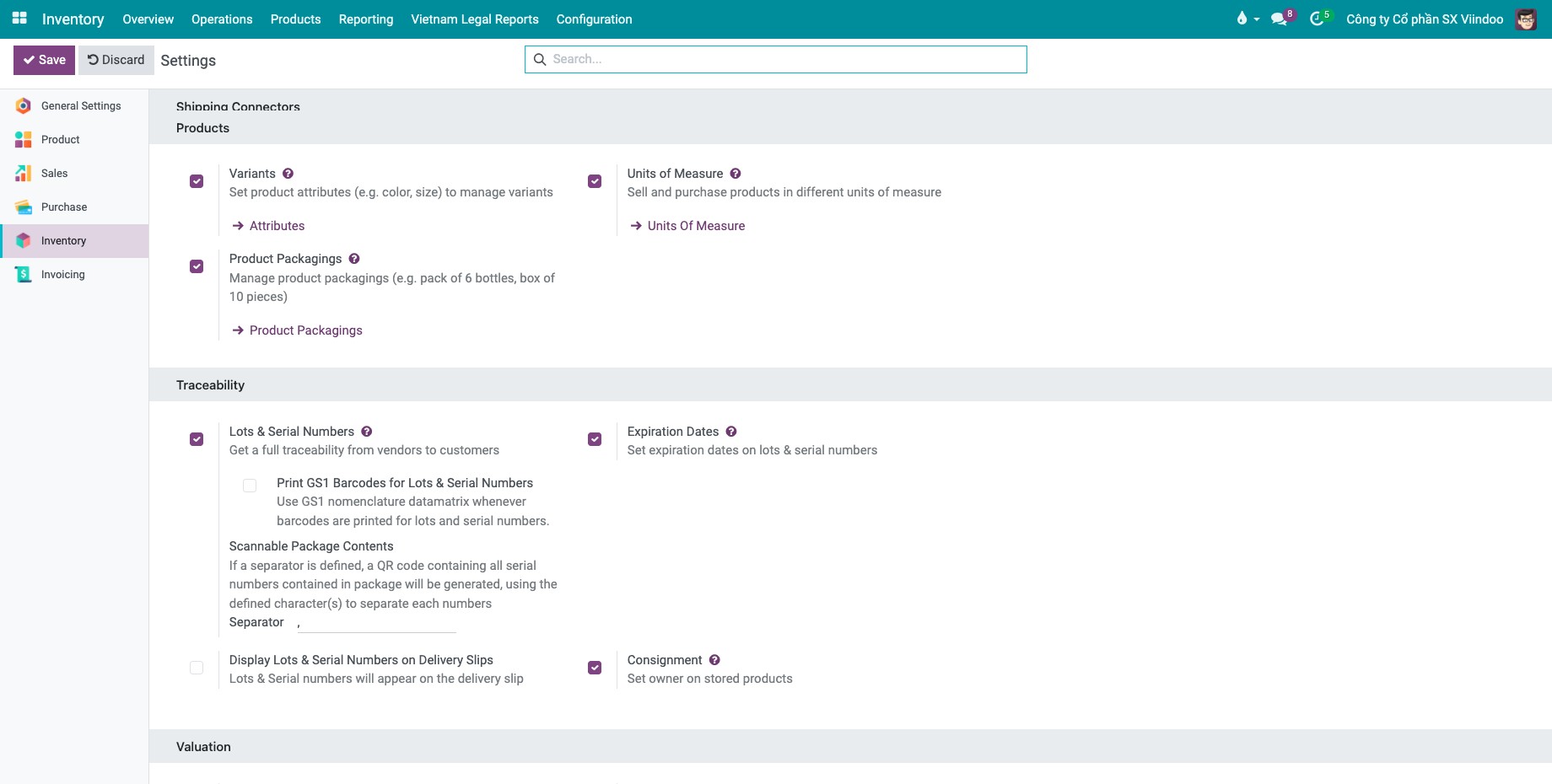
In the Traceability block, tick Expiration Dates, then click Save.
![Lots & Serial Numbers and Expiration Dates ticked in the Traceability block of the settings]()
Optional: tick Display Expiration Dates on Delivery Slips to print the dates on delivery slips. This option appears once Display Lots & Serial Numbers on Delivery Slips is ticked.
How do I set the expiration dates of a product?
Open the product in Inventory ‣ Products ‣ Products and go to the Inventory tab.
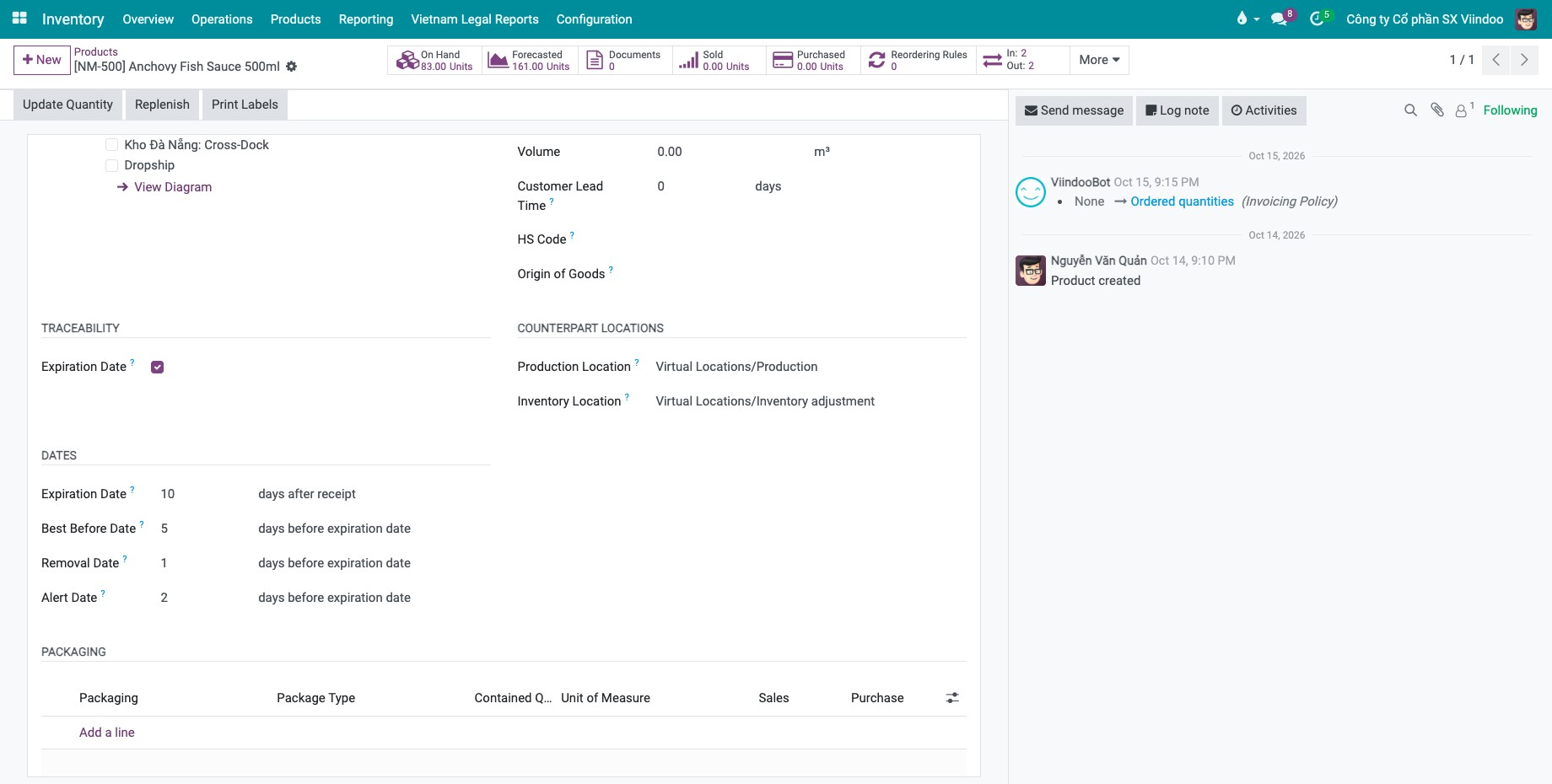
In the Traceability group, tick Expiration Date. The Dates group appears.
Enter the number of days of each date, then click Save.
![Dates group on the Inventory tab of a product with the four date fields in days]()
Field |
Meaning |
If left at 0 |
|---|---|---|
Expiration Date |
Days after receipt (from the vendor, or in stock after production) after which the goods may become dangerous and must not be consumed. |
The lot expires on the day it is received. |
Best Before Date |
Days before the expiration date after which the goods start deteriorating without being dangerous yet. |
The best before date equals the expiration date. |
Removal Date |
Days before the expiration date after which the goods should be removed from the stock. |
The removal date equals the expiration date. |
Alert Date |
Days before the expiration date after which Viindoo raises an alert on the lot. |
The alert comes on the expiration date. |
You set the dates once on the product. For each new lot or serial number, Viindoo computes the dates for you. You can still change the dates of a single lot when its packaging shows another date.
How do I read the dates of a lot?
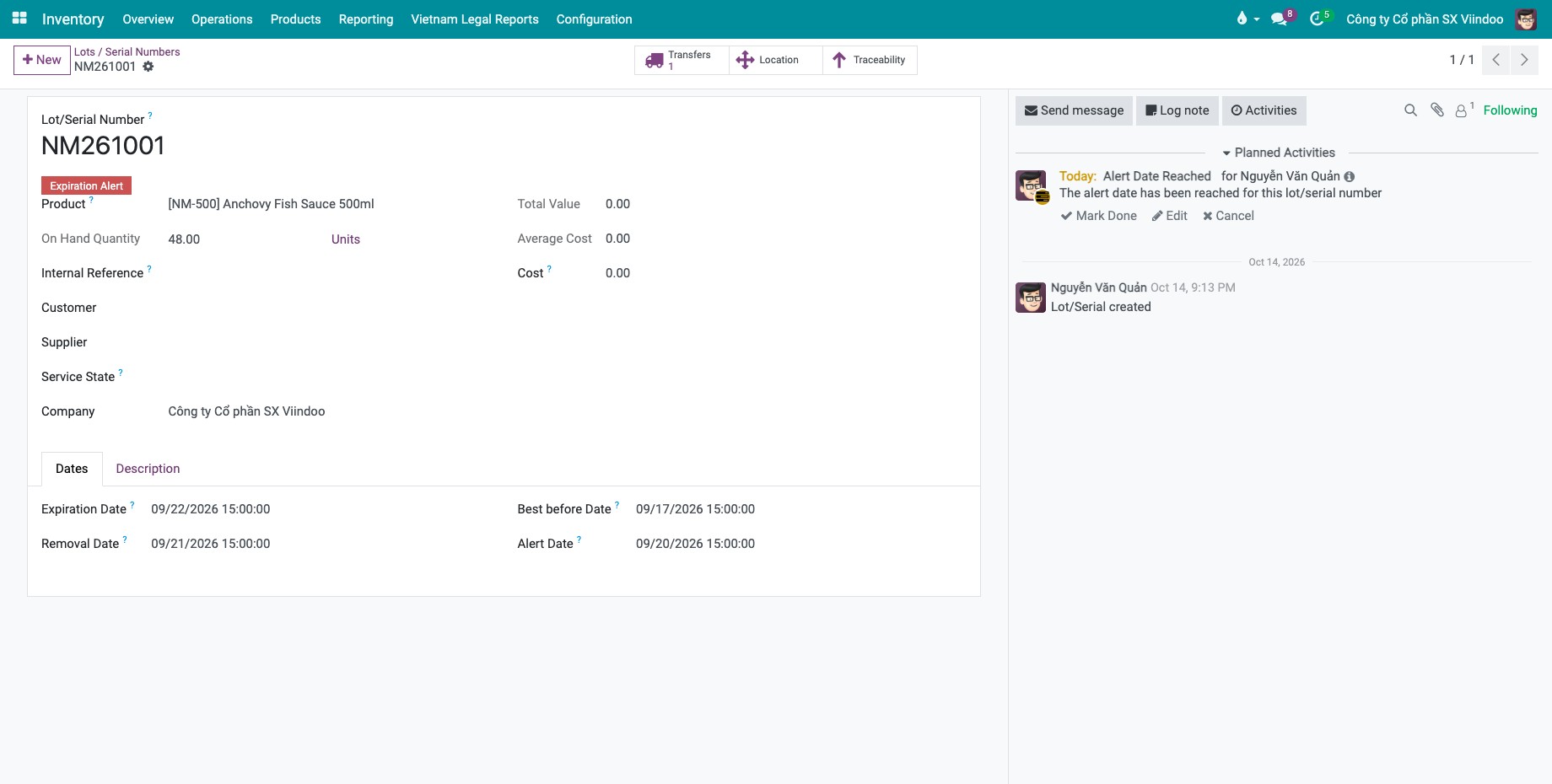
Example: UHT Fresh Milk is received on 12/09/2026 with Expiration Date 10 days, Best Before Date 5, Removal Date 1 and Alert Date 2. Viindoo fills the lot as follows:
Expiration Date: 22/09/2026 (receipt + 10 days)
Best Before Date: 17/09/2026 (22/09 - 5 days)
Removal Date: 21/09/2026 (22/09 - 1 day)
Alert Date: 20/09/2026 (22/09 - 2 days)
Open the lot in Inventory ‣ Products ‣ Lots / Serial Numbers and go to its Dates tab.
How do I find the lots that need attention?
Go to Inventory ‣ Products ‣ Lots / Serial Numbers.
Open the filter menu of the search bar and choose Expiration Alerts.
![Expiration Alerts filter in the Lots / Serial Numbers list]()
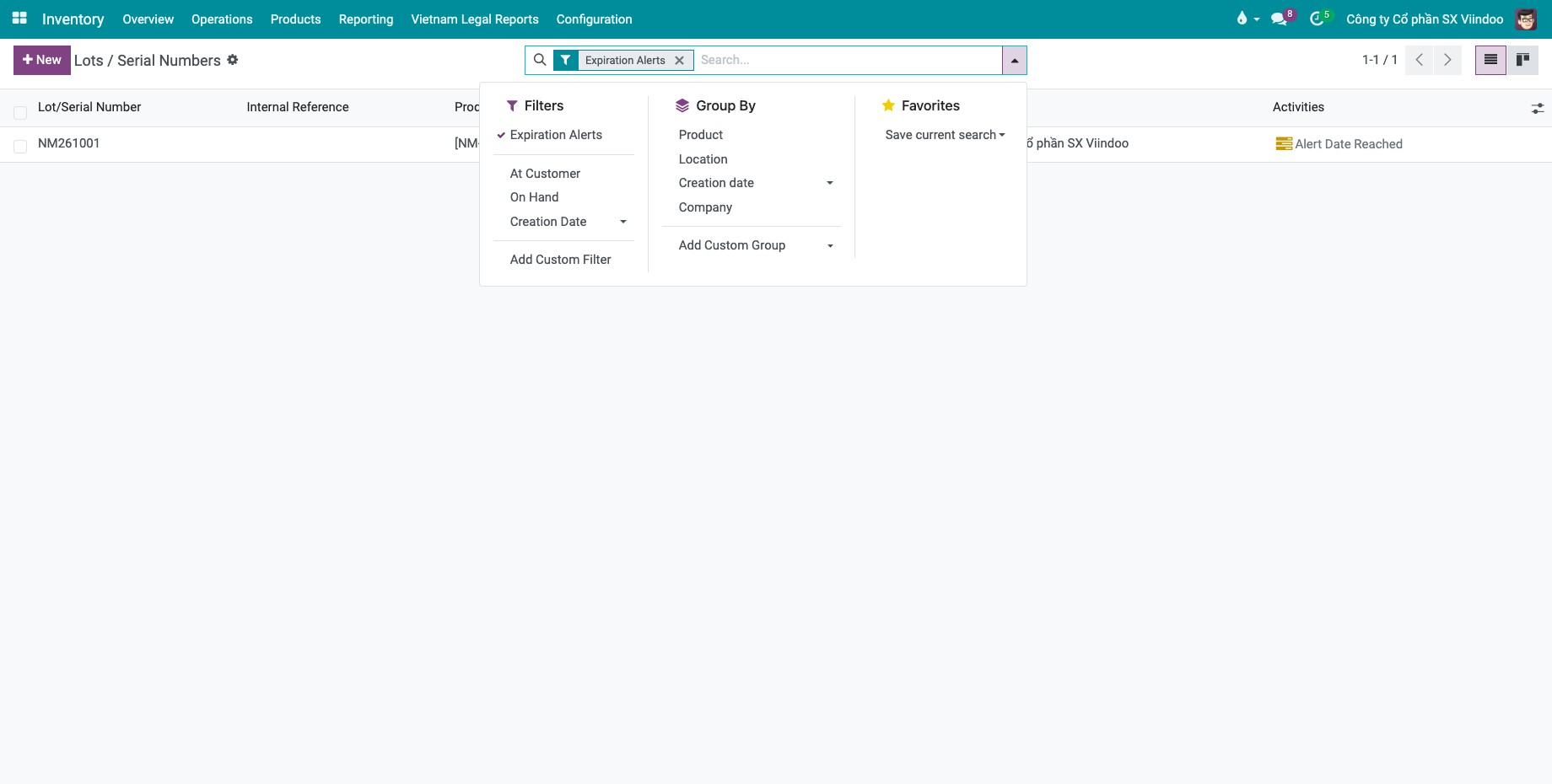
When the Viindoo scheduler runs (Inventory ‣ Operations ‣ Procurement: run scheduler), it also schedules an activity Alert Date Reached on each lot that is still in an internal location once its alert date has passed. The activity goes to the person set in the activity type, otherwise to the Responsible of the product. A lot whose expiration date has passed shows the red badge Expiration Alert.
What happens when I deliver an expired lot?
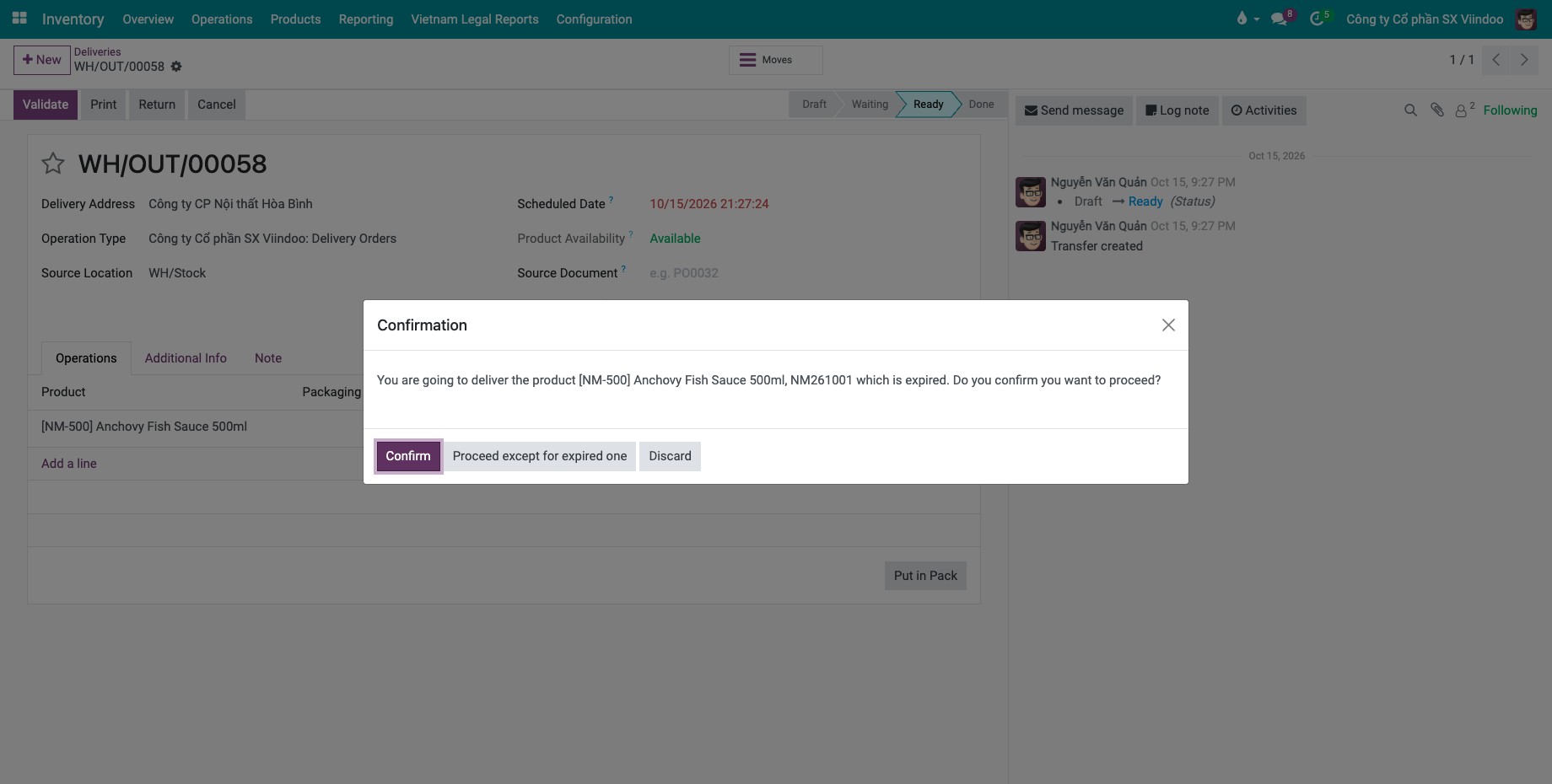
When you click Validate on a transfer that contains an expired lot, Viindoo opens a Confirmation window: You are going to deliver some product expired lots. Do you confirm you want to proceed? (with a single lot, the message names the product and the lot).
Confirm: deliver all lots, expired ones included.
Proceed except for expired one: validate the transfer without the expired lots.
Discard: go back and choose another lot on the delivery line.
Common errors
Problem |
What to do |
|---|---|
The Expiration Date box is missing on the product. |
The product is not tracked. Set Track Inventory to By Lots or By Unique Serial Number first. |
The Dates tab is missing on the lot. |
Expiration Date is not ticked on the product, so the lot has no dates. |
The lot has no alert although its date has passed. |
The activity is created once per lot and only while the lot is in stock in an internal location. |
Next steps
How to search, filter, group and save searches: save the Expiration Alerts filter as a favorite.
Version notes
The four dates are entered in days on the product. Best Before, Removal and Alert are counted back from the expiration date, not from the receipt date.