
How to connect and test devices on an IoT box
Plug a device into the box: it appears under Devices on the box page within seconds (printers within two minutes). Test it there, or from IoT ‣ Devices in Viindoo, then accept the box once in each browser that uses a scale, a scanner or a footswitch.
Who |
The IoT Integrator (IoT Box Creator right). Sending a test print from Viindoo needs that right. |
App |
Before you start
The box is paired with your database: How to connect an IoT box to Viindoo.
How do I connect and test a device on the box page?
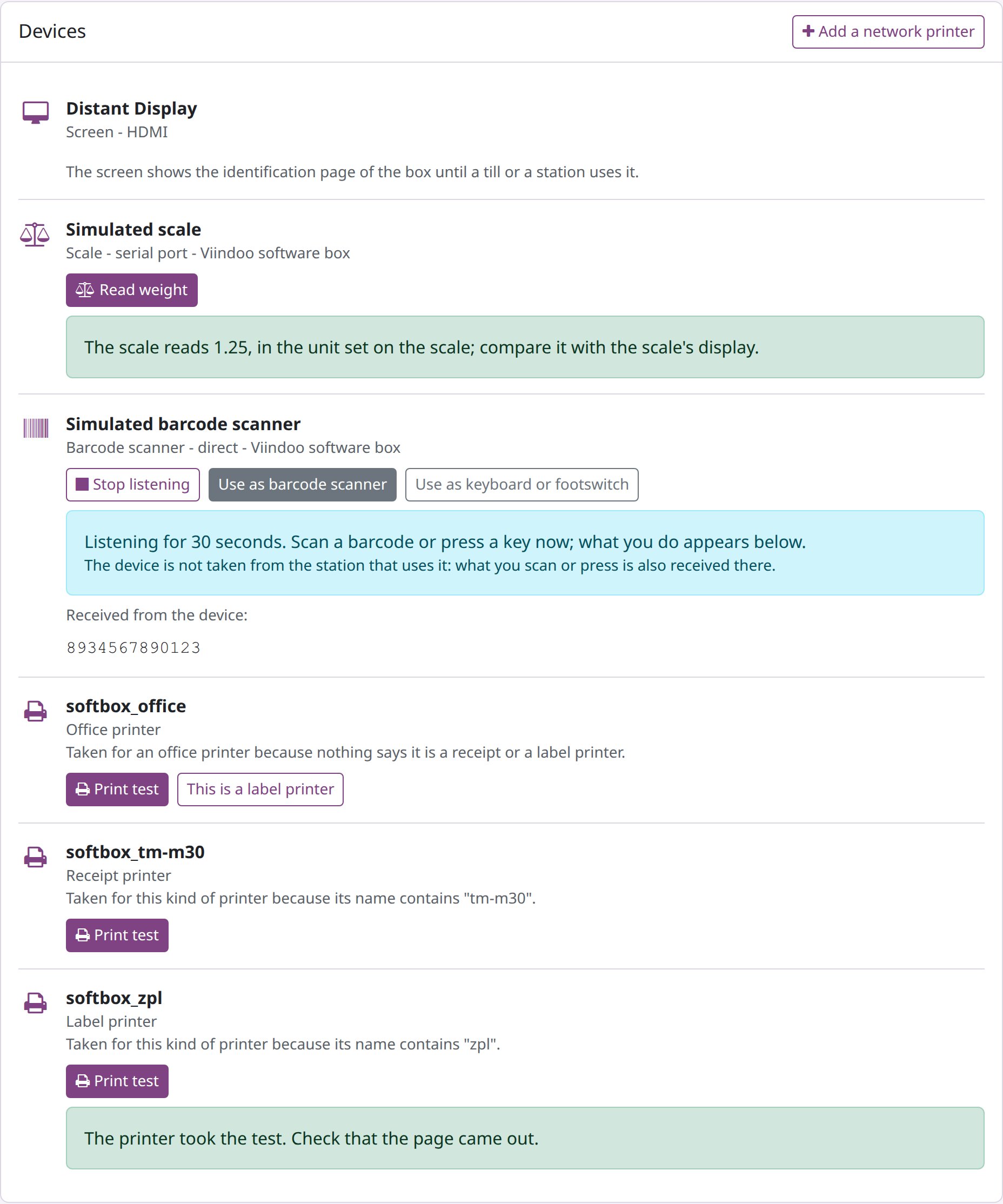
Plug a device into the box: it appears under Devices on the box page within seconds (printers within two minutes). Each device shows its kind, its connection and its test.
Printers
Under each printer the page says why it was taken for that kind (the command language it announces, or its name).
Click Print test. A receipt printer prints the box’s status ticket, a label printer a small label, an office printer the print server’s test page. The page waits up to 30 seconds. When the printer took the job it says “The printer took the test. Check that the page came out.” - look at the printer: only the paper coming out proves the print. If the printer does not take the job in time, the test is cancelled and the page says what to check (power, paper, cable or network). When the box could send the test but not follow it, the page says “The test was sent to the printer, but the box could not follow it, so it cannot tell whether the printer took it.” - look at the printer.
A label printer that does not announce ZPL is taken for an office printer. Click This is a label printer: the box adds a second print queue for it, and within two minutes it also appears as a label printer.
A network printer that does not announce itself: click Add a network printer, type the Address of the printer (with the port if it is not 9100), choose the Kind of printer (Receipt printer, Label printer (ZPL) or Office printer), optionally a Name, and click Add the printer. It appears under Devices within two minutes; then use Print test. If the router gives the printer a new address, add it again with the new address.
Scales
Put a load on the scale and click Read weight. The page shows “The scale reads <value>” with the unit when the scale sends one; otherwise “in the unit set on the scale” - compare it with the scale’s own display. When the scale gives no weight, check its cable and serial settings, and choose on the scale a protocol the box reads (see What you need before you set up an IoT box).
Barcode scanners, keyboards and footswitches
Click Listen: scan or press, then scan a barcode or press the pedal within 30 seconds. What the box receives appears under Received from the device. Listening does not take the device from its till or station: what you scan is also received there.
A scanner whose name does not say it is a scanner is taken for a keyboard and types into fields instead of scanning. Click Use as barcode scanner (or Use as keyboard or footswitch the other way round). The choice is kept across restarts and reported to Viindoo.
Screens
A screen has no test: it shows the box’s identification page until a till or a station uses it.
How do I test a device from Viindoo?
Open IoT ‣ Devices and open the device. The button below the fields depends on the device:
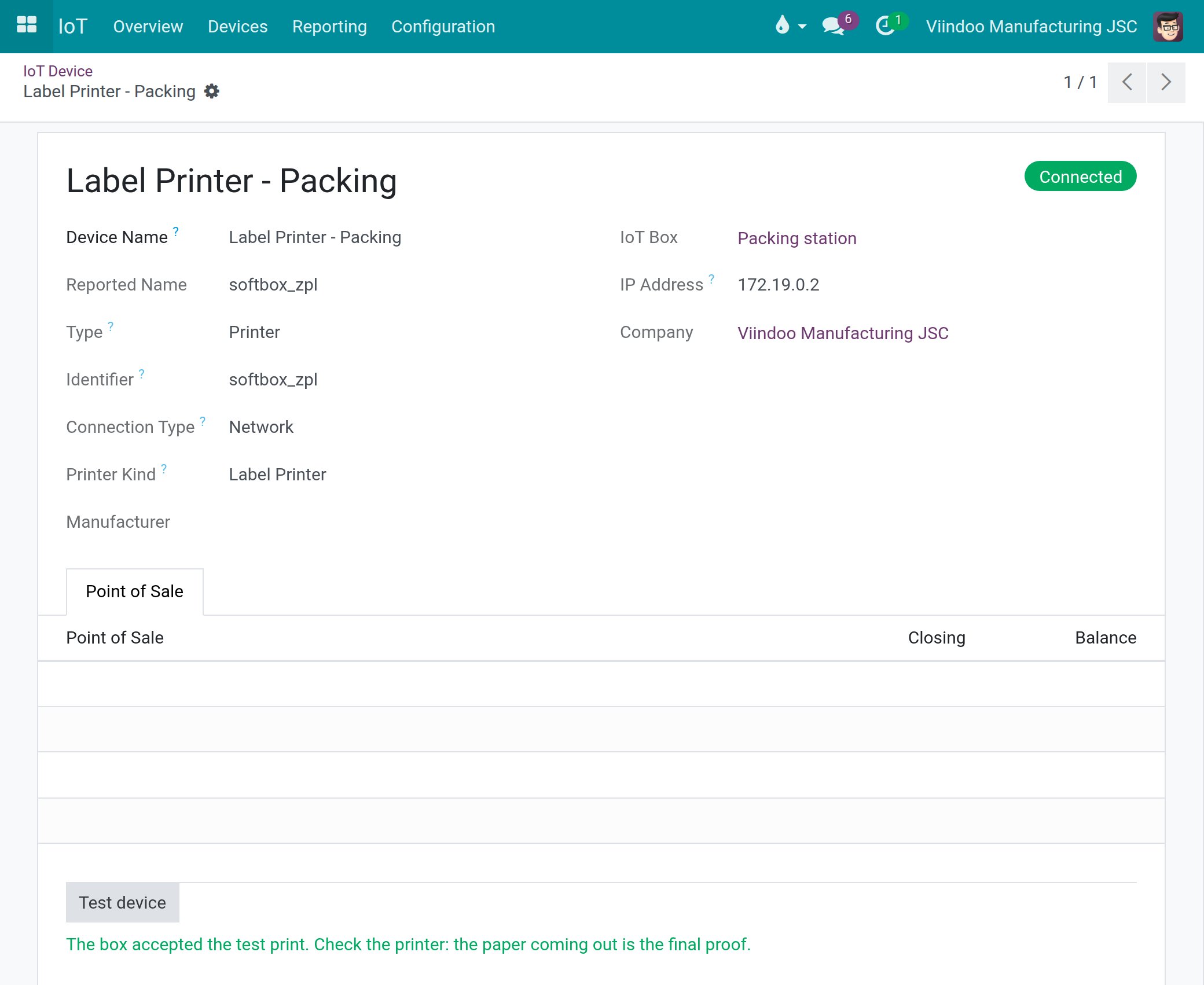
Printer (whose kind the box reported) - Test device sends one test print through the box’s live channel. “The box accepted the test print. Check the printer: the paper coming out is the final proof.” means the box queued the job; the person at the printer still checks that paper came out. The outcome is also noted on the device’s chatter. Sending a test print needs the IoT Box Creator right.
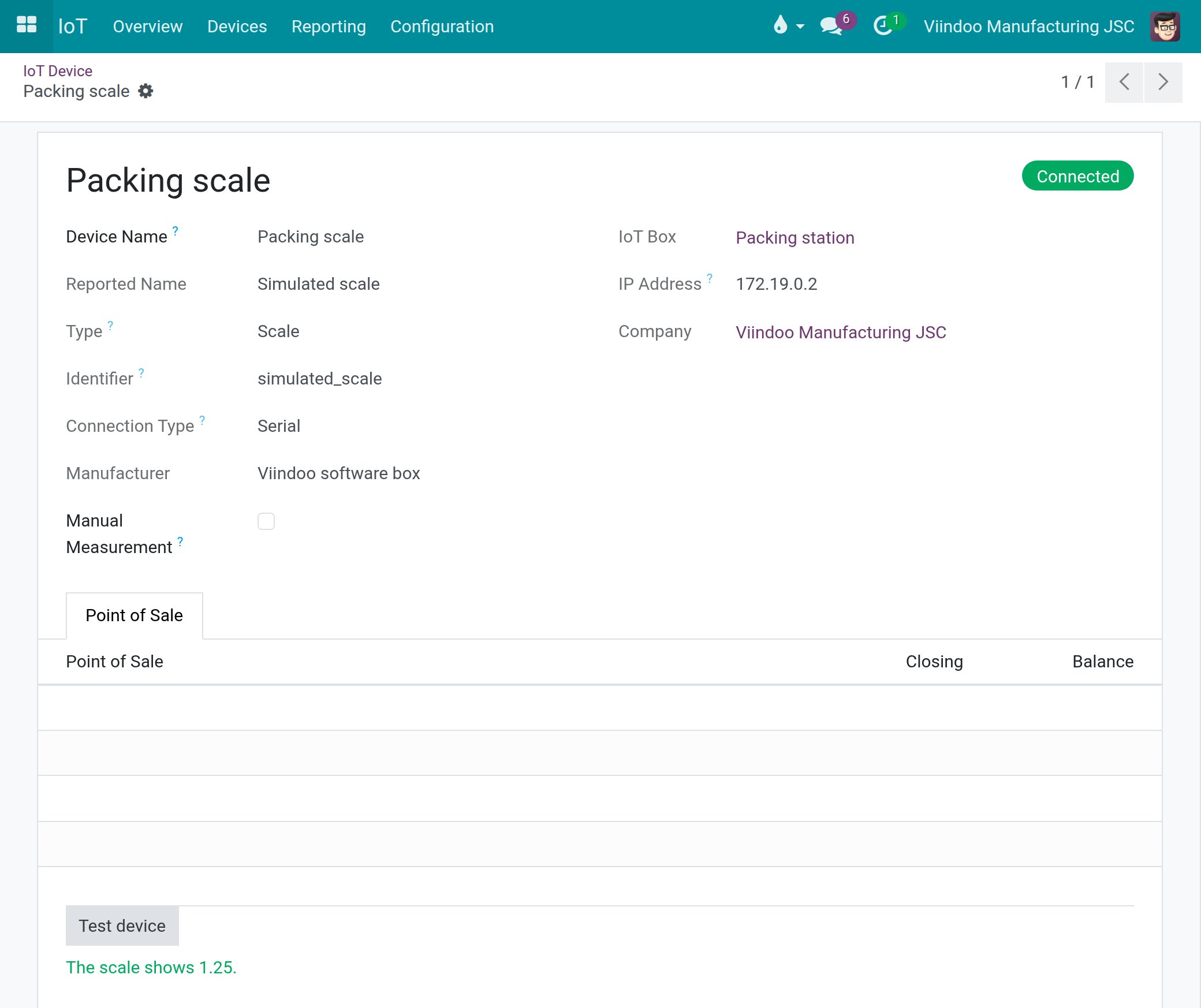
Scale - Test device reads the scale once from this browser and shows “The scale shows <weight>.” An empty pan shows 0. Nothing is recorded.
![Device form of a scale with the reading shown by Test device]()
Barcode scanner, keyboard, footswitch - Listen for 15 seconds: scan or press, and the page shows what arrived. The station that uses the device receives it too. Nothing is recorded.
Screen - there is no test command; look at the screen.
Give each device a Device Name your team recognises (for example Label Printer - Packing); the apps show that name.
How do I make each browser reach the box?
Scales, scanners and footswitches, and the tests from Viindoo, go from each user’s browser to the box. Each PC or tablet therefore has to reach the box once. How depends on your kind of server.
Your server |
How browsers reach the box |
What you do |
|---|---|---|
Viindoo Cloud |
|
Accept the box once on each PC (below), and again after the box gets a new address. |
Your own server reachable from the internet |
|
Accept the box once on each PC, or install your own certificate and name on the box once for all PCs. |
Your own server on a closed network |
Same as the row above |
Same as the row above; your internal authority can sign the box’s certificate. |
Accept the box on a PC
On that PC, open the box in Viindoo and click Check connection from this browser.
“This browser reaches the box.” - this browser is done.
“This browser got no answer from the box and cannot tell why.” - click Open the box page. If the browser warns about the box’s certificate, accept it and come back: this browser is done. If nothing opens, this browser cannot reach the box: check the network.
If the browser asks whether the page may reach devices on your local network, allow it.
A browser accepts the box’s certificate once per box and per address. If the box gets a new address, Viindoo learns it by itself, and each PC accepts the box again.
Use your own certificate and name
On the box page, open Advanced, click Use your own certificate (settings code needed), type
the Name the certificate was issued for (your DNS must point it to the box), paste the
Certificate and its chain (PEM) and the Private key (PEM, not encrypted), then click Install
the certificate. Open the box at https://<that name> to check that the browser shows no warning;
Viindoo is told the new address within moments. Do this only on a network you trust.
Use the box’s own certificate again makes the box serve its own certificate again: browsers warn until each accepts the box. Browsers are still given the name you typed, and the box asks for no Viindoo name while it keeps that name. The box forgets the name when it leaves its server with Disconnect or is reset with the reset file.
The Viindoo name
The box page (Viindoo name line of the self-test, rows of Advanced) and the box form show a Viindoo name. There is nothing to do with it: when the server does not offer one, the line says “This server does not offer a Viindoo name.” and the box keeps working with its own certificate.
How do I assign the devices in each app?
A device does nothing until an app uses it. Each app’s guide explains its screens:
How to use IoT devices in Point of Sale - in Point of Sale ‣ Configuration ‣ Point of Sales, the IoT Box block of each till chooses its box, receipt printer, scanners, customer screen and scale.
How to print kitchen and bar orders through an IoT box - a preparation printer of the kitchen or the bar prints through a printer of the box.
How to use IoT devices in Manufacturing - in Manufacturing ‣ Configuration ‣ Work Centers, the IoT page of each work center lists its devices and chooses its label printer, scale and footswitch.
How to use IoT devices on the Shop Floor - uses the devices of the work center on the Shop Floor screen; the operator needs no IoT right.
How to read quality measurements from an IoT instrument - a Measure control point names its Measuring Instrument, and a quality check of a work order reads the scale of its own work center.
How to read Shop Floor quality steps from an IoT instrument - a Measure step on the Shop Floor screen reads its value from the instrument.
Common errors
Problem |
What to do |
|---|---|
A device is plugged in but not listed. |
Printers take up to two minutes; a scale must answer a protocol the box reads. Wait; check the scale’s serial settings. |
A scanner types into fields instead of scanning. |
Use as barcode scanner. |
A label printer prints a full page or unreadable text. |
This is a label printer. |
A device works on one PC and not on another. |
Check connection from this browser on that PC. |
A device works on the box page but not in the app. |
The box page runs on the box; the app runs in each user’s browser. Click Check connection from this browser on that PC, and check that the device is assigned in the app. |
Every device message, with its cause, is listed in Messages about devices on the box page.
Next steps
Use IoT devices in Viindoo apps: assign the devices in each app.
How to monitor and maintain IoT boxes: watch boxes and devices once they are running.