
How to mark an opportunity as lost and restore it later
When a customer will not buy, open the opportunity, click Lost, choose a Lost Reason (for example Too expensive) and click Mark as Lost. The opportunity leaves the pipeline but is not deleted: you can analyze lost reasons in the reports and click Restore if the customer comes back.
Who |
Salespeople mark records as lost; a Sales Administrator manages the list of lost reasons. |
App |
CRM |
Before you start
Have a lead or opportunity, see How to record a lead or an opportunity.
How do I set up lost reasons?
Most deals are lost for a few recurring reasons: price, timing, a competitor, no decision maker, product not suitable. Listing them lets you see which ones cost you the most.
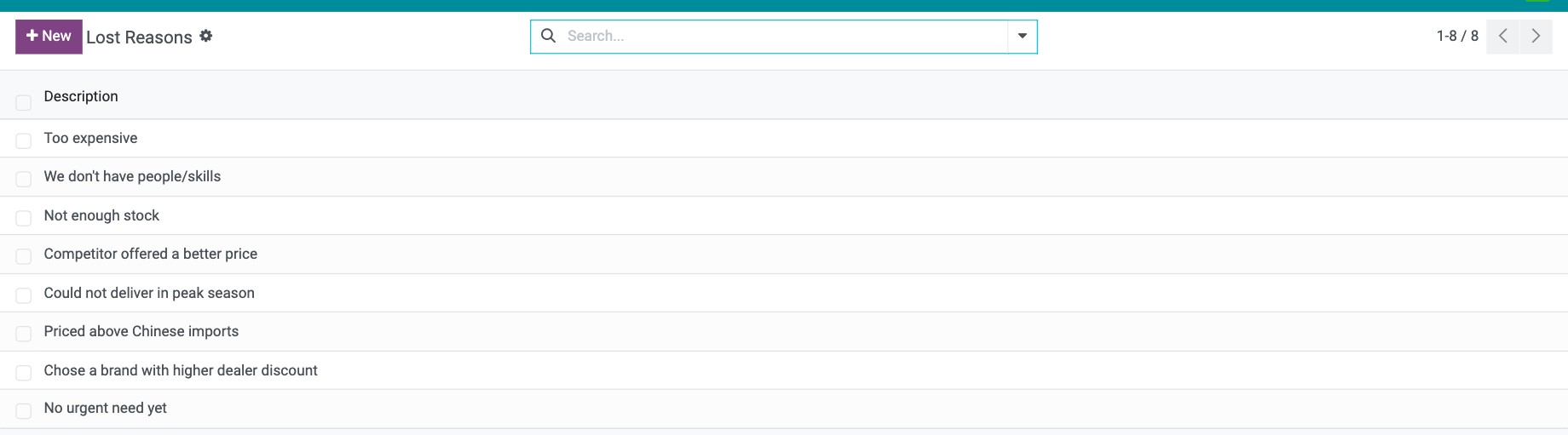
Go to CRM ‣ Configuration ‣ Pipeline ‣ Lost Reasons.
Click New, type the reason, for example Competitor offered a better price, and press Enter. Click an existing reason to rename it.
![List of lost reasons in the CRM configuration]()
How do I mark an opportunity as lost?
Open the lead or opportunity and click Lost.
Choose the Lost Reason and, if useful, write what happened in Closing Note.
![Mark Lost window with Lost Reason and Closing Note]()
Click Mark as Lost.
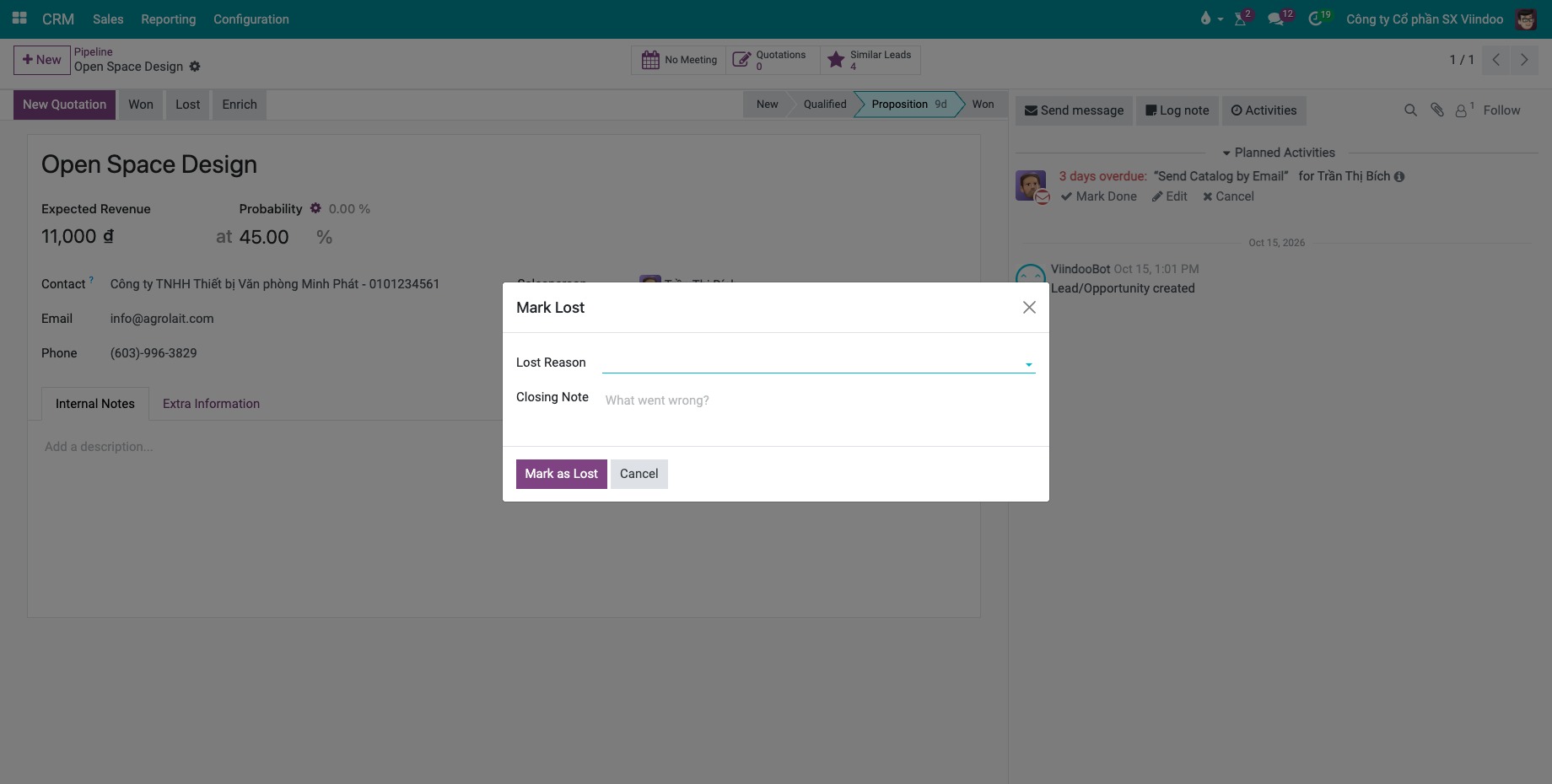
The record gets a red Lost ribbon, its probability becomes 0% and it is archived, so it no longer appears in My Pipeline. The reason and note are logged in the chatter.

How do I find and restore a lost opportunity?
In My Pipeline (or Leads), open Filters and choose Lost.
Open the opportunity and click Restore.
![Restore button on a lost opportunity]()

The opportunity is back in the pipeline, in its last stage. To restore several at once, select them in the list view and click Actions ‣ Unarchive.
To see why you lose deals, open CRM ‣ Reporting ‣ Pipeline, filter on Lost and group by Lost Reason, see How to analyze your leads and opportunities in reports.
Common errors
Problem |
What to do |
|---|---|
A lost opportunity cannot be found in the pipeline. |
It is archived. Use the Lost or Archived filter. |
There is no Restore button. |
The record is archived but not lost (probability above 0). Use Actions ‣ Unarchive. |