
Link repair orders with purchase and manufacturing orders
A part you do not have in stock does not stop the repair. When the part is bought or manufactured on demand, confirming the repair order creates the purchase order or the manufacturing order, and the repair order links to it. A part sold as a kit is split into its components on the order.
Who |
Purchase staff and manufacturing staff who supply the parts, and the staff who run the repairs. |
App |
Repairs, Purchase, Manufacturing |
Before you start
Activate the Repairs app, see How to install and set up Repairs app.
The purchase link is installed automatically with the Repairs and Purchase apps: it is the Purchase Repair bridge of the standard Repairs app. The manufacturing link, Mrp Repairs, is installed automatically when you activate the Manufacturing app.
For a part to generate an order, set its Routes on the product: Buy and a vendor for a purchase, Manufacture and a bill of materials for a manufacturing order, and Replenish on Order (MTO) for both. The Replenish on Order (MTO) route must be active.
To see the Purchase Orders button, the user has a Purchase access right. To see the Manufacturing button, the user has a Manufacturing access right.
How do I order the missing parts?
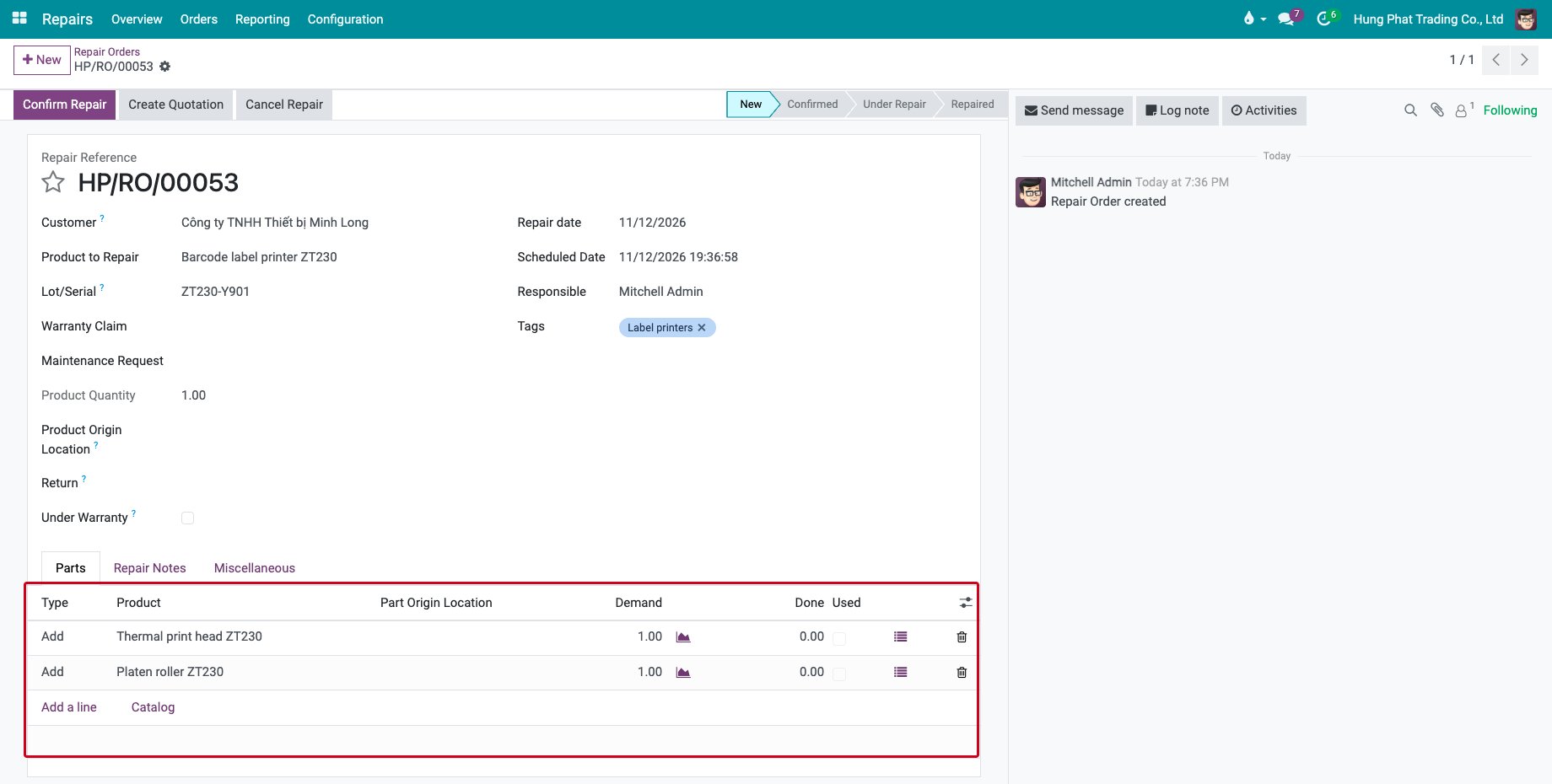
Add the part to the repair order, see Manage parts in repair orders.
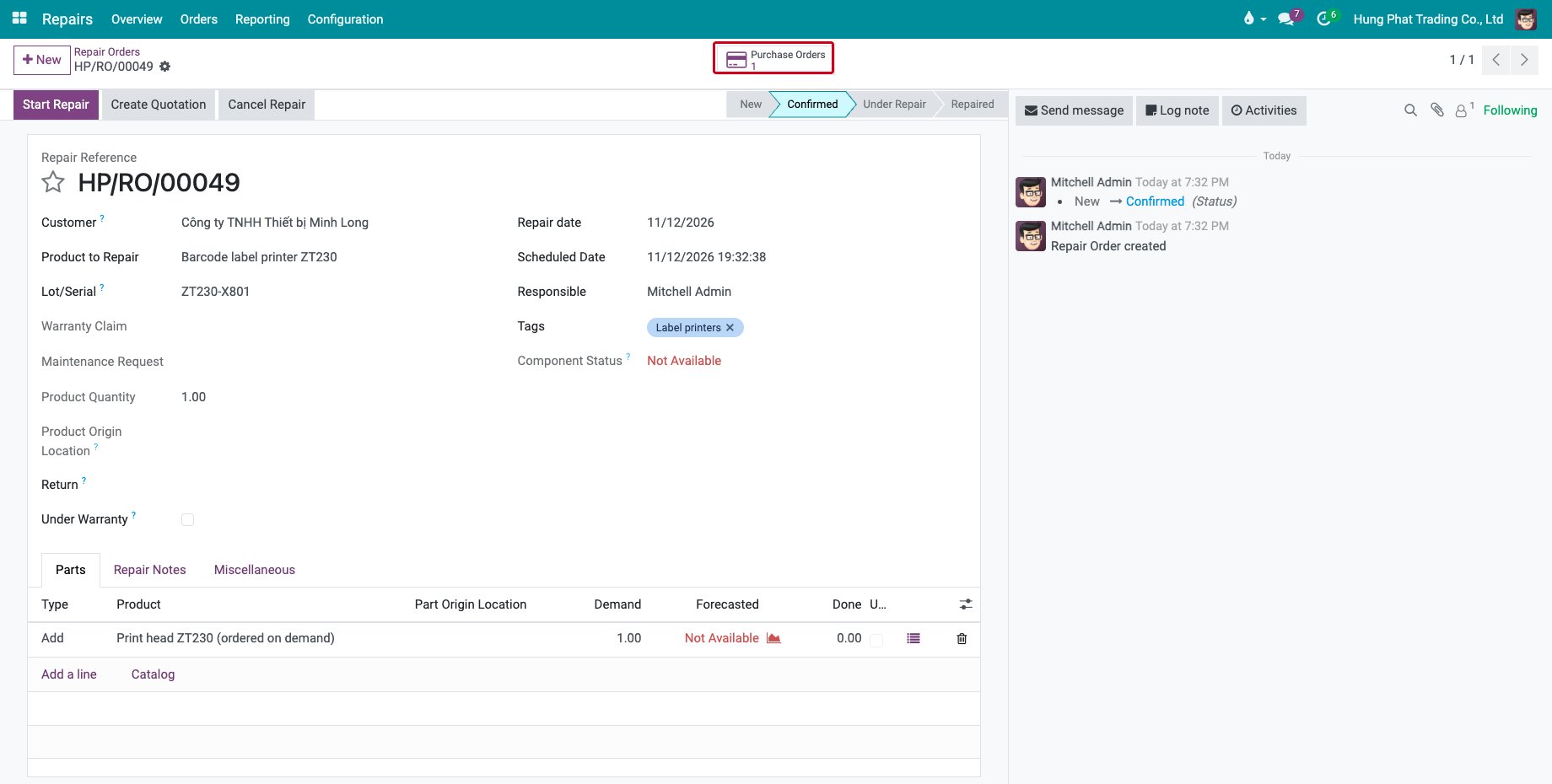
Click Confirm Repair. The purchase order of the part is created as a quotation, with the reference of the repair order as its source. The Component Status of the repair order stays Not Available until the goods are received.
Click the Purchase Orders button of the repair order to open it.
![The Purchase Orders button of a repair order]()
On the purchase order, the Repair Orders button goes back to the repair orders that need it. When several repair orders need the same part from the same vendor, they share one purchase order.
![The Repair Orders button of a purchase order]()
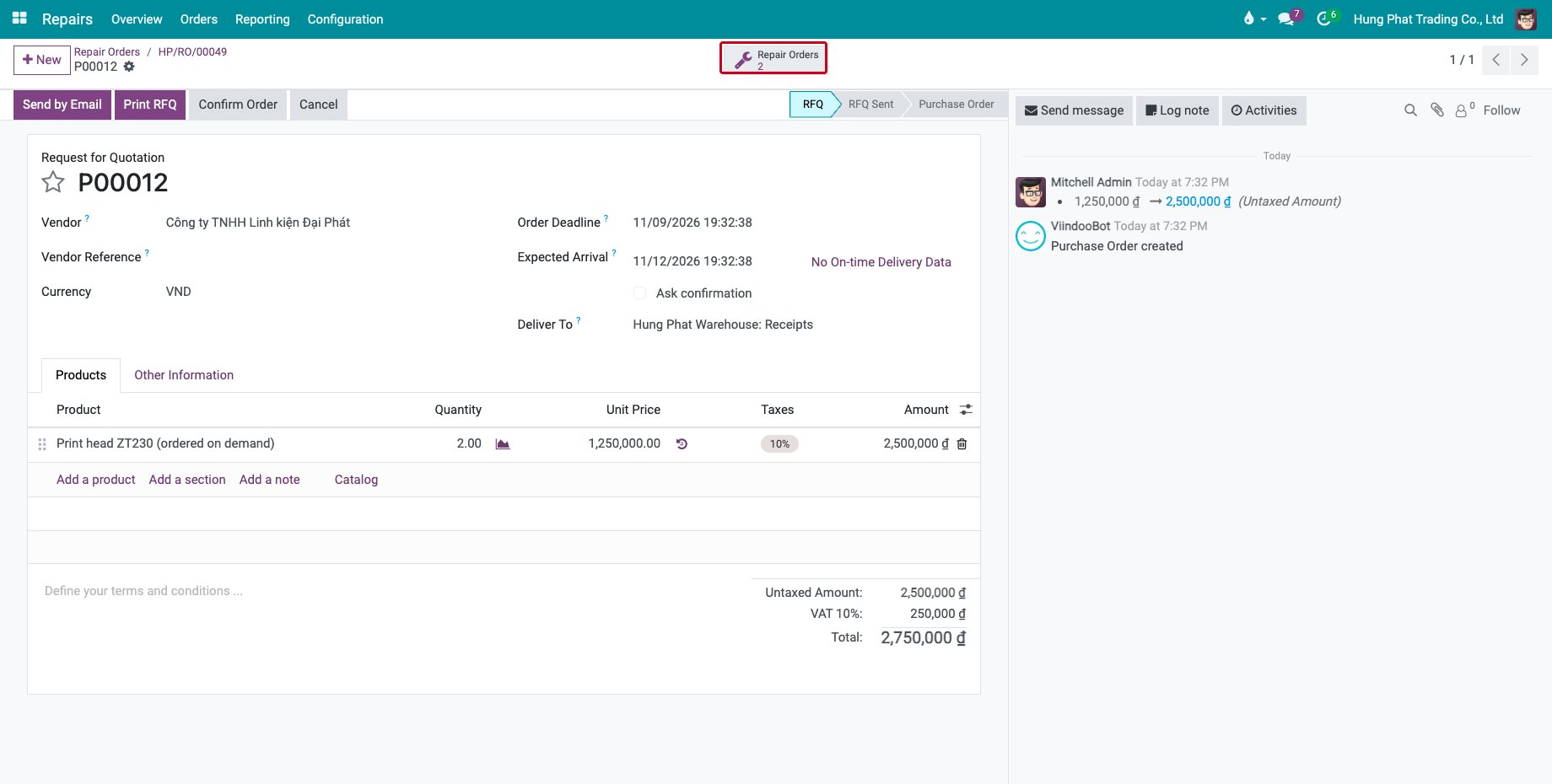
Confirm the purchase order and receive the goods as usual. The part becomes available for the repair order.
How do I manufacture the missing parts?
Activate the Manufacturing app: the link with the repairs is installed automatically.

When you confirm a repair order that has a part with the Manufacture and Replenish on Order (MTO) routes, the manufacturing order of the part is created. The repair order shows the Manufacturing button with the number of orders. Click it to open them.
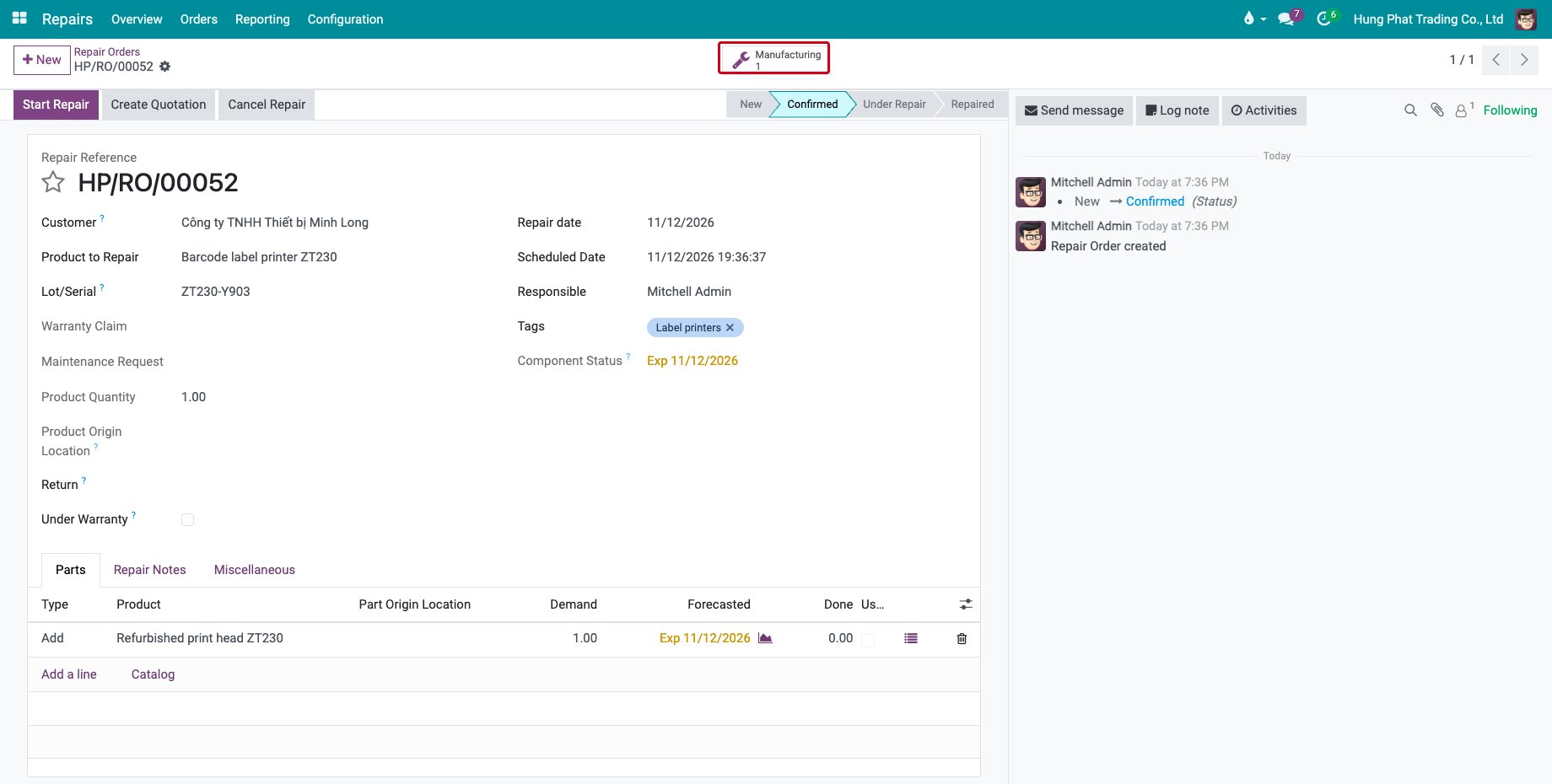
The manufacturing order shows the Repairs button, which goes back to the repair order it serves.
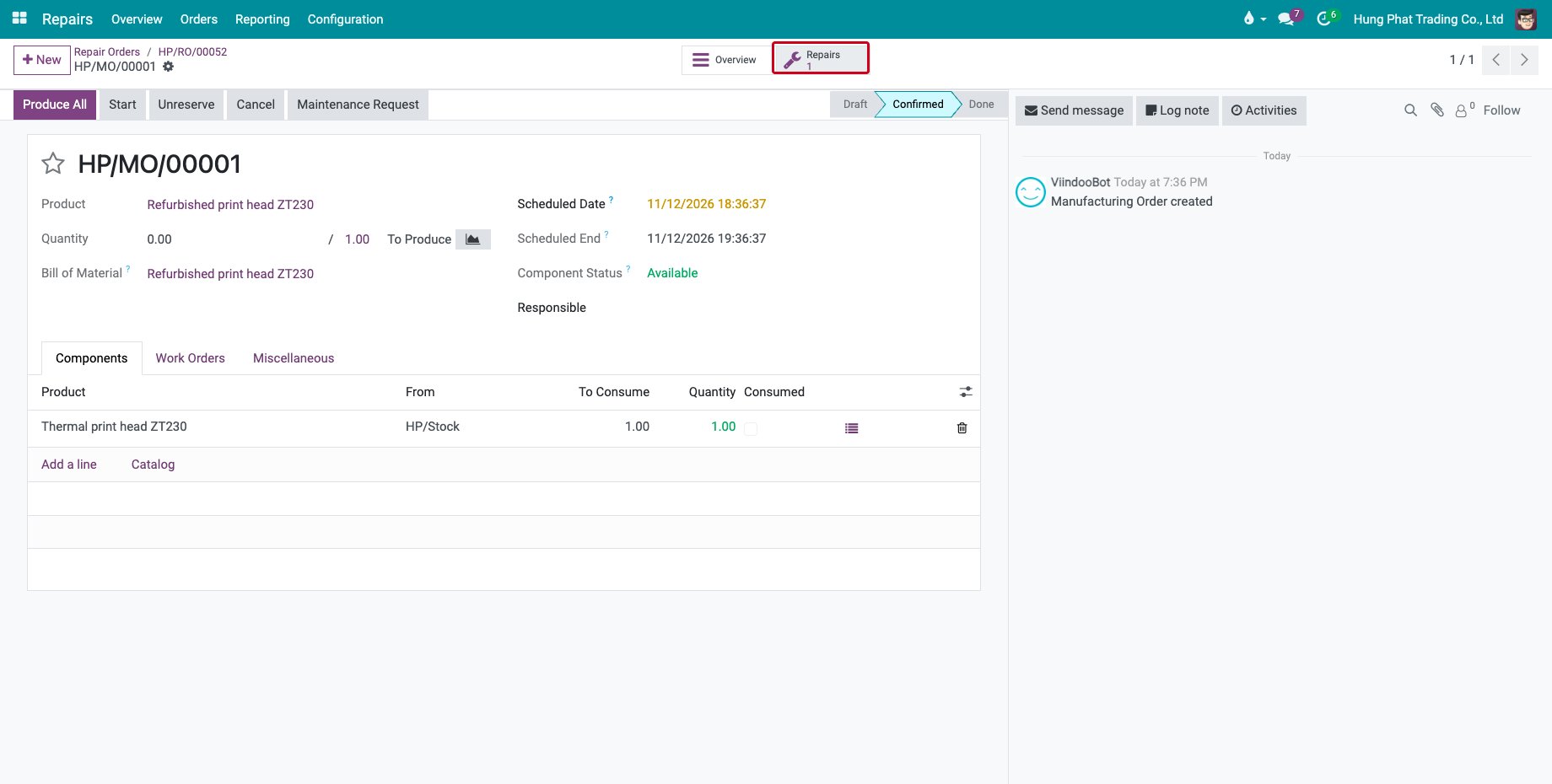
How are kits handled?
When you add a product whose bill of materials is of the type Kit as a part, the repair order replaces its line by the lines of its components, with the same type of part. The technician and the stock moves work on the components.
Common errors
Problem |
What to do |
|---|---|
No purchase order is created when I confirm the repair order. |
The part has no Buy route and vendor, or no Replenish on Order (MTO) route. |
The Purchase Orders or Manufacturing button is missing. |
No order was generated for the repair order, or the user has no Purchase or Manufacturing access right. The Manufacturing button also needs the repair order to be confirmed. |
Next steps
Supply parts for repair orders: bring the parts to the repair location.
Manage parts in repair orders: the parts of the order.