
How to let users sign in with Google
To let people log in to Viindoo with their Google account, create an OAuth client ID in Google Cloud, then go to Settings ‣ General Settings ‣ Integrations, turn on OAuth Authentication, save, tick Google Authentication, paste the Client ID and save again. A Log in with Google button then appears on the login, sign-up and reset-password pages.
Who |
An administrator with access to Settings. A Google account is needed to create the client ID. |
App |
Settings (General Settings). The button appears on the Viindoo login page. |
Before you start
Know the web address people use to open Viindoo, for example
https://mycompany.viindoo.cloud. Google only accepts redirect addresses that start withhttps://(http://localhostis the only exception).Decide who may sign in with Google: see Who can sign in with Google?.
How do I create the Client ID in Google?
This part is done on Google’s website, not in Viindoo. Google changes its screens from time to time, so the names below may look slightly different.
Open the Google Cloud console and create a project, or choose an existing one.
Open Google Auth Platform. In Branding, enter the application name and a support email. In Audience, choose External if your users have ordinary Google accounts, or Internal if they all belong to your Google Workspace.
In Google Auth Platform ‣ Clients, click CREATE CLIENT and choose the application type Web application.
Under Authorized redirect URIs, add the address of your Viindoo followed by
/auth_oauth/signin, for examplehttps://mycompany.viindoo.cloud/auth_oauth/signin. The address must be exactly the one users type in the browser.Click CREATE and copy the Client ID. It ends with
.apps.googleusercontent.com. Viindoo does not ask for the client secret.
See Google’s own guide, Manage OAuth clients, if a screen differs from the names above.
How do I turn on Google sign-in in Viindoo?
Go to Settings ‣ General Settings and find OAuth Authentication in the Integrations section. Tick it and click Save. Viindoo prepares the feature and reloads the page.
![OAuth Authentication option ticked in the Integrations section of Viindoo General Settings]()
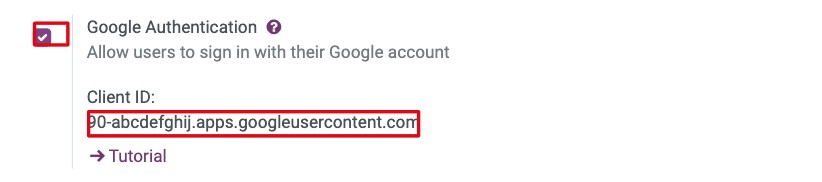
Open General Settings again. A new Google Authentication option (Allow users to sign in with their Google account) now appears below it. Tick it, then paste the Google Client ID in the field that appears and click Save.
![Google Authentication option ticked with the Client ID field filled in Viindoo General Settings]()
Check the result: open the login page in a private browser window.
![Viindoo login page with the Log in with Google button under the Log in button]()

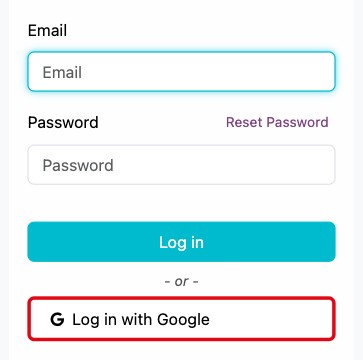
You should now see Log in with Google below the Log in button. Click it, choose a Google account and Viindoo opens with that account.
Which fields matter?
Field |
What it does |
If left empty or wrong |
|---|---|---|
OAuth Authentication |
Turns on sign-in with external accounts and shows the Google Authentication option. |
The Google option is not available. |
Google Authentication |
Shows or hides the Log in with Google button on the login, sign-up and reset-password pages. |
Unticked: the button disappears and nobody can sign in with Google. |
Client ID |
Tells Google which application is asking people to sign in. |
Google shows an error page after the user clicks the button, so nobody can sign in with Google. Copy the value again from Google Cloud. |
Who can sign in with Google?
Viindoo recognises a Google account by the identity Google returns, not by the email address alone. The first sign-in therefore depends on whether the person already has a user in Viindoo.
Situation |
What happens |
|---|---|
A person with no user in Viindoo, and Customer Account is set to Free sign up |
Viindoo creates a portal user from the Google name and email, and signs the person in. The Customer Account option is in General Settings ‣ Permissions. |
A person with no user in Viindoo, and Customer Account is set to On invitation |
Sign-in is refused with You do not have access to this database or your invitation has expired. Please ask for an invitation and be sure to follow the link in your invitation email. |
A person who already has a user (for example an employee) |
The first time, the person must open the link in the invitation email (or in the password-reset email) and click Log in with Google on that page. Viindoo then links the Google account to the existing user. From then on the button on the normal login page works. Signing in with Google straight from the login page, before this link exists, is refused with the message above. |
Google sign-in never makes someone an employee: internal users are always created or invited by an administrator. To see which Google account is linked to a user, open the user and look at the Oauth tab (OAuth Provider and OAuth User ID).
Common errors
Message or symptom |
What to do |
|---|---|
Google shows redirect_uri_mismatch after clicking the button |
The redirect address in Google Cloud is not exactly |
You do not have access to this database or your invitation has expired… |
The person has no user and sign-up is On invitation, or already has a user that is not yet linked. Invite the person, or send the invitation link again, and ask them to click Log in with Google from that link. |
Access Denied |
Viindoo could not confirm the Google account, for example because the sign-in token was rejected or the Viindoo server could not reach Google. Try again; if it keeps happening, ask your system administrator to check the internet access of the server. |
The button is missing from the login page |
Check that Google Authentication is ticked and saved, then reload the page. |
Next steps
How to create and manage user accounts: create and invite the users who will sign in.
How to install, upgrade and uninstall apps and modules: install the other apps your users need.