
Manage parts in repair orders
Each line of the Parts tab of a repair order is a part you add, remove or recycle. When the repair ends, Viindoo books the stock move of every part, so your stock follows the work of the technician.
Who |
Technicians and warehouse staff who prepare and record the parts of a repair. |
App |
Repairs, Inventory |
Before you start
Activate the Repairs app and create a repair order, see Create repair order.
The parts are storable products with stock in the Component Source Location.
To track the serial number of a part, tick Lots & Serial Numbers in the Inventory settings.
What are the three types of part?
Type |
Use it when |
Where the part goes |
|---|---|---|
Add |
You fit a part on the product, for example a new print head. |
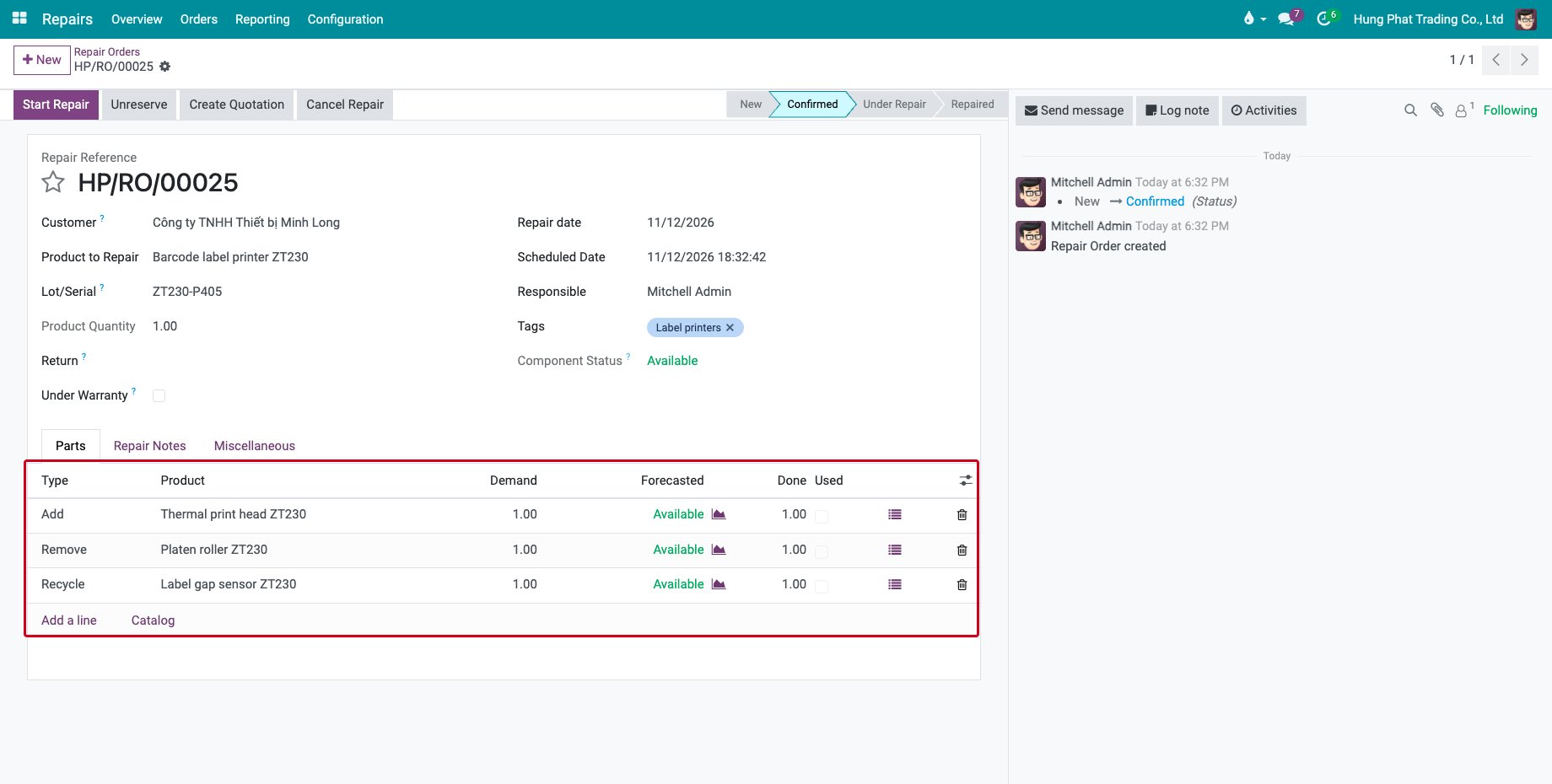
From the Component Source Location to the Component Destination Location: the part leaves your stock and is recorded as consumed. |
Remove |
You take a part off the product and do not keep it, for example a worn roller. |
From the Component Destination Location to the Remove Destination Location, the scrap location by default. |
Recycle |
You take a part off the product and keep it, for example a sensor you can reuse. |
From the Component Destination Location to the Recycle Destination Location, the stock of the warehouse by default. |
These locations belong to the operation type of the order, see Repair overview and operation types.
How do I add the parts to an order?
Open the repair order and go to the Parts tab.
Click Add a line, choose the Type, the Product and the Demand.
Repeat for each part, then click Save.
![A confirmed repair order with a part to add, a part to remove and a part to recycle]()
To pick several parts in one go, click Catalog under the lines. The product catalog opens with the products of your search. Click Add on a part, change its quantity with - and +, and click Remove to take it off the order. Click Back to Repair to return to the order.
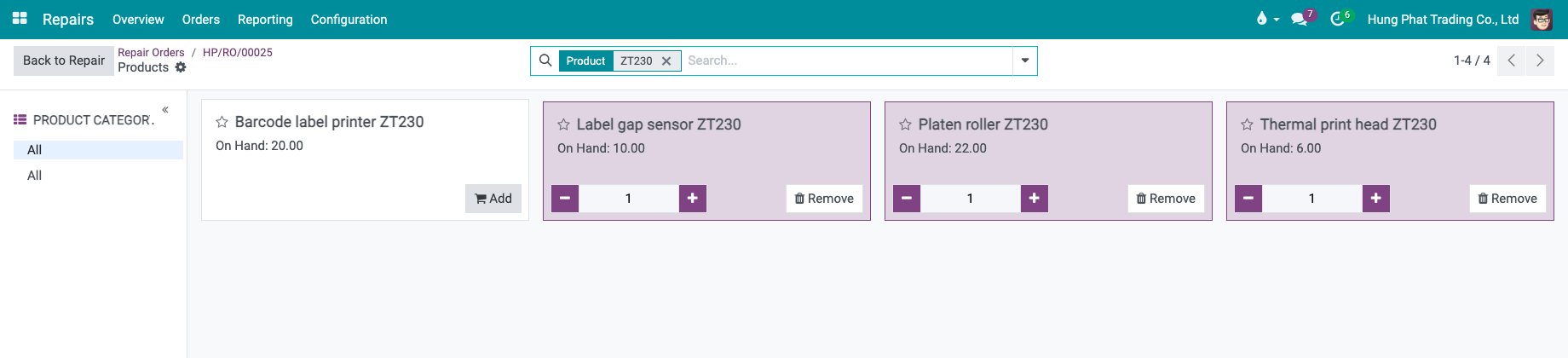
The filter In the Repair Order of the catalog lists only the parts already on the order.
How do I know that the parts are available?
Click Confirm Repair: the parts are reserved from the Component Source Location and the order shows its availability.
Component Status at the top of the order is green and reads Available when every part is reserved, in red Not Available when a quantity is missing.
In the Parts tab, the Forecasted column shows the same for each line, and Done shows the quantity reserved so far.
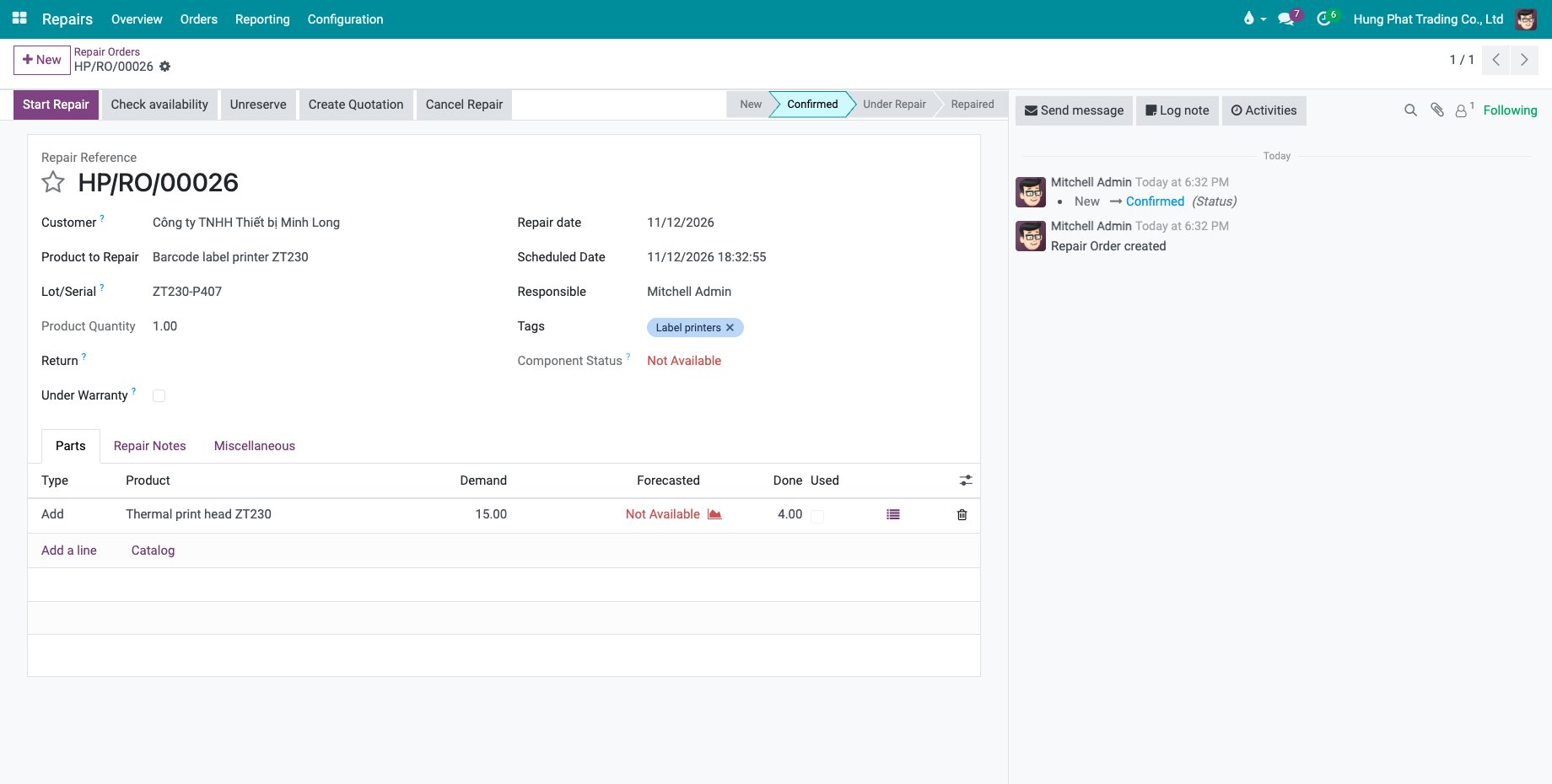
When a part is missing, Viindoo does not stop you from starting the repair. Supply the part and click Check availability to reserve it again, or click Unreserve to release the parts reserved. The To Repair count of the Repairs overview only counts orders whose parts are all available.
If it is the product to repair that is missing from its location, a dialog warns you when you click Confirm Repair, see Repairing at an internal location.
What happens to the parts when the repair ends?
Tick Used on the lines the technician used, then click End Repair. If you tick none, all the lines are used. A line whose Done quantity is zero is cancelled, and Viindoo asks you to confirm when a Done quantity is below the Demand.
Click Product Moves on the repaired order. The list shows the move of every part and the move of the repaired product.
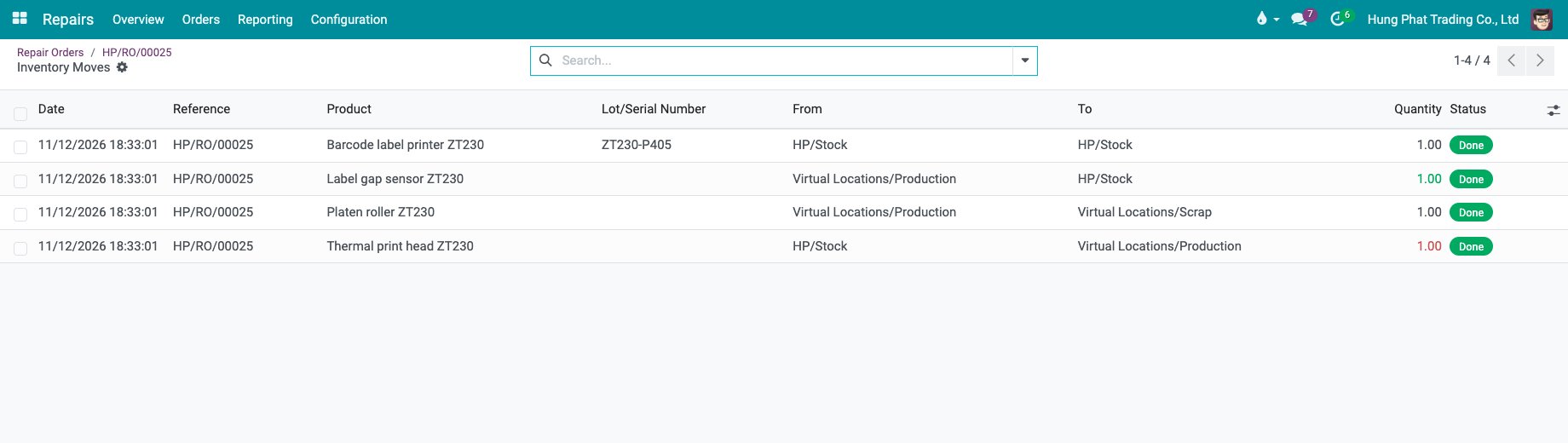
In this example, the part to add goes from the stock to Virtual Locations/Production, the part to remove from Virtual Locations/Production to Virtual Locations/Scrap, and the part to recycle from Virtual Locations/Production back to the stock.
Common errors
Problem |
What to do |
|---|---|
Component Status is red. |
A part is not available in the Component Source Location. Receive or transfer the part, then click Check availability. |
The line of a part disappeared after End Repair. |
Its Done quantity was zero, so the line was cancelled. Tick Used and set the quantity before ending the repair. |
The Product of a line cannot be changed. |
The order is no longer New. Add a new line for the other part. |
“You can not enter negative quantities.” |
Enter a Demand above zero. |
Next steps
Repairing at an internal location: run a repair from start to end.
Quote and invoice repair orders: charge the parts you add to the customer.
See also
Related articles